• Skip to primary navigation
  • Skip to main content
software stack logo

Software Stack

Get your Software Stack together

  • Knowledgebase
    • All Categories
    • Accounting Software
    • Automation & Workflow Software
    • Customer Relationship Management
    • E-Commerce Shopfronts & Payments
    • Marketing Automation
    • Online Courses & Membership
    • Project Management
    • Surveys & Forms
    • Web Hosting
  • Home
  • About Us
  • Contact Us
  • Show Search
Hide Search

Smartsuite

What’s New in SmartSuite: July 2024

Software Stack Editor · July 1, 2024 ·

At SmartSuite, we are dedicated to innovation that better equips and empowers our customers. Read on to see all the powerful features our product and engineering teams have been diligently working on as well as the upcoming events we have in store!
‍
View Full Release Notes

Product Updates

Two Factor Authentication & IP Address Restrictions
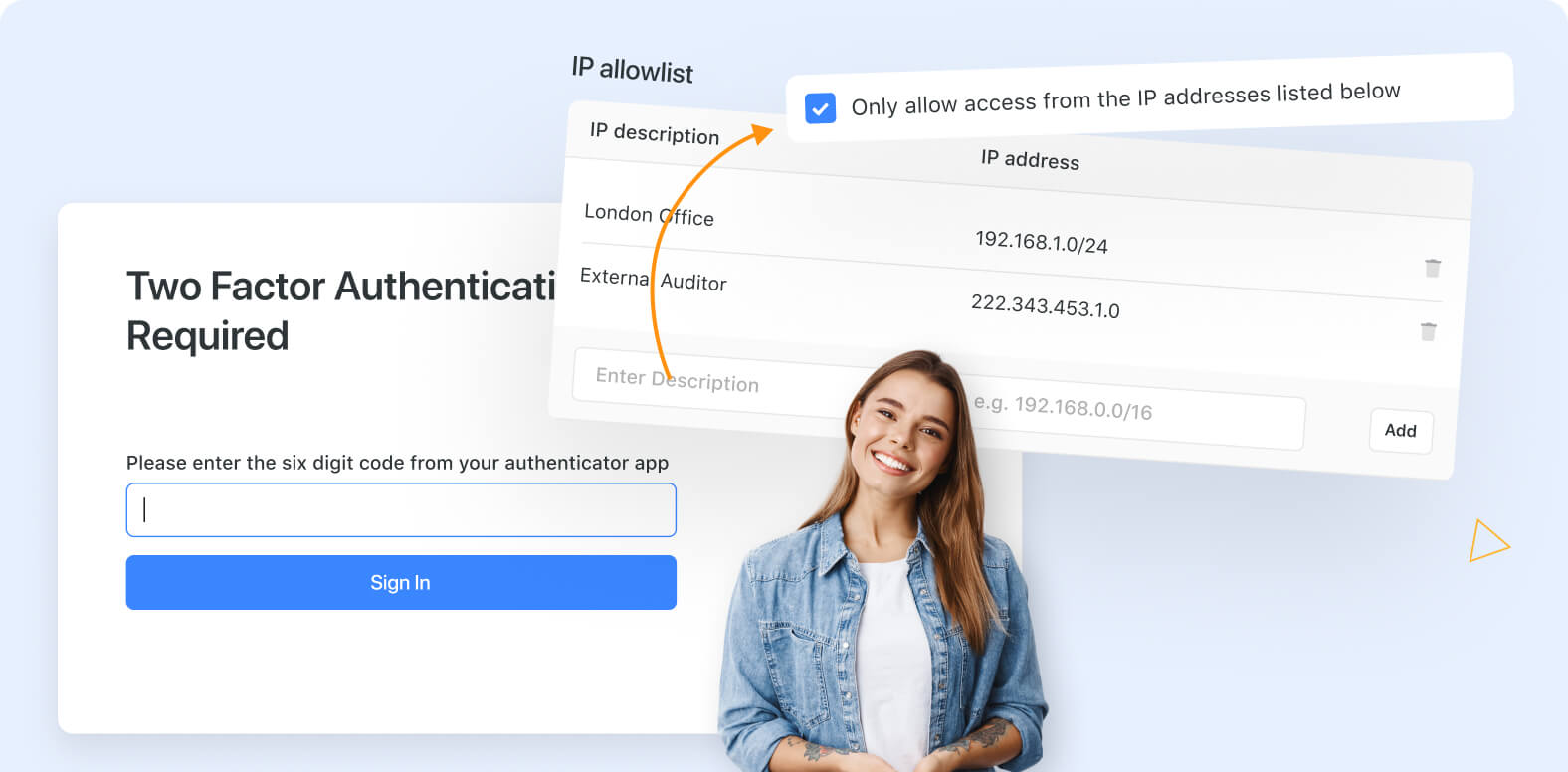
Administrators of Professional and higher SmartSuite plans now have the option to require users to use two-factor authentication when logging in with a username and password.

See feature video
Learn more

SmartSuite now offers an advanced security feature: IP Address Restrictions for your Workspace. With this powerful tool, you can define a whitelist of trusted IP addresses or IP ranges. Only users connecting from these authorized addresses will be granted access to your workspace.

See feature video
Learn more‍
‍

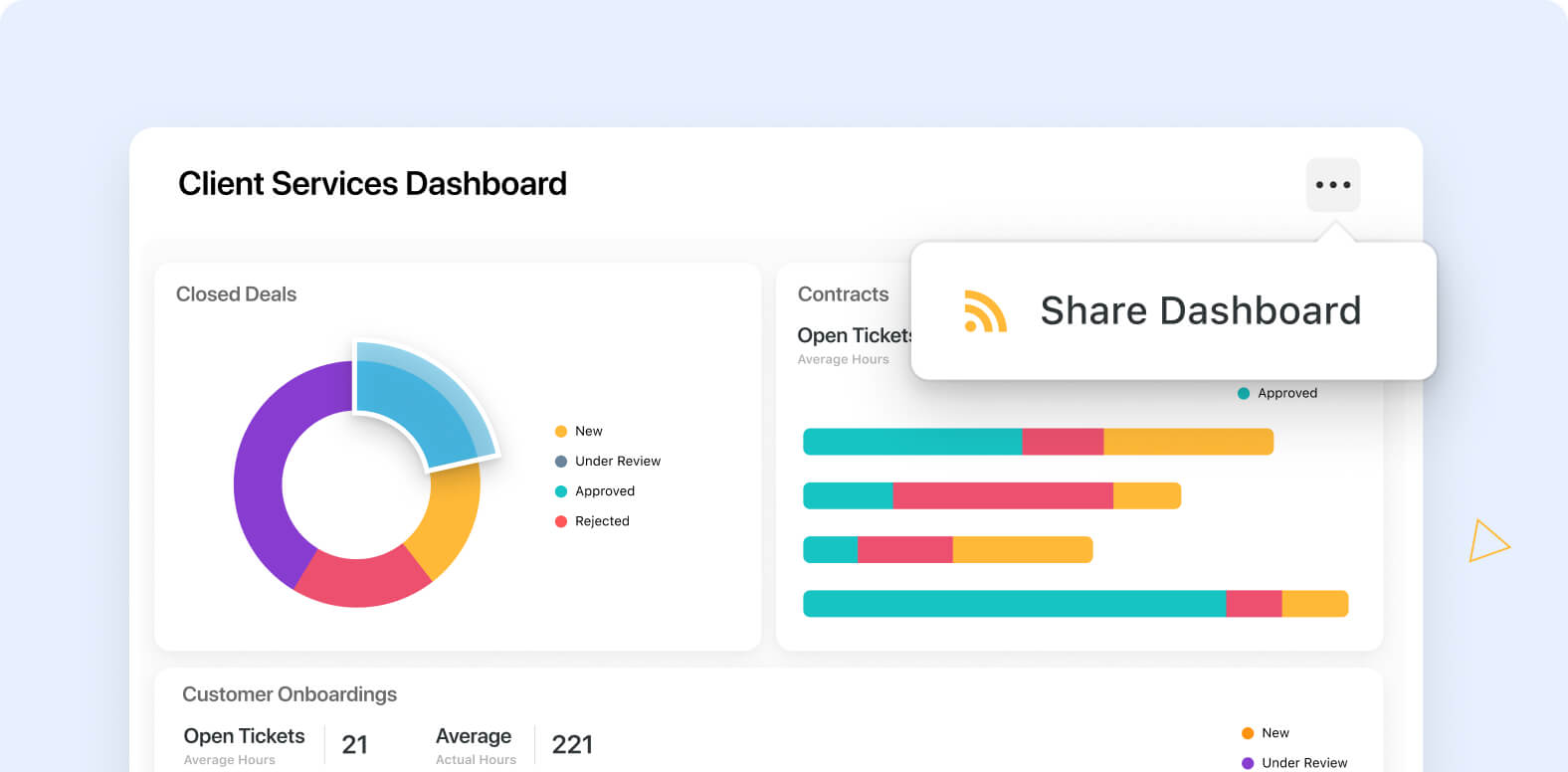
Shared Dashboards

Public Dashboard Sharing allows you to share read-only versions of your dynamic dashboards with a wider audience. Provide real-time data to stakeholders, clients, or team members who are not part of your SmartSuite account.

See feature video
Learn more
‍

Communication Center: Support Gmail & Outlook for Email Send/Receive
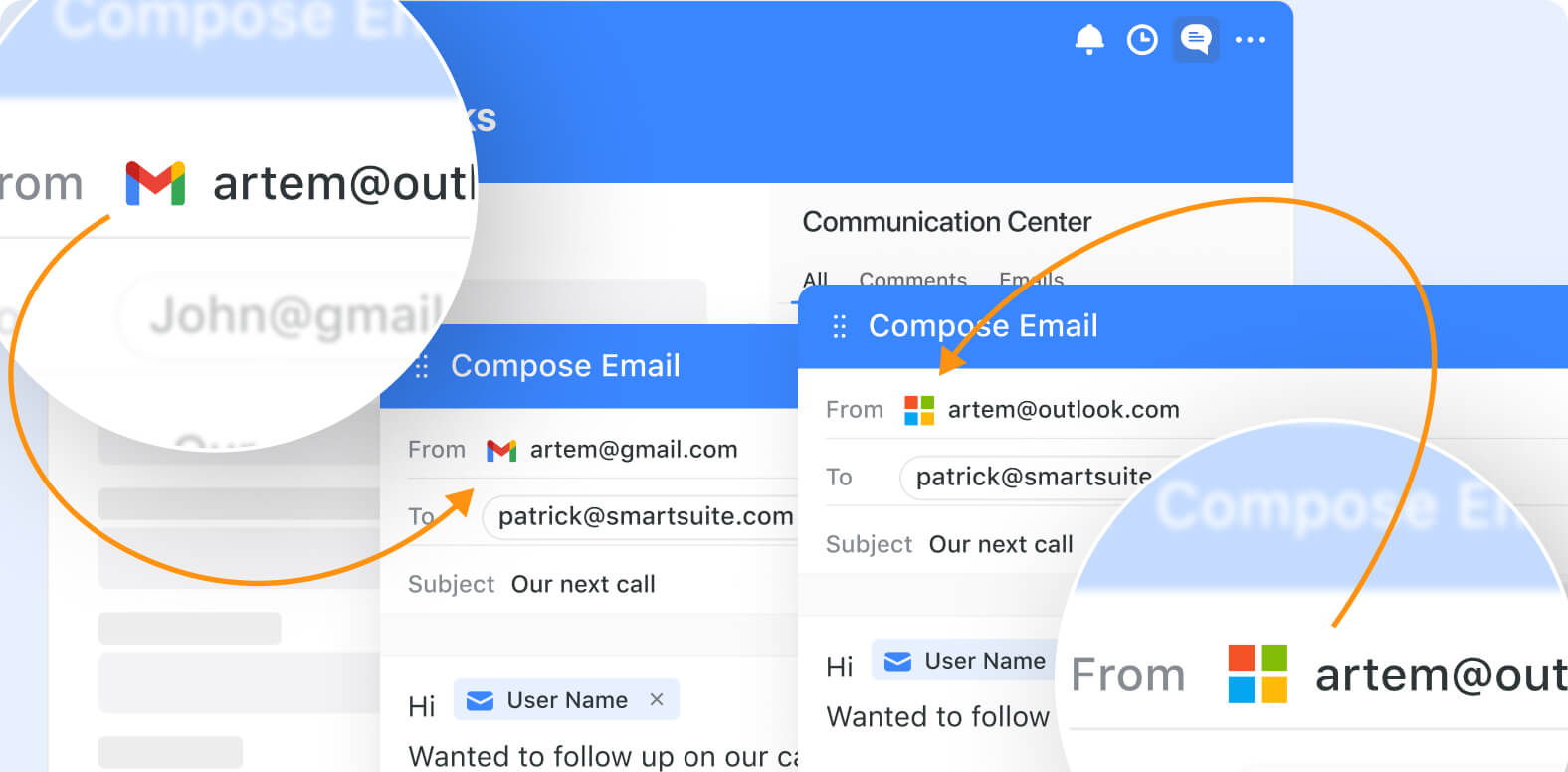
Members of Pro and Enterprise workspaces can now connect their profiles to Gmail or Microsoft accounts in SmartSuite’s Communication Center.

Send personalized emails to external recipients directly within SmartSuite records.

See feature video
Connect Microsoft Outlook
Connect Gmail
‍

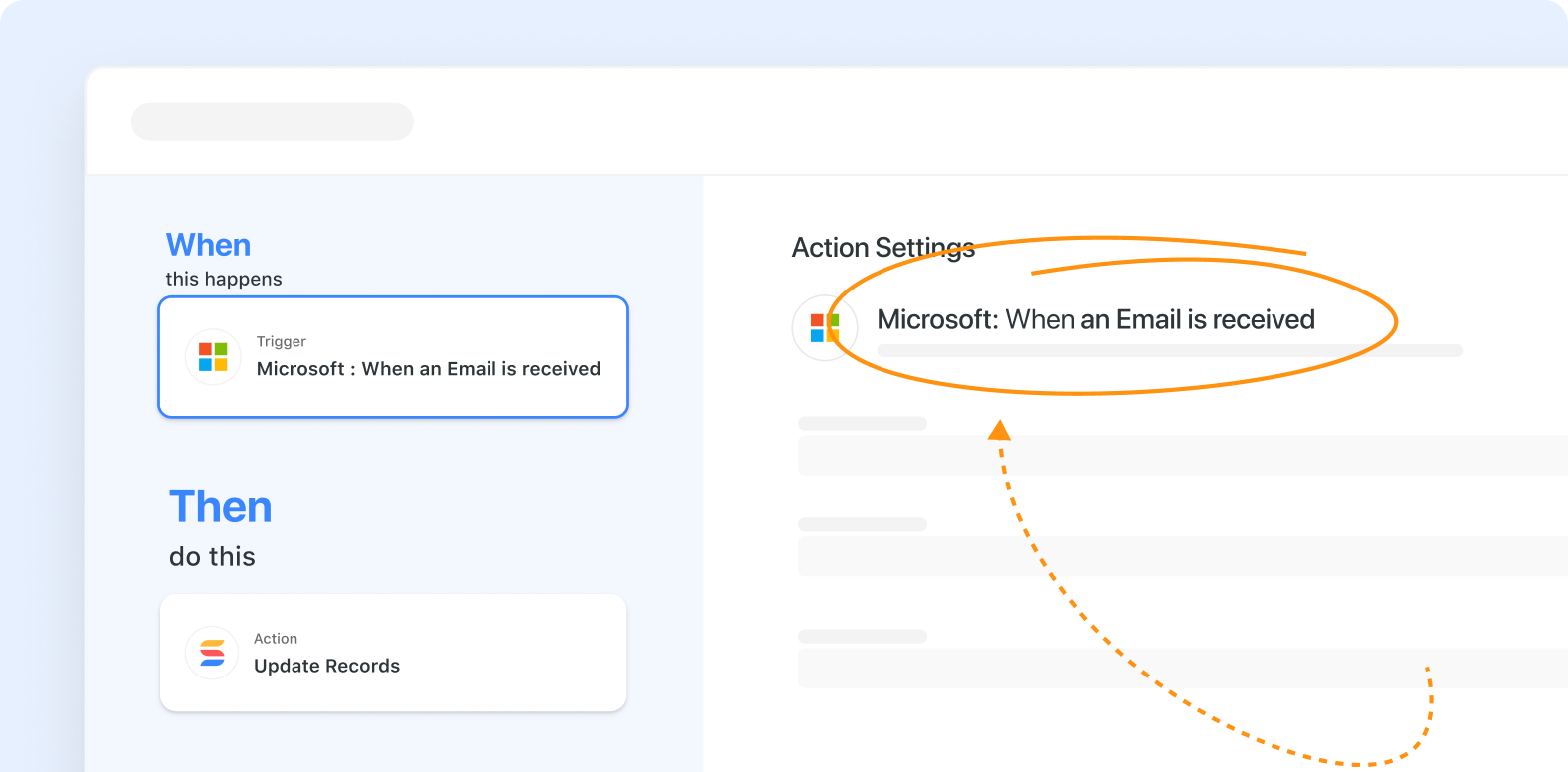
Automation Trigger: Outlook

With SmartSuite’s new “When an email is received” trigger for Outlook, you can seamlessly automate actions in SmartSuite based on your Outlook inbox activities.
‍
See feature video
Learn more
‍

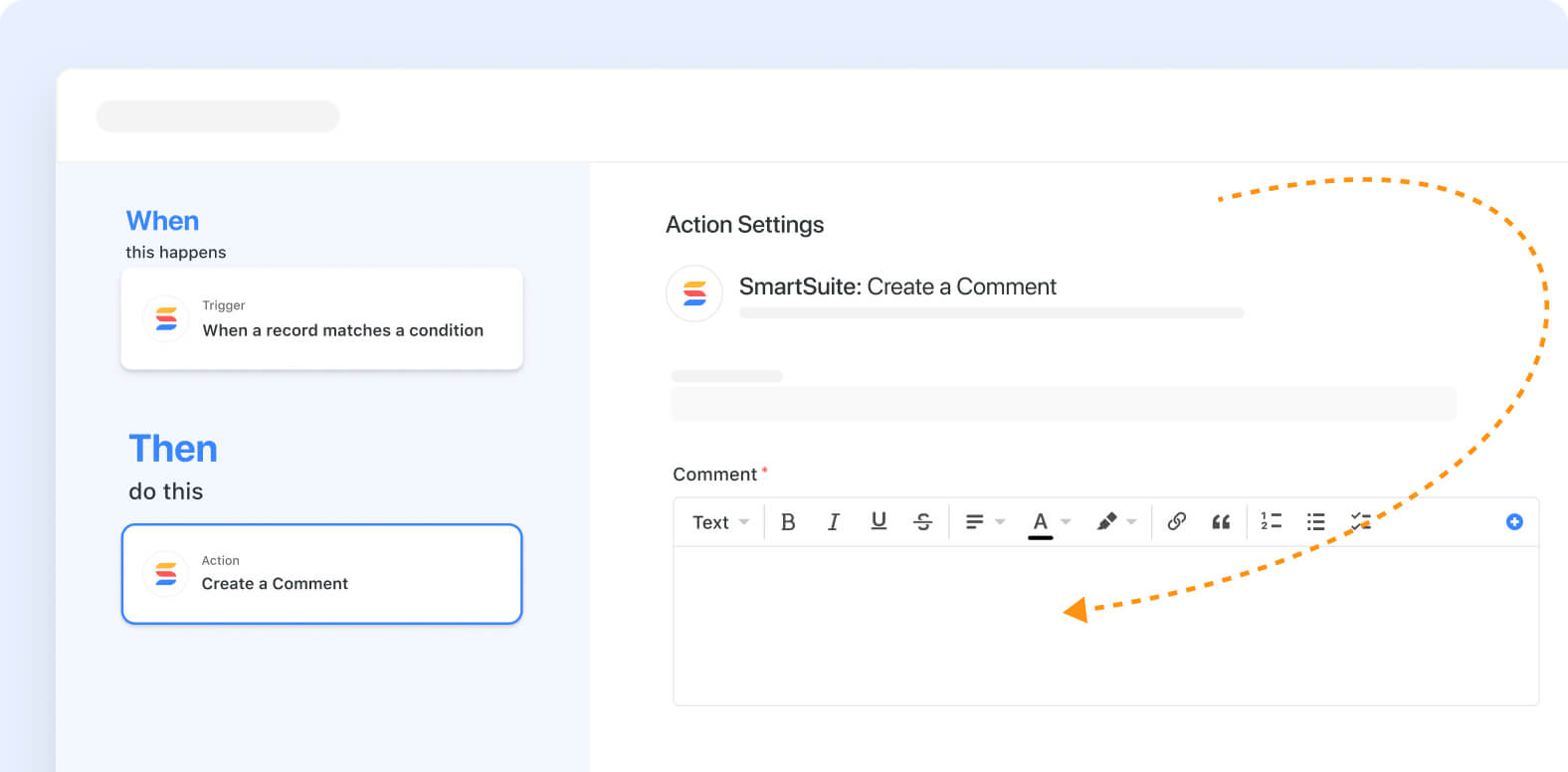
Automation Action: Create a Comment

You can now add comments to existing records in addition to updating the record’s content with the Add a Comment action. Use it to quickly add notes, update your team on the record’s progress through a workflow and more.

See feature video
Learn more
‍

Document Designer: Generate PDF in Record Menu
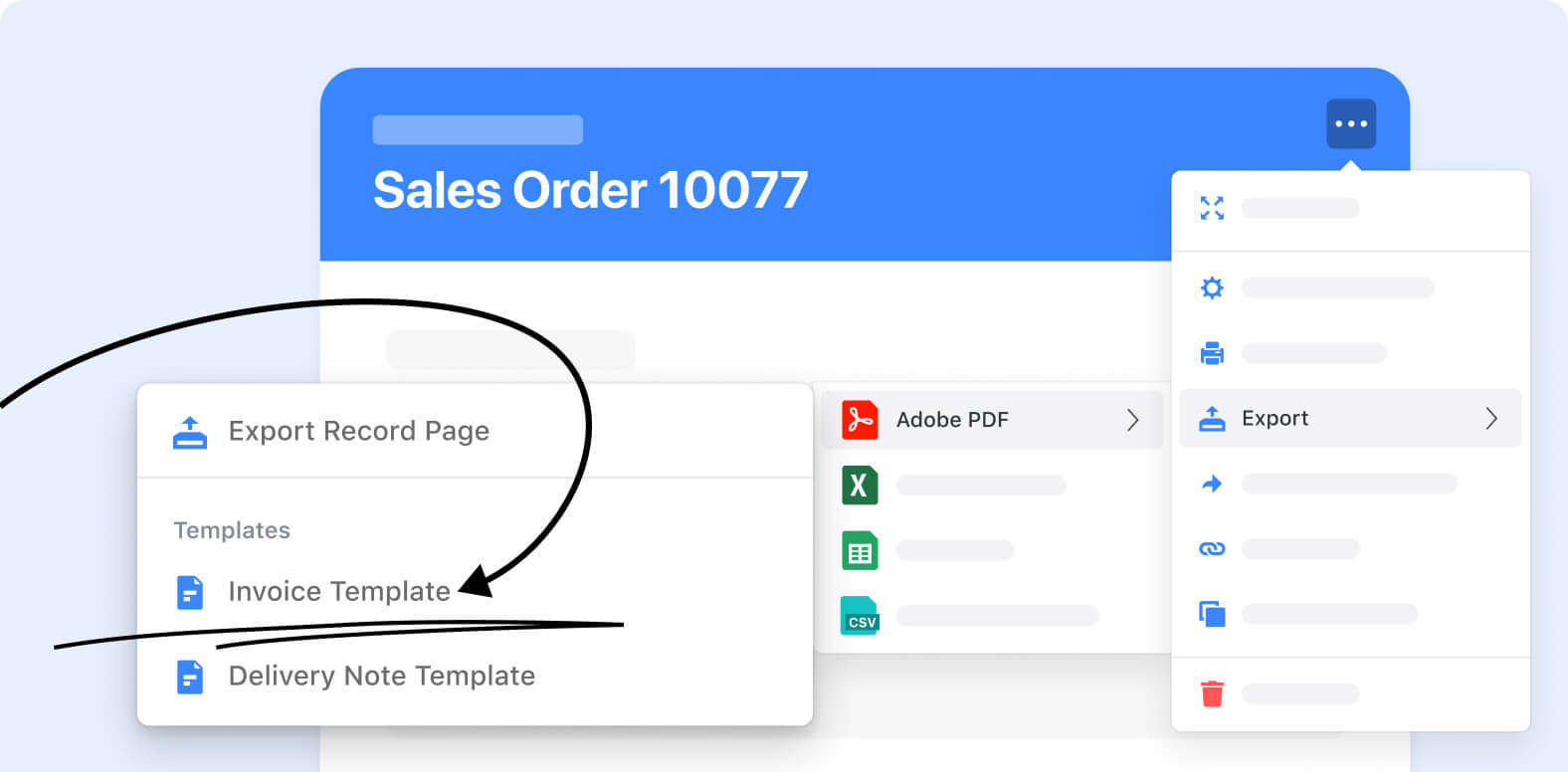
This feature adds the ability to print page designs from the record menu. Both print and export options have been enhanced to allow selection of a Document template or the default SmartSuite export format to export the record content as a PDF.

See feature video
Learn more

Document Designer Enhancements
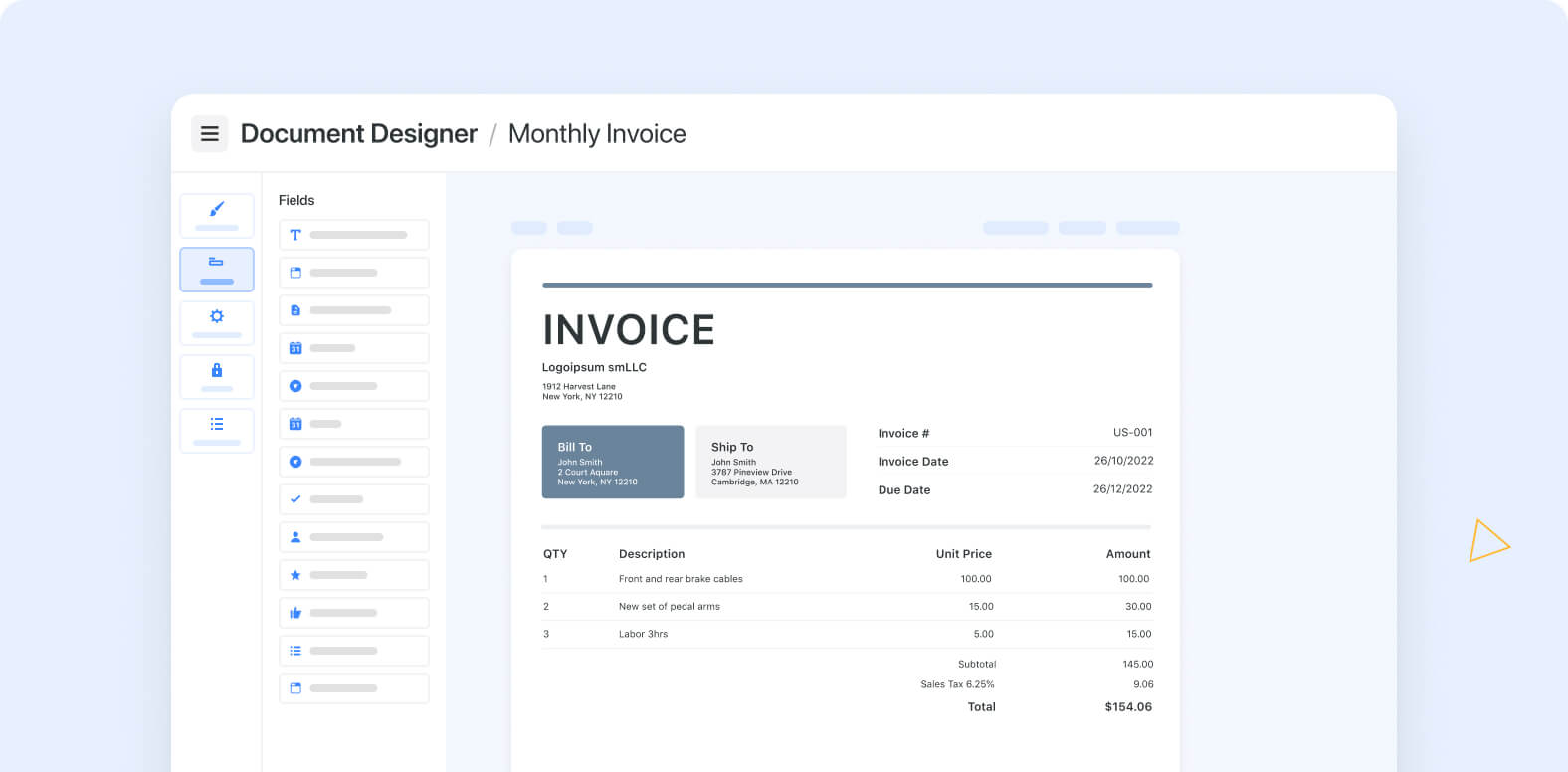
The Document Designer now supports more use cases. An anchor option fixes a field’s position relative to another. File and image fields can display multiple images with sizing options.

See feature video
Learn more
‍‍‍

Automation Action: Generate Document Designer PDF
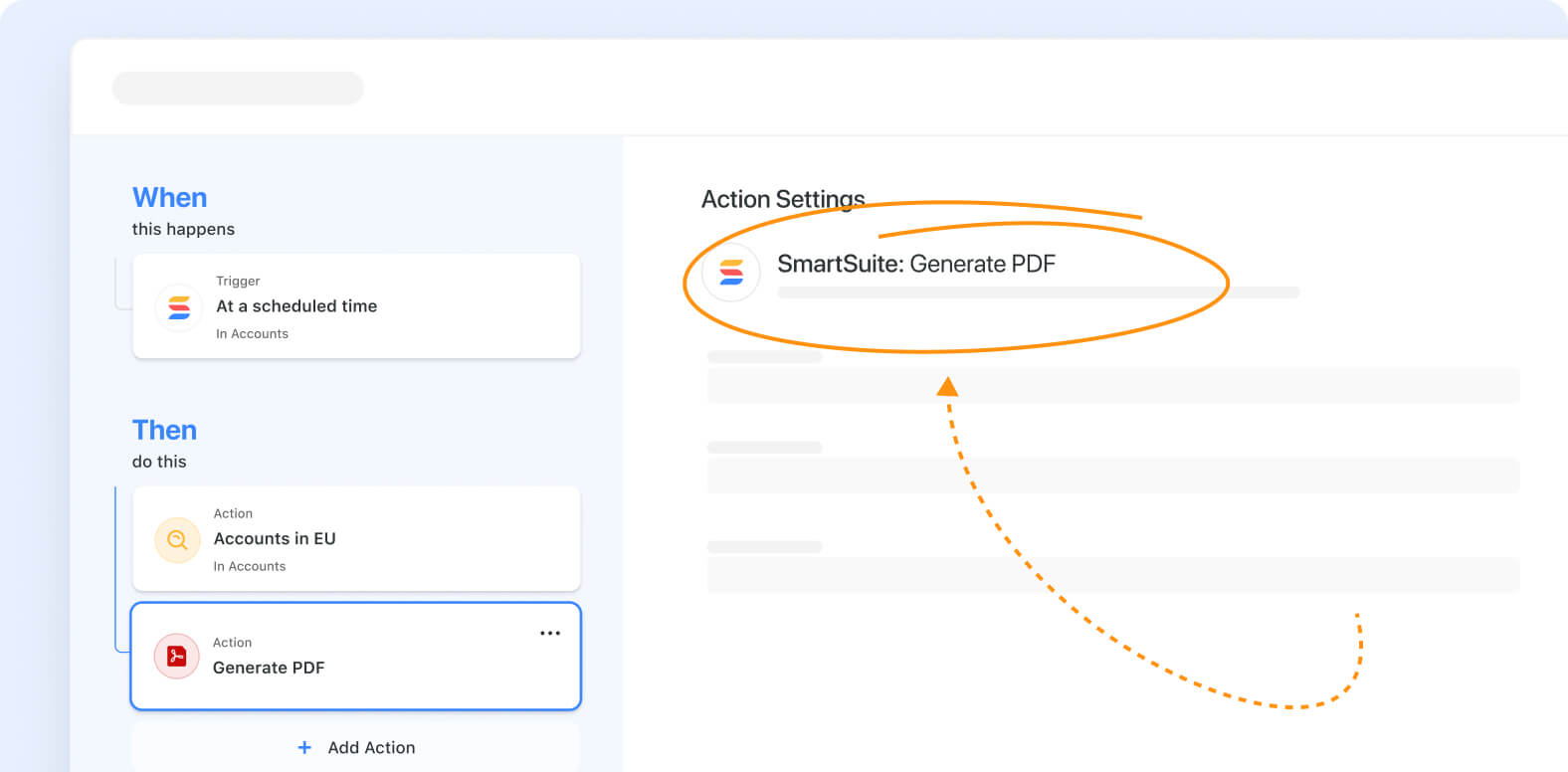
This feature lets you select Document Designer templates during automation setup to generate PDFs from record values. You can then attach the PDF to a file, email (SmartSuite, Gmail, Outlook), Twilio message, or Slack message.

See feature video
‍Learn more
‍

Automation: Use Results from Create and Update Actions
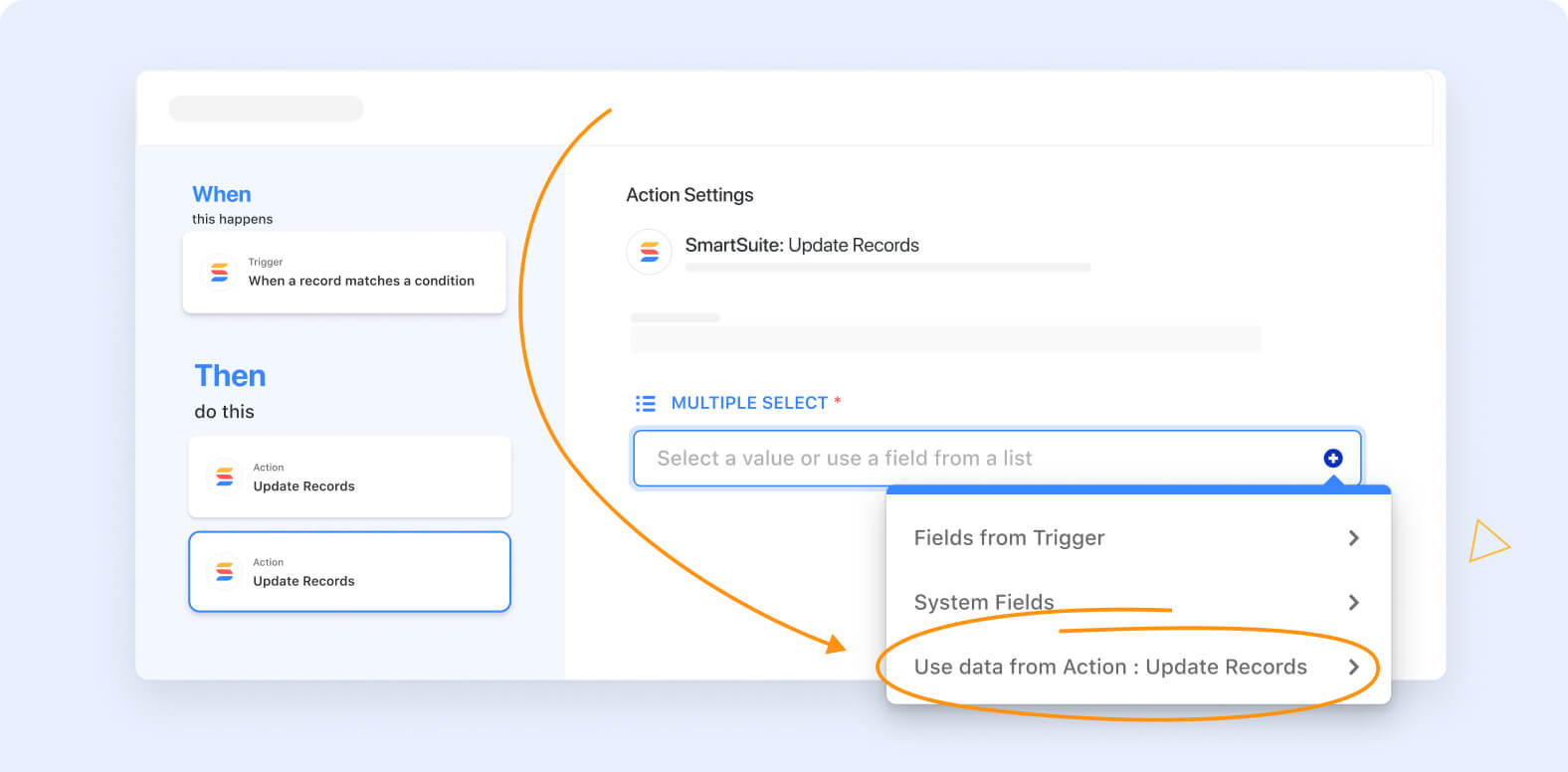
The Automations Engine has been enhanced to allow the results from Record Create and Record Update actions to be used in subsequent automation actions. This supports creation of more dynamic and interconnected automation workflows, enabling actions to build upon the results of previous ones.

See feature video
‍Learn more

‍

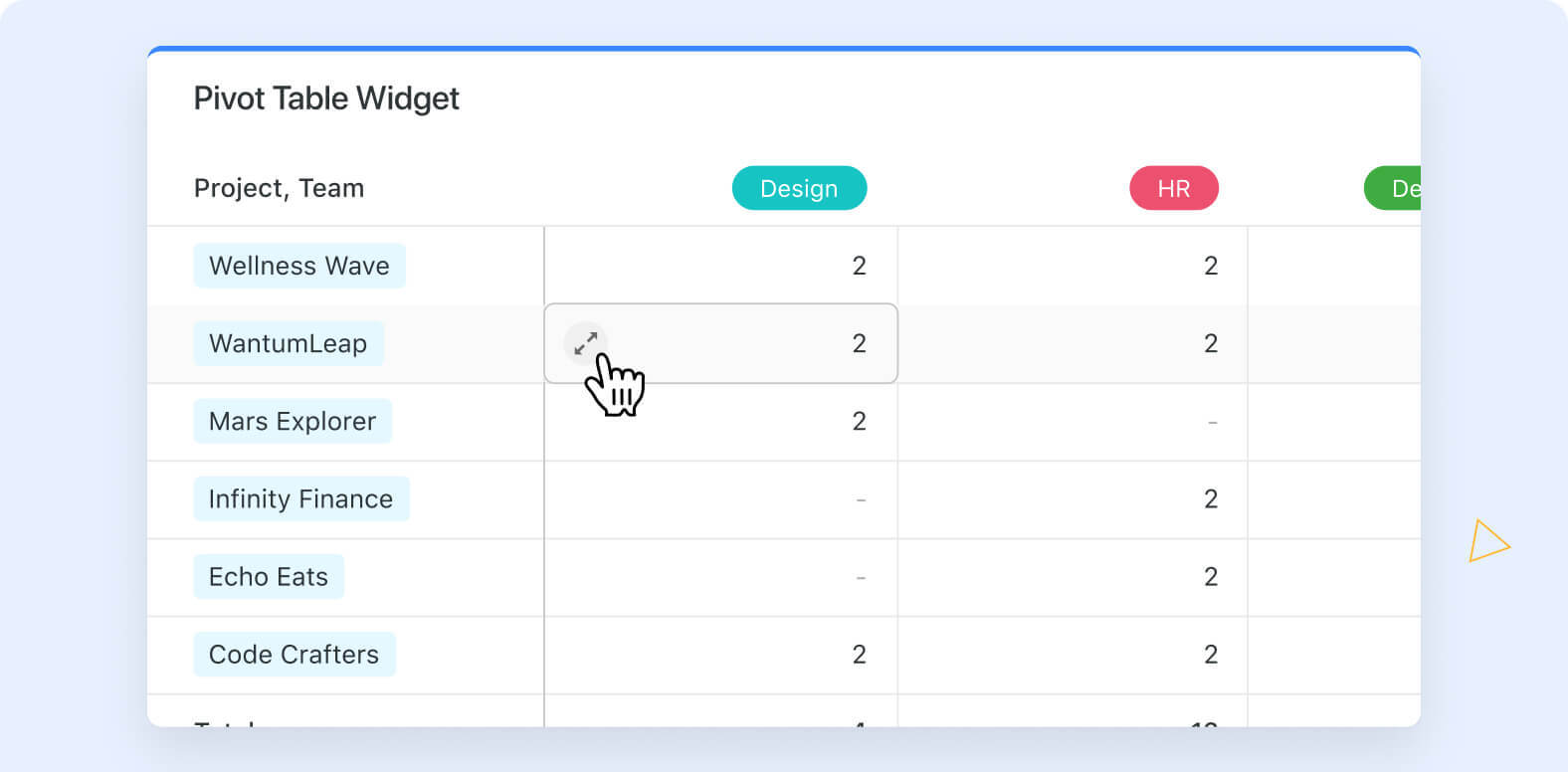
Dashboards Widget: Pivot Table

SmartSuite’s Pivot Table widget helps transform complex data, allowing you to see patterns and trends from multiple angles. The pivot supports grouping and summarization, organizing information into rows and columns that can answer questions like “Which product sold the most?” or “What is the average income per region?”

To add a Pivot Table to your workspace, click Add widget and then select Pivot Table from the Widget Library. After selecting the solution and table for the source of your data, you can select fields for the rows and columns in your pivot. Finally, select the field and aggregation type (either by count or by field value) in the “Summarize by” dropdown.

See feature video
Learn more
‍

Chart View: Heat Map Updates

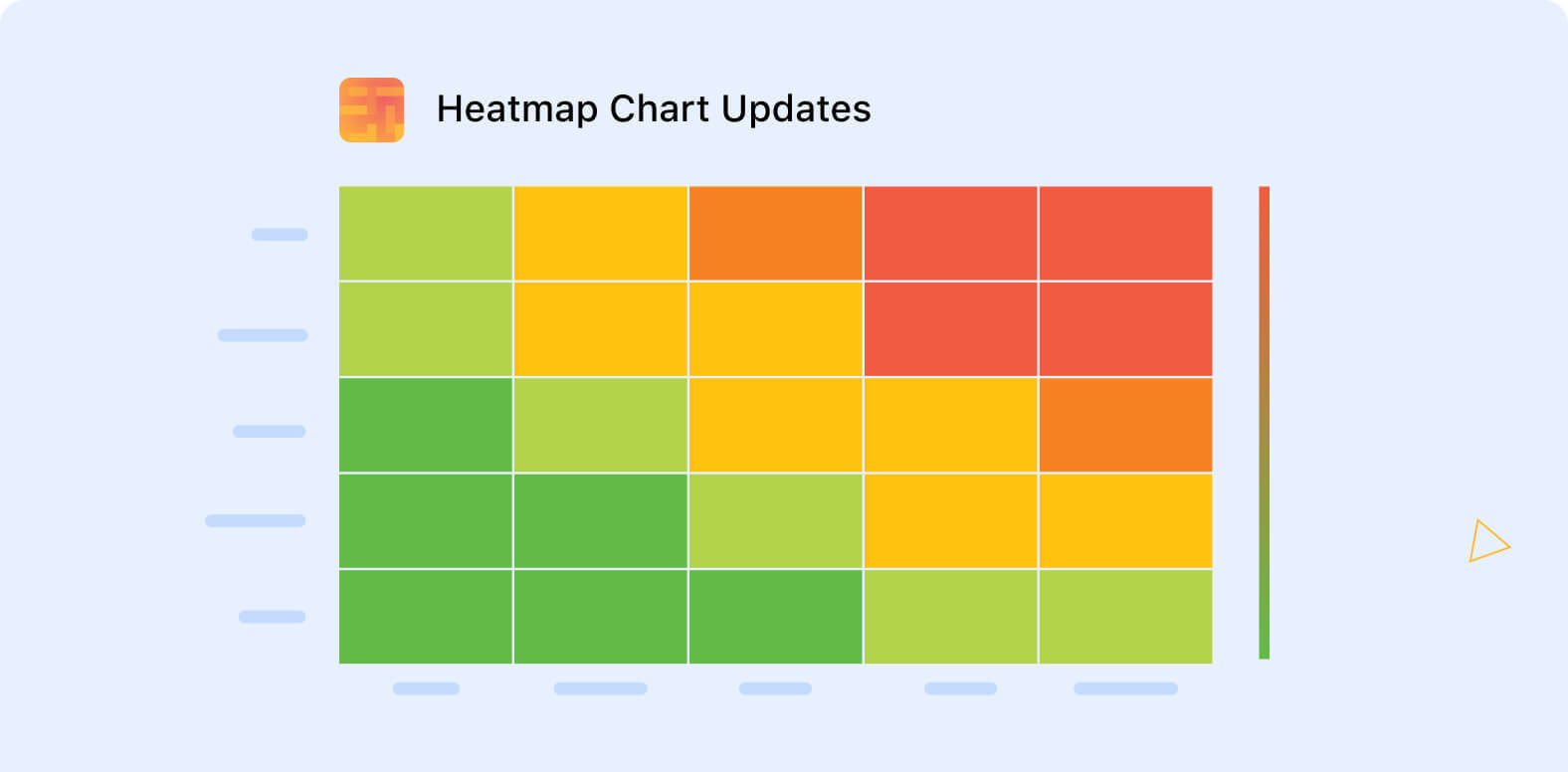
Several enhancements have been made to SmartSuite’s Heatmap Chart type, aimed at improving its data visualization capabilities. These updates include consistent sorting, display of drill-in enabled values within segments, and a refined color scale that better highlights values. Additionally, the X and Y axis sort order can be configured, and each axis is labeled with the field name of its source data.

See feature video
‍Learn more
‍

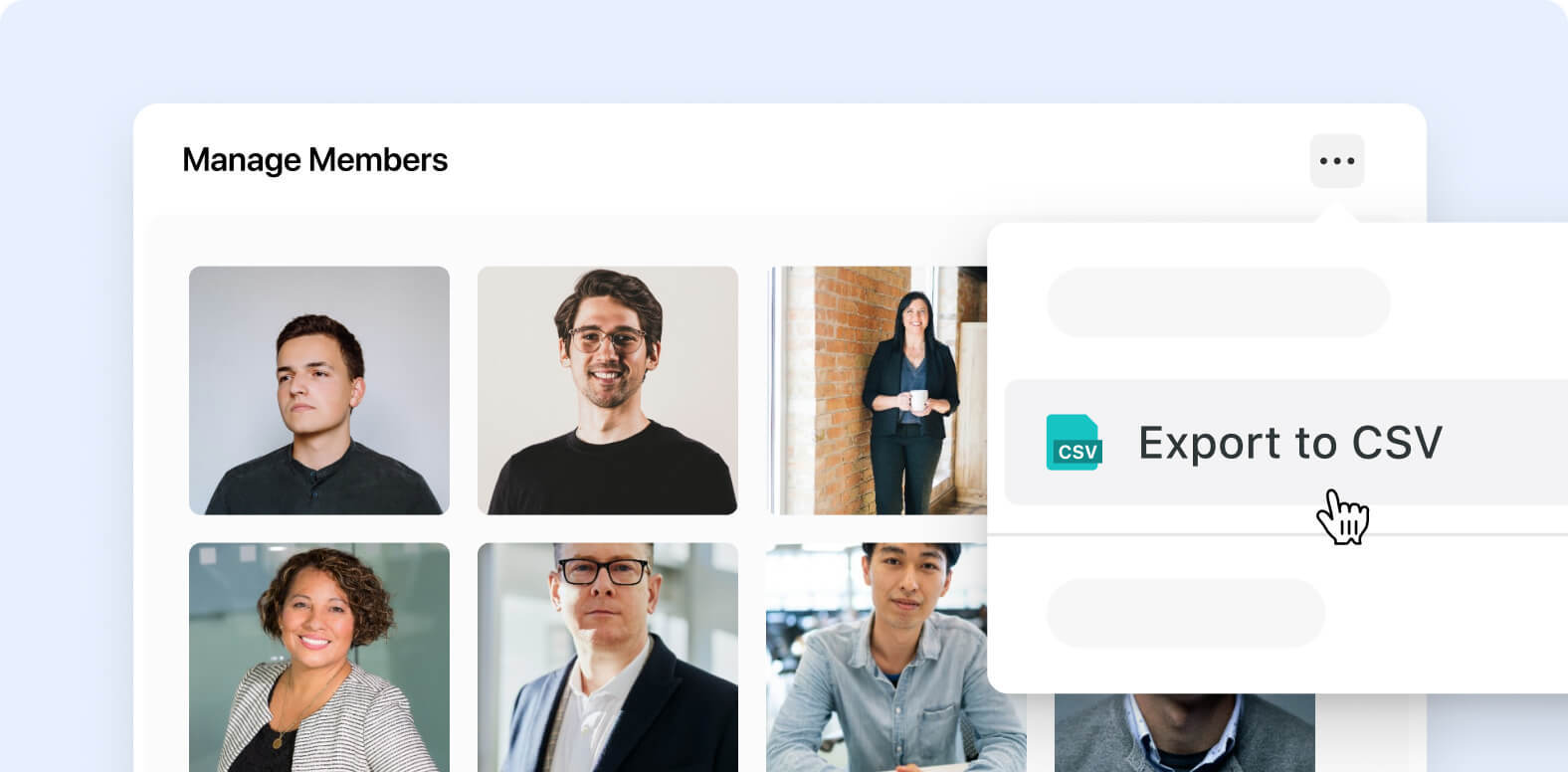
Manage Members: Export Member List

You can now highlight important information with a static text block, icon, and shaded background; add customizable horizontal lines with optional captions; embed images; and include clickable videos for introductions or instructions in Form Views.

See feature video
‍Learn more
‍

Form View Static Elements: Callout, Divider, Image, and Video
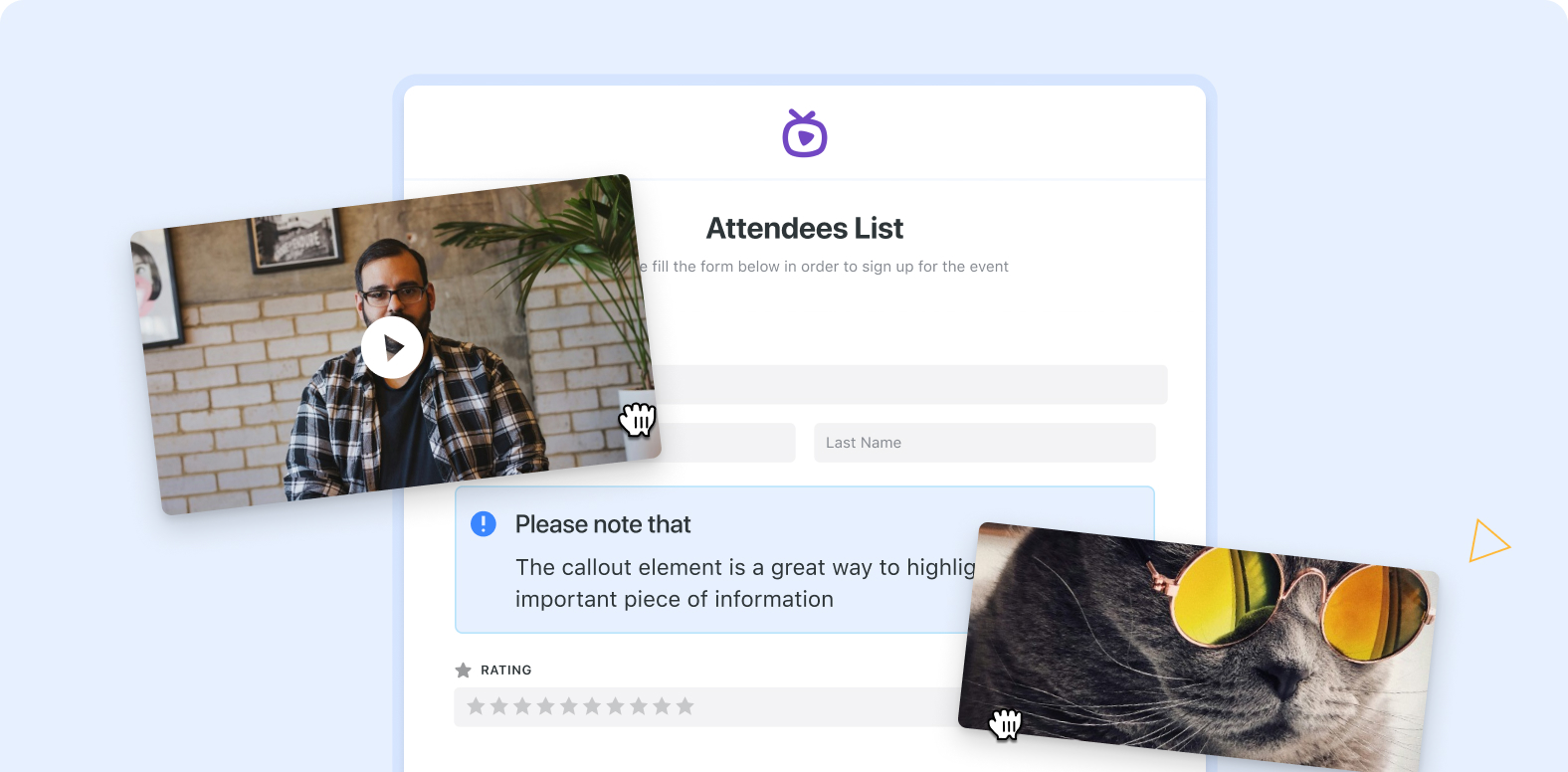
You can now highlight important information with a static text block, icon, and shaded background; add customizable horizontal lines with optional captions; embed images; and include clickable videos for introductions or instructions in Form Views.

See feature video
‍Learn more

Form View: Support for Time in Date Field
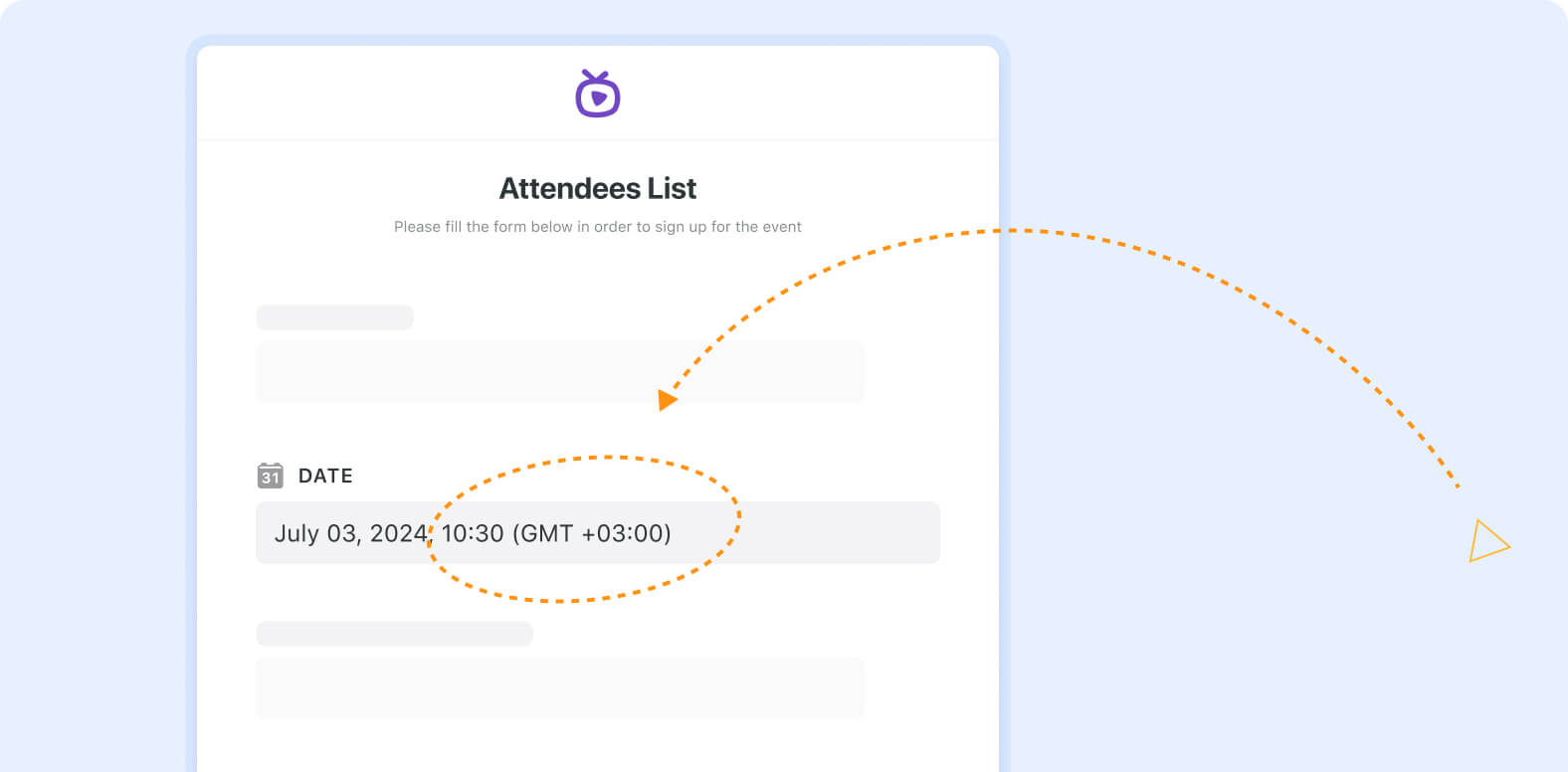
SmartSuite forms now support time entries within Date fields, enabling users to input both a date and time in their responses.

See feature video
Learn more
‍

Fields: Rich Text in Field Help Text

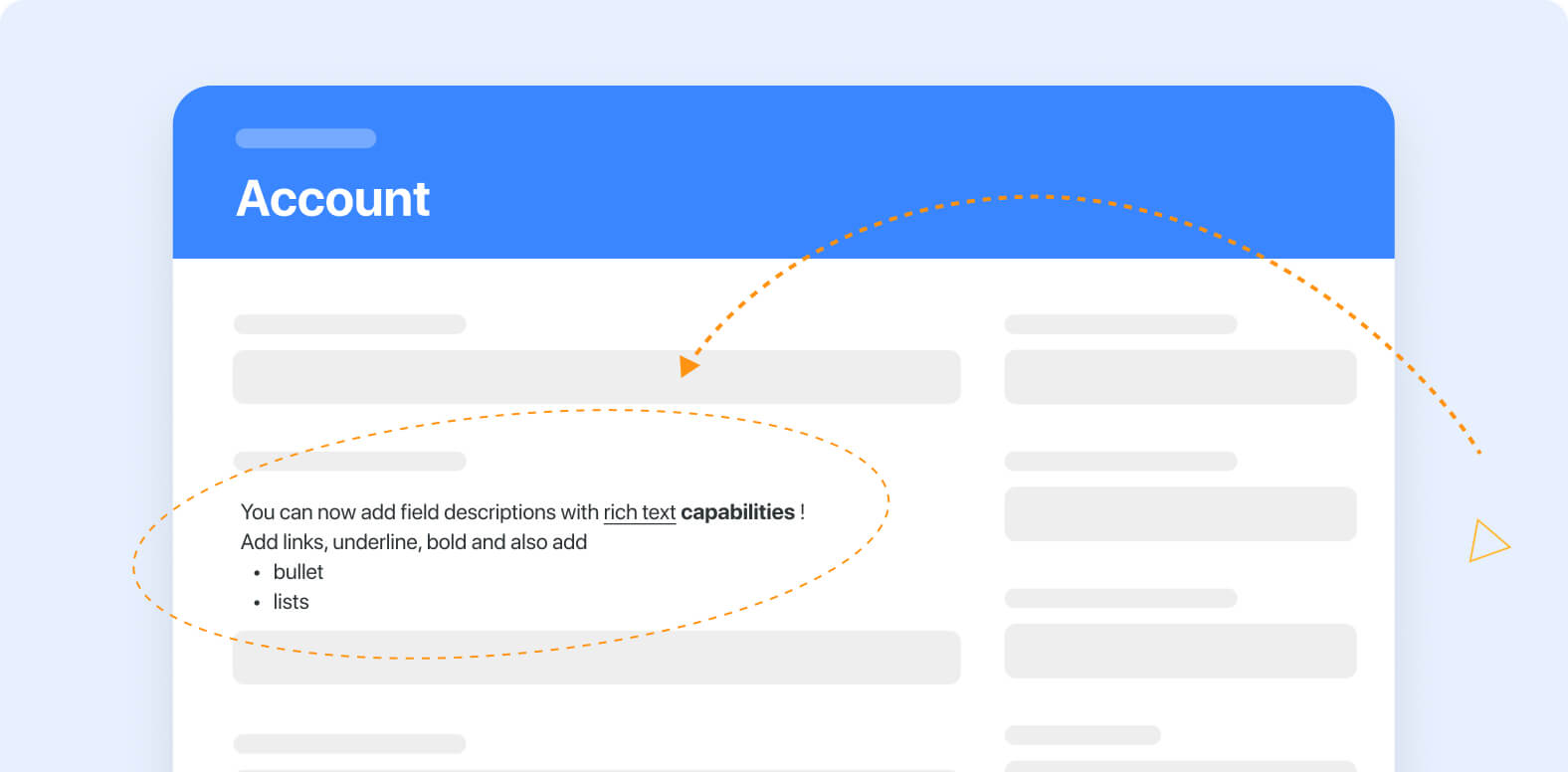
SmartSuite’s support for field-level help text has been enhanced to support rich text formatting, in addition to allowing you to include lengthier help descriptions of up to 700 characters (increased from 250).

See feature video
‍Learn more

View Product Roadmap

Upcoming Live Events & Trainings

Bi-Weekly: Getting Started with SmartSuite Workshop | Upcoming dates: July 16th, 30th @ 8:00am PT

This interactive workshop offers hands-on learning opportunities to grasp the platform’s fundamentals. From navigating the interface to exploring our key features, our step-by-step guidance ensures you gain a comprehensive understanding as you get started.
‍
Register here

‍Application of the Latest SmartSuite Features | July 17th @ 8:00 am PT

Explore a SmartSuite solution for managing student compliance in healthcare education. Learn how to streamline documentation, communication, and oversight processes using innovative features.

Register here‍
‍

Live SmartSuite Monthly Training Classes & Free Certification Opportunity | July 25, August 29th

This 3-part training includes:

  • Comprehensive overview of SmartSuite as a platform, along with key functionality training tailored for end users.
  • Deep dive into SmartSuite, gaining insights into its building blocks and discovering how to implement effective solutions for your teams.
  • Our Recommended Certification session, featuring a live, free certification exam test to earn a SmartSuite Certification of your choice

If you are interested in attending our live training, you can access the registration request form here.‍‍

Have questions? Join our Daily Office Hours!
‍
Get all your questions answered live by an Onboarding Specialist during our Daily Office Hours Monday-Friday at 9:00 am PT —or simply join to learn how others are finding value in SmartSuite.Your SmartSuite Team

  Community  |  Academy |  SmartSuite.com  |  Product Roadmap | Webinars 
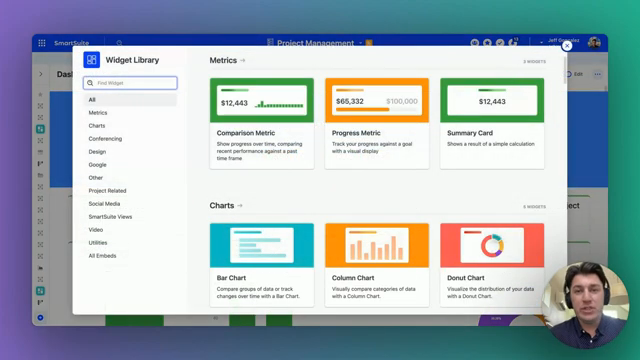
Optimizing Record Format in Dashboard Widgets

Software Stack Editor · June 28, 2024 ·

Welcome to another episode of SmartTips! Today we’re diving into how to optimize the record format within a dashboard widget. Not many folks realize that you can click into a widget and see the records of information contributing to that visualization. Today, I’m going to show you how to make that absolutely perfect for your workspace dashboard. Let’s jump right in!

[embedded content]

Getting Started: Exploring the Dashboard View

We’ll start with the dashboard view that I have already built out.

If you’re curious about the widgets available within a dashboard view, simply hit Add Widget up in the top right-hand corner to see the entire menu of options. Today, we will be focusing on the comparison metric and a variety of charts. We’ll explore how these different outputs can be customized to show you the list of records contributing to those numbers.

Adding and Customizing Widgets

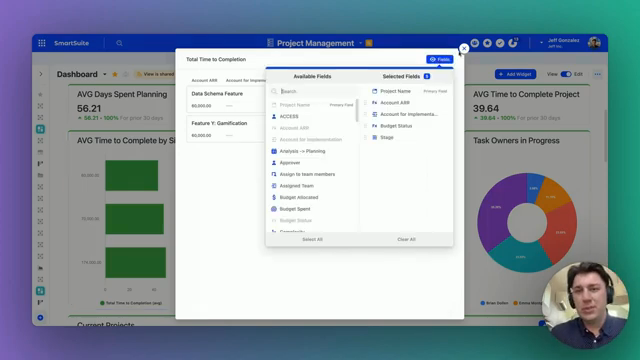
All widgets, despite their differences in appearance, share a similar functionality. If you click on the widget’s output, you will see a list of the records that contribute to that number. In the top right-hand corner of the modal, you can choose which fields of information you want to display about that record type.

‍

‍

For instance, suppose we’re looking at a list of different projects:

  • Project Type
  • Project Owner
  • Project Stage
  • Budget Allocated
  • Budget Spent

You can control which of these fields are populated in the view and which aren’t.

Managing the Display Limit

There is a limit to how many different records you can show at one time, so keep that in mind. The same functionality applies across all widgets, whether they’re bar charts, column charts, or others.

When you click on a bar or a column, a modal pops up offering the flexibility to control which fields of information you see about those records.

‍

Practical Examples

To help visualize this, let’s work through a practical example. Imagine we want to add a widget that tracks our project stages:

  1. Add Widget: Click the Add Widget button.
  2. Select Chart Type: Choose a Bar Chart for better visualization of the different project stages.
  3. Customize Fields: Once the widget is added, click on the output to open the modal and select fields such as project type, owner, stage, budget allocated, and budget spent.

‍

By customizing these fields, you quickly get a tailored view of your project statuses.

Best Practices for Widget Optimization

Here are some best practices when optimizing your widget records:

  • Limit the Number of Fields: Keep it to the most essential fields to avoid clutter.
  • Use Consistent Naming: Ensure that field names are clear and uniform.
  • Regular Updates: Update the fields regularly to reflect changes in data priorities.

“Remember, a well-organized dashboard is key to effective data analysis.”

Conclusion

Taking the time to properly set up and optimize your widgets can significantly enhance the utility of your dashboard, making it a powerful tool for data analysis and decision-making.

To experience the future of work management firsthand, start your free SmartSuite trial today!

What is Dot Notation in SmartSuite Formulas?

Software Stack Editor · June 21, 2024 ·

If you’re struggling to understand SmartSuite formulas, it could be because dot notation seems a little bit confusing. In this post, we’re going to unpack what dot notation is and why you should actually embrace it in your SmartSuite formulas. Mastering this will unlock new levels of functionality you cannot achieve without this fantastic feature.

So if learning more about this interests you, let’s dive right into it.

In this blog post, we’re breaking down dot notation. We’ll explore what it is and how to implement it for your formulas in SmartSuite.

[embedded content]

Getting Started with Dot Notation

Let’s hop into this topic by first looking at a typical data schema. I’m working with two tables in SmartSuite:
‍• Consultations
• Users
.

Data Schema Overview

In our example:

  • The Consultations table links to two types of users: Client and Consultant.
  • We restrict the types of users that can be linked in each case. For consultations, clients must have a client role, and consultants must have a consultant role in the Users table.

This structure is essential to understand before we delve into dot notation.

The Goal

We aim to evaluate our consultants based on client reviews and ratings. Specifically, we want to show:

  1. The number of reviews a consultant has received.
  2. The average rating of these reviews.

Here’s an example output:

"In 2 reviews, Jared has an average rating of 3.5 stars."

Delving into Dot Notation

Dot notation allows us to reference fields within linked records directly in our formulas. This approach is unique to SmartSuite, differentiating it from other no-code platforms like Airtable.

Here’s a breakdown of how dot notation works in SmartSuite:

Formulas: Step-by-Step

Count If Formula

First, we use a COUNTIF formula to count the number of reviews:

COUNTIF(Consultations.Rating > 0, Consultations)

Explanation:

  • Consultations is our linked record field.
  • .Rating specifies the field within the linked record.
  • The formula counts only those records where the rating is greater than zero.

Average If Formula

Next, we calculate the average rating using AVERAGEIF:

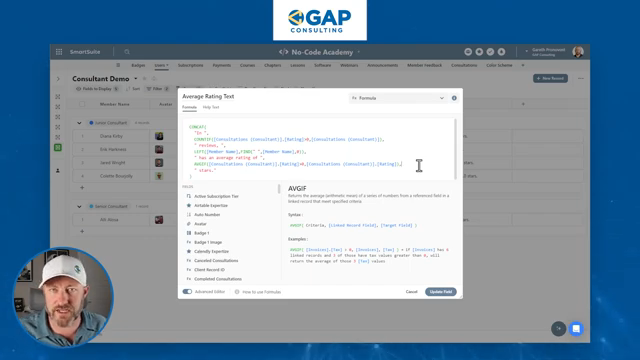
AVERAGEIF(Consultations.Rating > 0, Consultations.Rating)

Explanation:

Similar to COUNTIF, it performs an average calculation on ratings that meet the criteria (Rating > 0).

averaged_rating = lambda reviews: sum(reviews) / len(reviews) if reviews else 0

‍

Putting It All Together

Here’s how to concatenate multiple parts into one cohesive formula:

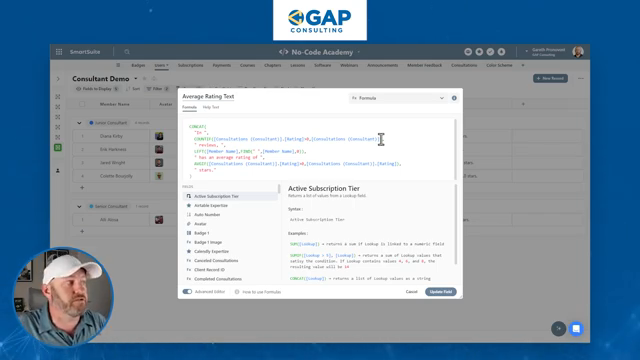
CONCAT("In ",COUNTIF(Consultations.Rating > 0, Consultations)," reviews, ",{Name}," has an average rating of ",AVERAGEIF(Consultations.Rating > 0, Consultations.Rating)," stars.")

Ultimately, this formula will output something like:

"In 2 reviews, Jared has an average rating of 3.5 stars."

Use Case Visualization

Let’s look at Jared’s details:

  • Jared has three linked consultations, but only two have ratings.
  • The average rating formula will exclude the consultation without a rating, providing a fair average from available data.

‍

Advanced Use-Cases

Dot notation can be used beyond simple averages and counts. You can string together more complex conditions and calculations, elevating your no-code solutions.

One advanced use is concatenating different text elements through linked records relationships. This feature grants unparalleled granularity and flexibility in data manipulation.

Conclusion: Embrace Dot Notation

By now, you should have a clearer understanding of how dot notation can transform how you work with SmartSuite formulas. Whether you’re counting linked records or calculating averages, dot notation equips you with the tools to make more meaningful data connections.

In the meantime, my friends, keep on building!

To experience the future of work management firsthand, start your free SmartSuite trial today!

Filtering Dynamically and Statically in Linked Records

Software Stack Editor · June 21, 2024 ·

Welcome to another episode of SmartTips! Today, we walk you through how to filter both dynamically and statically the linked record options that we have to choose from when creating a new record. Let’s jump in and see how it’s done.

[embedded content]

Introduction to Filtering Linked Records

Filtering linked records can significantly streamline your workflow, especially when managing a database-intensive project. I’ll first start by showing how we could do this statically. Very simply, I want to create a new task and tie it to one of the ongoing projects in our projects table.

Static Filtering in Linked Records

When creating a new task, linking it to a completed project is usually not helpful. Instead, you’d likely want to attach it to a project that is either in the backlog or is currently in process. Let’s walk through this scenario.

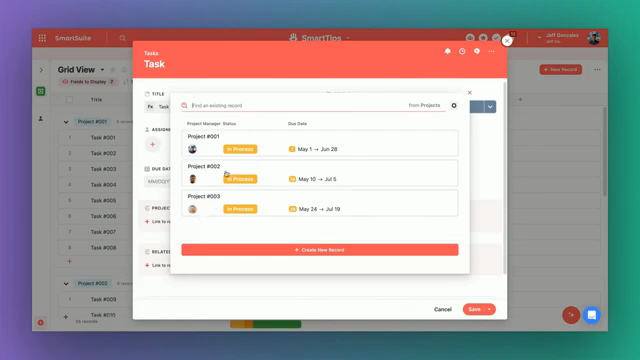
Creating a New Task: When you create a new task, you tie it to a project. As you can see, the options for projects are filtered to show only those in process. This is a static filter because it applies a fixed rule for filtering options.

Setting Up Static Filters: To set this up, click the record selector settings in the top right-hand corner to filter down your options based on any values within the projects table. In this case, we want to choose from projects where the status is not complete.

Dynamic Filtering in Linked Records

Let’s move on to something more complex. Suppose we have projects with related deliverables. For projects one through four, we have deliverables one through four, as shown in both the projects and deliverables tables.

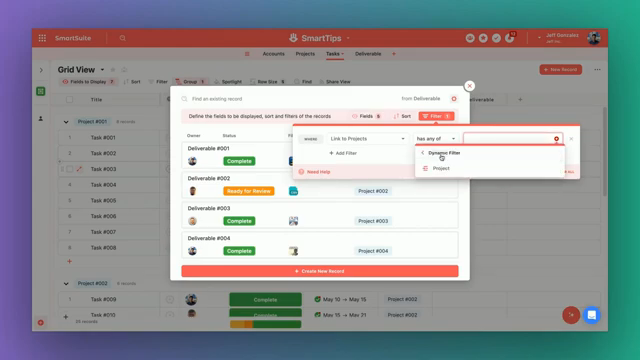
Linking Tasks to Deliverables: Within the deliverables table, you can link tasks to a specific deliverable. If a task relates to a deliverable, which in turn relates to a project, you want to ensure that the correct deliverable is shown when linking tasks. This dynamic filtering ensures that only the deliverables related to the specific project are displayed.
‍

Setting Up Dynamic Filters: To set this up, you select the dynamic filter option. Click on the orange plus sign that appears on the right-hand side.

Here, you specify that you only want to see deliverables where the project value matches the project value in the current table you are working in, which is our tasks table.

Examples and Use Cases

These are just example scenarios, but there are countless ways you can filter down your linked record settings. This functionality enhances usability for end-users, allowing them to efficiently select record options across their workspace.

Further Scenarios

  1. Filtering by Date Range: Suppose you want to filter records based on a specific date range.
  2. Filtering by User Assignment: You might want to filter tasks based on which user is assigned to them.

Conclusion

To sum things up, whether you are filtering records statically or dynamically, setting up these filters makes your data handling much more efficient. Your end users will appreciate the streamlined options that help them focus only on the relevant data.

“Smart filtering isn’t just a feature; it’s a necessity for robust data management.” — Jeff Gonzalez

To experience the future of work management firsthand, start your free SmartSuite trial today!

Project Manager vs. Program Manager: Understanding the Key Differences

Software Stack Editor · June 21, 2024 ·

Navigating the complexities of project management often brings up the debate: project manager vs. program manager. What sets them apart? How do their roles differ within an organization? Understanding these differences can help businesses streamline their workflows and allocate resources more effectively. In this article, we’ll dive deep into the key distinctions between project managers and program managers, helping you determine which role is crucial for your organizational needs.

When comparing a project manager vs. a program manager, it’s essential to recognize that both positions are pivotal in driving business success. However, their responsibilities and focus areas are distinct. A project manager is typically tasked with overseeing individual projects, ensuring they are completed on time within scope and budget. They handle the day-to-day management of tasks, team coordination, and problem-solving to keep the project on track. On the other hand, a program manager oversees multiple related projects, collectively known as a program. Their role is more strategic, focusing on aligning these projects with broader business objectives and ensuring that they contribute to the overall goals of the organization.

A project manager’s day-to-day duties revolve around the execution of specific tasks. They work closely with their team to assign tasks, manage timelines, and handle any issues that arise during the project’s lifecycle. Their primary goal is to deliver a successful project, which means staying on top of every detail and ensuring that the team works efficiently and effectively. Project managers are the boots on the ground, ensuring that every aspect of the project is meticulously managed.

In contrast, a program manager adopts a broader perspective. They are responsible for coordinating several projects and ensuring they align with the organization’s strategic objectives. Program managers work on integrating project outcomes to benefit the organization as a whole. They are less involved in the nitty-gritty details of individual projects and more focused on overall program success. This includes managing dependencies between projects, resolving conflicts at a higher level, and ensuring that resources are optimally utilized across all projects.

The skills required for these roles also vary. Project managers need strong organizational and communication skills, attention to detail, and the ability to manage teams effectively. They must be adept at problem-solving and capable of handling the pressure of tight deadlines. Conversely, program managers need to excel in strategic thinking, leadership, and stakeholder management. They must be able to see the big picture and make decisions that benefit the overall program rather than just individual projects.

Another significant difference between a project manager and a program manager is their interaction with stakeholders. Project managers often work with specific stakeholders related to the project, such as team members, clients, and immediate supervisors. They ensure that project deliverables meet stakeholder expectations and that any issues are promptly addressed. Program managers, however, interact with a wider range of stakeholders, including senior executives, to ensure that the program’s outcomes align with the organization’s strategic goals. They must be able to communicate effectively at all levels of the organization and navigate complex stakeholder landscapes.

The metrics for success also differ between these roles. For project managers, success is typically measured by the successful completion of the project within the agreed-upon parameters of time, scope, and budget. They focus on delivering high-quality project outcomes. Program managers, on the other hand, measure success by the program’s impact on the organization’s strategic objectives. They look at the cumulative benefits of the projects within the program and how well they have contributed to achieving business goals.

In conclusion, while both project managers and program managers play crucial roles in an organization, their focus and responsibilities differ significantly. Project managers are essential for the detailed execution of individual projects, ensuring that each task is completed successfully. Program managers, meanwhile, provide a strategic oversight that ensures multiple projects align with and contribute to broader business objectives. Understanding these differences can help businesses make informed decisions about resource allocation and management structures.

SmartSuite is designed to support both project and program management needs, offering a comprehensive platform to plan, track, and manage workflows efficiently. Whether you need detailed task management or strategic program oversight, SmartSuite can help streamline your processes and enhance productivity across your organization. Explore how SmartSuite can transform your approach to project and program management today.

Workflow Automation Strategies for Enhanced Productivity

Software Stack Editor · June 18, 2024 ·

Mastering workflow automation strategies is crucial for staying ahead of the competition. By implementing effective workflow automation strategies, teams can streamline processes, reduce manual tasks, and focus on high-value work that drives success. Whether you’re managing projects, ongoing processes, or routine tasks, having a solid grasp of workflow automation strategies can transform your productivity and efficiency.

Workflow automation strategies are not just about replacing manual tasks with automated ones; they’re about rethinking how work gets done. By identifying repetitive tasks and automating them, you can free up valuable time for your team to tackle more strategic initiatives. These strategies help ensure that tasks are completed consistently and accurately, reducing the risk of errors and improving overall quality.

Why Workflow Automation Strategies Matter

The benefits of implementing workflow automation strategies are manifold. Firstly, they save time. Tasks that once took hours can now be completed in minutes, allowing team members to focus on more meaningful work. Secondly, they reduce human error. Automation ensures that tasks are carried out consistently, reducing the likelihood of mistakes with manual processes.

Another key advantage of workflow automation strategies is improved collaboration. By automating workflows, teams can easily track progress, assign tasks, and communicate within a single platform. This visibility ensures everyone is on the same page and can work together more effectively. Additionally, workflow automation provides valuable insights into team performance, helping managers identify bottlenecks and optimize processes.

Implementing Effective Workflow Automation Strategies

To successfully implement workflow automation strategies, following a structured approach is essential. Start by mapping out your current workflows and identifying areas where automation can impact most. Look for repetitive tasks that consume a lot of time and are prone to errors. Once you’ve identified these tasks, you can explore automation tools that best fit your needs.

When choosing automation tools, consider their ease of use, integration capabilities, and scalability. The right tool should seamlessly integrate with your existing systems and processes, allowing you to automate tasks without disrupting your workflow. Additionally, it should be scalable to accommodate your growing needs as your business evolves.

Training and onboarding are critical components of implementing workflow automation strategies. Ensure that your team is well-equipped to use the new tools and understand the benefits of automation. Provide comprehensive training sessions and resources to help them get up to speed quickly. Encourage a culture of continuous improvement, where team members are empowered to suggest new ways to automate and optimize workflows.

Overcoming Common Challenges

While the benefits of workflow automation strategies are clear, implementing them can come with challenges. Resistance to change is a common obstacle. Some team members may hesitate to adopt new tools and processes, fearing that automation will replace their jobs. To address this, emphasize that automation is designed to augment their work, not replace it. Highlight how automation can reduce their workload, allowing them to focus on more strategically fulfilling tasks.

Another challenge is ensuring data accuracy. Automated workflows rely on accurate data inputs to function correctly. Implement robust data validation processes to ensure the information fed into your automation tools is accurate and up-to-date. Regularly review and update your workflows to align them with your business goals and changing needs.

Future Trends in Workflow Automation

As technology continues to evolve, so do workflow automation strategies. Artificial intelligence (AI) and machine learning (ML) are becoming increasingly integral to automation tools, enabling more sophisticated and intelligent workflows. These technologies can predict trends, identify patterns, and make data-driven decisions, further enhancing the efficiency and effectiveness of automated processes.

Another emerging trend is the integration of automation with collaboration platforms. By combining the power of automation with collaborative tools, teams can work together more seamlessly and efficiently. This integration enables real-time updates, instant communication, and a more cohesive work environment.

Incorporating workflow automation strategies into your business processes can revolutionize the way your team works. Automating repetitive tasks, improving collaboration, and leveraging advanced technologies can enhance productivity and achieve your business goals more efficiently.

SmartSuite is a leading collaborative Work Management platform that can seamlessly help you implement these workflow automation strategies. With SmartSuite, you can manage projects of any size, track tasks, and milestones, and automate repetitive processes, all within a single platform. Discover how SmartSuite can transform your workflow automation strategies and take your productivity to the next level.

Start your free SmartSuite trial today!

Backwards Scheduling Vs. Auto-Scheduling in Gantt View

Software Stack Editor · June 14, 2024 ·

Welcome to another episode of SmartTips! I’m Jeff Gonzalez, and today we’ll delve into the intriguing world of scheduling techniques within the Gantt view in SmartSuite. Specifically, we’ll explore the differences between auto scheduling and backward scheduling. Let’s jump right into it!

[embedded content]

Understanding Dependency Field Types

In your task management arsenal, understanding dependencies is crucial. A dependency field allows us to establish relationships between records—in our case, tasks. These relationships specify that one task (the predecessor) must be completed before another task (the successor) can begin.

Imagine you have Task 3, with Task 2 as its predecessor and Task 4 as its successor. This means you need to complete Task 2 before you can start Task 3. It’s a straightforward yet essential concept in effective project management.

Highlighting the Dependency Field

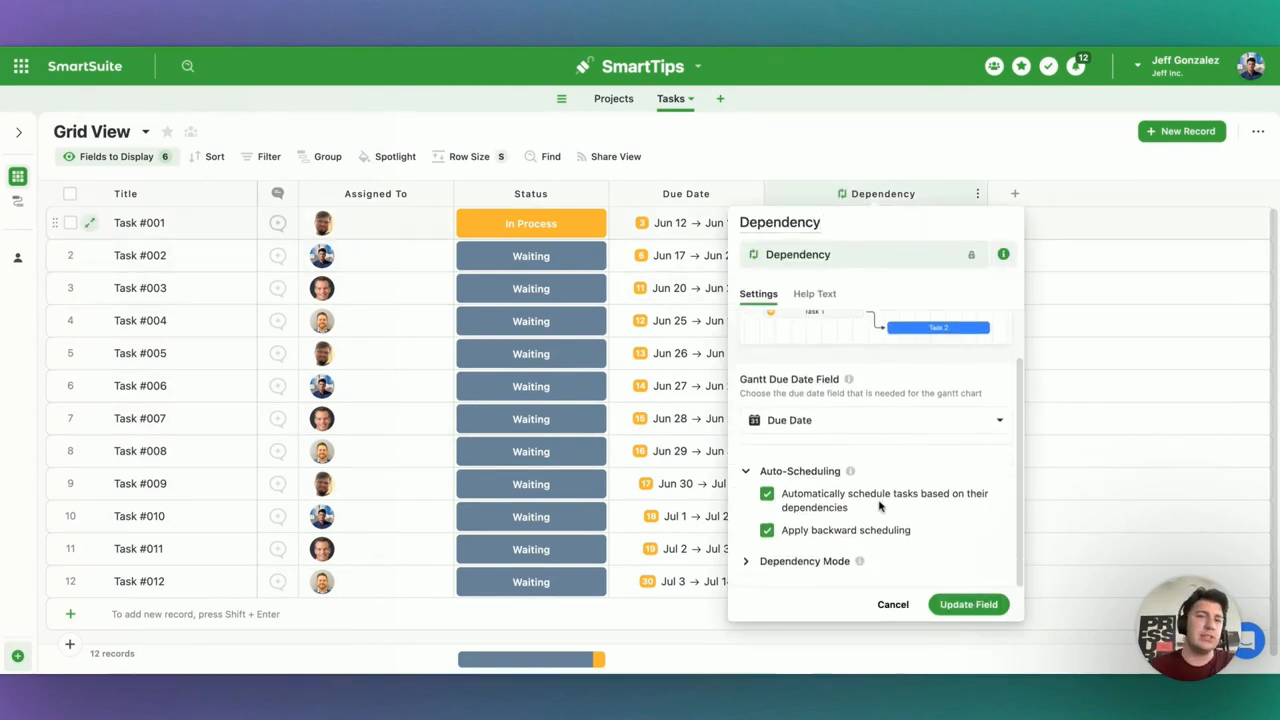
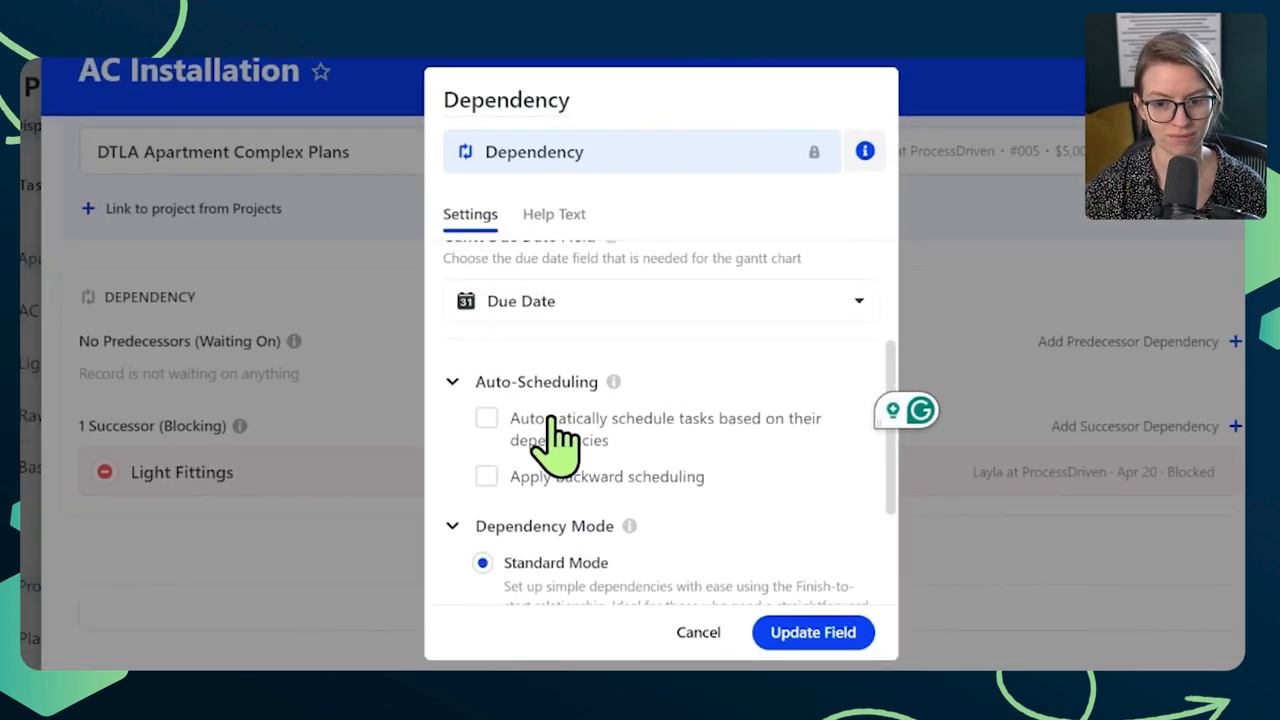
When you open up the dependency field settings in SmartSuite, you’ll find the auto scheduling section. Here, you can configure your settings to automatically schedule tasks based on their dependencies.

The Power of Auto Scheduling

Auto scheduling is a valuable feature. It enables you to automatically adjust the timeline of subsequent tasks based on changes in the duration of a preceding task. Here’s how it works:

  1. Set Dependencies: Establish which tasks are predecessors and which are successors.
  2. Adjust Durations: If you realize that a task will take longer than expected, simply update its duration.
  3. Automatic Adjustment: The system will automatically adjust all tasks that follow the updated task.

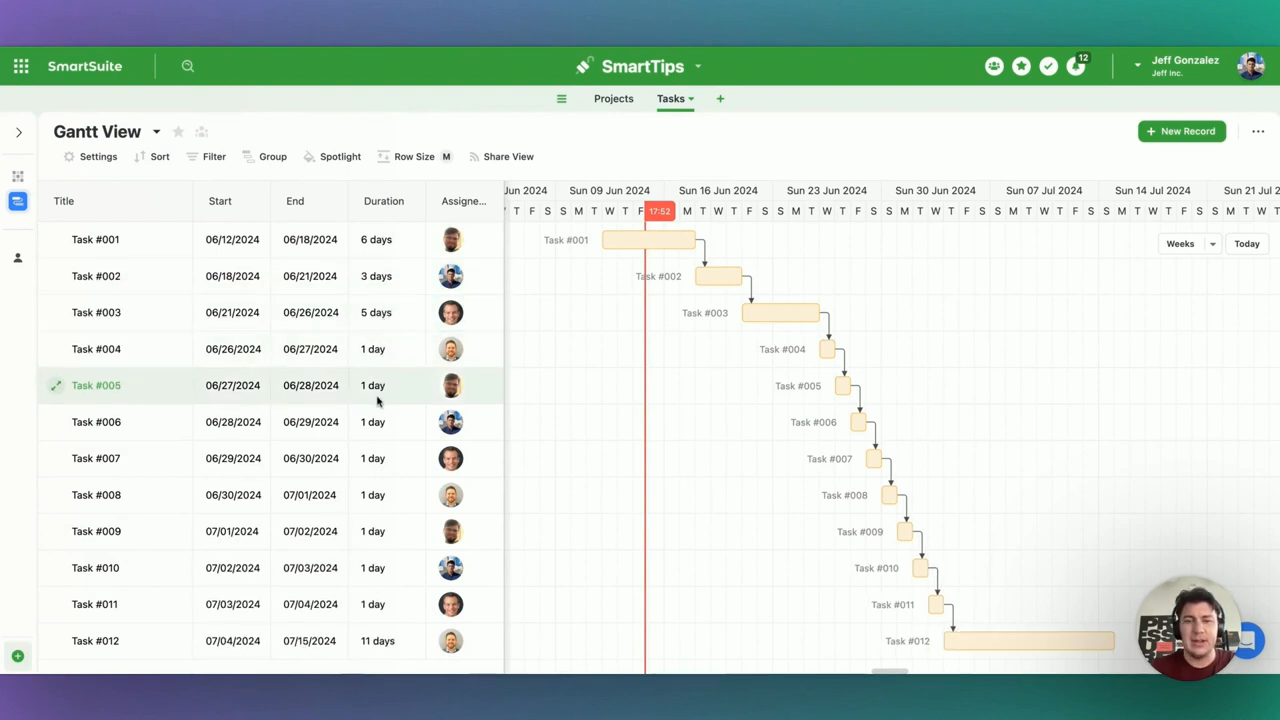
For instance, if Task 1 needs a day extension, and it’s now going to take six days instead of five, all subsequent tasks will automatically shift to accommodate this change.

Real-World Example of Auto Scheduling

Let’s say Task 2 originally spanned from July 15 to July 16. If we modify its duration to take four days instead of one, all dependent tasks adjust accordingly. This seamless adjustment helps maintain the overall project timeline without manually rescheduling each task.

Deciphering Backwards Scheduling

Now, let’s switch gears to backward scheduling, a feature that often generates curiosity. Backward scheduling, like auto scheduling, relies on dependency settings. However, it approaches scheduling from the opposite end—starting from the project deadline and working backwards.

Conceptual Overview

Consider your project has a hard deadline for the final task. With backward scheduling, you specify this completion date, and the system schedules all preceding tasks to ensure the project meets this final deadline.

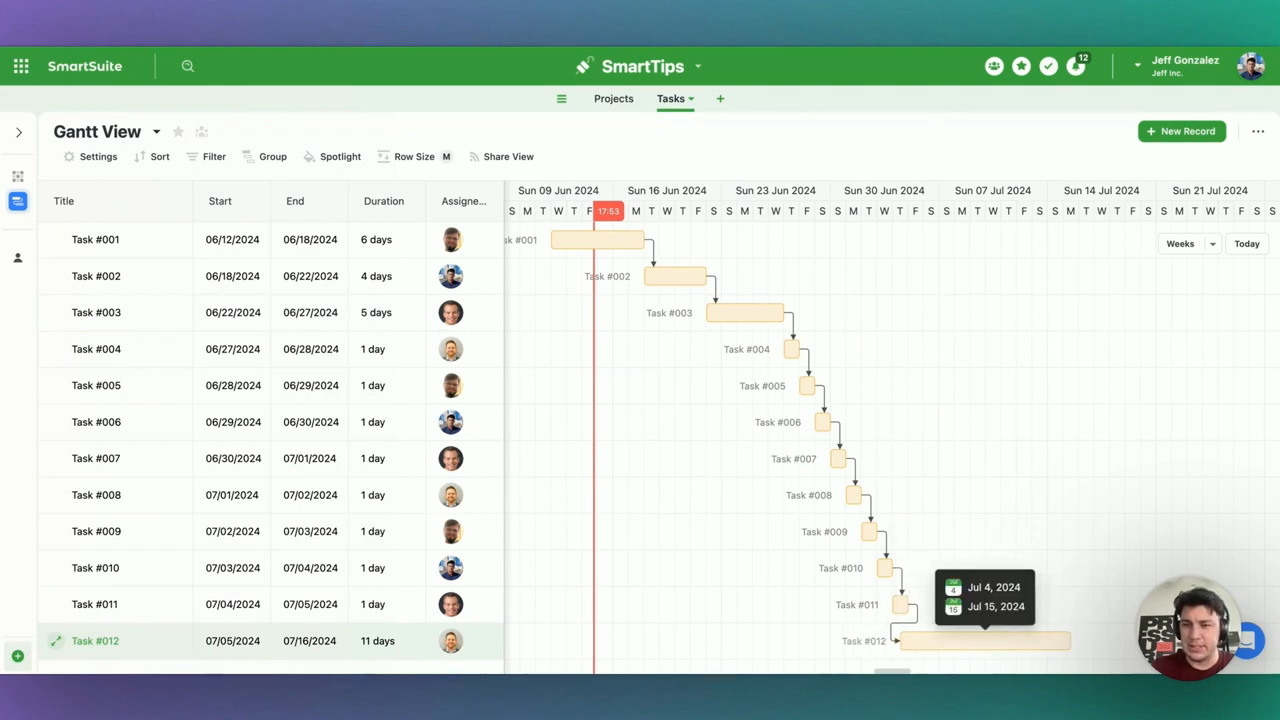
For example, if Task 12’s deadline is moved from July 16 to July 14, you can drag it to the new date. SmartSuite will then automatically adjust all preceding tasks to ensure tasks are appropriately scheduled to meet this new deadline.

‍

Practical Insights and Best Practices

Both auto scheduling and backward scheduling offer unique advantages, and knowing when to use each is vital for optimizing your project management strategy.

When to Use Auto Scheduling:

  • Dynamic Projects: Ideal for projects where task durations are susceptible to change.
  • Iterative Adjustments: Useful when frequent updates to task durations occur.

When to Use Backward Scheduling:

  • Fixed Deadlines: Essential for projects with a non-negotiable end date.
  • High-Level Planning: Great for visualizing the timeline from the endpoint backwards, providing clarity on what needs to be achieved leading up to the deadline.

Key Takeaways and Wrap-Up

Incorporating auto scheduling and backward scheduling into your project management toolkit can significantly enhance your ability to manage timelines effectively.

As you become adept with these tools, you’ll notice improved project outcomes, timely completions, and a more streamlined workflow.

To experience the future of work management firsthand, start your free SmartSuite trial today!

Grouping by Two Levels in Your Hierarchy

Software Stack Editor · June 7, 2024 ·

Welcome to another episode of Smart Tips! I’m Jeff Gonzalez, and today I’m going to walk you through an interesting concept: grouping by two levels of your hierarchy. You might be wondering, what exactly do I mean by that?

You potentially have tasks that roll up into projects, which then roll up into larger units like campaigns, goals, initiatives, and objectives. In today’s post, I’m going to show you how to represent these three levels of your hierarchy effectively.

Let’s dive in!

[embedded content]

‍

The Concept of Multi-Level Grouping

Often during our demos with customers and prospective customers, I showcase a simple solution that I’ve put together. This solution helps to visually tie together various elements of a project management hierarchy.

Here’s a quick rundown of what we’ll be covering:

  • Creating projects and linking them to goals
  • Creating tasks and linking them to projects
  • Using lookup fields to establish relationships across these levels
  • Grouping data to easily visualize these relationships

Starting with Projects and Goals

First, we’ll create a basic setup where projects are connected to specific goals. Follow these steps to get started:

  1. Create a Linked Record Field:We’ll start by creating a linked record field where each project is related to one goal. For instance:
    • Project 1 related to Goal 1
    • Project 2 related to Goal 2
    • Project 3 related to Goal 3

Project 1 -> Goal 1

Project 2 -> Goal 2

Project 3 -> Goal 3

Make sure to populate this field with relevant details so that we can view these relationships clearly.

Adding Tasks

Next, we’ll introduce tasks and link them to our projects. Let’s create a new table for tasks:

  1. Create a New Table:Name it “Tasks” and ensure that each task is linked to a specific project.
  2. Link Tasks to Projects:Ensure each task is unique to a project to avoid any confusions in relationships.
  3. Sample Data Creation:Automate the sample data generation for efficiency. You can create a list of tasks quickly by using auto-generated numbers.

Task 1 -> Project 1

Task 2 -> Project 1

Task 3 -> Project 2

Keep in mind that you can use shortcuts to quickly populate sample data. For demonstration purposes, I’ll use auto-generated numbers and copy-paste methods.

Creating the Hierarchical View

Now that we have tasks rolling up into projects and projects rolling up into goals, let’s create a view that showcases these relationships.

  1. Grouping by Project and Goal:First, we want to visualize tasks under their respective projects.
    • Group tasks by their associated project.
    • Now, add another layer: group these project groupings by their respective goals.
  1. Using Lookup Fields:We’ll utilize lookup fields to bring in data from related tables.
    • Lookup Field: This helps bridge the gap between tasks and goals through their project.

Lookup Field:- Related to Projects- Further linked to Goals

  1. Final Grouping:Update your view to group tasks first by goal, and then within each goal, group by project.

Grouping:- First by Goal- Second by Project within Goal

In-Depth Example

For a crystal-clear understanding, here’s a detailed example:

  1. Sample Data:
    • Projects: P1, P2, P3
    • Goals: G1, G2, G3
    • Tasks:
      • T1 -> P1
      • T2 -> P1
      • T3 -> P2
  1. Step-by-Step Grouping:
    • Link T1 and T2 to P1.
    • Link P1 to G1.
    • Group first by goals then projects within each goal.

This way, you’ll see tasks T1 and T2 under Project P1, which is under Goal G1.

“Grouping by multiple levels allows for a more comprehensive understanding of the relationships within your hierarchy.”

Conclusion

Using multi-level grouping in your hierarchy provides a more detailed and useful representation of your data. It streamlines the visualization process, making it easier to understand complex relationships among tasks, projects, and goals.

Feel free to experiment with these steps and adapt them to fit your unique needs. Thanks for watching, and happy organizing!

Stay tuned for more Smart Tips to help you streamline your workflows and enhance productivity!

Note: Always ensure your data groupings and relationships are clear to avoid any misinterpretation. With these steps, you can maintain an organized and efficient system.

To experience the future of work management firsthand, start your free SmartSuite trial today!

How to Identify Errors in Your Automations

Software Stack Editor · June 6, 2024 ·

Hello, and welcome to another episode of SmartTips. I’m Jeff Gonzalez, and today I am going to walk you through how you can identify errors within your automations. We’ll cover how to pinpoint the exact step where the error occurred and discuss potential fixes depending on the scenario of your automations. Let’s jump in and take a look!

Opening the Automation

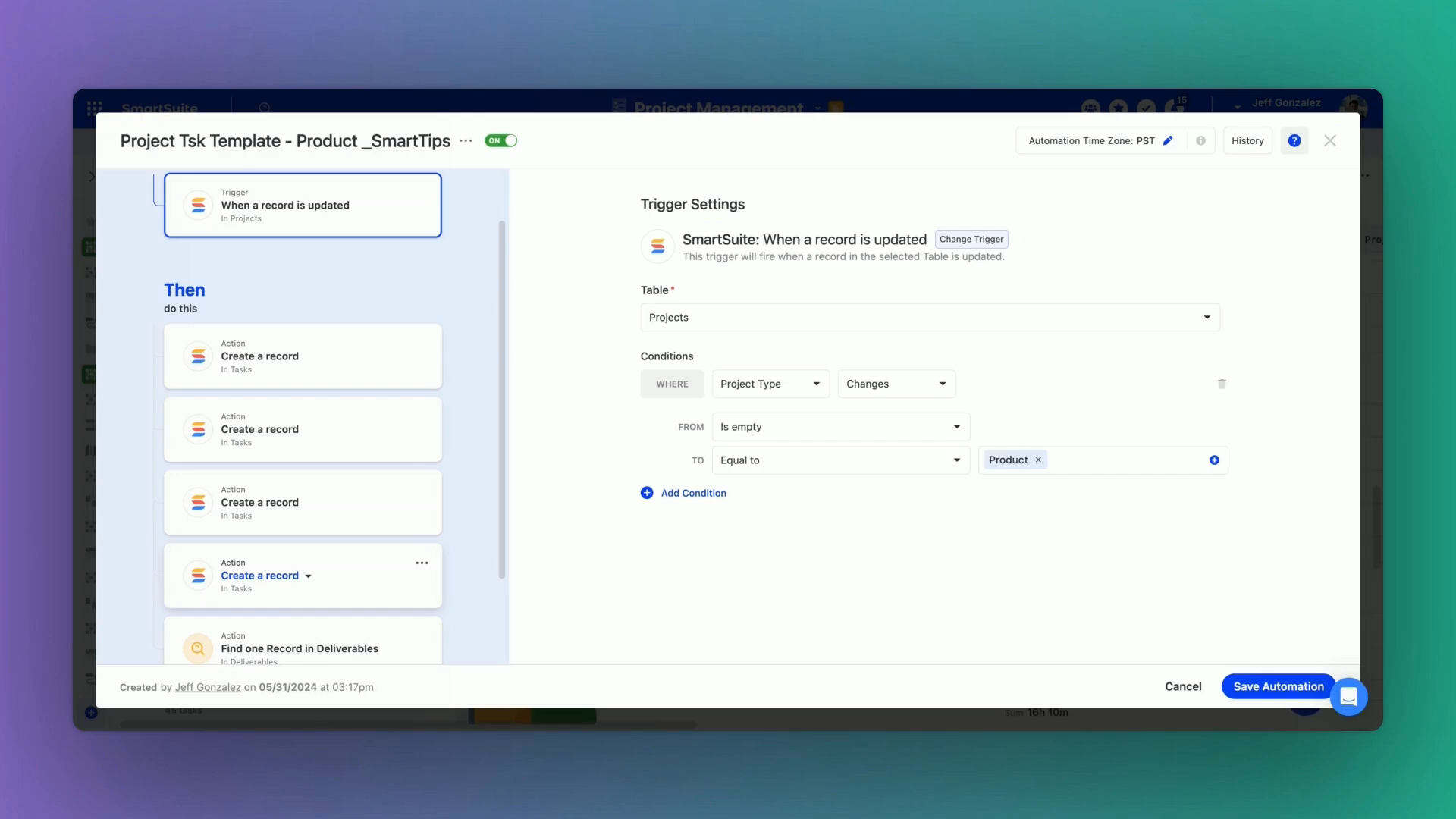
First, let’s open up the automation. As you can see in the image below, we’ve got multiple action steps based on this one trigger.

Reviewing the Task Records

At some point, there was an error in this process, and I want to figure out what happened. When I go into the table, I can see that the task records were created, but where is the error coming from?

Here’s what we’ll do:

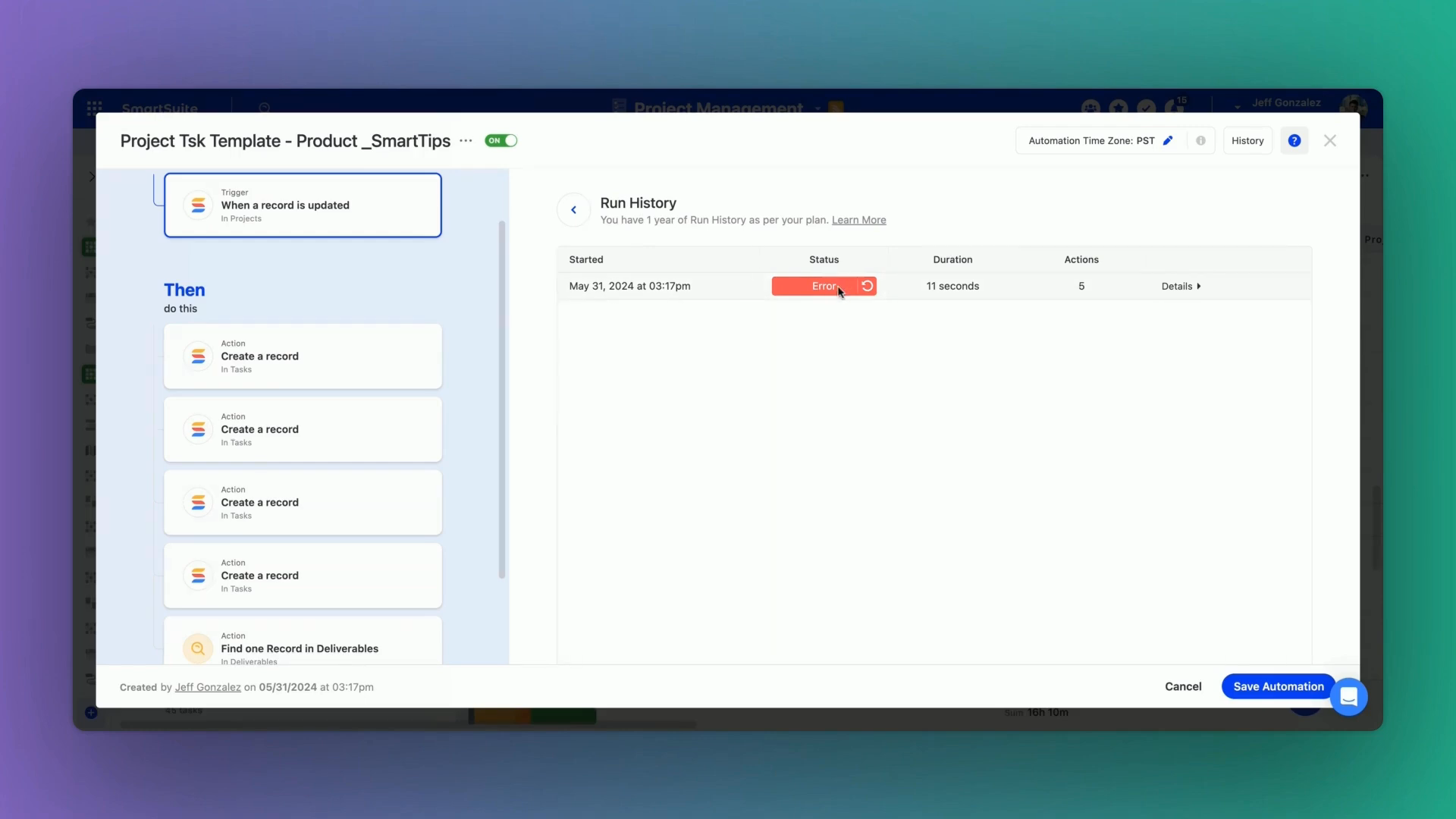
  1. Click the history button in the top right-hand corner.
  2. This will provide an ongoing list for an entire year of how this automation has run.

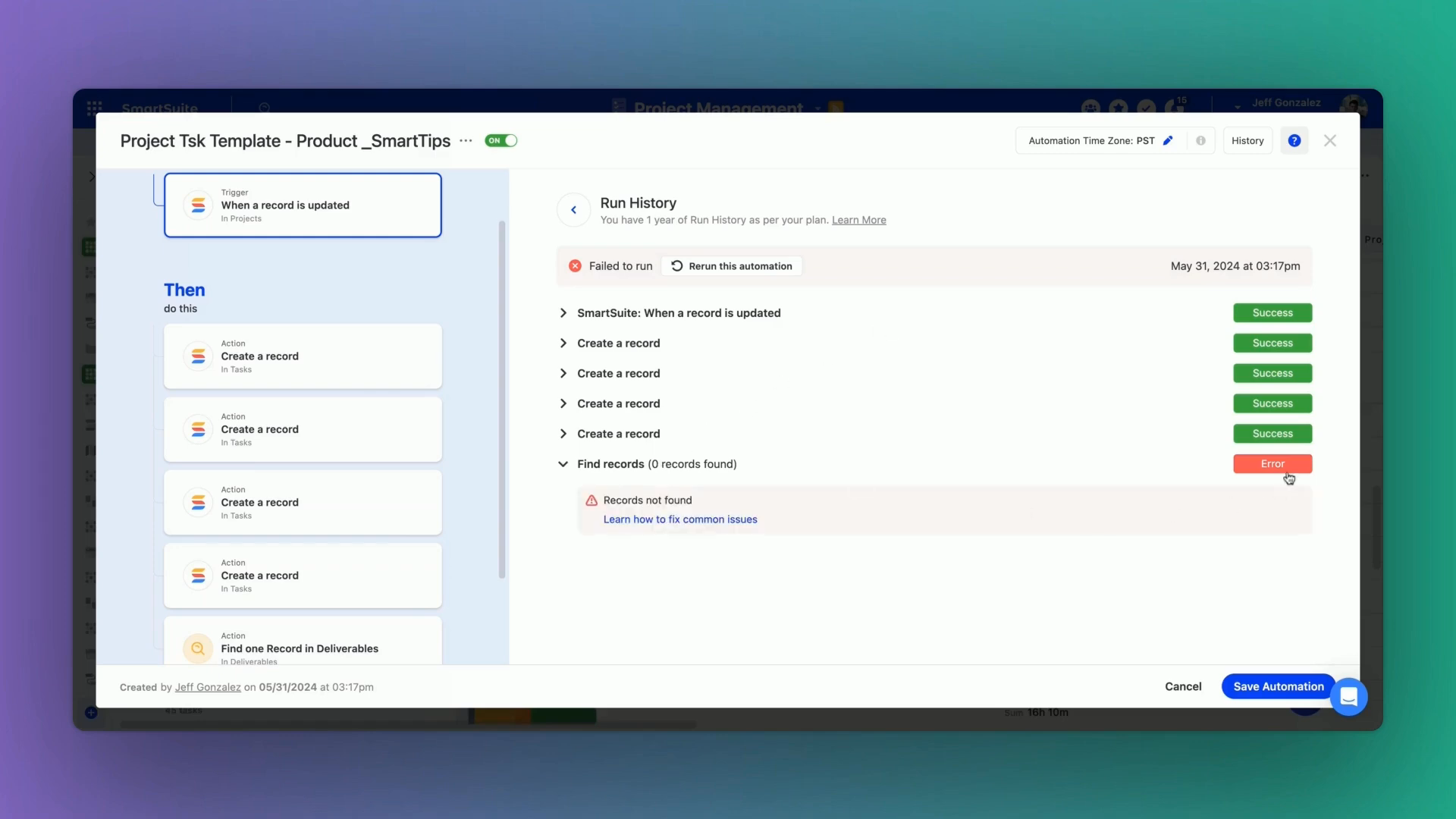
As you can see for this last run, the status is error. By clicking details on the right-hand side, we can get a dropdown list of every single action and whether it was successful or whether it errored.

Identifying the Error

It looks like the very last step is where we encountered our error.

“In find records, zero records were found. That’s what caused the error.”

Addressing the Error

Here’s the solution:

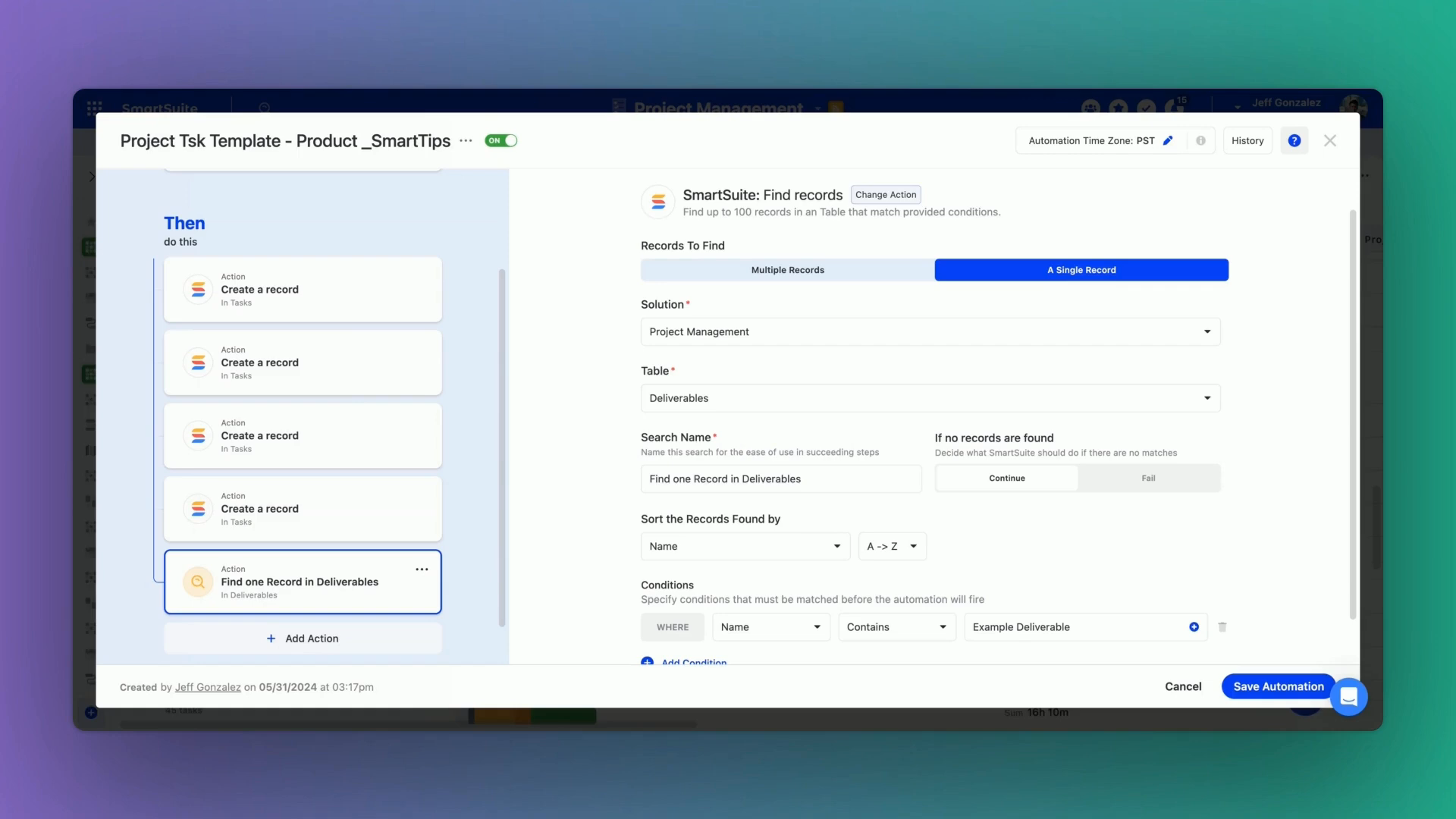
  1. Navigate to the action that caused the error.
  2. In this example, it says if no records are found, it should fail. This is where our issue lies.

Let’s change that to continue instead of fail:

  • This will help us prevent running into the same problem moving forward.

Conclusion

By following these steps, we can view the history of an automation and review exactly where an error occurred. This method is incredibly useful in maintaining the efficiency and reliability of your automated processes.

Thanks for watching!

If you have any questions or want to learn more about troubleshooting automations, feel free to check out the following resources:

We hope this post has helped you understand how to identify and fix errors in your automations. Stay smart and keep automating!

To experience the future of work management firsthand, start your free SmartSuite trial today!

How to Build a Work Order Ticketing System in SmartSuite + Free Template

Software Stack Editor · May 31, 2024 ·

Today, we’re diving into how to take your traditional physical order forms and transform them into a streamlined digital work management system using SmartSuite. Imagine turning your pen-and-paper forms into a purpose-built software solution designed by you, sans any coding.

‍

[embedded content]

Why Digitizing Work Orders Matters

1. Physical Work Orders Are Prone to Errors

Physical work orders might feel convenient, but they’re a challenge when it comes to retrieving information. Handwriting issues, spills, and lost documents are all too common. This can lead to team confusion, missed orders, and numerous mistakes. Digitizing your work orders significantly reduces these risks by keeping everything organized and easily accessible.

2. Overcomplicating Digital Solutions

While turning to digital solutions, many businesses overcomplicate the process by choosing industry-specific, rigid software that is often expensive and doesn’t always fit their workflow. This not only adds unnecessary costs but also eliminates the potential for a competitive advantage. Our approach focuses on creating a unique, cost-effective work order management system tailored to your business needs using SmartSuite.

Getting Started with SmartSuite

Let’s dive into the process of building your work order ticketing system using SmartSuite. For our example, we’ll pretend we’re running a property management company that serves landlords. We’ll be organizing work orders in SmartSuite, which is currently being tracked on paper.

Part 1: Replace Offline Work Orders with SmartSuite

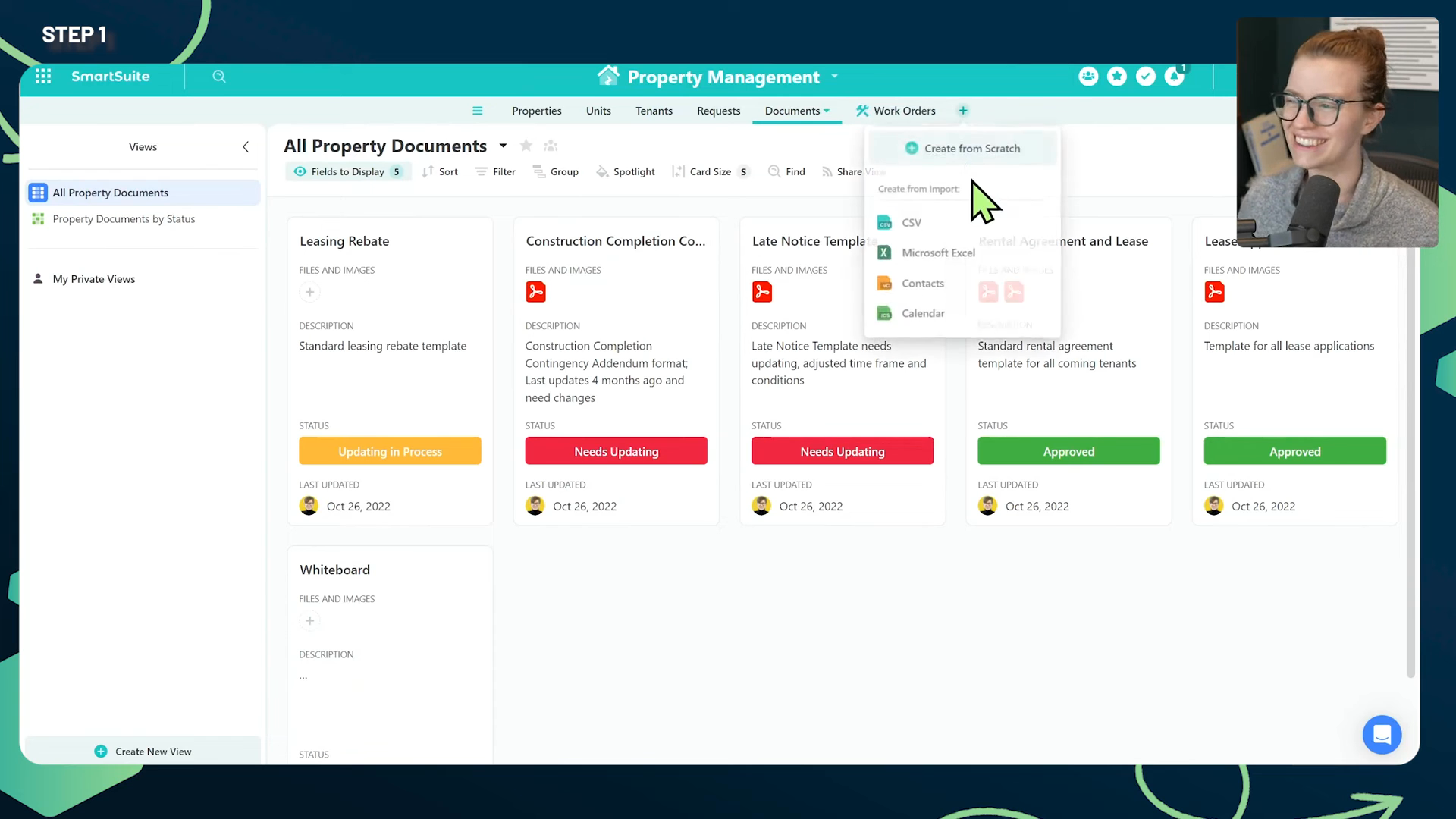
Step 1: Setting Up the Space

Begin by opening your no-code, easy-to-use work management software—SmartSuite. If you don’t already have SmartSuite, you can load a template specific to your industry and follow along. In our demo, we’ve set up a property management solution using a template.

1. Click the plus button to start from scratch.

2. Name your new table "Work Orders."

3. Optionally, add an icon for visual appeal.

‍

‍

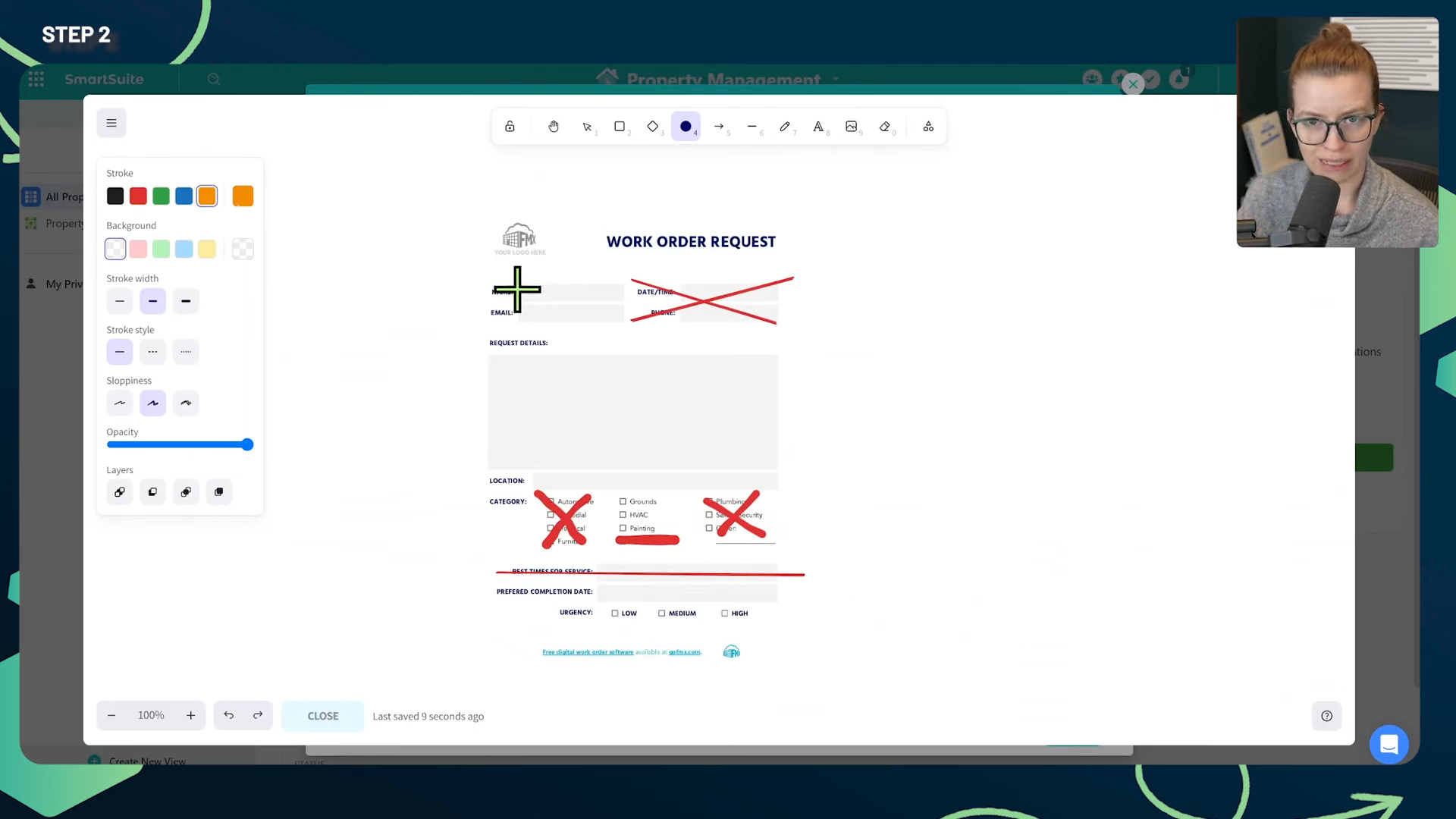
Step 2: Analyze Your Existing Forms

Next, take your existing form and identify which parts need to be digitized and which can be discarded. For this example, we’ll use a template picked from a Google search result. Evaluate it and determine what fields are essential and what can be eliminated.

1. Cross out any redundant fields.

2. Circle fields that are already in SmartSuite.

3. Identify new fields you need to create.

‍

‍

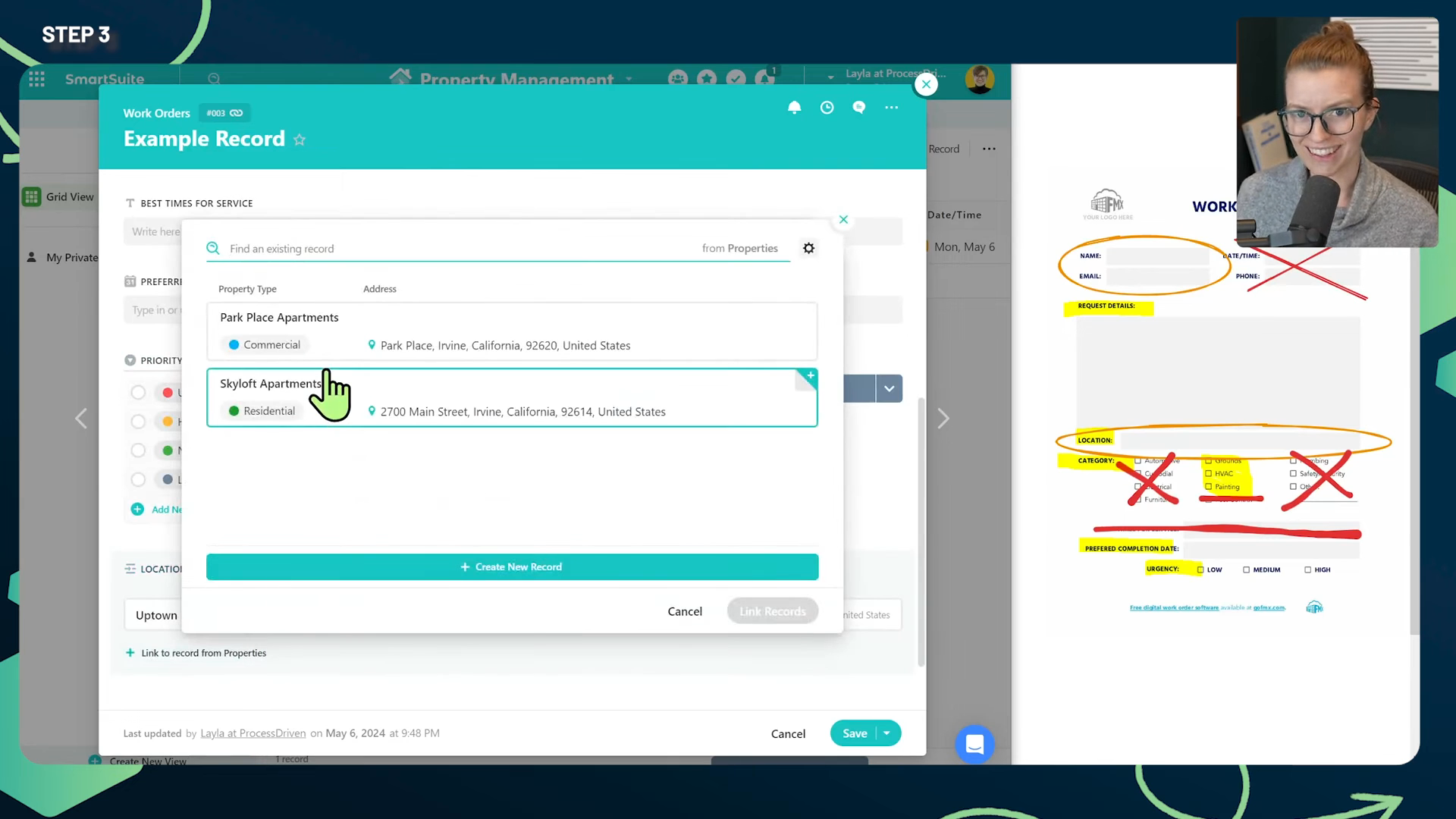
Step 3: Create Fields in SmartSuite

Start by creating the fields that aren’t marked for exclusion. This includes fields like request details, category, preferred completion date, and urgency. You can then move on to creating more complex fields, such as linked records, for elements like name and location.

**Example Fields:**- Request Name- Date and Time- Request Details- Category- Priority

Use SmartSuite’s “linked record” feature to avoid retyping information frequently. For instance, link the “Name” field to your tenant directory to pull details automatically.

‍

‍

Importing and Adding Data

Now that your digital system is set up, the next step is to add your existing information:

Phase 1: Import Existing Data

You have two options:

1. Import all work orders you've ever done.

2. Pick a starting date and begin digitizing work orders from that point onward.

Phase 2: Getting Users Onboard

Ensure all relevant team members are added to SmartSuite. This includes admins or office workers with access to a computer or tablet, and field technicians using SmartSuite’s mobile app.

‍

Using Softr to Streamline Processes

To overcome app fatigue in your organization, consider using Softr—a no-code app builder. This will allow you to create a cohesive system that integrates all necessary tools and processes in one place.

Softr Overview

Softr lets you build custom apps that integrate with various tools like SmartSuite and Stripe. Here’s how you can leverage Softr to your advantage:

**Potential Uses:**- For Field Technicians: View and manage work requests assigned to them.- For Internal Teams: Integrate policies, time off requests, and clock in/out trackers.- For Customers: Submit, view, and manage their work requests.- For Billing: Allow customers to update their billing information.

Create pages that cater to different user groups—office workers, field workers, customers, and potential customers. Each group will have specific permissions tailored to their needs.

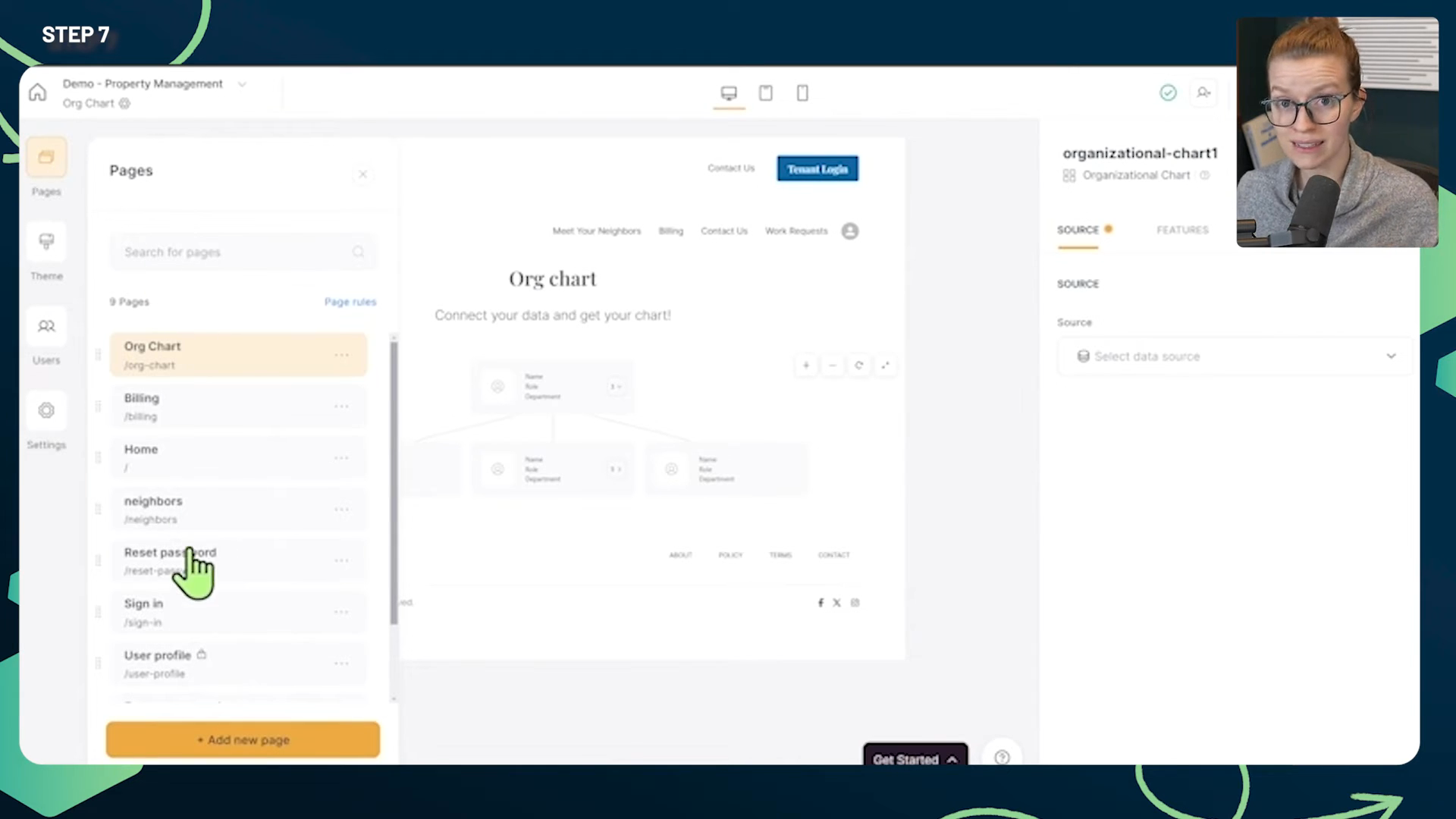
Step-by-Step Building in Softr

Let’s walk through creating your app in Softr:

  1. Log in to Softr using your account.
  2. Create a new app from scratch or use AI to generate one.
  3. Define your user groups and permissions.

Setting Up Pages for Different User Groups

Create customized pages that cater to each user group’s needs. Ensure these pages pull real-time information from SmartSuite.

‍

Examples:

Field Technicians: A page showing their work orders and allowing updates.
Internal Teams: A central hub for all company-related tasks and policies.
Customers: A portal to view and manage their orders and billing information
Public Page: Showcase your services and allow potential customers to contact you.

Each page and user group setup will ensure a seamless experience and reduce the need for multiple applications.

Conclusion: Bringing It All Together

By following these steps, you’ve successfully digitized your work order management and integrated various processes into a single, efficient system using SmartSuite and Softr. This setup not only eliminates the inconsistency and inconvenience of physical forms but also empowers your team and customers with a modern, dynamic tool tailored to your business needs.

To experience the future of work management firsthand, start your free SmartSuite trial today!

Save Big 💵 with the Guest Role from SmartSuite

Software Stack Editor · May 31, 2024 ·

Why Most Software Charges Per Seat

Most software these days charges per seat, which means that every user you add into your account increases your monthly or annual bill. This can get expensive if you have a lot of collaborators, even if they only need limited access. This is not the case with SmartSuite. Let’s explore why.

[embedded content]

The SmartSuite Guest Role: A Money-Saver

SmartSuite offers a guest role that allows you to collaborate with people without increasing your bill. This is a game-changer for businesses of all sizes, especially those that work with contractors or part-time team members. The guest role in SmartSuite is entirely free yet still offers several collaboration features.

What is the Guest Role?

The guest role in SmartSuite is a user type that does not incur any additional costs. While it comes with some restrictions compared to a traditional paid user, it still allows for effective collaboration within SmartSuite.

“The guest role will not increase your bill, but you’re still gonna be able to collaborate and interact with others.”

SmartSuite Pricing and Guest Users

For every paid user you have in SmartSuite, you get a certain number of guest users. Here’s how it breaks down:

  • Team Plan: 1 guest user per paid user
  • Professional Plan: 3 guest users per paid user
  • Enterprise Plan: 5 guest users per paid user

For example, if you’re on a team plan with 15 paid users, you get 15 additional guest accounts. As you move up the tiers, you get even more guest users per paid user.

Step-by-Step Guide to Using Guest Roles in SmartSuite

Setting Up and Adding a Guest User

  1. Navigate to SmartSuite’s Pricing Plan: Make sure you’re aware of how many guest users you can have based on your subscription tier.
  2. Login to Your SmartSuite Account: Open your SmartSuite account to start the setup process.
  3. Create a New Template: For this example, we’ll use a marketing template. Go to “Marketing Campaigns” and install it.
  4. Assign Tasks to Yourself: Initially, all tasks will be assigned to you since you installed the template.
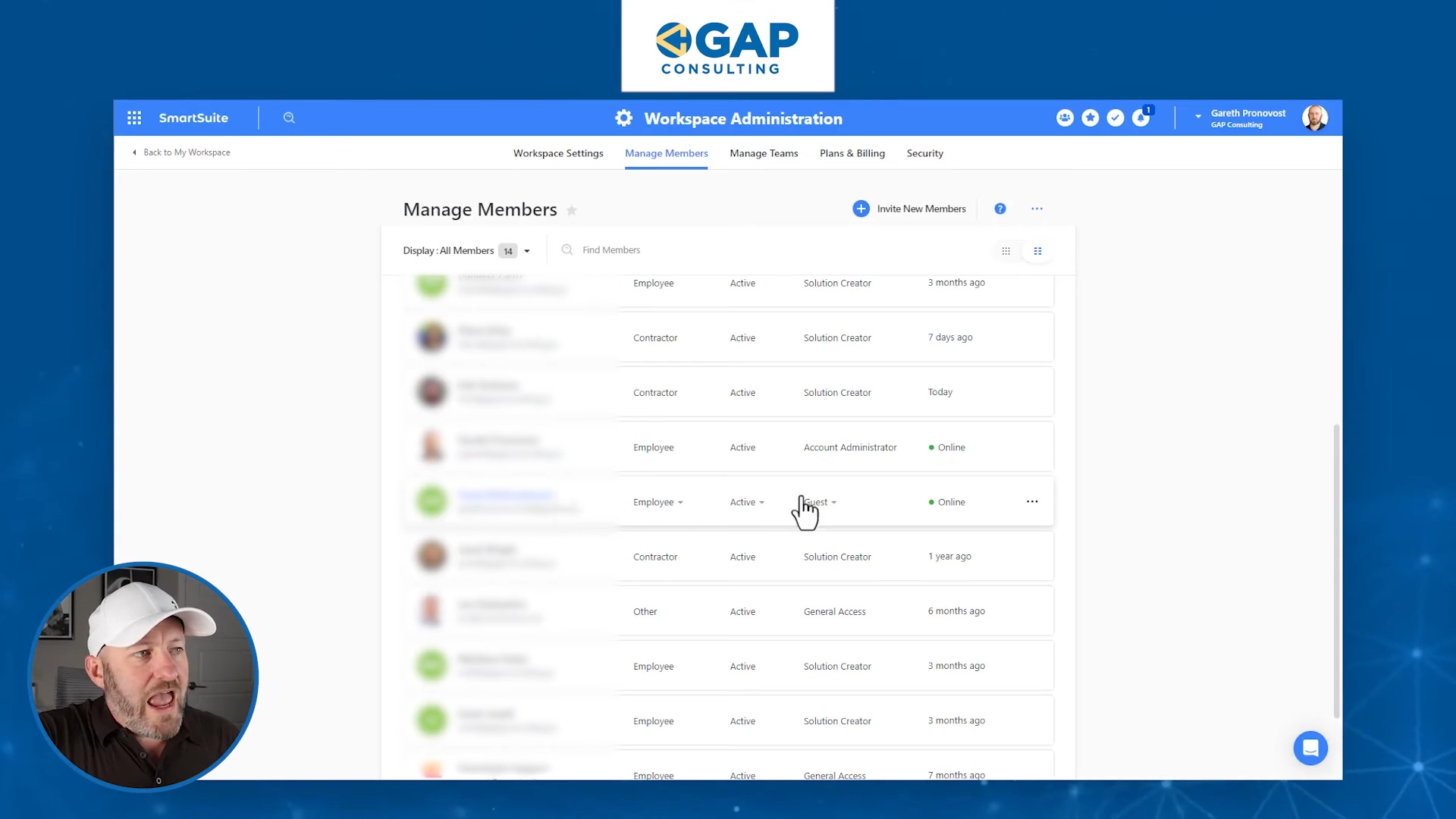
  5. Invite a Guest User: Go to the workspace admin section and manage members. Add your guest’s email here. For this demonstration, we’ll use a demo guest account, Guest McGesterson.
  6. Assign Records to Your Guest: Go back to your solution page and assign tasks to your new guest user.
  7. Any task assigned to Guest McGesterson will now be visible to them.

What Guests Can and Cannot Do

Guests have some limitations but still offer powerful features. Here’s what they can do:

  • View Assigned Records: Guests can only see records assigned to them, ensuring your data’s privacy.
  • Edit Status: They can update the status of tasks assigned to them.
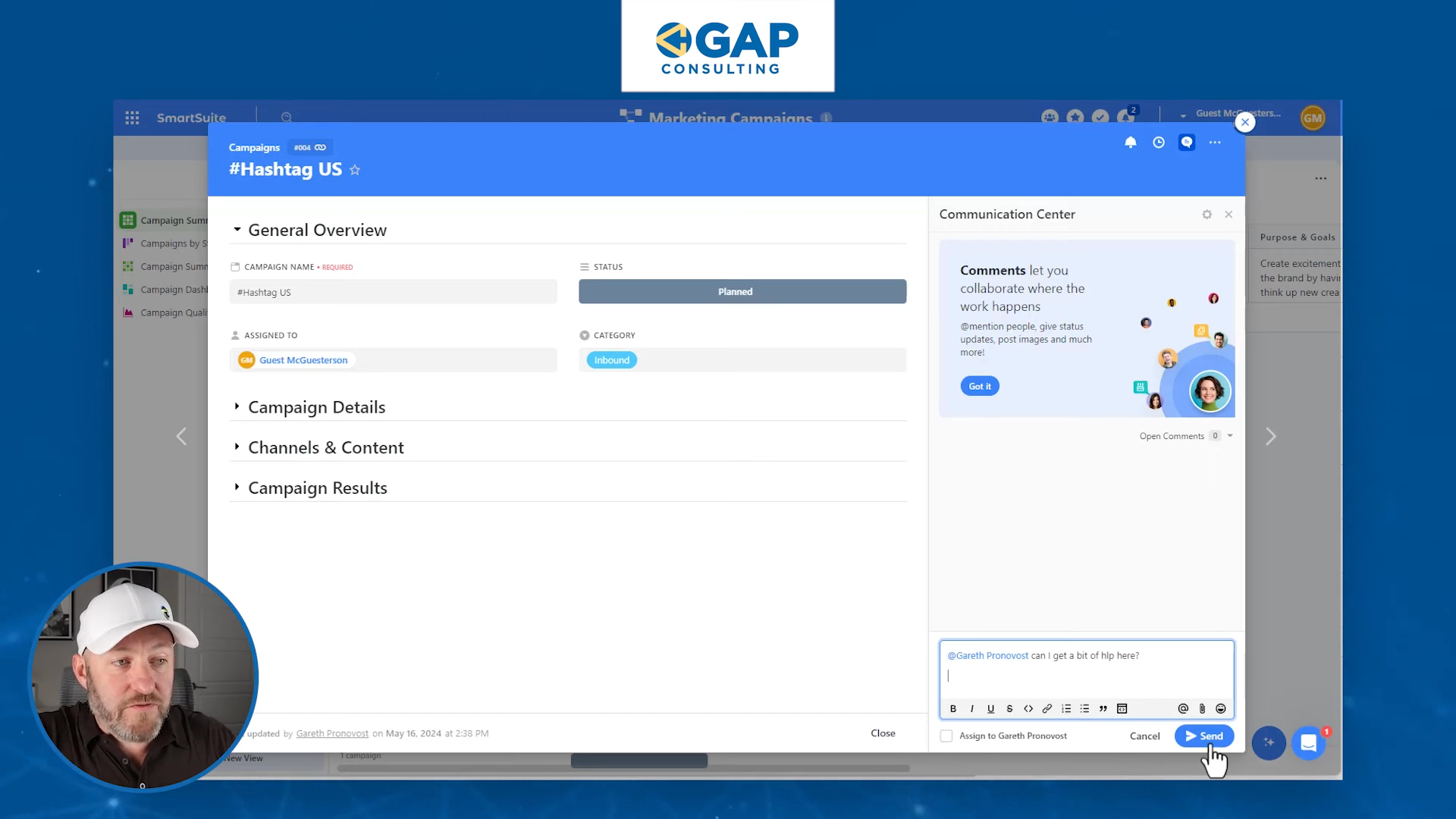
  • Collaborate Through Comments: Guests can chat with other team members within the platform.

Here’s a breakdown of how this looks in practice:

  1. Guest View: When a guest logs in, they will see a simplified version of the interface showing only the records assigned to them.
  2. Add Comments: Guests can add comments to for internal collaboration.
  3. @Admin Can I get a little help here?
  4. Update Task Status: Guests can change the status of their tasks to reflect their progress.

‍

Example Use Case

Imagine you have a contractor working on a specific part of a project. They don’t need full access to all your data—just the tasks that pertain to them. Simply assign these tasks to them, and they’ll only see what they’ve been assigned.

Conclusion

The SmartSuite guest role offers a fantastic way to collaborate without incurring extra costs. Whether you’re a small team or a large enterprise, this feature can save you significant money while still allowing efficient collaboration. This capability makes SmartSuite stand out from the crowd, taking your no-code solutions to the next level.

To experience the future of work management firsthand, start your free SmartSuite trial today!

Maximize Membership Tracking with SmartSuite! ⚡

Software Stack Editor · May 31, 2024 ·

One of the popular uses for no-code tools is being able to track the people who are a part of your membership. You can easily look in and see who has an active membership, when the last payment was made, and how things are going overall. Imagine building a dashboard to see the top level of how things are in your membership business.

[embedded content]

Setting Up SmartSuite for Membership Tracking

Without further ado, let’s hop into my screen and take a look at the next stages.

Tables in SmartSuite

The number one thing is to have two very specific tables for membership tracking:

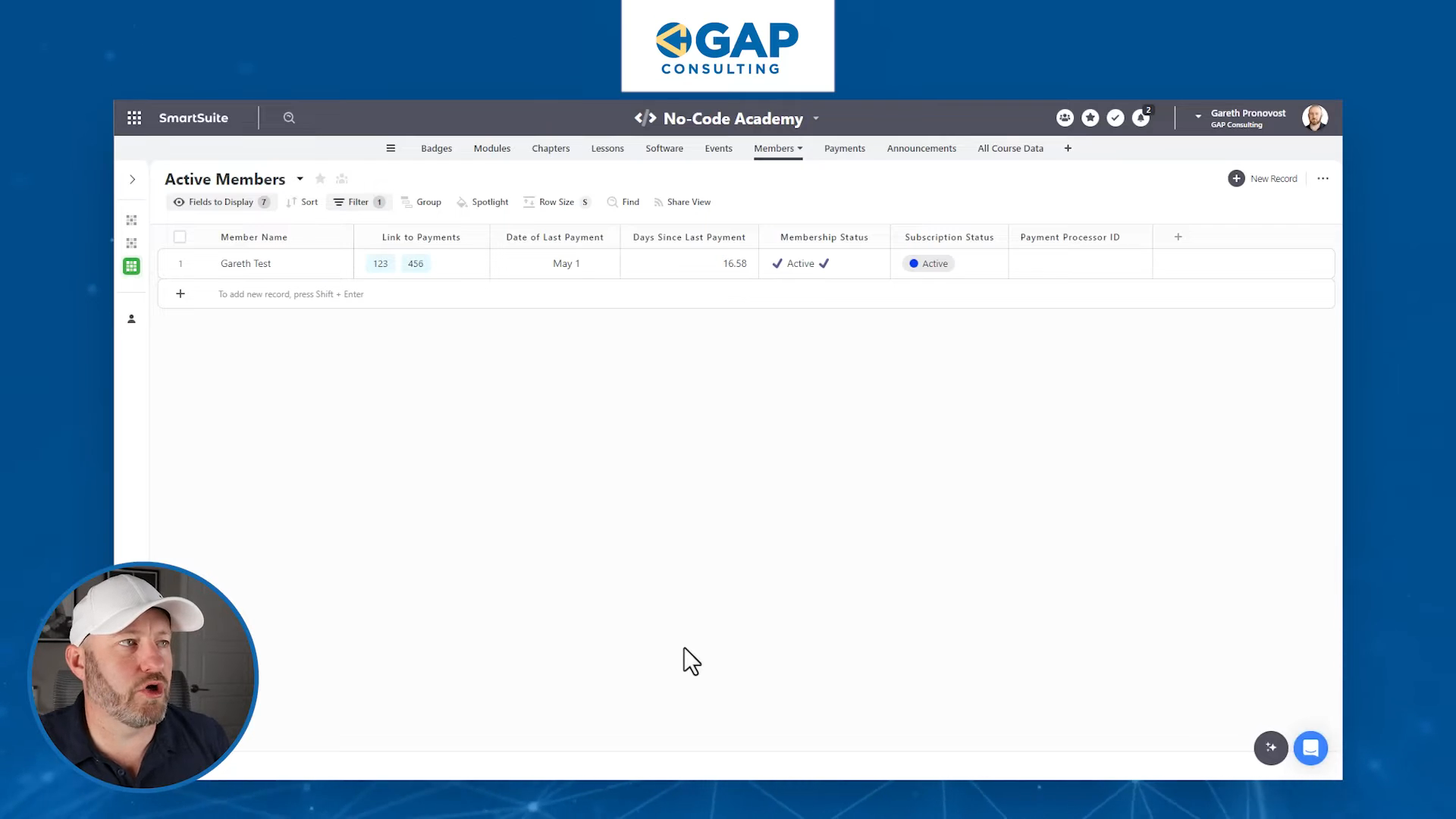
  1. Members: All member details are listed here.
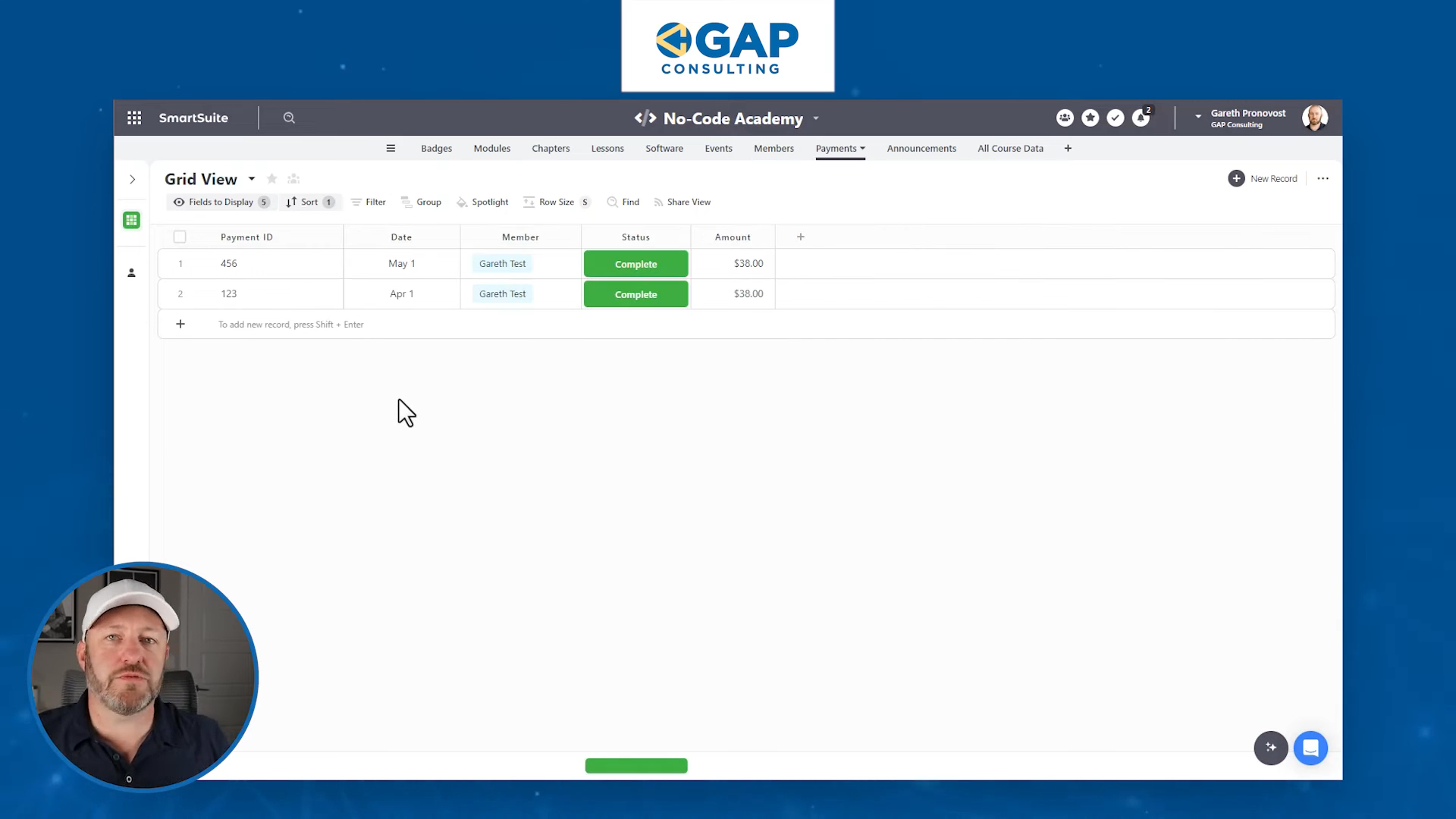
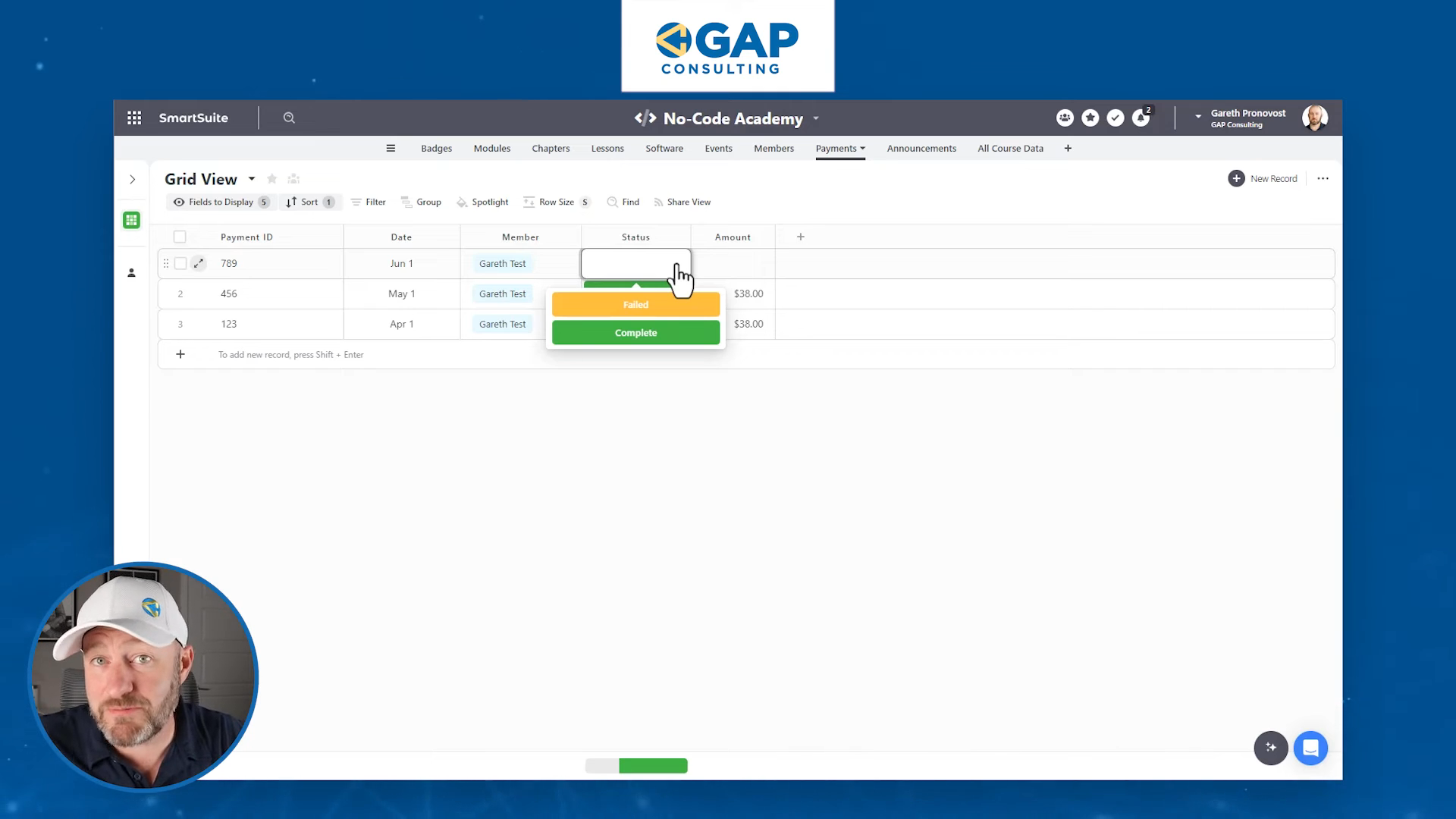
  2. Payments: This table links to the Members table and tracks the success of different payment attempts.

Members Table

In the Members table, you’ll want to bring in the following information at a minimum:

  • Member Name: Added to the record title.
  • Email Field: Essential for member identification.

Adding Fields

If you don’t have an email field already, add one by creating a new field.

Here’s how to do it:

1. Click on "Add New Field".
2. Select "Email" from the dropdown options.
3. Name the field and save it.

Payments Table

In the Payments table, we want to include:

  • Payment ID: Every processed payment gives an ID or tag. Store this in your database for future lookup.
  • Date of Payment: Track when the payment was processed.
  • Link to Member: Identify the member who made the payment.
  • Payment Processor ID: Every customer object in a payment processor has a unique ID.

‍

Setting Up Automation

Automation plays a crucial role in this setup. When a customer is created in your payment processor (e.g., Stripe), make sure this ID is plugged back into your SmartSuite system.

Example of Automation Setup
1. Create a new automation workflow.
2. Set trigger: "New Customer Created"
3. Action: "Record Customer ID in SmartSuite"
4. Map fields: Ensure the ID from the payment processor matches the customer record in SmartSuite.

Processing Payments

Let’s say it’s the 1st of June, and it’s time to process the next payment. Your payment system will process or attempt to process the payment. This action will trigger another automation that associates the payment with the correct customer in SmartSuite.

Identifying the Customer

The unique customer ID is utilized to ensure the correct association. Even if the email or name changes, the ID remains constant, guaranteeing accuracy.

Payment Status Updates

Construct an automation that checks the status of each transaction:

  • Failed Transaction
  • Completed Transaction

Calculating Last Payment Date

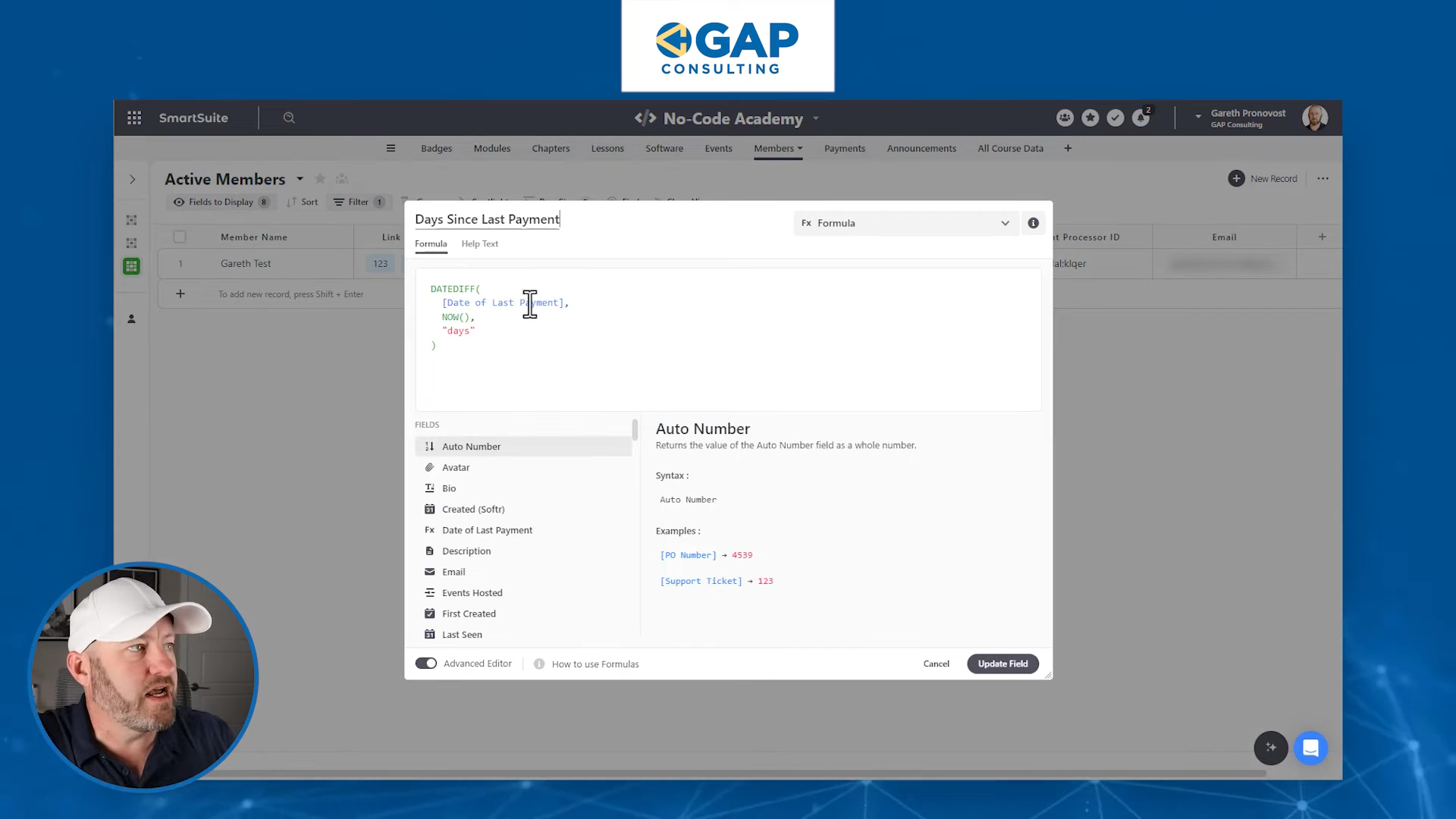
Create a formula in the Members table to track the last successful payment date:

Formula for Last Payment Date in SmartSuite:

1. Open formulas editor.
2. Use "Date Difference" to compare the latest payment date and the current date.
3. Format to display the number of days since the last payment.

‍

Example Scenario

Imagine updating the last payment date from June 1 to May 1. The formulas should automatically recalculate the membership status accordingly, determining if the member remains active or inactive.

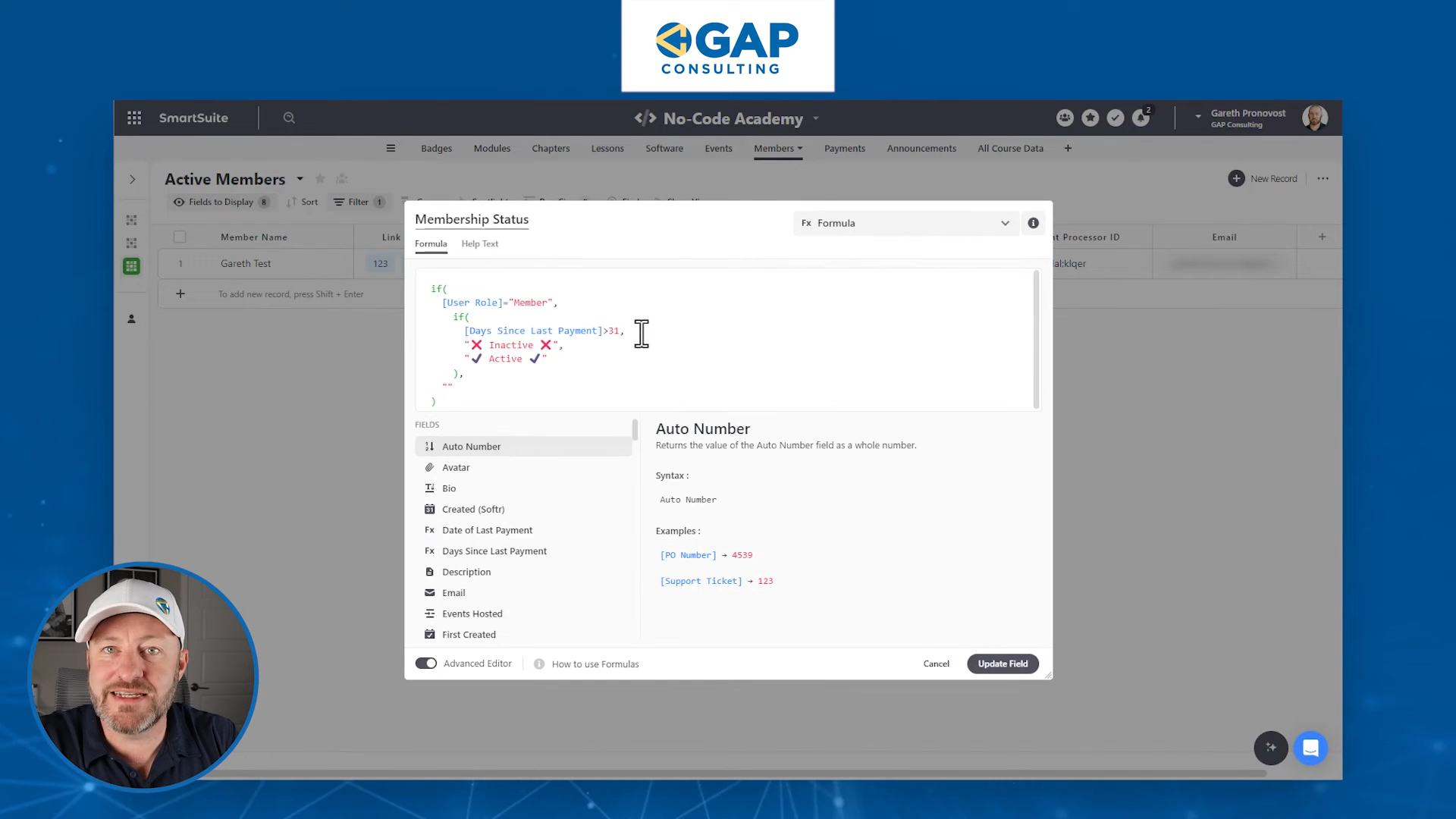
Membership Status

The membership status is essential for managing access to your services:

  • Active: If a payment was made in the last 31 days.
  • Inactive: No payment in the last 31 days.

Determine Membership Status
1. Create a status field.
2. Apply a formula: "If days since last payment > 31, then Inactive, else Active".

Mark Members Active/Inactive

Allow members to self-manage their status via a portal:

  • Self Deactivate: Members can choose to halt their membership.
  • Automation: Build workflows to manage the subscription status based on the member’s choice.

Conclusion

Running a membership site using no-code tools offers endless possibilities. Whether it’s tracking payments, identifying members, or maintaining membership statuses, SmartSuite simplifies the entire process.

To experience the future of work management firsthand, start your free SmartSuite trial today!

SmartSuite: Announcing GDPR Compliance

Software Stack Editor · May 22, 2024 ·

In the global compliance landscape, data security, privacy and compliance are paramount. Organizations handle sensitive information daily, and ensuring the confidentiality, integrity, and availability of this data is critical. We’re excited to announce that SmartSuite is now GDPR compliant.

GDPR Compliance: What It Means for You

The General Data Protection Regulation (GDPR) governs the processing of personal data of individuals within the European Union (EU). By achieving GDPR compliance, SmartSuite ensures that your organization can confidently manage sensitive data while adhering to EU privacy regulations. Here’s what you can expect:

1. Enhanced Data Privacy

  • SmartSuite implements robust data protection measures, including encryption, access controls, and audit trails.
  • Personal data is handled with utmost care, ensuring privacy rights are respected.

2. Consent Management

  • SmartSuite provides tools to manage user consent effectively.
  • Users have control over their data and can grant or revoke consent as needed.

3. Right to Erasure (Right to Be Forgotten)

  • SmartSuite supports the right to erasure, allowing users to request the deletion of their data.
  • Compliance with this fundamental GDPR principle ensures transparency and user trust.

EU Datacenter: A Localized Solution

In Q3 2024, SmartSuite will launch a datacenter located within the European Union. Here’s why this matters:

Reduced Latency: Users in the EU will experience faster response times due to proximity to the datacenter.

Data Sovereignty: Hosting data within the EU ensures compliance with local regulations and GDPR.

An Important Side Note: Contrary to popular belief, GDPR does not explicitly mandate that personal data must be stored within the EU or the European Economic Area (EEA) for compliance. Instead, GDPR imposes stringent requirements on the transfer of personal data outside these regions.

It is indeed permissible to store and process personal data of EU and EEA citizens outside the EU, provided appropriate safeguards are in place to ensure data protection and GDPR compliance. Current EU customers can be confident that SmartSuite is adhering to the GDPR requirements with this new certification, and will be fulfilling additional requirements when we launch our datacenter in the EU.

Under the General Data Protection Regulation (GDPR), the transfer of personal data to countries outside the EU/EEA is allowed if certain conditions are met to ensure that the data is adequately protected. These safeguards include:

  1. Adequacy Decision: The European Commission can decide that a third country, a territory, or one or more specified sectors within that third country, or an international organization offers an adequate level of data protection. If such a decision is in place, data transfers can occur without any further safeguard.
  2. Standard Contractual Clauses (SCCs): These are pre-approved model contracts that include provisions to protect data being transferred internationally.
  3. Binding Corporate Rules (BCRs): These are internal rules adopted by multinational companies to allow intra-organizational transfers of personal data across borders.
  4. Derogations: In specific situations, data transfers may occur based on explicit consent of the data subject, the necessity for the performance of a contract, important reasons of public interest, or for the establishment, exercise, or defense of legal claims.
  5. Other Mechanisms: There are additional mechanisms like codes of conduct or certification mechanisms, which are still evolving and being developed under the GDPR framework.

Thus, as long as these conditions are met, personal data of EU and EEA citizens can be processed and stored outside the EU in a manner compliant with GDPR.

Learn More

To learn more about our GDPR compliance practices and the upcoming EU datacenter launch, reach out to your SmartSuite account representative or contact our sales team at sales@smartsuite.com. We are committed to supporting your critical work while safeguarding your data and respecting privacy rights. Through this certification, we are able to work with our EU customers immediately.

SmartSuite: Announcing HIPAA Compliance

Software Stack Editor · May 21, 2024 ·

In the ever-evolving compliance landscape, data security, privacy and compliance are paramount. Organizations handle sensitive information daily, and ensuring the confidentiality, integrity, and availability of this data is critical. We’re excited to announce that SmartSuite is now HIPAA compliant.

Why HIPAA Compliance Matters

The Health Insurance Portability and Accountability Act (HIPAA) sets the standard for protecting sensitive health related data. Compliance with HIPAA regulations is not only a legal requirement but also an ethical obligation for every organization that handles this type of information. By achieving HIPAA compliance, SmartSuite ensures that your organization can confidently manage patient records, clinical data, and administrative workflows while adhering to industry standards.

What SmartSuite Offers

1. Centralized Data Management

SmartSuite provides a centralized solution for managing various aspects of health industry operations. Whether you’re handling patient records, clinical trials, or administrative tasks, SmartSuite adapts to your organization’s unique needs.

2. Flexibility and Customization

SmartSuite’s flexible platform allows you to tailor workflows to your specific requirements. Customize forms, templates, and data fields to match your organization’s processes. Whether you’re a small clinic or a large healthcare network, SmartSuite scales to fit your needs.

3. Collaboration and Communication

Collaborate with your team securely within SmartSuite. Share patient information, discuss treatment plans, and assign tasks—all while maintaining data privacy. SmartSuite’s communication features facilitate seamless collaboration among health industry professionals.

4. HIPAA Compliance Features

SmartSuite’s HIPAA compliance features include:

  • Data Encryption: All data transmitted and stored within SmartSuite is encrypted to protect privacy.
  • Access Controls: Role-based access ensures that only authorized personnel can view and modify sensitive information.
  • Audit Trails: Detailed logs track user activity, allowing you to monitor data access and changes.
  • Business Associate Agreements (BAAs): SmartSuite offers BAAs to demonstrate our commitment to safeguarding patient data.

Learn More

To learn more about enabling HIPAA compliance for your organization, reach out to your SmartSuite account representative or contact our sales team at sales@smartsuite.com. We are committed to supporting your critical work while safeguarding your data and respecting privacy rights.

How to Relate Expense Submissions to Projects

Software Stack Editor · May 10, 2024 ·

Welcome to another entry in our Smart Tips series! I’m Jeff Gonzalez, and in today’s post, we’ll be diving into a simple yet potent project management solution. Specifically, we’ll explore how to seamlessly integrate expense submissions with project details to enhance financial transparency and control. This step-by-step guide will not only simplify the process but will also make it engaging. So, let’s get started!

[embedded content]

Understanding the Basics

Before we dive into the mechanics, it’s essential to comprehend why aligning expenses with project details is pivotal. In project management, tracking every dollar spent against the project budget is crucial for maintaining financial health and ensuring project success. This requires a systematic approach where every expense submitted is directly linked to the project it pertains to.

To facilitate this, we have set up a basic structure in our project management toolkit. This includes tables for projects, tasks, milestones, and deliverables. What’s new here is the inclusion of an expense table, designed to capture and relate expenses directly to specific projects.

Setting Up Your Project Expense Table

Configuring the Basics

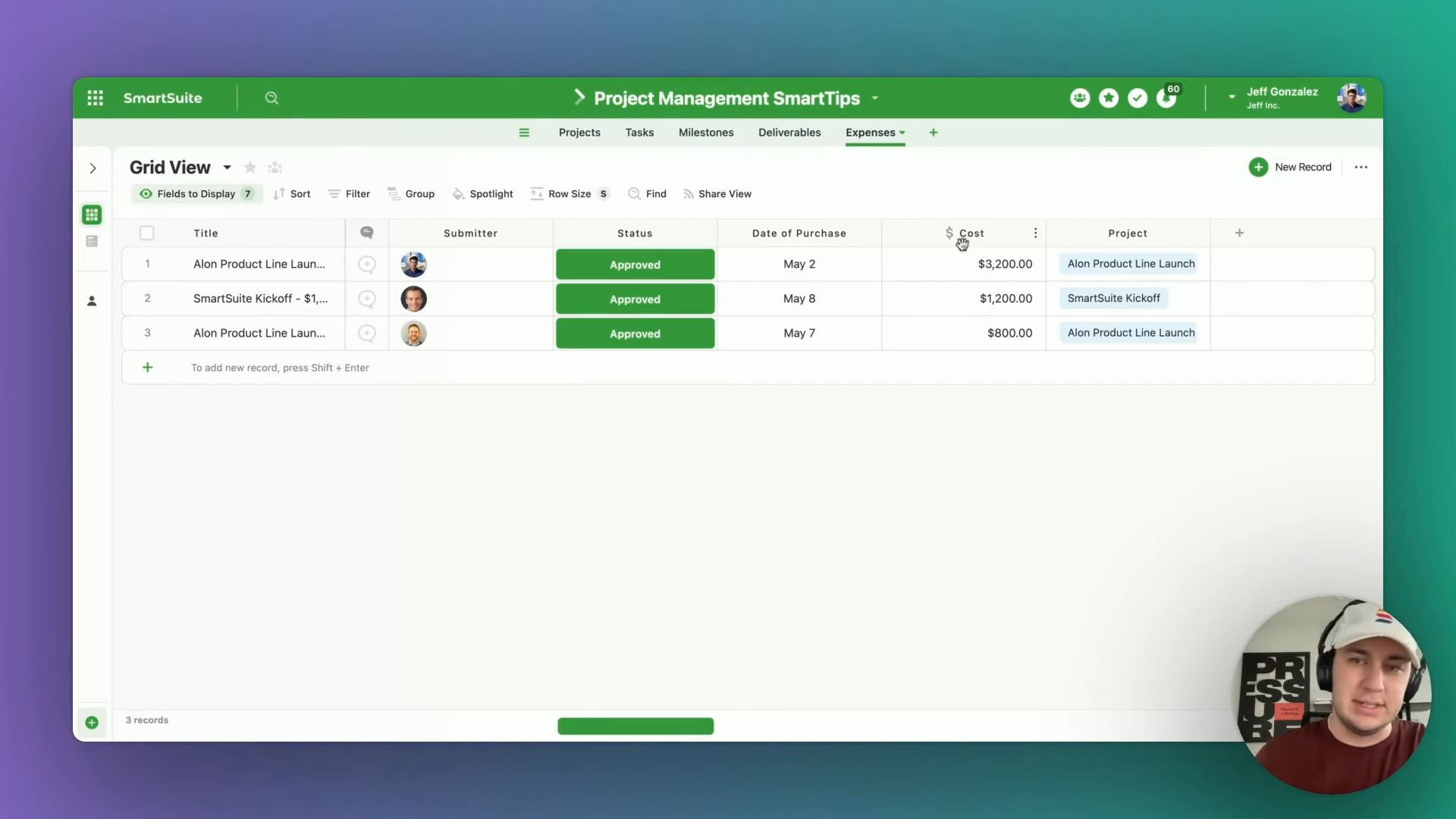
The first step in our setup is the expense table. Here’s what it typically consists of:

  • Assigned To: Who submitted the expense?
  • Status: Is the expense requested, approved, or denied?
  • Date of Purchase: When was the item/service purchased?
  • Cost: How much did it cost?
  • Project: Which project is this expense associated with?

This structure not only helps in organizing the expenses better but also ensures that every penny spent is accounted for in the context of its respective project.

Enhancing Usability with Forms

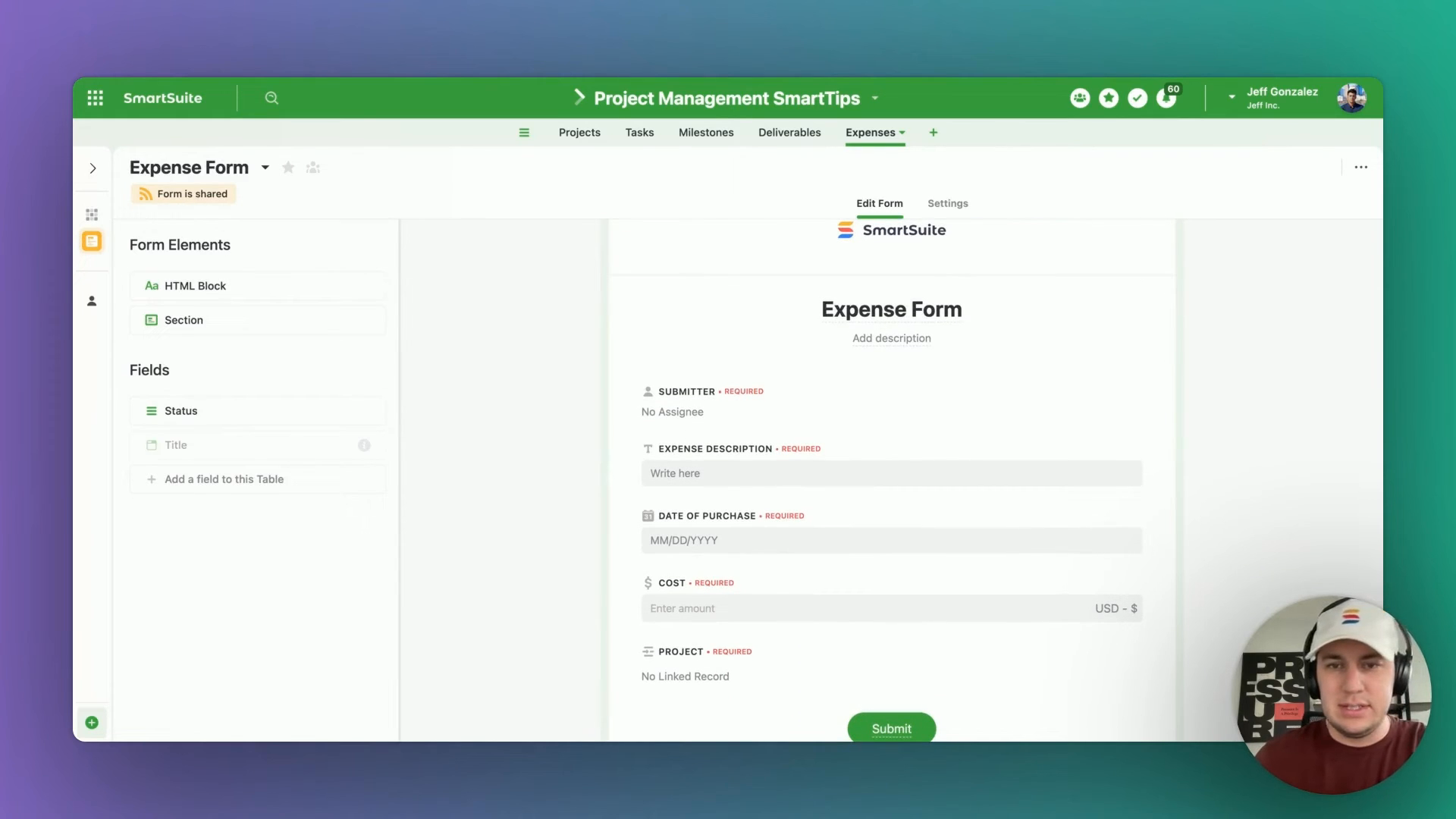
To make the submission process as frictionless as possible, we employ a form view. This view allows expenses to be titled and documented with ease, and even lets you add a logo for a personalized touch.

This simplifies the data entry process, ensuring that details are captured accurately and consistently.

Integrating Into Dashboard

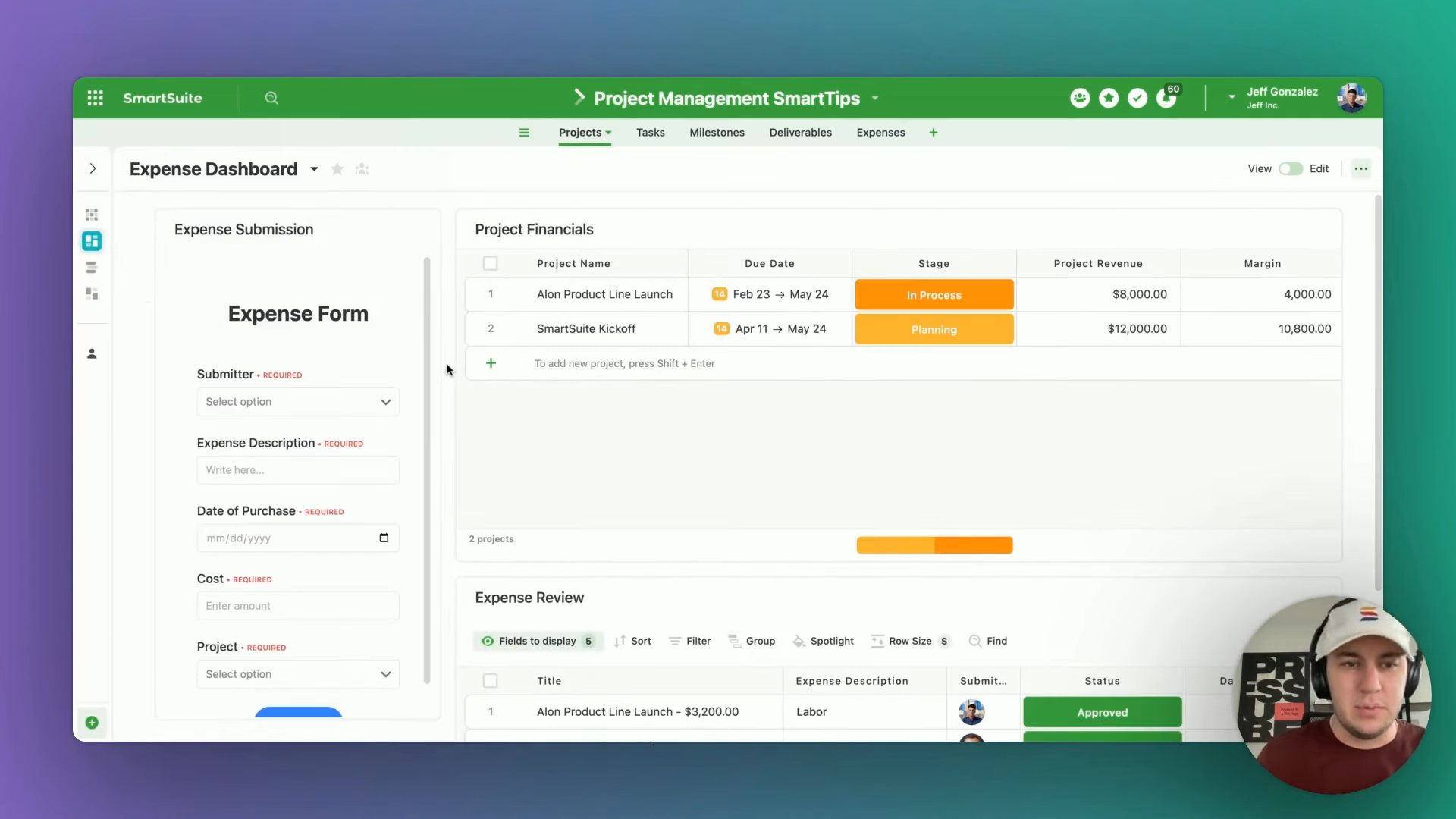
The real magic happens when we integrate these forms into a smart suite dashboard. This dashboard acts as a central hub where expenses can be submitted and viewed alongside project financials.

To integrate, we use a custom code widget that allows embedding HTML directly into our dashboard.

This setup not only centralizes the information but also enhances accessibility, empowering team members to track financial details efficiently.

‍

Financial Oversight with Grid Views

One of the dashboard views we employ is a simplified grid view that displays key financial metrics:

  • Project Revenue: Total revenue from the project.
  • Expenses: Sum of all approved expenses related to the project.
  • Margin: Calculated as Project Revenue - Expenses.

Here’s what makes it effective:

> The grid view allows us to instantly see the financial health of the project, reflecting current revenues against expenditures.

By subtracting the total approved expenses from the project revenue, we keep a real-time tab on the project’s financial performance, ensuring that we stay within budget and react promptly to any discrepancies.

Tracking Expenses: A Practical Example

Imagine spending on the most expensive lunch in business history. Here’s how you would go about submitting it:

  1. Enter Your Name: Jeff Gonzalez.
  2. Description of Expense: Business lunch.
  3. Date of Purchase: Enter yesterday’s date.
  4. Cost: Let’s hypothetically say $1,000.
  5. Project: Tied to “Smart Suite Kickoff”.

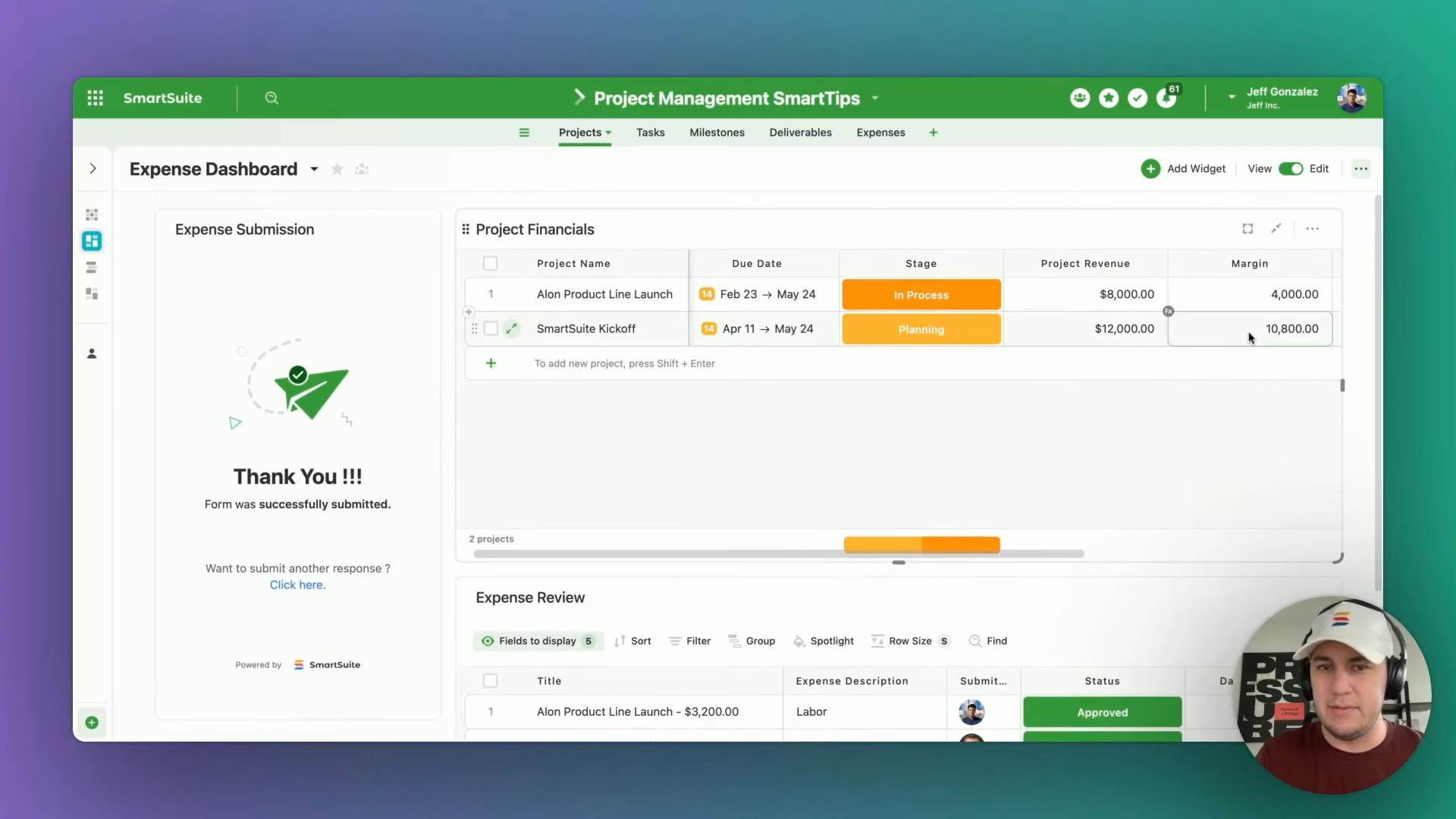
Once submitted, this expense doesn’t immediately affect the project margin in our grid view—until approved.

Adjusting Status for Approval

Post submission, the expense will initially reflect as requested. Our grid allows sorting and filtering to manage and review these expenses effectively.

To approve an expense:

  1. Filter for the requested status.
  2. Change status to ‘Approved’.
  3. Watch as the grid dynamically updates the project’s financial standing.

In this example, adjusting the status immediately reflects; the project’s margin decreases by the exact cost of the lunch, showcasing an updated margin of $10,800 from an initial $12,000, thus maintaining a clear, transparent view of financial standings.

Conclusion & Future Explorations

This guide hopefully sheds light on the streamlined, effective way to manage project expenses. By integrating expense tracking directly within the project management dashboard, we ensure that every dollar spent is visible, accounted for, and properly managed.

SmartSuite for Project Management? You NEED to use this feature…

Software Stack Editor · May 9, 2024 ·

If you’re navigating the complex waters of project management, SmartSuite is a powerful ally with a range of features designed to enhance efficiency and clarity in your projects. Today, we’re diving deep into one such game-changing feature—the Dependency Field.

[embedded content]

Introduction to the Power of Dependencies

One cannot talk about SmartSuite without highlighting its star player: the Dependency Field. Often referred to as the “order of operations,” this feature transforms your project management experience by establishing clear precedents and sequences for tasks. This isn’t just about determining what gets done and when; it’s about revolutionizing how team collaboration unfolds.

“Serious project managers have always deserved serious tools—bigger, badder, the most powerful project management tools in the universe.”

Now, let’s embark on a guided tour of the Dependency Field in SmartSuite and uncover how to leverage this feature to streamline your project workflows.

Setting Up the Dependency Field

Initially, your SmartSuite template might not include the Dependency Field by default. Fear not! Adding this crucial field is simple:

  1. Navigate to the right side of your project template.
  2. Click on “Add a new field.”
  3. Type “Dependency” and select the Dependency field type from the dropdown.

Once added, the Dependency Field rigorously enhances your project framework by introducing a logical flow between tasks—predecessors and successors—that dictates what needs to happen before or after a particular task.

‍

Advanced Insights: Predecessors and Successors

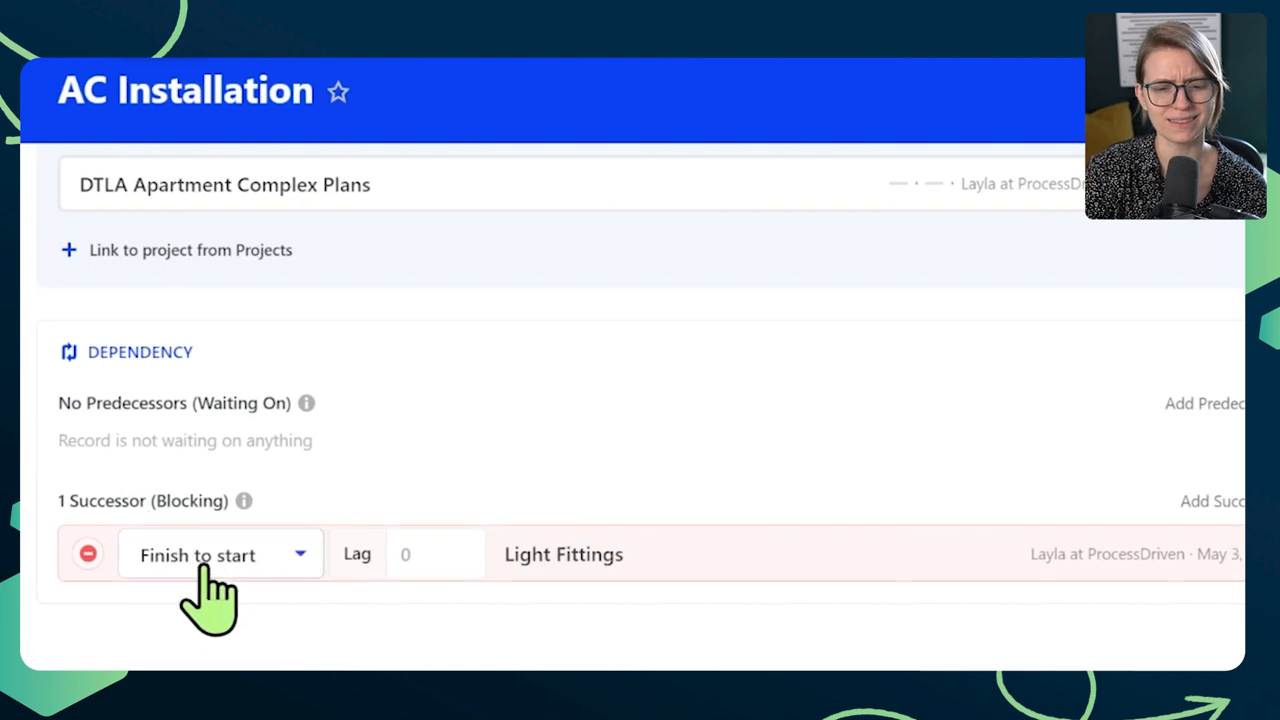
Upon setting up the Dependency Field, you’ll be greeted with interfaces for predecessors and successors, neatly breaking down the task sequences. This clarity is crucial, for instance, ensuring that tasks like “Lighting Fittings” can only commence post “AC Installation.”

Applying these dependencies ensures each phase of your project is strategically timed, preventing any premature or missequenced task executions which could lead to costly delays or reworks.

Visualizing Dependencies: The Gantt View

SmartSuite’s Gantt view takes visualization to the next level, providing a panoramic view of all task dependencies. Activating the Gantt view is straightforward:

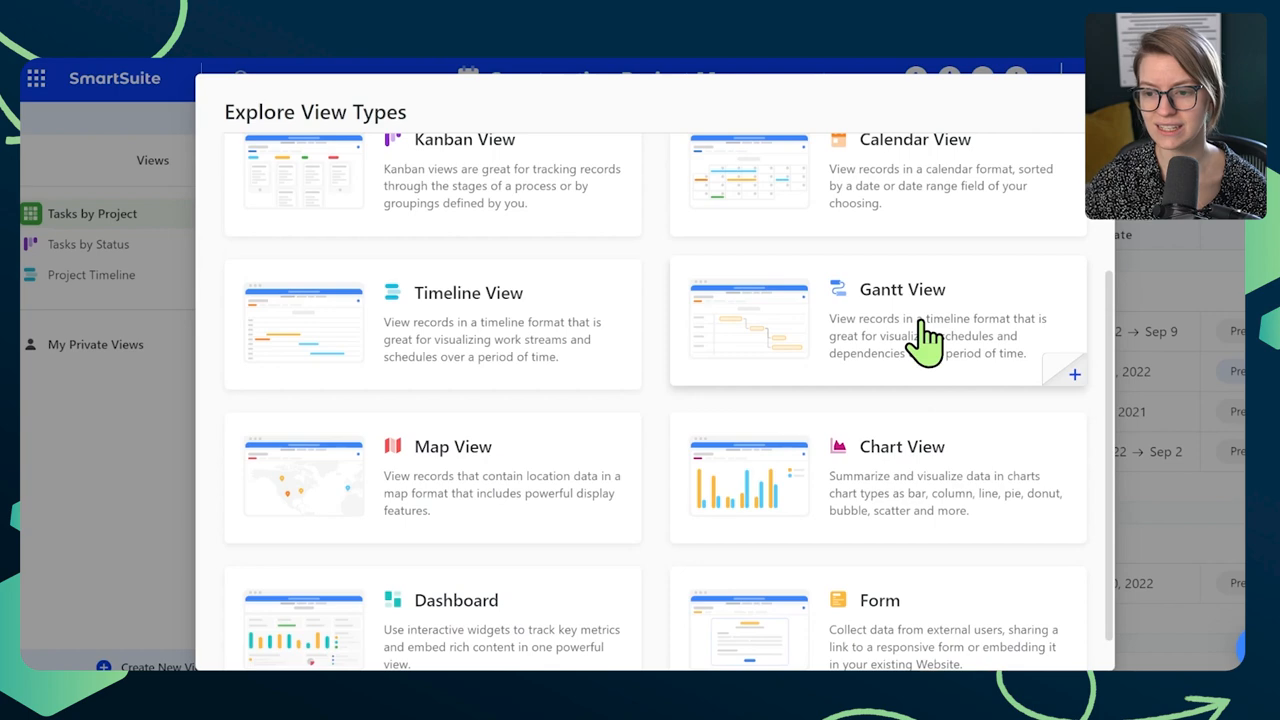
  1. From your project sidebar, select “Create a new view.”
  2. Search and select “Gantt View.”

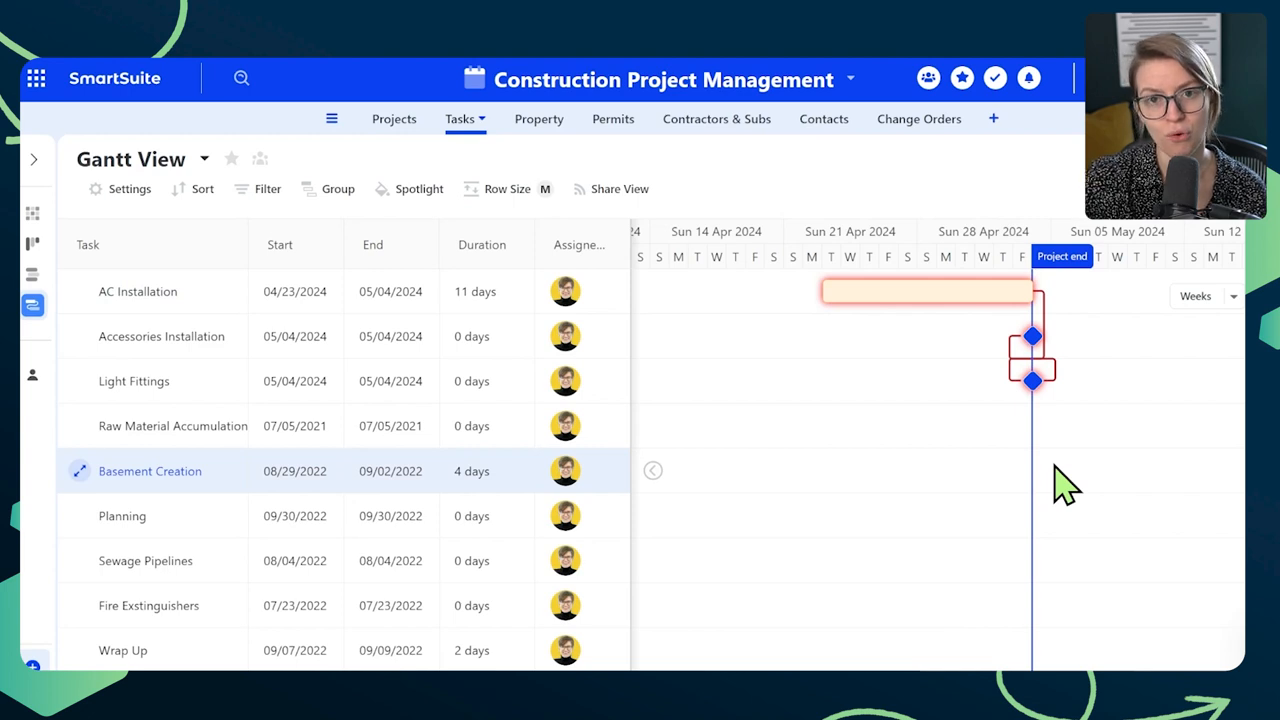
In this dynamic view, dependencies manifest as intuitive arrows linking tasks, illustrating a clear path from start to finish. Adjustments to task dates reflect immediately, showcasing the flexibility of the Gantt view in real-time project adjustments.

Creating Dependency Links

Further enhancing task management, the Gantt view facilitates the creation of new dependency links with ease:

  • Hover over a task, and a subtle gray circle will appear.
  • Click and drag from this circle to another task to create a direct dependency link.

Each link solidifies the operational flow, ensuring that the project’s tempo and sequence are maintained.

Hidden Gems: Additional Dependency Features

Beyond basics, SmartSuite’s Dependency field boasts advanced settings that drastically enhance project management capabilities:

  • Auto Scheduling: Automatically adjusts task timelines based on changes, ensuring that delays in earlier tasks don’t lead to a cascading effect of delays.
  • Dependency Modes: Offers refined control over how dependencies are defined, such as adjusting for overlapping tasks or tasks that need to start or finish simultaneously.

In the settings area of the Gantt view, explore options like highlighting critical paths or hiding task labels for a cleaner view.

Real-World Applications and Adjustments

Practically, these features become pivotal in projects with tight deadlines or those susceptible to frequent changes, like construction or software development projects. For example, if an earlier task like “AC Installation” is delayed, the auto-scheduling feature will automatically push subsequent dependent tasks, ensuring realistic and updated project timelines.

Conclusion: Why You Can’t Ignore this Feature

The Dependency feature in SmartSuite isn’t just another tool—it’s a transformative feature that reassures project managers of their project’s feasibility and executable sequence. Whether you’re a seasoned project manager or new to the field, using the Dependency Field allows for a methodical, visible, and adjustable approach to managing tasks.

Sign up for your SmartSuite account today here and get started on mastering these pivotal project management capabilities!

Maximize Efficiency: Learn to Share Read-Only Views in SmartSuite!

Software Stack Editor · May 9, 2024 ·

Welcome back! As someone passionate about the magic and practicality of no-code solutions, today we delve into an often overlooked feature of data sharing within SmartSuite — crafting read-only views for external and internal use. Whether you’re here to fine-tune your workflow or just curious about the possibilities, you’ve landed in the right place!

[embedded content]

Overview

In the ever-evolving landscape of project management and data handling, SmartSuite emerges as a powerhouse for no-code automation and database management. A fascinating aspect of utilizing this tool is the ability to share views — a feature crucial for collaborative work environments or when needing to present data to external stakeholders without relinquishing control over the original data inputs.

SmartSuite isn’t just for heavy database manipulations; it excels in creating user-friendly, read-only views that are both secure and easy to manage. Let’s break down the process and look at some practical implications of this feature.

Getting Started with SmartSuite

If you’re either a seasoned pro or just starting out with SmartSuite, you’ll find that setting up a read-only view is straightforward but powerful. Join me as we explore a typical use case: an event planning scenario.

Setting Up Our Workspace

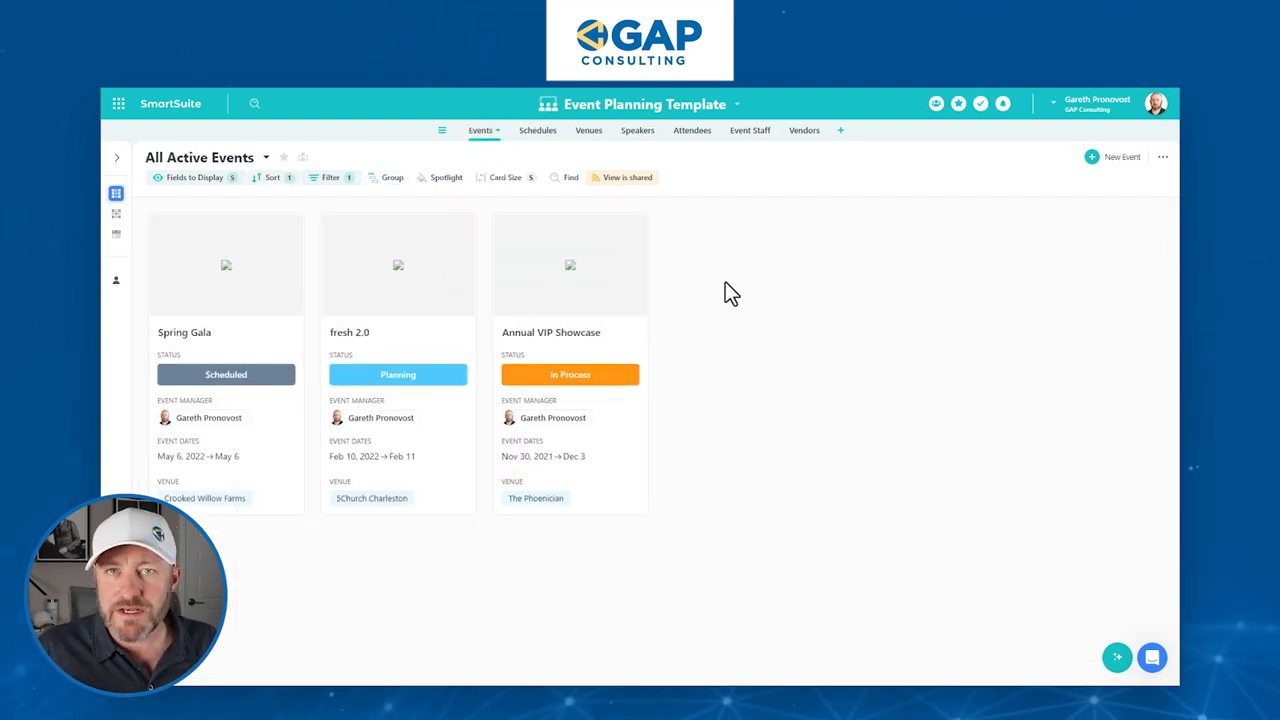
Firstly, ensure you have the event planning template installed. You can grab it directly from the SmartSuite template gallery. This template beautifully organizes various aspects of an event such as venues, schedules, and attendees into an interconnected database.

The Fundamental Setup

Here’s a quick rundown of our setup:

  • Events: Central to our planning, containing all major details.
  • Schedules: Broken down into sessions or phases of an event.
  • Venues and Speakers: Linked to schedules for coherent event flow.

Let’s take a closer look at how these elements interconnect:

“SmartSuite allows a seamless integration of various data facets, making the management of complex events feel like a breeze.”

Creating a Read-Only View

Step-by-Step Guide

  1. Navigate to Schedules: Start by examining the schedules lined up for your events.
  2. Create a New View: Opt for a grid view to keep things organized and familiar.
  3. Customization: Bring in essential columns like time slots, locations, and speakers. The customization options are ample, ensuring you only display what is necessary.
  4. Filtering and Sorting: Apply filters to display only relevant events. Additionally, sorting by time slots helps in maintaining a chronological flow.
  5. Link Field Addition: Back in the events database, add a new field for storing the URL of our newly created read-only view. This URL will be unique to each event, allowing specific access per event basis.

Securing and Sharing the View

Once your view is tailored and ready:

  • Activate Sharing: Ensure the view is shareable by toggling on the sharing feature in SmartSuite.
  • Set Permissions: Decide whether users can export the data or manipulate the view.
  • Passcode Protection: For added security, restrict access by enabling a passcode.

Here’s an example of setting up a passcode:

Passcode: 123456

Practical Application

Imagine you’re organizing an event and need to provide your staff with quick access to the schedule. Instead of sending out complex spreadsheets or multiple emails, a secured link to a read-only view keeps everyone informed and on track. It simplifies communication, enhances efficiency, and focuses only on the requisite details.

Adding a Button for Ease of Access

To further enhance usability, consider embedding a button directly within the main event dashboard that links to the read-only schedule. This single-click solution streamlines the process and offers a polished, professional touch to your event management toolkit.

Button Setup: [Configure a button to open the linked schedule view directly.]

Conclusion

SmartSuite’s ability to create and share read-only views not only protects your core data but also simplifies information dissemination, making it an indispensable feature for managers, team leaders, or event coordinators.

Remember, while technology offers us powerful tools, it’s how we use these tools that truly transforms our workflows. Implement these steps, explore the possibilities, and watch as your event management process becomes more streamlined than ever.

I hope this guide serves you well. For more tips and detailed walk-throughs, don’t hesitate to connect. Keep building, keep sharing, and most importantly, keep optimizing!

To experience the future of work management firsthand, start your free SmartSuite trial today!

SmartSuite for Project Management? You NEED to use this feature…

Software Stack Editor · May 9, 2024 ·

If you’re navigating the complex waters of project management, SmartSuite is a powerful ally with a range of features designed to enhance efficiency and clarity in your projects. Today, we’re diving deep into one such game-changing feature—the Dependency Field.

[embedded content]

Introduction to the Power of Dependencies

One cannot talk about SmartSuite without highlighting its star player: the Dependency Field. Often referred to as the “order of operations,” this feature transforms your project management experience by establishing clear precedents and sequences for tasks. This isn’t just about determining what gets done and when; it’s about revolutionizing how team collaboration unfolds.

“Serious project managers have always deserved serious tools—bigger, badder, the most powerful project management tools in the universe.”

Now, let’s embark on a guided tour of the Dependency Field in SmartSuite and uncover how to leverage this feature to streamline your project workflows.

Setting Up the Dependency Field

Initially, your SmartSuite template might not include the Dependency Field by default. Fear not! Adding this crucial field is simple:

  1. Navigate to the right side of your project template.
  2. Click on “Add a new field.”
  3. Type “Dependency” and select the Dependency field type from the dropdown.

Once added, the Dependency Field rigorously enhances your project framework by introducing a logical flow between tasks—predecessors and successors—that dictates what needs to happen before or after a particular task.

‍

Advanced Insights: Predecessors and Successors

Upon setting up the Dependency Field, you’ll be greeted with interfaces for predecessors and successors, neatly breaking down the task sequences. This clarity is crucial, for instance, ensuring that tasks like “Lighting Fittings” can only commence post “AC Installation.”

Applying these dependencies ensures each phase of your project is strategically timed, preventing any premature or missequenced task executions which could lead to costly delays or reworks.

Visualizing Dependencies: The Gantt View

SmartSuite’s Gantt view takes visualization to the next level, providing a panoramic view of all task dependencies. Activating the Gantt view is straightforward:

  1. From your project sidebar, select “Create a new view.”
  2. Search and select “Gantt View.”

In this dynamic view, dependencies manifest as intuitive arrows linking tasks, illustrating a clear path from start to finish. Adjustments to task dates reflect immediately, showcasing the flexibility of the Gantt view in real-time project adjustments.

Creating Dependency Links

Further enhancing task management, the Gantt view facilitates the creation of new dependency links with ease:

  • Hover over a task, and a subtle gray circle will appear.
  • Click and drag from this circle to another task to create a direct dependency link.

Each link solidifies the operational flow, ensuring that the project’s tempo and sequence are maintained.

Hidden Gems: Additional Dependency Features

Beyond basics, SmartSuite’s Dependency field boasts advanced settings that drastically enhance project management capabilities:

  • Auto Scheduling: Automatically adjusts task timelines based on changes, ensuring that delays in earlier tasks don’t lead to a cascading effect of delays.
  • Dependency Modes: Offers refined control over how dependencies are defined, such as adjusting for overlapping tasks or tasks that need to start or finish simultaneously.

In the settings area of the Gantt view, explore options like highlighting critical paths or hiding task labels for a cleaner view.

Real-World Applications and Adjustments

Practically, these features become pivotal in projects with tight deadlines or those susceptible to frequent changes, like construction or software development projects. For example, if an earlier task like “AC Installation” is delayed, the auto-scheduling feature will automatically push subsequent dependent tasks, ensuring realistic and updated project timelines.

Conclusion: Why You Can’t Ignore this Feature

The Dependency feature in SmartSuite isn’t just another tool—it’s a transformative feature that reassures project managers of their project’s feasibility and executable sequence. Whether you’re a seasoned project manager or new to the field, using the Dependency Field allows for a methodical, visible, and adjustable approach to managing tasks.

Sign up for your SmartSuite account today here and get started on mastering these pivotal project management capabilities!

Maximize Efficiency: Learn to Share Read-Only Views in SmartSuite!

Software Stack Editor · May 9, 2024 ·

Welcome back! As someone passionate about the magic and practicality of no-code solutions, today we delve into an often overlooked feature of data sharing within SmartSuite — crafting read-only views for external and internal use. Whether you’re here to fine-tune your workflow or just curious about the possibilities, you’ve landed in the right place!

[embedded content]

Overview

In the ever-evolving landscape of project management and data handling, SmartSuite emerges as a powerhouse for no-code automation and database management. A fascinating aspect of utilizing this tool is the ability to share views — a feature crucial for collaborative work environments or when needing to present data to external stakeholders without relinquishing control over the original data inputs.

SmartSuite isn’t just for heavy database manipulations; it excels in creating user-friendly, read-only views that are both secure and easy to manage. Let’s break down the process and look at some practical implications of this feature.

Getting Started with SmartSuite

If you’re either a seasoned pro or just starting out with SmartSuite, you’ll find that setting up a read-only view is straightforward but powerful. Join me as we explore a typical use case: an event planning scenario.

Setting Up Our Workspace

Firstly, ensure you have the event planning template installed. You can grab it directly from the SmartSuite template gallery. This template beautifully organizes various aspects of an event such as venues, schedules, and attendees into an interconnected database.

The Fundamental Setup

Here’s a quick rundown of our setup:

  • Events: Central to our planning, containing all major details.
  • Schedules: Broken down into sessions or phases of an event.
  • Venues and Speakers: Linked to schedules for coherent event flow.

Let’s take a closer look at how these elements interconnect:

“SmartSuite allows a seamless integration of various data facets, making the management of complex events feel like a breeze.”

Creating a Read-Only View

Step-by-Step Guide

  1. Navigate to Schedules: Start by examining the schedules lined up for your events.
  2. Create a New View: Opt for a grid view to keep things organized and familiar.
  3. Customization: Bring in essential columns like time slots, locations, and speakers. The customization options are ample, ensuring you only display what is necessary.
  4. Filtering and Sorting: Apply filters to display only relevant events. Additionally, sorting by time slots helps in maintaining a chronological flow.
  5. Link Field Addition: Back in the events database, add a new field for storing the URL of our newly created read-only view. This URL will be unique to each event, allowing specific access per event basis.

Securing and Sharing the View

Once your view is tailored and ready:

  • Activate Sharing: Ensure the view is shareable by toggling on the sharing feature in SmartSuite.
  • Set Permissions: Decide whether users can export the data or manipulate the view.
  • Passcode Protection: For added security, restrict access by enabling a passcode.

Here’s an example of setting up a passcode:

Passcode: 123456

Practical Application

Imagine you’re organizing an event and need to provide your staff with quick access to the schedule. Instead of sending out complex spreadsheets or multiple emails, a secured link to a read-only view keeps everyone informed and on track. It simplifies communication, enhances efficiency, and focuses only on the requisite details.

Adding a Button for Ease of Access

To further enhance usability, consider embedding a button directly within the main event dashboard that links to the read-only schedule. This single-click solution streamlines the process and offers a polished, professional touch to your event management toolkit.

Button Setup: [Configure a button to open the linked schedule view directly.]

Conclusion

SmartSuite’s ability to create and share read-only views not only protects your core data but also simplifies information dissemination, making it an indispensable feature for managers, team leaders, or event coordinators.

Remember, while technology offers us powerful tools, it’s how we use these tools that truly transforms our workflows. Implement these steps, explore the possibilities, and watch as your event management process becomes more streamlined than ever.

I hope this guide serves you well. For more tips and detailed walk-throughs, don’t hesitate to connect. Keep building, keep sharing, and most importantly, keep optimizing!

To experience the future of work management firsthand, start your free SmartSuite trial today!

7 Ways to Boost Creativity at Work

Software Stack Editor · May 6, 2024 ·

Fostering creativity at work is essential for staying competitive and innovative. However, finding ways to boost creativity in the workplace can sometimes feel like a daunting task. Fortunately, there are several strategies you can implement to inspire creativity and innovation among your team members. Here are seven creative ideas to help you do just that:

  1. Create a Collaborative Environment: Collaboration is key to unlocking creativity. Encourage open communication and idea-sharing among team members by creating spaces where they can brainstorm freely. Whether it’s through regular team meetings, brainstorming sessions, or collaborative workspaces, fostering an environment where everyone feels comfortable contributing their ideas can lead to breakthrough innovations.
  2. Provide Flexible Workspaces: Sometimes, a change of scenery is all it takes to spark creativity. Consider implementing flexible work arrangements that allow employees to choose where they work, whether it’s in a traditional office setting, a cozy coffee shop, or a collaborative coworking space. Giving employees the freedom to work in environments that inspire them can lead to fresh perspectives and creative breakthroughs.
  3. Encourage Risk-Taking: Creativity thrives when people are willing to take risks and try new things. Encourage a culture of experimentation by rewarding innovative ideas, even if they don’t always succeed. Create a safe space where employees feel empowered to take calculated risks and explore new approaches without fear of failure.
  4. Provide Time for Creative Thinking: In the hustle and bustle of everyday work life, it’s easy to get caught up in the day-to-day tasks and deadlines. However, carving out dedicated time for creative thinking can help employees recharge and tap into their creative potential. Whether it’s through designated “creative hours” or regular brainstorming sessions, make sure to prioritize time for creative thinking and exploration.
  5. Offer Learning and Development Opportunities: Learning is a catalyst for creativity. Provide employees with opportunities for continuous learning and skill development through workshops, seminars, and training programs. Not only will this help employees stay updated on the latest trends and techniques in their field, but it will also inspire them to think creatively and approach problems from new angles.
  6. Embrace Diversity and Inclusion: Diversity breeds creativity. Encourage diversity of thought and perspective by fostering an inclusive work environment where everyone feels valued and respected. Embrace different backgrounds, experiences, and ideas, and recognize the unique contributions that each team member brings to the table. By embracing diversity and inclusion, you can tap into a wealth of creative potential and drive innovation forward.
  7. Use Technology to Streamline Processes: Technology can be a powerful tool for boosting creativity and productivity in the workplace. Invest in tools and software that streamline processes, automate repetitive tasks, and facilitate collaboration among team members. Platforms like SmartSuite offer a comprehensive Work Management solution that enables teams to plan, track, and manage workflows seamlessly, allowing employees to focus on the creative aspects of their work.

Fostering creativity in the workplace is essential for driving innovation and staying ahead in today’s competitive landscape. By implementing these seven creative strategies, you can inspire your team members to think outside the box, explore new ideas, and unleash their full creative potential. And remember, creativity is not just a skill – it’s a mindset that can be cultivated and nurtured over time. So, embrace creativity, encourage experimentation, and watch your team soar to new heights of innovation.

  • « Go to Previous Page
  • Page 1
  • Interim pages omitted …
  • Page 6
  • Page 7
  • Page 8
  • Page 9
  • Page 10
  • Go to Next Page »

Get your Software Stack together. softwarestack.tech

Software Stack

© 2024–2026 - Software Stack is a trading name of SouthwestCIO Limited ac ompany registered in England & Wales 11319049

  • Knowledgebase
  • Home
  • About Us
  • Contact Us