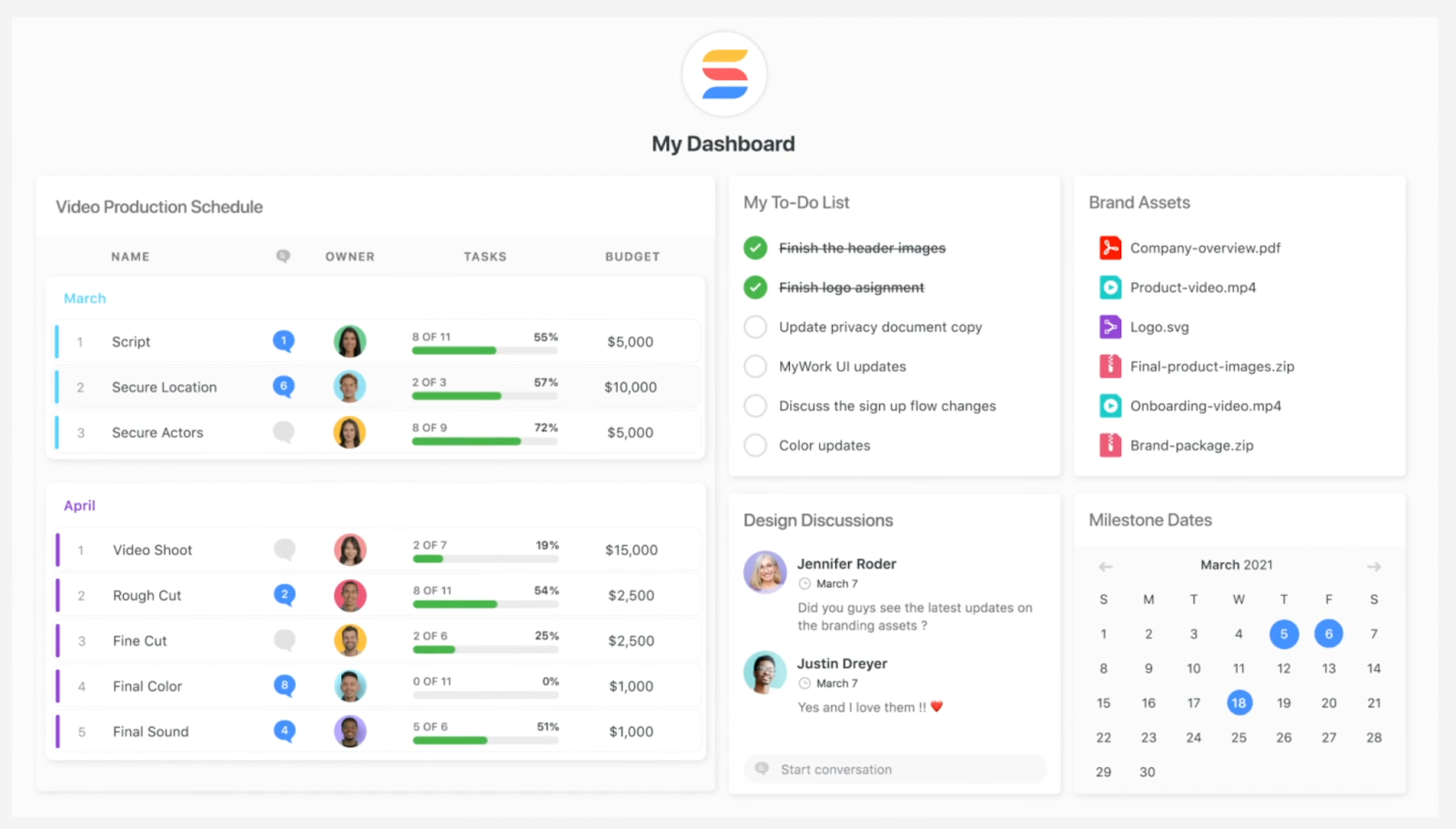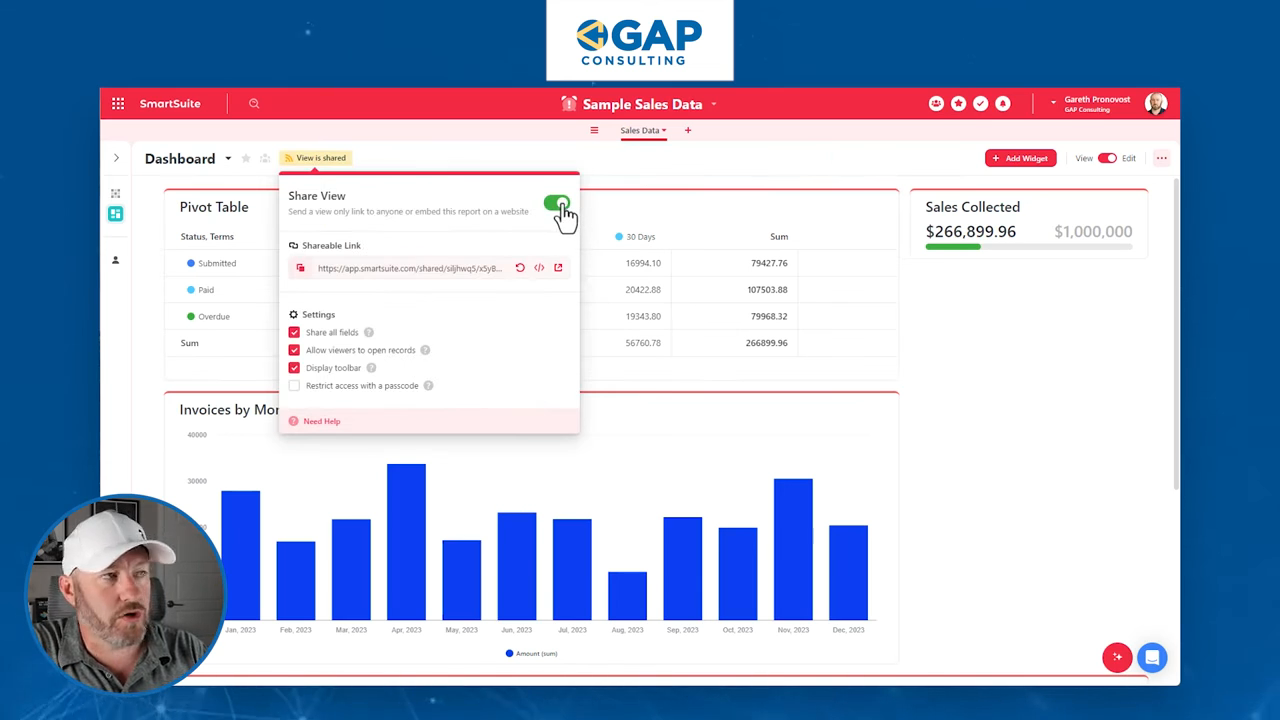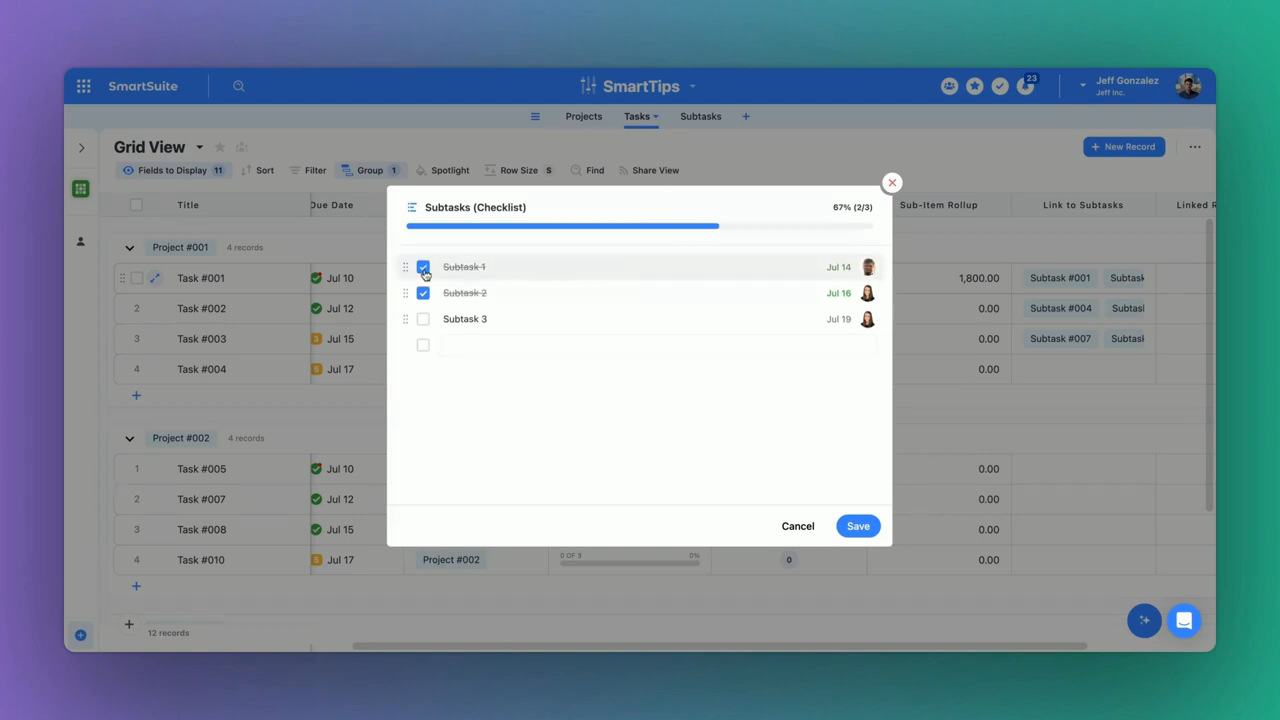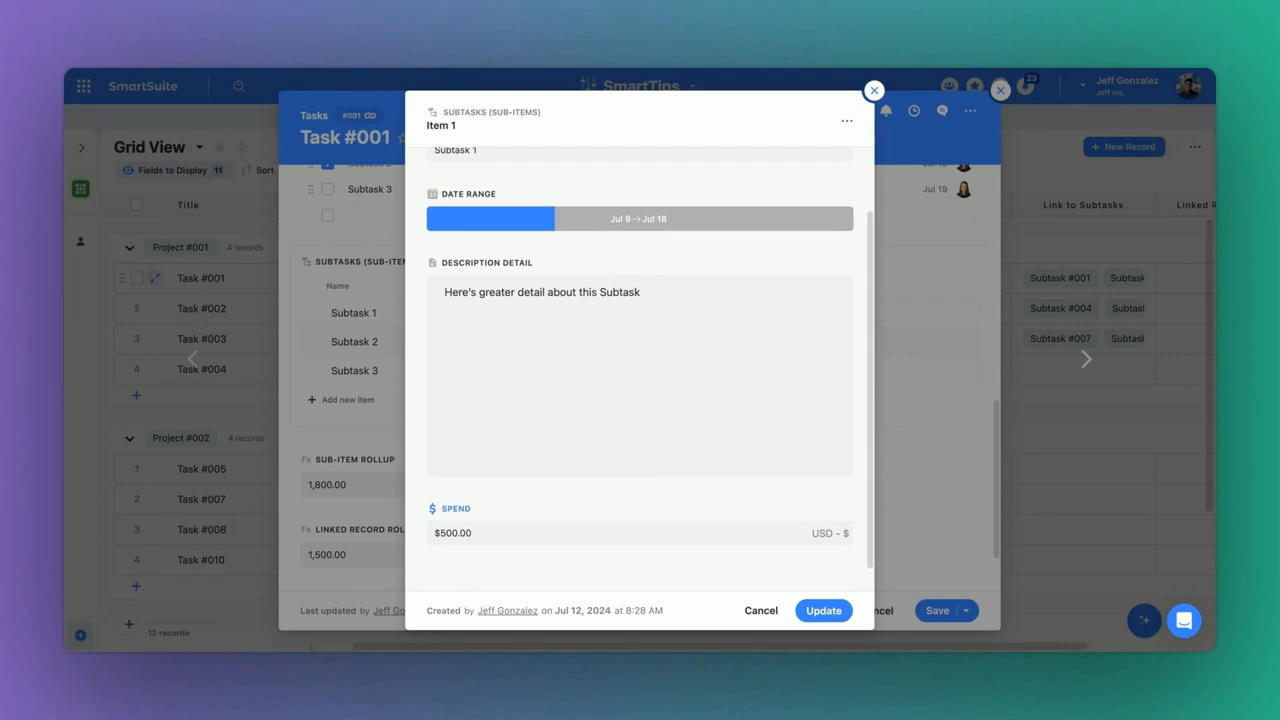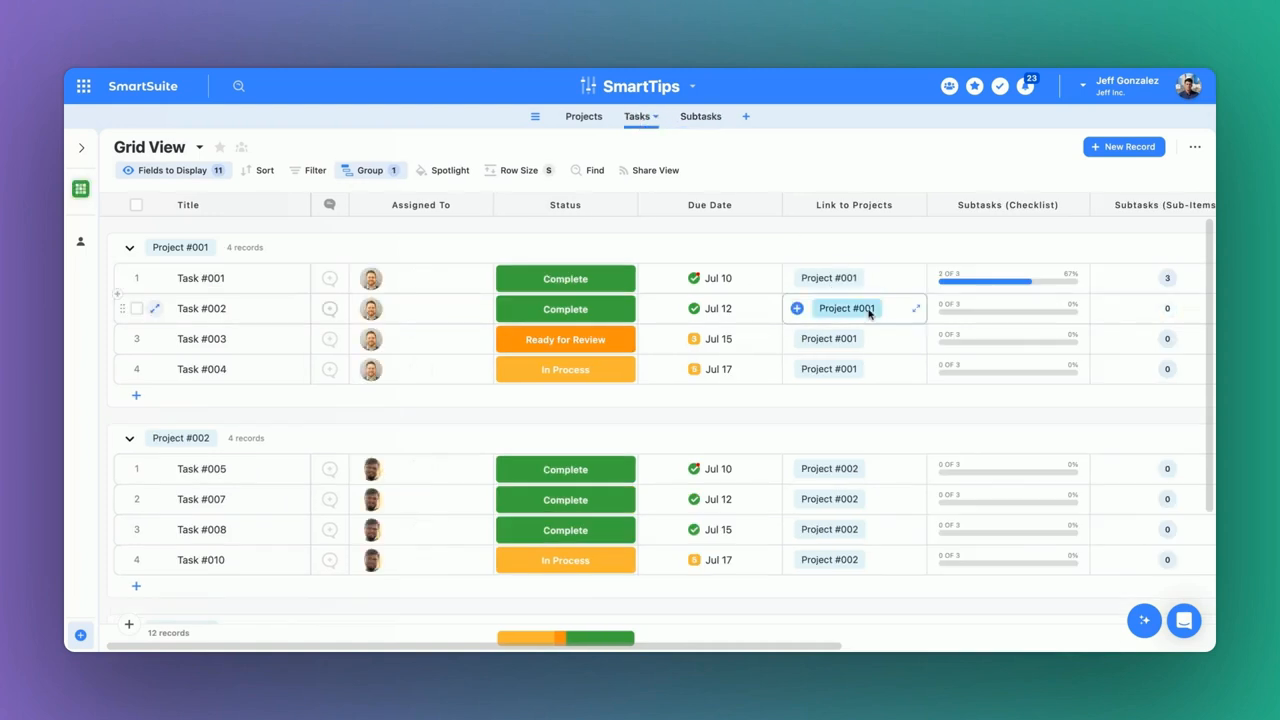
• Skip to primary navigation
  • Skip to main content
software stack logo

Software Stack

Get your Software Stack together

  • Knowledgebase
    • All Categories
    • Accounting Software
    • Automation & Workflow Software
    • Customer Relationship Management
    • E-Commerce Shopfronts & Payments
    • Marketing Automation
    • Online Courses & Membership
    • Project Management
    • Surveys & Forms
    • Web Hosting
  • Home
  • About Us
  • Contact Us
  • Show Search
Hide Search

Smartsuite

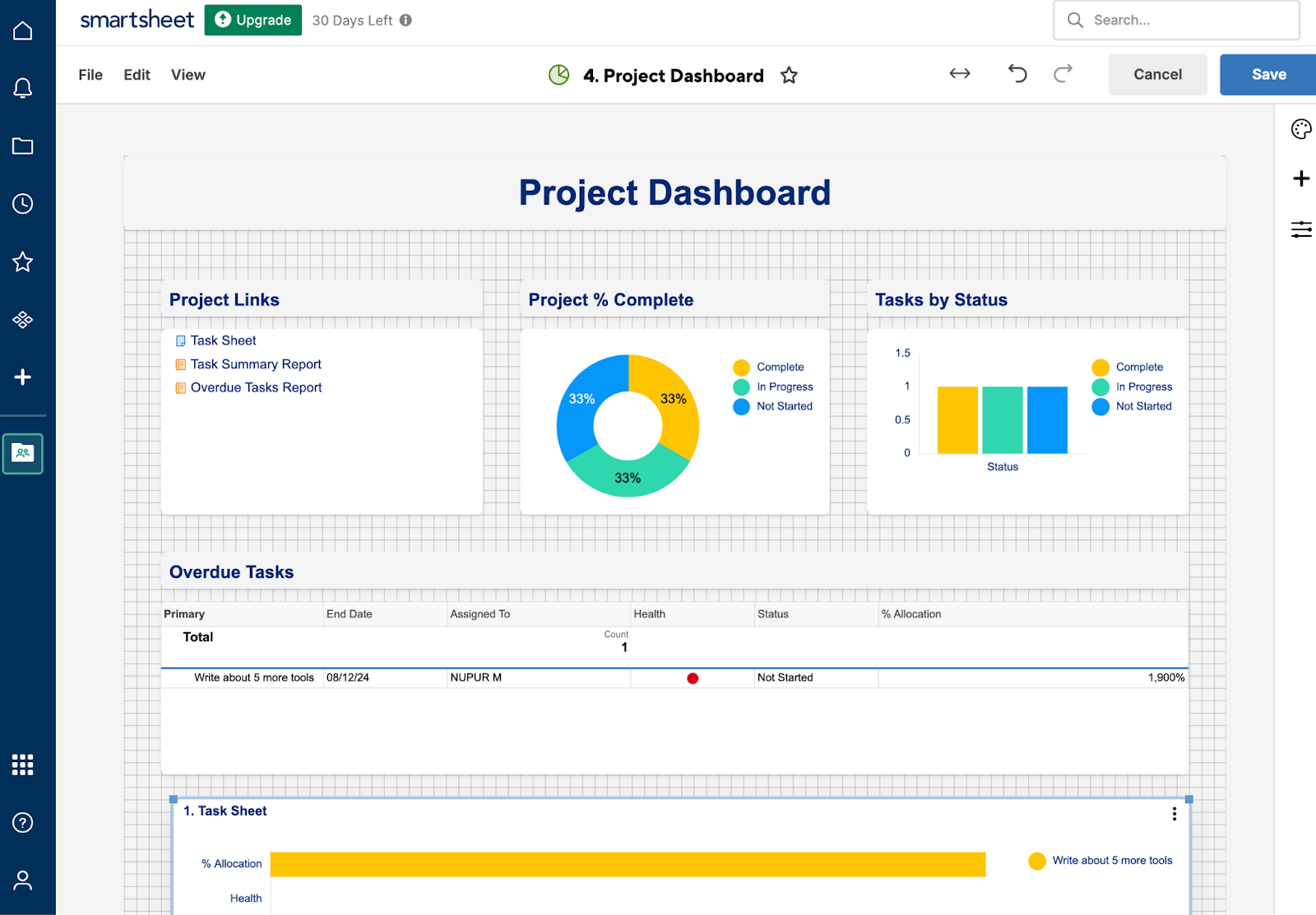
Smartsheet Pricing: Is It Worth It in 2024?

Software Stack Editor · September 17, 2024 ·

Smartsheet offers feature-pack pricing plans, accommodating various business sizes, from solopreneurs to enterprises.

But which plan is best for your business needs? Are there any extra charges or barriers that you should be aware of?

We’ll answer these questions in length by comparing Smartsheet’s pricing plans, highlighting its key features.

Smartsheet’s Pricing Plans

Smartsheet is a work management platform that helps you to manage, plan, and track your projects using a spreadsheet-like interface.

Key features of Smartsheet:

  • Flexible automation builder with various trigger/action options.
  • Advanced formulas and functions that help with data analysis.
  • Smoothly handles large sets of data.

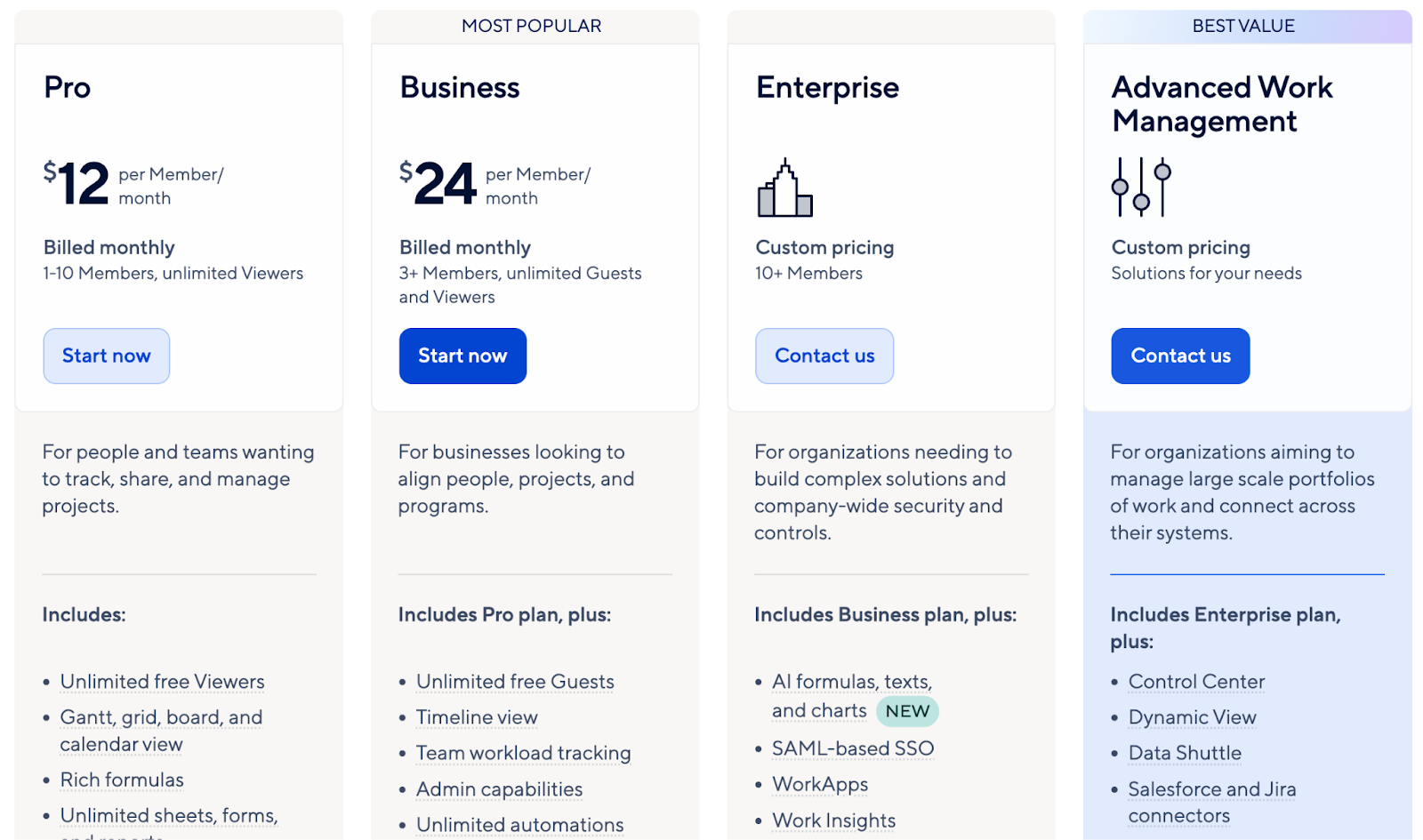
Smartsheet offers three paid plans starting at $12 per user/month. There is also a 30-day free trial but no free plan.

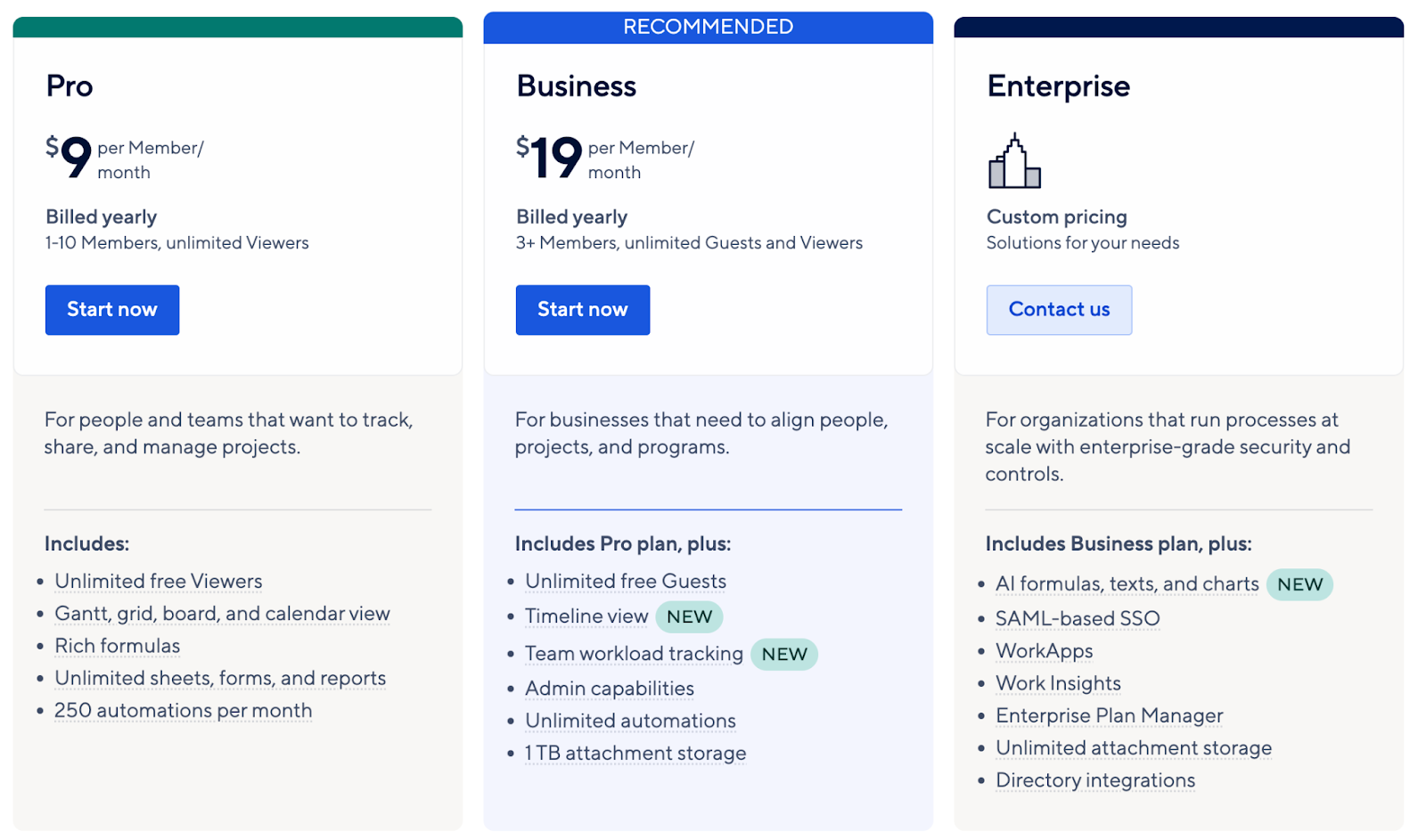
Here’s a quick rundown of Smartsheet’s plans and key features. 👇🏼
Smartsheet: Pro Plan

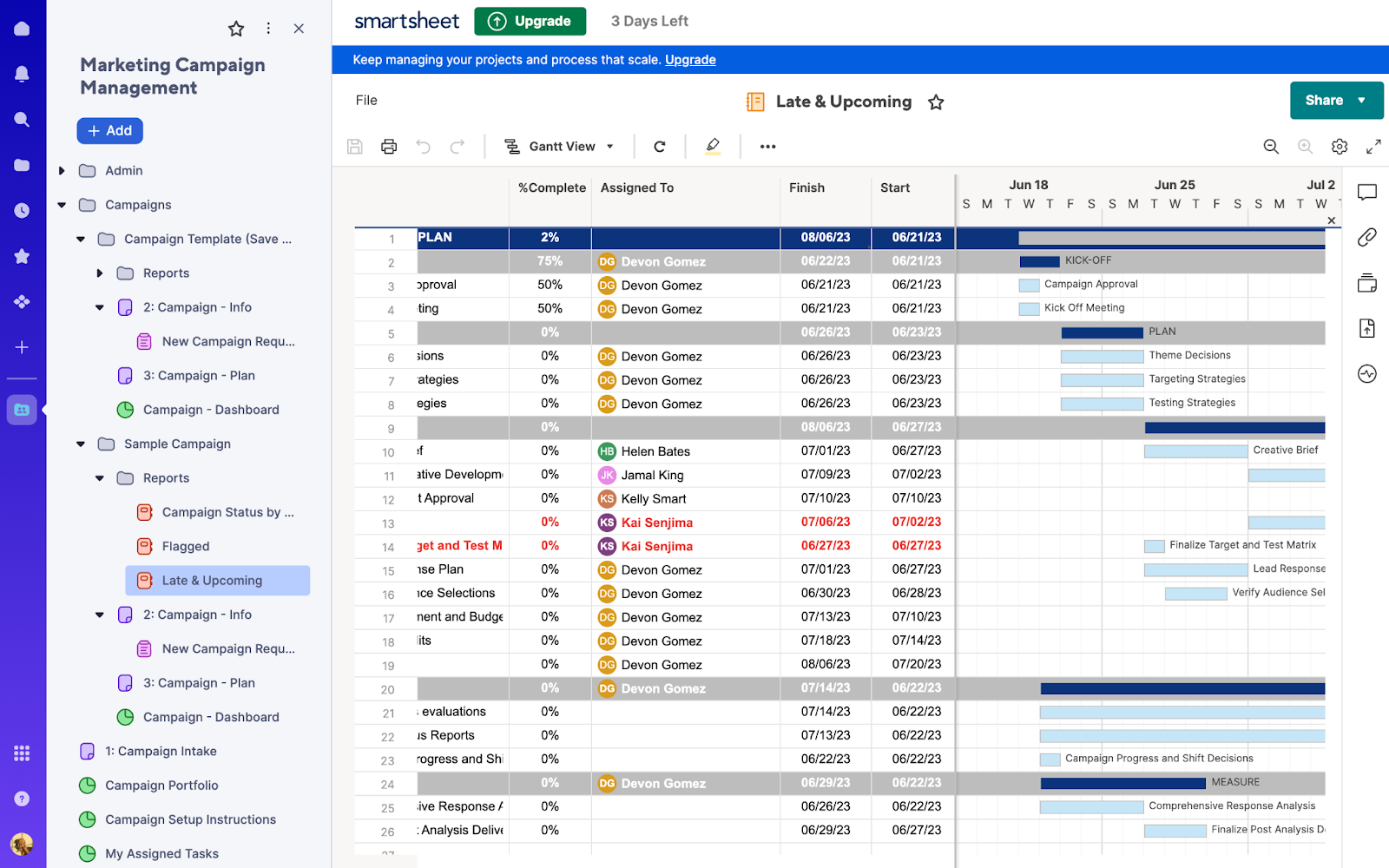
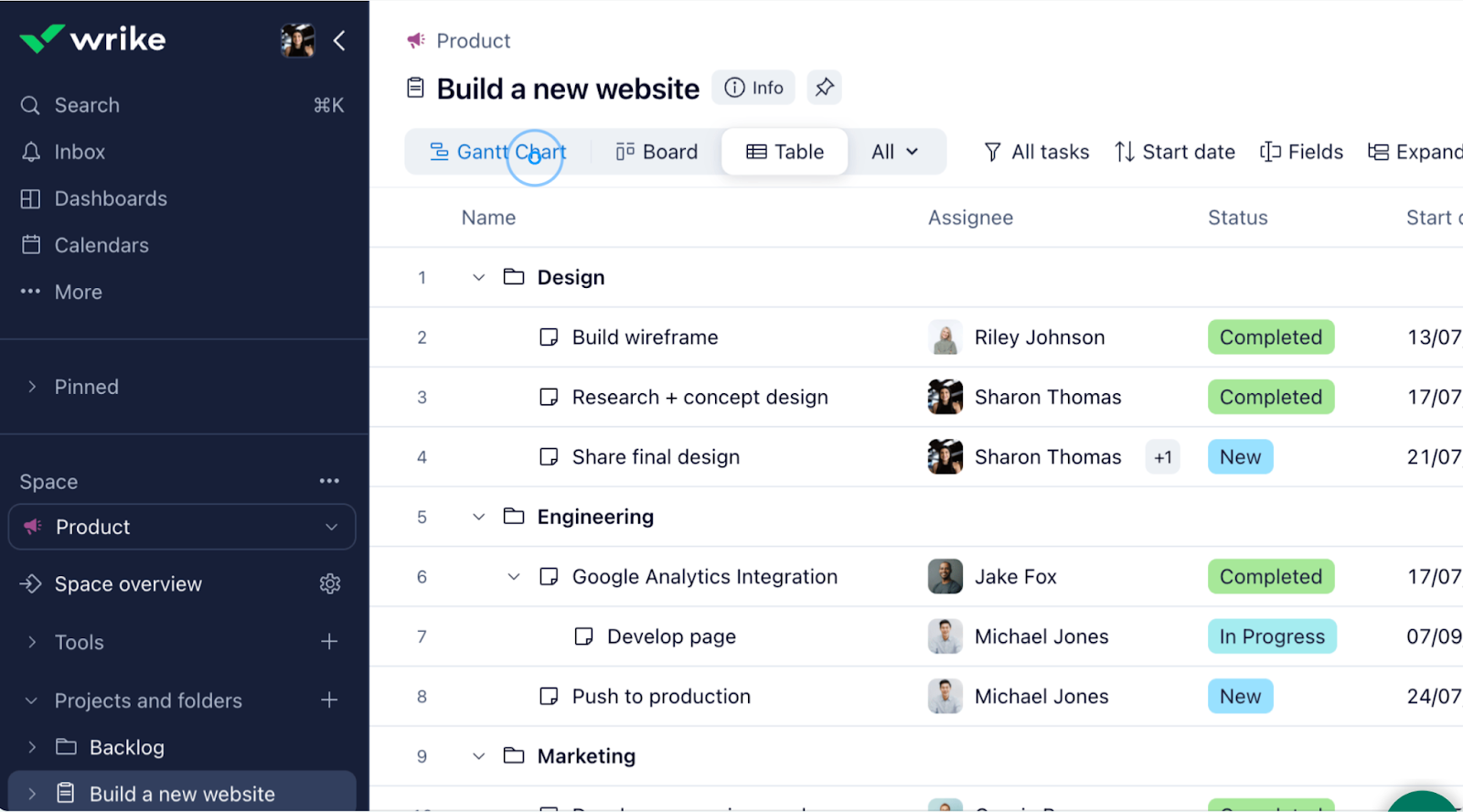
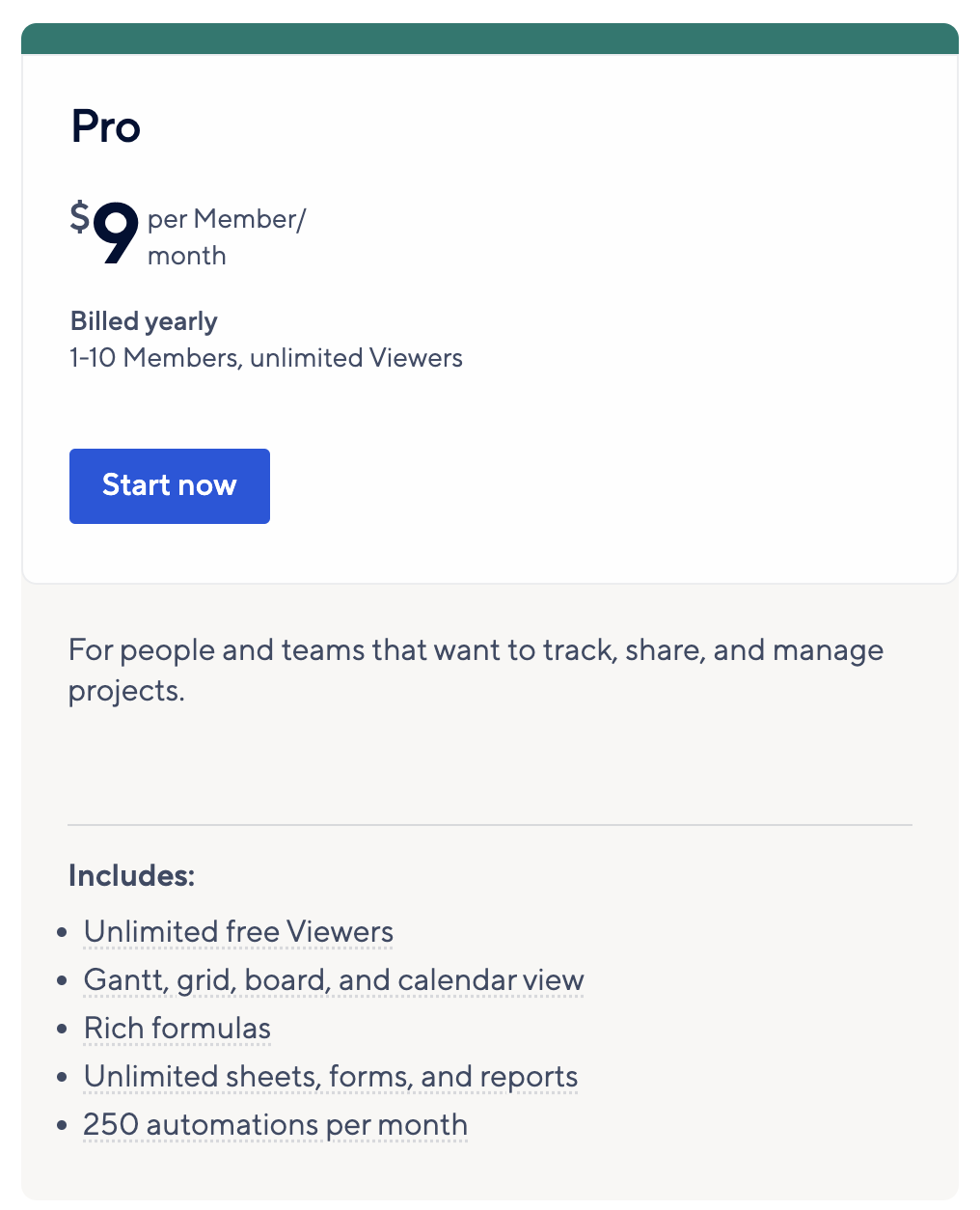
The Pro plan, priced at $9 per user/month (billed annually), offers four work views: Gantt charts, Calendar, board, and grid view. You also have the option to build private sheets and reports and manage their permissions.

Some other features included in the pro plan are:

  • Unlimited sheets, reports, and dashboards, and forms
  • Mobile app access
  • 100+ Integrations, including Microsoft Office 365, Google Workspace, and Slack
  • 250/month automated workflows
  • 10 widgets (charts, images, and metrics) for dashboard creation

This plan best fits solopreneurs, freelancers, or teams with less than 10 seat requirements.

Features like advanced workview and automated triggers help you reduce repetitive tasks and visualize projects in various formats.

However, teams that want this range of features but require more seats will need to obtain Smartsheet’s business plan.
Smartsheet: Business Plan

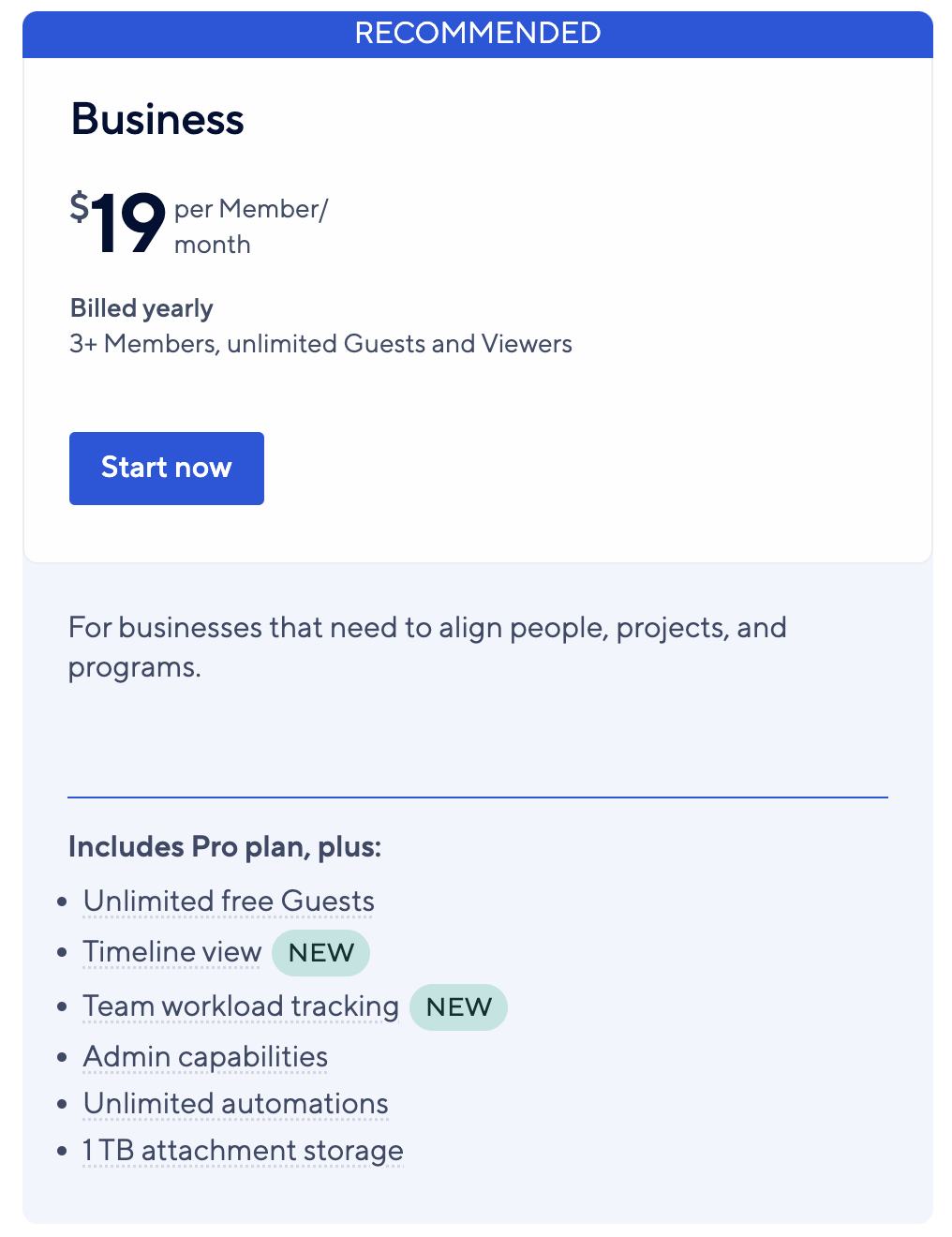
At $19 per user per month (billed annually), the Business plan caters to growing teams and organizations with a minimum user limit of 3.

The plan offers an additional timeline view and conditional form logic, helping you build more versatile request and approval forms.

Another significant upgrade is unlimited sheets to populate your reports. With this, you can build more detailed and comprehensive reports and get a 360-degree view of all your projects.

Additional features include:

  • Resource management tools
  • Advanced formula and functions—baselines, report grouping, and API calls
  • Team workload tracking
  • Guest invites
  • Proofing and approval workflows
  • Advanced reporting and analytics
  • 250MB per attachment size with 1TB file storage
  • Unlimited automation triggers
  • Tableau and PowerBI integration

Smartsheet: Enterprise Plan

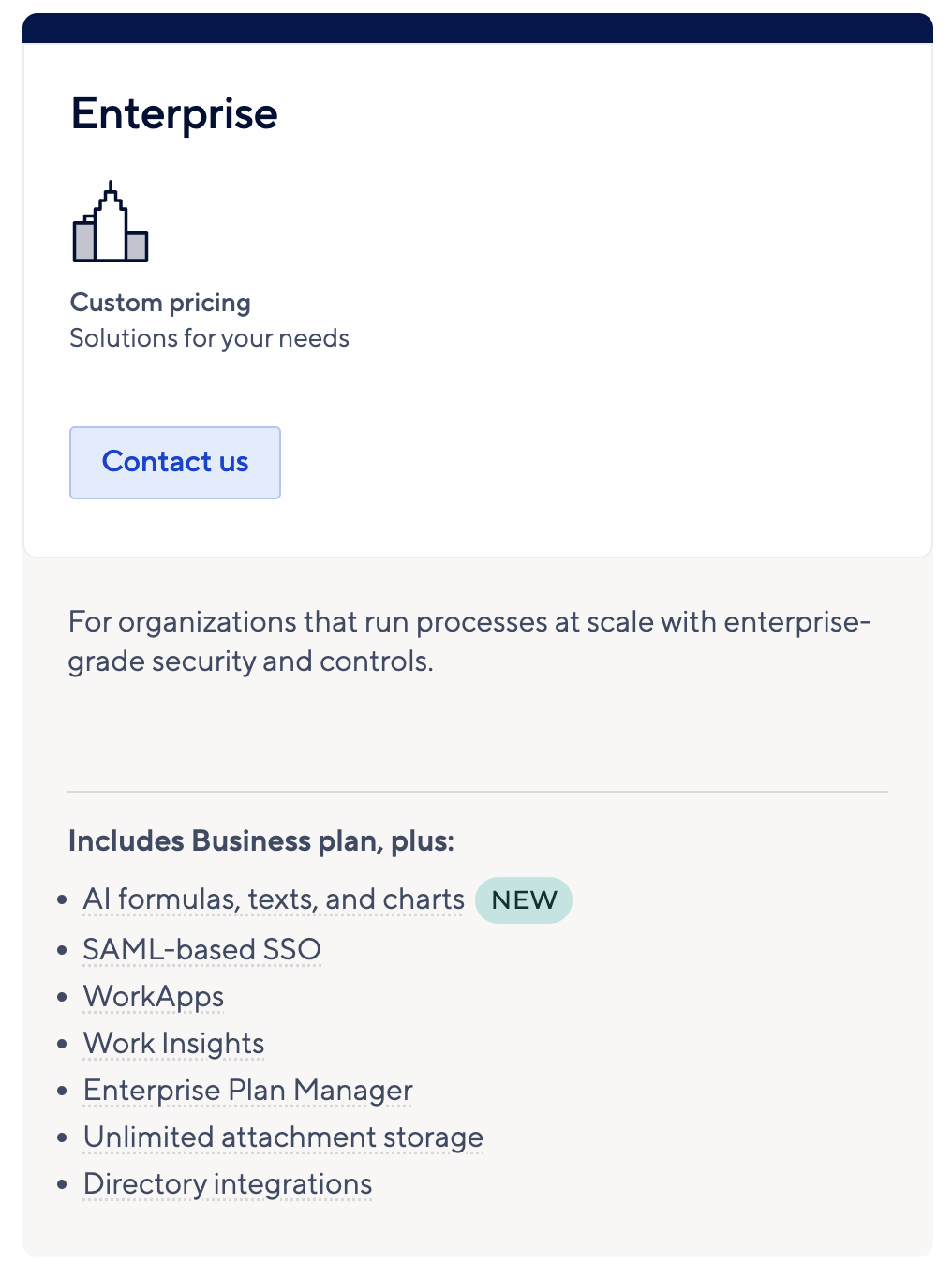
The Enterprise plan offers custom pricing and is tailored for large organizations with high configuration needs. This plan offers advanced integration, high administration control, and some premium features.

Here’s what’s included in the plan:

  • Single sign-on (SSO) integration
  • Enterprise plan manager
  • Enterprise-grade security and compliance features
  • E-signature with Docusign
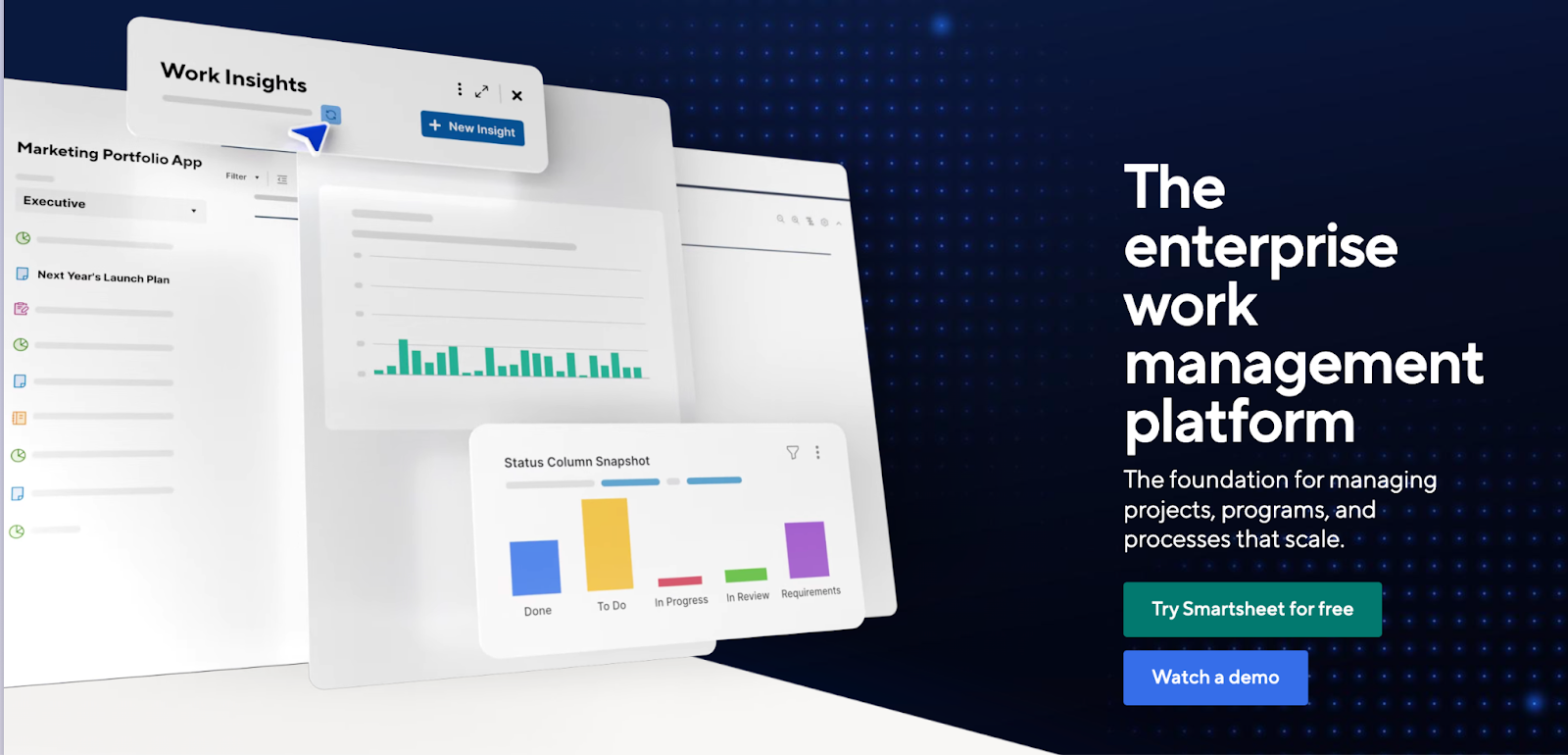
  • Work Insights: Instantly analyze your data
  • AI tools—formula generation, text summaries, and data analysis
  • Advanced admin controls and user management
  • Dedicated support and training resources

This plan is ideal for enterprises that require scalable solutions with robust security measures.
Limitations of Smartsheet’s Pricing Plans

#1: Group-based pricing

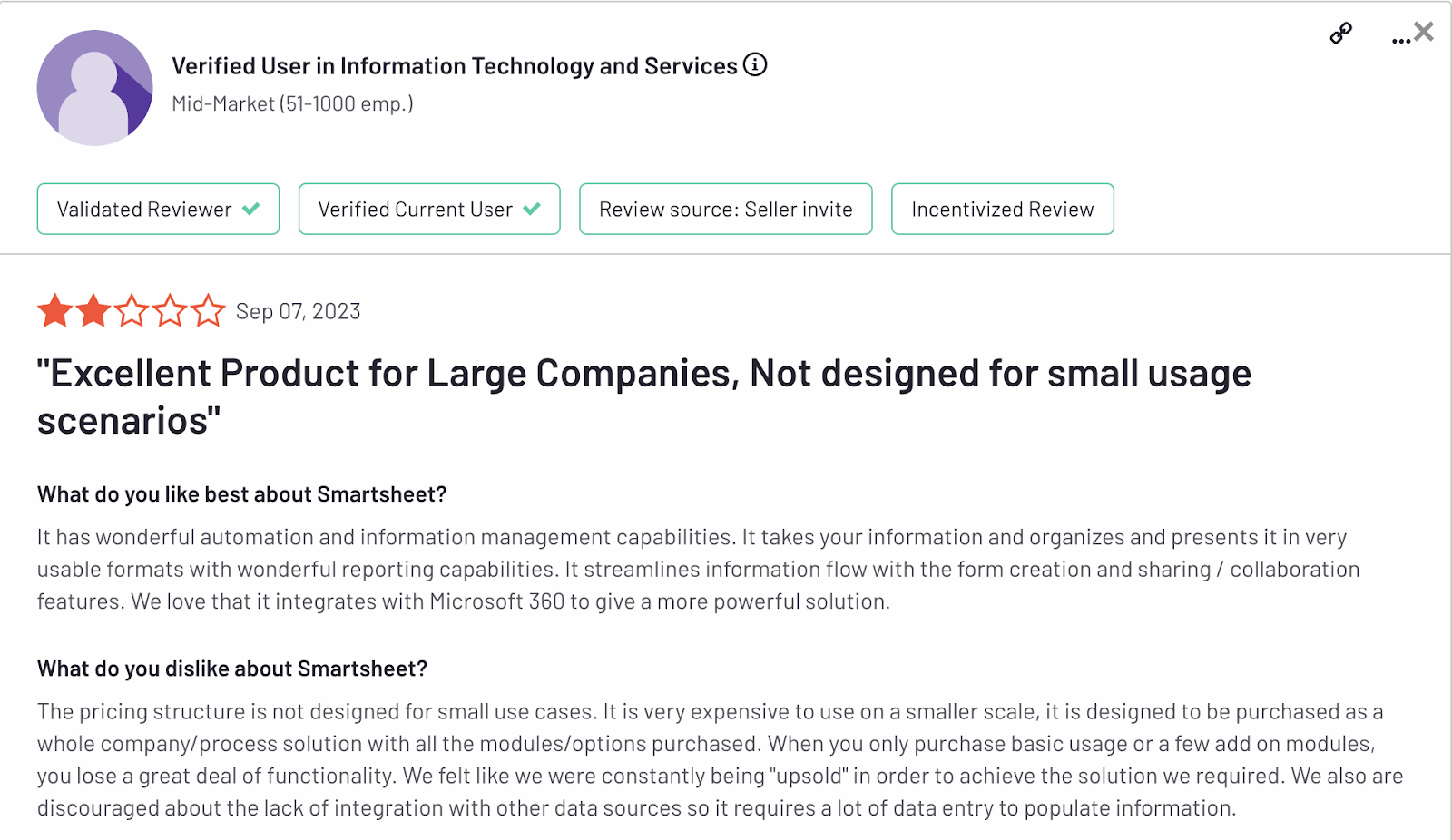
Smartsheet has set up its pricing so that you need to upgrade to a higher plan to access features like activity logs and team workload tracking. Additionally, the business plan requires a minimum of 3 seats, shooting up the cost to $72 per month for 3 users.

Such a pricing structure makes it expensive for smaller team sizes.
Source

#2. No free plan

Smartsheet doesn’t offer a forever free plan, limiting you to sign up for a 30-day free trial or switch to a paid plan once the trial ends.

Looking for a Smartsheet Alternative?

Smartsheet’s plans are feature-packed including advanced reporting, workviews, and integrations. However, group-based pricing, lack of team collaboration features, and non-intuitive interface make users look for alternatives.

SmartSuite stands out as one of the most affordable and feature-packed Smartsheet alternatives due to two key reasons:

  • It offers a generous free plan with advanced features like task views, automation, and guest invites.
  • There is no minimum user cap to try out any of its paid plans. And, unlike Smartsheet’s limit of 10 users on its Pro plan, there is no maximum user limit on its SmartSuite team plan.

Apart from pricing, a few notable features make SmartSuite the best Smartsheet alternative.

SmartSuite’s Key Features

#1. Powerful team collaboration

In Smartsheet, there are no tools to facilitate communication between in-house team members and external stakeholders.

SmartSuite, on the other hand, focuses on delivering integrated communication among members with less contextual switching. Its unified team collaboration feature is replete with tools to ensure everyone gets real-time updates, shares feedback, gives approvals and keeps external clients updated.

And the best part?

SmartSuite offers an intuitive mobile app to let you stay in touch with co-workers and on the go.
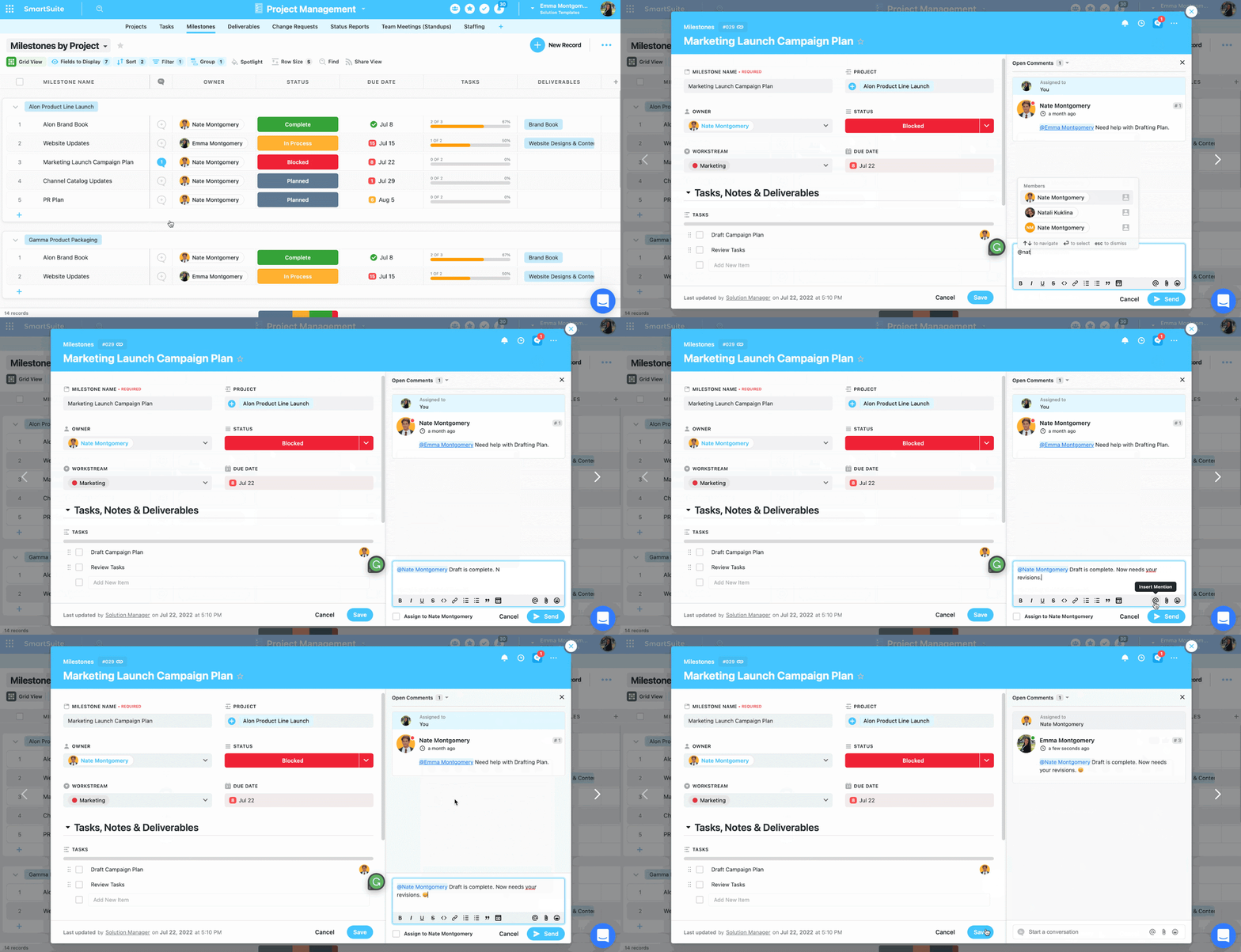
SmartSuite boosts the team’s productivity and collaboration through a range of built-in features:

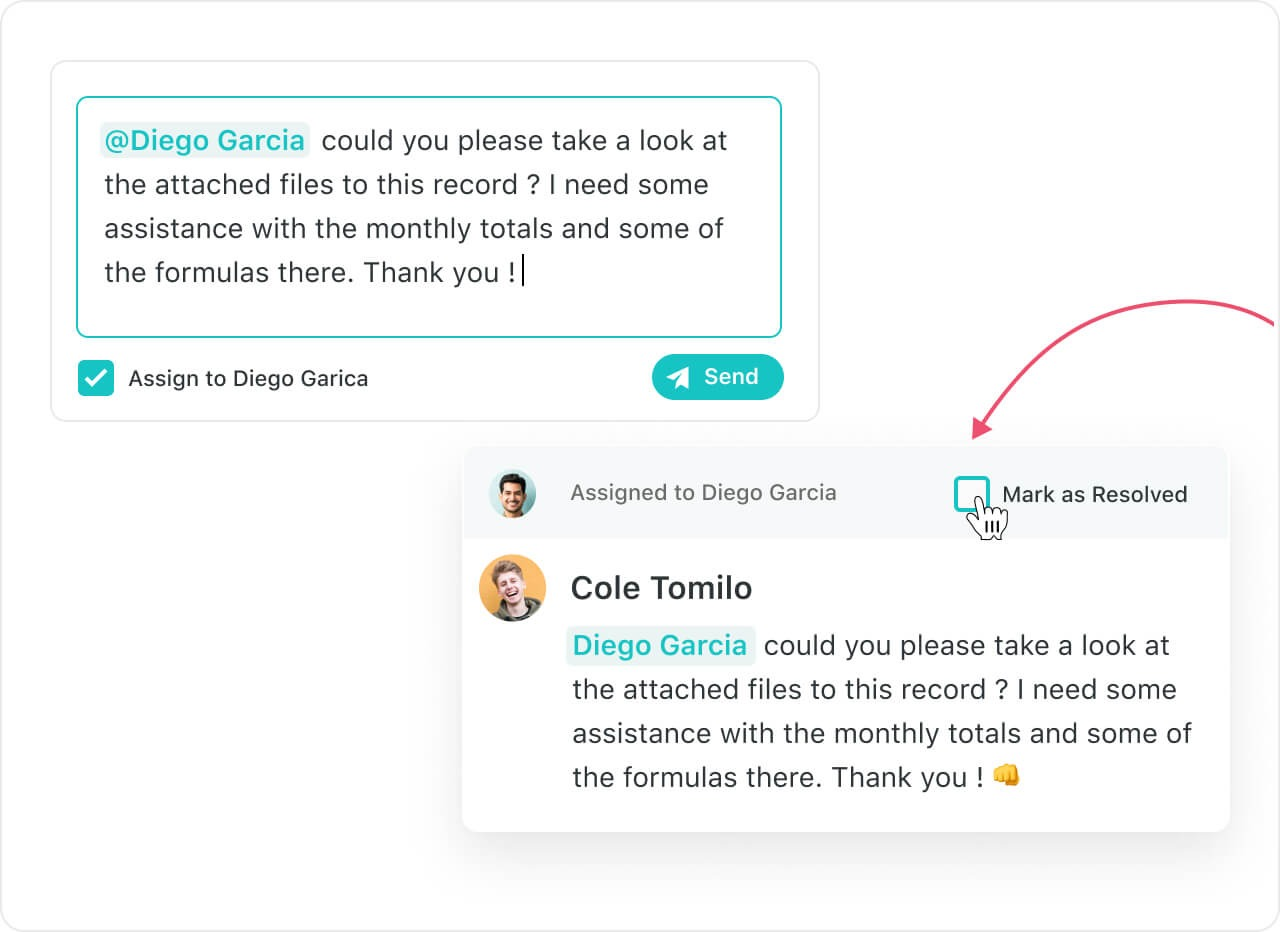
  • Comments to task conversion: Convert any comment into an action item within a record or field within a record. Also, you can assign these tasks to team members and track their progress in real time.
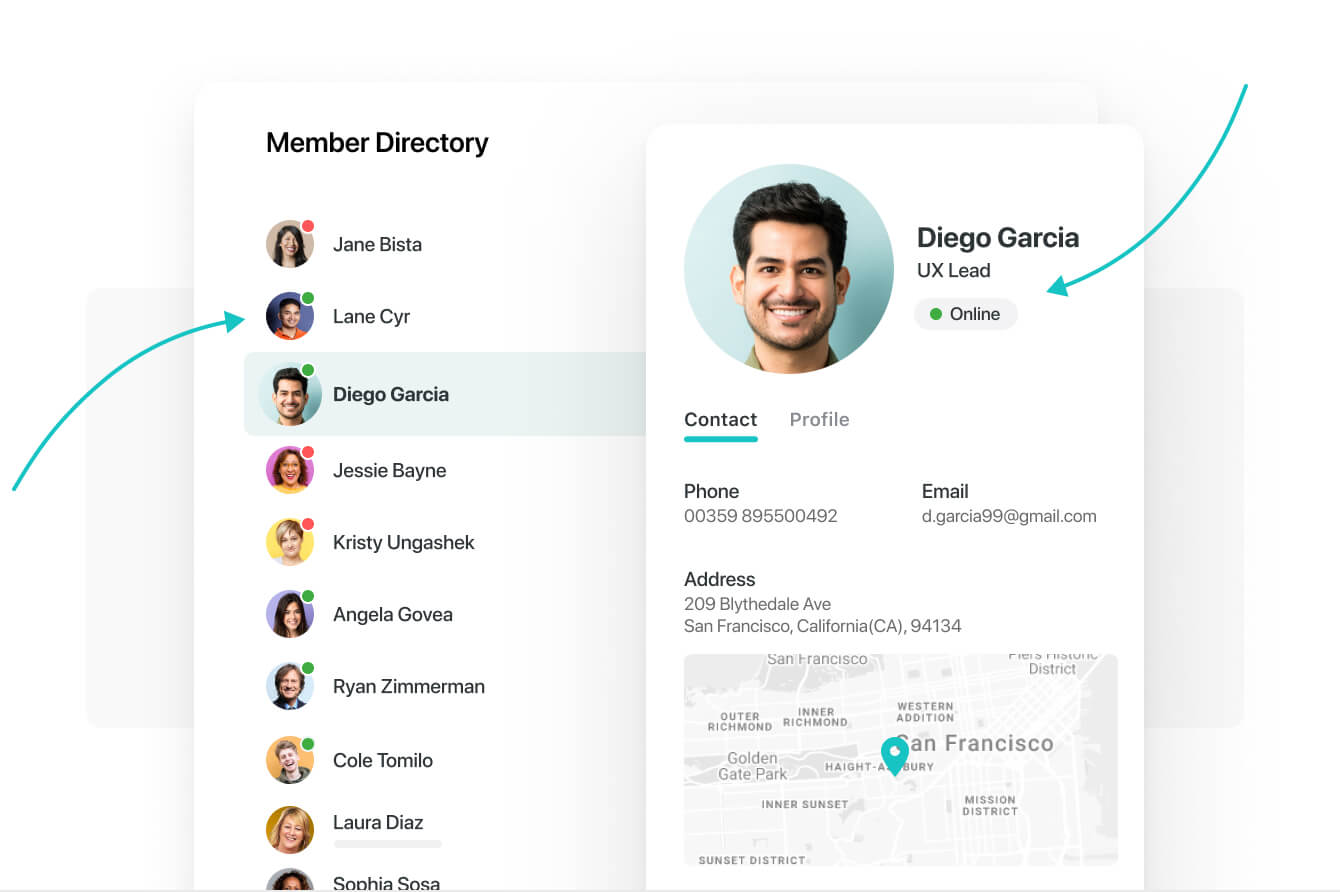
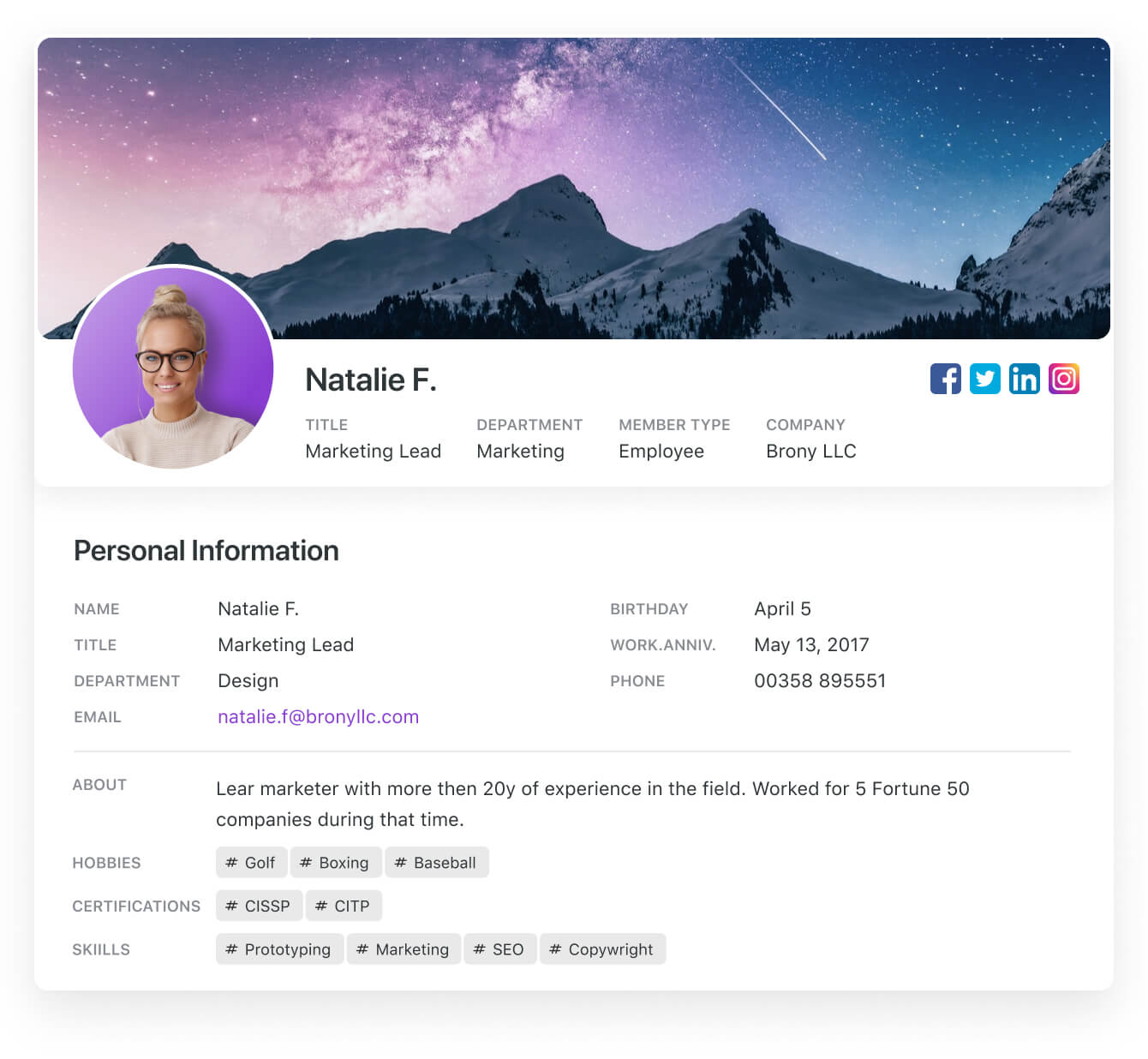
  • Member’s Directory: Get a complete list of all your team members in a single dedicated space and get access to information such as their department, position, location, timezone, etc. To find the right memeber/s, you can use grouping or filtering options without manually scrolling through the list.
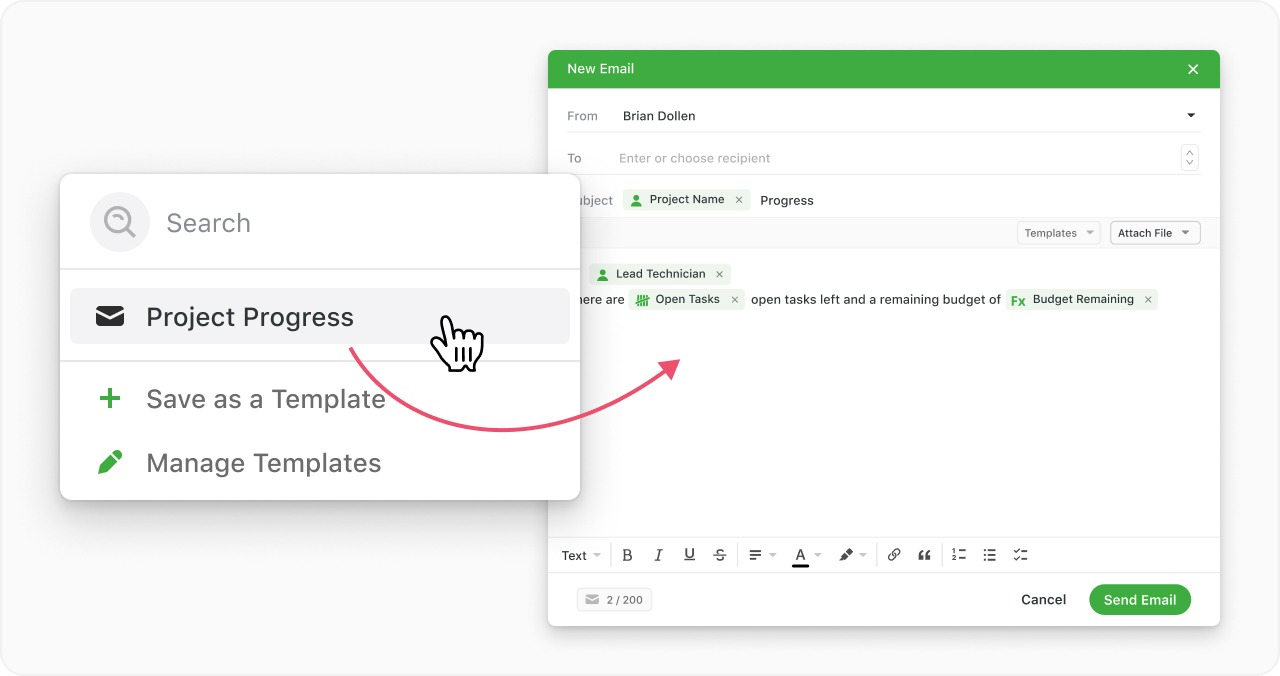
  • Email integration: Integrating your email account with SmartSuite and sending and receiving emails within your workspace. Less contextual switch, more focused work.
#2. Automated workflows builder

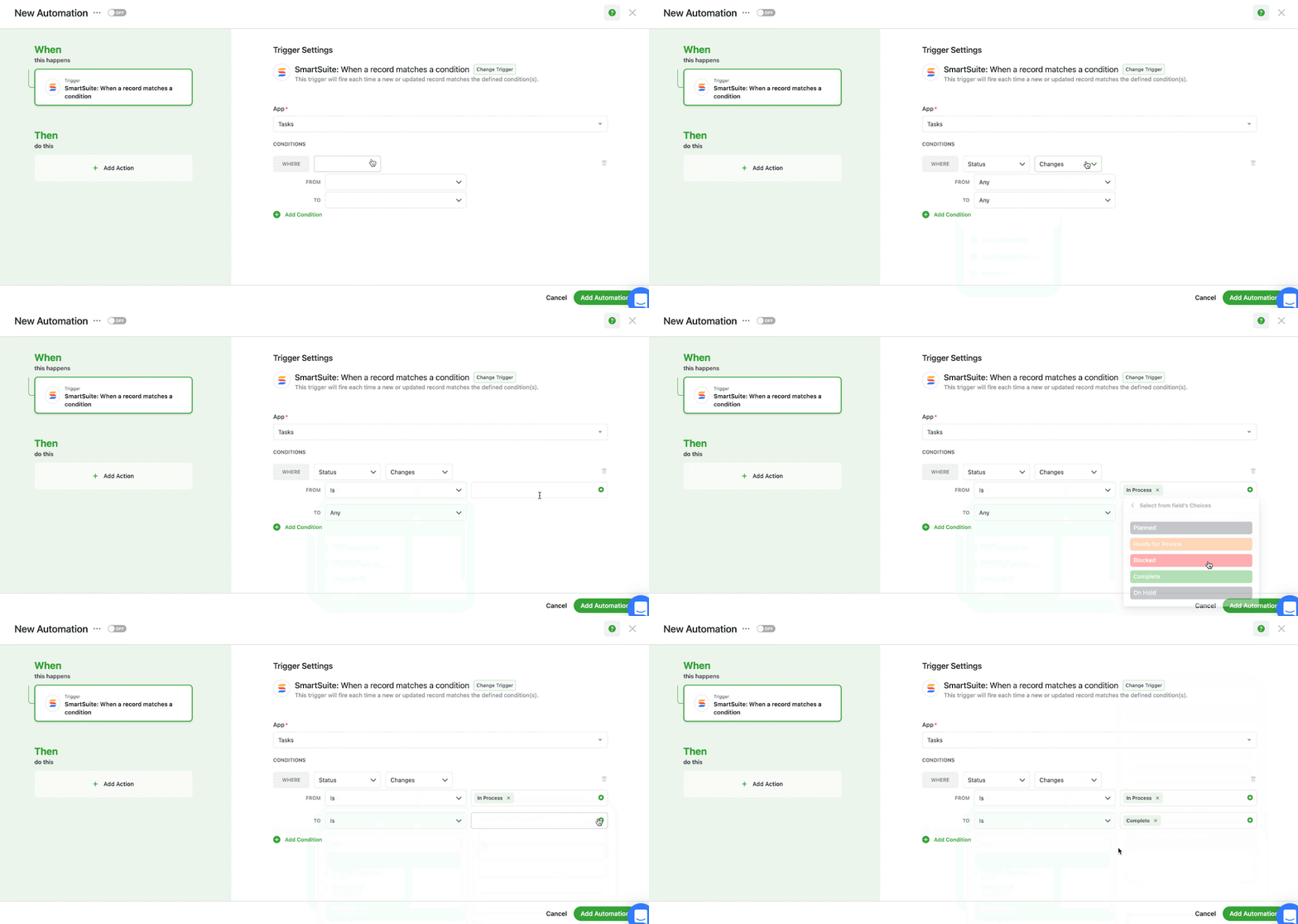
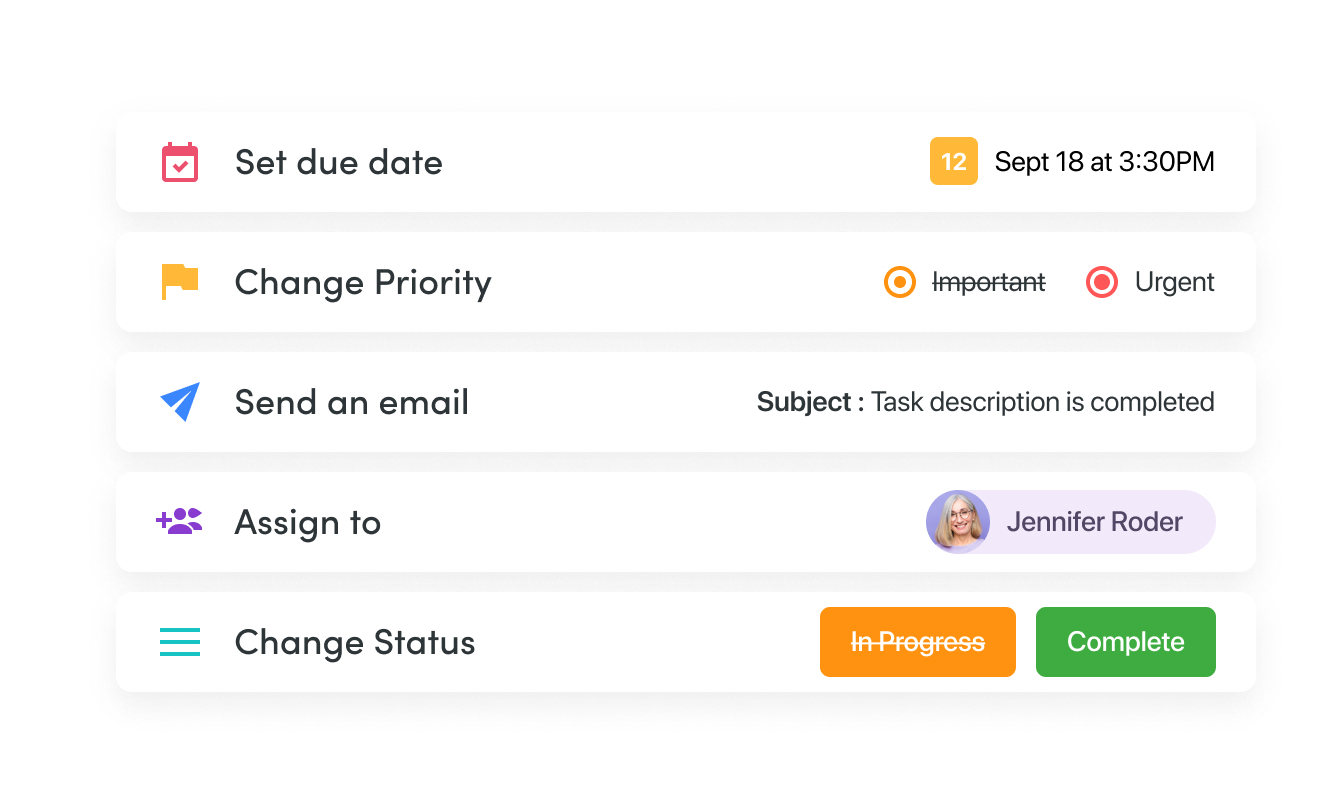
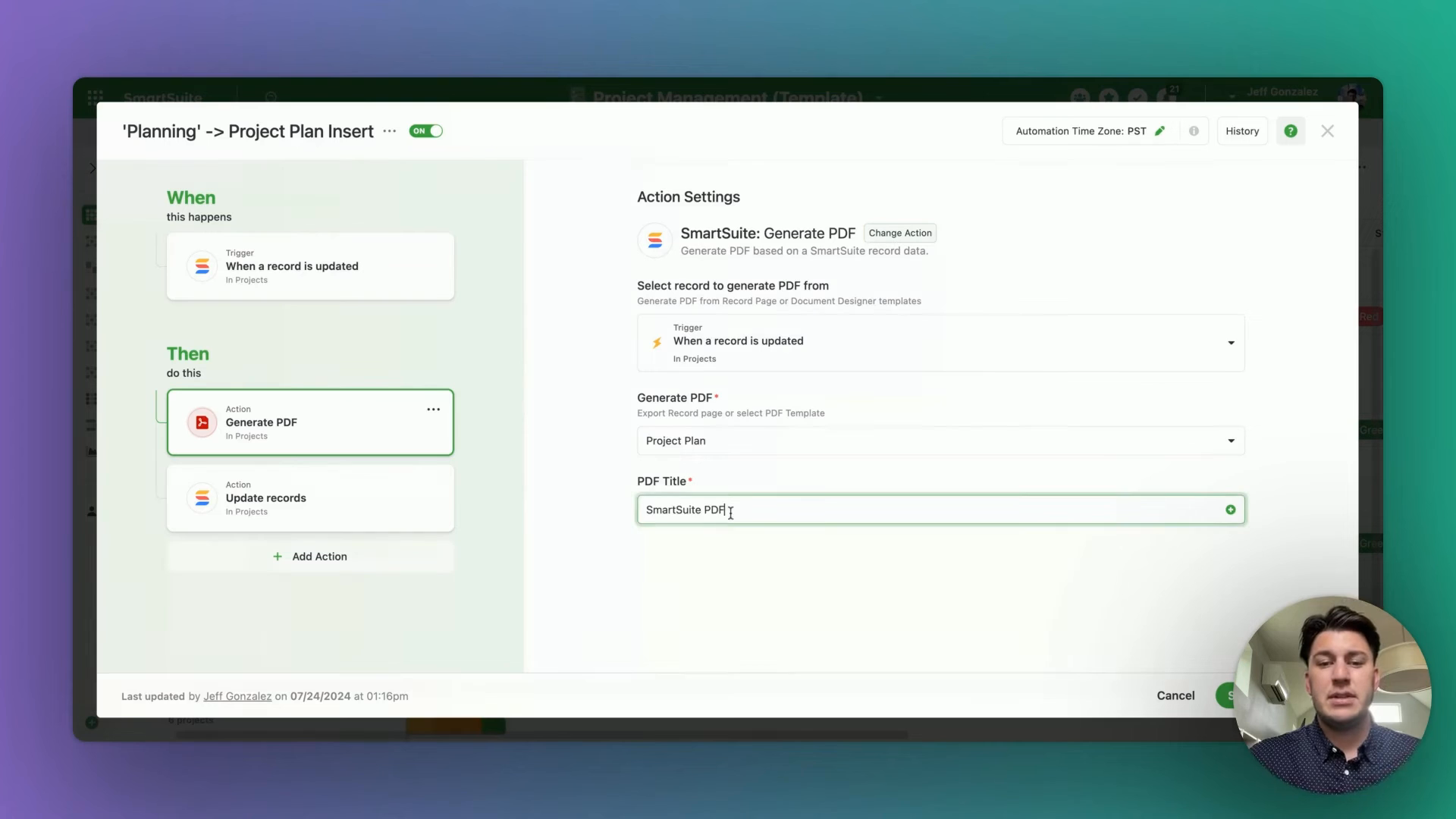
SmartSuite’s automation builder lets you automate actions across workspaces—on a task or overall project level. This gives you more power to automate and build processes that handle recurring tasks such as status updates or follow-up emails.
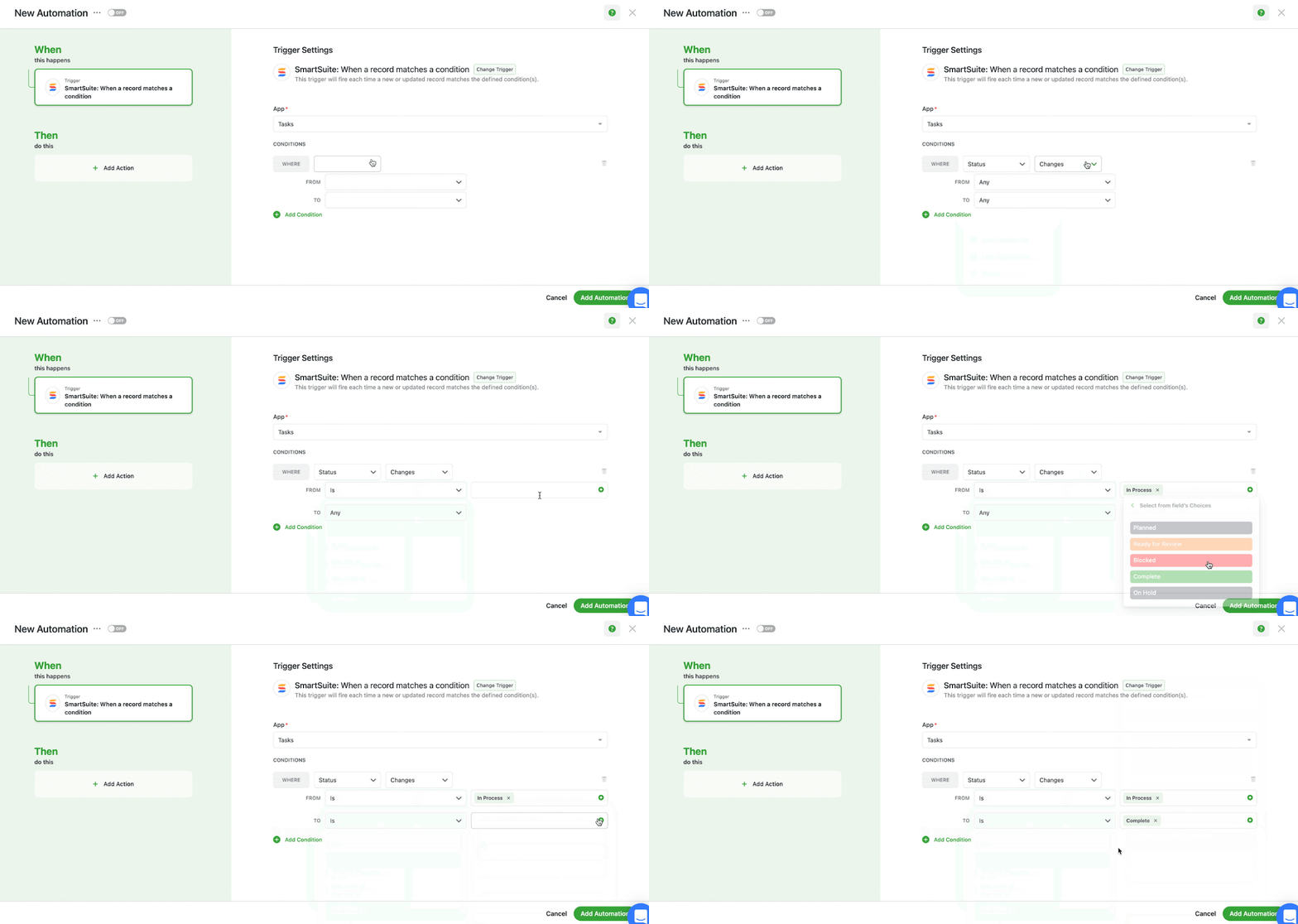
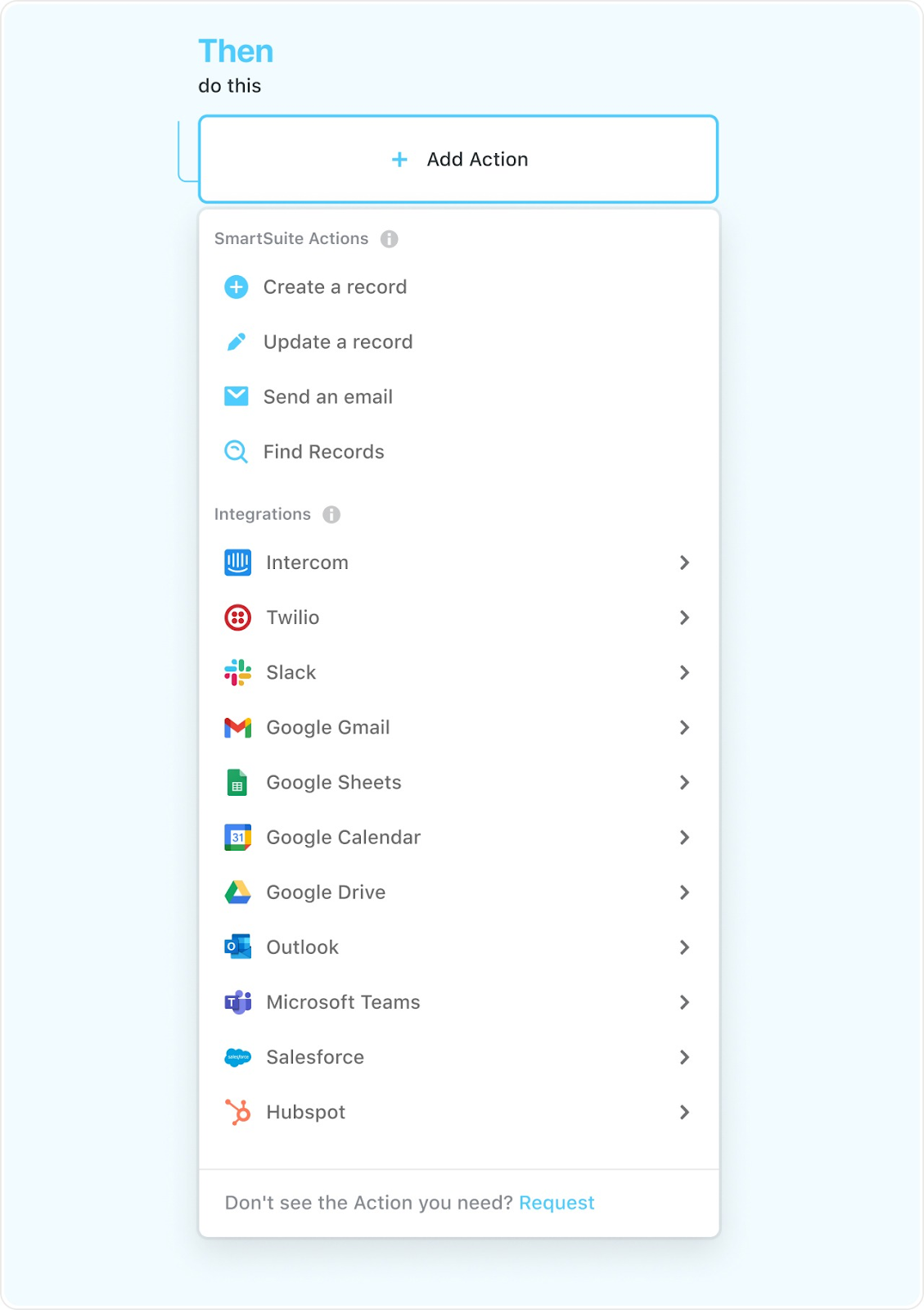
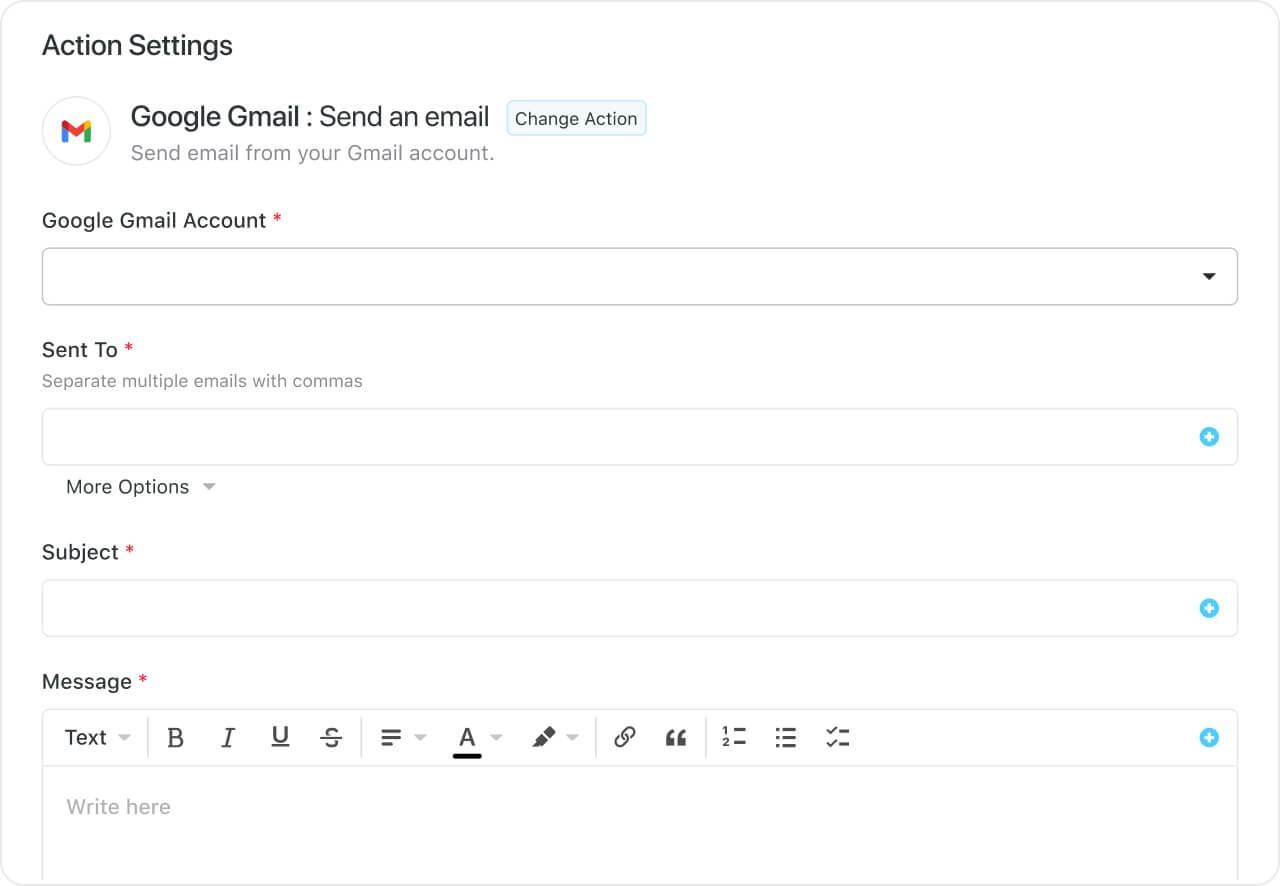
The automation builder offers no-code functionality to build simple one-liner sequences or multi-step flows through triggers, conditions, and actions. You can choose the prebuilt actions or integrate SmartSuite with email, file storage, messaging, or SMS platforms such as Slack, Microsoft Suite, Slack, and Calendars to build custom actions.
image

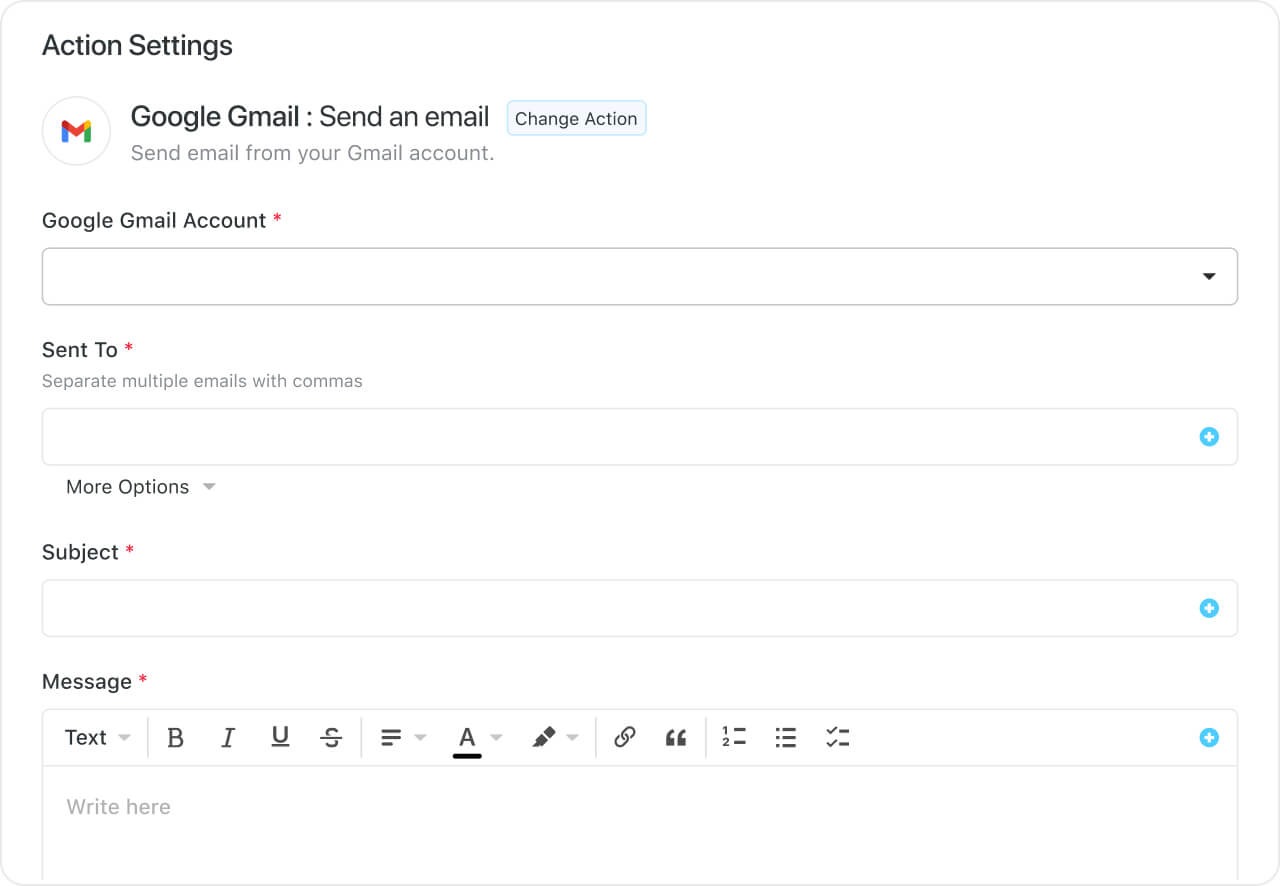
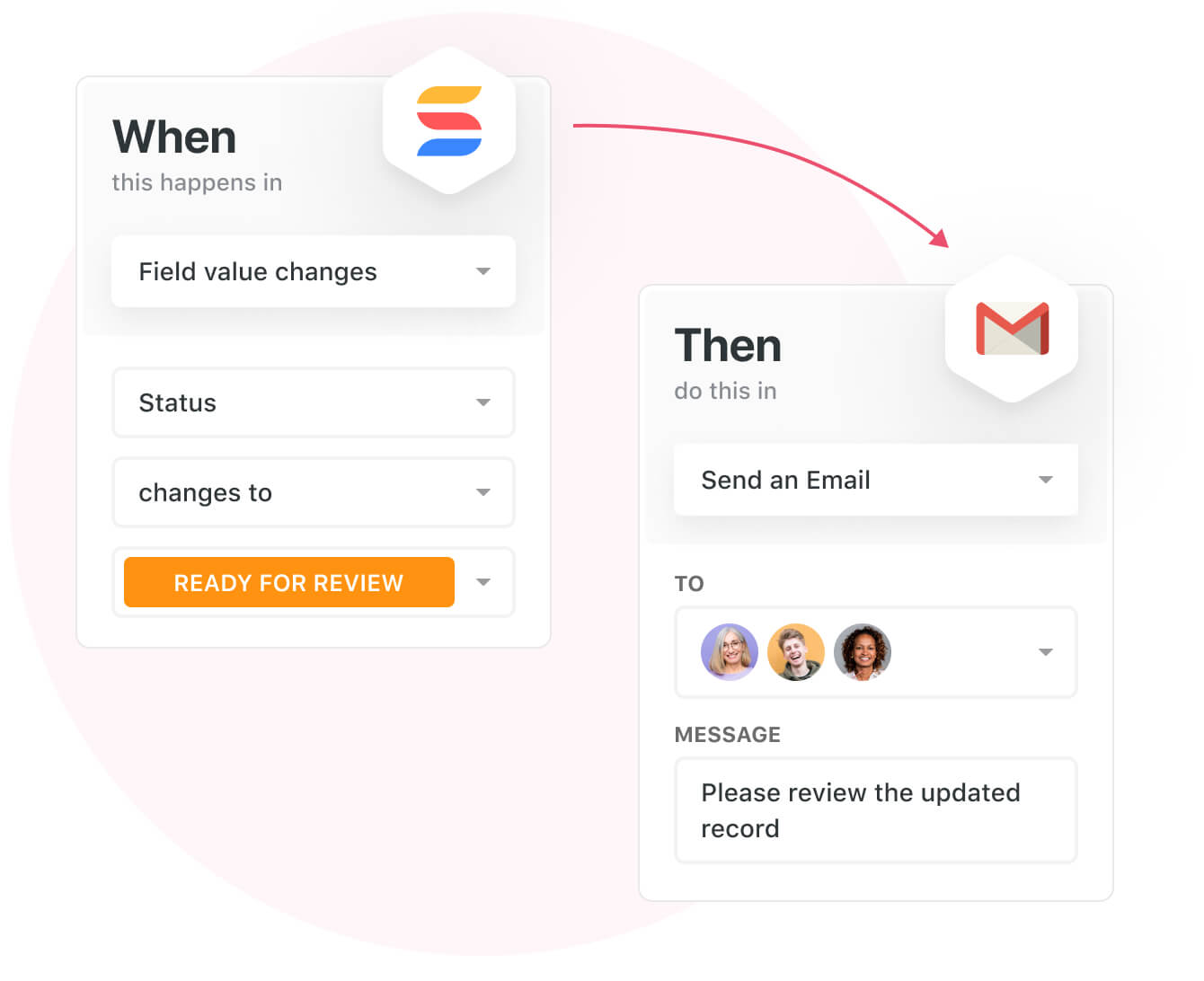
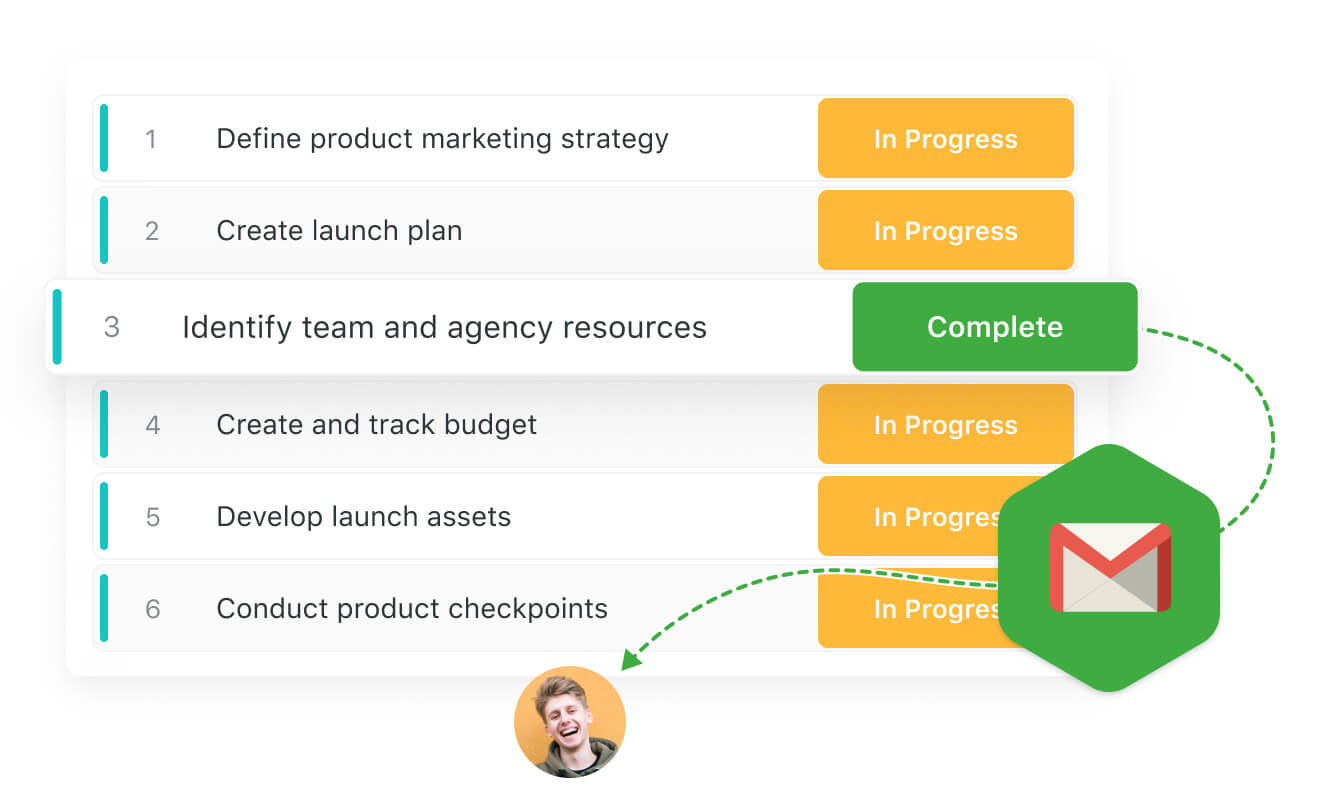
You can, for example, authorize your account by selecting the Google Gmail integration action, specify your email addresses, and customize your message. This email will be sent when the trigger and its conditions are met.
#3. Advanced reporting capabilities

SmartSuite’s customizable reports help you create, manage, and track various projects and analyze how each task is moving toward the target.

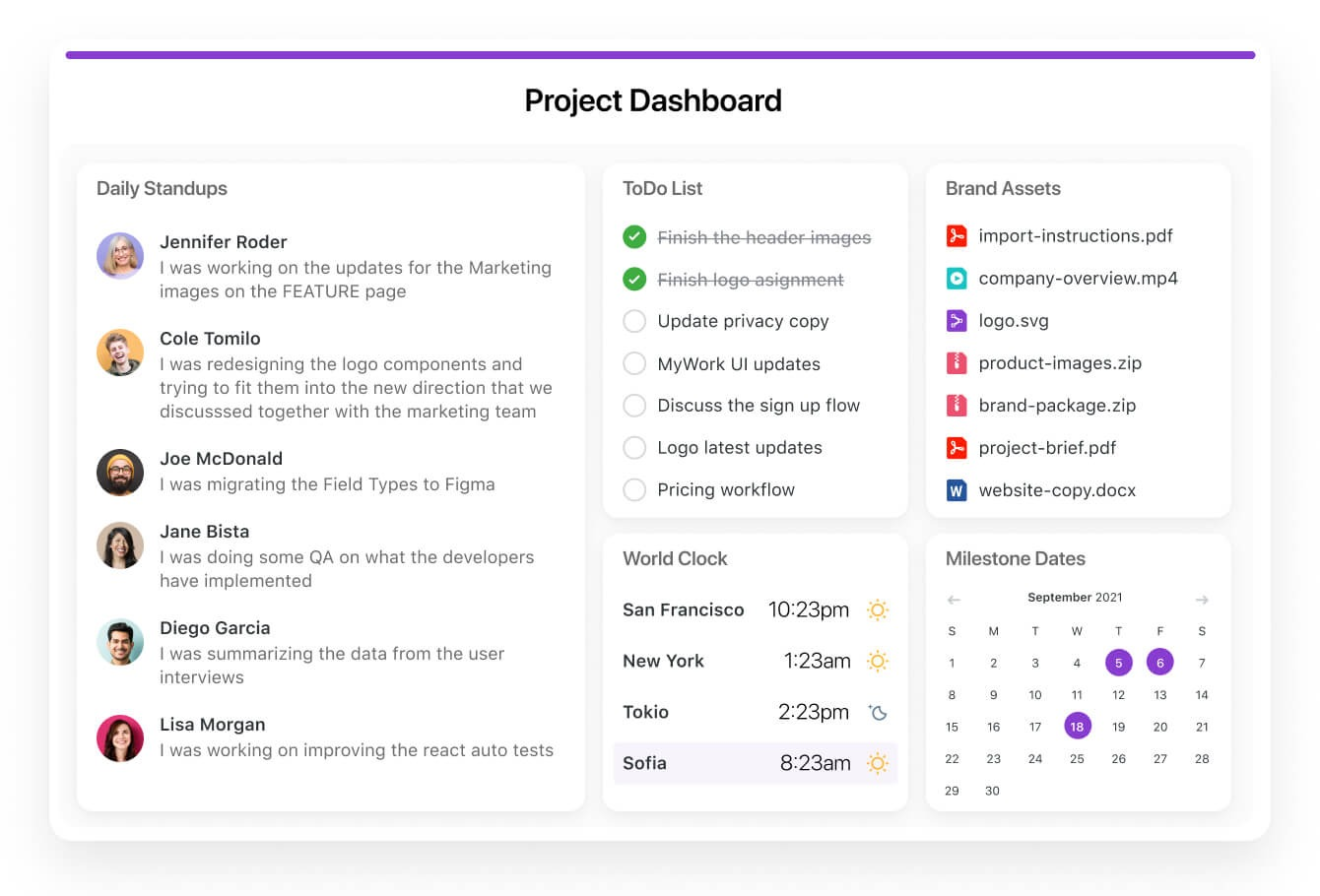
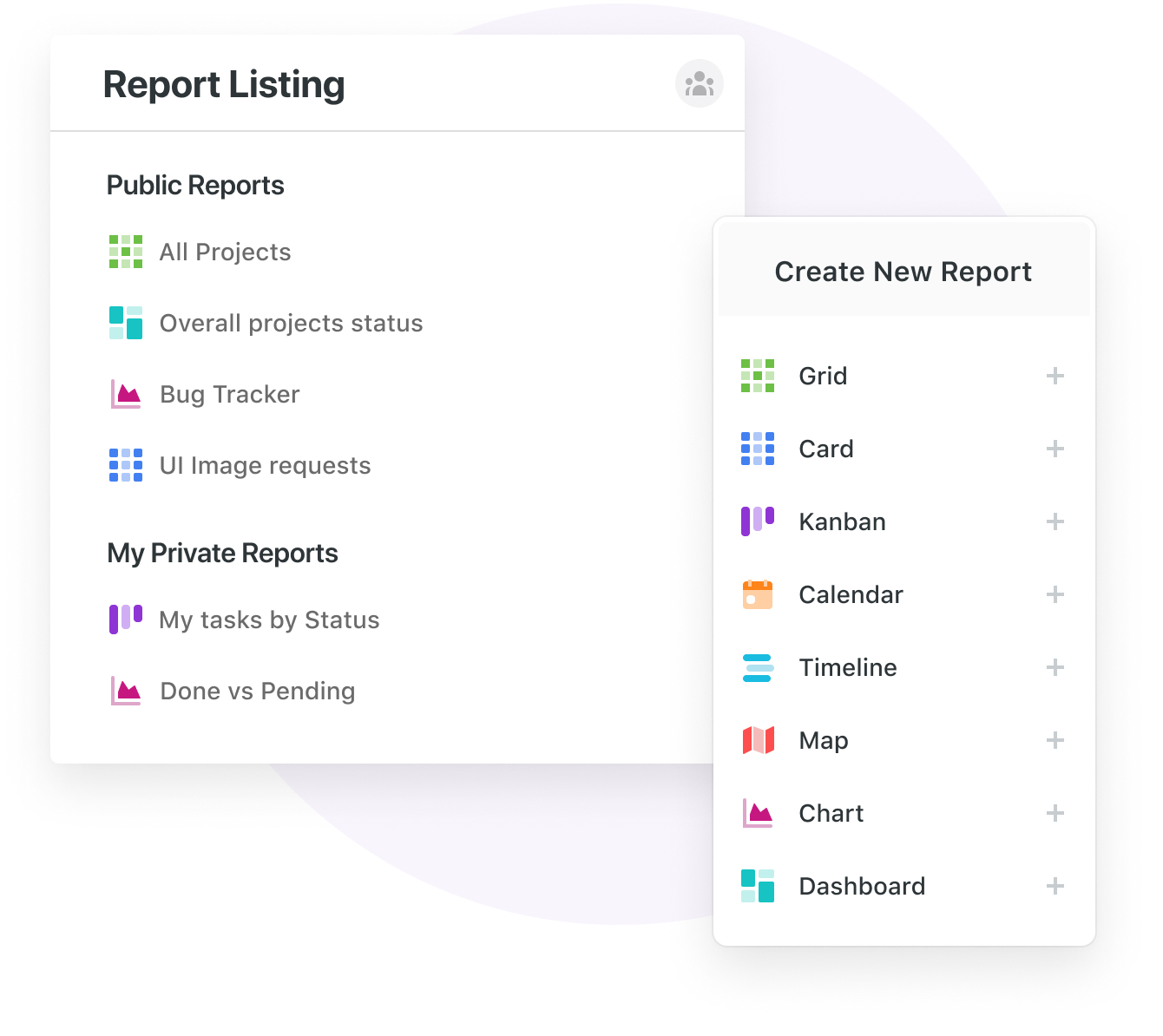
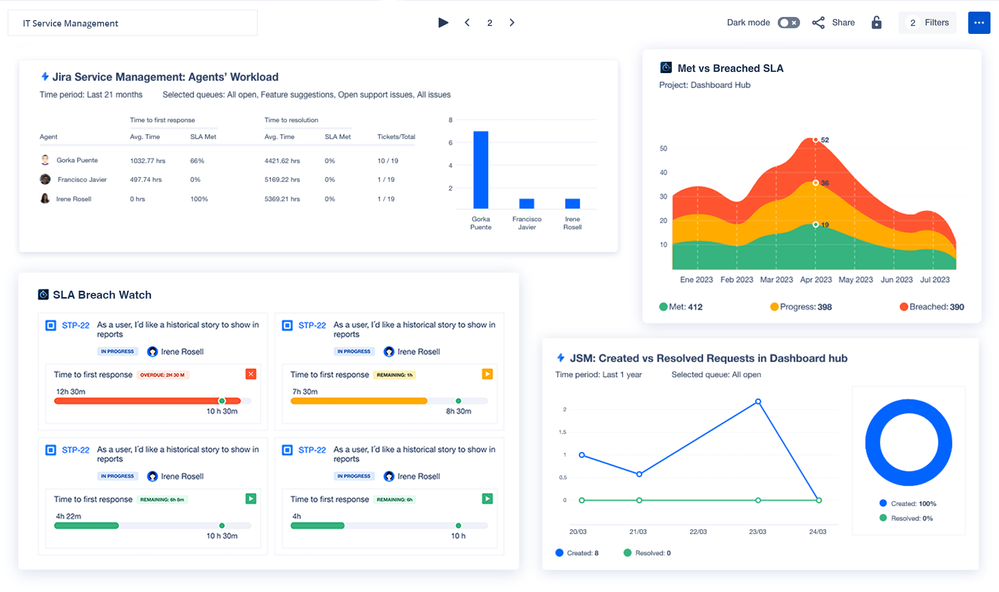
You can build dynamic and appealing project reports with 25+ widgets, including charts, clocks, text blocks, webpages, and metrics. Every report is shareable allowing you to share progress with your team members or with external stakeholders.
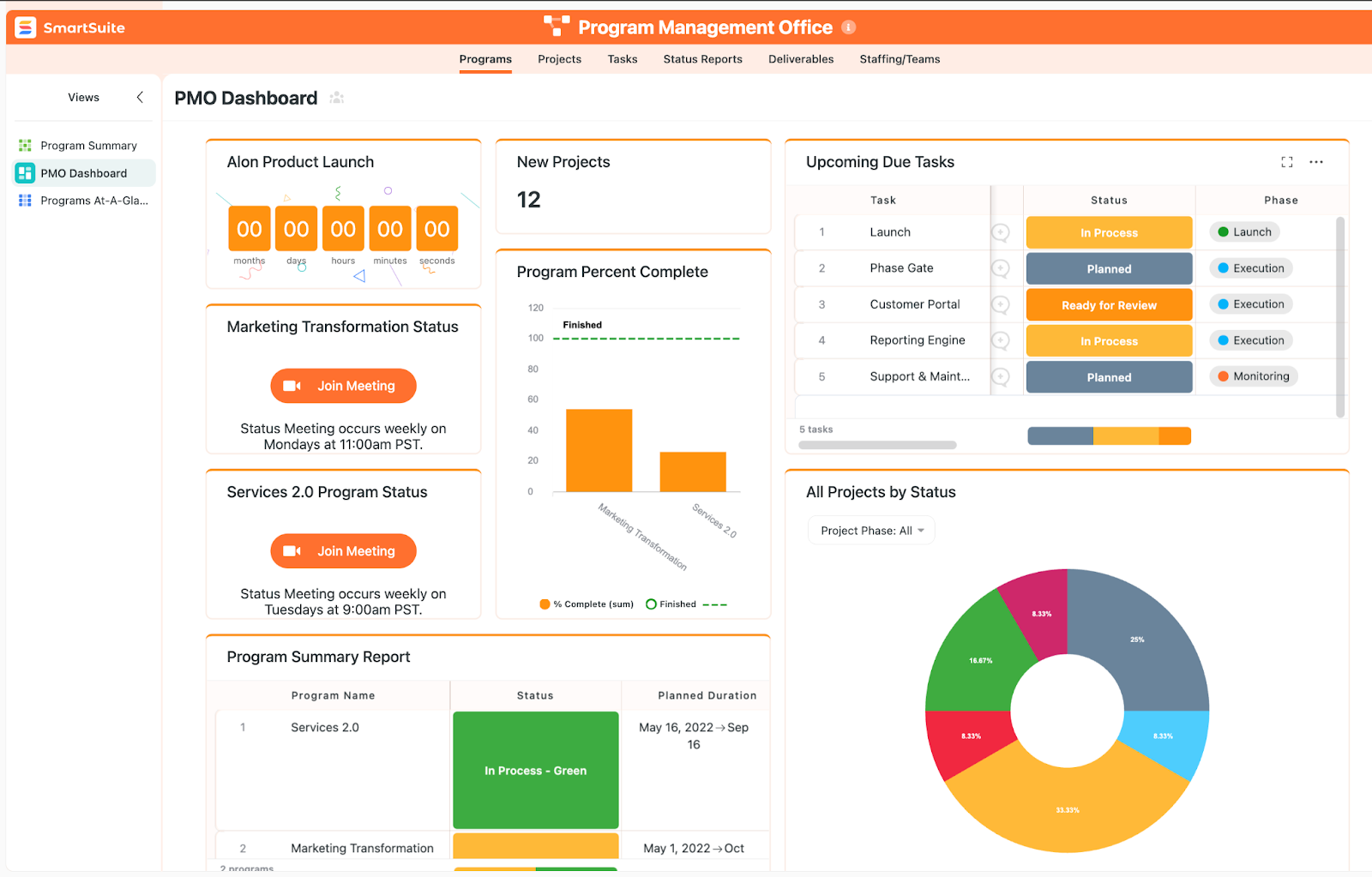
SmartSuite’s reporting feature offers much more. Here are some of the key features:

  • Private or public reports: You can fully control the privacy of your report. You can build public reports accessible to all or set up private reports that are only visible to you.
  • Email sharing: Send the report as an attachment via email and a link to the SmartSuite reporting dashboard so the recipient can access the grand report.
  • Bookmarking: Bookmark or star your favorite report to access them instantly.
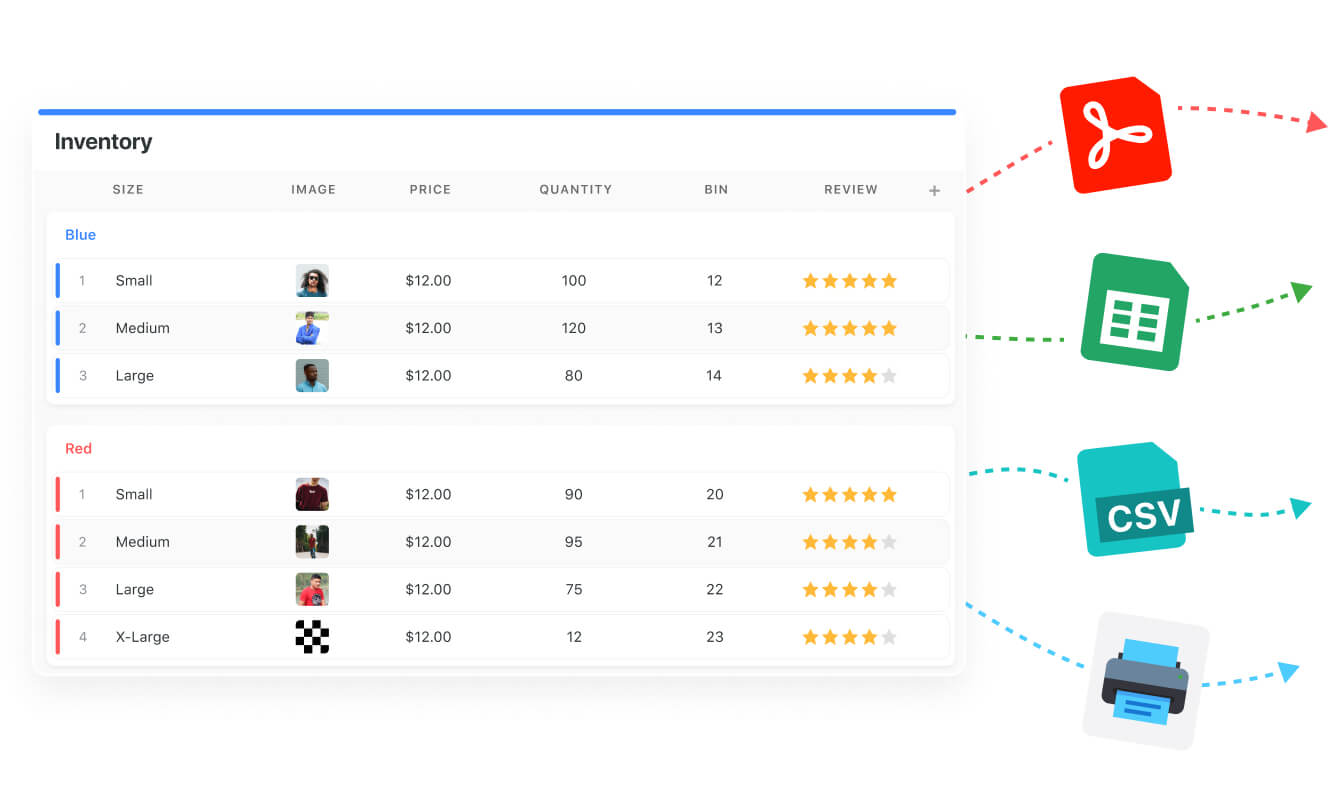
  • Ease of exporting: You can access your report by printing it or exporting it as PDF, Excel, Google Sheets, or CSV format.

Give SmartSuite a Try Today

If you’re looking for a powerful Smartsheet alternative with an intuitive interface, robust features, and competitive pricing, consider SmartSuite.

SmartSuite bridges this gap by providing a more cost-effective solution that includes all the essential features growing teams need right from the start.

Here’s what’s in it for you when you try any of SmartSuite’s plans:

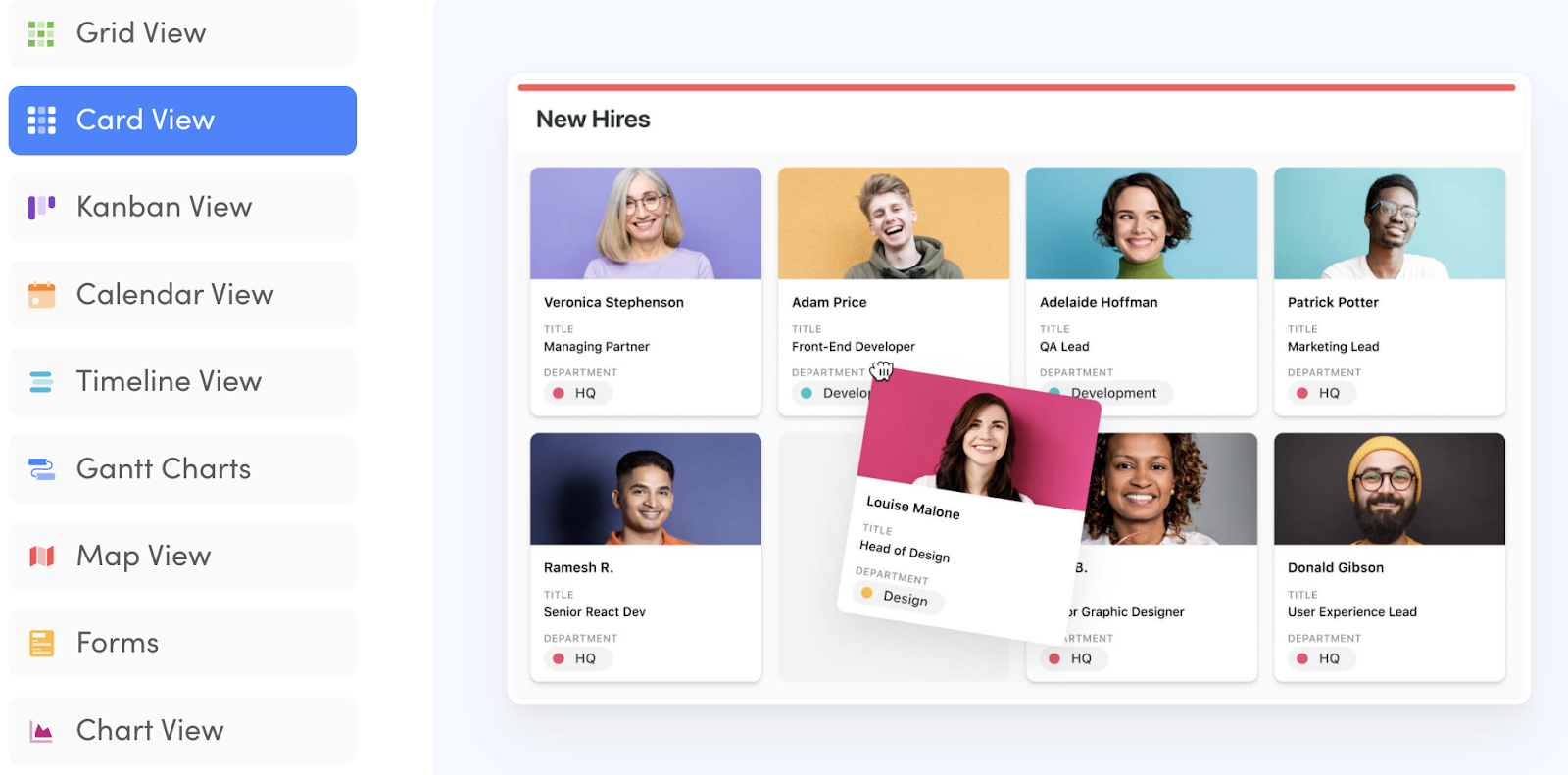
  • Generous free plan with features including multi-board views (Kanban, Chart, Map, Timeline, Card, and Calendar), 100 automation/month, and 40+ field types, including formula and linked record fields.
  • 200+ free solution templates for various use cases
  • Resource management across projects and teams
  • Dynamic reporting dashboards
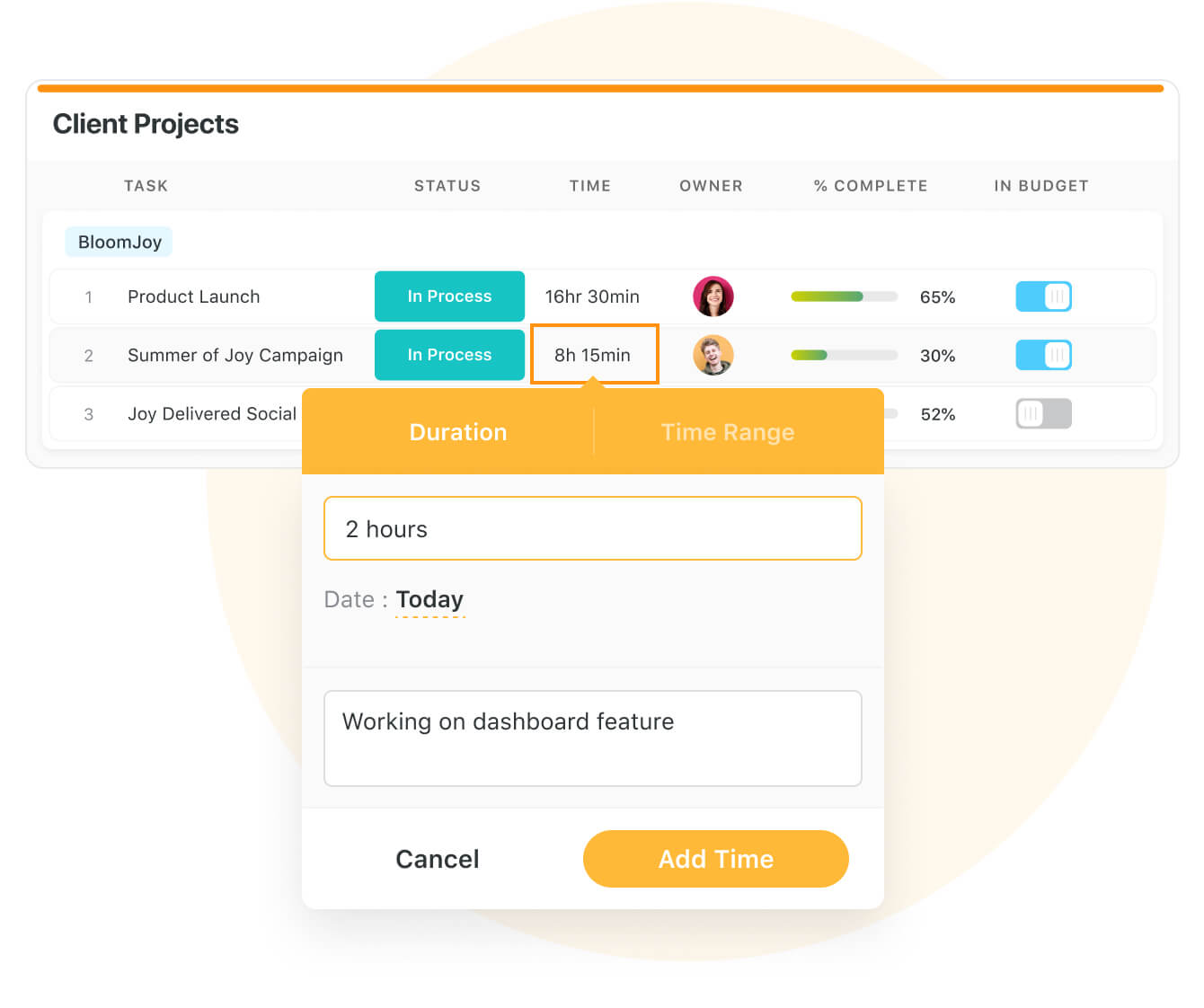
  • Task management tools—time tracking, status tracking, and checklists
  • Advanced no-code workflow automation

You can sign up for a free plan or 14-day free trial to evaluate SmartSuite’s feature offering.

Or, if you’d like to talk to our team of experts, schedule a demo.
‍

What’s New in SmartSuite: September 2024

Software Stack Editor · September 16, 2024 ·

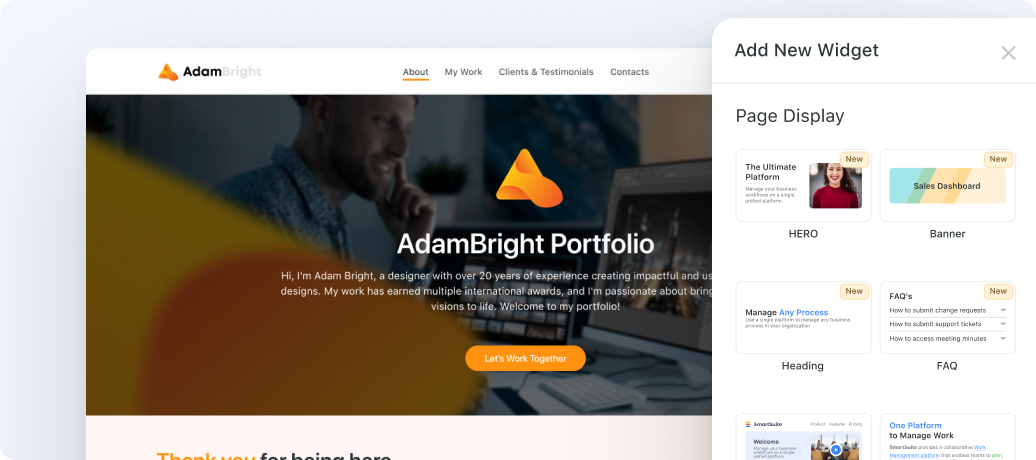
The anticipated release of Next Generation Dashboards is here! These new Dashboard features empower you to go beyond traditional dashboard displays, allowing for the creation of visually stunning, interactive portals and personalized workflows.
‍
View Full Release Notes
View Dashboard Update Demo Webinar

Next Generation Dashboards

Our new Dashboard features empower you to go beyond traditional dashboard displays, allowing for the creation of visually stunning, interactive portals and personalized workflow pages.

See feature video
‍‍Learn more‍‍

Dashboard Tabs

Create custom navigation within your dashboards using tabs to organize unique content. Add logos, tabs, and action buttons for a seamless experience, allowing users to switch between sections effortlessly. Ideal for enhancing data access and creating a website-like structure on your dashboard.

‍See feature video
‍‍Learn more

Dashboard Footer

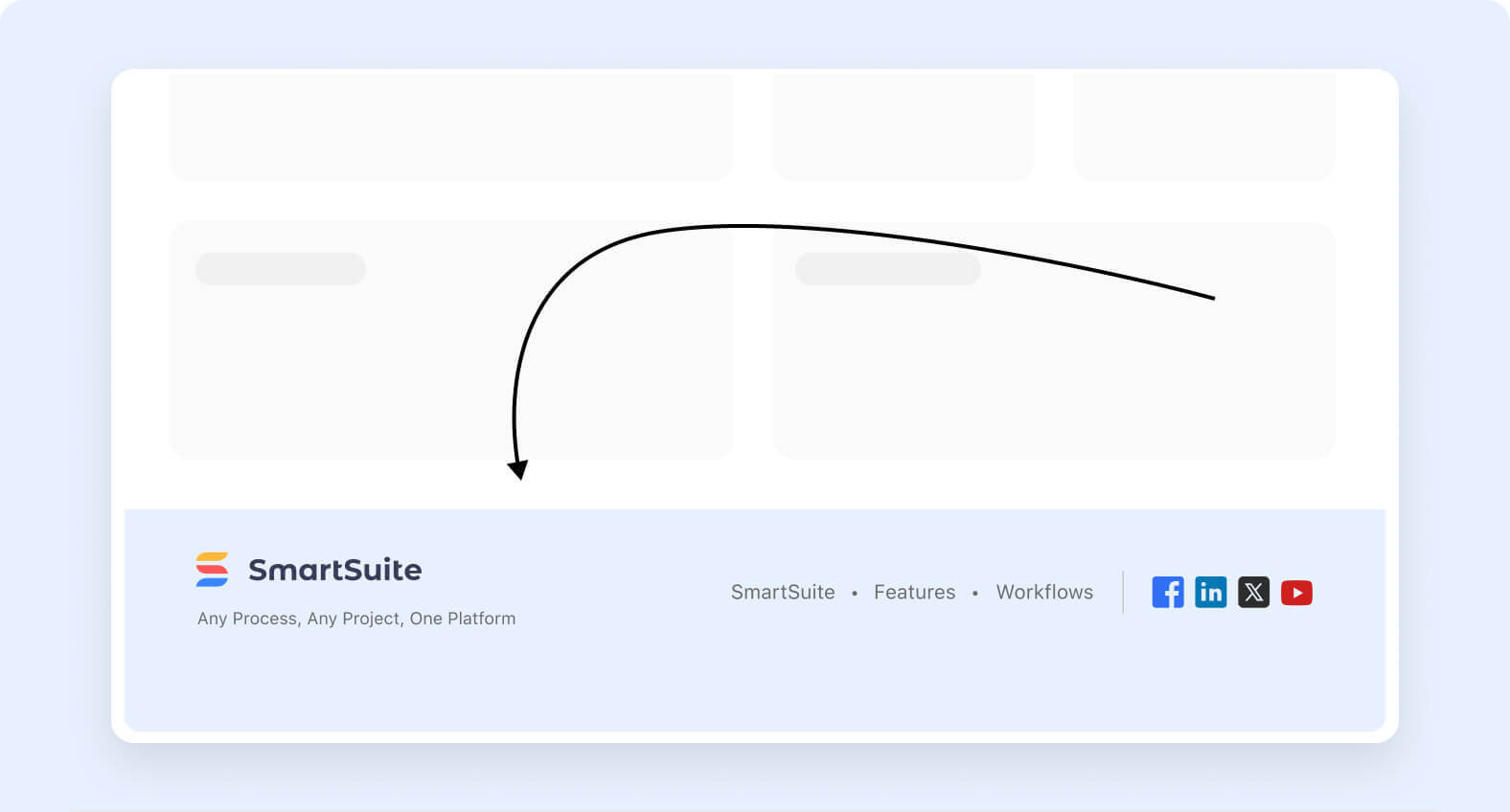
Add a professional touch to your dashboard with a customizable footer. Include your company logo, description, links to other pages, and social icons to provide users with easy access to key information. It’s a great way to make your dashboard look polished and engaging.

‍See feature video
‍‍Learn more

Dashboard Styling

Personalize your dashboard’s appearance with new styling options. Select a background color and choose from auto, standard, or compact page widths. Adjust these settings to create a dashboard that aligns with your brand and enhances the user experience.

‍See feature video‍
‍Learn more

Heading Widget

The Heading Widget is a versatile tool designed to enhance your dashboard by prominently displaying formatted text. It’s ideal for adding titles, descriptions, or any crucial information you want to highlight on your dashboard.

‍See feature video
‍‍Learn more‍

Banner Widget

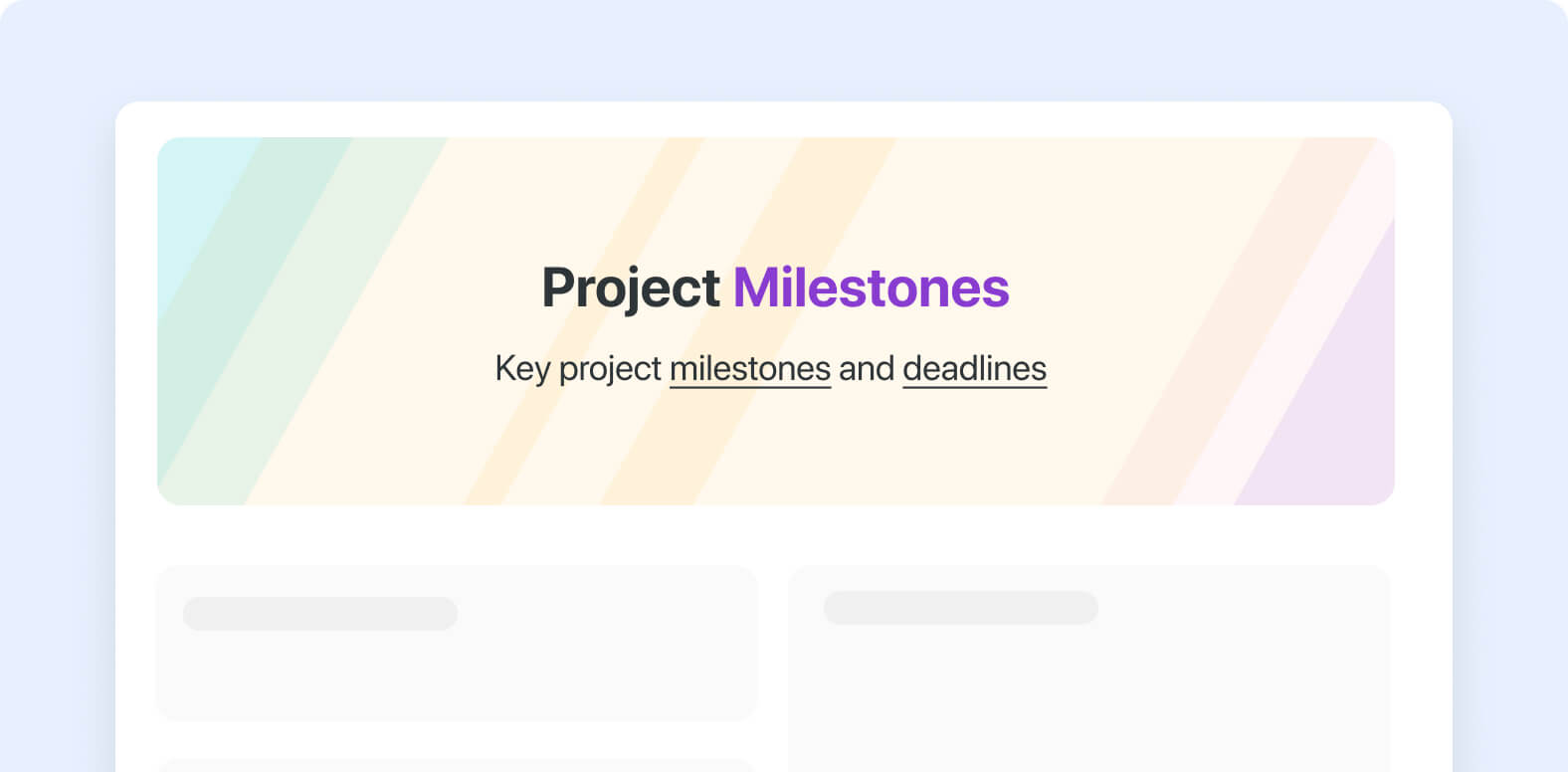
Introduce content with a visual banner at the top of your dashboard. Customize the background with colors or images, and include captions, titles, subtitles, and action buttons. Ideal for highlighting key information and guiding users to specific actions.

‍See feature video‍
‍Learn more

HERO Widget

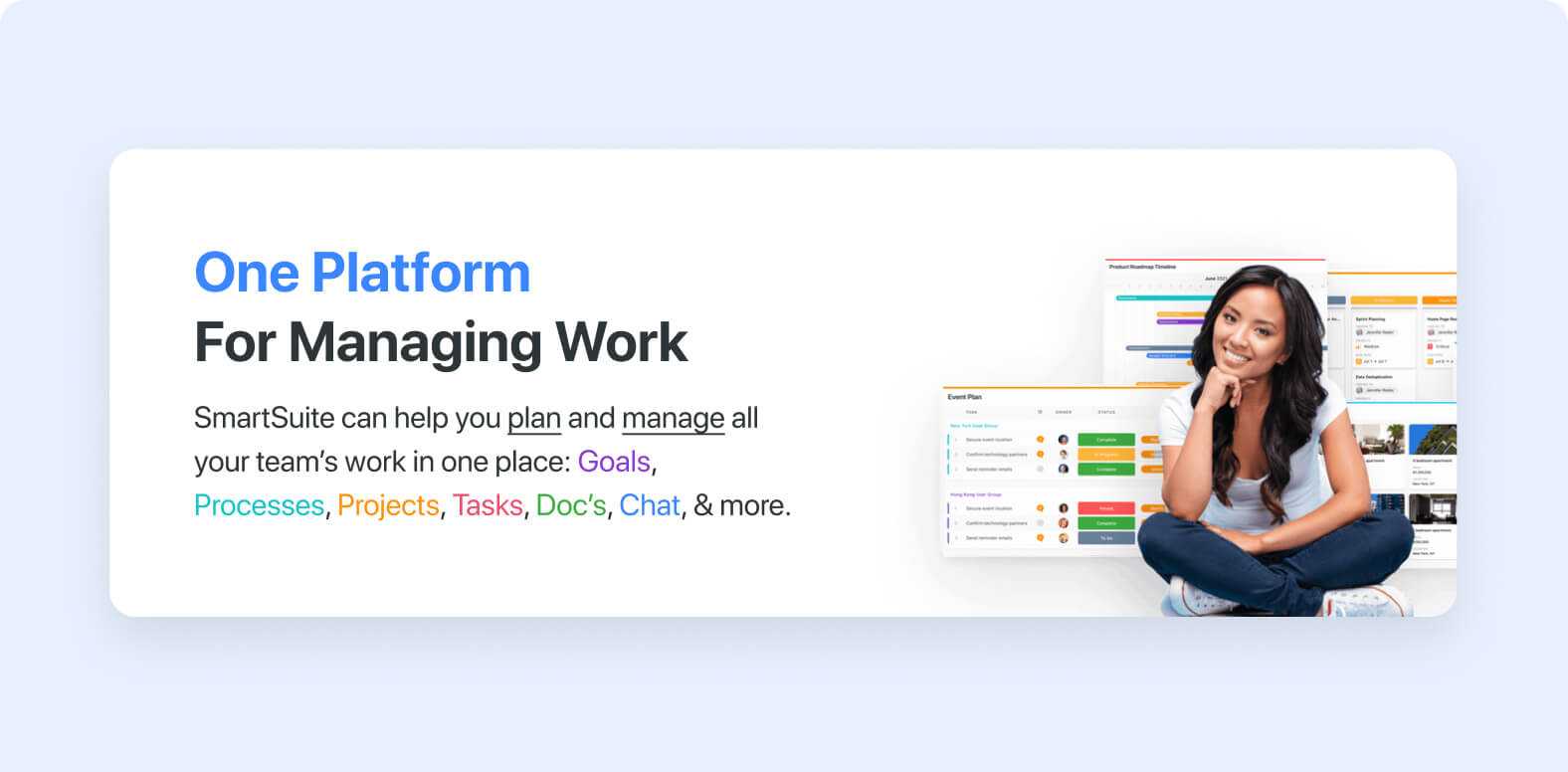
Make a bold visual statement with the HERO Widget. Use advanced image options, customize backgrounds, add captions, titles, and action buttons. Ideal for creating dynamic headers or alternating content sections that guide users through your dashboard’s story.

See feature video‍
‍Learn more

FAQ Widget

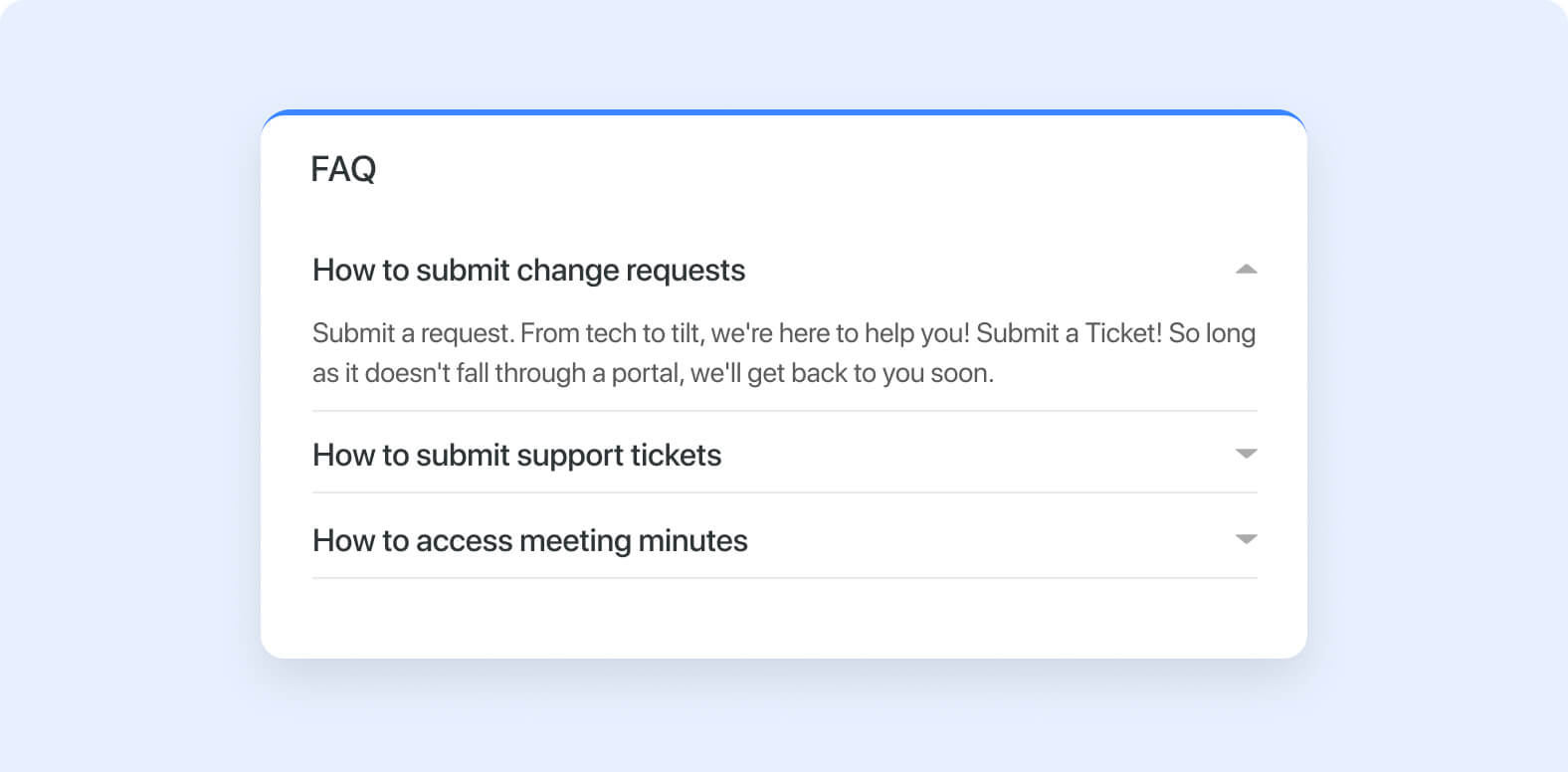
Create an FAQ section to address common questions. Choose list or accordion styles for display and use rich text for detailed answers. Great for onboarding, support pages, or providing quick reference information.

‍See feature video‍
‍Learn more‍

Record Selector Widget

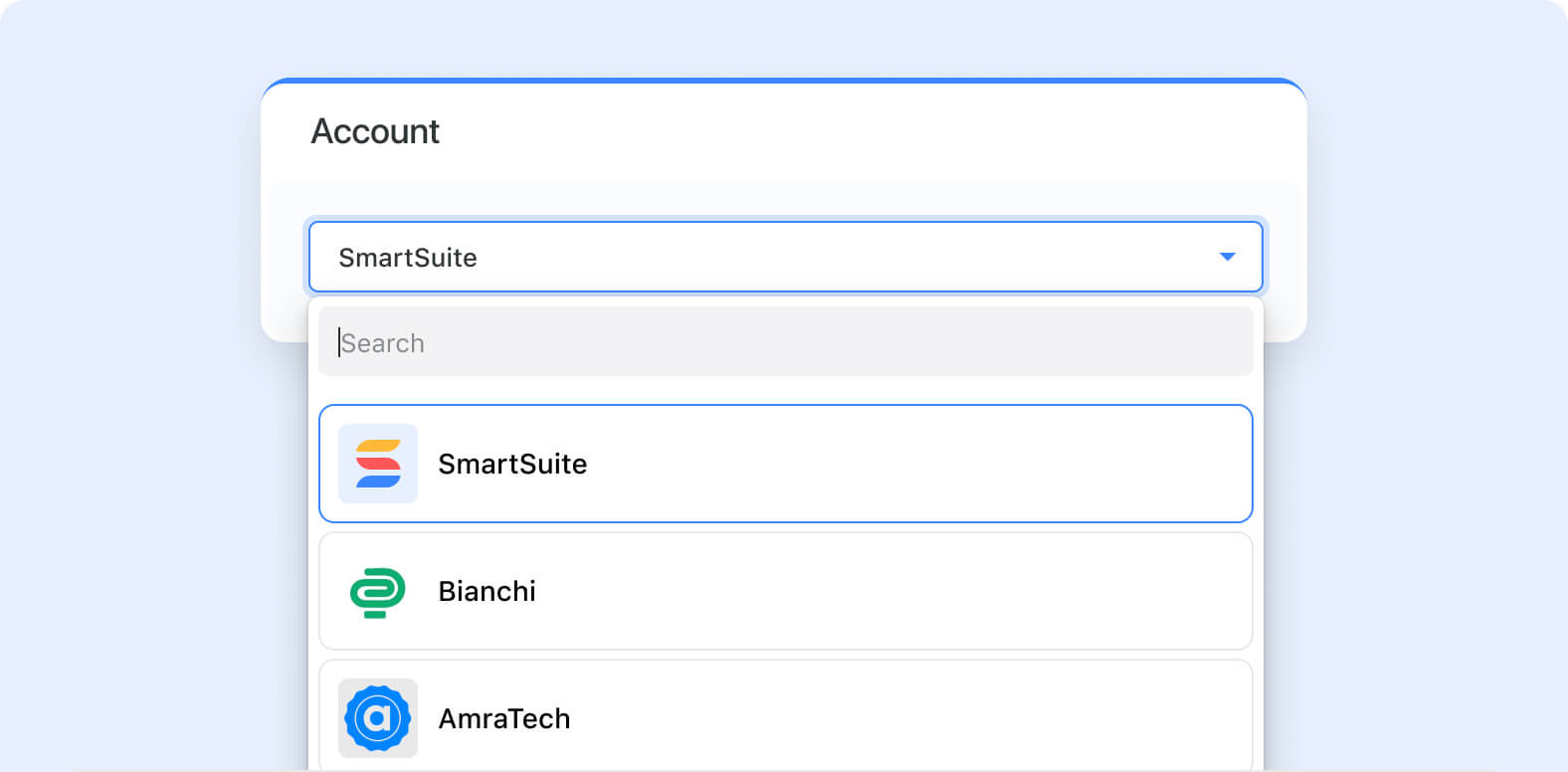
Select records from a list or dropdown to dynamically control content in connected widgets. Use filters and styling options to personalize the experience, offering users an interactive way to explore data across your dashboard.

‍See feature video‍
‍Learn more

Record Detail Widget

Showcase fields from a selected record directly on your dashboard. Customize permissions, display field names, help text, and adjust field width. Inline editing allows users to interact with data in real-time, enriching the overall dashboard experience.
‍
‍See feature video‍
‍Learn more‍‍

Filter Row Widget

Apply consistent filters across multiple charts and views. Choose fields from a source table, customize each filter, and narrow down data sets in real-time. An essential tool for targeted analysis and data exploration on your dashboard.

‍See feature video
‍‍Learn more‍

Button Row Widget

Add interactive buttons to perform specific actions like opening forms, navigating to URLs, or triggering workflows. Customize each button’s label, color, and action, providing users with a straightforward way to interact with dashboard elements.

Learn more

Summary Card Widget

Display key metrics with a manual or formula-driven number. Adjust the alignment and background color to emphasize the most critical data, offering a quick snapshot of performance or progress.

See feature video‍
‍Learn more

Divider Widget

Separate content with a horizontal line to organize your dashboard visually. Customize the line color and add a caption to provide context between sections, ensuring your dashboard remains clear and easy to navigate.

See feature video
‍Learn more

Spacing Widget

Insert extra space between widgets to enhance your dashboard’s visual presentation. Use strategically to create breathing room, reduce clutter, and draw attention to specific content areas.
‍
‍See feature video
‍‍Learn more

View Product Roadmap

Upcoming Live Events & Trainings
‍

Bi-Weekly: Getting Started with SmartSuite Workshop
September 24, October 8 @ 8:00 am PT

This interactive workshop offers hands-on learning opportunities to grasp the platform’s fundamentals. From navigating the interface to exploring our key features, our step-by-step guidance ensures you gain a comprehensive understanding as you get started. 

Register here

Application of the Latest SmartSuite Features 
October 2 @ 8:00 am PT

This live demonstration will dive into use cases for the latest features introduced in SmartSuite!

Register here‍‍

Live SmartSuite Monthly Training Classes & Free Certification Opportunity | September 26, October 24

This 3-part training includes:

  • Comprehensive overview of SmartSuite as a platform, along with key functionality training tailored for end users.
  • Deep dive into SmartSuite, gaining insights into its building blocks and discovering how to implement effective solutions for your teams.
  • Our Recommended Certification session, featuring a live, free certification exam test to earn a SmartSuite Certification of your choice

If you are interested in attending our live training, you can access the registration request form here.‍‍


Have questions? Join our Live Office Hours!
‍
‍
Get all your questions answered live by an Onboarding Specialist during our Live Office Hours Monday-Friday at 9:00 am PT and Wednesday at 7:00 AM PT—or simply join to learn how others are finding value in SmartSuite.

Your SmartSuite Team

  Community  |  Academy |  SmartSuite.com  |  Product Roadmap | Webinars 

Monday.com Pricing: Is It Worth It in 2024?

Software Stack Editor · September 9, 2024 ·

Confused about Monday.com’s pricing? 

You’re not alone. 

Many users have been baffled by the company’s complex pricing structure and the announcement of a price spike in January 2024.

In this post, we’ll cut through this confusion and discuss Monday.com’s pricing options, highlight hidden costs, and share alternatives you can consider to help you make an informed decision for your team.

Monday.com’s Pricing Plans

Monday.com is work management software that helps you manage your goals, build processes, and collaborate with your team to execute tasks across projects.

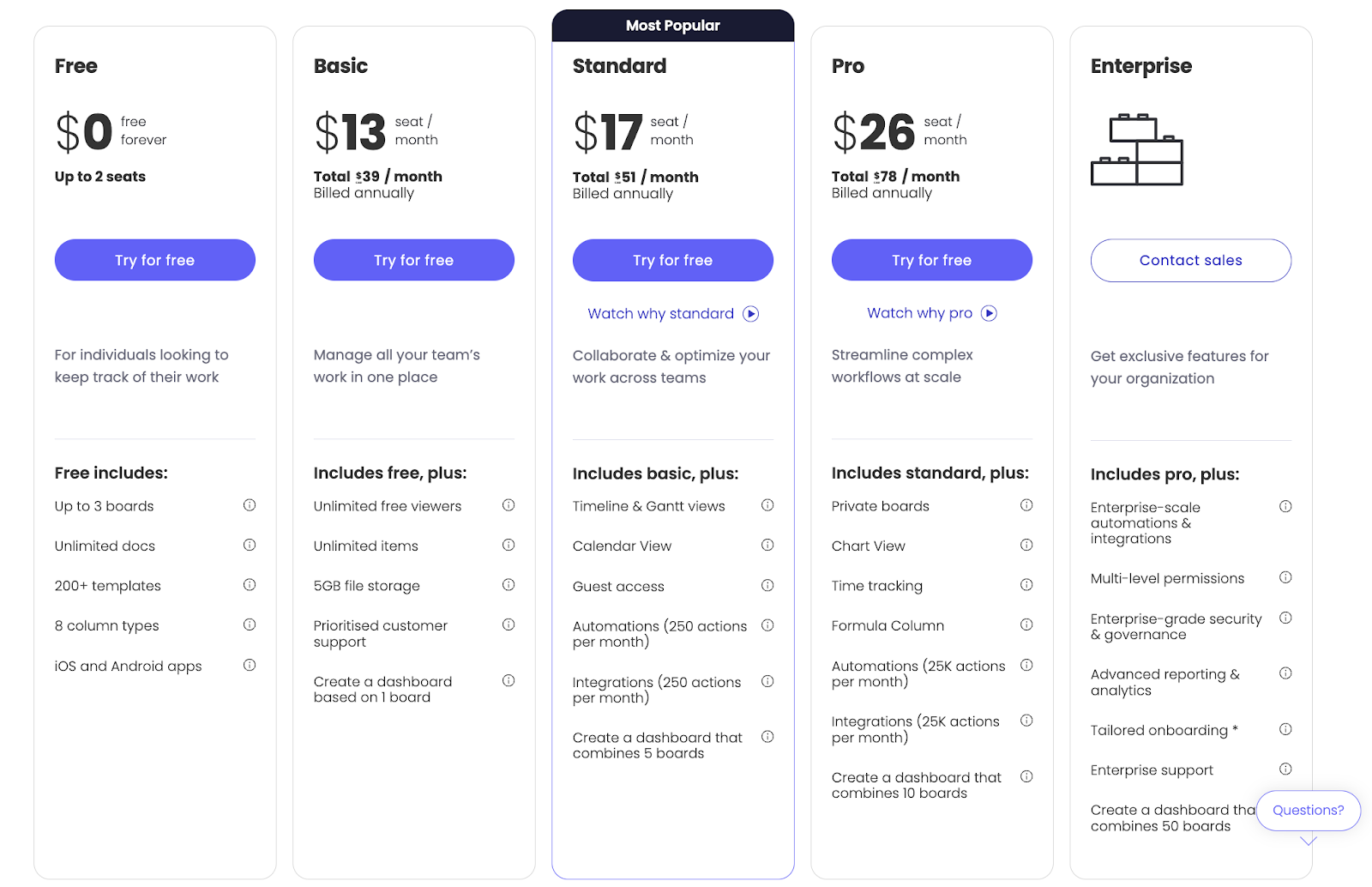
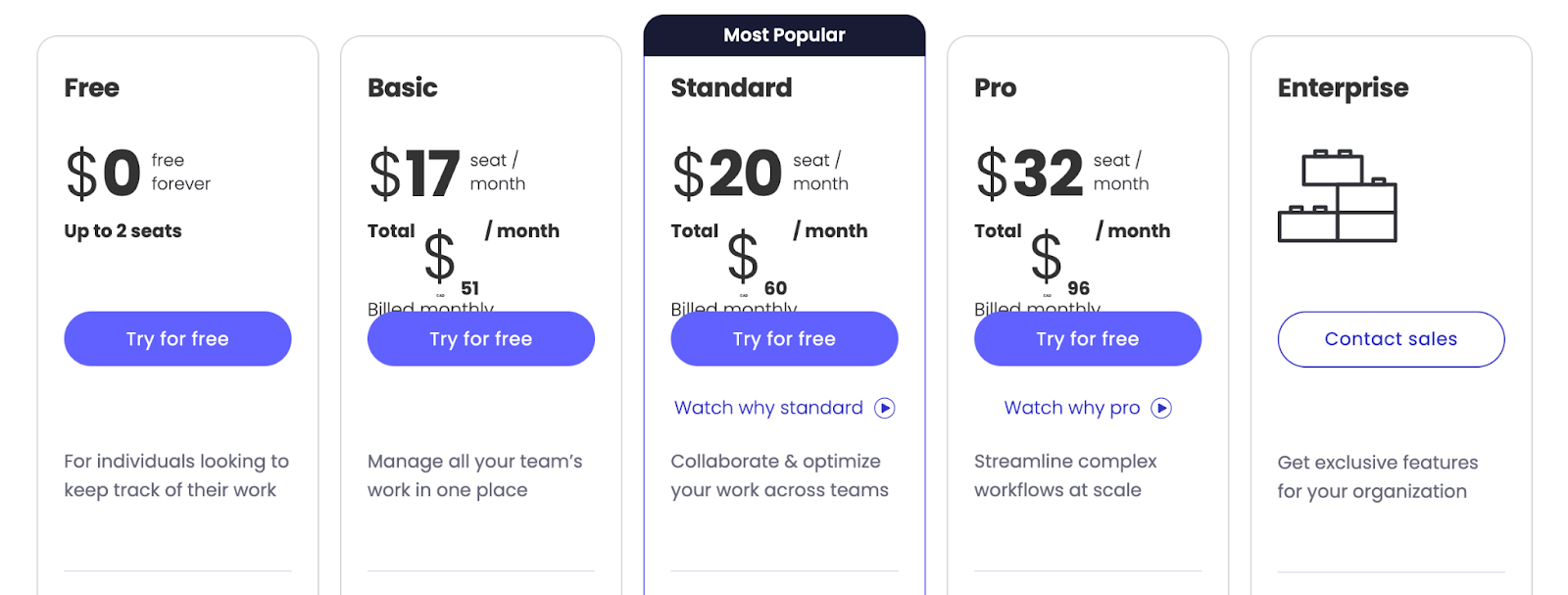
Monday.com offers five pricing plans, including a forever free plan and a 14-day free trial for three paid plans.

Monday.com’s paid plans require a minimum of 3 user seats. And new users can be added only in increments of 5, increasing the overall cost of each plan.

Here’s a quick breakdown of its five plans and features offered.

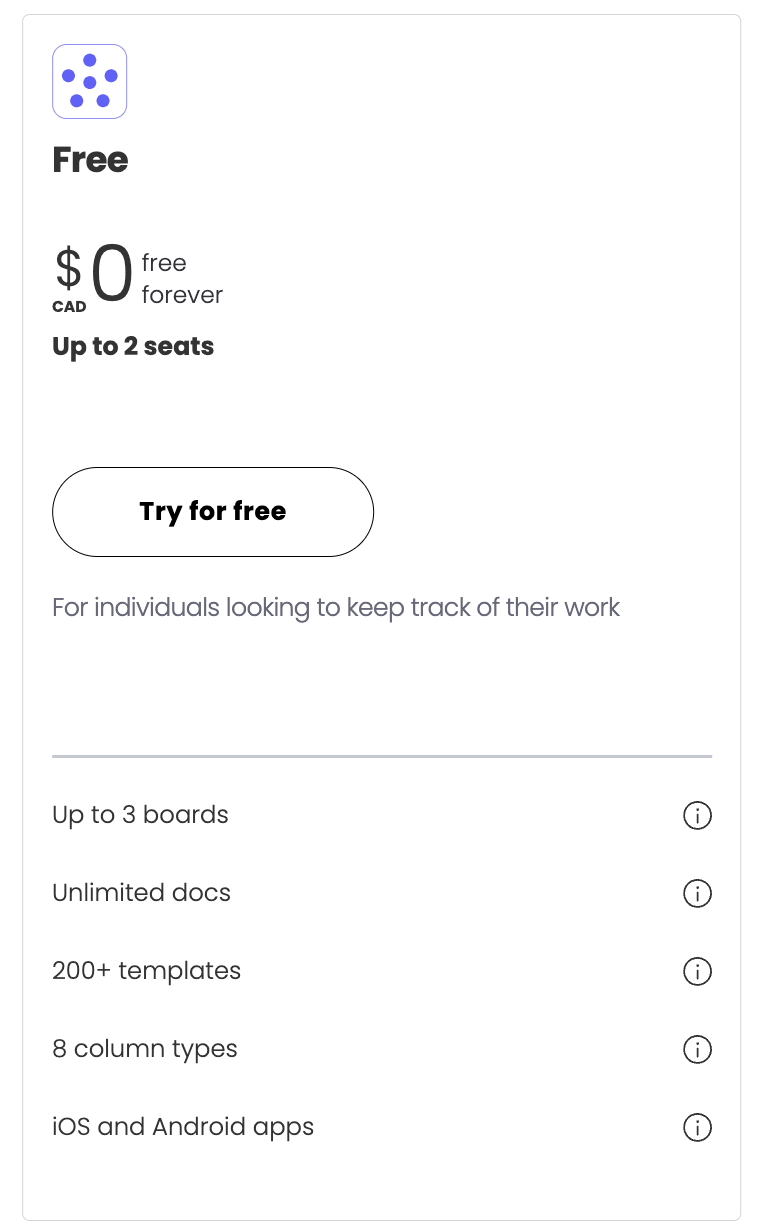
Monday.com: Free Plan

Monday.com’s free plan offers basic project management features, such as building task lists and tracking progress through a single reporting dashboard. However, the maximum user cap is only 2, compared to its paid plan, which offers unlimited user seats.

Even though you get unlimited workspace, Monday.com limits you to 3 board creations overall, and each board can have only two views–Table and Kanban.

Here’s what you get from Monday.com’s free plan:

  • 500 MB Storage
  • 1-week activity log
  • 200+ work management templates
  • Whiteboard collaboration
  • Shareable forms
  • Only 200 items or rows, but it can go up to 1000 upon referral

Their free plan is best suited for freelancers or solopreneurs who need a low-key tool to keep track of their tasks.

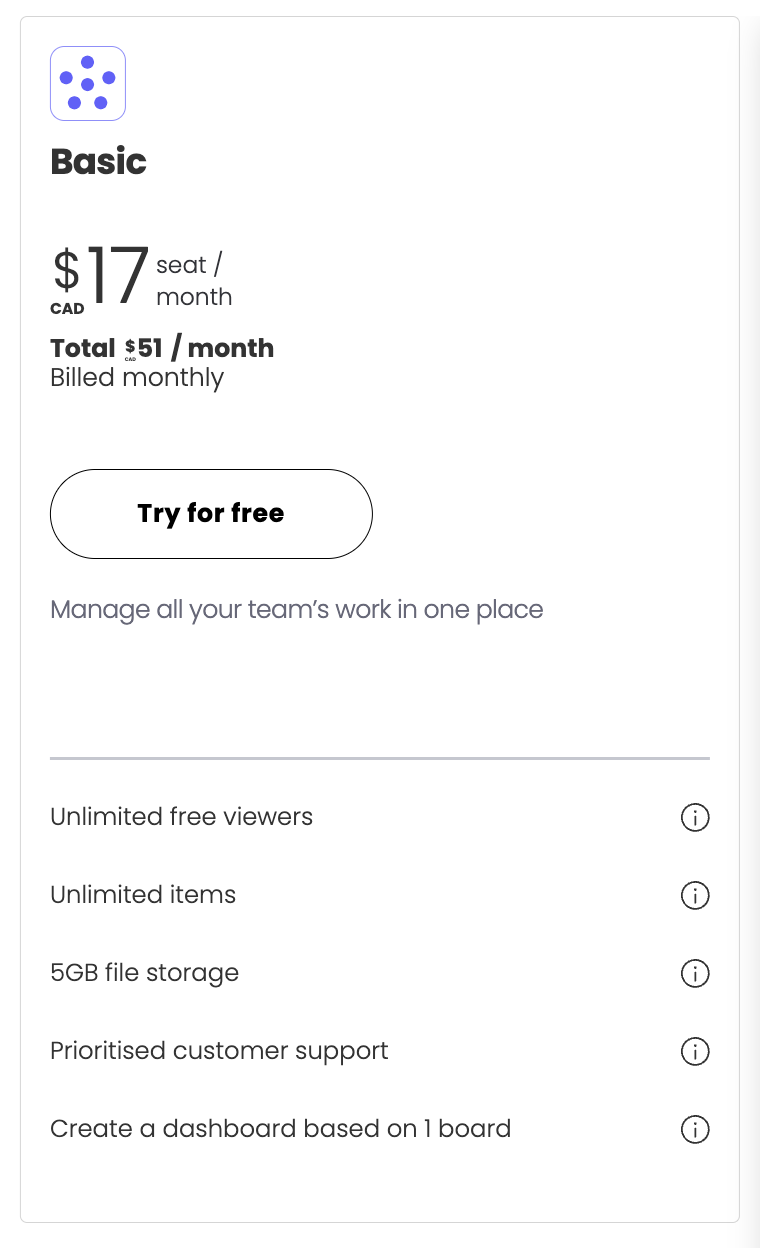
Monday.com: Basic Plan

Monday.com’s basic plan offers unlimited boards across all workspaces, giving you more room to build and manage your projects.

There are also more collaboration features, including unlimited documents to brainstorm ideas and project timelines with your team members. You can also invite unlimited members to access without any extra cost view-only.

Some other key features you get in the basic plan include:

  • Build custom fields for workspaces and projects.
  • 5GB storage
  • iOS and Android apps

Monday.com: Standard Plan

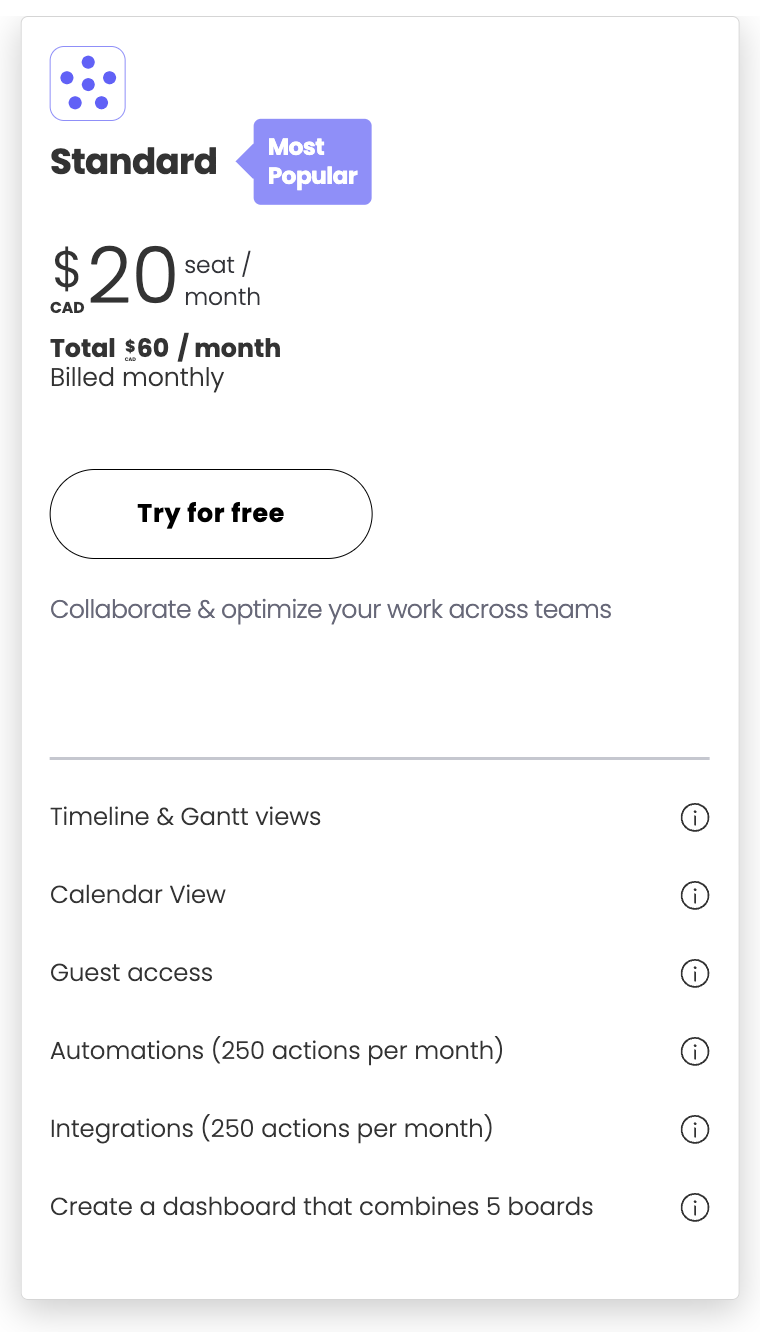
Monday.com’s standard plan is its most popular plan, as it offers many must-have features for smooth project management.

With a price upgrade of CAD $9/month from their basic plan, you get two key features:

  1. Three additional board views—Timeline, Calendar, and Map.
  2. 250 automation actions/month—both built-in and integrations-driven actions.

Apart from these, you also get the following features:

  • 4 guest invites, billed as 1 additional user seat
  • Dashboard creation by combining up to 5 boards
  • 6-month activity history
  • 20GB storage
  • Shareable forms

Monday.com: Pro Plan

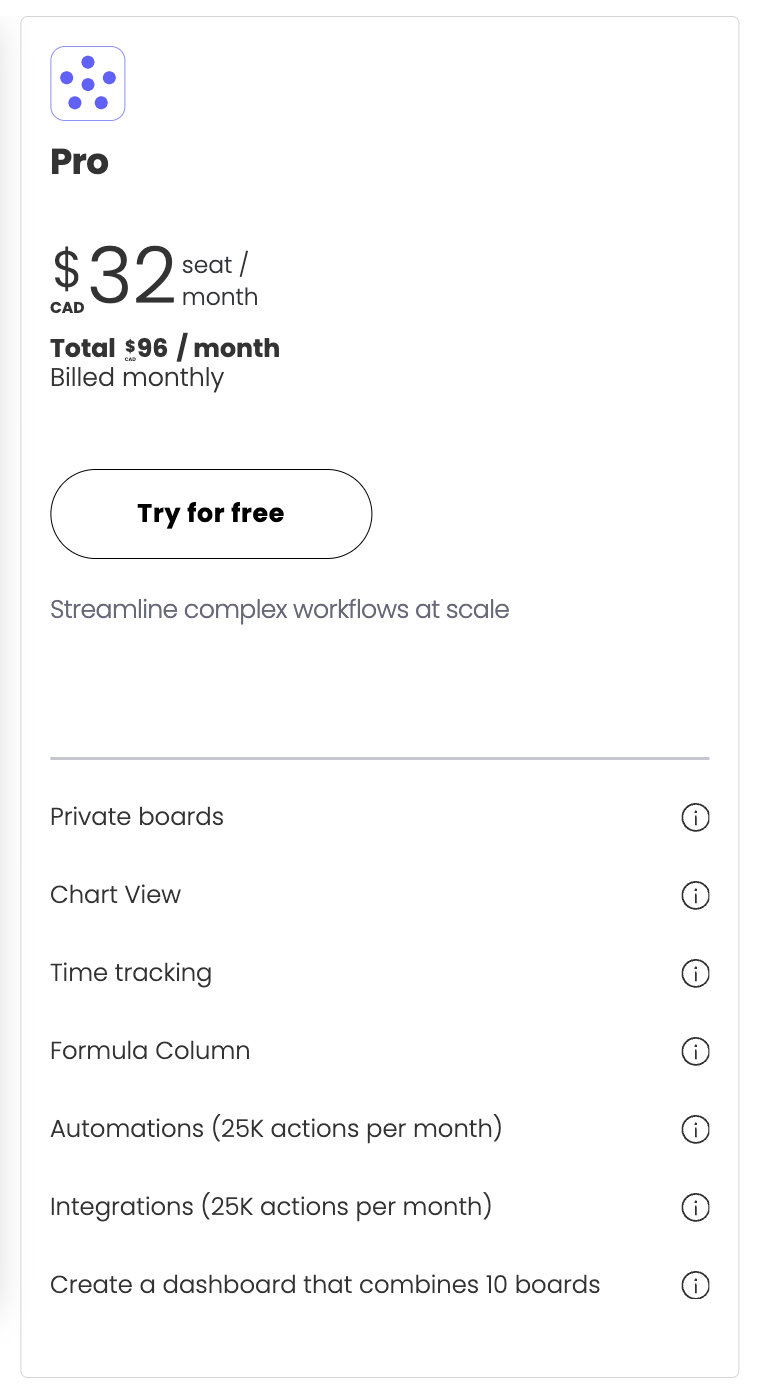
The Pro plan’s pricing increases significantly, with an additional CAD $36/month cost for 3 users. However, you can access some advanced features.

There are no additional charges to invite guests. You can invite unlimited guests to your workspace. You get the option to build custom forms with your branding.

For the board view, you get a complete package of Monday.com’s views, including the chart view.

Additional features in the pro plan:

  • 100GB storage
  • 1-year activity log
  • 25,000 actions/month
  • Private boards and docs
  • Time tracking
  • Formula and dependency field

Monday.com: Enterprise Plan

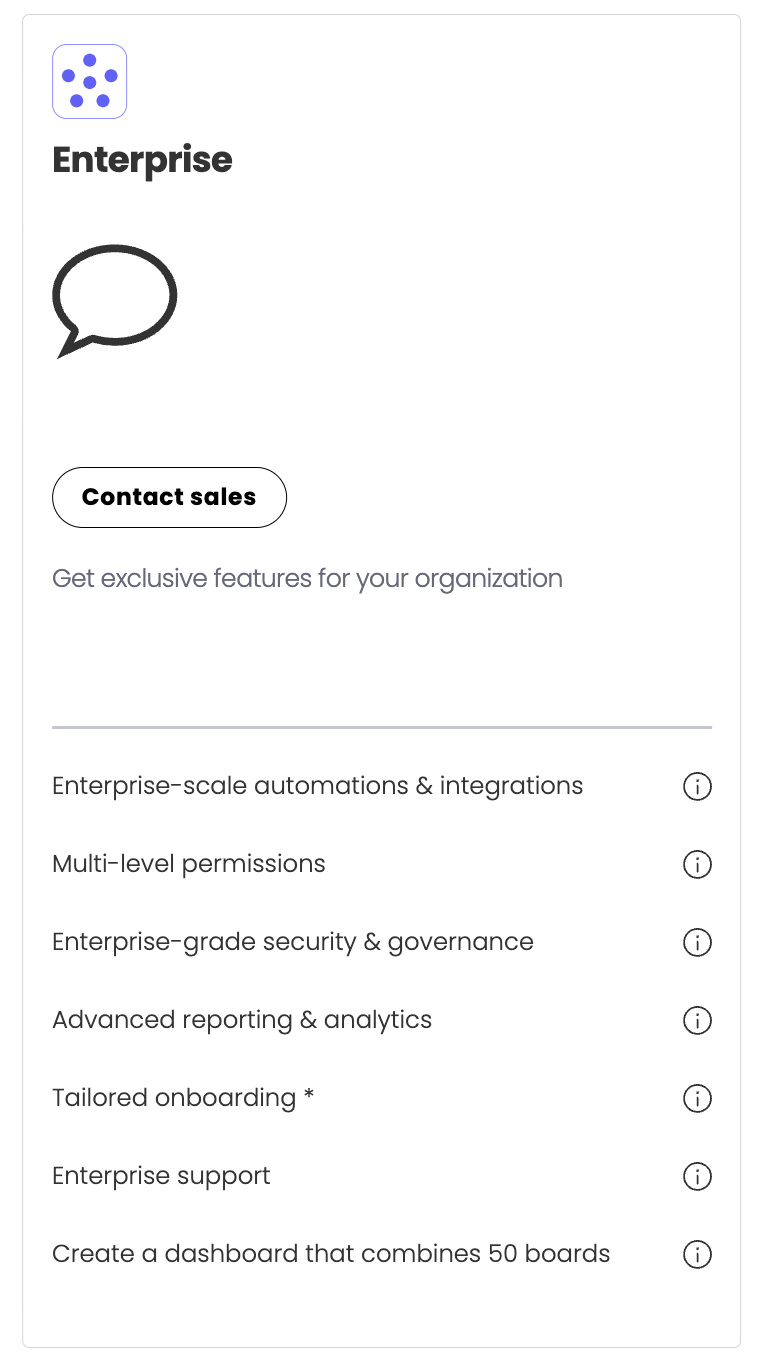
The enterprise plan gives you more administrator control, premium support, and enterprise-level reporting and analytics.

This plan is best suited for large teams that want more control and advanced reporting to analyze their project management processes more visually.

For instance, you get a work performance insight report which helps you identify how your project is progressing and help you figure out any bottlenecks.

As for control, you can create a private workspace and control who gets to be a part of different workspaces.

Here is what else you get in the Enterprise plan:

  • Pivot analysis & reports
  • Content Directory
  • Single Sign On (Okta, One login, Azure AD, Custom SAML)
  • Dedicated customer success manager 
  • Premium integrations, including Salesforce and Netsuite

Limitations of Monday.com Pricing Plans

Monday.com pricing differs slightly from other project management software due to its group-based pricing tiers. But they have outlined all the details on their pricing page.

However, there are certain limitations to what you get when you sign for a particular plan:

  1. Group-based pricing

Due to the user-tiered pricing model, you can add new members in increments of 5 users. If you have 15 users and want to invite 2 more, you’ll need to pay for 20 users in total, which can quickly increase costs as you’re paying for seats you don’t need.

Source

  1. Add-on costs

There are limits on different features, meaning you’ll have to pay extra to use more of a particular feature. For example, you get only 250 automation actions/month on their standard plan. To set up more automation, you’ll have to pay extra.

Monday.com might also add extra features to your plans, potentially increasing the overall cost beyond what is displayed on the pricing page. So, it’s best to be wary of extra features you don’t need.

Source

  1. Automation and integrations gated to higher-tier plans

There is no automation and integration available on the free and basic plan. You’ll need to upgrade to their standard plan to get access to automated workflows, which costs CAD $60/month for 3 users. Like automation, no integrations are available on their free and basic plan.

In addition, their standard plan limits you to 250 automation actions per month. In case you need more action, you will need to pay more, increasing the overall cost.

Source

Looking for a Monday.com Alternative?

While Monday.com is a robust tool with various advanced project management features, some users may find its pricing and feature limits less suitable for larger teams or startups with budget constraints. 

In contrast, SmartSuite offers a more cost-effective solution, particularly in its lower-tier plans, without compromising advanced functionality.

SmartSuite is a unified work management software that offers a complete package for planning, managing, tracking, and analyzing projects.

We chose SmartSuite as one of the best Monday.com alternatives because it’s our tool and because it offers much more affordable plans with advanced features, even at its low-tier plans.

For example, even on the free plan, you can access 8+ dashboard views and built-in automation workflows.

Beyond the free plan, each has features to make your work smoother, quicker, and easier. Let’s see SmartSuite’s top three features. 

SmartSuite’s Key Features

#1. Workflow automation

Monday.com offers automation only on higher-tier pricing, and even then, some must-have conditions, such as an OR condition, are missing.

SmartSuite fills in these gaps with its advanced automation builder. To set up an action, you get six triggers. 

For example, ‘when all the items in the checklist are marked (Trigger), change the status to Complete (Action).

One key area where SmartSuite stands out is the conditions to make every automation even more advanced. You can have up to 15 conditions per trigger and decide if only one or all of the conditions need to be true by clicking on the AND/OR buttons.

#2. Personalized dashboards

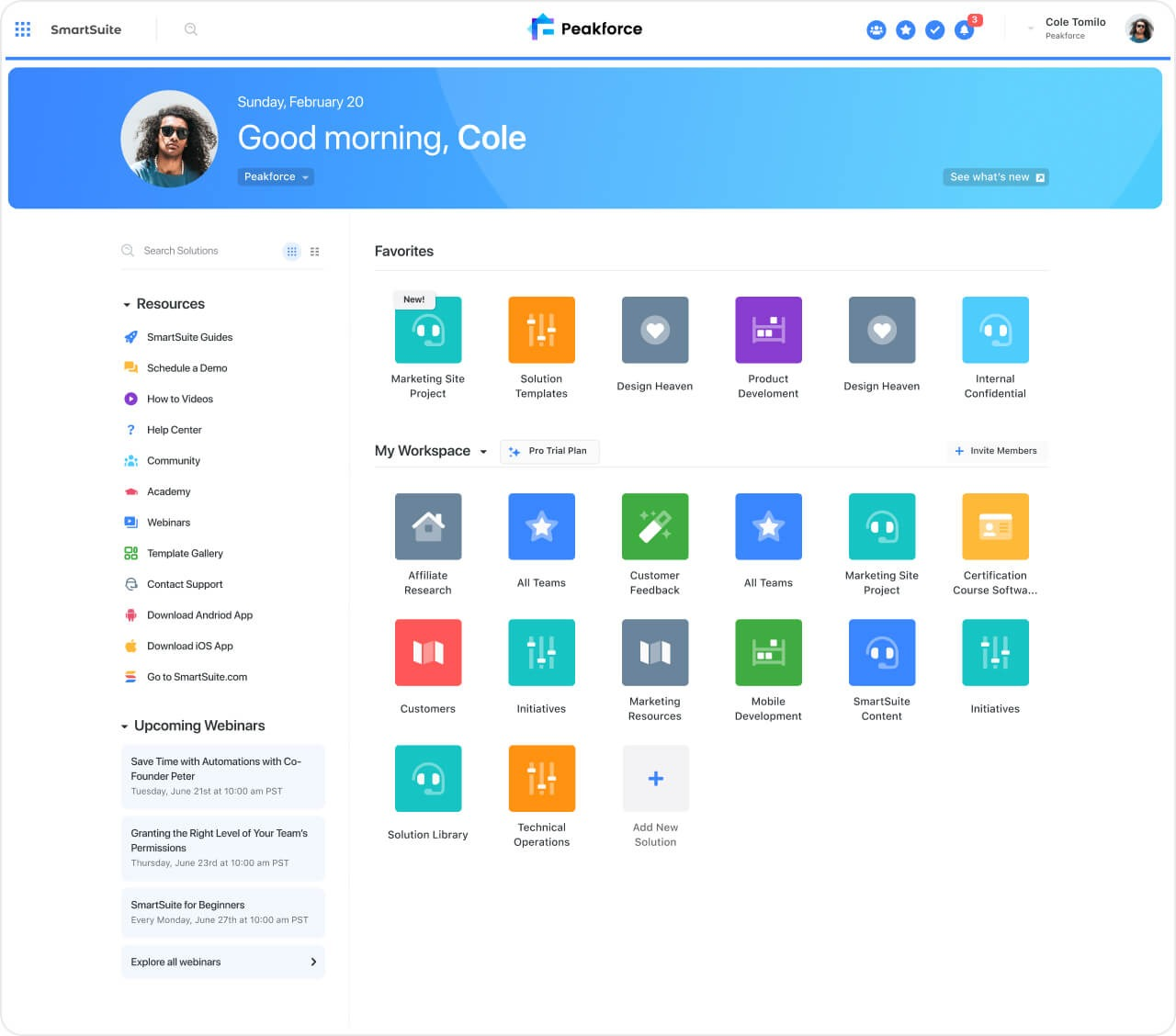
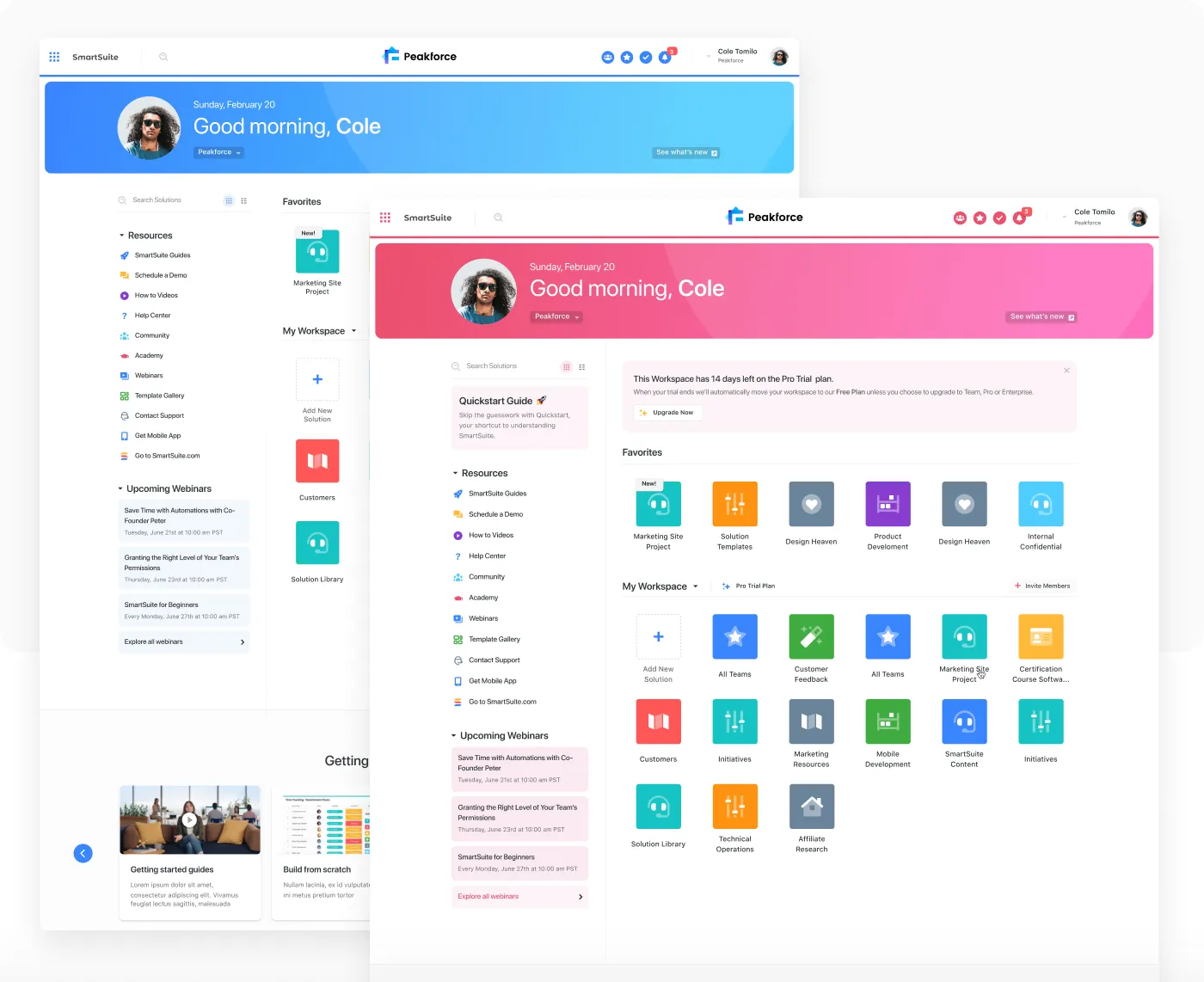
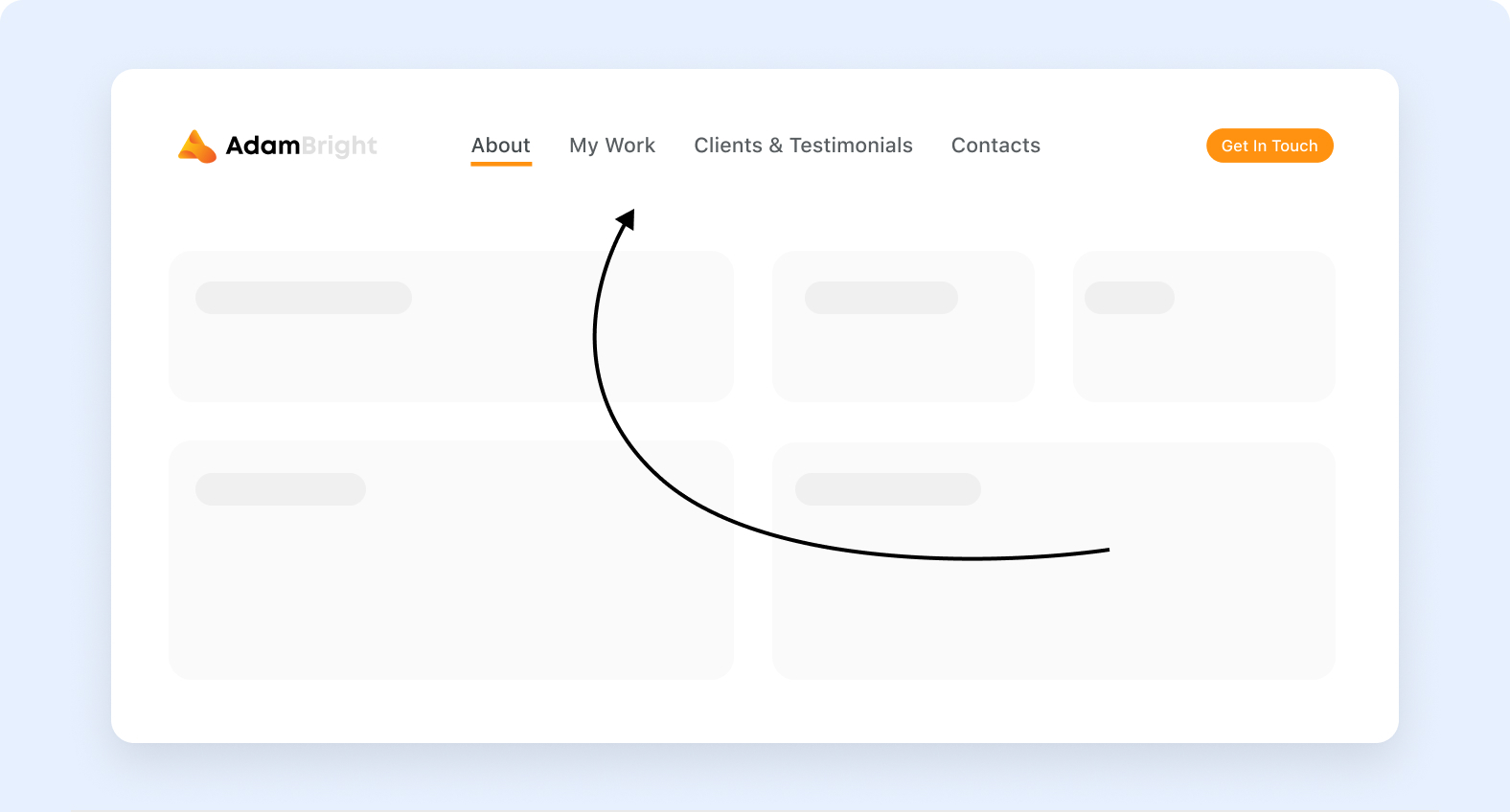
A key differentiator between Monday.com and SmartSuite is inclusion of a dedicated ‘Home’ section within SmartSuite. This centralized hub provides a comprehensive overview of all projects and resources, ensuring immediate access to all projects upon login.

In contrast, Monday.com lacks a dedicated Home page, relying instead on a left-hand navigation menu listing all workspaces. Such a listicle view can lead to inefficiencies, as locating specific workspaces quickly becomes challenging, particularly when managing multiple projects simultaneously.

SmartSuite further enhances user experience by letting you customize your Home page.

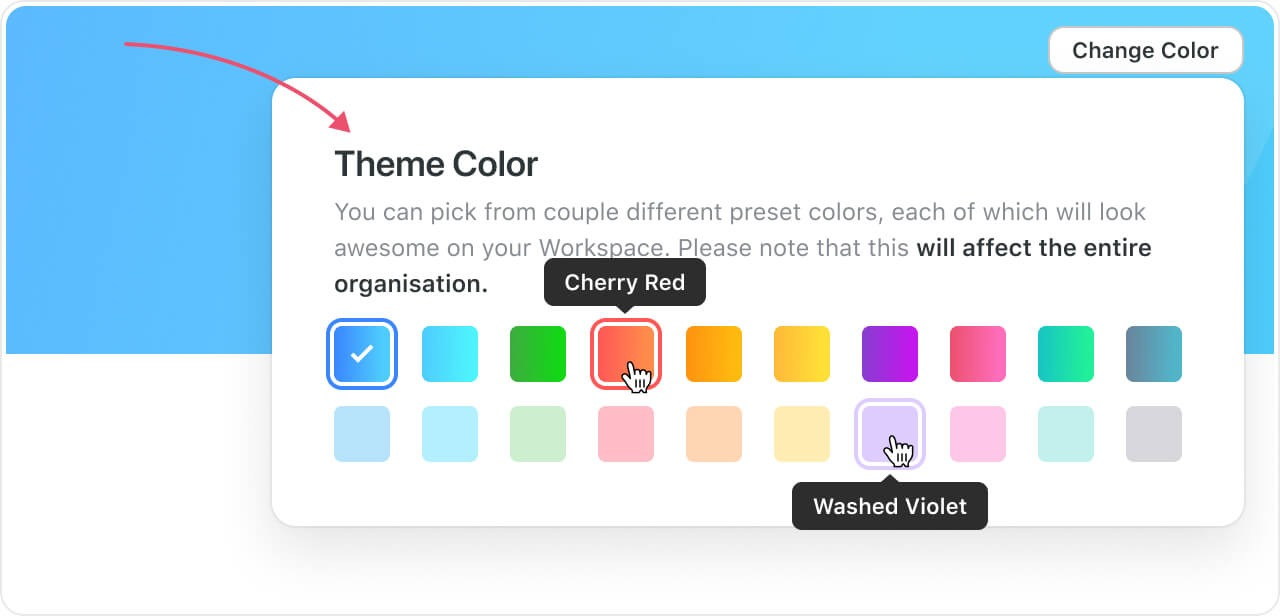
For example, you can modify the color schemes and apply it consistently across all workspaces, enhancing your brand identity and visual coherence. 

Additionally, you can add your company logo to add a touch of professionalism to the Home page.

The Home page acts like a central hub, giving you quick access to your projects, learning resources, and profile. You can also manage team invitations and prioritize workspaces by marking them as favorites, considerably improving workflow efficiency in multi-project scenarios.

#3. Team collaboration

SmartSuite’s team collaboration is replete with native features, letting you build a smooth communication process without switching between different apps to share updates or ask questions.

Some key features that make collaboration smoother in SmartSuite include:

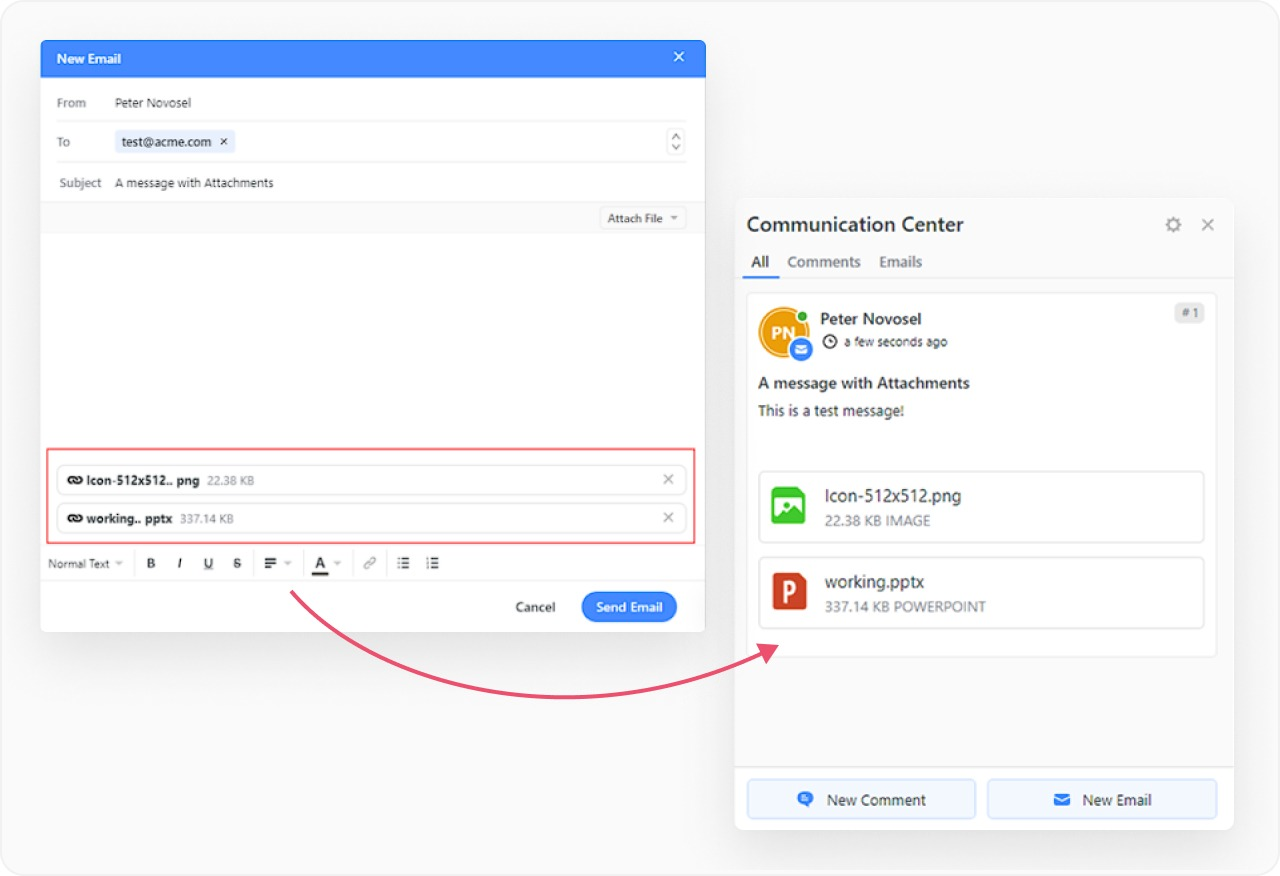
  • Native email communication center: You can share updates, get feedback, or check in with your teammates or external clients through emails. When you send or receive an email, it will show up in your SmartSuite dashboards and your respective email client.

One cool benefit of direct email integration is populating emails with fields from your dashboard. For example, you can pull in task-level data or status and save those emails as templates.

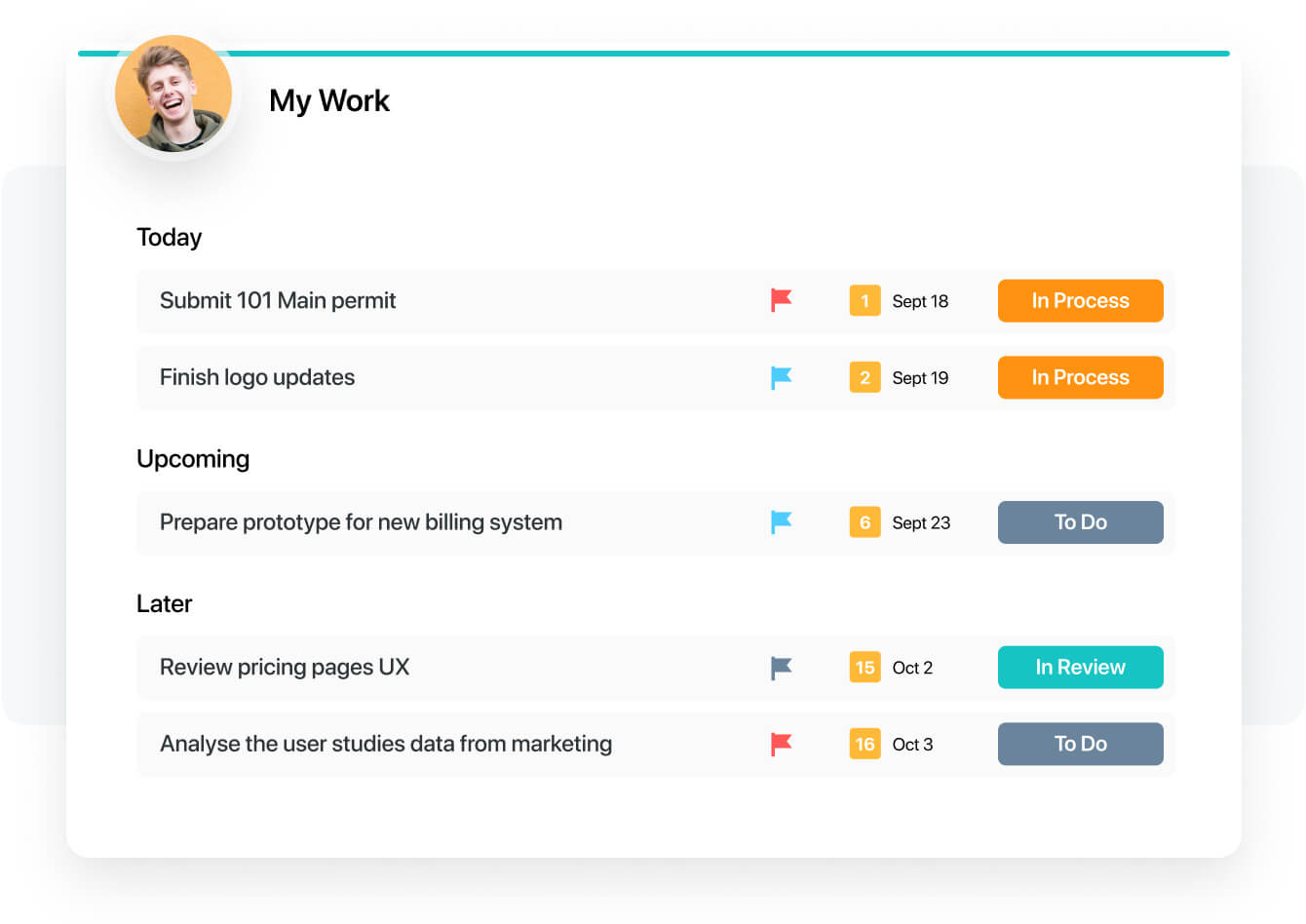
  • My work: A dedicated space to get a bigger picture of all the tasks you’re working on, notifications you received, and work you’ve completed.
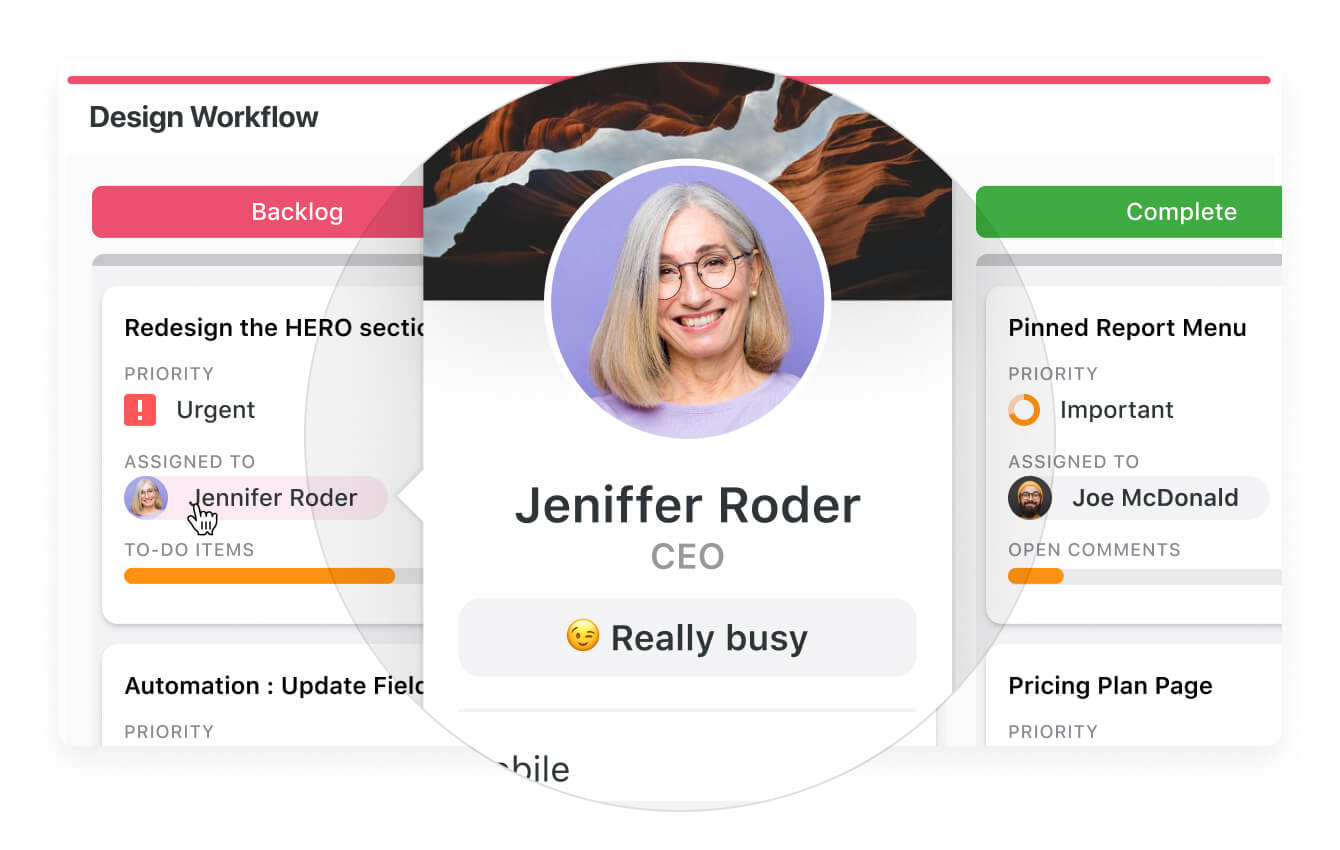
  • Availability status: Update your status and share information about your availability with your teammates. Think of Slack but within your project management software. Integrated status availability gives more transparency, keeps everyone updated, and ensures tasks are assigned to the right stakeholders.

Get Started with SmartSuite Today

While Monday.com seems an attractive choice for an advanced project management tool, its group-based pricing structure and potential for unexpected increases can be a concern.

SmartSuite solves this issue with its per-user pricing model and generous range of features, starting with its free plan. These include an automated workflow builder, 7+ board views (Gantt charts, Map, Chart, Timeline, Calendar, and more), and a reporting dashboard.

It offers much more as you switch to its paid plans:

  • 200+ free workflow templates for various use cases and teams.
  • Resource management across projects and teams.
  • Task management tools—time tracking, status tracking, and checklists
  • Up to 500,00 automation with a no-code automation builder.
  • 40+ field types, including formula fields and linked record fields.

You have various options to get started with SmartSuite. Sign up for a free plan to test the water or get a 14-day free trial to explore all its amazing features.

Or, if you’d like to talk to our team of experts, schedule a demo.
[embedded content]

Wrike Pricing: Is It Worth It in 2024?

Software Stack Editor · September 9, 2024 ·

With so many options on the market, how do you know if Wrike is truly worth the price tag? 

In this article, we’ll uncover the details behind Wrike’s pricing plans, highlight its value, and help you determine if it’s the right choice for your team.

Wrike’s Pricing Plans

Wrike is a robust work management platform that helps you manage your projects, boost team efficiency, and generate valuable insights through reporting dashboards.

Some key features of Wrike include:

  • Built-in team collaboration tools—request forms, proofing, comments, and email integration.
  • Powerful integrations with tools such as Salesforce, NetSuite ERP, and PowerBi.
  • No-code automation builder for project blueprints and customizable workflow.

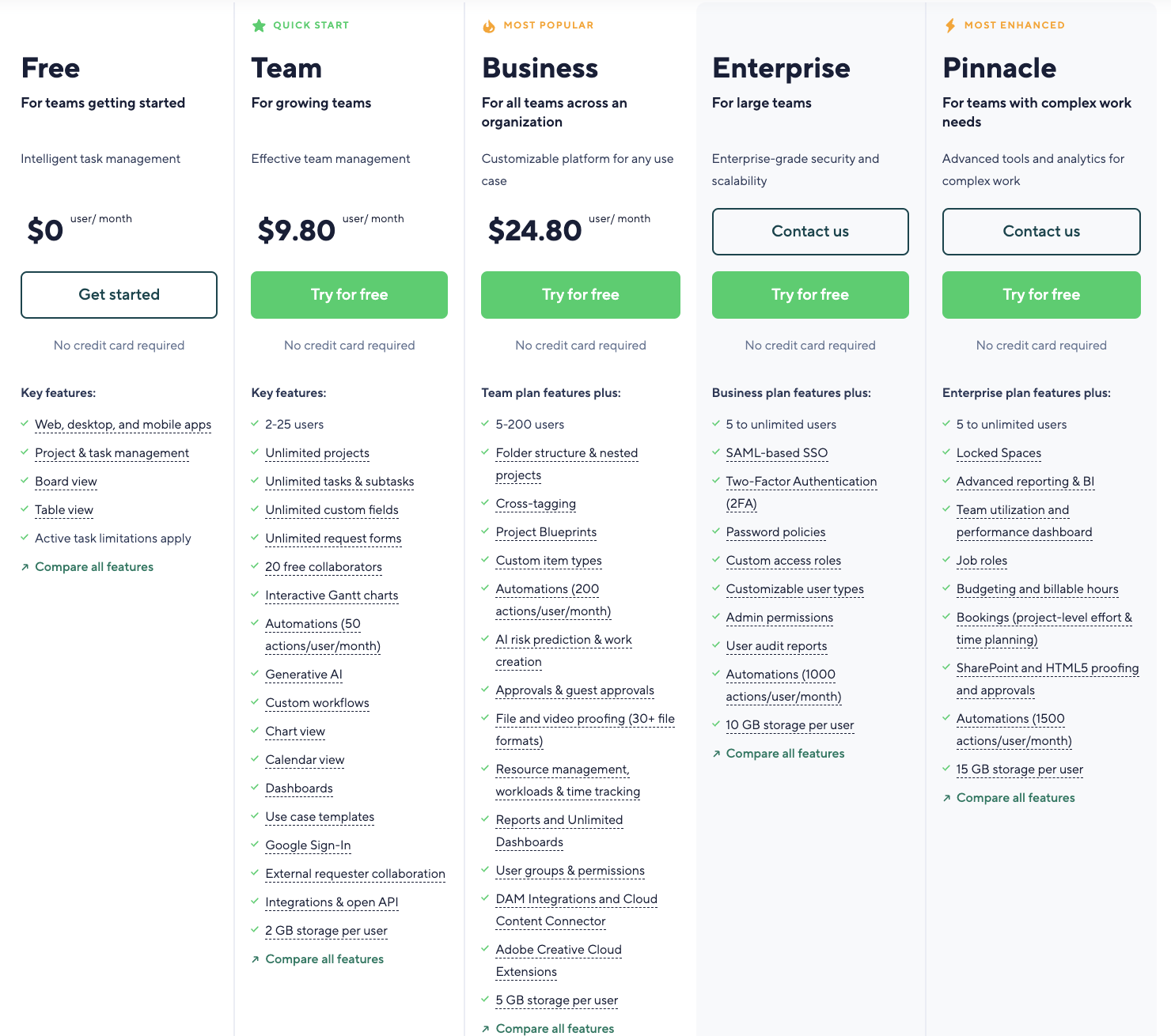
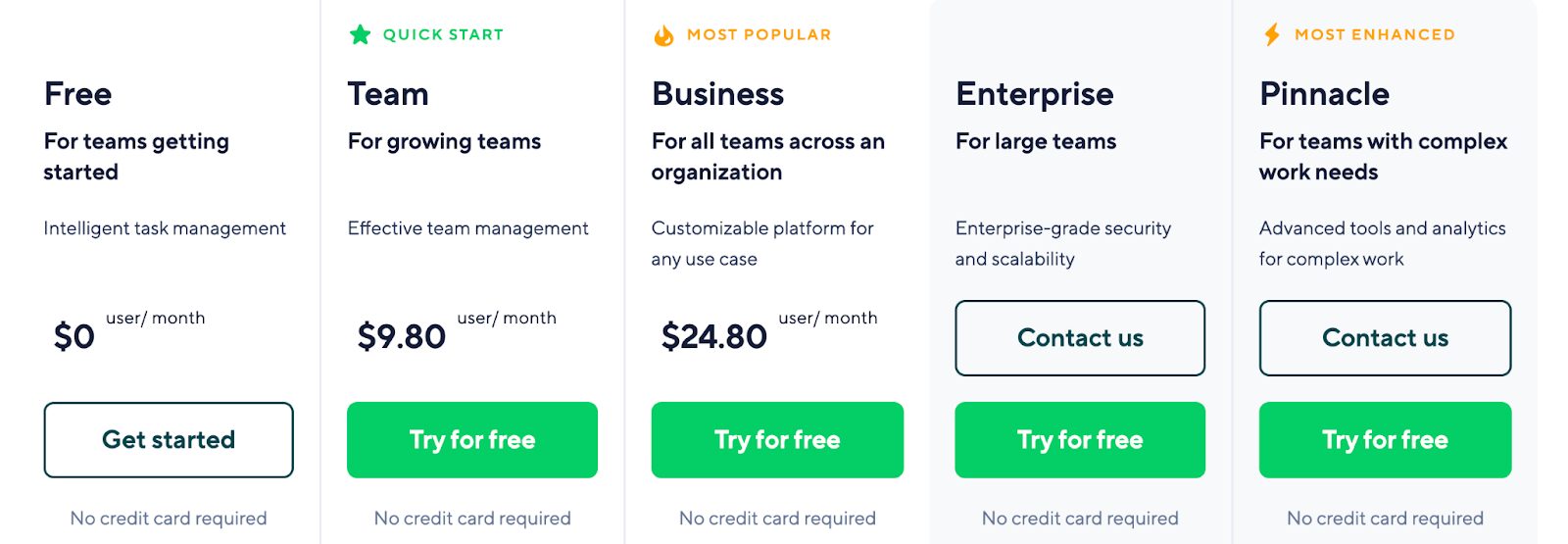
Wrike offers a five-tier pricing mode, including a free plan and a 14-day free trial for all four paid plans. 

Here’s a quick rundown of Wrike’s price structures and key features. 👇🏼

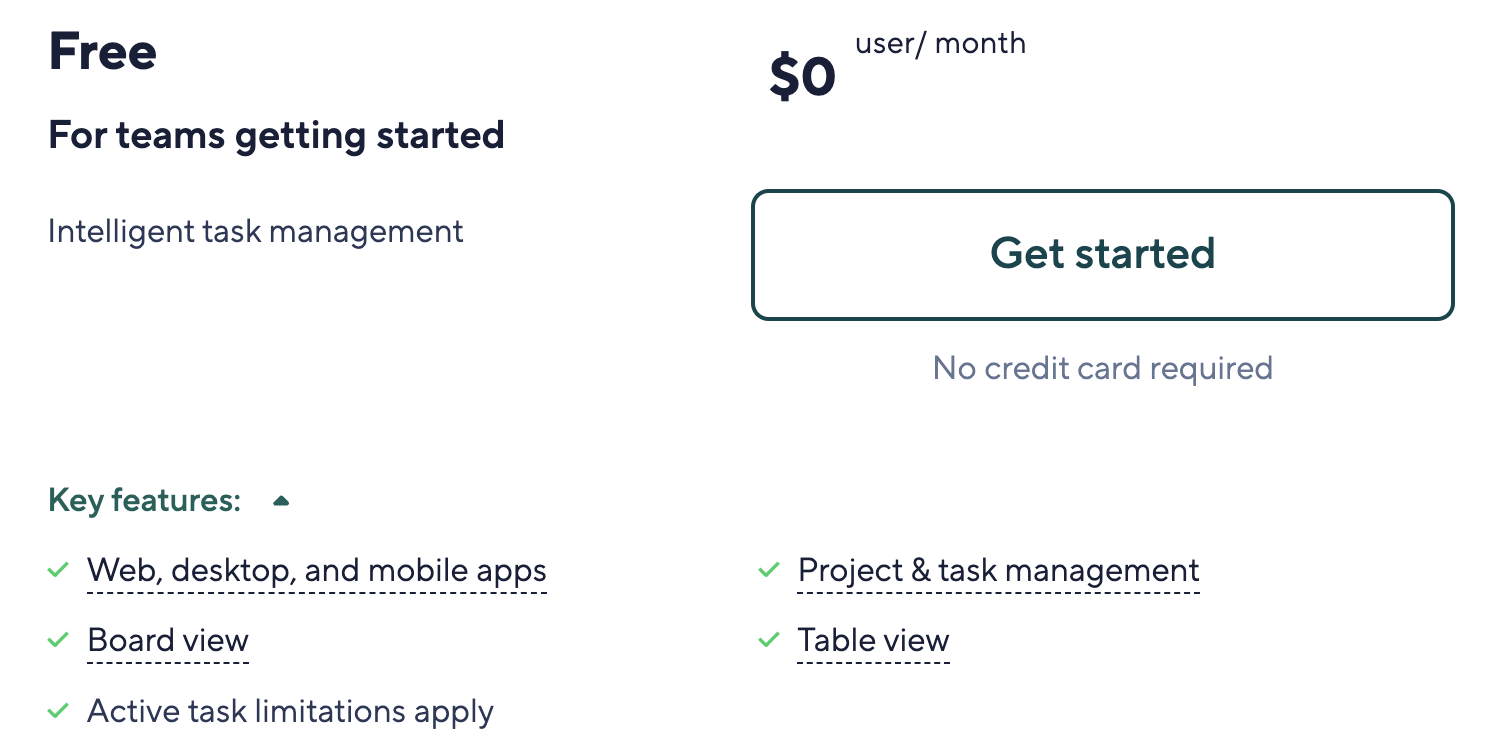
Wrike: Free Plan

Wrike’s free plan is best suited for small team sizes and solopreneurs who need a low-cost project management tool.

This plan comes with dedicated task management that lets you create parent tasks and subtasks, allowing you to streamline your task lists.

However, you can only create up to 200 active tasks (including subtasks); unless you delete any existing ones, you’ll need to buy a paid plan.

There are also features available to collaborate with your teammates, including comments, guest invites, and email integration.

Some other features included in Wrike’s free plan:

  • Web, desktop, and mobile apps
  • Cloud storage integrations (Google Drive, Dropbox, Box, MSFT Office 365, and OneDrive)
  • 2 GB storage space per account

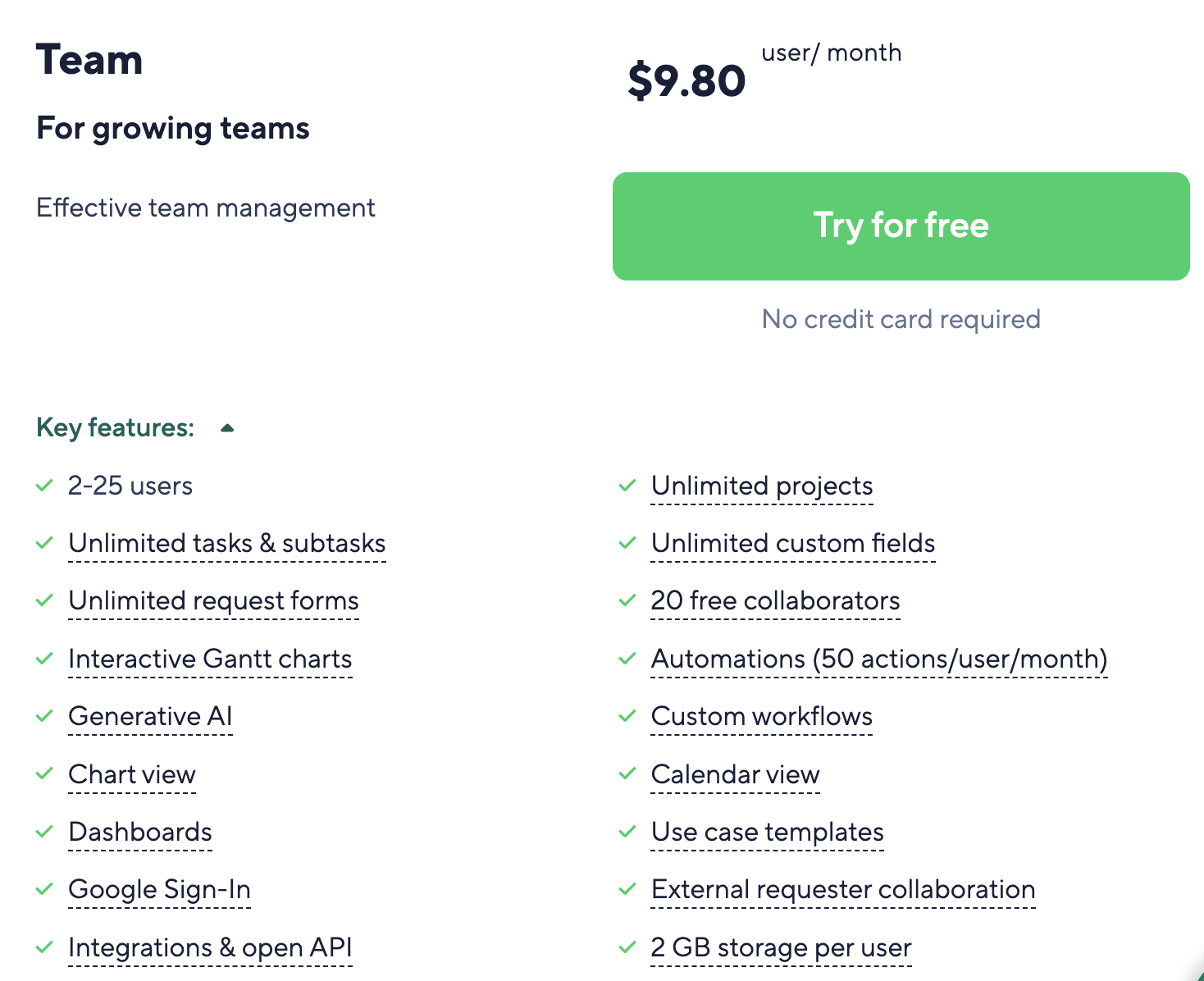
Wrike: Team Plan

Wrike’s team plan offers additional workspace views, unlimited tasks and subtasks, request forms, and integrations to help small teams get more done.

There is also more room for customization, including custom fields and automation, to suit the growing team’s needs and preferences.

Here’s what more you get with the Team plan:

  • 2GB per user/month storage.
  • 50 automation actions per seat/month.
  • Gantt Charts, dashboard, and calendar view.
  • Generative AI—recommendations and subitems creation.
  • Integrations with productivity apps, including G Suite, Office 365, Slack, and Excel.

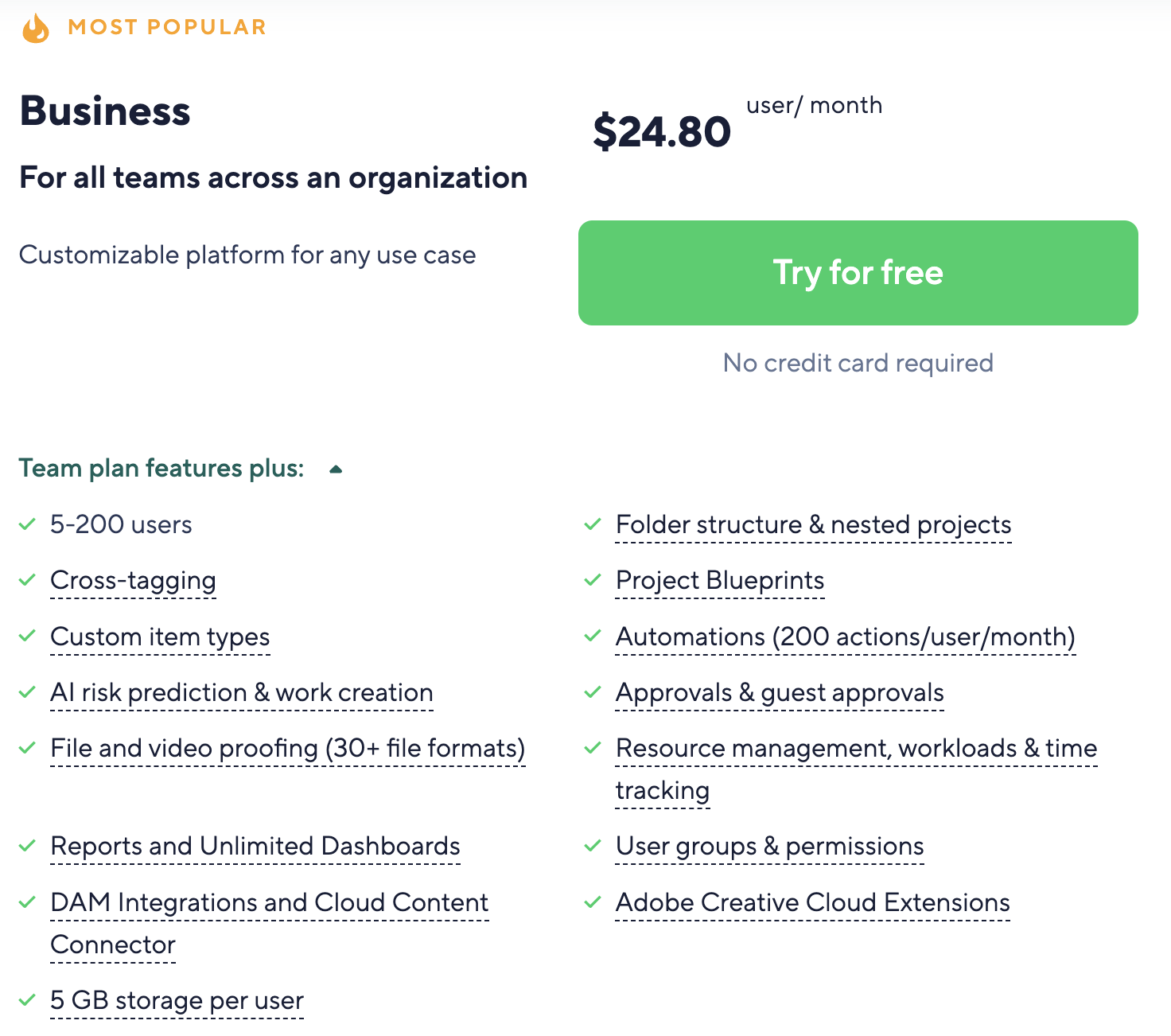
Wrike: Business Plan

Businesses looking to scale their projects and maintain multiple projects under an easy-to-find manager will benefit most from Wrike’s business plan.

Unlike their other plan, you need to buy at least 5 seats, which increases the overall cost from $24.80 per user/month to $124/month for 5 users.

With features like portfolio management and project hierarchy, you get the flexibility to arrange projects in a more structured way. You can also create a real-time reporting dashboard based on updates and feedback from team members across the workspace.

Here’s what other features you get with Wrike’s business plan:

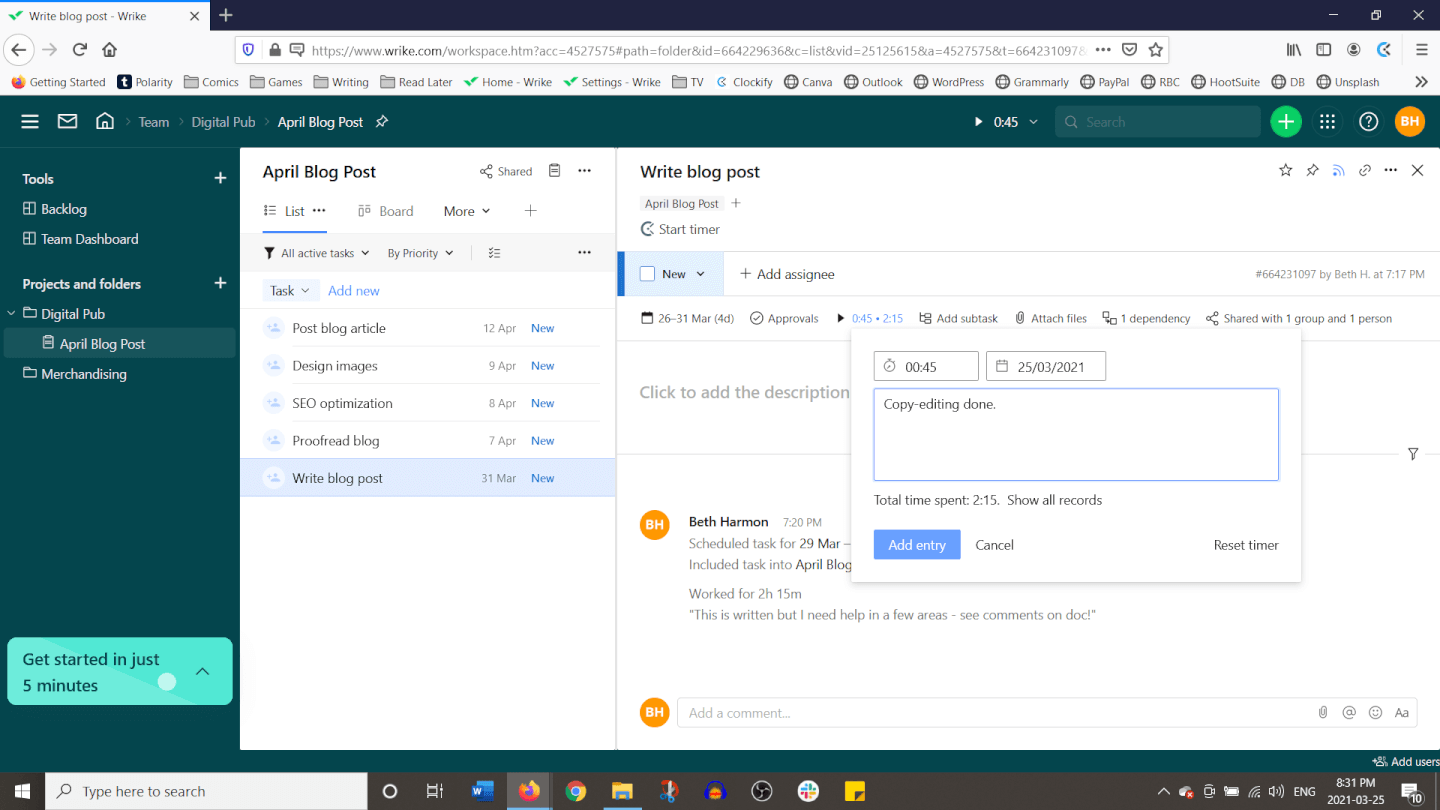
  • Resource management—time tracking, timesheets, workload charts and allocation.
  • Advanced integrations—Salesforce, NetSuite, and Adobe Creative Cloud.
  • File proofing and approval
  • AI project risk predictions
  • Dynamic request forms
  • Project blueprints

Wrike: Enterprise Plan

The enterprise plan differs from other plans by offering higher security and expanded administrative control. Like any other enterprise plan, it offers higher customization and flexibility to large teams to build more structured project processes.

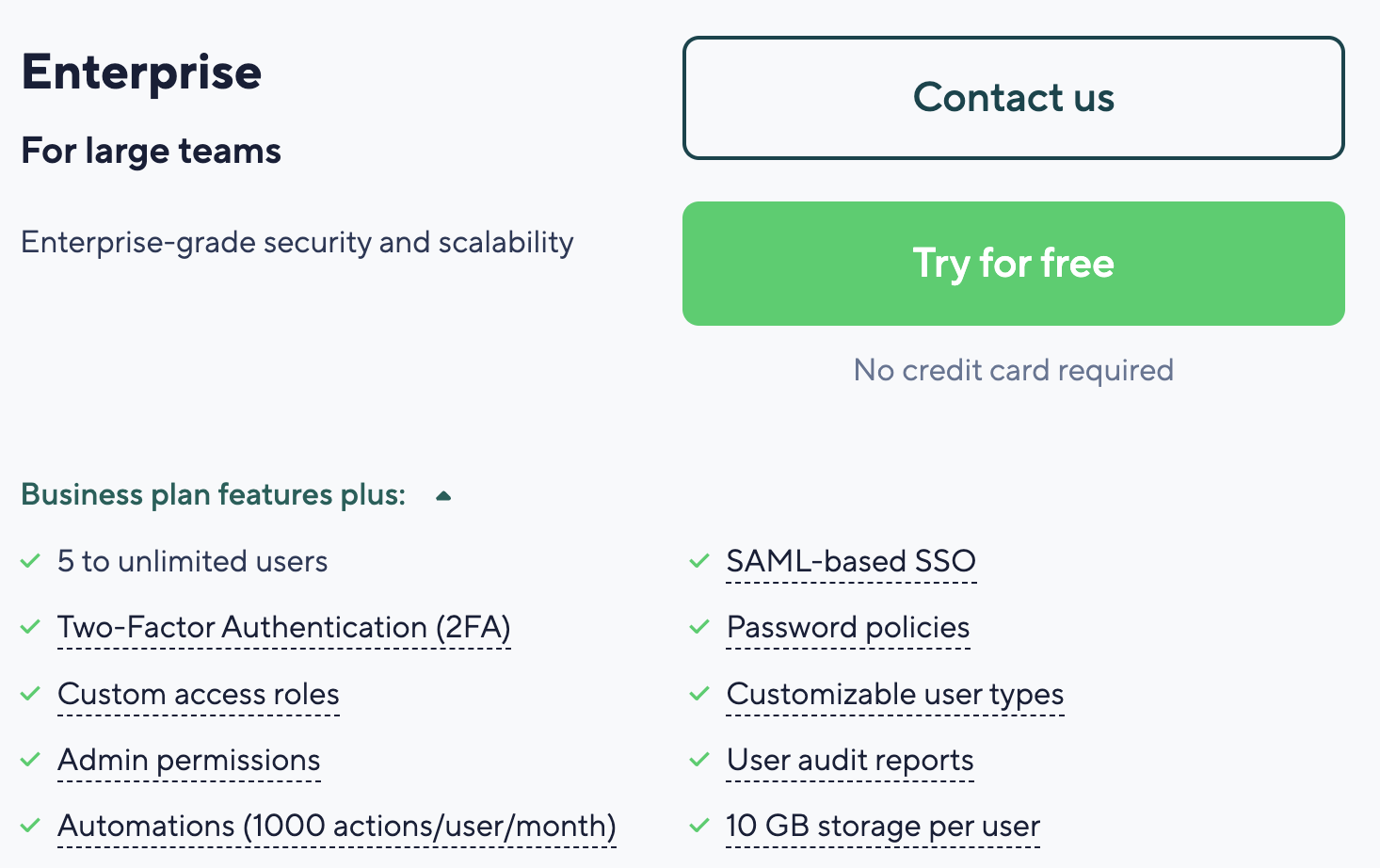
The plan offers unlimited users access, giving teams more flexibility to invite their teams and build a more collaborative environment. You can also access Tableau integration and business intelligence API for enhanced data connectivity.

The automation also gets an upgrade to 1000 actions/users, allowing you to build more streamlined processes across the workspace.

Some other key feature upgrades in the enterprise plan:

  • 10GB storage per user
  • User audit reports
  • Advanced user access control
  • Two-step verification
  • Add-ons—Wrike Integrate, Wrike Sync, and Wrike Lock.

Wrike: Pinnacle Plan

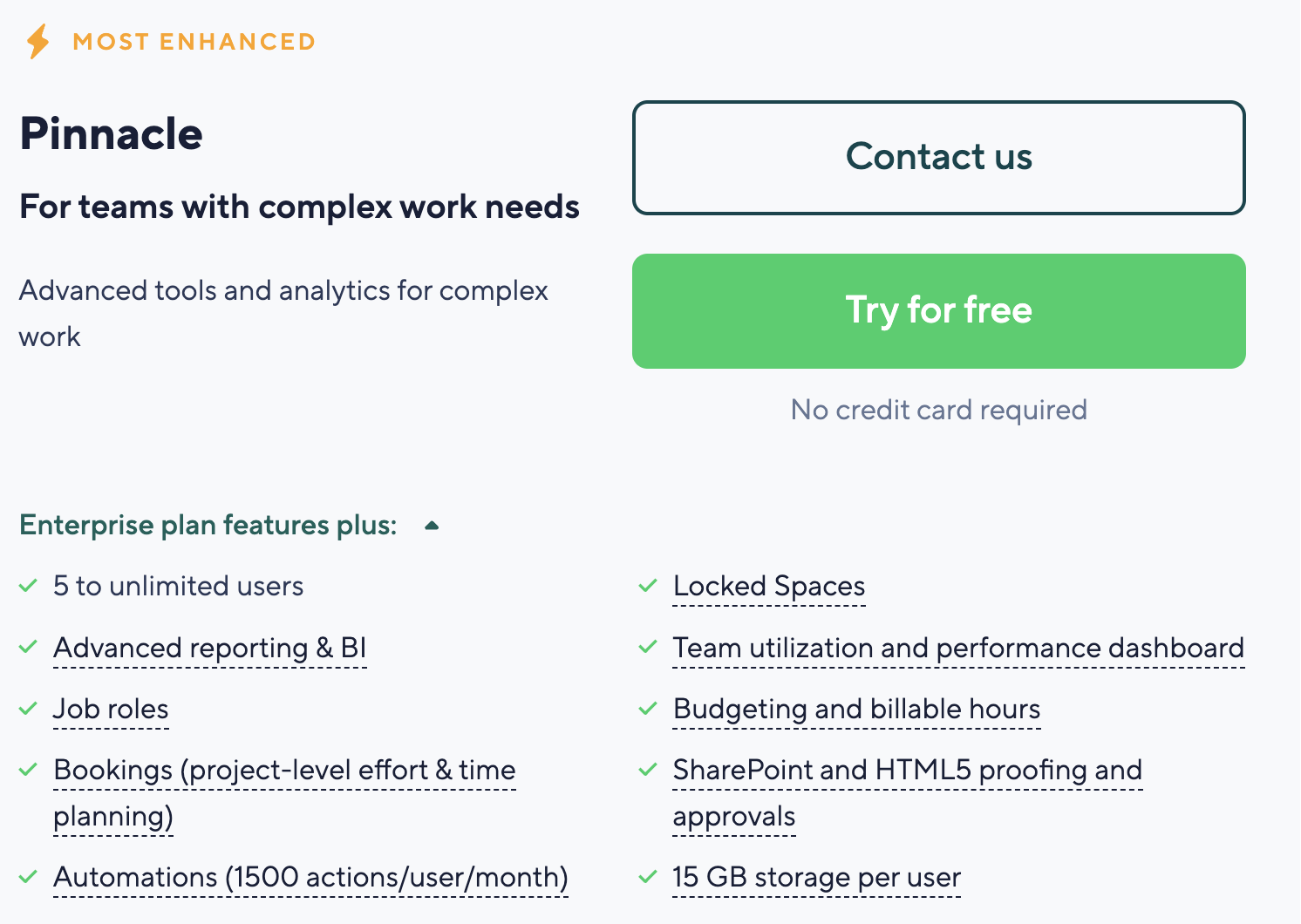
Pinnacle plan offers everything in enterprise plus tools for resource planning, advanced reporting, and data visualization.

Here’s what all you get in Wrike’s pinnacle plan:

  • Team utilization and reporting dashboard
  • Budgeting
  • Locked spaces
  • Advanced proofing in HTML5 and Sharepoint
  • Native power BI integration

Limitations of Wrike’s Pricing Plans

#1: Group based pricing

Wrike’s entry-level plan requires a minimum of 2 seats, while their business plan requires you to buy 5 seats, which can add more bucks to the overall costs. Group-based pricing works well when you have many users, as the average costs decrease significantly.

But, if you are a solopreneur or team that doesn’t need 5 seats, you will end up paying for seats you won’t use.

Source

#2: Limited features on the free plan

Wrike’s free plan lacks many features, such as automated workflows, board views, and request forms. However, some tools offer these features in their free plans. Due to this, you might not be able to try out Wrike’s features before purchasing their paid plans.

Looking for a Wrike Alternative?

Wrike offers flexible pricing plans and advanced features such as powerful analytics and integration. However, its group-based pricing and limited collaboration features make it less appealing to small teams seeking affordable project management tools.

SmartSuite solves these issues in the following manner:

  1. Its pricing plans are based on per-user pricing. So, you won’t get locked into paying for seats and features you don’t need or use.
  2. Its free plan offers many advanced features, such as 7+ dashboard views, 40+ field types, and automation.

SmartSuite’s Key Features

#1. Unified team communication

SmartSuite offers native team collaboration tools for more contextual and centralized conversations. Everyone collaborates in a dedicated space instead of moving between different apps to get feedback or solve bottlenecks, giving more transparency in their work and improving overall team collaboration.

SmartSuite makes it possible by offering a range of collaborative features:

  • Comments and @mentions: Have task-level conversations through integrated commenting and tagging features. What’s more interesting is you can add rich-text formatting to each comment, such as bold texts, file attachments, or field references from your task list.
  • Email integration: You can send and receive emails from both internal and external members within SmartSuite. It gives you much quicker access to information.

The best part? You can save emails as templates by populating them with existing fields such as due date, status, client name, project title, etc., and access them anytime.

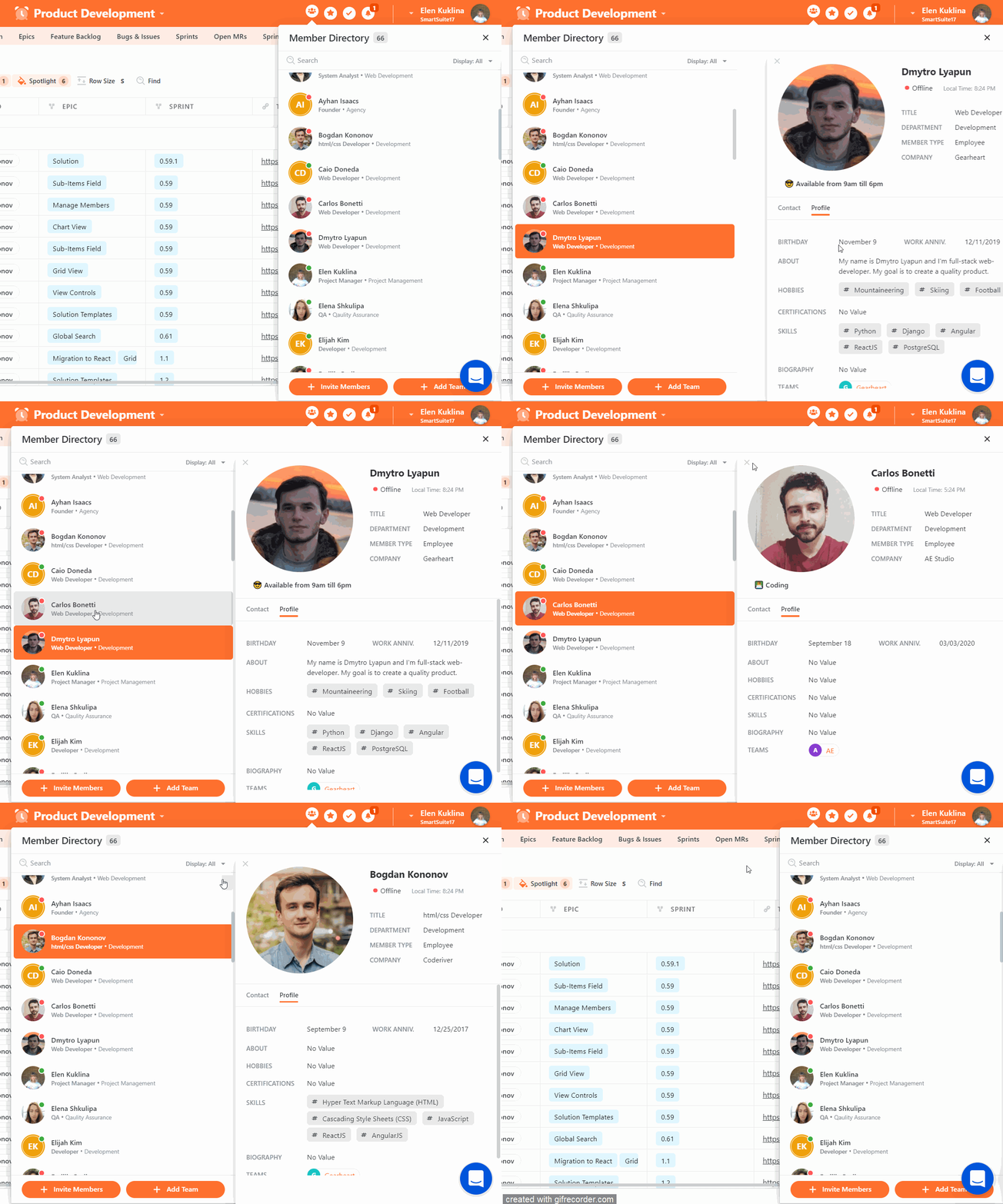
  • Members directory: A member’s directory shows a list of your co-workers and all the information they’ve added about themself. It can give you access to their contact details (phone, email, social networks, etc), profile information (birthday, work anniversary, skills, certifications, etc.), and current availability status. Through filtering, you can quickly find the right stakeholder.

#2. Robust project management

[embedded content]

While Wrike offers robust project management tools, it misses two helpful features for teams looking to scale their projects.

  1. A dedicated home page to get a bird’s eye view of all the projects and resources.
  2. Linked record fields for cross-project tagging without duplicating the items.

SmartSuite wins in these areas by filling the gap, which makes it one of the best Wrike alternatives. 

Let’s see how these two (and more) project management features look in SmartSuite:

SmartSuite’s Home page is the centralized hub with a 360-degree view of all your projects. Wrike relies on a left-aligned listicle format, which can get chaotic if you manage many workspaces simultaneously.

This centralized hub provides a comprehensive overview of all projects, help guides, and your profile, ensuring all the resources are available at your fingertips.

You can customize the home page to your liking by changing the color theme and logo at the top of the home page.

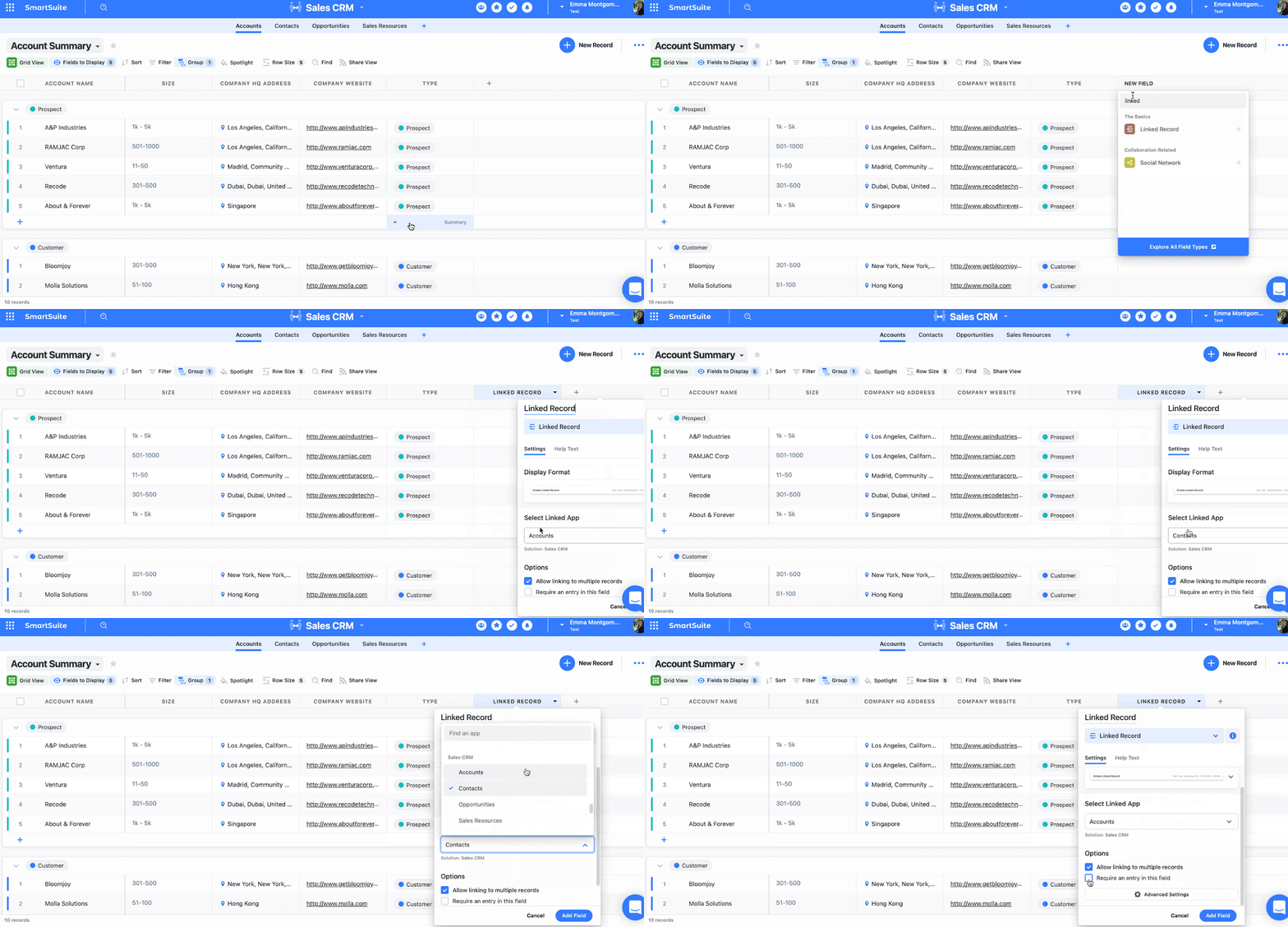
  • Linked records field

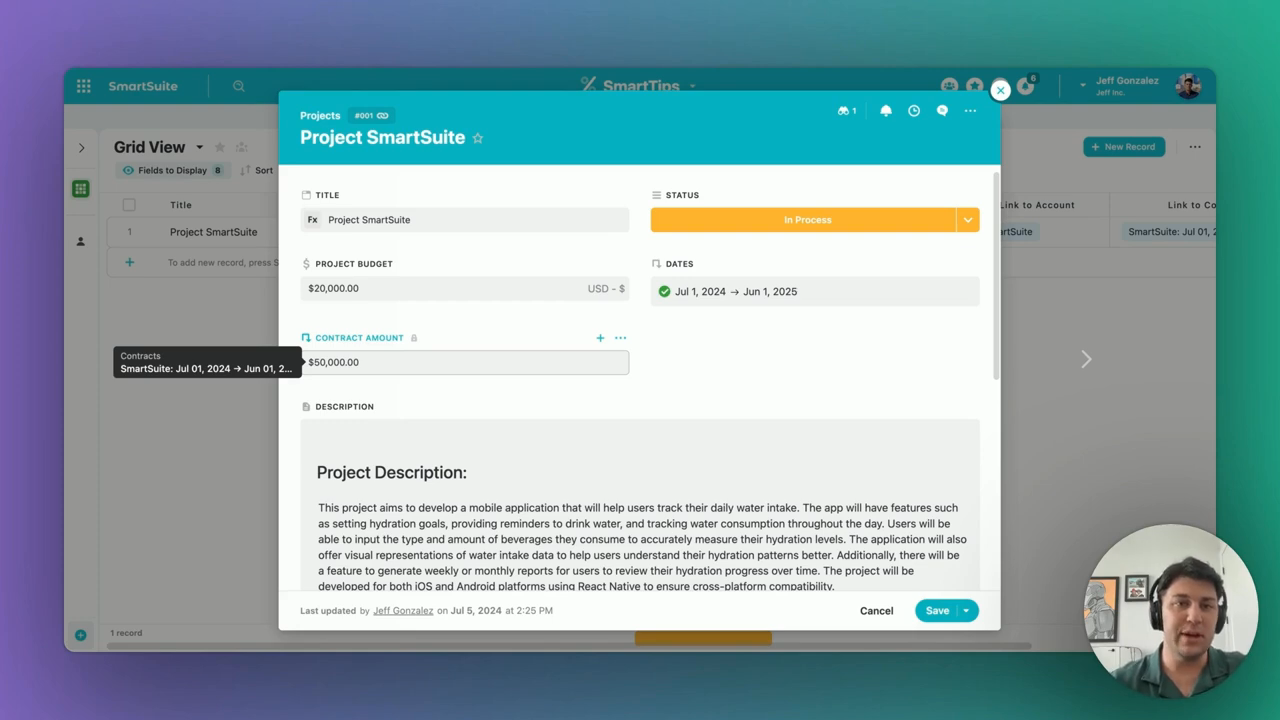
A linked record field allows you to connect records in different apps or solutions within SmartSuite. It’s like drawing a line between related information, reducing the need to add duplicate information multiple times.

For example, in a tracker solution, you have a ‘Task’ and a ‘Project’ app. In the Tasks app, you add a ‘Linked Record’ field that connects to the Projects app. This allows you to assign tasks to specific projects and see the number of tasks within your ‘Project’ app.

The cherry on top is that you can build linked records between two solutions, such as your project tracker solution and time tracker solution. 

Here’s how it looks in action 👇🏼

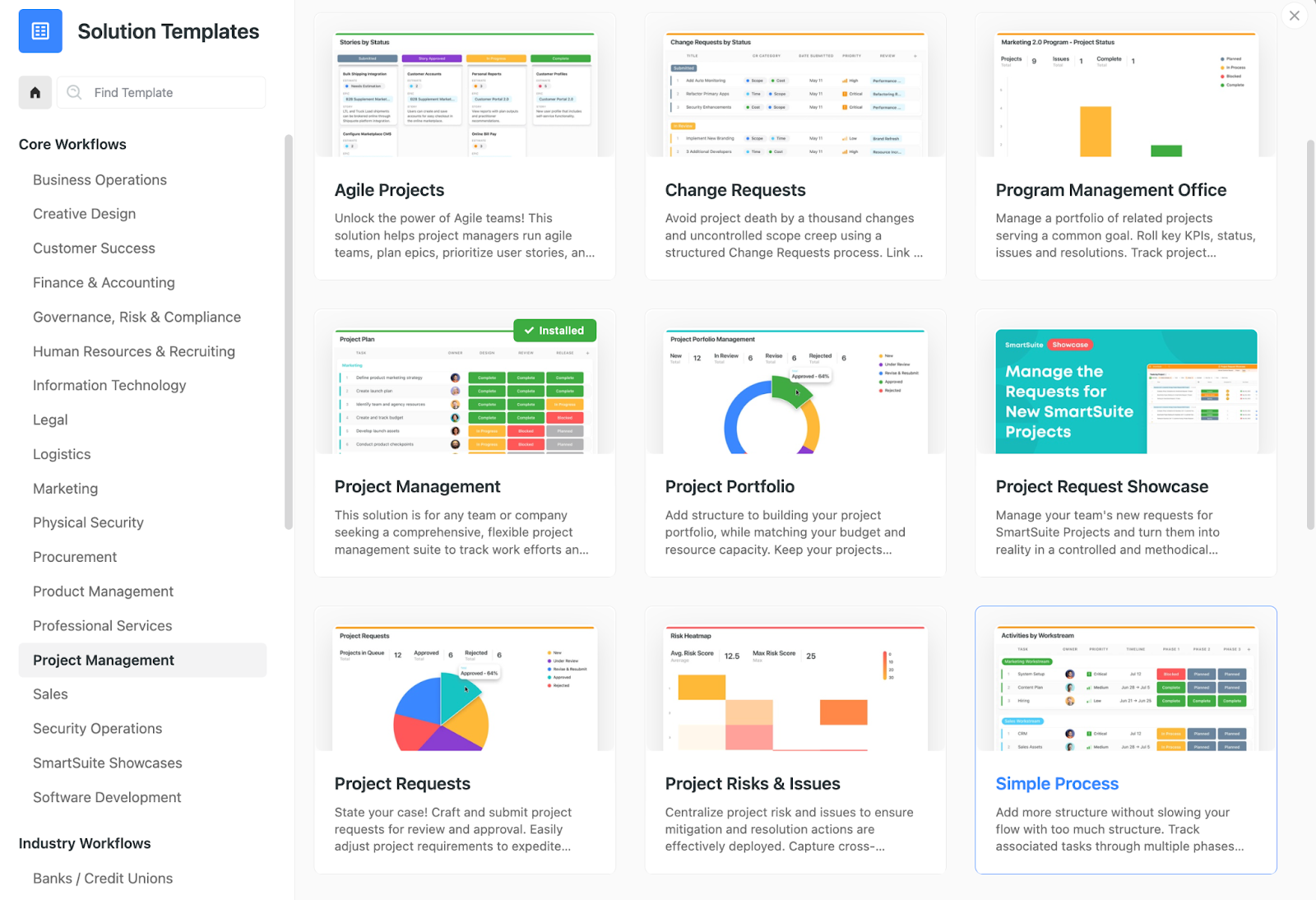
  • SmartSuite solution template

This is the starting point for building a scalable project dashboard. You can access 200+ templates for various use cases—project portfolio, task manager, time tracker, etc. You can filter by use case, industry, or workflow. This library gives you a headstart on your projects by removing the mental load of building everything from scratch.

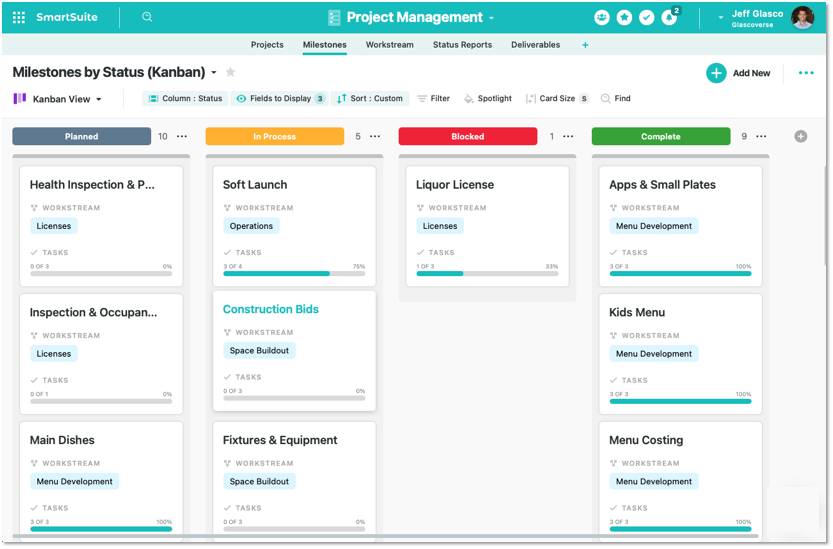
  • Project milestones

Within each app, you can add milestones to get a more detailed view of how each task contributes to your project’s overall progress.

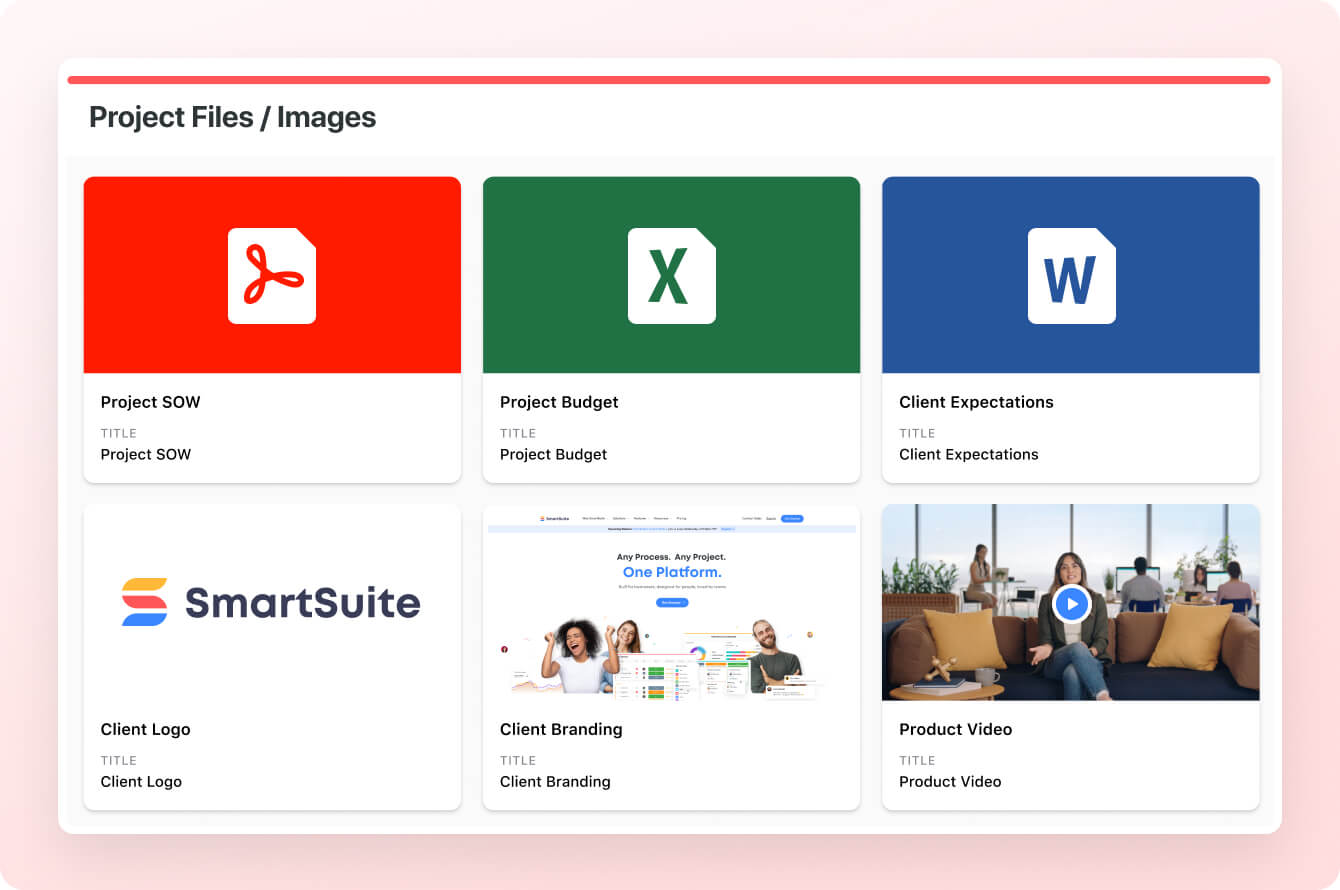
  • File storage

Depending on your chosen plan, you get up to 500GB of storage. Built-in storage lets you keep all your deliverables—files, documents, sheets, images, etc., handy and share them quickly with your team members or clients.

#3. Advanced workflow automation

Wrike’s automation, despite being powerful, is gated to paid plans and offers a limited number of actions. 

Smartsuite, on the other hand, offers automation starting from the free plan, and it’s much easier and quicker to build automated workflows.

The automation builder offers no-code functionality to build simple one-liner sequences or multi-step flows through triggers, conditions, and actions. The best part is you can automate actions across workspaces—it can be on a task or overall project level, giving you more power to automate and build processes that take care of recurring tasks such as status updates or follow-up emails.

You can choose the prebuilt actions or integrate SmartSuite with email, file storage, messaging, or SMS platforms such as Slack, Microsoft Suite, Slack, and Calendars to build custom actions.

You can, for example, authorize your account by selecting the Google Gmail integration action, specify your email addresses, and customize your message. This email will be sent when the trigger and its conditions are met.

Try setting up an automation below 👇

Get Started with SmartSuite Today

Wrike offers flexibility with its 5-tier model and a package of robust features, including real-time reports, powerful integrations, and customizable dashboards.

However, as your business grows, you’ll pay much more because enterprise-level plans offer advanced features such as reporting and integration.

That’s where SmartSuite stands out. Here’s why:

  • Generous free plan with features including multi-board views (Kanban, Chart, Map, Timeline, Card, and Calendar), 100 automation/month, and 40+ field types, including formula and linked record fields.
  • 200+ free solution templates
  • Resource management across projects and teams.
  • Task management tools—time tracking, status tracking, and checklists
  • Up to 500,00 automation with a no-code automation builder.

You have various options to get started with SmartSuite. Sign up for a free plan to test the water or get a 14-day free trial to explore all its amazing features.

Or, if you’d like to talk to our team of experts, schedule a demo.
Top 10 Smartsheet Alternatives to Streamline Workflows in 2024

Software Stack Editor · September 2, 2024 ·

Due to its advanced, spreadsheet-like capabilities, Smartsheet has become a go-to project management tool for many. If you’re an Excel power user, you’ll feel right at home. 

While the familiar interface may seem easy to adapt to, Smartsheet has its own set of limitations that can leave you searching for more. The lack of a free plan, a minimum user cap, and a confusing UI can make Smartsheet less than ideal for everyone.

But don’t worry, we’ve got you covered.

We’ve researched and curated 10 fantastic Smartsheet alternatives to help you easily manage projects.

In this article, we’ll explore these alternatives in detail, helping you find the perfect fit for your business.

Before we dive into our top picks, let’s take a closer look at some of the most common Smartsheet’s drawbacks. ⤵️

Smartsheet has some amazing features which make it an appealing choice for a project management tool. Some of the most notable ones are:

Despite such appealing features, Smartsheet fails to meet the project management needs of a smaller team that is looking for easy-to-use, flexible, and scalable management software.

Smartsheet lacks basic features. For example, there is no built-in time tracking, no option to create workbooks, and no robust reporting. A lack of essential features can hamper the team’s ability to work smoothly.

The lack of an autosave feature in Smartsheet is one of its biggest limitations. You need to manually save and refresh data which can turn burdensome while managing multiple projects at a time.

Smartsheet has set up its pricing in such a way that you need to upgrade to a higher plan to access features like activity logs and team workload tracking. Additionally, the business plan requires a minimum of 3 seats, shooting up the cost to $72 per month for 3 users.

Such a pricing structure makes it expensive for smaller team sizes.

Based on our research and user reviews, these are the best Smartsheet alternatives:

Top Solutions What They Do
SmartSuite All-in-one work management platform that integrates project management, task tracking, and collaboration tools into a single, customizable workspace.
Monday.com  Visual project tracking and workflow customization.
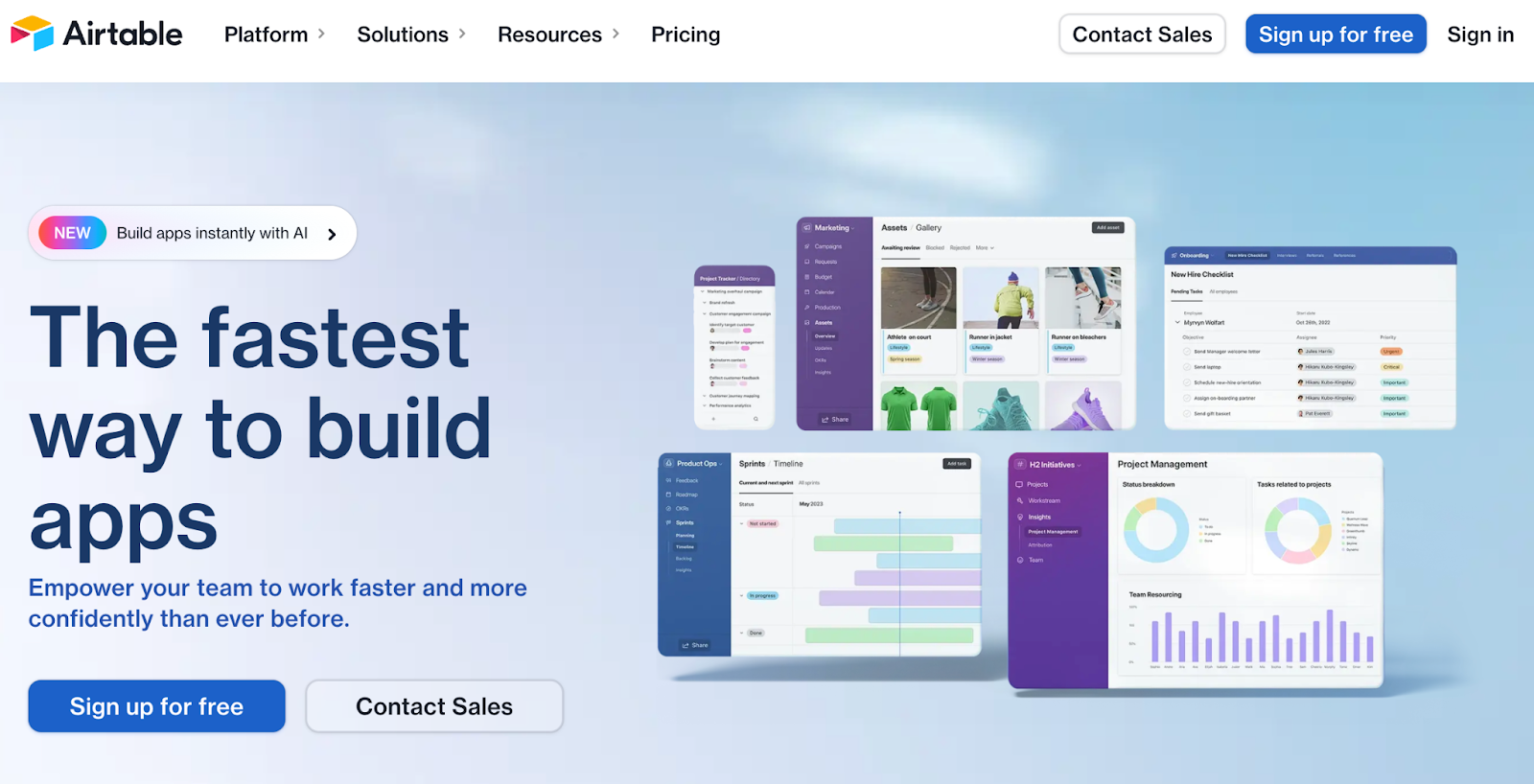
Airtable  Data collaboration and workflow automation in an excel-like environment. 
ClickUp Combines task management with goal tracking, making it suitable for teams of all sizes.
Wrike Versatile workflow management platform that’s affordable for organizations of any size.
Asana Great for task management and tracking project progress, featuring user-friendly interfaces and strong integration capabilities.
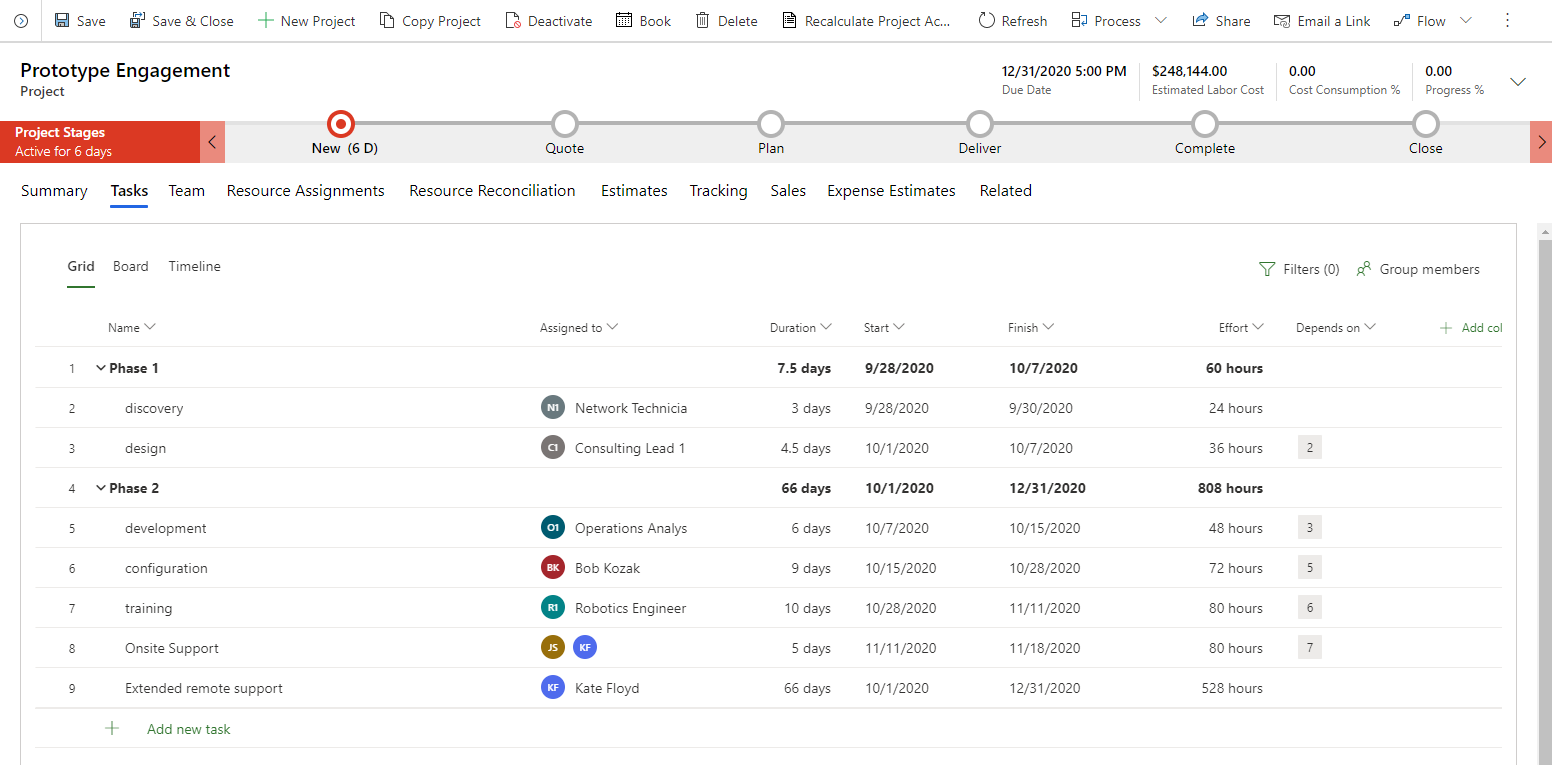
Microsoft Projects Complex project management and enterprise-level projects.
Teamwork External client collaboration and management.
Jira DevOps issue tracking and supporting IT workflows.
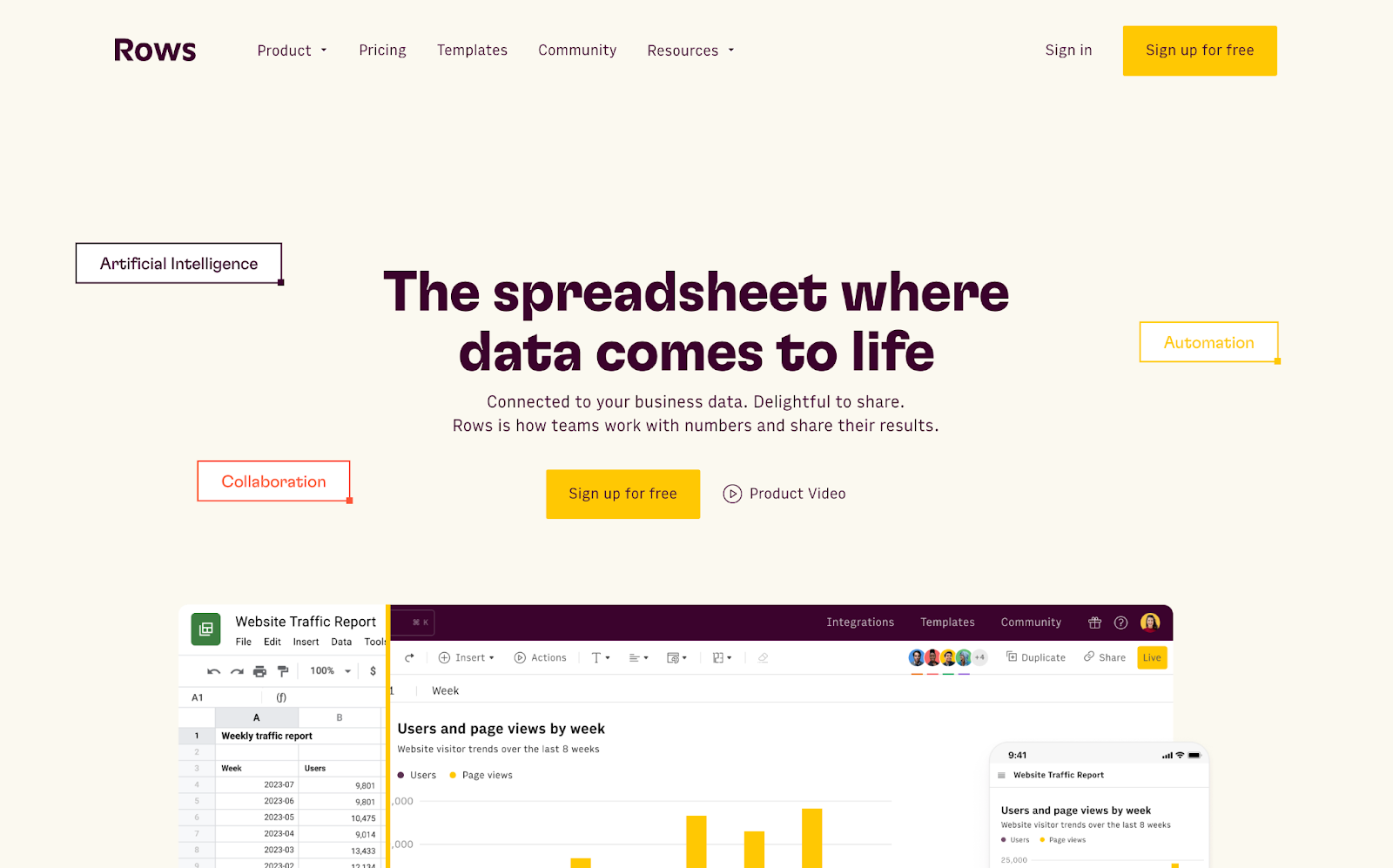
Rows Modern excel-like workspace with advanced data analysis, visualization, and integrations.

#1: SmartSuite

SmartSuite is the ultimate work and project management software. It combines the power of automation with a tailored workspace to help you plan, manage, and track projects.

Combining an intuitive UI, versatile dashboards, and powerful automation makes SmartSuite the top Smartsheet alternative.

Our customers love the following features:

1. Project management

SmartSuite’s comprehensive project management dashboard gives you a thorough view of the creation, assignment, tracking, and completion of diverse tasks and projects. You get access to a range of tools to improve task efficiency and boost productivity.

  • Organization and reporting: Team members get a consolidated view of all assigned tasks under ‘My work’ dashboard. Custom ‘Work In Progress’ report helps you track task responsibilities, balance workloads, and monitor timelines.
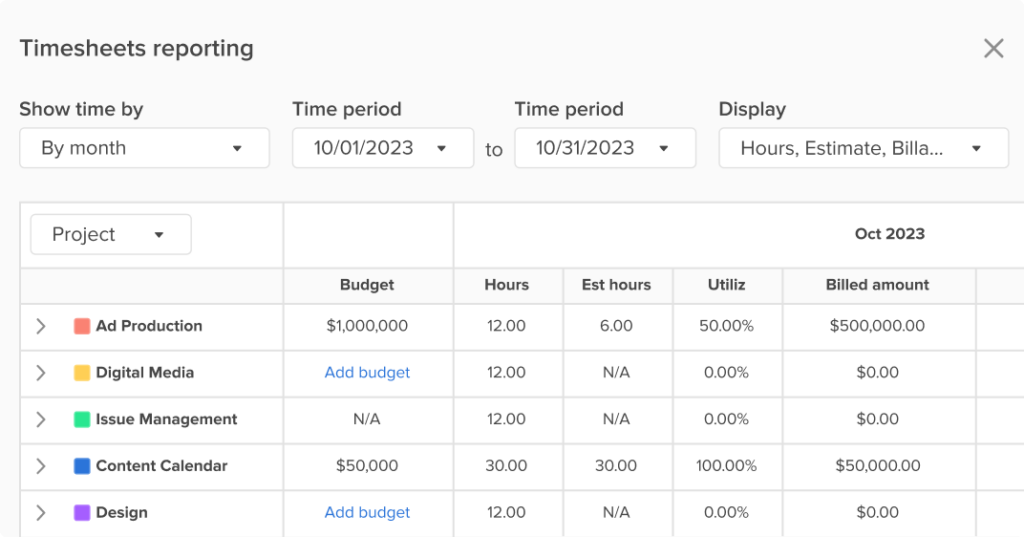
  • Time tracking: Track time for different tasks, create and set estimates, and view customizable timesheets and reports. Ease of time logging in hour/minute increments or as a range of time gives you a transparent picture of billing hours.
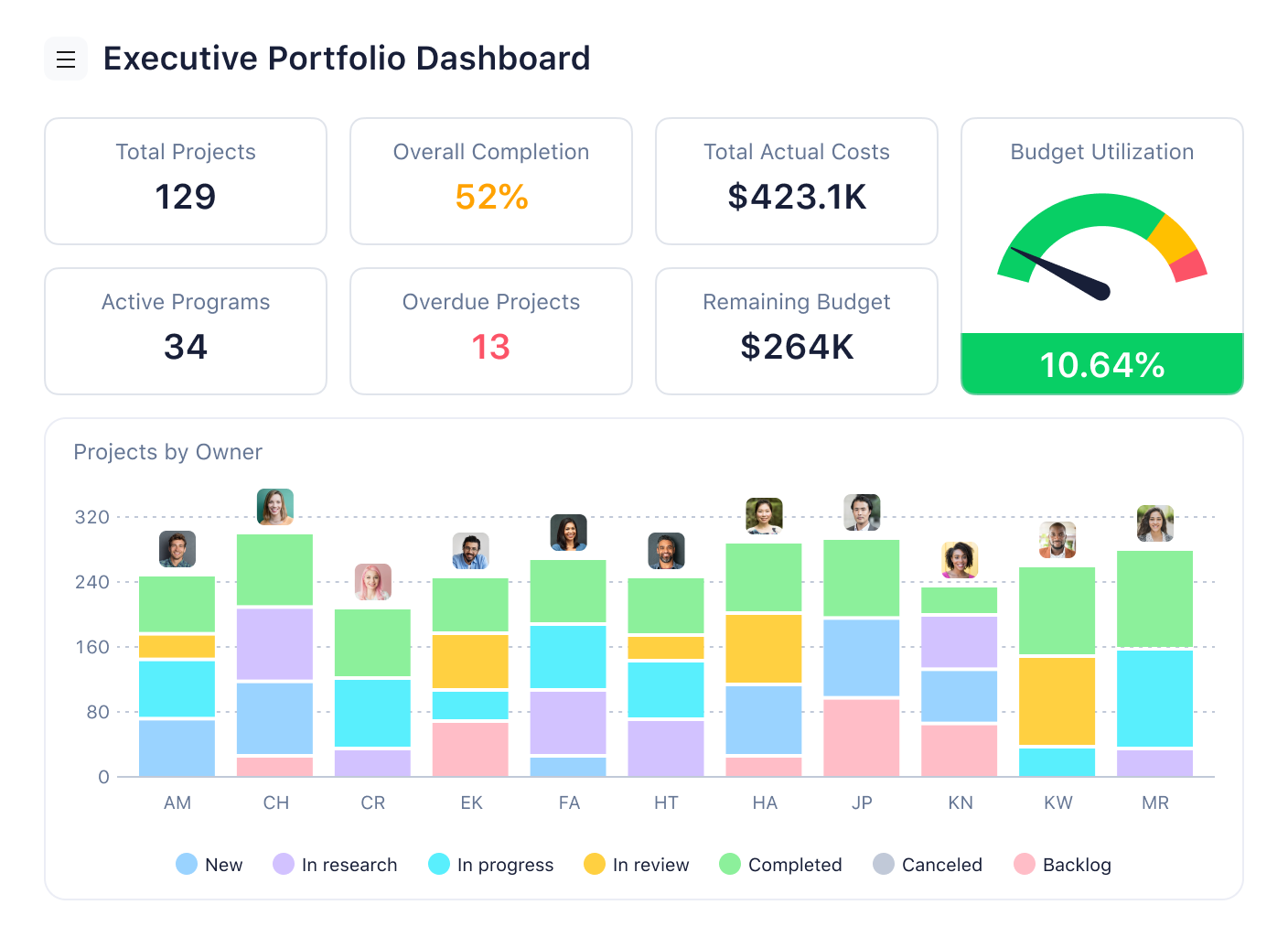
  • Powerful dashboards: Understand relationships, evaluate dependencies, and track metrics that measure the state of your business. Each dashboard is configurable with 25+ widgets ranging from graphs to comparison tables.

2. Workflow automation

SmartSuite built-in automation maintains consistency and efficiency across all your projects. You can set up customizable recipes based on specific triggers. Such automated workflows eliminate manual intervention in routine tasks such as changing dates or sending updates and free up your time to focus on getting work done.

And the best part?

SmartSuite offers a no-code drag-and-drop automation builder, making it easy for anyone in your team to build basic to complex automation.

[embedded content]

To get started, click on “Automation.” From here, choose the right trigger and set up the right action. For instance, when a status is changed (trigger), send an email (action).

3. Team collaboration

SmartSuite provides a centralized communication hub, enabling real-time discussions and project status updates to keep teams aligned

Team members can connect 1:1 or in group chats, share quick updates via @mentions, send emails, and ask questions. Member’s directory, availability status, and activity progress promote transparent communication. As a result, you can reach out to the right stakeholders at the right time and monitor roadblocks.

SmartSuite goes way beyond with its mobile app, which facilitates seamless and quick communication.

SmartSuite Pricing

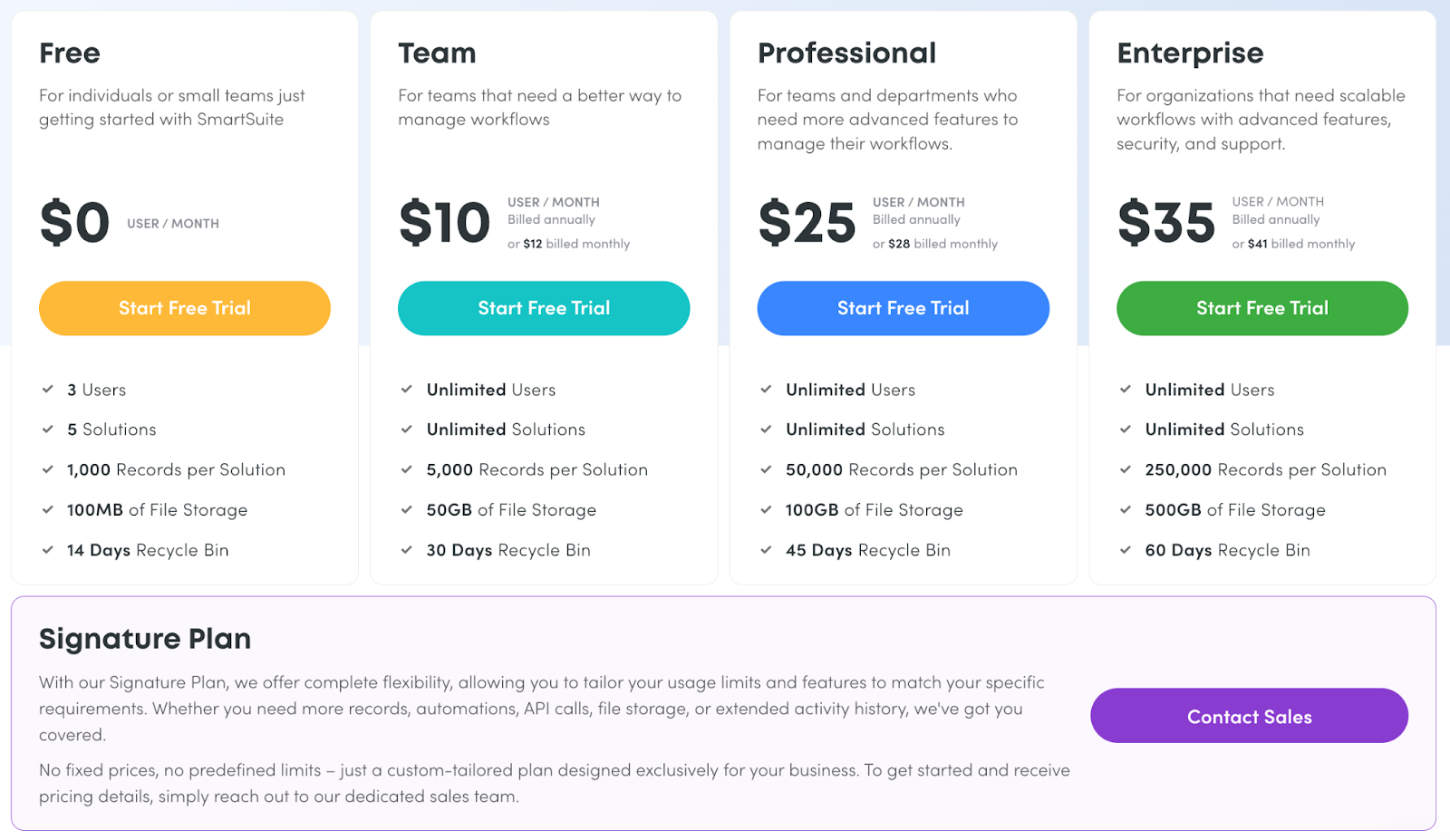
SmartSuite offers a 14-day free trial and a forever-free plan with access to automation, team collaboration, authentication, and much more.

As for the paid plans, there are four options:

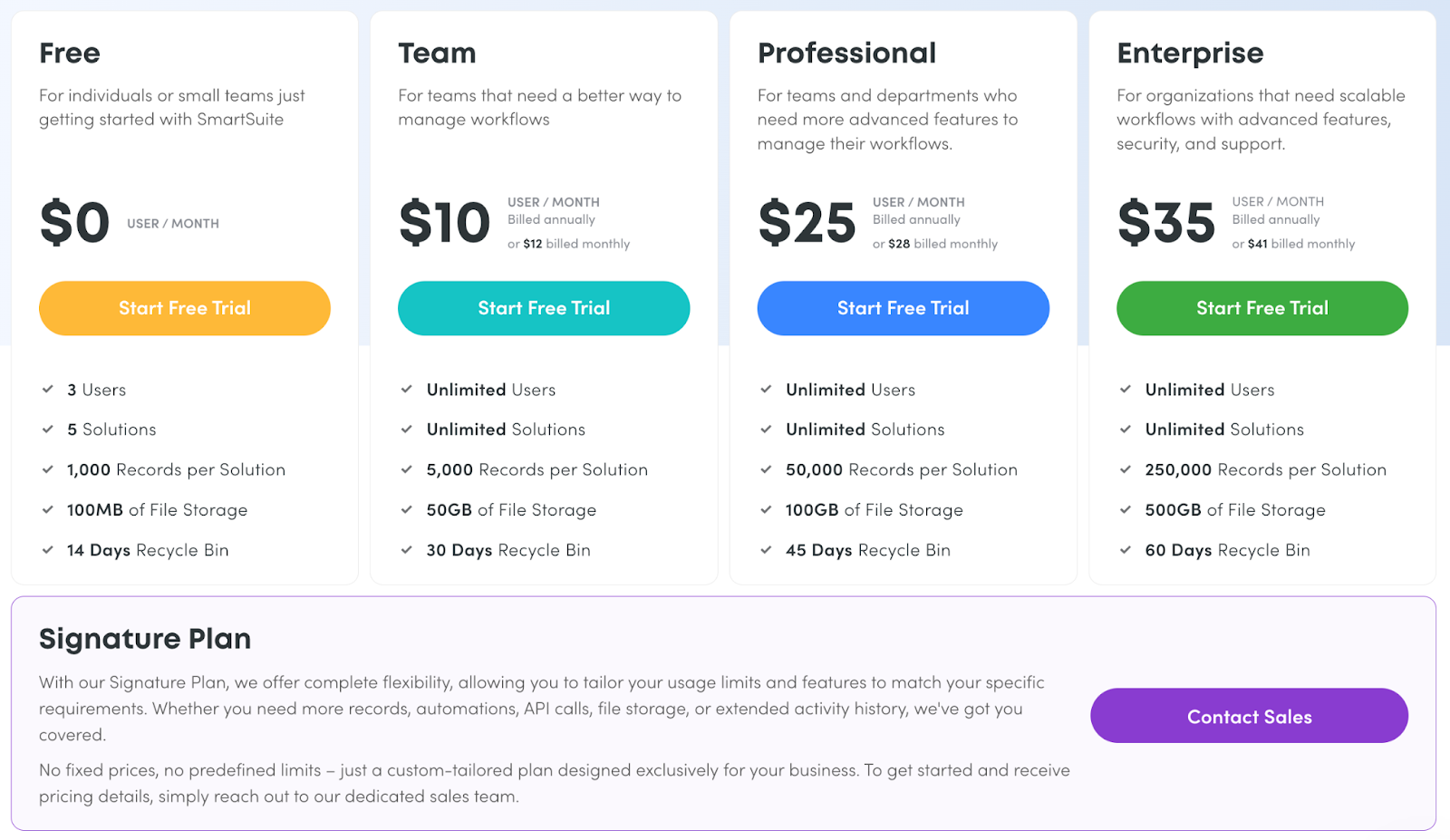
  • Team: Starts at $12/user per month, including Gantt charts, located views, 5000 automation runs, and time tracking.
  • Professional: Starts at $28/user per month, including two-factor authentication, Gmail & Outlook integrations, and unlimited editors.
  • Enterprise: Starts at $35/user per month, including audit logs, data loss prevention, and 50,000 API calls monthly.
  • Signature: Customized plan tailored to your organization’s needs and team size.

How Does SmartSuite Compare to Smartsheet?

While Smartsheets stands out among spreadsheet enthusiasts who want more flexibility in organizing and managing cross-team data, SmartSuite offers a compelling alternative with its affordable pricing structure, automated workflows, and flexible dashboards.

Here’s why SmartSuite would be a better choice over Smartsheet:

  • Multi dashboard views: 8+ dashboard views, including Gantt charts, map view, kanban view, and timeline view, offering the flexibility to view projects in a way you want.
  • No minimum user cap: Scale easily with per-user pricing and avoid the worry of paying for a minimum number of users for higher-tier plans.
  • Smooth team collaboration: Have conversations privately or in groups and get real-time updates to keep the tasks moving forward.

SmartSuite Pros and Cons

✅ Generous free plan with access to advanced features

✅ 200+ project templates for different use cases

✅ Customizable dashboard and reporting

✅ No-code automation to streamline your workflows

❌ Limited native integrations

#2: Monday

Best for: Task and project management across various industries

Similar to: Asana and ClickUp

Monday.com is a robust project management software that helps you track, manage, plan, and organize multiple projects.

Monday.com is a better alternative to Smartsheet for medium-sized businesses, particularly for marketing and creative teams because of its features like whiteboard collaboration and built-in social media management.

Who Is It For?

Medium and large-scale businesses

Monday.com’s Top Features

  • Workdocs: Workdocs are flexible multi-media whiteboards that help you jot down key ideas and add widgets (boards, project links, videos) without leaving the workspace. These whiteboards are particularly useful for marketing and creative teams for idea generation and creative planning.
  • Work forms: Customizable work forms to collect requests or feedback. Sync form responses and add them to relevant boards, enabling teams to track and manage form submissions efficiently within their existing workflow.
  • Social media management: With built-in social channel integration, you can plan, manage, and schedule social media posts on different channels.

Monday.com Pricing

Monday.com offers a 14-day free trial and a free plan for up to 2 users. Their paid plans require a minimum team size of 3 and come in four tiers:

  • Basic: Starts at $17 per user/month, including Kanban board view, unlimited free viewers, and unlimited boards.
  • Standard: Starts at $20 per user/month, including 250 automated actions/month, 3+ dashboard views, and Zoom integration.
  • Pro: Starts at $32 per user/month, including all five dashboard views, time tracking, and 2-factor authentication
  • Enterprise: Includes dedicated customer success manager, enterprise-level reporting, and administration control. Contact sales for a quote.

While Monday.com offers a free plan with limited features and a free trial for its three paid plans–basic, standard, and pro, Smartsheet only offers paid plans.

Monday.com Pros and Cons

✅ Advanced reporting and analysis

✅ Built-in social media management system

✅ 200+ dashboard templates

❌ Requires a minimum team size to buy or upgrade plan

❌ Automation available only on high-tier plans

#3: Airtable

Best for: Data collaboration and dashboard customization

Similar to: Smartsheet and Trello

Airtable is a collaborative project management tool that helps you store and organize vast amounts of data in a management database. Think of spreadsheets but with relational capabilities.

Airtable’s intuitive interface and cost-effective plans make it a compelling choice for small-sized businesses, solopreneurs, and agencies over Smartsheet.

Who Is It For?

Small and mid-sized businesses

Airtable’s Top Features

  • Automated workflows: Create customizable trigger-action models to cut down on repetitive tasks.
  • Multi-dashboard views: Structure your data to get a holistic view of your task’s progress with 7+ views. Monitor deadlines, manage the project’s resources, and get a granular view of the project’s health.
  • Interface designer: Build custom interfaces through drag-and-drop editor for anyone on your team. These interfaces help you break down big databases into smaller sections to share specific elements with external users without giving them access to the actual dataset.

Airtable Pricing

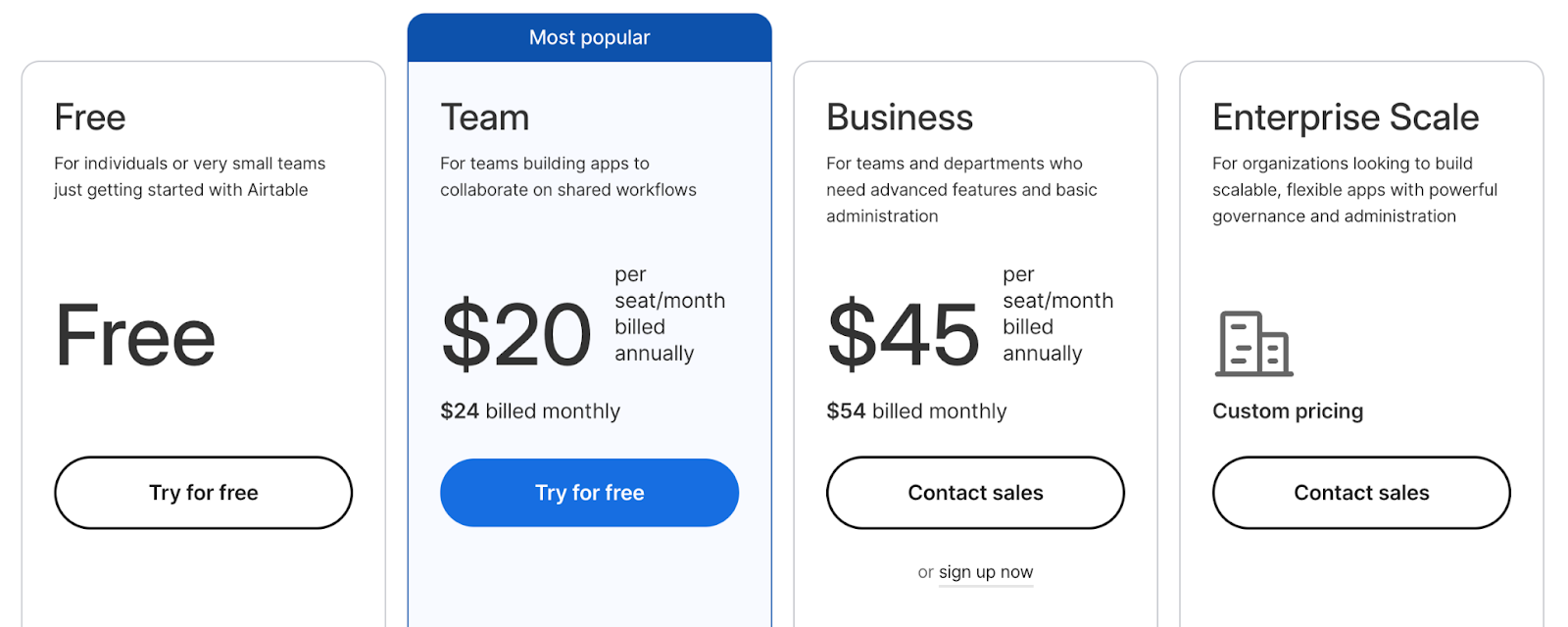
Airtable’s free plan offers access to a single workspace with all basic dashboard views and 100 automations per month. The paid plans come in three tiers:

  • Team: Starts at $24 per user/month, including timeline view, 25,000 automation per month, and Airtable AI.
  • Business: Starts at $45 per user/month, including multi-source syncing and dynamic filtering.
  • Enterprise scale: Includes admin reports, enterprise-level integrations, and premium support. Contact sales for a quote.

Smartsheet requires a minimum of 3 users to sign up for its business plan, while Airtable’s pricing, despite being a little higher, doesn’t require minimum users.

Airtable Pros and Cons

✅ High-level customization and flexible dashboards

✅ User-friendly interface with multiple views even upon starting plans

✅ Vast project templates

❌ Limited reporting capabilities

❌ Limited team communication

#4: ClickUp

Best for: Creating highly customizable project dashboards

Similar to: Trello and Monday

ClickUp is a project management tool that acts as a central platform for resource management, work management, and team collaboration.

ClickUp is an amazing Smartsheet alternative for small teams, freelancers, and startups who want highly customizable dashboards at a reasonable price.

Who Is It For?

Entrepreneurs, freelancers, and small and large businesses alike

ClickUp’s Top Features

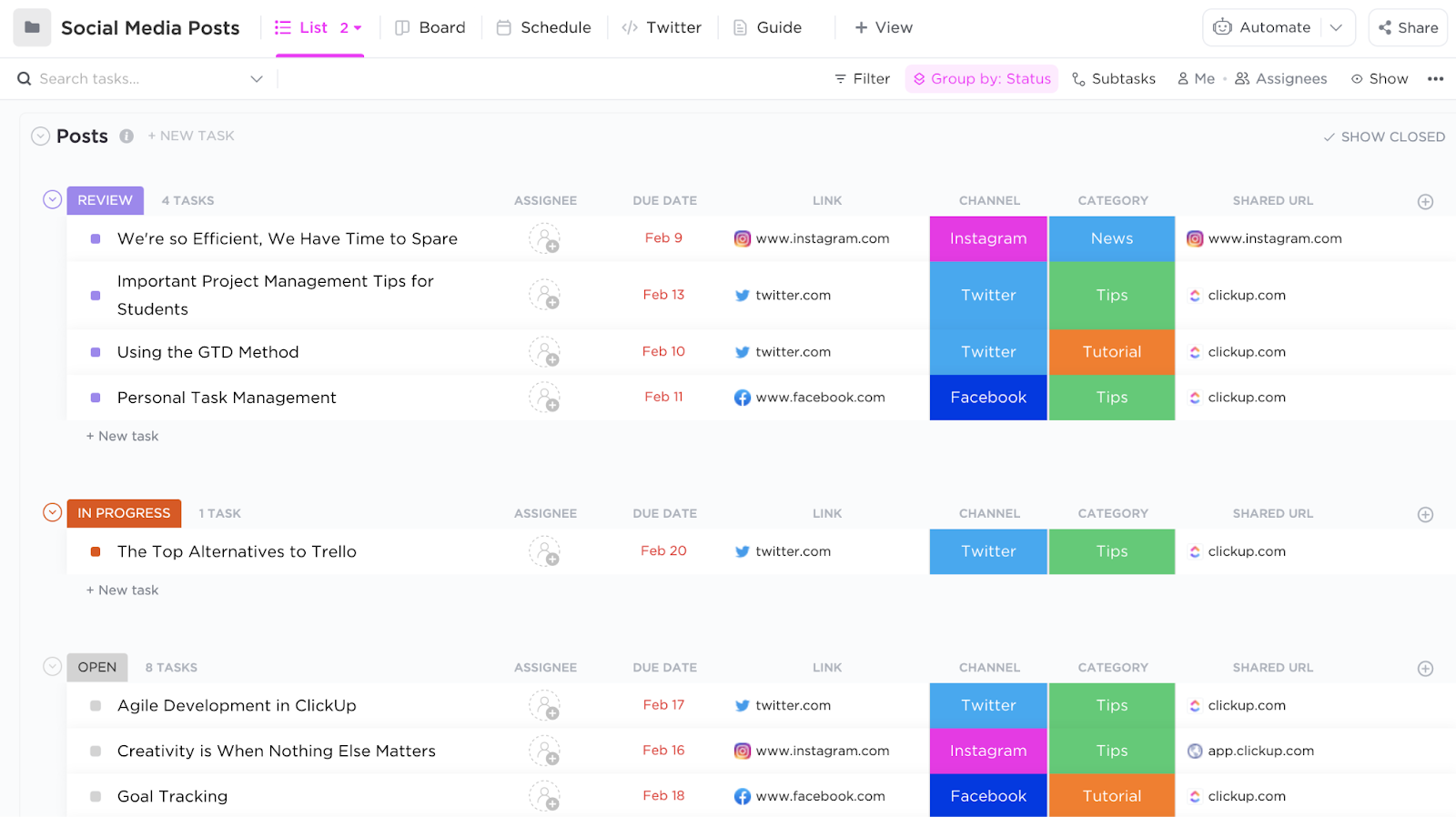
  • Social media integration: Plan, organize, prioritize, and publish content directly to Facebook, Twitter, LinkedIn, and Instagram.
  • ClickUp Chat: Keep your team moving through built-in chat views. Communicate in group chats or share updates privately in 1:1 conversations.
  • Advanced task views: Brainstorm and plan projects visually with a mind map view and convert discussed ideas into action items.

ClickUp Pricing

ClickUp’s free plan offers unlimited task creation, and guest invites with full access only. They have three paid plans:

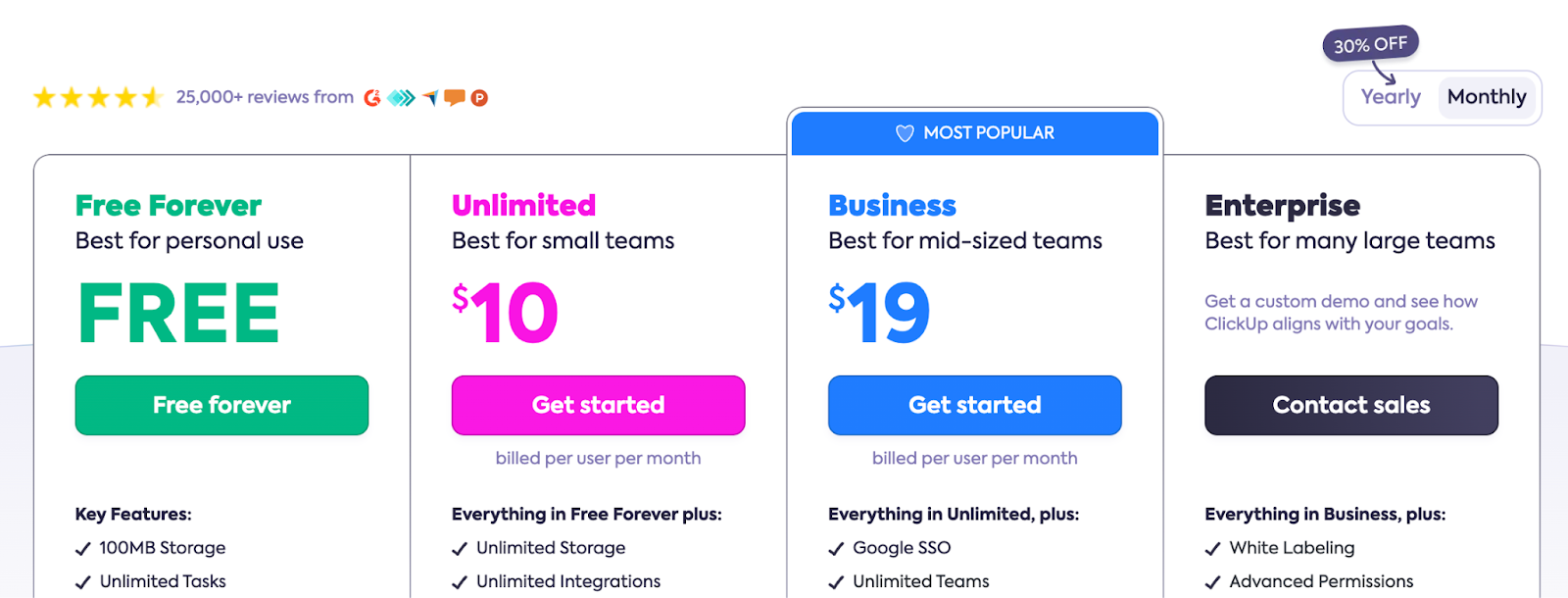
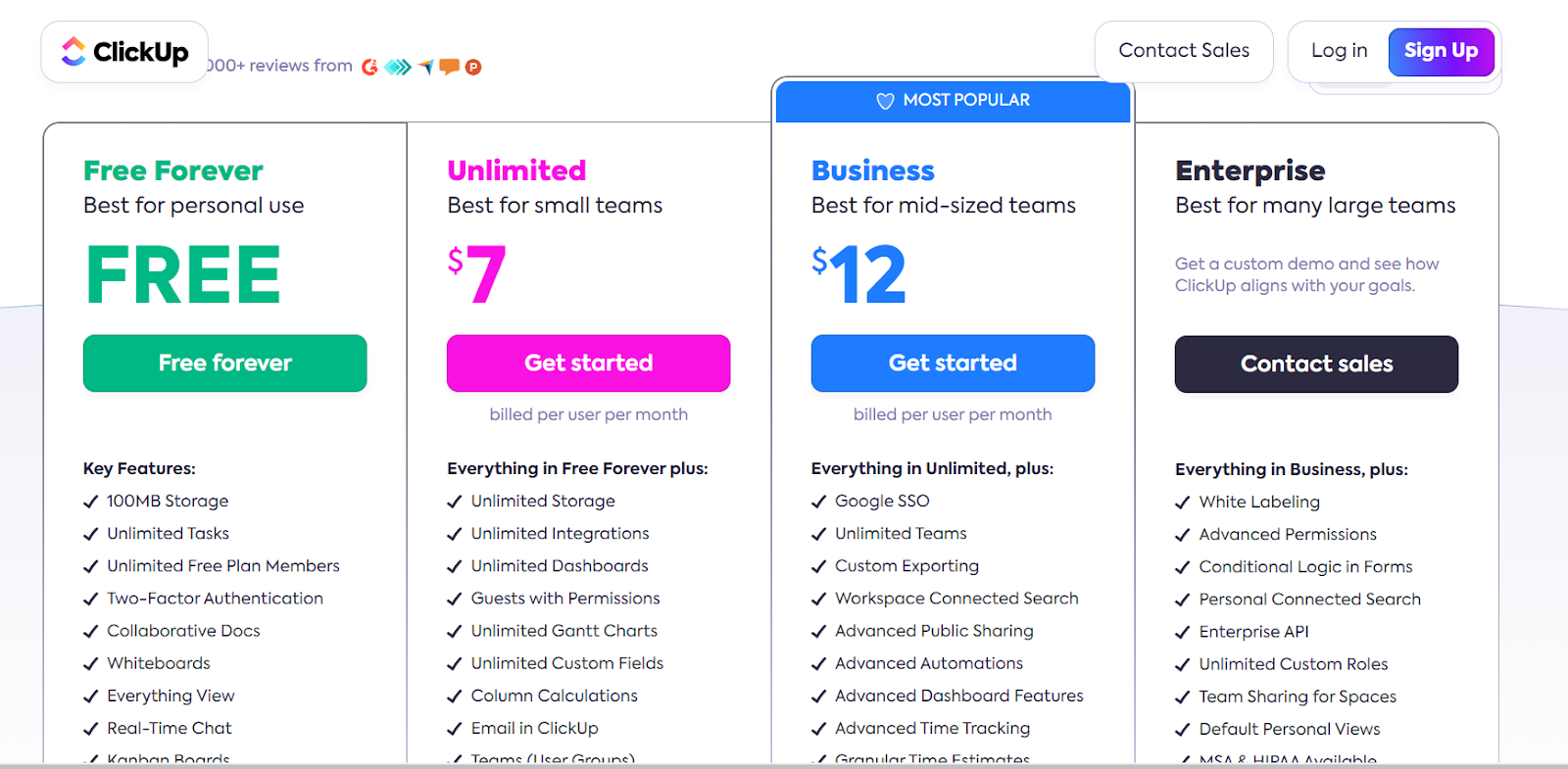
  • Unlimited: Starts at $10 per user/month, offers unlimited custom views, timesheets, guest access, and 100 mind map creation.
  • Business: Starts at $19 per user/month, offers private docs, sprint reporting, and all dashboard views.
  • Enterprise: White labeling, top-notch security, and enterprise AI. Contact sales to get a quote.

Compared to Smartsheet, ClickUp’s plans are much more affordable. Its generous free plan offers features like automated triggers, limited Gantt chart views, and ClickUp emails.

ClickUp Pros and Cons

✅ Advanced features, even on low-tier plans

✅ Mind Maps and whiteboard view for team collaboration

✅ 100+ automation templates

❌ High-level customizations can be overwhelming

#5: Wrike

Best for: Managing complex workflows across multiple teams

Similar to: Teamwork and Jira

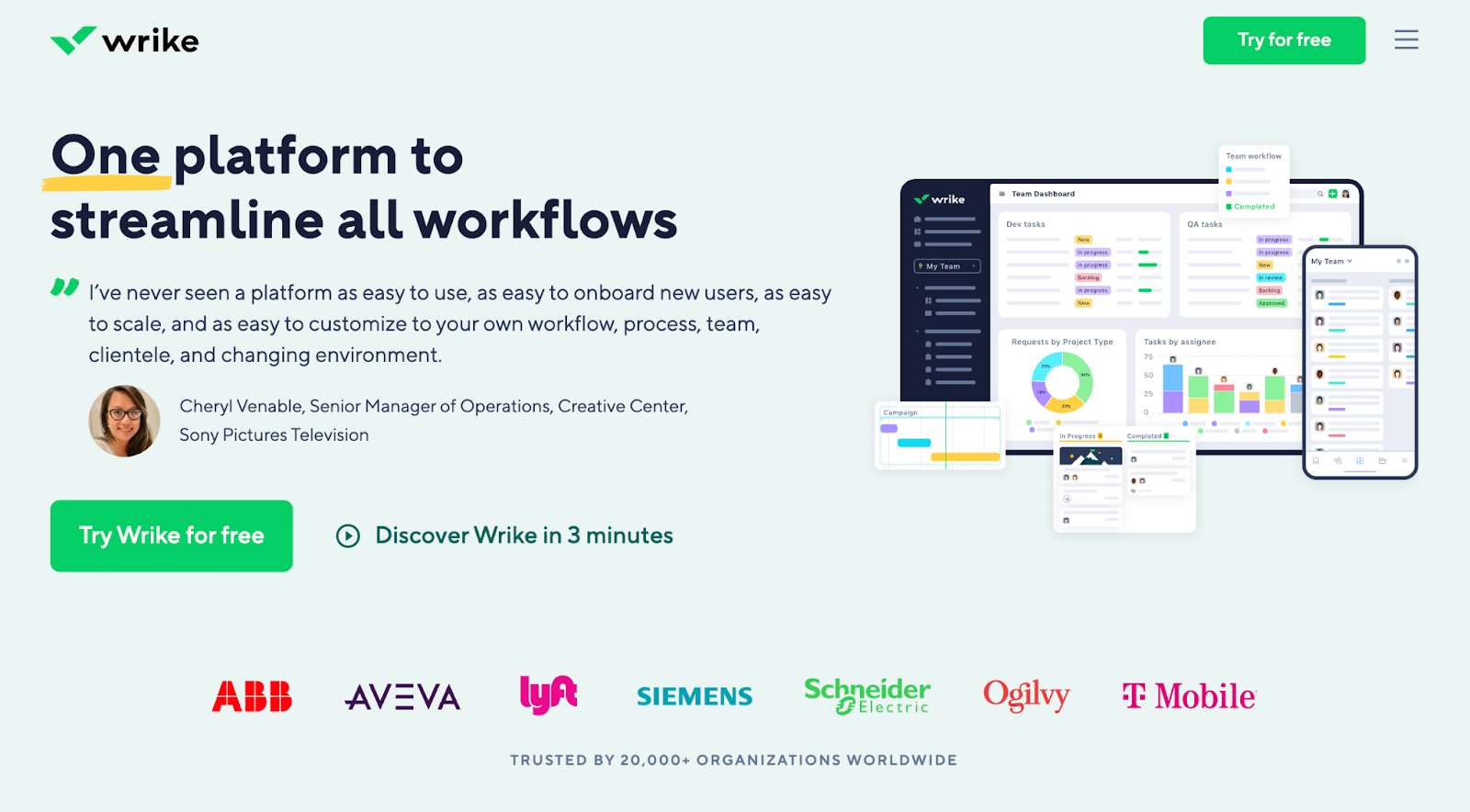
Wrike is a project management tool that helps you collaborate across teams, manage projects, brainstorm ideas, and achieve goals.

Wrike is a better alternative to Smartsheet due to its incomparable free plan that gives access to iOS and desktop apps, custom board views, and email integrations.

Who Is It For?

Agencies and enterprise-level businesses

Wrike’s Top Features

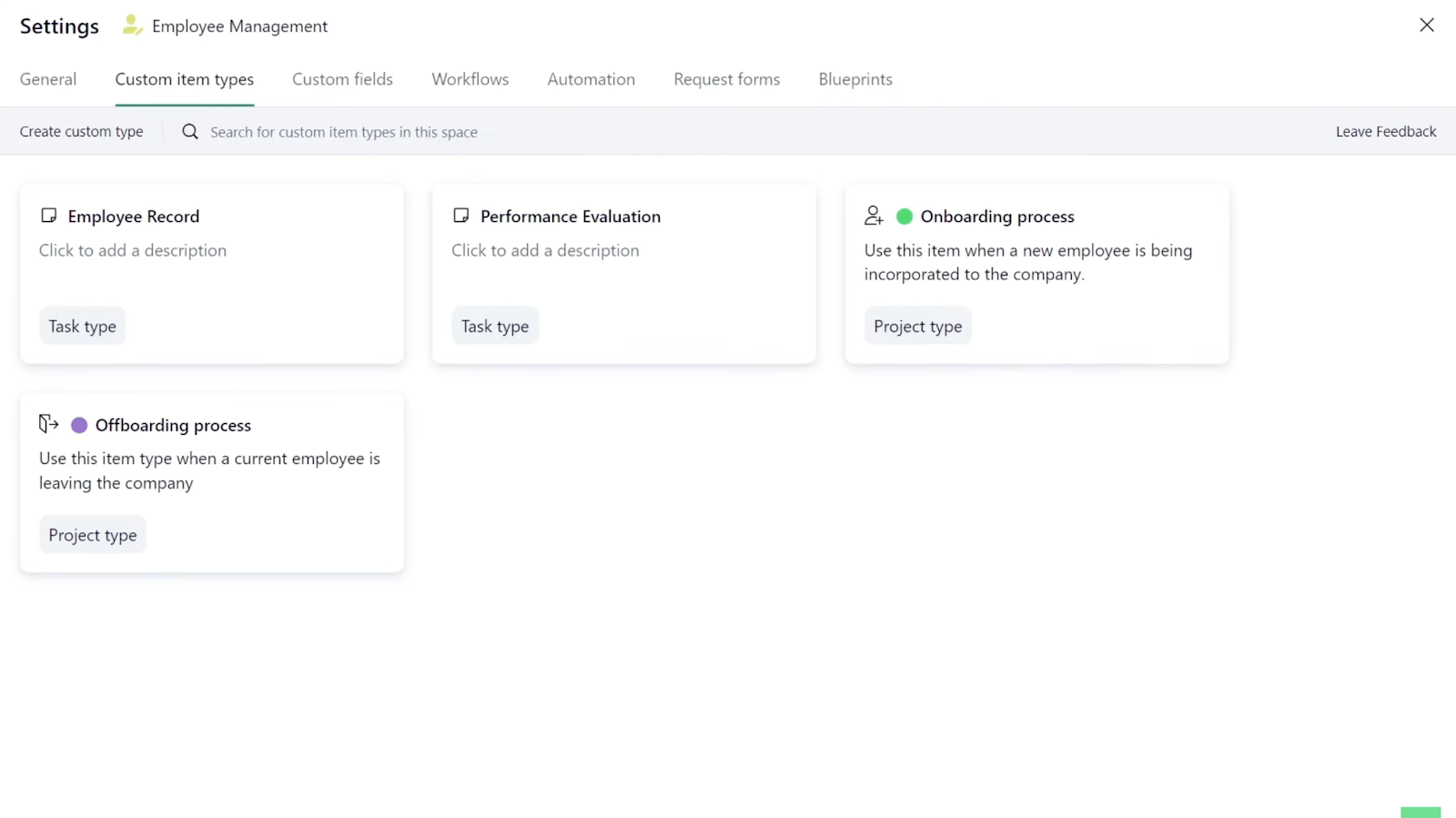
  • Custom item types: Add and manage multiple custom items to customize each task, folder, and project according to your team’s preferences.
  • Cross-tagging: Gain visibility in tasks, subtasks, folders, milestones, phases, and projects across various departments.
  • Customizable request forms: Create forms to facilitate requests, eliminate delays, and convert form requests into action items.

Wrike Pricing

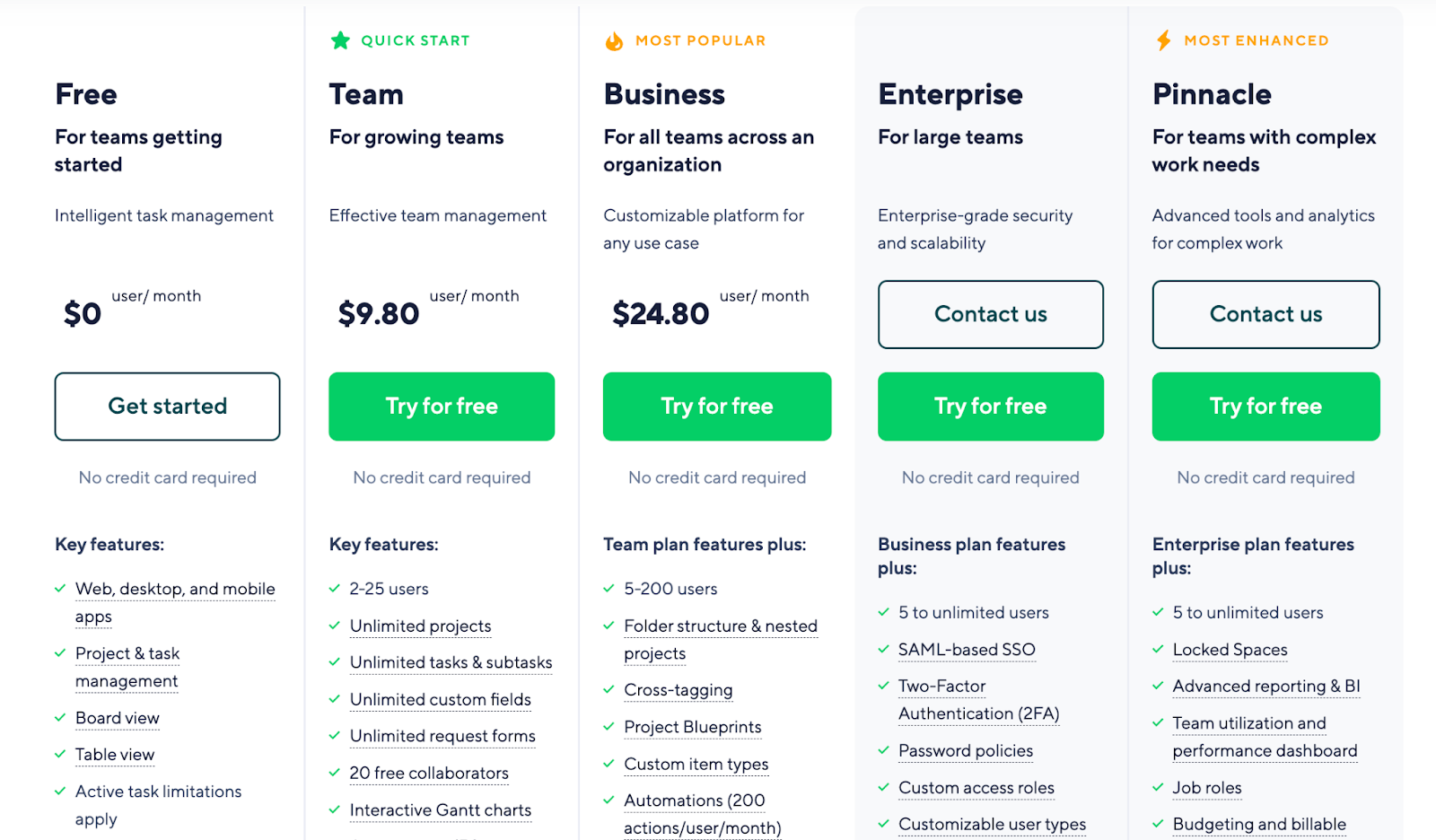
Wrike offers a generous forever-free plan. There are five paid plans with a 14-day free trial:

  • Team: Start at $9.80 per user/month, includes custom workflows, 20 free collaborators, and unlimited request forms
  • Business: Start at $24.80 per user/month, includes up to 200 users, Adobe Creative Cloud Extensions, and nested projects.
  • Enterprise: Unlimited user access with advanced reporting and integrations. Contact sales to get a quote.
  • Pinnacle: Native integration with PowerBi, locked spaces, and budgeting. Contact sales for a quote.

Wrike offers more pricing plans than SmartSuite, allowing users more flexibility. Pricing starts as low as $9.80 per user/month.

Wrike Pros and Cons

✅ 400+ integrations

✅ Generous free plan with unlimited users

✅ Library of customizable project templates

❌ Learning curve due to overwhelming features

❌ Budgeting feature only available for pinnacle plan users

#6: Asana

Best for: Managing projects through subtasks and automated workflows

Similar to: ClickUp and Trello

Asana is a work management tool that is known for its customizable workflows and automation to organize, plan, and track work through subtasks and dependencies features.

Asana’s ease of use, uncluttered UI, and generous free plan make it a much better project management tool than Smartsheet.

Who Is It For?

Creative agencies, small and medium-sized businesses.

Asana’s Top Features

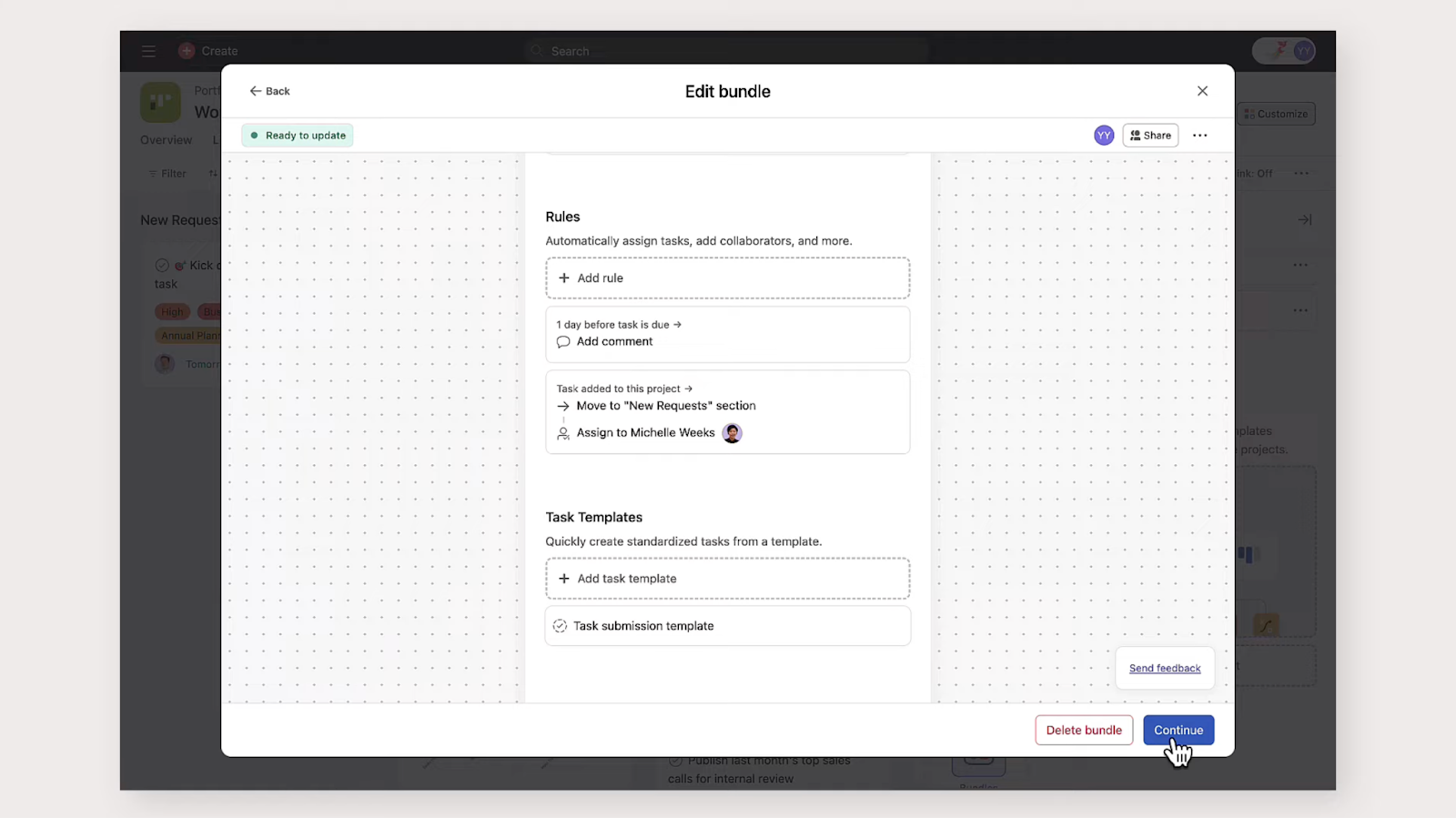
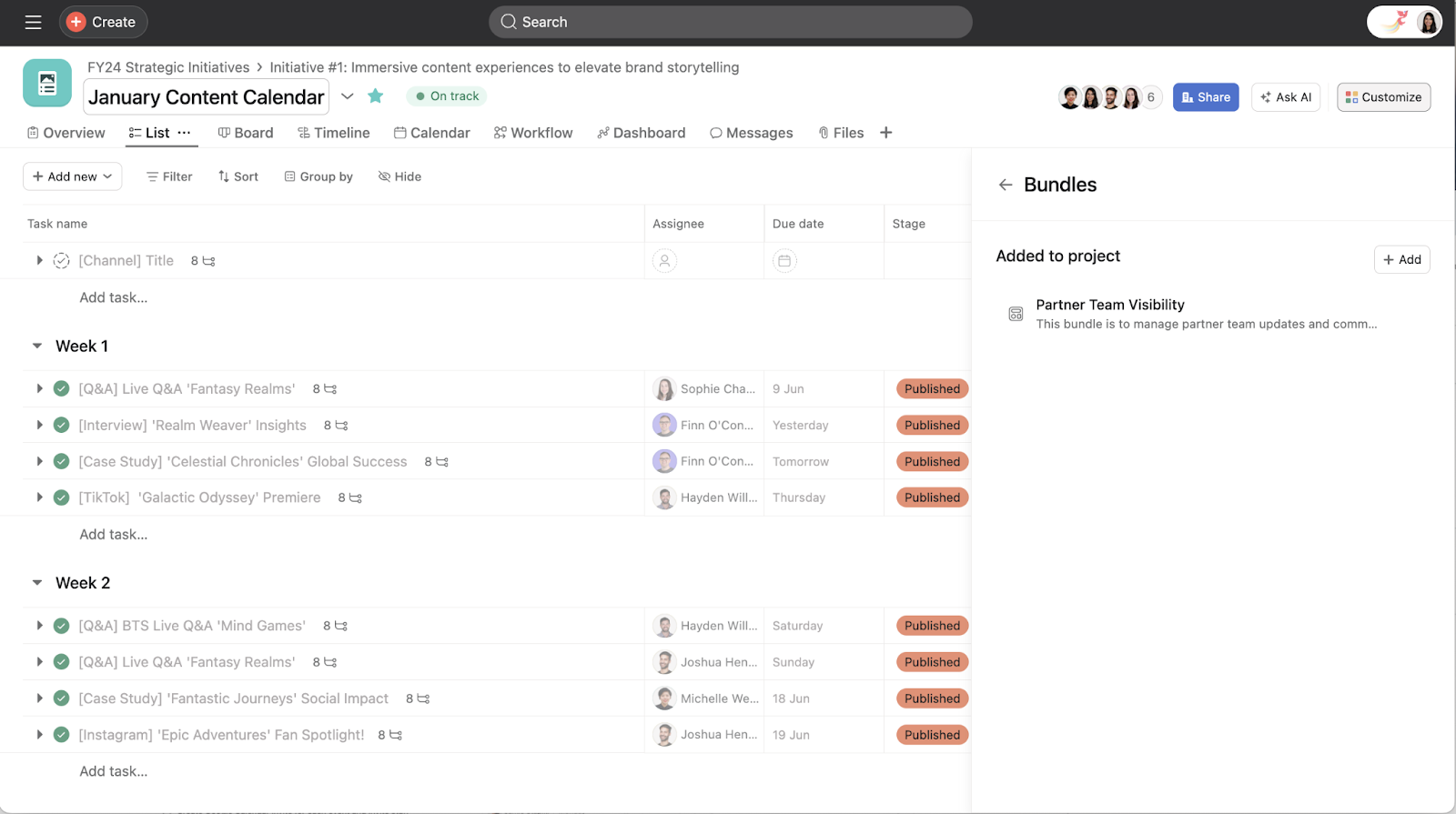
  • Bundles: Package workflow elements such as rules, custom fields, and task templates and apply them instantly to new (and multiple) projects.
  • Portfolios: Organize multiple projects in a centralized view and monitor project health in real-time, including status updates, progress rates, due dates, and project owners.
  • Team collaboration: Share comments and mentions directly within tasks, assign tasks to multiple projects, add dependencies, and receive real-time updates.

Asana Pricing

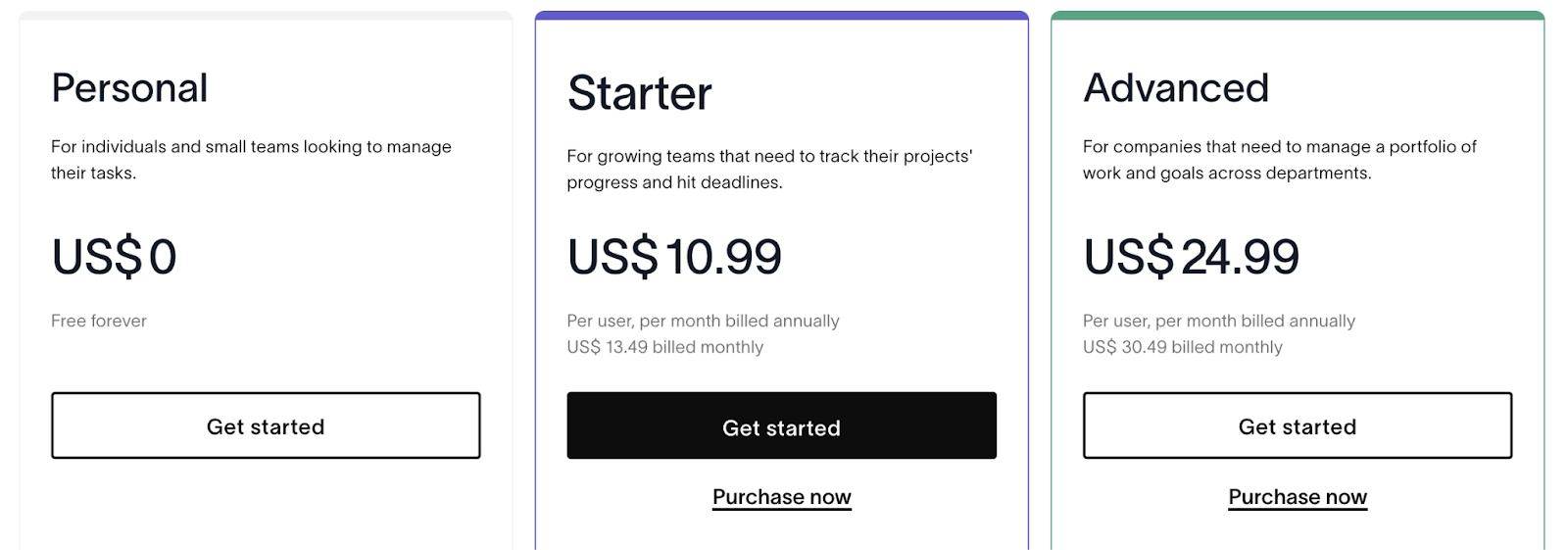
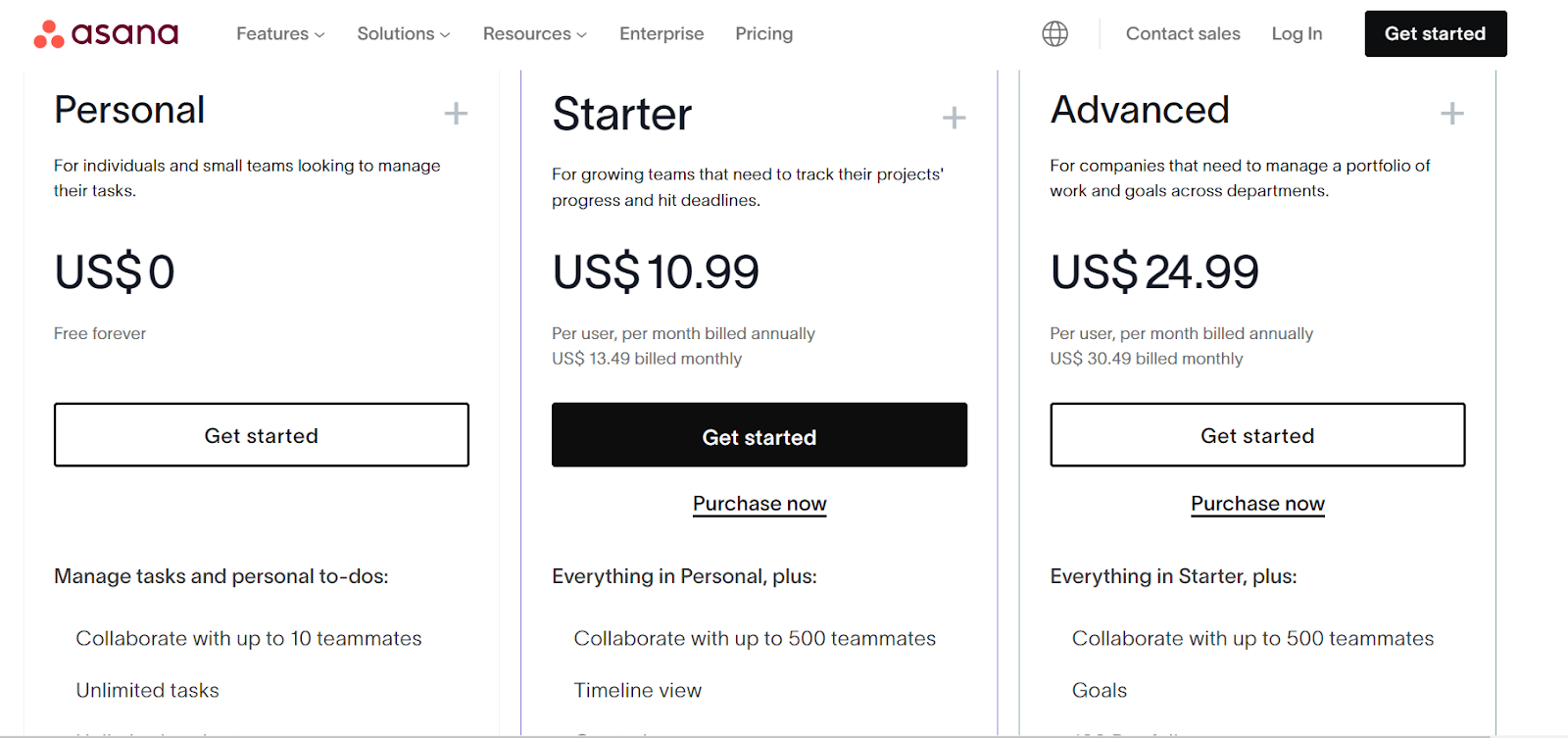
Asana offers a free plan for up to 10 users and four pricing plans with a 30-day free trial. Pricing for paid plans is as follows:

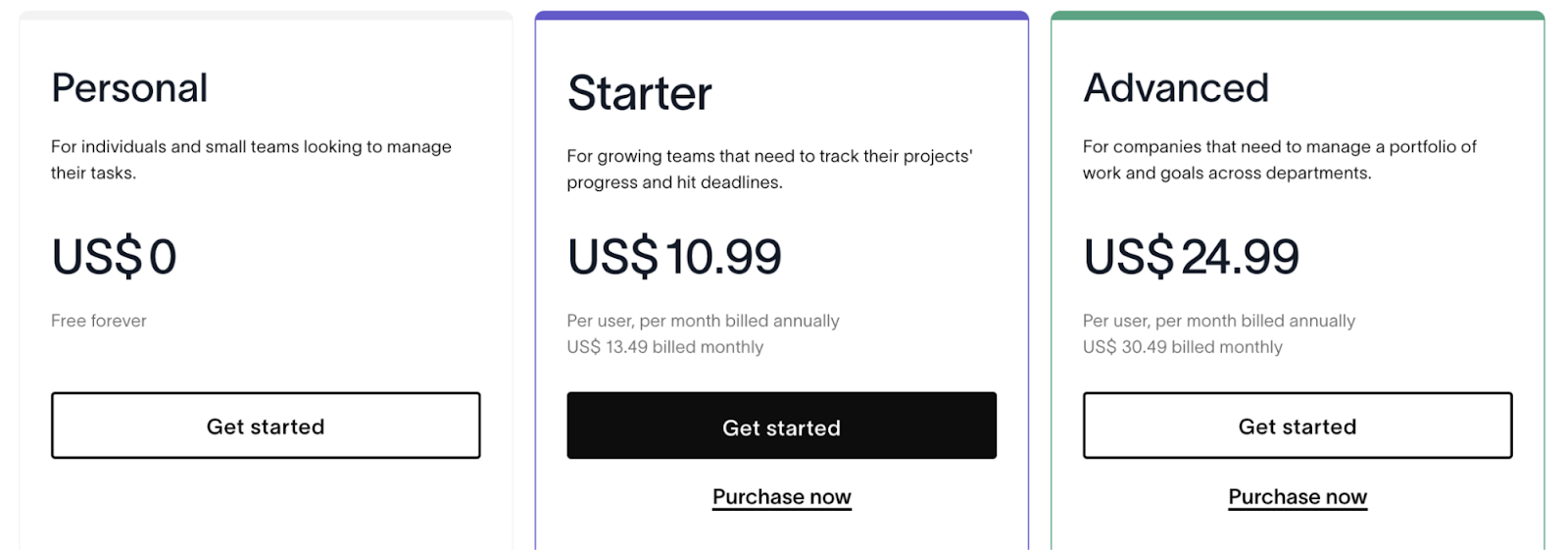
  • Starters: Starts at $13.49 per user/month, with up to 500 teammates collaboration, Asana AI, and workflow builder.
  • Advanced: Starts at $30.49 per user/month, with 25,000 automation per month, scaled security, advanced reporting, and goal tracking
  • Enterprise: Advanced integrations, unlimited seats, custom branding, and premium support. Contact sales for a quote.
  • Enterprise+: Audit log API, HIPAA compliance, and data loss prevention integrations. Contact sales for a quote.

Asana’s Advanced plan ($30.49 per user/month) is more affordable than Smartsheet’s Business plan ($19/user/month) when considering the 3-user minimum for Smartsheet.

Asana Pros and Cons

✅ Subtasks and dependencies 

✅ Automated templates for repetitive use

✅ 270+ integrations

❌ Limited customizations

❌ Limited reporting

❌ Can get expensive for smaller teams

#7: Microsoft Project

Best for: Complex project management and enterprise-level projects

Similar to: Asana and Monday.com

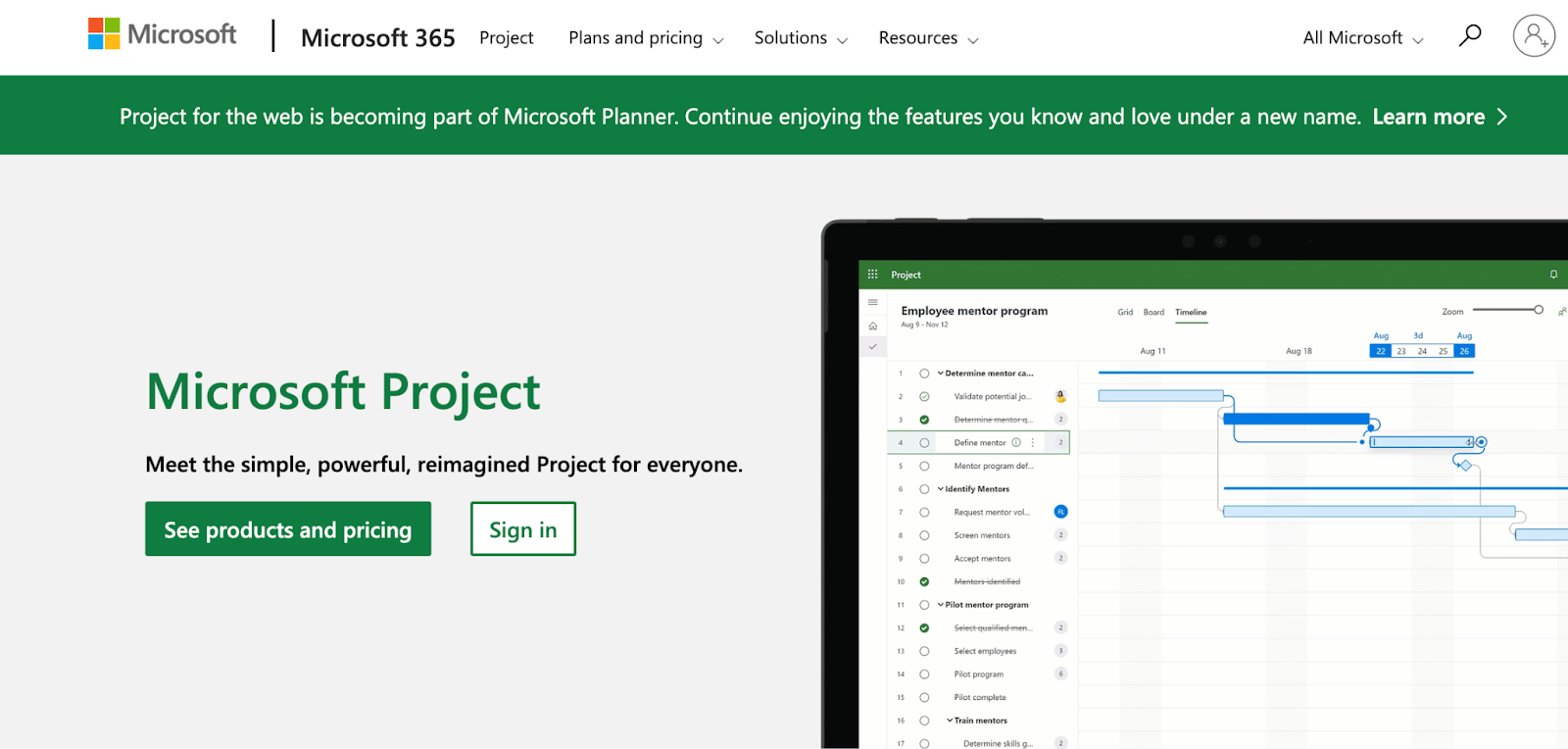
Microsoft Project is a project management tool designed for large-scale projects. It offers advanced scheduling, resource management, and reporting capabilities.

Detailed project tracking and integration with other Microsoft products make it a suitable alternative to Smartsheet for enterprises.

Who Is It For?

Businesses and teams who already use Microsoft software at large scale, especially enterprise-level companies

Microsoft Project’s Top Features

  • Resource management: Request and lock in resources and get an overview of resource usage through capacity heat maps. With resource analytics, get a complete view of resources used and make predictions to optimize the required resources.
  • Portfolio management: Compare and analyze different portfolio models using visual charts and make cost and resource projections.
  • Reporting and Analytics: Generate detailed reports and dashboards for project tracking and performance analysis.

Microsoft Project Pricing

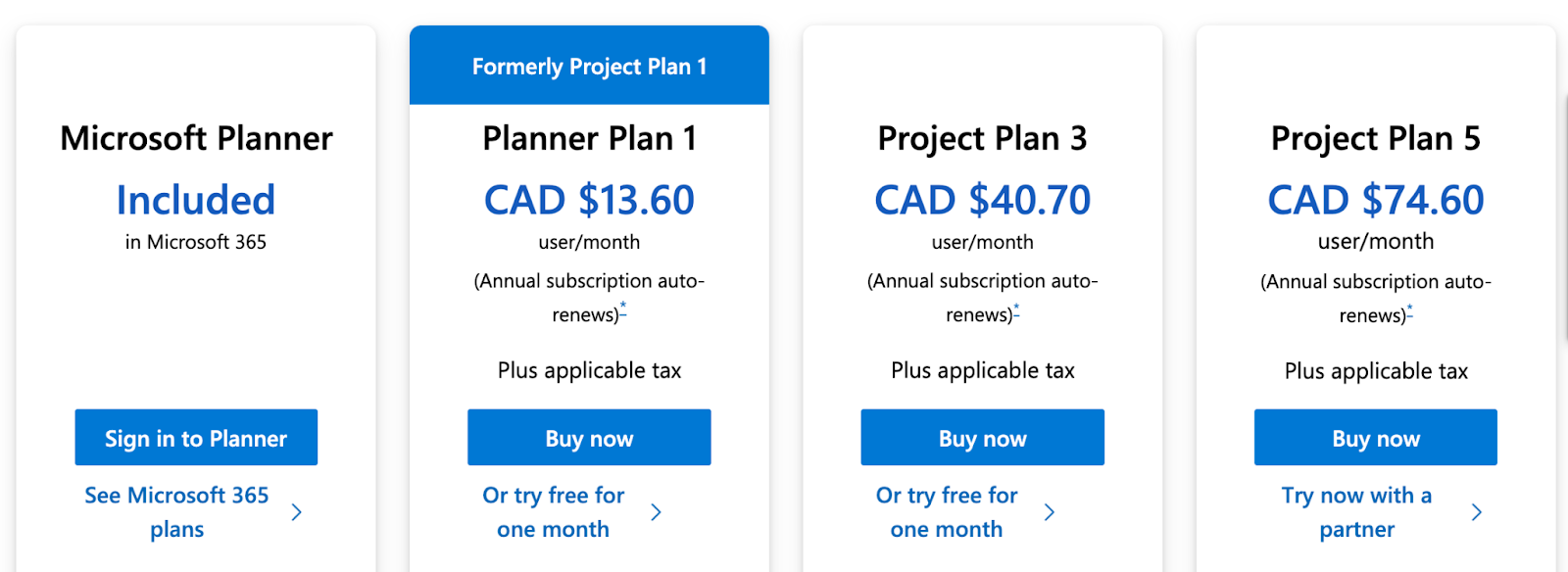
Microsoft’s project planner comes with a Microsoft 365 account without any additional cost with limited features. You get a 30-day free trial for two of its plans out of all three paid plans:

  • Planner Plan 1: Starts at $10 per user/month, Gantt views, task dependencies, and integration with APIs.
  • Project Plan 3: Starts at $30 per user/month, custom work week, task highlights and prioritization, and custom reporting dashboards.
  • Project Plan 5: Starts at $55 per user/month, automation and resource management.

Microsoft Project’s free plan is generous and offers access to multiple features compared to Smartsheet, which only offers paid plans.

Microsoft Project Pros and Cons

✅ Detailed scheduling and task dependencies, ideal for complex projects.

✅ Robust resource allocation and management features.

✅ Easy to adapt to if you’re familiar with Microsoft tools

❌ Expensive, especially for teams with small sizes

#8: Teamwork

Best for: External client collaboration and management

Similar to: Wrike and Asana

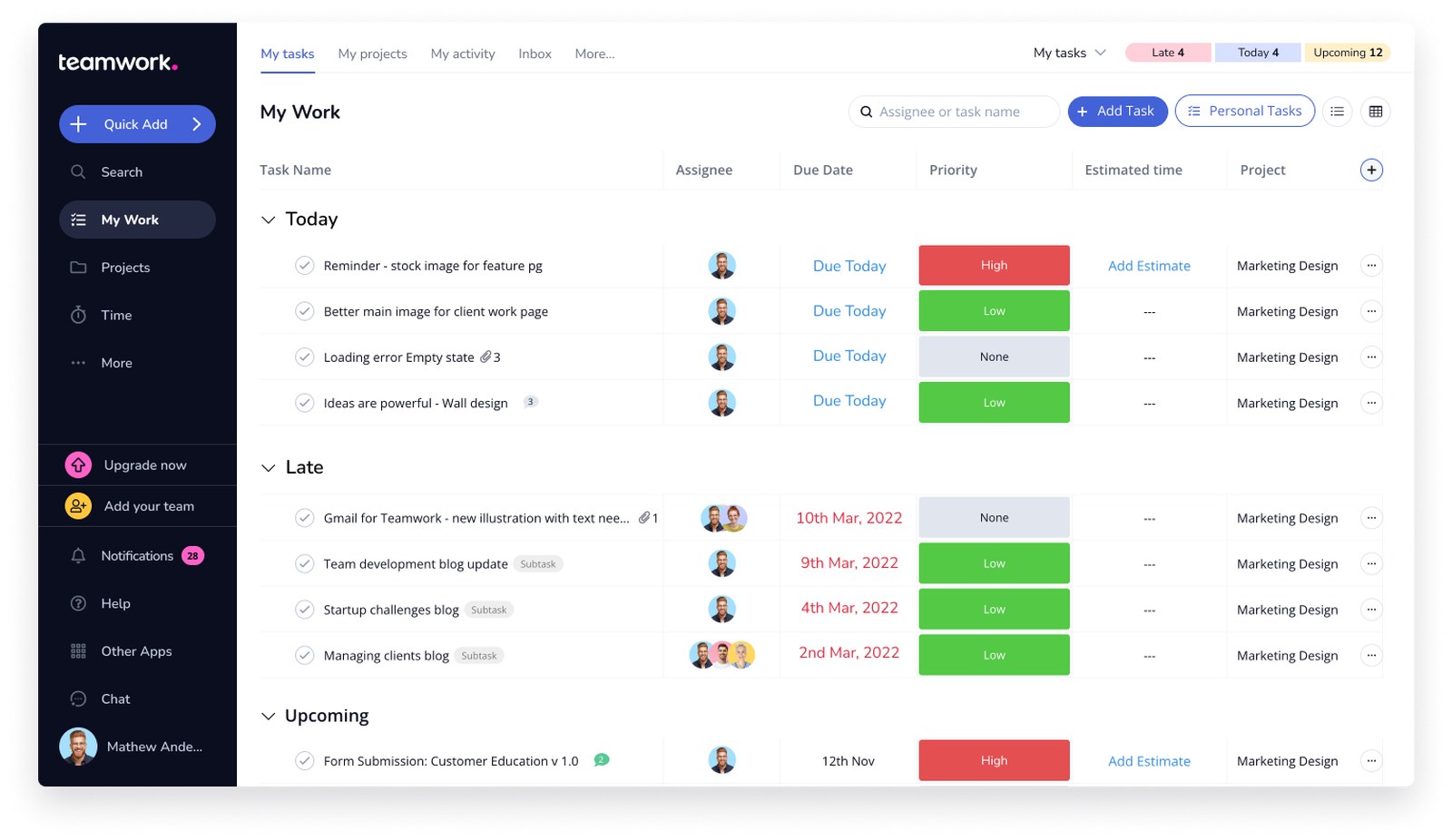
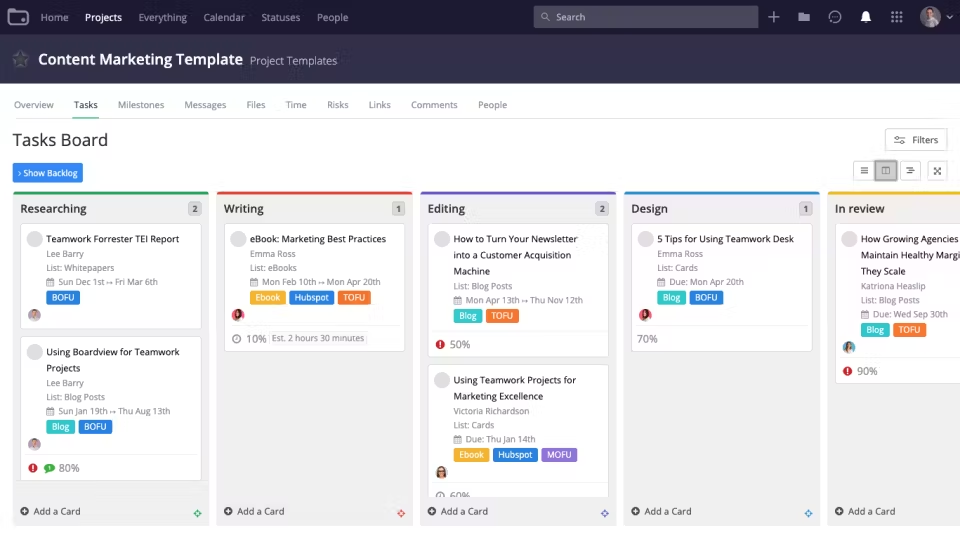
Teamwork is a unified project management software designed specifically for client-facing businesses. It has built-in tools for project tracking, time tracking, and budget forecasting.

It’s a better alternative to Smartsheets for teams who work with multiple external clients and want features like invoice generation and time tracking for smooth client collaboration.

Who Is It For?

Client-service businesses of all types–marketing agencies, consulting firms, and creative agencies

Teamwork’s Top Features

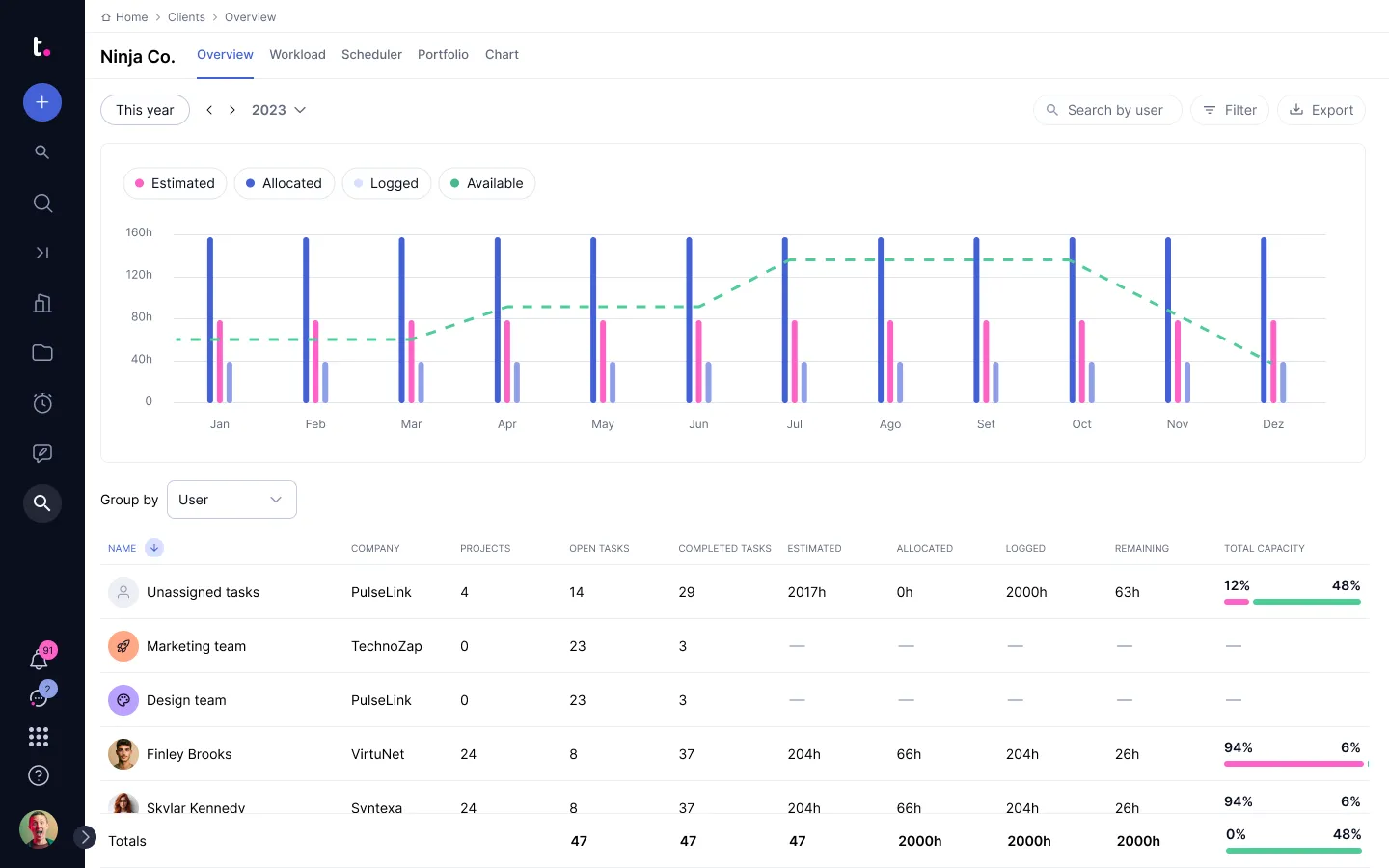
  • Resource management: Get an overview of your team’s day-to-day capacity and plan and allocate resources based on future forecasts
  • Built-in time tracking: Track and manage your team’s completion time and bill your clients for accurate invoicing and budget management.
  • Multiple built-in reporting dashboards: Time tracking reports, profitability reports, and project health reports enable you to get a 360-degree view of your projects.

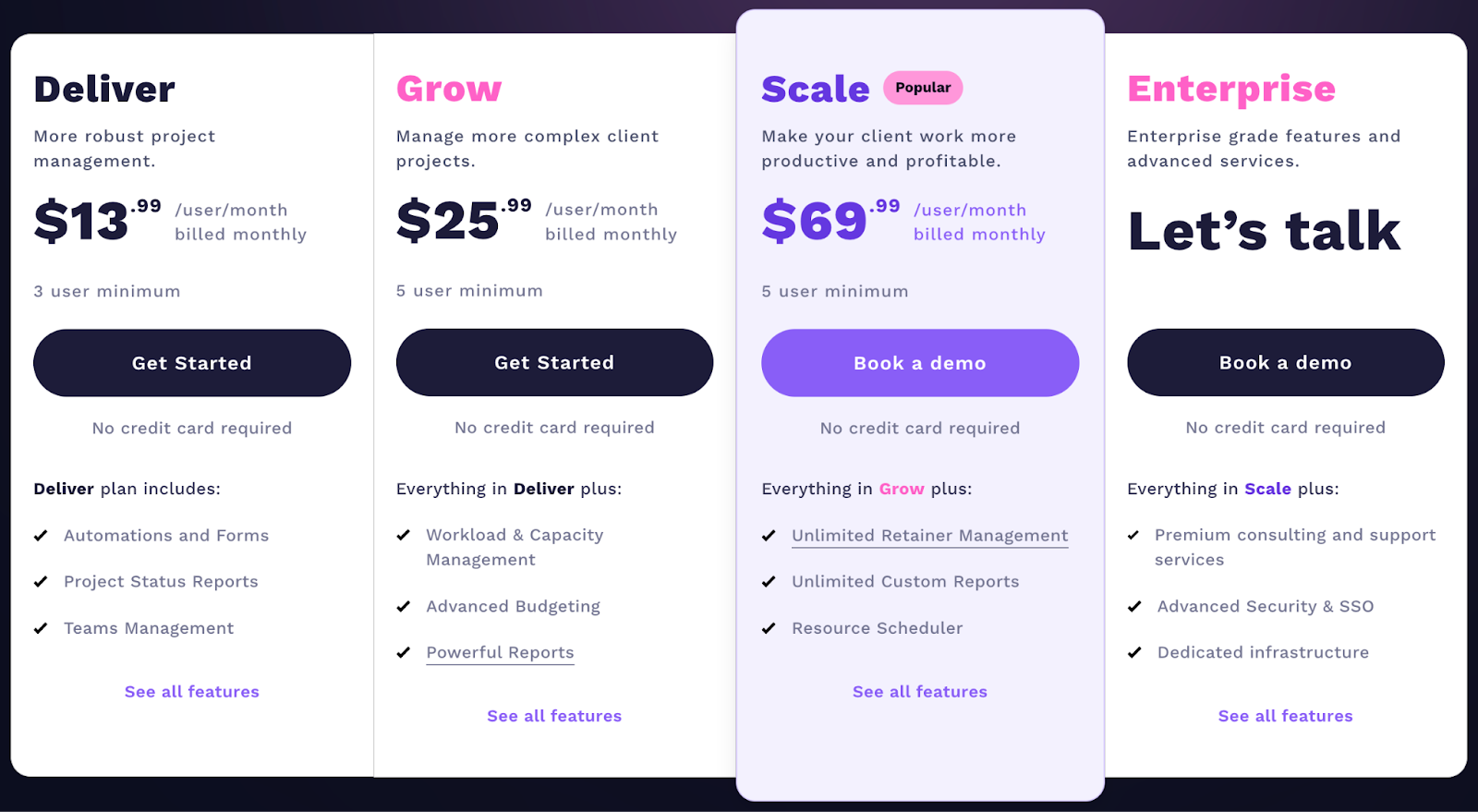
Teamwork Pricing

Teamwork.com offers a 30-day free trial and a forever free plan for up to 5 users. Their paid plan is based on per-user pricing and includes the following:

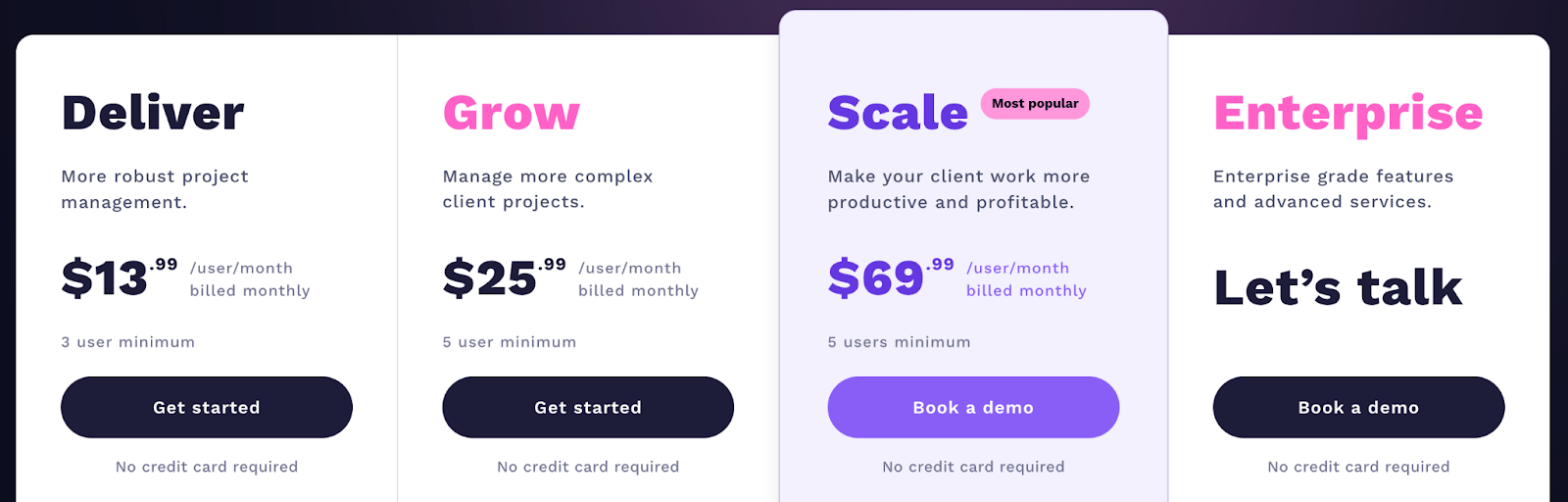
  • Deliver: $13.99 per user/month requires a minimum of 3 users, time tracking, client company management, and 4 project views (List, Table, Boards, and Gantt chart).
  • Grow: $25.99 per user/month requires a minimum of 5 users, resource scheduling, If/then conditional logic for forms, and a custom domain with SSL.
  • Scale: $65.99 per user/month requires a minimum of 5 users, unlimited retainer management, projects, and customer reports.
  • Enterprise: Dedicated Customer Success Manager and advanced security. Contact sales for a quote.

Teamwork Pros and Cons

✅ Customizable workflows and templates

✅ Built-in messaging, time tracking, invoicing, and budgeting feature

✅ Invite and collaborate with external users (vendors or contractors)

❌ Abundance of features and options can be overwhelming

❌ Limited native integration with heavy reliance on Zapier

#9: Jira

Best for: DevOps issue tracking and supporting IT workflows

Similar to: Monday.com

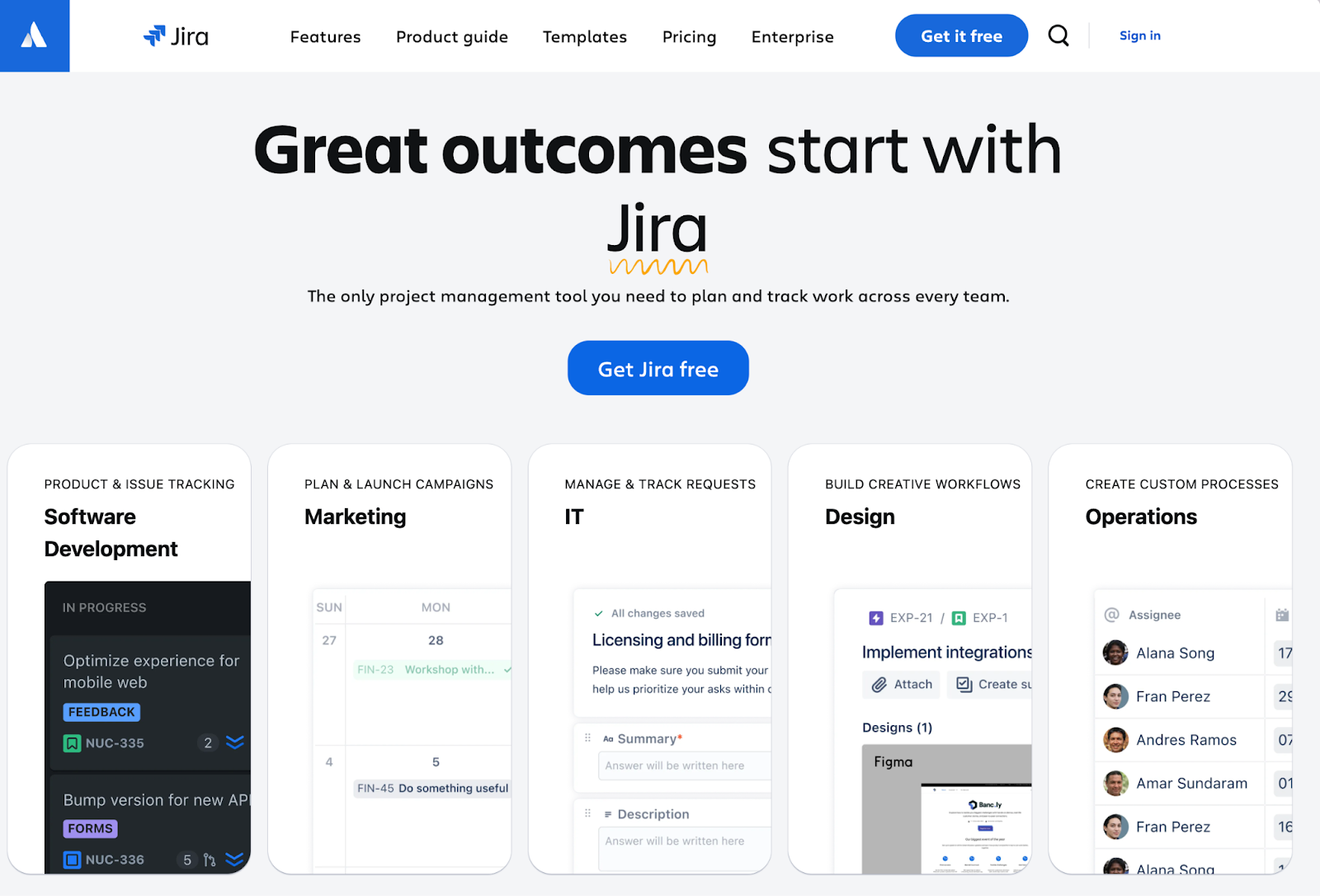
Jira is a robust project management software, part of Atlassian’s product suite, made primarily for software development teams.

Jira’s software dev use cases with features like shared release dates, while Smartsheet is suited for teams with different use cases.

Who Is It For?

Software development and IT teams.

Jira’s Top Features

  • Roadmaps: Get a high-level overview of planned sprints with individual tasks (epics in Jira) to monitor sprints’ progress and identify any roadblocks.
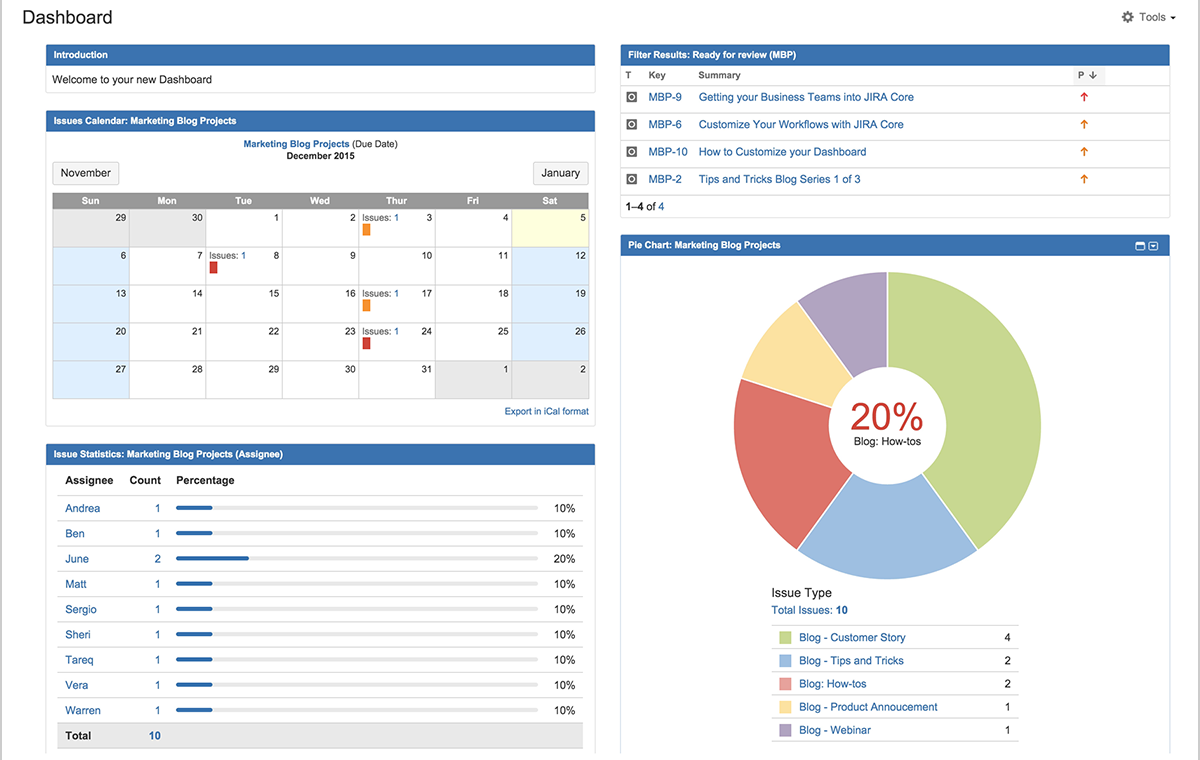
  • Advanced reporting dashboard: Get contextual insights through burndown charts, velocity charts, cumulative flow diagrams, resolution time reports, and sprint reports.
  • Bug and issue tracking: Built-in robust bug and issue tracking capabilities allow you to report, track, and manage bugs and issues throughout the development lifecycle.

Jira Pricing

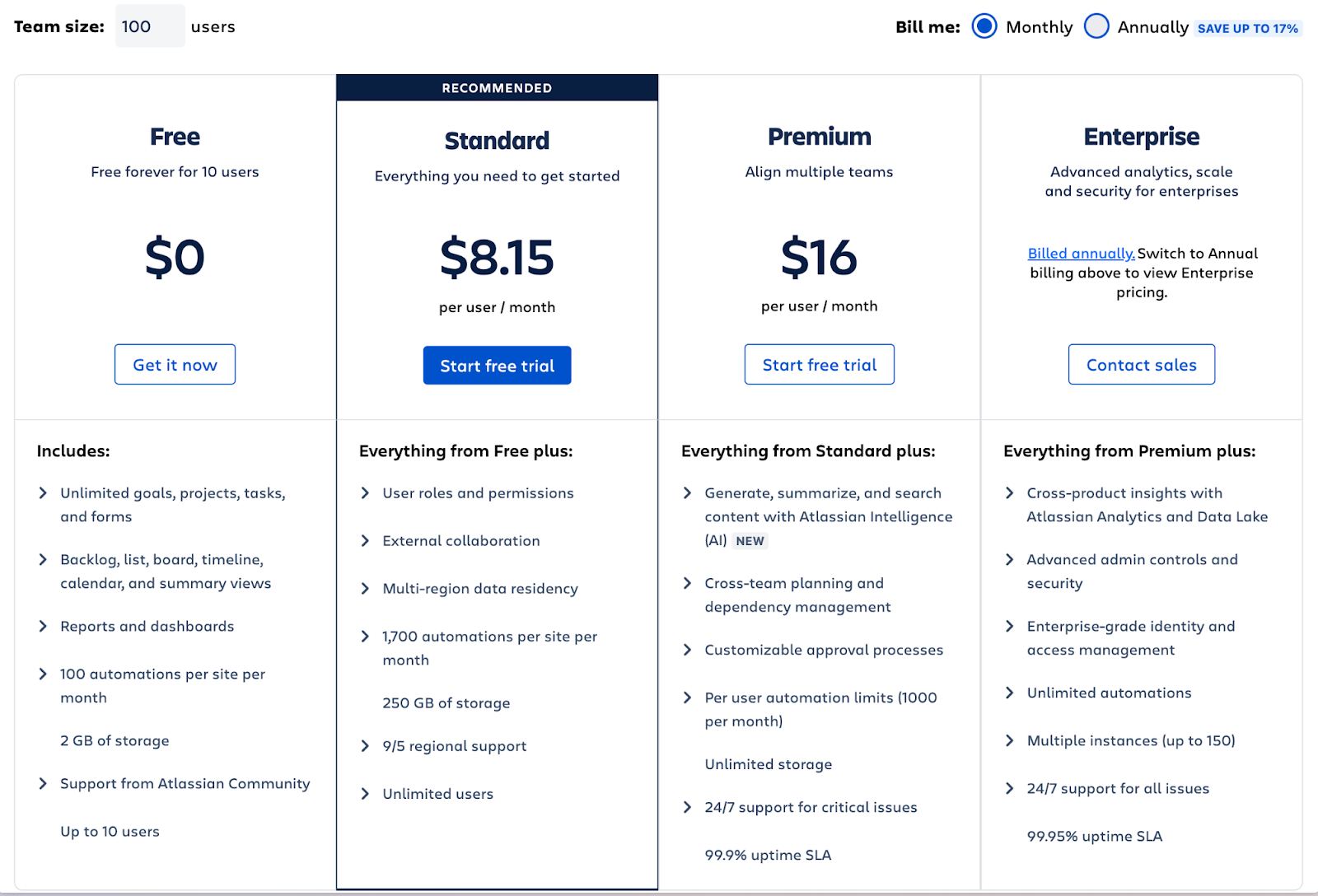
Jira offers both a free plan and a 7-day free trial for three paid plans. The paid plans are based on a maximum user cap. For up to 100 users, access pricing is as follows:

  • Standard: Starts at $8.15 per user/month, including audit logs, unlimited customizable workflows, and project templates.
  • Premium: Start at $16 per user/month, including unlimited storage and cross-project management.
  • Enterprise: Unlimited automation, Atlassian Analytics, Atlassian intelligence (AI). Contact sales for a quote.

Jira offers a more affordable entry-level pricing plan than Smartsheet with much advanced features suitable for technical teams.

Jira Pros and Cons

✅ Easy to configure dashboards

✅ 1000+ third-party integration via the Atlassian marketplace 

❌ Limited team collaboration options

❌ Out-dated and non-intuitive user interface

#10: Rows

Best for: Data analysis and visualization with advanced data integrations

Similar to: Asana and Airtable

Rows is an advanced version of Microsoft Excel and Google Sheets that helps you analyze and visualize vast amounts of data at lightning speed.

Rows is a good alternative to Smartsheet if your main focus is to collect, organize, and present data in an intuitive and appealing spreadsheet format.

Who Is It For?

Small to medium-sized businesses, freelancers, or agencies who deal with various data sources.

Rows’s Top Features

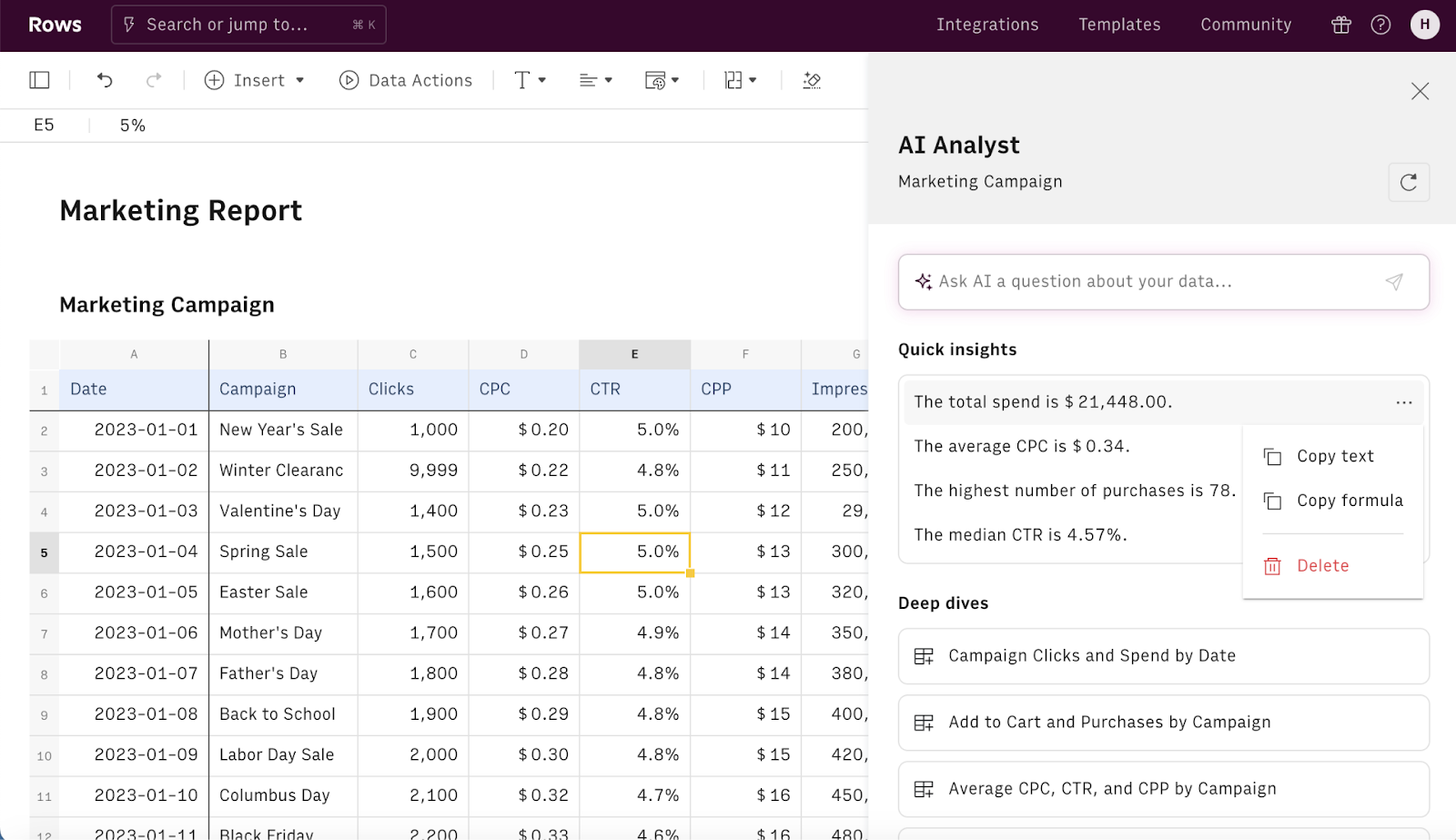
  • Built-in AI: Rows AI helps you generate text for visual graphs, answer questions related to data analysis, and do advanced calculations through proprietary functions. Rows integrate with OpenAI, giving you access to 14 pre-defined functions, such as SENTIMENT_ANALYSIS_OPENAI or cleanup data using APPLY_TASK_OPENAI.
  • API Integrations: Rows excels in connecting to various APIs directly from spreadsheets, making it easy to share data across various spreadsheets and tools.

Rows Pricing

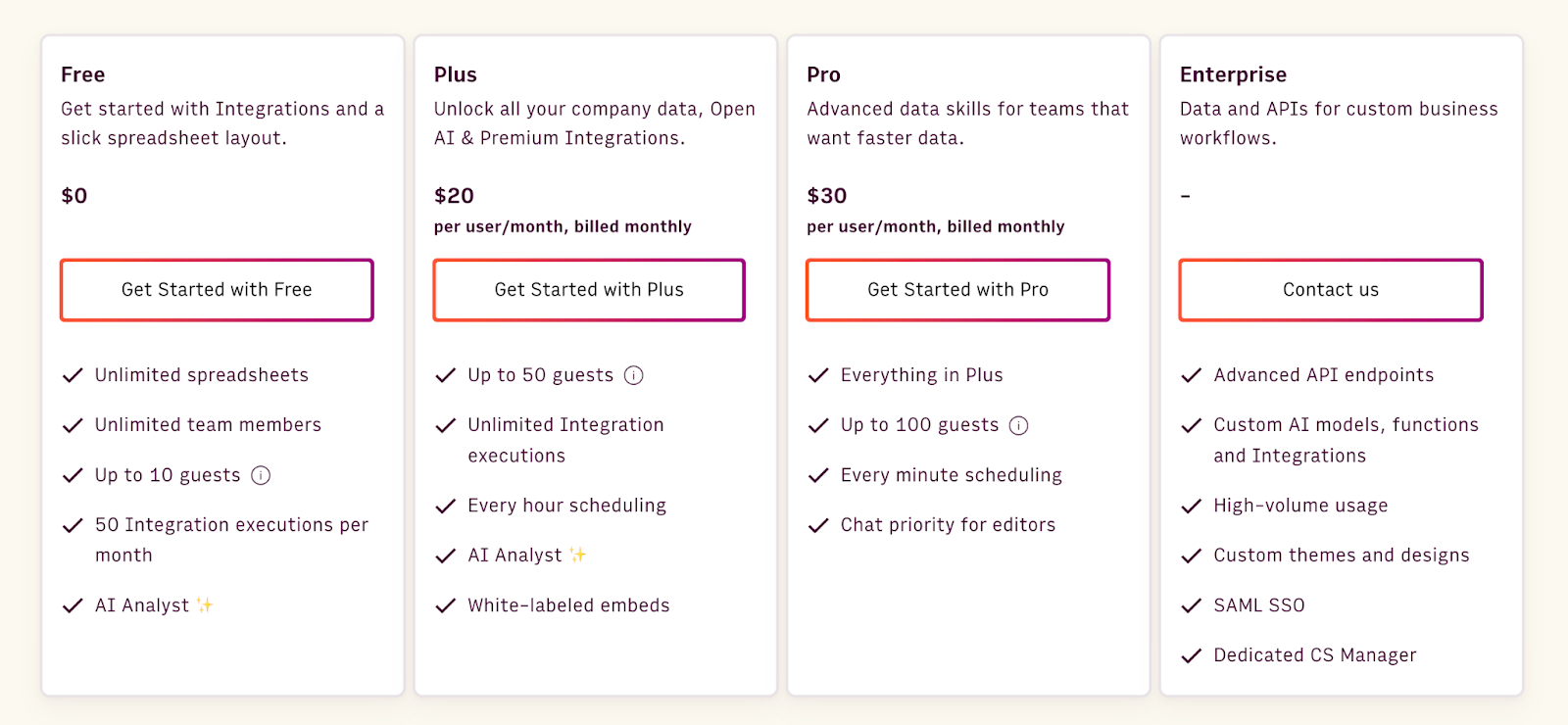
Rows offer a generous free plan with unlimited members onboarding and up to 10 guests. They have three paid plans:

  • Plus: $20 per user/month, including unlimited spreadsheets and 30 days of version history.
  • Pro: $30 per user/month, including custom branding, 100 guest invites (view-only access), and 2 years of version history access.
  • Enterprise: Dedicated CS Manager, Custom API endpoints, and custom integrations. Contact sales for a quote.

Compared to Smartsheet, Rows offers basic data analysis functionalities at a reasonable price best suited for teams with low budgets.

Rows Pros and Cons

✅ Intuitive interface

✅ Interactive widgets such as buttons, input fields, and data pickers

❌ No desktop app

❌ Limited team collaboration

Manage your projects smoothly with SmartSuite

Closely monitor your team’s need to pick the right project management tool.

If you need advanced collaboration with external users and built-in tools like invoicing and time tracking, consider trying Wrike or Teamwork.

For a user-friendly interface and highly customizable workflows, Asana or ClickUp would be perfect. But, if you work on complex projects and are willing to allocate huge budgets, Microsoft Project is the right choice.

But if you want a combination of cost-effective pricing, an intuitive interface, smooth collaboration, and powerful automation to drive your projects forward, SmartSuite is the ideal choice.

With SmartSuite, you get the perfect blend of efficiency and adaptability to meet all your project management needs. Try it and experience how it transforms your work.

Beginner’s Guide to SmartSuite Whiteboards with 10 Use Case Examples

Software Stack Editor · September 2, 2024 ·

In the dynamic world of project management, digital whiteboards have become an indispensable tool for teams seeking to visualize ideas, streamline workflows, and collaborate seamlessly. With SmartSuite’s Whiteboard feature, you have a powerful, integrated tool right at your fingertips—no extra software needed. Whether you’re brainstorming with your team, planning a project, or mapping out complex processes, SmartSuite Whiteboards can help you bring your ideas to life.

In this guide, we’ll take you through the essentials of SmartSuite Whiteboards and explore 10 practical use cases across various industries to demonstrate how you can leverage this feature to enhance your workflows.

Here’s a refined version of the blog content, tailored to appeal to professionals in industries like Global Risk and Compliance (GRC), Product Management, and Project Management:

Unlock the Power of SmartSuite Whiteboards: 10 Industry-Specific Use Cases

In today’s fast-paced, digital-first world, the ability to collaborate effectively across teams and projects is a key differentiator. For industries such as Global Risk and Compliance (GRC), Product Management, and Project Management, having the right tools to visualize, plan, and execute ideas is critical. Enter SmartSuite’s Whiteboards—a dynamic digital canvas designed to elevate your workflows, streamline processes, and drive results.

Why Whiteboards Matter

1. Cross-Functional Collaboration:

  • Whether you’re managing risks, developing products, or overseeing complex projects, whiteboards facilitate real-time collaboration across departments and geographical locations. This ensures that all stakeholders are aligned and engaged throughout the process.

2. Integrated Workflow Management:

  • Whiteboards aren’t just standalone tools—they integrate seamlessly with your existing workflows. This means you can brainstorm, plan, and execute all within the same platform, reducing the need for multiple tools and ensuring a smooth transition from ideas to actionable tasks.

3. Visual Data Representation:

  • In industries where data-driven decisions are paramount, the ability to visualize complex information quickly and clearly is invaluable. SmartSuite Whiteboards allow you to create detailed diagrams, flowcharts, and dashboards that make data accessible and actionable.

Welcome to SmartSuite Whiteboards

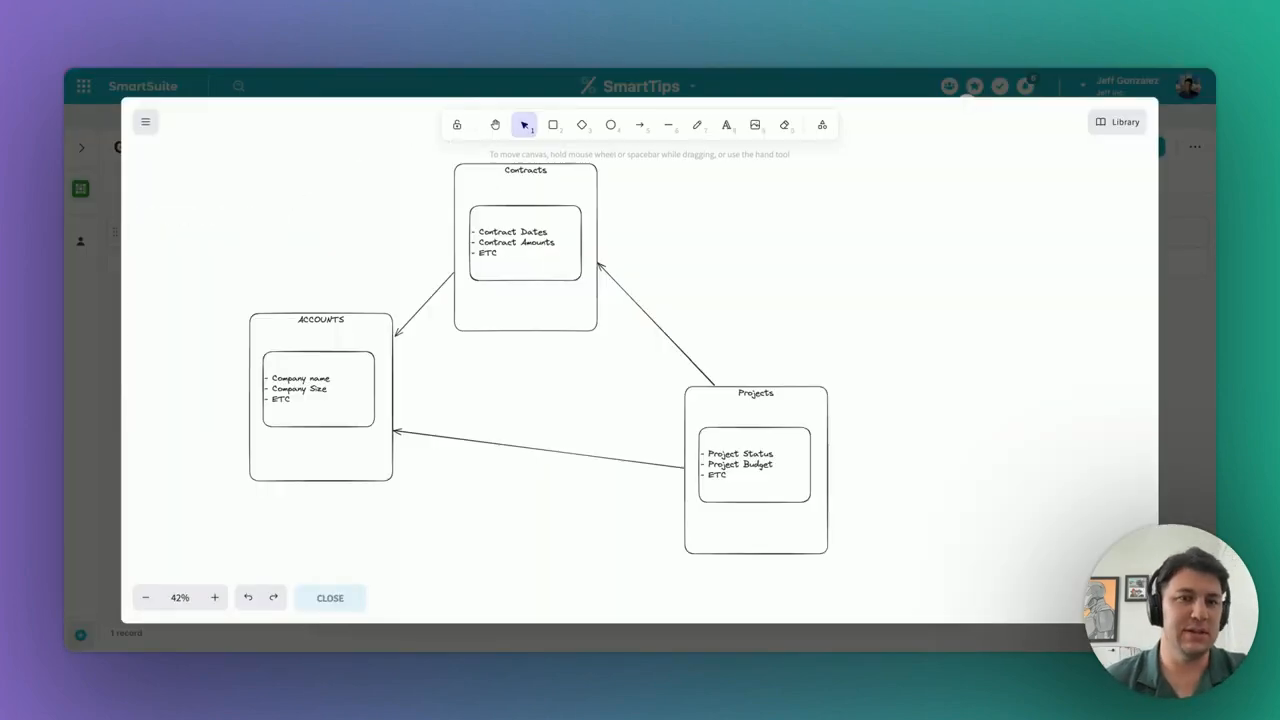
SmartSuite Whiteboards provide a versatile, visual workspace designed to foster collaboration and creativity. More than just a blank canvas, our whiteboards allow you to integrate directly with your records, ensuring that your ideas are not just captured but seamlessly connected to your ongoing projects.

Key Features of SmartSuite Whiteboards:

  • Native Integration: Work directly within SmartSuite without needing to switch between apps.
  • Collaboration: See who’s viewing and contributing in real-time, making teamwork more efficient.
  • Customizability: From shapes and lines to embedded data and dynamic elements, tailor your whiteboards to suit your specific needs.

Before we dive into the use cases, let’s get familiar with the basics of setting up and using a SmartSuite Whiteboard.

Getting Started with SmartSuite Whiteboards

To begin using SmartSuite Whiteboards, navigate to any SmartDoc field within your solution. Here’s a quick overview of how to get started:

  1. Open a SmartDoc Field:
    • Use the / command to access the Whiteboard tool.
    • A blank canvas will appear, ready for your input.
  2. Basic Drawing Options:
    • Click and drag to draw.
    • Use the toolbar to add shapes, text, and connectors.
    • Customize elements using the right sidebar, adjusting colors, opacity, and stroke widths.
  3. Advanced Features:
    • Embed Record Fields: Integrate dynamic data from your records directly into your whiteboard.
    • Libraries: Save and reuse elements across multiple whiteboards to maintain consistency.

Now that you have a grasp on the basics, let’s explore how SmartSuite Whiteboards can be applied across various industries.

10 Detailed Use Case Examples for SmartSuite Whiteboards

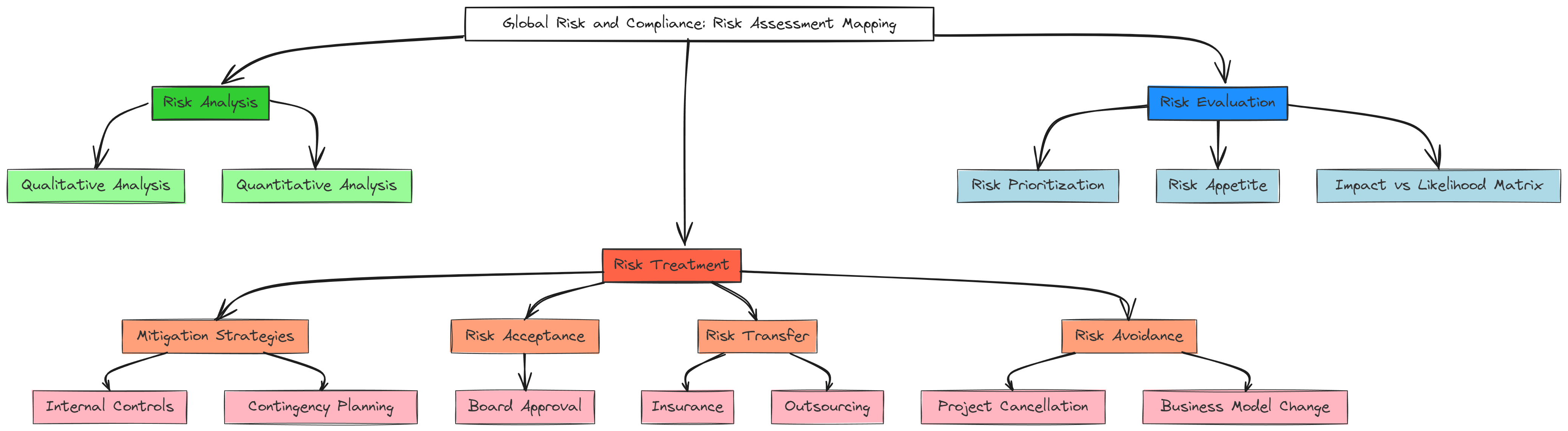
1. Global Risk and Compliance: Risk Assessment Mapping

  • Use Case: Organizations operating in multiple countries face a myriad of risks, including regulatory changes, political instability, and compliance requirements. To effectively manage these risks, it’s crucial to have a clear visual representation of potential issues and their corresponding mitigation strategies.
  • Example Design:
    • Layout: Start with a central node representing the global operation. Use connectors to link to individual risk factors, such as “Regulatory Compliance,” “Political Risks,” and “Market Volatility.”
    • Dynamic Data Integration: Embed real-time data from your compliance records, showing the current status of each risk area.
    • Risk Mitigation: Add another layer of connectors linking each risk to specific mitigation strategies or contingency plans, ensuring that your team can easily follow the flow from risk identification to resolution.

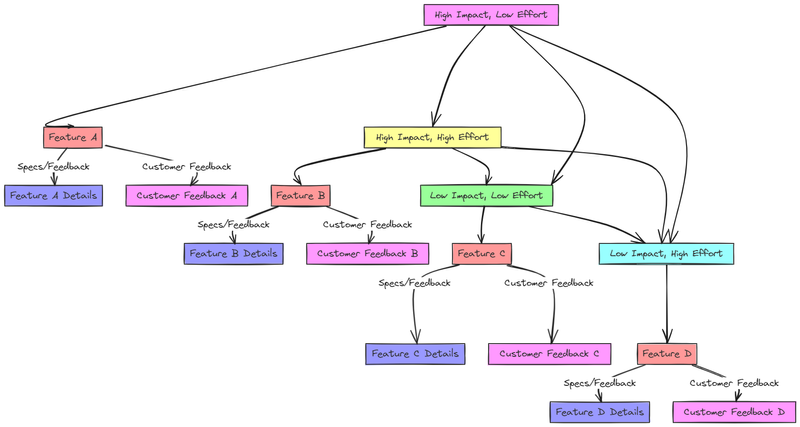
2. Product Management: Feature Prioritization Matrix

  • Use Case: In product management, deciding which features to develop next is often a balancing act between the impact on users and the effort required by the team. A visual prioritization matrix helps teams quickly identify which features should be focused on.
  • Example Design:
    • Matrix Setup: Create a 2×2 grid with axes labeled “Impact” (High to Low) and “Effort” (High to Low).
    • Feature Placement: Place features within the grid based on team discussions. For example, “Feature A” might be in the High Impact, Low Effort quadrant, indicating it should be prioritized.
    • Task Integration: Embed feature specs or customer feedback directly into the whiteboard, so anyone viewing the board can easily access the rationale behind each feature’s placement.

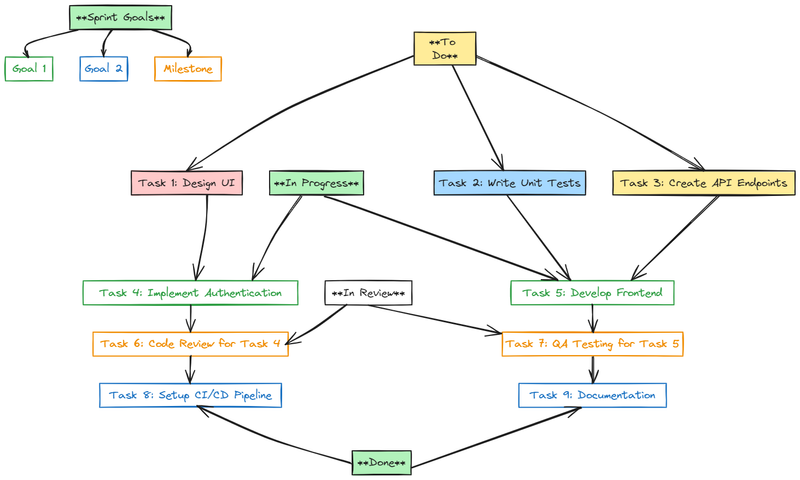
3. Software Development: Sprint Planning Board

  • Use Case: Agile teams need a clear plan for each sprint, including what tasks are in progress, what’s done, and what’s up next. A sprint planning board on SmartSuite Whiteboards helps keep everyone on the same page.
  • Example Design:
    • Swimlanes: Create swimlanes for “To Do,” “In Progress,” “In Review,” and “Done.”
    • Task Cards: Convert sticky notes into task cards that you can move between swimlanes as work progresses. These cards can be linked to actual tasks within SmartSuite, allowing for real-time updates.
    • Sprint Goals: Add a section at the top of the board to outline the sprint goals and any specific milestones the team needs to achieve.

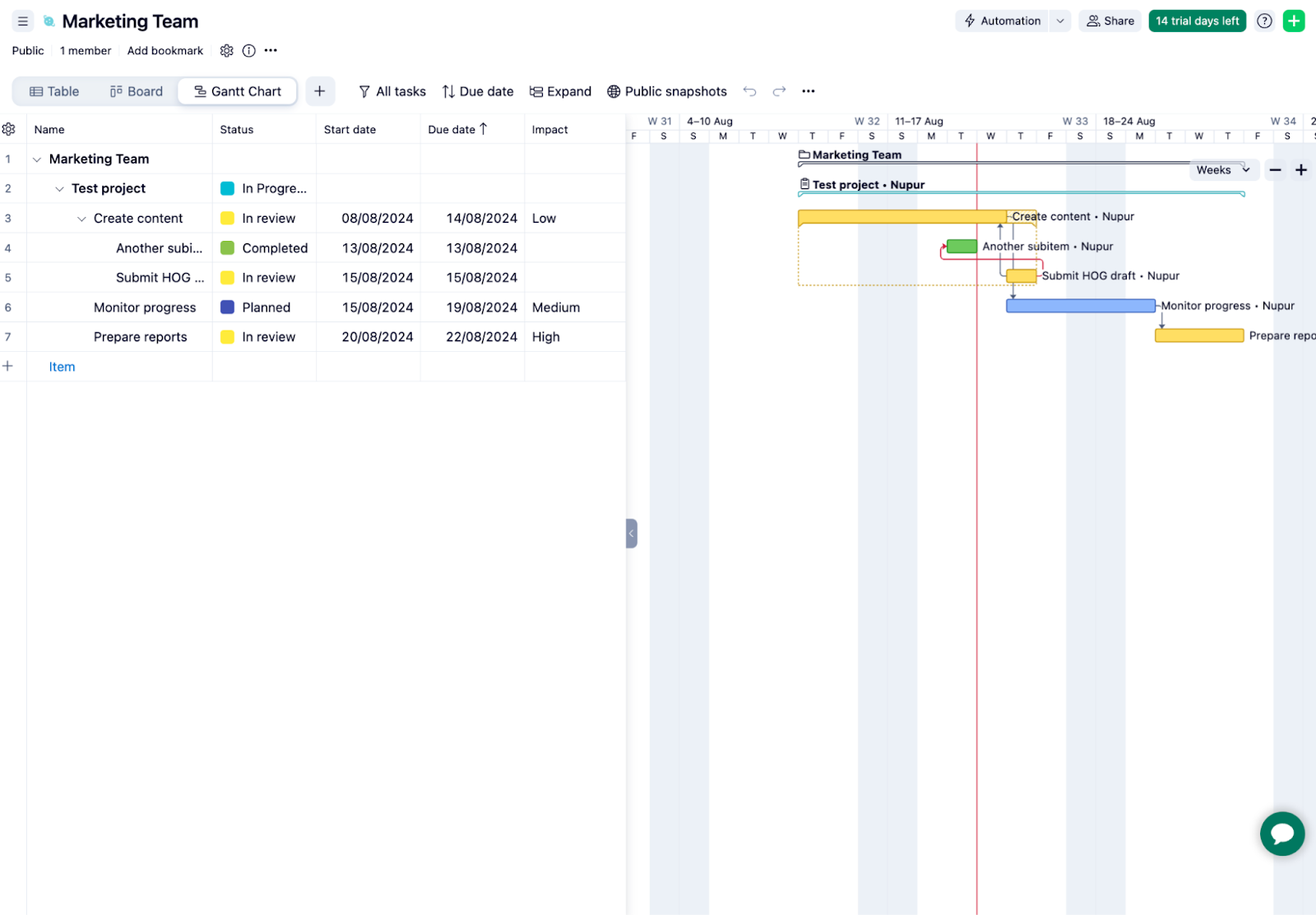
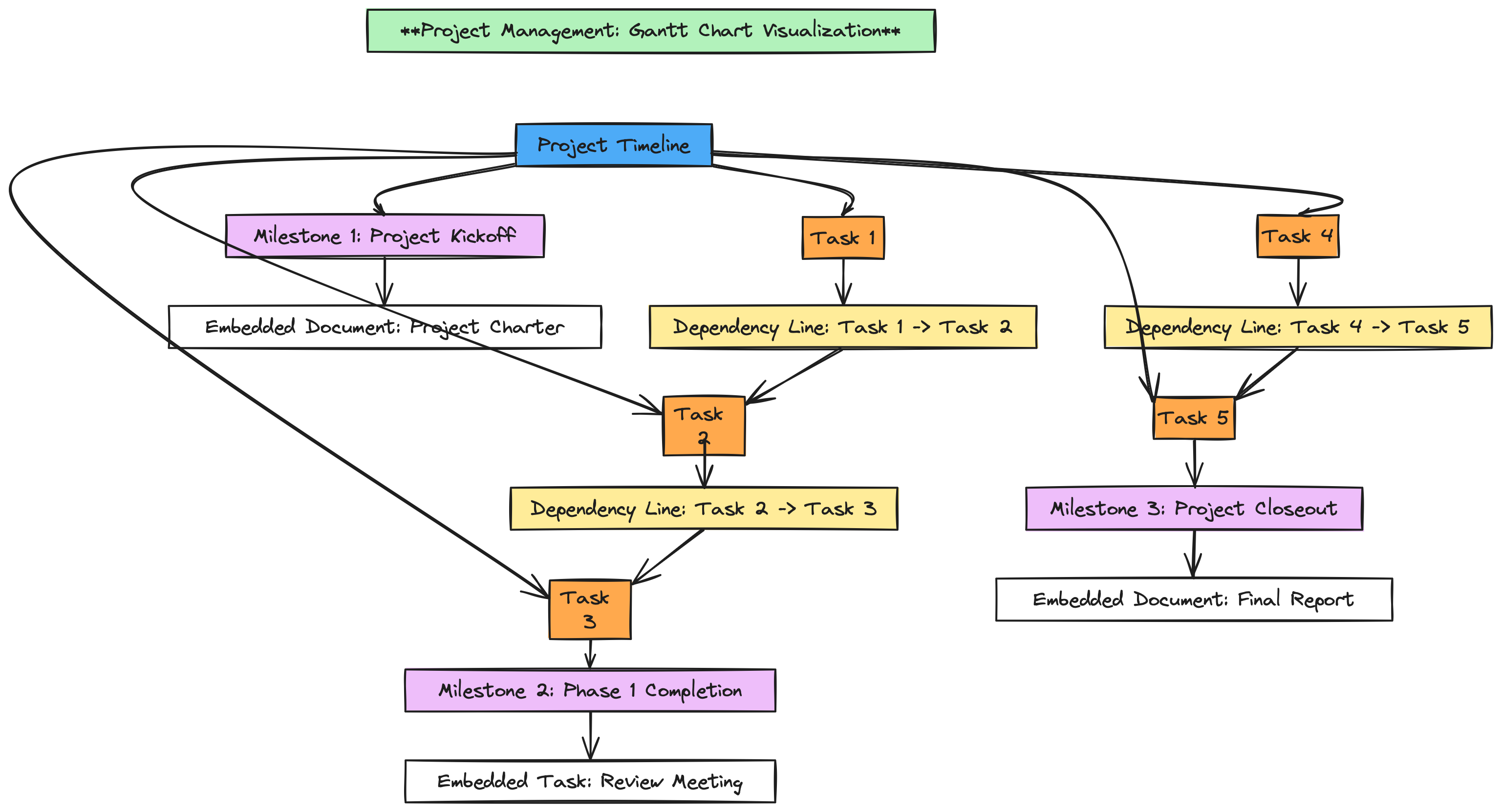
4. Project Management: Gantt Chart Visualization

  • Use Case: Managing project timelines and ensuring that all team members are aware of deadlines is key to successful project management. A Gantt chart provides a visual timeline that helps in tracking project progress and dependencies.
  • Example Design:
    • Timeline Creation: Use horizontal bars to represent different tasks or phases of the project, arranged along a timeline. Each bar should be proportional to the task’s duration.
    • Dependencies: Draw lines between tasks to represent dependencies, ensuring everyone understands which tasks need to be completed before others can begin.
    • Milestones: Mark key milestones on the timeline. Embed relevant documents or tasks into the whiteboard so that clicking on a milestone reveals additional details.

5. Marketing: Campaign Brainstorming

  • Use Case: Planning a marketing campaign involves generating ideas, organizing them into strategies, and refining them into actionable steps. A whiteboard serves as the perfect tool for this creative process.
  • Example Design:
    • Idea Generation: Use sticky notes to jot down campaign ideas. These can be organized into categories like “Social Media,” “Email,” “Content,” etc.
    • Grouping Ideas: Drag and drop related ideas into clusters. For example, group all social media ideas together and all email marketing strategies in another section.
    • Embedding Content: Embed links to past campaigns, market research, or customer personas directly into the whiteboard for quick reference during the brainstorming session.

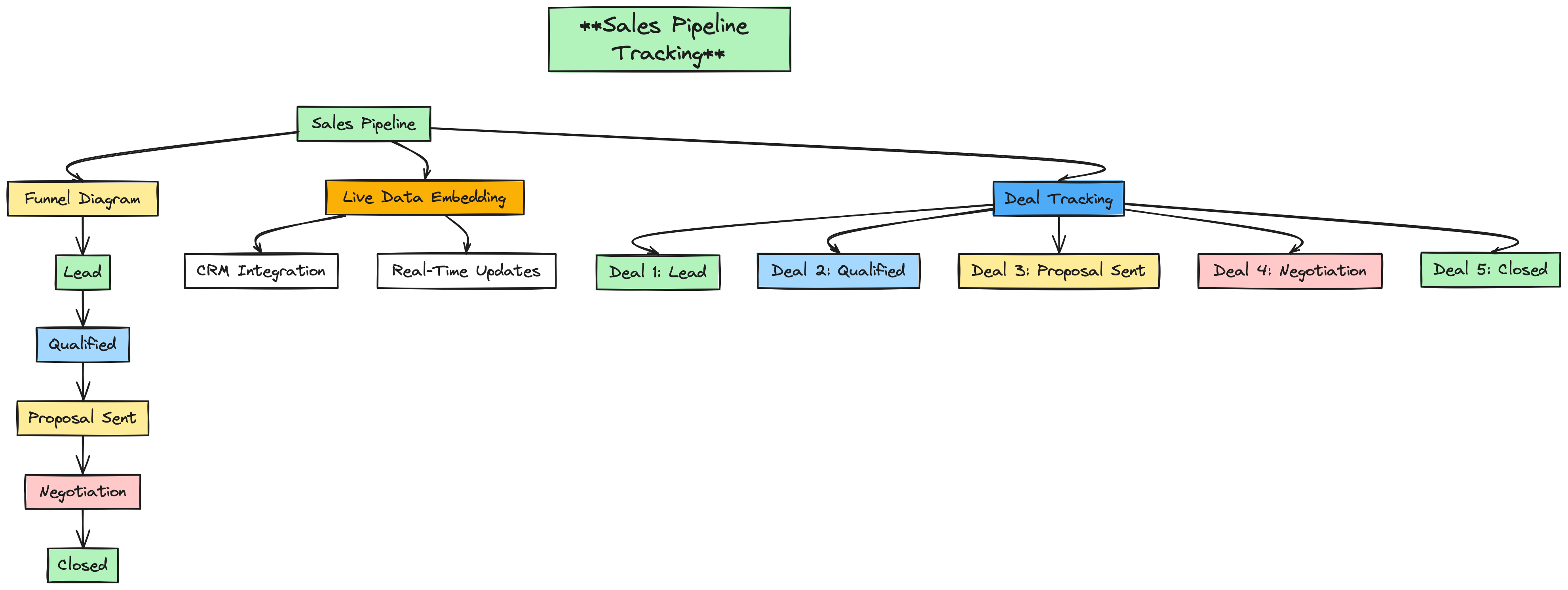
6. Sales: Pipeline Visualization

  • Use Case: Sales teams need to track opportunities as they move through the sales pipeline. A visual pipeline helps sales managers and representatives keep an eye on potential deals, forecast revenue, and identify where to focus their efforts.’

‍

  • Example Design:
    • Funnel Diagram: Create a funnel-shaped diagram with stages like “Lead,” “Qualified,” “Proposal Sent,” “Negotiation,” and “Closed.”
    • Live Data Embedding: Embed live data from your CRM into the whiteboard, allowing the sales team to see up-to-date information on each deal.
    • Deal Tracking: Place sticky notes or task cards within the funnel stages to represent current deals, and update them as they progress through the pipeline.

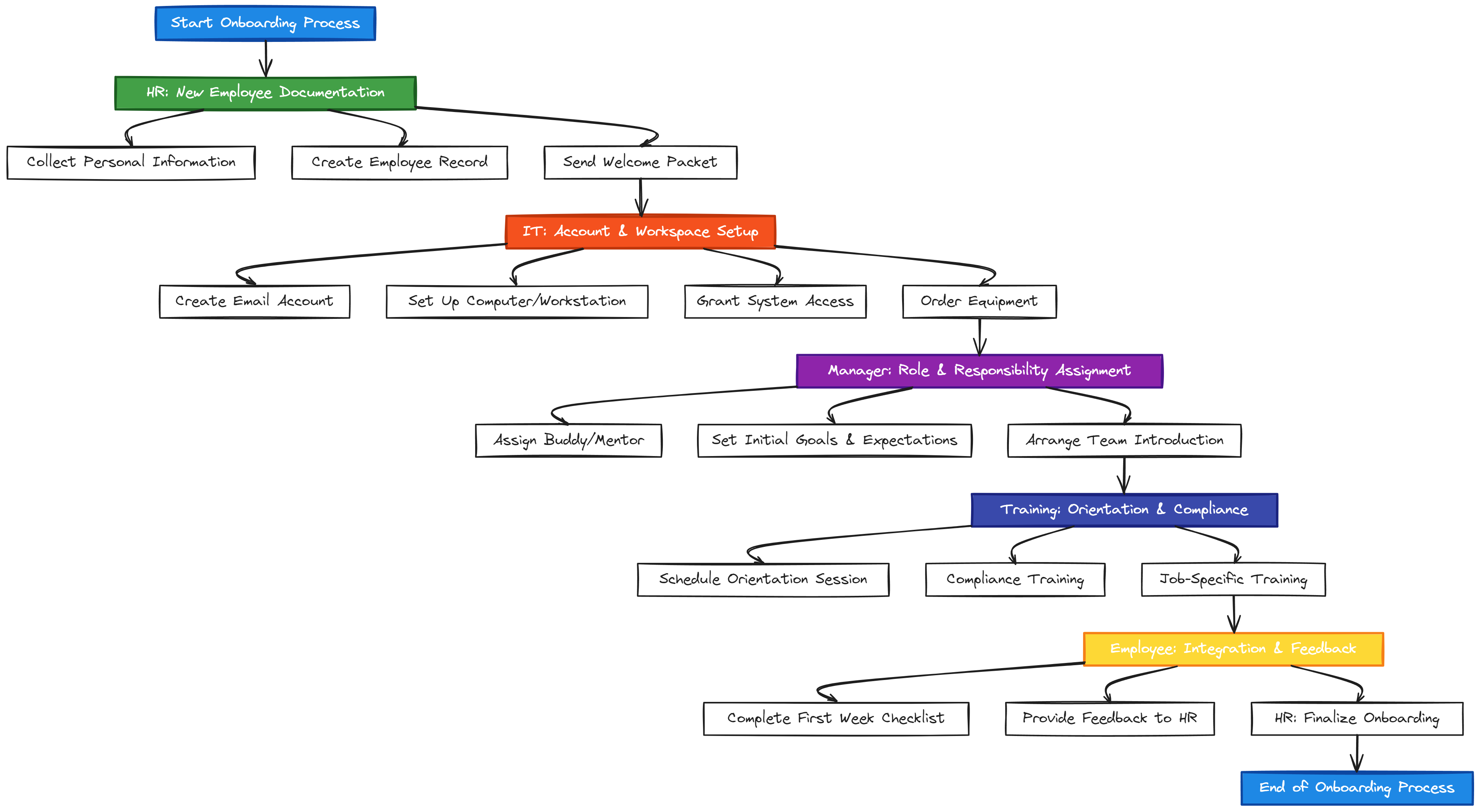
7. Human Resources: Onboarding Process Flow

  • Use Case: Onboarding new employees involves coordinating between multiple departments, each responsible for different tasks. A visual flowchart helps ensure that nothing is overlooked during the onboarding process.

‍

  • Example Design:
    • Flowchart Design: Start with an “Onboarding Start” node and create branches for tasks related to IT setup, HR paperwork, team introductions, and training schedules.
    • Task Checklists: Embed checklists for each department’s responsibilities, ensuring that everyone knows what needs to be done and by when.
    • Integration: Link to HR documents or forms that need to be completed, making it easy for onboarding managers to track progress.

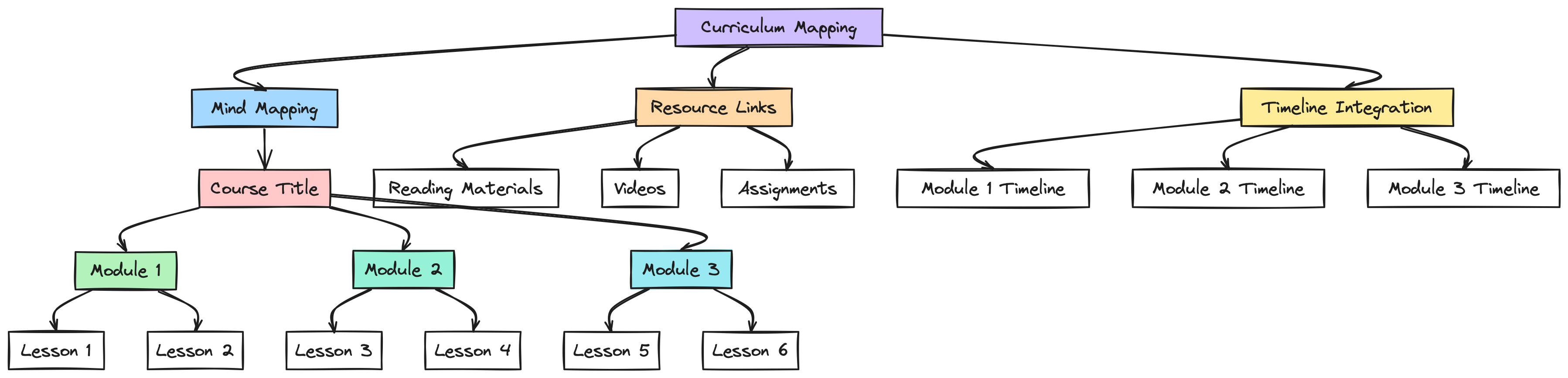
8. Education: Curriculum Mapping

  • Use Case: Educators and administrators can use whiteboards to plan out entire curricula, ensuring that course objectives are met and that there is a logical flow from one lesson to the next.

‍

  • Example Design:
    • Mind Mapping: Create a mind map with the central node as the course title. Branches can represent different modules or units, with further sub-branches for individual lessons or topics.
    • Resource Links: Embed links to reading materials, videos, or assignments directly into the whiteboard so that educators have everything they need in one place.
    • Timeline Integration: Add a timeline to show when each module or lesson will be taught, helping to keep the curriculum on schedule.

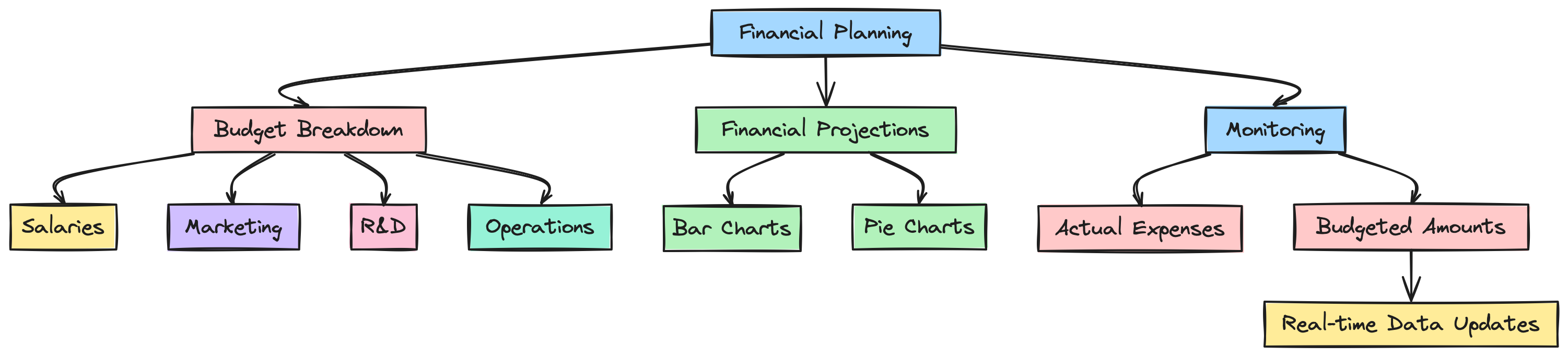
9. Finance: Budget Planning Visualization

  • Use Case: Financial planning requires careful allocation of resources and tracking of expenses. A visual budget plan helps finance teams communicate their plans clearly to stakeholders.
  • Example Design:
    • Budget Breakdown: Use charts to represent different budget categories, such as “Salaries,” “Marketing,” “R&D,” and “Operations.”
    • Financial Projections: Embed financial models or forecasts directly into the whiteboard. Use bar charts or pie charts to visualize these projections.
    • Monitoring: Create sections to track actual expenses against budgeted amounts, updating the whiteboard in real time as new data comes in.

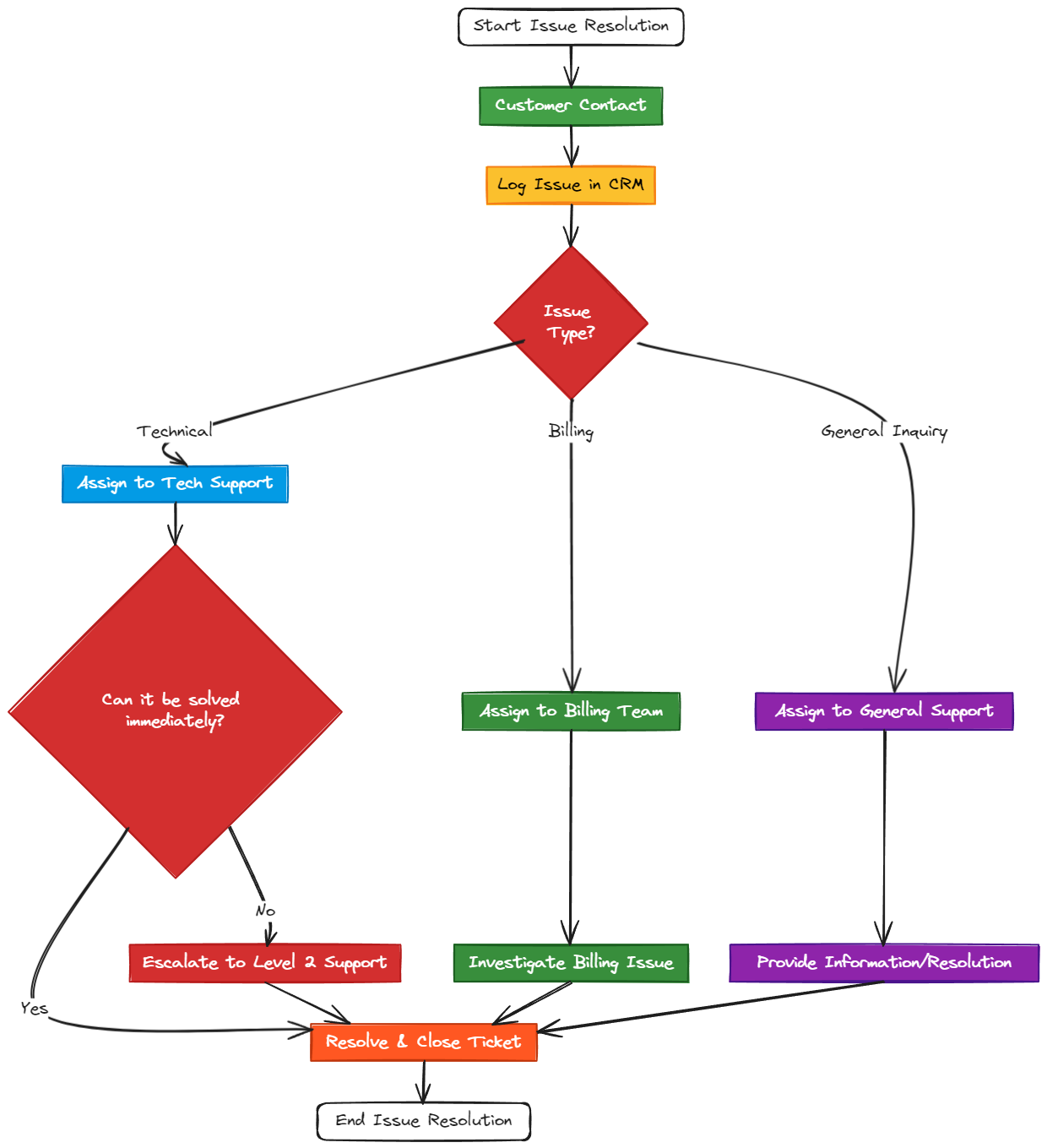
10. Customer Support: Issue Resolution Workflow

  • Use Case: Resolving customer issues efficiently requires a clear process that support teams can follow. A visual workflow ensures that no steps are missed and that issues are resolved promptly.

‍
‍

  • Example Design:
    • Decision Tree: Create a decision tree that guides support representatives through the process of diagnosing and resolving issues.
    • Knowledge Base Integration: Embed links to relevant knowledge base articles or past case studies within the whiteboard, allowing reps to access information quickly.
    • Task Cards: Convert common issues or steps into task cards that can be checked off as the issue is resolved, ensuring that the entire process is documented.

SmartSuite Whiteboards offer a versatile and powerful way to visualize and manage your business processes across various industries. By integrating real-time data, customizing your visuals, and collaborating in a dynamic environment, you can enhance the efficiency and clarity of your workflows. Whether you’re managing a complex project, brainstorming new ideas, or mapping out strategic initiatives, these use cases provide a solid foundation for getting the most out of SmartSuite Whiteboards.

Start experimenting with these use cases today, and discover how SmartSuite Whiteboards can transform the way you work!

‍

10 Must-Try Quickbase Alternatives for Better Workflow Efficiency in 2024

Software Stack Editor · August 21, 2024 ·

Quickbase is an amazing tool to build custom apps with powerful integrations including Quickbooks and Zapier.

Expensive pricing plans, slow performance, and outdated UI make it less appealing to teams that want a scalable and affordable project management tool.

We’ve analyzed hundreds of custom reviews and researched various tools to curate this list of 10 Quickbase alternatives. Each software has unique features, strengths, drawbacks, and pricing plans.

We will walk you through each tool to help you find the best project management tool based on your goals, budget, and team size.

Before we dive in, let’s see what makes users shift from Quickbase to its alternatives.

Why Users Switch to Quickbase Alternatives?

Quickbase offers a centralized system to track, plan, and manage complex projects. Some key features that stand out include:

  • Organization and management of large datasets in a central workspace.
  • High-level customizations with no-code app-building functionality
  • Ease of integration with accounting platforms including Quickbooks Online, and Xero without any connector like Workato or Zapier.

Despite such useful features, Quickbase stumbles on performance and affordability, making it an expensive tool, especially for teams with a small budget and a limited number of users.

Reason 1: High per-user pricing with a minimum user cap

Quickbase demands a minimum of 20 users with $35/user per month (billed annually). It brings the cost of their starting plan up to $700 per month, making it an expensive project management tool, especially for small teams.

Additionally, on their starting plan, you don’t get access to Gantt charts, which are available on their higher-tier plans.

Source

Reason 2: Speed issues with multiple-user access

Quickbase response rate slows down as multiple users work on the system. Any edit made by co-workers doesn’t get updated in real time. 

Users have complained that due to slow loading speed, pages take longer to appear on-screen, leading to slow task execution.

Source

Reason 3: Basic features at a higher pricing

Quickbase pricing doesn’t justify the features offered. Many users have complained about basic form functionalities and visualization when performing analyses for different projects.

Source

In a nutshell, teams who want affordable feature-rich tools to manage different projects, look for Quickbase’s alternatives. 

Let’s dive into the list ⤵️

What are the best alternatives to Quickbase?

Based on our research and user reviews, here’s a rundown of the best Quickbase alternatives in 2024:

  • SmartSuite: All-in-one work management platform that integrates project management, task tracking, and collaboration tools into a single, customizable workspace.
  • Airtable: Building and managing large databases in a spreadsheet format
  • Appsheet: Building custom apps for different use cases
  • Appian:  Building end-to-end no-code process automation
  • Teamwork: External client collaboration and project management
  • Monday.com: Task and project management across various industries
  • Asana: Managing projects through subtasks and automated workflows
  • Wrike: Managing complex projects and cross-functional collaboration
  • Jira: DevOps issue tracking and supporting IT workflows
  • Smartsheet: Managing complex projects using a spreadsheet-like interface

#1: SmartSuite

SmartSuite is a comprehensive project management tool that lets you manage all your projects in a centralized platform with built-in automation and a communication center.

Full disclosure: Even though SmartSuite is our own product, we aim to provide an honest perspective on why SmartSuite is the top ClickUp alternative available.

SmartSuite ranked first due to its feature-rich, affordable pricing plans, automated workflows, and advanced reporting.

Let’s see some of SmartSuite’s core features that make it the best Quickbase alternative.

Feature #1: Robust project management

SmartSuite’s project management feature helps you plan, track, and manage simple to complex projects. To make the whole process even easier, you get a plethora of built-in intuitive features to execute your tasks with utmost perfection.

[embedded content]

Some of the core functionalities are:

  • Task management: In SmartSuite, you can turn anything into tasks, be it a checklist item, comments, or sub-item, and assign it to the right person with a due date and priority status.
  • Milestones: Divide bigger projects into multiple tasks and assign milestones to track your project’s progress over time. By doing so, you can visualize each task as a stepping stone to the finish line of the project.
  • Files and project deliverables: Manage and organize all your documents within SmartSuite. You can attach files related to different projects, share feedback with your team, and manage version history all within the context of your work. And, if you want the typical way of sharing files as URLs, add links in each task’s property.
  • Time tracking: Monitor and evaluate time completion for different tasks and overall project. Built-in time tracking helps you group time entries together, see estimates, and segment billable and non-billable entries.

Feature #2: In-depth workflow visualization capabilities

Manage your project’s delivery, track the task’s progress, or understand resource usage for future projects with SmartSuite’s advanced reporting. You can add/remove fields, adjust the report views, configure the column positioning, and build custom fields.

[embedded content]

Some other amazing features of SmartSuite’s reporting:

  • Private or public reports: Share reports with public access, making it easier for everyone involved in the project to share quick access. If you want a granular view of your work, you can build private reports that are visible only to you.
  • Multi-view reporting: Visualize reporting in different views–-Grid, Card, Kanban, Timeline, Map, Calendar, or Dashboard. You can add as many views as you need to present a clear and in-depth analysis of your projects.
  • Easy exporting: Access your reports by printing or exporting them as PDF, Excel, Google Sheets, or CSV format.

Feature #3: No-code workflow automation

Set up simple to complex workflow automation with SmartSuite’s no-code automation builder. Let the automation take care of email notifications, status updates, and data synchronization.

[embedded content]

You can build simple workflows like sending a Slack message when a task status is updated or build multi-step automation to simplify processes. For each automation, you get six pre-defined triggers and 15+ actions. If you don’t find the right trigger and action, build your custom one.

Feature #4: Team Collaboration

SmartSuite offers native collaboration features to help teams manage their work and team in a single dedicated platform. The collaboration becomes seamless with the following core features:

  • Real-time updates and notifications: SmartSuite updates every time someone makes a change to any field or project. So, you’ll always have access to the updated version. In addition to that, all the team members are alerted at lightning speed in their notification center about any changes made or updates posted.
  • Comments and @mentions: Share feedback, loop in the right stakeholders, or assign tasks by tagging the right person for leaving a thoughtful comment. You also have the option to convert any comment into action items to work on later.
  • Communication center: With a native communication center, you can chat with your colleagues in 1:1 or group chat, send or receive emails, and get to know each other through a member’s directory. Having an integrated communication tool expedites the communication process and ensures your team is working with the right material at the right time to meet the goals.

SmartSuite Pricing

SmartSuite offers a 14-day free trial and a forever-free plan with access to automation, team collaboration, authentication, and more.

As for the paid plans, there are four options:

  • Team: Starts at $12/user per month, including 8+ dashboard views, 5000 automation runs, time tracking, and collaborative SmartDocs.
  • Professional: Starts at $28/user per month, including two-factor authentication, Gmail & Outlook integrations, and unlimited editors.
  • Enterprise: Starts at $35/user per month, including audit logs, data loss prevention, and 50,000 API calls monthly.
  • Signature: Customized plan tailored to your organization’s needs and team size.

How Does SmartSuite Compare to Quickbase?

SmartSuite is comprehensive project and work management software. Its task management feature allows you to plan, create, and track each task’s progress, while the team collaboration feature helps you keep the right stakeholders in the loop.

Quickbase, on the other hand, is a handy tool for building custom project workflows across various departments. It offers advanced automation, which can automate various processes. However, its high-end pricing and speed issues limit its functionalities.

SmartSuite shines in this area as, irrespective of the database, every dashboard gets updated in real-time, and you get updates from teammates at lightning speed. We offer all these features in a budget-friendly plan starting at only $12 per user/month.

SmartSuite Pros and Cons

✅ Generous free plan with access to advanced features like time tracking and 8+ dashboard views

✅ 200+ project templates ranging from one-off projects to complex cross-team projects

✅ Integrated document and file management

✅ Dynamic dashboards and reporting

✅ Comprehensive automation workflow builder

❌ Only 25 native integrations

#2: Airtable

Best for: Building and managing large databases in a spreadsheet format

Similar to: Smartsheet and Appian

Airtable is a collaborative project management tool that helps you store and organize vast amounts of data in a management database with relational capabilities. 

Airtable is a low-cost, intuitive choice over Quickbase to build custom apps and dashboards for basic to detailed projects.

Who Is It For?

Creative agencies, small and mid-sized businesses

 Airtable’s Top Features

  • Customizable dashboards: Build dynamic dashboards to get a broad view of your project’s performance. You can choose from 7+ views to monitor deadlines, and understand resource allocation, and the team’s workload.
  • Automated workflows: Create customizable trigger-action workflows using a no-code builder to cut down on repetitive tasks.
  • Interface designer: Break down big databases into smaller sections by building custom interfaces and sharing only required information with the right stakeholders.

Airtable Pricing

Airtable’s free plan offers access to a single workspace with all basic dashboard views and 100 automations per month. The paid plans come in three tiers:

  • Team: Starts at $24 per user/month, including timeline view, 25,000 automation per month, and Airtable AI.
  • Business: Starts at $45 per user/month, including multi-source syncing and dynamic filtering.
  • Enterprise scale: Includes admin reports, enterprise-level integrations, and premium support. Contact sales for a quote.

Compared to Quickbase, Airtable lets you build custom dashboards at a much more affordable price with no minimum user cap.

Airtable Pros and Cons

✅ High-level customization and flexible dashboards

✅ User-friendly interface with multiple views even upon starting plans

✅ Vast project templates

❌ Limited reporting capabilities

❌ Limited team communication

#3. Appsheet

Best for: Building custom apps for different use cases

Similar to: Appian and Airtable

Appsheet is a part of Google Suite that lets you build custom no-code apps for various use cases. Whether you want to build a project management tool for your specific use case or a real-time collaboration tool, Appsheet got you.

Compared to Quickbase, Appsheet offers a much more friendly user interface to build apps at an extremely generous pricing plan starting at only $5 per user/month.

Who Is It For?

Teams who already use Google Suite to manage their workspace

Appsheet’s Top Features

  • Integrations: Appsheet connects with analytics tools such as Big Query, SQL databases, Apigee, REST APIs, and OData.
  • Advanced automation: Build multi-step automated workflows using triggers, actions, conditions, and branches.
  • No-code app builder: Appsheet lets you build numerous custom apps for different use cases without any coding knowledge. With Gemini AI, you can improve the way you build apps by asking for suggestions or feedback.

Appsheet Pricing

Appsheet offers free access to test apps and automation features with up to 10 users. The pricing plans include three tiers:

  • Starter: Starts at $5 per user/month
  • Core: Starts at $10 per user/month
  • Enterprise Plus: Starts at $20 per user/month

Appsheet Pros and Cons

✅ Affordable pricing plans with a free plan allowing 10 users access

✅ Integrates with Google Suite and analytics tools such as Big Query

❌ Limited project management features

#4. Appian

Best for: Building end-to-end no-code process automation

Similar to: Appsheet and Airtable

Appian is a process management software that also helps you manage and streamline your projects through built-in advanced automation.

Compared to Quickbase, Appian is suitable for enterprise teams who want an affordable tool with advanced features such as reporting and process automation.

Who Is It For?

Software development and IT teams at enterprise-level business

Appian’s Top Features

  • Reporting: Visualize the process and pinpoint inefficiencies in your process to find and fix inconsistencies and boost productivity.
  • Intelligent automation: Build custom processes with advanced automation Robotic process automation (RPA), Intelligent document processing (IDP), AI, and API integrations.
  • Integration: Integrates with Salesforce, Microsoft Dynamics, Google Workspace, DocuSign, and more.

Appian Pricing

Appian offers three plans–Standard, Advanced, and Premium based on per-user pricing, per app. The pricing isn’t publicly available. You need to contact their sales team to get a quote.

Appian Pros and Cons

✅ Flexible automation with an option to add custom code 

✅ Connects with SQL database

✅ Extensive integrations available

❌ Slow loading while managing large databases

❌ Complex setup for non-technical users

#5. Teamwork

Best for: External client collaboration and project management

Similar to: Wrike and Asana

Teamwork is a project management software designed specifically for client-facing businesses. It has built-in tools such as budget forecasting, invoice tracking, and task tracking.

It’s a better alternative to Quickbase for teams who work with external clients and need native features like invoice generation and time tracking.

Who Is It For?

Client-service businesses of all types–marketing agencies, consulting firms, and creative agencies

Teamwork’s Top Features

  • Resource management: Get an overview of your team’s workload capacity, make forecasts, and allocate resources wherever required.
  • Milestones: Divide complex projects into smaller milestones by setting up goals and checkpoints to visualize the progress. Get visibility at each stage and share real-time updates with the stakeholders.
  • Multiple built-in reporting dashboards: Time tracking reports, profitability reports, and project health reports enable you to get a holistic view of your projects.

Teamwork Pricing

Teamwork.com offers a 30-day free trial and a forever free plan for up to 5 users. Their paid plan is based on per-user pricing and includes the following:

  • Deliver: $13.99 per user/month requires a minimum of 3 users, time tracking, client company management, and 4 project views (List, Table, Boards, and Gantt chart).
  • Grow: $25.99 per user/month requires a minimum of 5 users, resource scheduling, If/then conditional logic for forms, and a custom domain with SSL.
  • Scale: $65.99 per user/month requires a minimum of 5 users, unlimited retainer management, projects, and customer reports.
  • Enterprise: Dedicated Customer Success Manager and advanced security. Contact sales for a quote.

Teamwork’s pricing plans require 3 user cap compared to Quickbase which demands 20 user base for their starting plan.

Teamwork Pros and Cons

✅ Customizable workflows and templates

✅ Built-in messaging, time tracking, invoicing, and budgeting feature

✅ Invite and collaborate with external users (vendors or contractors)

❌ Abundance of features and options can be overwhelming

❌ Limited native integration with heavy reliance on Zapier

#6. Monday.com

Best for: Task and project management across various industries

Similar to: Smartsheets and Wrike

Monday.com is a robust project management software that helps you track, manage, plan, and organize multiple projects.

It is a cost-effective, feature-rich alternative to Quickbase especially for enterprise-level teams.

Who Is It For?

Medium and large-scale businesses

Monday.com’s Top Features

  • Automation: Build automated workflows with no-code builders and send timely alerts or update status. Save each automation as a template and use them for future projects.
  • Portfolio management: Organize multiple projects within the portfolio and track overall progress to assign resources and budget.
  • Work forms: Build custom forms to collect and share feedback from internal and external stakeholders. Sync form responses by adding them to relevant projects and converting requests into actionable items.

Monday.com Pricing

Monday.com offers a 14-day free trial and a free plan for up to 2 users. Their paid plans need at least 3 users and come in four tiers:

  • Basic: Starts at $17 per user/month, including Kanban board view, unlimited free viewers, and unlimited boards.
  • Standard: Starts at $20 per user/month, including 250 automated actions/month, 3+ dashboard views, and Zoom integration.
  • Pro: Starts at $32 per user/month, including all five dashboard views, time tracking, and 2-factor authentication.
  • Enterprise: Includes dedicated customer success manager, enterprise-level reporting, and administration control. Contact sales for a quote.

Monday.com offers a free plan and free trial that gives you access to almost all the features, compared to Quickbase which only has a 30-day free trial.

Monday.com Pros and Cons

✅ Advanced reporting and analysis

✅ Built-in social media management system

✅ 200+ dashboard templates

❌ Requires a minimum team size to buy or upgrade plan

❌ Automation available only on high-tier plans

#7: Asana

Best for: Managing projects through subtasks and automated workflows

Similar to: Trello and Monday.com

Asana is a project management tool that lets you organize, plan, and track work via subtasks and dependencies.

Asana’s intuitive automation builder and reasonable pricing make it a compelling choice for teams who plan to have a limited number of users with admin access.

Who Is It For?

Creative agencies, small and medium-sized businesses

Asana’s Top Features

  • Automation bundles: If you use repetitive automation, package them in automation bundles and apply them to multiple projects at once.
  • Time tracking: Measure your team’s time for different tasks and compare it against the estimate to assess roadblocks.
  • Portfolios: Organize and track multiple projects in a centralized dashboard. Customize each dashboard with widgets and multiple dashboard views. You also have the option to nest portfolios under related portfolios to organize your work.

Asana Pricing

Asana offers a free plan for up to 10 users and four pricing plans with a 30-day free trial. Pricing for paid plans is as follows:

  • Starters: Starts at $13.49 per user/month, with up to 500 teammates collaboration, Asana AI, and workflow builder.
  • Advanced: Starts at $30.49 per user/month, with 25,000 automation per month, scaled security, advanced reporting, and goal tracking.
  • Enterprise: Advanced integrations, unlimited seats, custom branding, and premium support. Contact sales for a quote.
  • Enterprise+: Audit log API, HIPAA compliance, and data loss prevention integrations. Contact sales for a quote.

Asana doesn’t have a minimum user cap and offers a generous free plan with unlimited file storage and activity logs. Quickbase, on the other hand, has no free plan.

Asana Pros and Cons

✅ Subtasks and dependencies 

✅ Automated templates for repetitive use

✅ 270+ native integrations

❌ Basic reporting

❌ Can get expensive for smaller teams

#8: Wrike

Best for: Managing complex projects and cross-functional collaboration

Similar to: Smartsheet and Monday.com

Wrike is a project management tool that helps you collaborate across teams, manage projects, brainstorm ideas, and achieve goals.

Wrike is an affordable solution over Quickbase for large enterprise-level teams that juggle multiple projects at once and need built-in cross-team communication functionality.

Who Is It For?

Agencies and enterprise-level businesses

Wrike’s Top Features

  • Advanced reporting: Wrike’s reporting feature lets you build custom reports to visualize your project’s performance, resource allocation, and budgetary spending. For each report, you can add widgets or integrate with analytics tools like PowerBi and Tableau to fire up your reporting.
  • Budgeting: Estimate and track financials across all your projects in one place and in real-time.
  • Cross-tagging: Add multiple tags which makes the same project visible to different teams. With cross-tagging, you can get rid of duplicating the projects across various teams and work in a more centralized space.

Wrike Pricing

Wrike offers a generous forever-free plan including email integration and enterprise-grade security. There are five paid plans with a 14-day free trial:

  • Team: Start at $9.80 per user/month, including custom workflows, 20 free collaborators, and unlimited request forms.
  • Business: Start at $24.80 per user/month, includes up to 200 users, Adobe Creative Cloud Extensions, and nested projects.
  • Enterprise: You get access to unlimited users with advanced reporting and integrations. Contact sales to get a quote.
  • Pinnacle: Native integration with PowerBi, locked spaces, and budgeting features. Contact sales for a quote.

Compared to Quickbase, Wrike offers affordable and diverse pricing plans starting at only $9.80 per user/month.

Wrike Pros and Cons

✅ 400+ integrations

✅ Generous free plan with unlimited users

✅ Library of customizable project templates

❌ Learning curve due to overwhelming features

❌ Budgeting feature only available for pinnacle plan users

#9: Jira

Best for: DevOps issue tracking and supporting IT workflows

Similar to: Monday.com

Jira is a robust project management software, part of Atlassian’s product suite, made primarily for software development teams.

Both Quickbase and Jira are suitable for software and IT teams. But, Jira’s ease of use and affordable plans with a higher number of integrations make it a much more attractive choice over Quickbase.

Who Is It For?

Software development and IT teams

Jira’s Top Features

  • Roadmaps: Get a high-level overview of planned sprints with individual tasks (epics in Jira) to monitor sprints’ progress and identify any roadblocks.
  • Advanced reporting: Get contextual insights through burndown charts, velocity charts, cumulative flow diagrams, resolution time reports, and sprint reports.
  • Bug and issue tracking: Built-in robust bug and issue tracking capabilities allow you to report, track, and manage bugs and issues throughout the development lifecycle.

Jira Pricing

Jira offers both a free plan and a 7-day free trial for three paid plans. The paid plans are based on a maximum user cap. For up to 100 users, access pricing is as follows:

  • Standard: Starts at $8.15 per user/month, including audit logs, unlimited customizable workflows, and project templates.
  • Premium: Start at $16 per user/month, including unlimited storage and cross-project management.
  • Enterprise: Unlimited automation, Atlassian Analytics, Atlassian intelligence (AI). Contact sales for a quote.

Jira offers a more affordable entry-level pricing plan and a forever-free plan compared to Quickbase.

Jira Pros and Cons

✅ Easy to configure dashboards

✅ 1000+ third-party integration via the Atlassian marketplace 

❌ Limited team collaboration options

❌ Out-dated and non-intuitive user interface

#10: Smartsheet

Best for: Managing complex projects using a spreadsheet-like interface

Similar to: Airtable and Asana

Smartsheet is an advanced enterprise-level work and project management software that helps you plan, track, and manage basic to high-level projects.

Smartsheet is a better Quickbase alternative when it comes to managing a large dataset without impacting the dashboard’s performance.

Who Is It For?

Enterprise-level teams who manage complex and large numbers of projects

Smartsheet’s Top Features

  • Formula and functions: Perform simple to complex analysis of your database using built-in formulas and functions.
  • Workload heatmap: Get a granular view of your team’s workload and availability to identify members who are overallocated and under-allocated work.
  • Automation workflow: Build no-code automation with triggers and actions to get rid of mundane tasks. Send upcoming deadline reminders, request signatures through integration with DocuSign, or perform calculations.

Smartsheet Pricing

Smartsheet offers three paid plans with no free plan or trial.

  • Pro: Starts at $12 per member/month, includes private sheets creation and unlimited form access.
  • Business: Starts at $24 per member/month, includes unlimited automated workflows, and requires at least 3 users.
  • Enterprise: Unlimited storage and enterprise plan manager. Contact sales for a quote.

Smartsheet doesn’t demand a minimum user cap for its Pro plan but there is a minimum limit of 3 users for their Business plan. Despite that, Smartsheet’s pricing is a lot cheaper than Quickbase.

Smartsheet Pros and Cons

✅ High level of customization

✅ Huge library of project templates

✅ Powerful analytics and reporting tools

❌ Steep learning curve for spreadsheet novices

❌ Data doesn’t get updated in real-time

Manage Your Projects With SmartSuite

The big question: Which project management tool is the best for you?

Well, it depends on your team size, budget, project size, and goals you want to achieve.

Every tool mentioned has some core functionality that caters to a specific user base. 

For instance, Smartsheet and Airtable are perfect for spreadsheet enthusiasts, Appian and Appsheet work best for teams who want to build custom apps and dashboards, while Teamwork and Wrike are best for managing projects with external vendors and contractors.

However, you can’t achieve your goals with certain features alone. You need a complete suite of tools, from management to team collaboration.

In that case, SmartSuite is the ideal choice for you. 

With SmartSuite, you can create dynamic dashboards, automate workflows, monitor project performance, and collaborate with your team. All of this starts at just $12 per user/month, or you can try SmartSuite for free with up to three users’ access.

10 Top Basecamp Alternatives for Better Project Management

Software Stack Editor · August 19, 2024 ·

Basecamp has made its name with its distinct flat pricing model, intuitive interface, and real-time team communication and file sharing.

Its shortcomings include limited data sharing between project views, lack of workflow automation, and limited dashboard views.

The lack of Integrated task sequences with clear dependencies, among other reasons, leads users to look for Basecamp alternatives.

After skimming through thousands of customer reviews and testing project management tools, we’ve shortlisted the top 10 contenders against Basecamp.

In this post, we’ll cover each tool’s features, pricing, strengths, and drawbacks and help you find the right one that fits your budget and needs.

Why do Users Switch to Basecamp Alternatives?

To its credit, Basecamp shines in two areas.

  • Top-notch integrated team communication tools to share updates and keep project-related communication in a single space. 
  • Unlimited user access on its premium plan with a flat pricing of $299/month, particularly suitable for large teams.

However, the drawbacks outweigh the benefits for teams who want high-level customization and affordable pricing.

Reason 1: Missing and disconnected dashboard views

In Basecamp, there is no Gantt view and each project and task live in different views. It means it’s not possible to view the same tasks in a different view.

By default, you create a Timeline view of your projects, which shows only the projects, not the individual tasks. For tasks, you need to build to-dos or Kanban boards but these views exist in silos. It’s therefore impossible to get a full picture of how tasks are progressing.

Source

Reason 2: No option to build custom dashboards

Basecamp allows you to stack multiple projects in a single window. 

However, the flexibilty to build a configurable project dashboard with widgets within each project is missing.

Source

Reason 3: Basecamp doesn’t have automation

There is no built-in workflow automation in Basecamp.

The only way to set up automated workflows is via a third-party app which can be a time-consuming process.

Basecamp’s limited features make it an unsuitable choice for teams looking for a customizable tool to manage multiple projects.

What are the best alternatives to Basecamp?

  • SmartSuite: A comprehensive and affordable project management tool with advanced automation.
  • Airtable: Building custom dashboards powered by multi-step, conditional task sequences with triggers.
  • Bonsai: Client’s project management with built-in time tracking and invoicing.
  • Notion: Managing multiple projects with built-in documentation and team collaboration.
  • Trello: Task management using Kanban boards with multi-channel communication with task-specific discussions.
  • Monday.com: Task and project management across various industries.
  • Asana: Task management and tracking project progress with strong integration capabilities.
  • Wrike: Work and project management across various vendors.
  • Proofhub: Project management at a large scale with high-level team collaboration and reporting.
  • Smartsheet: Large database management and in-depth data visualization and trend identification in a spreadsheet-focused interface.

#1: SmartSuite

SmartSuite is a comprehensive project management tool that lets you manage all your projects in a centralized platform with built-in automation and a communication center.

Full disclosure: Even though SmartSuite is our own product, we aim to provide an honest perspective on why SmartSuite is the top ClickUp alternative available.

SmartSuite made it at the top due to its feature-rich affordable pricing plans, automated workflows, and advanced reporting.

Let’s see some of SmartSuite’s key features that make it the best Basecamp alternative.

Feature #1: Powerful project management

SmartSuite’s project management feature helps you plan, track, and manage simple to complex projects. 

To make the process even easier, you get a plethora of built-in intuitive features to execute your tasks with utmost perfection.

Here’s what all you get within the project management feature:

  • Smart task management: Any item field can be a task—a checklist item, comments, or sub-item. With such flexibility, you can easily build a solid task list, and assign it to the right person with a due date and priority status.
  • Project phases and milestones: Keep projects organized by building up stepping stones in terms of phases and milestones. Track the milestones or phases through your reporting dashboard and proactively flag issues to keep the ball rolling in the right direction.
  • Files And Project Deliverables: Manage and organize all your documents within SmartSuite. You can attach files related to different projects, share feedback with your team, and manage version history all within the context of your work. And, if you want the typical way of sharing files as URLs, add links in each task’s property.
  • Time tracking: Monitor and evaluate time completion for different tasks and overall project. Built-in time tracking helps you group time entries together, see estimates, and segment billable and non-billable entries.

Feature #2: Robust reporting capabilities

SmartSuites offers dynamic project analytics with customizable charts and graphs letting you look at a project’s performance and also get detailed task-level information and progress tracking.

The reporting dashboard helps you track the project’s performance, understand resource allocation, and identify slow-moving projects. Based on such insights, you can quickly develop plans to overcome the roadblocks and get the project on track.

Some other amazing features of SmartSuite’s reporting:

  • Private or public reports: Share reports with public access, making it easier to share quick access for everyone involved in the project. If you want to get a granular view of your work, you can build private reports, visible only to you.
  • Multi-view reporting: Visualize reporting in different views–-Grid, Card, Kanban, Timeline, Map, Calendar, or Dashboard. You can add as many views as you need to build a visual storyboard for your project’s progress.
  • Easy exporting: Access your reports by printing or exporting them as PDF, Excel, Google Sheets, or CSV format.

Feature #3: Advanced workflow automation

SmartSuite’s no-code automation builder is one key area where it shines over Basecamp.

You can put together automation at the task and project levels with its no-code user-friendly builder. You can automate repetitive tasks based on triggers like changing dates, sending notification emails, or updating statuses. 

Let the bots take care of mundane tasks while you focus on more important tasks or catch up with co-workers.

Some core functionalities of SmartSuite’s automation builder:

  • Drag-and-drop interface to build simple to complex workflows
  • Choose from six pre-defined triggers and 15+ actions or build custom ones
  • Integrates with your tool stack including Intercom, Slack, Salesforce, and Hubspot.

SmartSuite Pricing

SmartSuite offers a 14-day free trial and a forever-free plan with access to automation, team collaboration, authentication, and more.

As for the paid plans, there are four options:

  • Team: Starts at $12 per user/month, including 8+ dashboard views, 5000 automation runs, time tracking, and collaborative SmartDocs.
  • Professional: Starts at $28 per user/month, including two-factor authentication, Gmail & Outlook integrations, and unlimited editors.
  • Enterprise: Starts at $35 per user/month, including audit logs, data loss prevention, and 50,000 API calls monthly.
  • Signature: Customized plan tailored to your organization’s needs and team size.

How Does SmartSuite Compare to Basecamp?

SmartSuite wins over Basecamp with its feature-packed plans, which include rule-based task assignments, status update automation, and reporting capabilities.

While Basecamp offers integrated team collaboration, the project management capability is limited. SmartSuite fills that gap through an integrated project management dashboard where you can organize multiple tasks, build flexible dashboards, and share quick updates with your team members.

SmartSuite Pros and Cons

✅ Generous free plan with access to advanced features like time tracking and 8+ dashboard views

✅ 200+ project templates ranging from one-off projects to complex cross-team projects

✅ Integrated document and file management

✅ Dynamic dashboards and reporting

✅ Comprehensive automation workflow builder

❌ Only 25 native integrations

#2: Airtable

Best for: Building custom dashboards powered by multi-step, conditional task sequences with triggers.

Similar to: Asana and Smartsheet

Airtable is a project management tool that helps you build and manage large-scale projects with multi-database views (Table, Gantt, Charts, Timeline, etc.) and relational field types.

Compared to Basecamp, Airtable offers a built-in workflow automation builder letting you create multi-step workflows.

Who Is It For?

Creative agencies, small and mid-sized businesses

 Airtable’s Top Features

  • Task properties with side comment view: Add subtasks, attach files, and add function fields to automate input in various fields. Each task opens up in a two-column window, letting you see comments from co-workers.
  • Automated workflows: Create triggers on every field level to perform actions such as sending emails when a status is changed. You can integrate it with Microsoft & Google Suite, Jira, Salesforce, and Twilio.
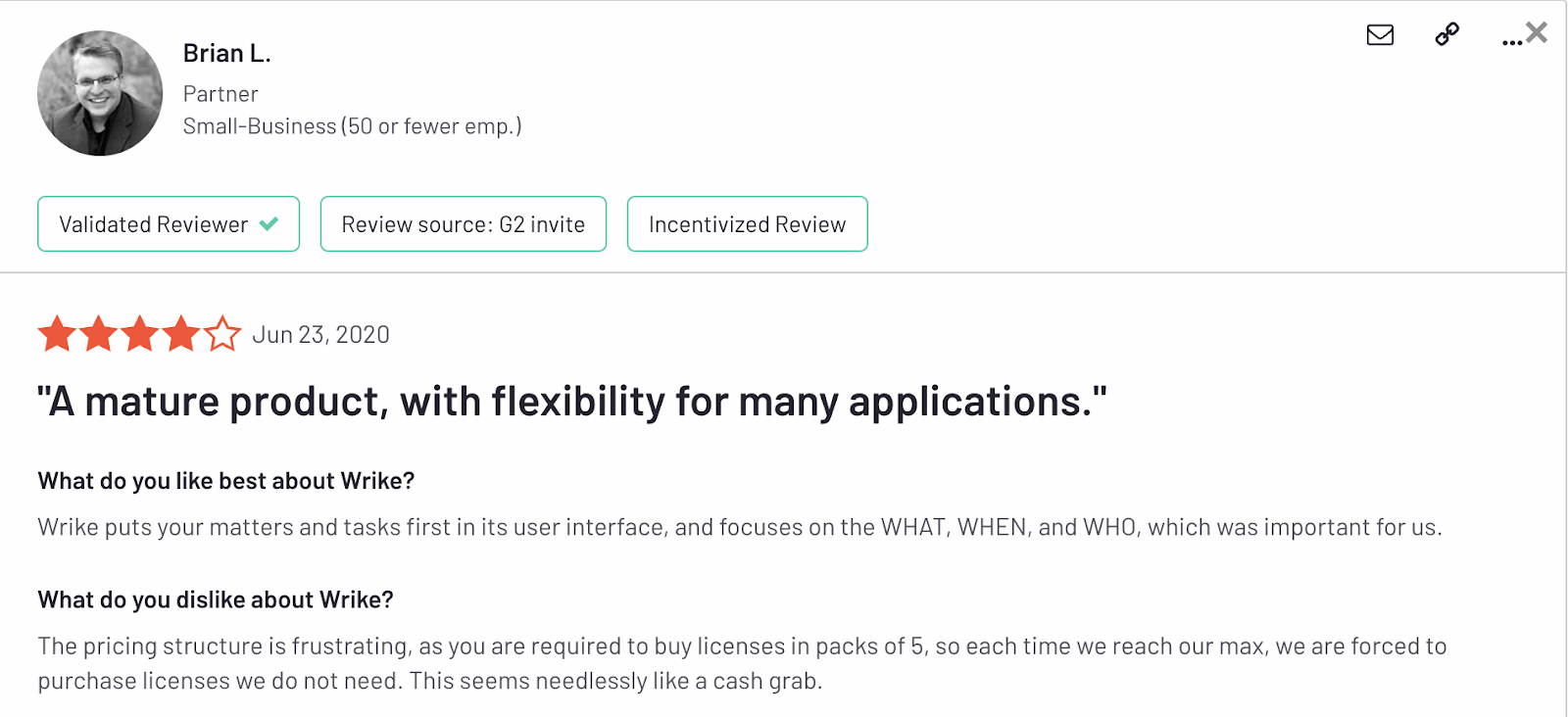
  • Interface designer: Segregate your project’s tasks into multiple interfaces and share the needful information with the right stakeholders.
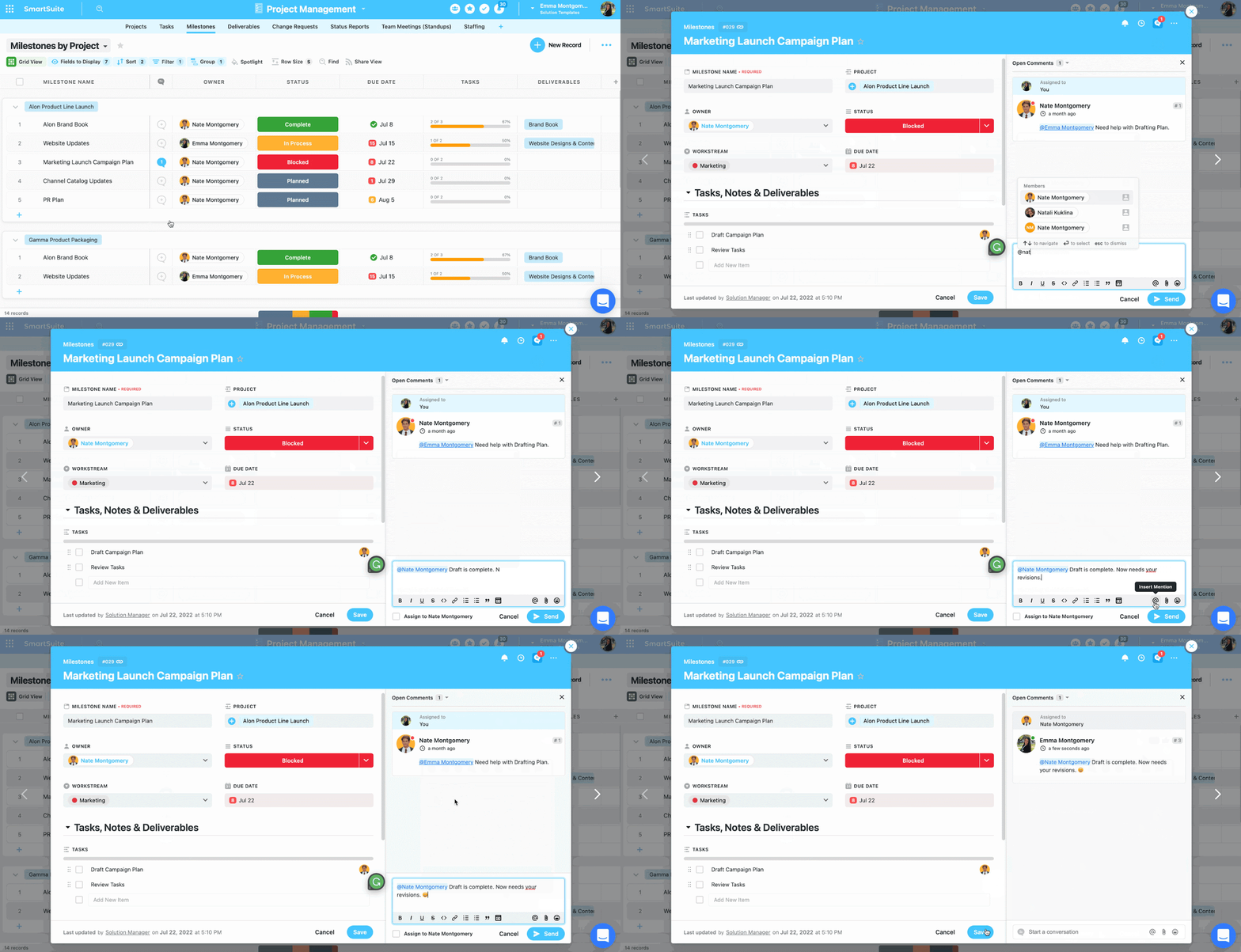
Airtable Pricing

You can start using Airtable with its free plan that comes with a single workspace with all basic dashboard views and 100 automation runs/month. 

Airtable offers three pricing plans:

  • Team: Starts at $24 per user/month with a 14-day free trial with access to 25,000 automation/month, custom branded forms, and Gantt charts.
  • Business: Starts at $45 per user/month, including multi-source syncing and dynamic filtering.
  • Enterprise scale: Includes admin reports, enterprise-level integrations, and premium support. Contact sales for a quote.

The starting plan for Airtable ($24 per user/month) is higher than Basecamp’s ($15 per user/month), but it compensates with more advanced features like automation and Gantt charts.

Airtable Pros and Cons

✅ High-level customization and flexible dashboards

✅ User-friendly interface with multiple views

✅ Vast project templates gallery

❌ Limited reporting capabilities

❌ Limited team communication

#3. Bonsai

Best for: Client’s project management with built-in time tracking and invoicing

Similar to: Wrike and Monday.com

Bonsai is an all-in-one work management software that lets you manage projects, track billable hours, send invoices, and receive payments.

Compared to Basecamp, Bonsai offers features tailored for freelancers and small-scale agencies who want to manage all aspects of their business in a single platform.

Who Is It For?

Self-employed individuals such as consultants freelancers and agencies

Bonsai’s Top Features

  • Built-in time tracking: Track billable and non-billable hours and generate timesheets.
  • Native invoicing and payments: Create custom invoices to get paid on time. Integrates with Paypal and Stripe letting you receive and manage invoice payments.
  • Task management: Outline tasks, assign priorities and deadlines, and manage tasks across clients and projects.
  • Reporting: Generate reports like client profitability, project health, profitability forecasts, and time utilization.

Bonsai Pricing

Bonsai offers a limited free plan with view-only access to all its features. The pricing plans come in four tiers with a $10 fee for adding additional users to any of the plans.

  • Starter: Starts at $25 per user/month, including tasks and time tracking, CRM, and expense tracking.
  • Professional: Starts at $39 per user/month, including custom branding, Quickbook, and Zapier integration. 
  • Business: Starts at $79 per user/month, including subcontractor management, and advanced business reporting.
  • Scale: Dedicated customer support, custom data import, and advanced integration. Contact sales for a quote.

Bonsai per additional user fee is $10/month which is lower than Basecamp’s price of $15/month.

Bonsai Pros and Cons

✅ Native invoicing feature with multiple payment and payout options

✅ Low per additional user fee, i.e., $10/month.

✅ Offers a suite of tools at a reasonable price to manage freelance clients

❌ Basic workflow automation

❌ Automated expense tracking only works in the US and Canada 

#4. Notion

Best for: Managing multiple projects with built-in documentation and team collaboration

Similar to: Trello and Asana

Notion is a dynamic project management tool that helps you build customizable databases for various projects.

Notion is a strong Basecamp contender for teams who want configurable dashboards, built-in documentation, and team communication tools at affordable pricing.

Who Is It For?

Solopreneurs, freelancers, startups, and small-to-large sized businesses.

Notion’s Top Features

  • Multiple field types: You can add as many data fields as you like ranging from relational fields to custom formulas.
  • Documentation: Create, store, and manage your documents with 50+ content types including toggle, buttons, images, code blocks, callouts, and videos.
  • Native collaboration: Share feedback via comments, loop in stakeholders via @mentions, or share file access easily.

Notion Pricing

Notion offers a generous free plan with access to 10 guest invites, subtasks, and unlimited pages. 

Pick from three pricing plans:

  • Plus: Starts at $12 per user/month, including unlimited file uploads, 100 guest invites, custom automation, and a Notion calendar.
  • Business: Starts at $18 per user/month, including database export as PDF, 250 guest invites, and SAML Single Sign-On (SSO).
  • Enterprise: Dedicated Customer Success Manager, audit logs, workspace analytics. Contact sales for a quote.

Unlike Basecamp, Notion doesn’t offer any free trial. However, Notion’s free plan is feature-packed for solopreneurs and marketing teams.

Notion Pros and Cons

✅ Free plan offers all the tools for teams with a small budget

✅ Synced databases

✅ Highly flexible dashboards with a vast library of templates

❌ Basic automation triggers on the free plan

#5. Trello

Best for: Task management using Kanban boards with high-level team collaboration

Similar to: Notion and Monday.com

With Trello, you can plan, manage, and track your projects using a Kanban board-focused project management tool from Atlassian.

Trello’s ease of use, built-in automation, and low-entry pricing plans make it a strong contender against Basecamp particularly for solopreneurs and small team sizes.

Who Is It For?

Freelancers, solopreneurs, or small-sized businesses.

Trello’s Top Features

  • Trello integrations and power-ups: Trello offers 150+ power-ups (mini integrations) such as tracking time, doing calculations, and creating polls. As for the integration, you get 200+ integrations with tools for marketing, productivity tools, and communication.
  • Butler automation: Set up rule-based triggers with Trello’s automation bot, Butler. The bot also recommends automation based on your daily task activities.
  • Task views: Along with Kanban boards, get a granular picture of your tasks’s progression with the timeline, list, dashboards, and calendar view.

Trello Pricing

Trello offers a free plan with built-in automation, and 10 workspace collaborators. 

You get a 14-day free trial for its three pricing plans:

  • Standard: $6 per user/month with unlimited activity log and 250 workspace command runs/month.
  • Premium: $12.50 per user/month with unlimited workspace collaborators and built-in automation.
  • Enterprise: $17.50 per user/month with 24/7 Enterprise admin support and SAML SSO via Atlassian Access.

Compared to Basecamp ($15 per user/month), Trello’s pricing plans are much cheaper, starting at $6 per user/month, making it a more cost-effective tool.

Trello Pros and Cons

✅ User-friendly and intuitive dashboard

✅ Ease of use across various devices

✅ Built-in automation

❌ Lack of seamless working across multiple boards

❌ Need third-party integrations (paid)

❌ Limited user control

#6. Monday.com

Best for: Task and project management across various industries

Similar to: Smartsheets and Wrike

Monday.com is a robust project management software that helps you track, manage, plan, and organize multiple projects.

Monday.com wins over Basecamp with its huge marketplace of integrations and power-ups along with high-level customization.

Who Is It For?

All sizes and industries.

Monday.com’s Top Features

  • Custom widgets: Monday.com offers 80+ widgets through integrations with apps such as videos, calendars, clocks, images, etc., giving you the flexibility to build project dashboards.
  • Column properties: Choose from over 50 basic to advanced column fields such as status + timeline field, country, or dependencies.
  • Automation: Set up no-code workflow automation to get rid of repetitive tasks and share quick updates with your team members.

Monday.com Pricing

Monday.com offers a free plan for up to 2 users. 

Monday.com pricing plans are based on minimum user seats of 3 and come in four tiers:

  • Basic: Starts at $17 per user/month, including Kanban board view, unlimited free viewers, and unlimited boards.
  • Standard: Starts at $20 per user/month, including 250 automated actions/month, 3+ dashboard views, and Zoom integration.
  • Pro: Starts at $32 per user/month, including all five dashboard views, time tracking, and 2-factor authentication.
  • Enterprise: Includes dedicated customer success manager, cross-project analytics, and resource allocation insights. Contact sales for a quote.

Monday.com Pros and Cons

✅ Advanced reporting and analysis

✅ Over 50 database field types

✅ 200+ dashboard templates

❌ Requires a minimum team size to buy or upgrade plan

❌ Automation available only on high-tier plans

#7: Asana

Best for: Task management and tracking project progress with  strong integration capabilities

Similar to: Trello and Monday.com

Asana is a project management tool that stands out with its automation and portfolio feature that helps you plan, track, and manage various projects.

If you want to streamline your projects with automated workflows, Asana is an excellent alternative to Basecamp.

Who Is It For?

Creative agencies, small and medium-sized businesses.

Asana’s Top Features

  • Automation bundles: If you use repetitive automation, package them in automation bundles and apply them to multiple projects at once.
  • Goal tracking: Create goals and attach multiple projects to a single goal. As the tasks move across different stages, the goal-tracking dashboard updates automatically.
  • Portfolios: Organize and track multiple projects in a centralized dashboard. Customize each dashboard with widgets and multiple dashboard views.

Asana Pricing

Asana offers a free plan for up to 10 users. You can choose from four pricing plans.

  • Starters: Starts at $13.49 per user/month, with up to 500 teammates collaboration and workflow builder.
  • Advanced: Starts at $30.49 per user/month, with 25,000 automation per month, scaled security, advanced reporting, and goal tracking.
  • Enterprise: Advanced integrations, unlimited seats, custom branding, and premium support. Contact sales for a quote.
  • Enterprise+: Audit log API, HIPAA compliance, and data loss prevention integrations. Contact sales for a quote.

All Asana plans come with built-in AI features.

Asana’s starting plan is head to head with Basecamp’s but comes with native automation and Gantt view along with a 30-day free trial.

Asana Pros and Cons

✅ Easy to create subtasks and assign dependencies 

✅ Advanced automated workflow builder that runs on tasks and subtasks level

✅ 270+ native integrations

❌ Basic reporting

❌Might get expensive for smaller teams

#8: Wrike

Best for: Work management to manage projects across various vendors

Similar to: Smartsheet and Monday.com

Wrike is a project management tool that helps you collaborate across teams, manage projects, brainstorm ideas, and achieve goals.

Wrike is an affordable solution over Basecamp for large enterprise-level teams that juggle multiple projects at once and need built-in cross-team communication functionality.

Who Is It For?

Agencies and enterprise-level businesses.

Wrike’s Top Features

  • Advanced reporting: Build custom reports to visualize your project’s performance, resource allocation, and budgetary spending. For each report, you can add widgets or integrate with analytics tools like PowerBi and Tableau.
  • My productivity dashboard: A dedicated space that shows all the updates related to tasks and projects such as upcoming due dates, tasks’s progress, and new tasks assigned.
  • Native Budgeting: Estimate and track financials across all your projects in one place and in real time.
  • Workload tracking: Track team members’ workload through a visual sheet and identify the overallocation and underallocation of tasks.

Wrike Pricing

Wrike offers a free plan with features like email integration, custom work view, and enterprise-grade security. 

There are five paid plans with a 14-day free trial:

  • Team: Start at $9.80 per user/month, including custom workflows, 20 free collaborators, and unlimited request forms.
  • Business: Start at $24.80 per user/month, includes up to 200 users, Adobe Creative Cloud Extensions, and nested projects.
  • Enterprise: Unlimited users with customizable data analysis tools and third-party integrations. Contact sales to get a quote.
  • Pinnacle: Native integration with PowerBi, locked spaces, and budgeting features. Contact sales for a quote.

Compared to Basecamp, Wrike offers feature-rich plans at a cheaper price starting at only $9.80 per user/month.

Wrike Pros and Cons

✅ 400+ integrations

✅ Generous free plan with unlimited users

✅ Library of customizable project dashboard templates

❌ Steep learning curve due to overwhelming features

❌ Native budgeting only available for pinnacle plan users

#9: Proofhub

Best for: Project management at a large scale with high-level team collaboration and reporting

Similar to: Wrike and Monday.com

Who Is It For?

Medium to large-scale businesses who care about collaboration.

Proofhub’s Top Features

  • Reporting: Dedicated space to view and customize reports including resource utilization, time logged, project status, and task completion.
  • Team collaboration: Start a discussion on a project or task level, review files and share feedback, engage in 1:1 or group conversation, brainstorm ideas and organize notes, and post announcements.
  • Workflow automation: Build custom automation on the task and project level through a set of pre-defined triggers and actions.

Proofhub Pricing

Proofhub offers flat pricing divided into three tiers:

‍

  • Small team: $89/month for 10 users, including time tracking, custom fields, and Gantt chart.
  • Large team: $153/month for 100 users, including workflow automation, priority support, and API access.
  • Large team plus: $310/month for unlimited users and projects.

‍

You can get access to all three plans on a 14-day free trial.

‍

Both Basecamp and Proofhub offer a flat pricing model. But, compared to Basecamp, Proofhub’s pricing is much more affordable with access to more features.

Proofhub Pros and Cons

✅ Integrated collaboration tools 

✅ Full control over client access to the dashboard with custom roles 

❌ Fixed pricing might be expensive for teams who only need limited number of users

#10: Smartsheet

Best for: Large database management and advanced analysis in a spreadsheet-focused interface

Similar to: Proofhub and Airtable

Smartsheet is an advanced enterprise-level project management software that helps you manage projects in a spreadsheet-focused interface with Gantt and Timeline view.

Compared to Basecamp, Smartsheet’s dashboards and interface are much more customizable and intuitive, especially for teams managing multiple projects at once.

Who Is It For?

Enterprise-level teams who want more control over data visualization and management

Smartsheet’s Top Features

  • Formula and functions: Perform simple to complex analysis of your database using built-in logic, data, text, and date functions.
  • Customizable dashboards: Build dynamic dashboards with widgets and prebuilt themes to present a holistic performance of various projects.
  • Automation workflow: Build no-code automation with triggers and actions to get rid of mundane tasks. Send upcoming deadline reminders, request signatures through integration with DocuSign, or perform calculations.

Smartsheet Pricing

Smartsheet offers three paid plans:

  • Pro: Starts at $12 per member/month, includes private sheets creation and unlimited form access.
  • Business: Starts at $24 per member/month, includes unlimited automated workflows, and requires at least 3 users.
  • Enterprise: Unlimited storage and enterprise plan manager. Contact sales for a quote.

Smartsheet offers a low-entry pricing tier compared to Basecamp along with the same free trial duration of 30 days.

Smartsheet Pros and Cons

✅ User-defined fields, views, and process automation

✅ Huge library of built-in dashboard themes and templates

✅ Drag-and-drop project dashboard builder

❌ Steep learning curve for spreadsheet novices

❌ Basic field types

❌ Dashboards and sheets don’t get updated in real time. There is usually a 1-minute delay

Next Steps: Pick Your Project Management Tool

To narrow down your search for a project management tool keep your goals and budgets at the core. Then, factor in the people who’ll be using the tool daily and others who’ll have limited access.

All the tools discussed can fit in certain categories. If you have a large budget and need unlimited seats go with Smartsheet or Proofhub. If you’re a small team or run a one-person business, Trello or Bonsai would be the ideal choice.

But, if you want an all-in-one platform for task tracking, team collaboration, and project analytics that adapts to your team’s needs and fits your pocket, SmartSuite is your best bet. 

With SmartSuite, you get to

  • Manage a variety of projects in an intuitive interface,
  • Streamline processes with dynamic automation, 
  • Improve team collaboration with native communication tools, and
  • Monitor project’s performance in dynamic dashboards.

Take SmartSuite for a spin or schedule a demo to talk to our sales team.

Upgrade Your Workflows: 10 ClickUp Alternatives You’ll Love

Software Stack Editor · August 10, 2024 ·

ClickUp has gained fame due to its highly customizable dashboard with integrated features.

But, despite being a ‘jack of all trades’ users have struggled with slow loading time and complicated workflow automation setup.

If you’re looking for alternatives, this is the guide for you.

Our team tested dozens of project management tools, interviewed current and past customers, and analyzed public reviews to curate this list of ClickUp alternatives for 2024.

It includes each tool’s key features, strengths, shortcomings, and how it compares to ClickUp.

Before we share the list, here are the 3 most common reasons why ClickUp users switch to competitors ⤵️

ClickUp offers flexible customization and native collaboration tools such as Whiteboard, Docs, and time tracking. All these tools let you create a central place to manage every project.

But, it’s not all bells and whistles as ClickUp isn’t suited for every team size’s respective project needs.

We’ve found three reasons (from verified users) to look for ClickUp alternatives:

ClickUp’s desktop and mobile apps suffer from performance issues compared to their web version.

Due to high-level customizations and functionalities, ClickUp’s mobile app becomes cluttered and buggy. Thus, requiring constant refreshes to see the updated version of the dashboard.

When working on several projects or collaborating with a large team, ClickUp’s performance tends to slow down. Hence, lower page speed and higher wait time.

Additionally, syncing issues persist with emails as well and can delay team communication if your team relies heavily on it.

The process of automating a project at once can be complex and time-consuming, especially when you want to set up automation quickly.

ClickUp isn’t the best when you want smooth project management and intuitive automation workflows.

Let’s see some of the best options to consider over ClickUp.

Top Solutions What They Do
SmartSuite All-in-one work management platform that integrates project management, task tracking, and collaboration tools into a single, customizable workspace.
Asana Great for task management and tracking project progress, featuring user-friendly interfaces and strong integration capabilities.
Notion Managing multiple projects with built-in documentation and team collaboration.
Hive Multipurpose team communication with built-in conversation tools and project management.
Trello Visual project planning and task management using Kanban boards.
Monday.com Visual project tracking and workflow customization.
Airtable Data collaboration and workflow automation in an Excel-like environment.
Wrike Manage complex workflows across multiple teams.
Basecamp Centralized project management and team communication.
Smartsheet Scalable project management with spreadsheet-like interfaces and automation.

#1: SmartSuite

SmartSuite is an all-in-one project management tool that lets you manage all your projects in a centralized platform with built-in automation and a communication center.

Full disclosure: Even though SmartSuite is our own product, we aim to provide an honest perspective on why SmartSuite is the top ClickUp alternative available.

We put SmartSuite at the top of our list because it offers features that ClickUp lacks and much more.

Let’s see some of SmartSuite’s core features that make it the best ClickUp alternative.

Feature #1: Robust task management

Plan, track, and manage simple to complex tasks with SmartSuite’s task management feature.

In SmartSuite, you can turn anything into tasks, be it a checklist item, comments, or sub-item, and assign it to the right person with a due date and priority status.

Key features that stand out:

  • Multiple task views: Flexible and transparent views of your tasks and dashboards. SmartSuite offers seven task views including Grid, Kanban, Card, Calendar, Timeline, Map, and Chart.
  • Time tracking: Keep track of time and get timesheet reports to get an accurate view of billable hours.
  • Repeating tasks: Automate routine tasks within a specific record by setting it as a repeating task. Choose the frequency (daily, weekly, monthly), set the task status, and choose the day/date to start the repeating cycle.
  • My work section: This is a dedicated section where you get a granular view of all the tasks assigned to you. 

You can group the tasks by assigned date, priority level, or progress status. My work feature creates a dedicated space making task management a breeze for all the team members and keeping them on top of their due dates.

Feature #2: In-depth reporting capabilities

Manage your project’s delivery, track the task’s progress, or understand resource usage for future projects with SmartSuite’s customizable reports. You can add/remove certain fields, adjust the report views, and configure the column positioning.

But, there’s more to SmartSuite’s reporting:

  • Multi-view reporting: View your reports in different styles, including Grid, Card, Kanban, Timeline, Map, Calendar, or Dashboard.
  • Easy exporting: Access your reports by printing or exporting them as PDF, Excel, Google Sheets, or CSV format.
  • Private or public reports: Share reports with public access, making it easier to share quick access for everyone involved in the project. If you want to get a granular view of your work, you can build private reports, visible only to you.

Feature #3: No-code workflow automation

Set up simple to complex workflow automation with SmartSuite’s no-code automation builder. Let the automation take care of email notifications, status updates, and data synchronization.

You can build simple workflows like sending a Slack message when a task status is updated or build multi-step automation to simplify processes. For each automation, you get six pre-defined triggers and 15+ actions. If you don’t find the right trigger and action, build your custom one.

SmartSuite Pricing

SmartSuite offers a 14-day free trial and a forever-free plan with access to automation, team collaboration, authentication, and more.

As for the paid plans, there are four options:

  • Team: Starts at $12/user per month, including Gantt charts, located views, 5000 automation runs, and time tracking.
  • Professional: Starts at $28/user per month, including two-factor authentication, Gmail & Outlook integrations, and unlimited editors.
  • Enterprise: Starts at $35/user per month, including audit logs, data loss prevention, and 50,000 API calls monthly.
  • Signature: Customized plan tailored to your organization’s needs and team size.

How Does SmartSuite Compare to ClickUp?

SmartSuite stands out with its dynamic dashboards, multiple project views, feature-rich free plan, and powerful automation.

ClickUp is famous due to its wide range of integrated features like Whiteboards, Workdocs, and customizable setup. But, it lags in speed as the project grows in size, causing process and execution delays.

In contrast, SmartSuite combines ease of use with lightning-fast speed no matter the project and team size. The cherry on the top is its mobile app. It is as fast and intuitive as its web version, letting you update task status, communicate, and get real-time notifications on the go.

SmartSuite Pros and Cons

✅ Generous free plan with access to advanced features

✅ 200+ project templates for different use cases

✅ Integrated document and file management

✅ Dynamic dashboard and reporting

✅ Comprehensive automation workflow builder

❌ Only 25 native integrations

#2: Asana

Best for: Managing projects through subtasks and automated workflows

Similar to: Trello and Monday.com

Asana is a project management tool that lets you organize, plan, and track work via subtasks and dependencies.
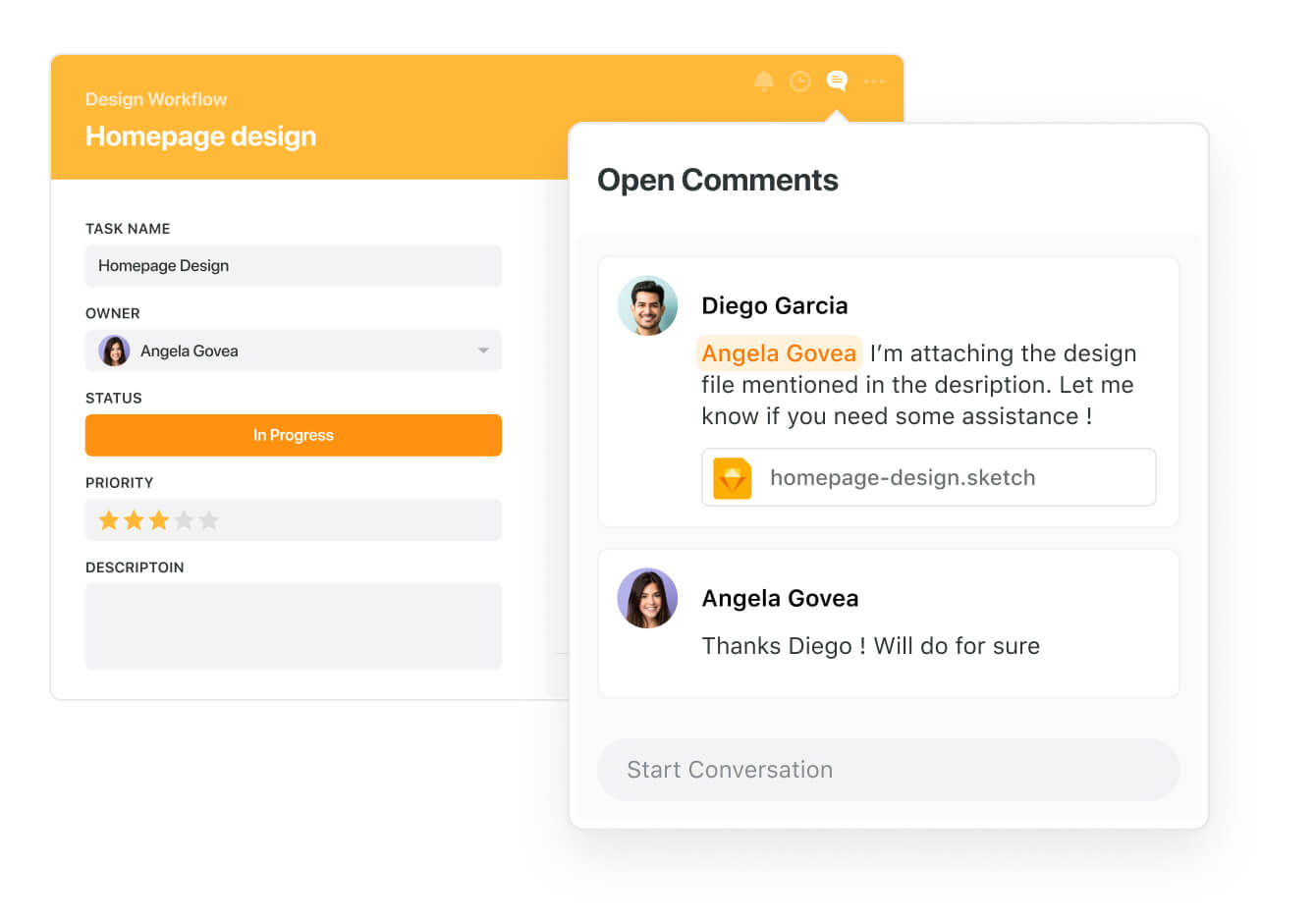
Asana offers all the features you need to manage your project without ClickUp’s bells and whistles. Compared to ClickUp, Asana’s intuitive interface is much easier to use and understand.

Who Is It For?

Creative agencies, small and medium-sized businesses.

Asana’s Top Features

  • Automation bundles: Package elements such as rules, custom fields, and task templates in automation bundles. You can apply these bundles to new (and multiple) projects at once. These bundles promoted consistency and accuracy across projects.
  • Portfolios: Organize and track multiple projects in centralized dashboards. Customize each dashboard to assess project health. You also have the option to nest portfolios under related portfolios to organize your work.

Asana Pricing

Asana offers a free plan for up to 10 users and four pricing plans with a 30-day free trial. Pricing for paid plans is as follows:

  • Starters: Starts at $13.49 per user/month, with up to 500 teammates collaboration, Asana AI, and workflow builder.
  • Advanced: Starts at $30.49 per user/month, with 25,000 automation per month, scaled security, advanced reporting, and goal tracking.
  • Enterprise: Advanced integrations, unlimited seats, custom branding, and premium support. Contact sales for a quote.
  • Enterprise+: Audit log API, HIPAA compliance, and data loss prevention integrations. Contact sales for a quote.

Asana offers unlimited file storage and activity log on its free plan, Clickup doesn’t.

Asana Pros and Cons

✅ Subtasks and dependencies 

✅ Automated templates for repetitive use

✅ 270+ native integrations

❌ Limited customizations

❌ Limited reporting

❌ Can get expensive for smaller teams

#3. Notion

Best for: Managing multiple projects with built-in documentation and team collaboration

Similar to: Trello and Basecamp

Notion is an easy-to-use project management tool that helps you build customizable databases for various projects.

Both Notion and ClickUp are famous for their configurable dashboards. But, Notion comes on top because it offers a less overwhelming and more intuitive interface.

Who Is It For?

Solopreneurs, freelancers, startups, and small-to-large sized businesses.

Notion’s Top Features

  • Cross-database relations: You can cross-reference information by adding relational properties in each database.
  • Documentation: Build documents with 50+ content types including toggle, buttons, images, code blocks, callouts, and videos.
  • Native collaboration: Share feedback via comments, loop in stakeholders via @mentions, or share file access easily.

Notion Pricing

Notion offers a generous free plan with access to 10 guest invites, subtasks, and unlimited pages. Notion doesn’t offer any free trial for its three pricing plans.

  • Plus: Starts at $12 per user/month, including unlimited file uploads, 100 guest invites, custom automation, and a Notion calendar.
  • Business: Starts at $18 per user/month, including database export as PDF, 250 guest invites, and SAML Single Sign-On (SSO).
  • Enterprise: Dedicated Customer Success Manager, audit logs, workspace analytics. Contact sales for a quote.

Notion’s free plan offers a wide range of features and flexibility compared to ClickUp.

Notion Pros and Cons

✅ Free plan offers all the tools for teams with a small budget

✅ Synced databases

✅ Highly flexible dashboards with a vast library of templates

❌ Basic automation triggers on the free plan

#4. Hive

Best for: Multipurpose team communication with built-in conversation tools and project management 

Similar to: Airtable and Asana

Hive is a cloud-based project management software that helps you plan and manage multiple projects, create custom workflows, build forms, and chat with your co-workers in real time.

Hive is a more communication-center tool which makes it suitable for seamless collaboration tools over Clikcup.

Who Is It For?

Teams of all sizes–from startups to large enterprises

Hive’s Top Features

  • Message-to-task conversions: Quickly convert discussed actionable items into tasks and add them to relevant projects.
  • Timesheet reporting: Get a complete view of task completion rate through built-in timesheet reports.
  • Team collaboration: Hive chat, native video chat, Hive notes, and email integrations to share updates, ask questions, and stay in the loop of the task’s progress.

Hive Pricing

It offers a forever free plan with up to 10 workspace members and a 14-day free trial for three paid plans:

  • Starter: Starts at $7 per user/month, includes unlimited storage and 7+ dashboard views.
  • Teams: Starts at $18 per user/month, includes unlimited customizations and advanced reporting.
  • Enterprise: Custom analytics & reporting dashboard with contract and legal review. Contact sales for a quote.

Hive’s plan starts at a lower price than ClickUp making it an affordable project management tool for smaller teams and agencies.

Hive Pros and Cons

✅ Built-in AI

✅ 100+ templates for different use cases

✅ Multiple dashboard views 

❌ Custom analytics and reporting are only available on the enterprise plan

❌ Limited native integration with heavy reliance on Zapier

#5. Trello

Best for: Visual project planning and task management using Kanban boards

Similar to: Notion and Monday.com

Trello is a Kanban board-focused project management tool that helps you plan, manage, and track your projects.

Trello is a strong contender against ClickUp due to its cost-efficient features like automation and power-ups.

Who Is It For?

Freelancers, solopreneurs, or small-sized businesses.

Trello’s Top Features

  • Trello integrations and power-ups: Trello offers 150+ power-ups (mini integrations) such as tracking time, doing calculations, and creating polls. As for the integration, you get 200+ integrations with tools for marketing, productivity tools, and communication.
  • Butler automation: Trello’s automation bot, Butler, helps you delegate repetitive tasks by setting up rule-based triggers. The bot also suggests automation based on your daily task operations.
  • Task views: Apart from the Kanban board, see tasks and projects in the timeline, list, and calendar view.

Trello Pricing

Trello offers a free plan with built-in automation, and 10 workspace collaborators. You get a 14-day free trial for its three paid plans:

  • Standard: $6 per user/month with unlimited activity log and 250 workspace command runs/month.
  • Premium: $12.50 per user/month with unlimited workspace collaborators and built-in automation.
  • Enterprise: $17.50 per user/month with 24/7 Enterprise admin support and SAML SSO via Atlassian Access.

Compared to ClickUp ($10 per user/month), Trello’s pricing plans are much cheaper, starting at $6 per user/month, making it a more cost-effective tool.

Trello Pros and Cons

✅ User-friendly and intuitive dashboard

✅ Ease of use across various devices

✅ Built-in automation

❌ Lack of seamless working across multiple boards

❌ Need third-party integrations (paid)

❌ Limited user control

#6. Monday.com

Best for: Task and project management across various industries

Similar to: Smartsheets and Wrike

Monday.com is a robust project management software that helps you track, manage, plan, and organize multiple projects.

It is a better alternative to ClickUp for a larger team that wants to manage projects without overwhelming features.

Who Is It For?

Medium and large-scale businesses

Monday.com’s Top Features

  • Portfolio management: Organize multiple projects within the portfolio and track overall progress to assign resources and budget.
  • Work forms: Customizable work forms to collect requests or feedback. Sync form responses and add them to relevant boards, enabling teams to track and manage form submissions efficiently within their existing workflow.
  • Automation: Set up no-code workflow automation to get rid of repetitive tasks and share quick updates with your team members.

Monday.com Pricing

Monday.com offers a 14-day free trial and a free plan for up to 2 users. Their paid plans need at least 3 users and come in four tiers:

  • Basic: Starts at $17 per user/month, including Kanban board view, unlimited free viewers, and unlimited boards.
  • Standard: Starts at $20 per user/month, including 250 automated actions/month, 3+ dashboard views, and Zoom integration.
  • Pro: Starts at $32 per user/month, including all five dashboard views, time tracking, and 2-factor authentication.
  • Enterprise: Includes dedicated customer success manager, enterprise-level reporting, and administration control. Contact sales for a quote.

On its free plan, Monday.com offers a 1-week activity log and shareable form whereas ClickUp offers one one-day activity log and no forms.

Monday.com Pros and Cons

✅ Advanced reporting and analysis

✅ Built-in social media management system

✅ 200+ dashboard templates

❌ Requires a minimum team size to buy or upgrade plan

❌ Automation available only on high-tier plans

#7: Airtable

Best for: Building configurable dashboards with relational capabilities

Similar to: Notion and Trello

Airtable is a collaborative project management tool that helps you store and organize vast amounts of data in a management database.

Think of spreadsheets but with relational capabilities.

Airtable offers adaptable dashboards like ClickUp but its interface is much more intuitive. Its relational capabilities are also what sets it apart from ClickUp.

Who Is It For?

Small and mid-sized businesses

Airtable’s Top Features

  • Interface Designer: Design custom apps such as product planners, campaign trackers, and more using your existing data with drag-and-drop widgets such as charts, tables, images, and videos.
  • Integration: Airtable offers native integration with critical tools such as Jira, Salesforce, and Tableau giving flexibility in building custom apps and information sharing.
  • Automated workflows: Create customizable trigger-action models to cut down on repetitive tasks.

Airtable Pricing

Airtable’s free plan offers a single workspace with 100 automation/month. The paid plans come in three tiers:

  • Team: Starts at $24 per user/month, including timeline view, 25,000 automation per month, and Airtable AI.
  • Business: Starts at $45 per user/month, including multi-source syncing and dynamic filtering.
  • Enterprise scale: Includes admin reports, enterprise-level integrations, and premium support. Contact sales for a quote.

Airtable’s starting pricing is higher than ClickUp but it offers 25,000 automation/month and 100,000 API calls per month, which isn’t offered by ClickUp.

Airtable Pros and Cons

✅ High-level customization and flexible dashboards

✅ Simple interface with multiple views even upon starting plans

✅ Vast project templates

❌ Limited reporting capabilities

❌ Limited team communication

#8: Wrike

Best for: Managing complex workflows across multiple teams

Similar to: Smartsheets and Monday.com

Wrike is a project management tool that helps you collaborate across teams, manage projects, brainstorm ideas, and achieve goals.

Wrike will be a better choice over ClickUp for large enterprise-level teams that manage multiple complex projects and need cross-functional collaboration.

Who Is It For?

Agencies and enterprise-level businesses

Wrike’s Top Features

  • Advanced reporting: Wrike’s reporting feature lets you build custom reports to keep track of the project’s resources, sprints, project’s progress, and budgets.  For each report, you can add widgets or integrate with analytics tools like PowerBi and Tableau to fire up your reporting.
  • Cross-functional collaboration: You can add tags that are visible to different teams, reducing the need to duplicate projects. It’s also easy to collaborate with external stakeholders and ask for their approvals by sending links or a request form for better organization.

Wrike Pricing

Wrike offers a generous forever-free plan including email integration and enterprise-grade security. There are five paid plans with a 14-day free trial:

  • Team: Start at $9.80 per user/month, including custom workflows, 20 free collaborators, and unlimited request forms.
  • Business: Start at $24.80 per user/month, includes up to 200 users, Adobe Creative Cloud Extensions, and nested projects.
  • Enterprise: You get access to unlimited users with advanced reporting and integrations. Contact sales to get a quote.
  • Pinnacle: Native integration with PowerBi, locked spaces, and budgeting features. Contact sales for a quote.

Compared to ClickUp, Wrike offers more pricing options with access to a large number of native integrations including PowerBi.

Wrike Pros and Cons

✅ 400+ integrations

✅ Generous free plan with unlimited users

✅ Library of customizable project templates

❌ Learning curve due to overwhelming features

❌ Budgeting feature only available for pinnacle plan users

#9: Basecamp

Best for: Centralized project management and team communication

Similar to: Notion and Trello

Basecamp’s clean interface and robust list of features make it an appealing choice for teams that want to manage projects efficiently.

It offers unique features like hill charts, built-in communication tools, and mission control to give a clear picture of the project’s progress.

Basecamp’s generous pricing plans and intuitive interface make it a go-to choice for project management tools over ClickUp.

Who Is It For?

Solopreneurs, start-ups, and small to large-sized businesses.

Basecamp’s Top Features

  • Automatic check-ins: Set up automated check-ins at set intervals (daily, weekly, or monthly) to ask questions or get updates. These check-ins reduce the time you spend fixing the right schedule or getting on quick huddles.
  • Hill charts: With hill charts, convert to-do lists into a hill-like format and get a visual representation of each task’s progress. Add multiple to-do lists and track how tasks are being moved, identify roadblocks, see dependencies, and understand overall progress.

Basecamp Pricing

Basecamp doesn’t offer a free plan but a 30-day free trial for its two paid plans.

  • Basic: Starts at $15/user per month, offers 500 GB storage for files & documents with guest invites.
  • Pro Unlimited: $349/month fixed price for unlimited seats with priority support.

Basecamp’s fixed pricing with unlimited users is a key distinguisher, making it a low-cost alternative to ClickUp.

Basecamp Pros and Cons

✅ Fixed pricing plan suitable for large team size

✅ Multiple visual reports such as hill charts and mission controls

✅ Free unlimited guest invites on both plans

❌ Limited workflow automation

❌ No built-in Gantt chart view

#10: Smartsheet

Best for: Managing complex projects using a spreadsheet-like interface

Similar to: Airtable and Asana

Smartsheet is an advanced enterprise-level work and project management software that helps you plan, track, and manage basic to high-level projects.

Smartsheet wins over ClickUp as it can handle a large set of databases without impacting the dashboard performance and offers advanced reporting.

Who Is It For?

Enterprise-level teams who manage complex and large numbers of projects

Smartsheet’s Top Features

  • Formula and functions: Being a spreadsheet-focused tool, Smartsheet lets you perform simple to complex analysis with built-in formulas and functions.
  • Integrations: Integrates with Google G-Suite, Office 365, Slack, and DocuSign reducing the need for constant app switching.
  • No-code automated workflow: Send upcoming deadline reminders, request signatures through integration with DocuSign, or perform calculations.

Smartsheet Pricing

Smartsheet offers three paid plans with no free plan or trial.

  • Pro: Starts at $12 per member/month, includes private sheets creation and unlimited form access.
  • Business: Starts at $24 per member/month, includes unlimited automated workflows, and requires at least 3 users.
  • Enterprise: Unlimited storage and enterprise plan manager. Contact sales for a quote.

Smartsheet’s starting plan offers more integrations, compared to ClickUp, which offers 50+ integrations.

Smartsheet Pros and Cons

✅ High level of customization

✅ Huge library of project templates

✅ Powerful analytics and reporting tools

❌ Steep learning curve for spreadsheet novices

❌ Data doesn’t get updated in real-time

Upgrade your project workflows with SmartSuite

Finding the right project management software boils down to your specific use cases, budgets, and goals.

If you prefer ease of use with high-level customization, Notion, and Trello would be a great fit. For visual reporting and team collaboration, Basecamp stands out with its unique features such as hill charts, mission control, and automatic check-ins.

And, if you handle multiple large-scale projects and have a budget to goal in, Smartsheet and Wrike are your best options.

But, if you want an all-in-one project management tool that offers:

– Feature-rich, affordable pricing plans

– Intuitive interface with lots of room for customization

– Native team collaboration with chats and email integration, and

– Powerful reporting capabilities.

Then, SmartSuite is the ideal choice for you.

Top 10 Teamwork Alternatives and Competitors [Ultimate Guide for 2024]

Software Stack Editor · August 9, 2024 ·

Although Teamwork is one of the most popular project management tools, customers complain about its unintuitive interface and limited customization options. 

If you’re looking for alternatives, keep reading.

Our team tried dozens of project management tools, interviewed current and past customers, and analyzed hundreds of verified public reviews to give you the top Teamwork alternatives for 2024.  

We broke down each tool by popular features, pricing, strengths, drawbacks, and main differences with the Teamwork platform. 

Before we get to the list, here are the 3 most common reasons why Teamwork customers switch to competitors ⤵️

Many Teamwork users express frustration with the tool’s lack of customization. 

While the platform offers many features, tailoring them to specific workflows isn’t easy. This is especially important for organizations that want to run most, if not all, of their processes from one platform. 

Teamwork’s UI is undoubtedly user-friendly but can get messy and complex as users ramp up projects and tasks.

Furthermore, the mobile version of Teamwork lacks compared to most platforms featured below. 

The platform fails to provide detailed real-time reports on task histories, employee productivity, and project updates. 

Thus, Teamwork might not be the best choice if managers need to get detailed reports to keep track of projects’ progress. 

Top Solutions What They Do
SmartSuite All-in-one work management platform that integrates project management, task tracking, and collaboration tools into a single, customizable workspace.
Wrike Versatile workflow management platform that’s affordable for organizations of any size.
Monday.com   Visual project tracking and workflow customization.
Bascamp Focuses on simplicity and team communication, offering essential project management tools without overwhelming features.
Asana Great for task management and tracking project progress, featuring user-friendly interfaces and strong integration capabilities.
Hive Offers unique time tracking and productivity analytics, catering to teams looking to optimize performance.
Notion Combines note-taking with project management, allowing for extensive customization and documentation.
ClickUp Combines task management with goal tracking, making it suitable for teams of all sizes.
Trello Visual project management using boards and cards, ideal for smaller teams or simpler projects.
Workzone Focuses on project visibility and accountability, providing detailed reports.

Now let’s cover each of these products in detail to find out which one is best for you ⤵️

Smartsuite is an all-in-one project management tool that lets you manage every part of your work processes in a centralized platform with built-in automation. 

Full disclosure: Even though SmartSuite is our own product, we aim to provide an honest perspective on why Smartsuite is truly the top Teamwork alternative available.

If we aren’t biased, why’s SmartSuite at the top of our list?

The reason is the platform checks all the right boxes for the key features you need in a project management platform. 

Below are some of its stand-out features ⤵️

Feature #1 Robust Reporting Abilities 

With SmartSuite’s robust reporting abilities, you can get detailed insights into the progress of your projects. This will help you get an accurate view of your team’s productivity and workflow efficiency.

The platform lets you view your reports in different formats, such as Card, Dashboard, Grid, Kanban, Calendar, Timeline, or Map.

Make a report public or keep it private

Furthermore, you can make your reports public and accessible for your team members or keep them private and save them for your work process. 

Once you create a report, you can easily export it in any form, including Excel, Google Sheets, PDF, or CSV. This way, you can easily print and share reports with your team or clients. 

Email exported reports directly to your inbox

Also, you can share reports via email by simply including a message for context and a link that’ll direct the recipient to view the content in your SmartSuite workspace.

Feature #2 Workflow Automation

If you’re tired of manually handling repetitive tasks, then it’s time to switch things up with SmartSuite.

Create rules to automatically trigger actions

SmartSuite lets you automate your workflows with customizable “recipes” based on specific triggers, like changing dates, automatic record updates, sending notification emails, or updating statuses. 

Key Functionalities:

  • Customizable Recipes: Users can create tailored automation recipes that cater to their specific needs. This can range from simple tasks, like sending a Slack message when a project is marked complete, to complex multi-step workflows that involve several triggers and actions.
Automate status change and send a notification
  • No Coding Required: The platform provides a drag-and-drop interface that allows you to set up automations without needing technical skills. This way, you can set up automation quickly and efficiently.
Automations Without A Line of Code
  • Dynamic Notifications: SmartSuite automations can send real-time updates and notifications based on project milestones or due dates. This feature helps keep teams informed without constant check-ins, thereby reducing micromanagement.
Automatically send a notification

Feature #3 Project Management

SmartSuite offers a unified project management solution that provides all the tools you need on a single platform. The tool provides a real-time view of all your projects, tasks, and overall performance. 

With SmartSuite dashboards, you can monitor multiple projects and gain insights on key metrics. 

The platform organizes all your project information in one place so you can easily analyze budgets, prioritize work, analyze budgets, and ensure your team’s productivity.

Plan, track and manage projects of any size
  • Manage any project from simple to complex: SmartSuite offers various templates to help you manage any kind of project, whether simple or complex, and you can tailor these templates to meet your project needs.
Unify the management of all your projects
  • Effectively allocate your available resources: The platform allows you to have a clear view of your teams so you can effectively manage each team’s or staff’s workloads and resources.
Effectively allocate your available resources

SmartSuite Pricing Plans 

SmartSuite platform offers a highly generous forever-free plan and a 14-day free trial, allowing you to test the tool before committing.

SmartSuite provides four paid plan options:

  • Team: Starts at $12 for each user and is billed monthly.
  • Professional: Starts at $28 for each user and is billed monthly.
  • Enterprise: Starts at $35 for each user and is billed monthly.
  • Signature: Customized plan designed to suit your team size and meet your organization’s needs.

How Does SmartSuite Compare to Teamwork?

First, SmartSuite offers an intuitive and deeply customizable interface, making it easier for users to tailor the platform to each team’s processes. 

SmartSuite’s robust reporting feature shines over Teamwork. SmartSuite includes advanced reporting and analytics tools that let managers keep track of ongoing projects. Granular permission-levels also make SmartSuite a better choice for mid to enterprise-size organizations.

Although Teamwork is very feature rich, SmartSuite offers a better combination of both task management and process automation. highly customizable workflows and the ability to automate repetitive tasks. 

Teamwork, on the other hand, shines for service businesses that need capacity management, resource scheduling, and advanced budgeting. 

Pros and Cons of SmartSuite

✅ Intuitive interface

✅ Supports both workflow automation and work management

✅ Extremely generous free plan with access to advanced features

✅ 200+ templates for different use cases

✅ No-code automation to streamline your workflows

❌ Only 25 native integrations Limited native integrations

#2: Wrike 

Best for: Enhancing productivity and streamlining workflows.

Similar to: Hive, Basecamp 

Wrike is a work and project management tool that enables teams to manage tasks and collaborate effectively.  

The platform caters for teams of different sizes and project requirements. 

Wrike is one of Teamwork alternatives that makes up for some of the tool lapses. Unlike Teamwork, Wrike offers users more flexibility to tailor workflows to suit their unique processes and project needs. 

While Teamwork has best-in-class employee tracking, Wrike provides better project reports.

Wrike’s Top Features

  • Interactive Gantt Charts: These charts provide a visual representation of project timelines to allow you to set dependencies and adjust schedules.
  • Advanced Analytics and BI: Wrike lets you track your team’s performance and compare the results via its analytics dashboards. 
  • Real-Time Collaboration: Team members can communicate directly within tasks, share files, and provide feedback.

Wrike’s Pricing Plan

Wrike allows users to try out the tool via its 14-day free trial. It also offers a forever-free plan with fewer features. 

Below are details of its paid plans:

  • Team: $9.80/user/month for 2 to 25 users
  • Business: $24.80/user/month for 5 to 200 users
  • Enterprise: Contact sales for a custom price. It offers advanced features, including enterprise-grade security and scalability. 
  • Pinnacle: Contact sales for a custom price. It offers more advanced tools and analytics for complex work processes. 

Wrike’s Pros and Cons 

✅ Highly customizable platform & interface

✅ Flexible automation

✅ Good reporting tools

✅ Affordable

❌ Reliance on third-party communication tools

❌ Can have integration delays that effect automation efficiency

Wrike’s Customer Ratings

⭐ G2: 4.2 out of 5 (3712 reviews) 

⭐ Capterra: 4.3 out of 5 (2649 reviews)

#3: ClickUp

Best for: Managing all work tasks in one place.

Similar to: Asana, Monday.com 

ClickUp is designed to support both large businesses and startups. 

While Teamwork is considered user-friendly, an intuitive and flexible UI is ClickUp’s main selling point. 

ClickUp also offers a generous free plan with unlimited projects and users compared to Teamwork’s free plan, which is limited to just 2 projects. 

Who’s it For?

ClickUp suits businesses of all sizes, including startups, SMBs, and large enterprises.

ClickUp’s Top Features

  • Customizable Workflows: Enables you to tailor your workflows with custom statuses, templates, and views (list, board, calendar, Gantt, and others.)
  • Integrations: Integrates with various third-party apps like Slack, Google Drive, and others.
  • ClickUp Brain: Provides an AI to help you automate work processes.

ClickUp’s Pricing Plans 

ClickUp offers a forever free plan with real-time chat, unlimited tasks, multiple view options, and much more. 

Below are details of its paid plans:

  • Unlimited: $7/user/month with unlimited integrations, dashboards and custom fields.
  • Business: $12/user/month with everything in the unlimited plan and advanced features like advanced automations, time tracking, and unlimited team access. 
  • Enterprise: Contact sales for pricing. Offers more advanced features like advanced permissions, enterprise API and live onboarding training.

ClickUp’s Pros and Cons 

✅ Advanced customizations, even on low-tier plans

✅ Generous free plan

✅ 100+ automation templates

❌ Lacks process automation features

❌ Lots of paywalls

❌ Can become messy as you reach 100+ users

Clickup’s Customer Ratings

⭐ G2: 4.7 out of 5 (9735 reviews)

⭐ Capterra: 4.6 out of 5 (4176 reviews)

#4: Basecamp

Best for: Simple team collaboration and remote work management.

Similar to: Trello and Wrike

If you’re looking for a project management tool with a less complex UI design, Basecamp could be a good option. 

Compared to Teamwork, Basecamp emphasizes an intuitive, user-friendly interface, which makes it easier for teams to get started without extensive training.

Teamwork does have more features compared to Basecamp, but Basecamp is affordable and has unlimited guest invites, which makes it easy to get going with the tool. 

Who’s it For?

Small to medium-sized businesses looking to streamline their project workflows without a steep learning curve.

Basecamp’s Top Features

  • Track work with to-dos: This allows you to effectively track work, responsibilities, and deadlines.
  • Project Templates: Basecamp allows you to create templates for repetitive tasks and projects.
  • Time sheets: Allows you to track time directly on the platform without third-party apps. 
  • Built-in communication tools: Basecamp enables you to communicate directly on the application, including 1:1s and group chats. 

Basecamp Pricing Plans 

Basecamp offers two paid plans and a 30-day free trial for each plan.

  • Basic: $15/user/month with free access for all your guest users.
  • Pro Unlimited: $349/month with unlimited user access and an option to pay annually ($299/month).

Basecamp Pros and Cons

✅ Easy and affordable

✅ Built-in communication features

✅ Multiple visual reports

✅ Free unlimited guest invites

❌ Limited integrations and automation

❌ No built-in Gantt chart view

❌ Doesn’t support process automation

Basecamp’s Customer Ratings 

⭐ G2: 4.1 out of 5 (5293 reviews).

⭐ Capterra: 4.3 out of 5 (14442 reviews).

#5: Asana

Best for: Organizing tasks and tracking progress through customizable project boards and real-time collaboration.

Similar to: Monday.com, ClickUp

Asana is a go-to project management tool for teams looking for a simple platform with advanced features.

One of the stand-out features of Asana compared with Teamwork is its automation abilities. The platform enables users to eliminate repetitive tasks by setting up custom rules. 

Unlike Teamwork, Asana provides detailed reports on projects to help you quickly learn about updates, project statuses, and workload management.

Who’s it For? 

Suitable for startups to large enterprises in need of structured workflows and task management solutions. 

Asana’s Top Features 

Project dashboards – Asana Help Center
  • Project Views: Visualize projects in different formats, such as lists, boards, and calendars, catering to various workflow preferences.
  • Reporting and Dashboards: Monitor project progress with customizable dashboards and status updates to help your team stay aligned with set goals.
  • Integrations: Connect with over 200 other applications to streamline workflows and enhance productivity.

Asana’s Pricing Plans

Asana offers a free forever plan with generous features and two paid plans. 

Below are details of Asana’s pricing plans:

  • Starter: $10/user/month, including access to Asana AI, Gantt & Timeline view, and project dashboards. 
  • Advanced: $24.99/user/month with access to more advanced features like advanced reporting, time tracking and scaled security.

Asana’s Pros and Cons 

✅ Intuitive, customizable interface

✅ Generous free plan 

✅ Comprehensive view of tasks and priorities 

❌ Relies on third-party tools for automation

❌ Advanced project management features are only on paid plans

Asana’s Customer Ratings 

⭐ G2: 4.4 out of 5 (10,242 reviews).

⭐ Capterra: 4.5 out of 5 (12,742 reviews).

#6: Monday.com

Best for: Users looking for a visually intuitive interface to manage tasks and projects.

Similar to: ClickUp and Trello.

Monday.com is a work operating tool designed to help teams manage their projects and workflows effectively. 

Teamwork has a slight edge over Monday on the team collaboration front, but, Monday.com provides a highly customizable platform that allows users to tailor workflows. 

Plus, it offers more automation capabilities that large teams value when managing processes from one platform.

Who’s it For?

B2B software businesses that need a flexible and visual project management tool.

Monday.com’s Top Features

  • Integration: Offers 200+ integrations and apps to help you collaborate and work seamlessly. 
  • Dashboard customization: Monday enables you to build the tools you need for your operations via customizable no-code dashboards. 
  • High-level overview: Provides real-time insights and a detailed overview of your business.

Monday’s Pricing Plans 

Monday.com offers a free plan with limited features, four paid plans, and a 14-day free trial. 

Below are details of its paid plans: 

  • Basic: $9/seat/month with unlimited free viewers and items.
  • Standard: $12/seat/month with various view options, 250 automation and integration actions/month and guest access. 
  • Pro: $19/seat/month with more advanced features, including 25k automation and integration actions/ month, time tracking and private boards.
  • Enterprise: Contact sales for a tailored price. Includes exclusive features like enterprise-scale automations and integrations, tailored onboarding, advanced reporting and analytics.

Monday’s Pros and Cons 

✅ Multiple customization options

✅ No-code automation

❌ Steep learning curve

❌ Expensive and confusing plans

❌ Slow loading time and constant screen lag

Monday’s Customer Ratings

⭐ G2: 4.7 out of 5 (12,245 reviews).

⭐ Capterra: 4.6 out of 5 (4884 reviews).

#7: Trello

Best for: Visual task organization and collaboration.

Similar to: Asana and ClickUp

Trello is a popular project management tool that utilizes a visual approach to organize tasks, primarily through the Kanban method. 

The platform allows users to create boards, lists, and cards to manage projects and workflows effectively. 

Compared to Teamwork, Trello is simple, flexible, and affordable. Teamwork provides more advanced project management capabilities. 

Who’s it For?

Solopreneurs, startups and mid-sized businesses with small teams. 

Trello’s Top Features

  • Customizable Lists: Trello allows you to customize columns to break projects into smaller parts. You can choose to rename, reorder, or delete these lists, which provides flexibility.
  • Power-Ups and Integrations: Trello offers Power-Ups to allow you to add extra functionalities to your boards. Trello also integrates with tools like Slack, Google Drive, and GitHub for effective team collaboration.
  • Views: The platform provides several view options, including dashboard, table and map views to help you have various pictures of your projects and tasks. 

Trello’s Pricing Plans 

Trello offers a free plan and a 14-day free trial for its paid plans.

Below are details of its paid plans: 

  • Standard: $6/user/month with advanced checklists, custom fields and unlimited board.
  • Premium: $12.50/user/month with workspace-level templates, data export options, comprehensive view options and AI. 
  • Enterprise: $17.50/user/month for more advanced features like unlimited workspaces, power-Up administration, organization wide permissions and others. 

Trello’s Pros and Cons

✅ User-friendly and intuitive dashboard

✅ Ease of access and adaptability to various screen sizes

✅ Built-in automation

❌ Lack of seamless working across multiple boards

❌ Need third-party integrations (paid)

❌ Lack of user control

Trello’s Customer Ratings

⭐ G2: 4.4 out of 5 (13,582 reviews).

⭐ Capterra: 4.5 out of 5 (23188 reviews).

# 8 Hive 

Best for: Streamlining task management and collaboration.

Similar to: Asana and Wrike.

Hive’s project management platform offers various features to help users manage tasks, communicate effectively, and track project progress. Hive is primarily beneficial for hybrid teams looking to improve their work efficiency.

In comparison to Teamwork, Hive provides more automation and in-built communication abilities. While Teamwork has automation features, it isn’t as robust and user-friendly.

Who’s It For?

Hive works great for almost all team and company sizes.

Hive’s Top Features 

  • Multiple Project Views: Hive provides various ways to visualize projects, including Kanban, Gantt, and Calendar views, allowing teams to manage their workflows according to their preferences.
  • Collaboration Tools: The platform offers features for commenting, file sharing, and real-time updates, ensuring that all team members are aligned and informed throughout the project lifecycle.
  • Integration Capabilities: The platform integrates with various third-party applications, making it easier to incorporate into existing workflows.

Hive’s Pricing Plans 

Hive offers a forever free plan with generous features. It also allows users to try out the platform via its 14-day free trial. 

Here are details of its paid plans: 

  • Starter: $7/ user/month with unlimited storage, Gantt view, up to 10 projects and workspace members, and AI assistant.
  • Teams: $18/user/month with up to 50 workspace members, unlimited workflows and time tracking.
  • Enterprise: Contact sales for custom price. Includes Custom analytics & reporting abilities, enterprise API, and dedicated CSM.

Hive’s Pros and Cons

✅ Built-in AI

✅ 100+ templates for different use cases

✅ Multiple dashboard views 

❌ Custom analytics and reporting are only available on the enterprise plan

❌ Limited native integration with heavy reliance on Zapier

Hives’s Customer Ratings

⭐ G2: 4.6 out of 5 (537 reviews).

⭐ Capterra: 4.5 out of 5 (203 reviews).

#9 Notion 

Best for: Documentation, project planning, and team communication.

Similar to: Coda.

Notion provides an all-in-one workspace that allows teams to collaborate, organize, and manage projects and tasks effectively.

Notion’s documentation board and project management features offer an interesting alternative to Teamwork for companies who want documentation and task management in one interface.

Who’s it For?

Teams of all sizes.

Notion’s Top Features 

  • Custom Dashboards: Allows you to build personalized dashboards for tracking project metrics, deadlines, and overall progress at a glance.
  • Task Management: Notion supports Kanban boards and to-do lists to allow you to track tasks and monitor statuses effectively.
  • Templates: Notion provides various templates for project planning, task tracking, and goal setting.

Notion’s Pricing Plan 

Notion offers a Free Plan with unlimited pages and blocks and guest collaboration for up to 10 individuals.

Below are details of its paid plans:

  • Plus Plan: $10/seat/month, features unlimited file uploads, 30-day page history, and allows up to 100 guest collaborators.
  • Business Plan: $15/seat/month, adds advanced features like 90-day page history and up to 250 guest collaborators.
  • Enterprise Plan: Custom pricing. Offers more advanced features like workspace analytic, unlimited history, and CSM. 

Notion’s Pros and Cons 

✅ Versatile and customizable workflows

✅ Great as a knowledge base.

✅ Intuitive interface that is easy to navigate

✅ Cross-platform accessibility–available on the web, desktop, iOS, and Android.

❌ Limited process automation features.

❌ Lack of advanced project management features.

Notion’s Customer Ratings 

⭐ G2: 4.7 out of 5 (5484 reviews)

⭐ Capterra: 4.7 out of 5 (2217 reviews)

#10 Workzone 

Best for: Teams looking to improve their project management and collaboration processes. 

Similar to: Hive, Trello. 

Workzone is a project management software designed to help teams manage projects effectively.

Unlike Teamwork, it provides detailed workload reports and real-time status alerts to help project managers track project progress and resource allocation.

Workzone, however, it a bit outdated and doesn’t offer a free plan. 

Who’s it For

Workzone is ideal for enterprise companies. 

Workzone’s Top Features

  • Budget Management: Tools for project budgeting, cost tracking, and ROI forecasting.
  • Customizable Reporting: Offers tools for generating reports tailored to specific project needs, helping teams track progress and performance.
  • Task and Resource Management: Users can create tasks, assign them to team members, and manage resources efficiently to ensure project deadlines are met.

Workzone’s Pricing Plans 

Workzone offers three main pricing plans including:

  • Team Plan: $24/user/month, suitable for teams of five or more, includes project templates, Gantt chart, automated to-do list and other features.
  • Professional Plan: $34/user/month, designed for larger teams, with enhanced features like unlimited workspaces, advanced reporting and resource management.
  • Enterprise Plan: Custom pricing for larger organizations. Offers endless customization features. 

Workzone’s Pros and Cons 

✅ Robust reporting

✅ Customizable templates

✅ Granular access management and permissions

❌ No free plan 

❌ Limited integration options

❌ Clunky interface

Workzone’s Customer Ratings 

⭐ G2: 4.2 out of 5 (53 reviews)

⭐ Capterra: 4.8 out of 5 (208 reviews)

What’s the best Teamwork alternative? 

We’ve reviewed the best Teamwork alternatives available and seen each tool’s strengths and drawbacks.

At this point, you have what you need to choose the tool that will meet your team’s project management needs. 

SmartSuite and Wrike are both all-in-one solutions that can handle work management and process automation, but SmartSuite has the better hand. 

Hive and Workzone specialize in project management for teams with more traditional needs, while Notion and Monday.com offer light and visual alternatives.

Try SmartSuite today if you are looking for a Teamwork alternative with: 

  • Robust reporting,
  • Extensive workflow automation
  • Advanced real-time collaboration
  • Best-in-class task management
  • And more

All of this is done in a powerful yet simple interface that everyone within the organization will love to use daily.

Top 10 Monday.com Alternatives to Streamline Your Workflows (Features & Cost)

Software Stack Editor · August 9, 2024 ·

You’ve landed on the right page.

Monday.com is a good project management software but has limitations. Some teams struggle with the interface, and most of their valuable features are only accessible on higher-tier plans.

To help you out, we’ve hand-picked 10 amazing Monday.com alternatives that will streamline your workflows, boost team collaboration, and scale your operations. 

Each tool has unique use cases, pricing structure, strengths, and drawbacks.

We cover all of them in detail so that you can compare and find the right one for your business. 

Before we get there, here are the most commonly stated drawbacks from verified Monday.com.com reviews. ⤵️

Despite these strengths, Monday.com fails to meet expectations for businesses and solopreneurs who want a low-cost, powerful yet easy-to-use project management tool.

Monday.com’s automation workflow builder is not intuitive. Users have complained about missing basic logical conditions such as “OR”. 

Many automated workflows require third-party integrations and are available only on their high-tier plans.

Monday.com is feature-rich project management software. Too many features in a single interface can make navigating confusing and difficult.

Monday’s interface can overwhelm new users, causing them to rely on the customer success team for basic setup. This might not be an issue for small to medium businesses, but can cause massive delays and adoption rate problem for Enterprise teams. 

This is a common pattern amongst project management tools; they start off very cheap, but costs creep up on you at scale. 

Monday.com’s pricing is no exception.

For instance, you can add new members in increments of 5. This means that for their basic plan with 5 seats, you pay $85, and to add 5 new members, you need to pay $170.

Additionally, the features offered on their small-tier plans are limited. Time tracking and guest access are only available in the pro plan, starting at $96/month.

Based on our research and user reviews, these are the best Monday.com.com alternatives:

Top Solutions What They Do
SmartSuite Unified project and workflow management tool with powerful automation and team collaboration.
Asana Manage projects through subtasks and automated workflows.
Trello Visual planning and task management using the Kanban boards.
Airtable Create and share relational databases in a spreadsheet-like interface.
ClickUp Create highly customizable project dashboards.
Smartsheet Manage complex projects using a spreadsheet-like interface.
Wrike Handle complex workflows across multiple teams.
Basecamp Centralized project management and team communication.
Jira DevOps issue tracking and supporting IT workflows.
Hive Multipurpose collaboration to manage projects and communicate effectively.

#1: SmartSuite

SmartSuite is the ultimate work management software that combines the power of automation and tailored workspace to help you plan, manage, and track projects.

SmartSuite is the best Monday.com alternative due to its intuitive interface and amazing customization offerings.

Some of the key features that our customers can’t stop obsessing over are as follows:

1. Workflow automation

SmartSuite built-in automation maintains consistency and efficiency across all your projects. You can set up customizable recipes based on specific triggers. Such automated workflows eliminate manual intervention in routine tasks such as changing dates or sending updates and free up your time to focus on getting work done.

And the best part?

SmartSuite offers a no-code drag-and-drop automation builder making it easy for anyone in your team to build basic to complex automation.

[embedded content]

To get started, click on “Automation.” From here, choose the right trigger and set up the right action. For instance, when a status is changed (trigger), send a Slack message (action).

2. Project management

One of the key offerings of SmartSuite is its comprehensive project management dashboard. It gives you a bird’s eye view into the creation, assignment, tracking, and completion of various tasks. 

You get access to a variety of tools for a streamlined process.

  • Dependency field: Build task sequences by adding dependencies to visualize different phases of task completion and avoid delays.
  • Organization and reporting: Team members get a consolidated view of all assigned tasks under ‘My work’ dashboard. Custom ‘Work In Progress’ report helps you track task responsibilities, balance workloads, and monitor timelines.
  • Powerful dashboards: Create appealing dashboards to understand relationships, evaluate task progress, and track metrics. Each dashboard is configurable with 25+ widgets ranging from graphs to comparison tables.
  • Gantt View: With this view, you can have a visual timeline of project tasks, showing their start and end dates, as well as dependencies between them. This helps track project progress and ensure tasks are completed on schedule. 
  • Team-Based Dashboards: With this views, managers can plan their whole team’s priorities and next steps, along with getting a centralized repository for files and assets. 
  • Files and Deliverables: Attach key deliverables, provide feedback, and manage versions – all right in the context of your project work.
  • Assign and Track Projects: See your team’s time entries and filter them in any number of ways to build customized reports. 

Watch it in action here 👇

[embedded content]

3. Team collaboration

SmartSuite offers a communication center that helps you collaborate with team members in a space where tasks are executed. Such integrated communication features reduce roadblocks by keeping everyone in the loop.

Team members can connect 1:1 or in group chats, share quick updates via @mentions, share real-time updates, send emails, and ask questions. Member’s profile and availability status help you connect with the right stakeholder at the right time.

[embedded content]

All of this combined boosts the team’s productivity and promotes transparent communication. A bonus perk is SmartSuite’s mobile app which facilitates seamless and quick communication.

SmartSuite Pricing

SmartSuite offers a 14-day free trial and a forever-free plan with access to automation, team collaboration, authentication, and much more.

As for the paid plans, there are four options:

  • Team: Starts at $12/user per month
  • Professional: Starts at $28/user per month
  • Enterprise: Starts at $35/user per month
  • Signature: Customized plan tailored to your organization’s needs and team size.

How Does SmartSuite Compare to Monday.com?

SmartSuite is Monday.com’s top contender because of its automated workflows, customizable dashboard, and affordable pricing plans.

Monday.com’s free plan offers limited views and reporting features. The paid plan requires payment for a set number of users which makes it an expensive tool for scaling. In contrast, SmartSuite offers an incomparable free plan with 8+ dashboard views and built-in automated workflows. Also, there is no minimum user cap to upgrade as you only pay for additional fees.

SmartSuite’s automated workflows are another feature that makes it a better alternative to Monday.com. You can build basic to complex multi-step automation to trigger actions without any coding knowledge. Such automation takes care of recurring tasks so you can stay focused on important projects.

Lastly, unlike Monday.com, SmartSuite offers much more flexibility and customizations. You can customize dashboards, workflows, and reports to your preferences and work in a way you like.

SmartSuite Pros and Cons

✅ Generous free plan with access to advanced features

✅ 200+ project templates for different use cases

✅ Customizable dashboard and reporting

✅ No-code automation to streamline your workflows

❌ Only 25 native integrations 

#2: Asana

Best for: Managing projects through tasks and automated workflows

Similar to: ClickUp and Trello

Asana is a project management tool that helps you organize, plan, and track work through subtasks, multiple dashboards, and automated workflows.

Asana offers a much more generous free plan for up to 10 team members. It is easier to use and offers more specific task management capabilities than Monday.com.

Who Is It For?

Small and medium-sized businesses.

Asana’s Top Features

  • Workflow automation: Asana offers multiple automated workflows to streamline work by improving coordination and team efficiency. With Asana’s rule builder, you can automate actions based on several triggers sending a slack update (action) when an action is complete (trigger).
  • Resource management: Get an overview of your team’s workload, project progress, and overall capacity to rebalance work and plan future projects.
  • Team collaboration: Asana helps you communicate directly within each task through comments and mentions, assign tasks to multiple projects, add dependencies, and get real-time updates from team members.
  • Task creation and assignment: Asana’s task creation and assignment feature allows users to create detailed tasks with specific due dates and descriptions. Users can assign tasks to team members, set priority levels, and add subtasks to break down complex projects. Each task can include attachments, comments, and tags to facilitate collaboration. Additionally, tasks can be part of larger projects and tracked across various views such as lists, boards, and calendars.

Asana Pricing

Asana offers four pricing plans: a free basic, starter, advanced, and enterprise. For starters and advanced you can get a 30-day free trial. 

Pricing for paid plans is as follows:

  • Starters: Starts at $13.49 per user/month
  • Advanced: Starts at $30.49 per user/month
  • Enterprise: Custom plan with advanced integrations
  • Enterprise+: Custom plan with Audit log API and data loss prevention integrations

Asana Pros and Cons

✅ Subtasks and automation

✅ User-friendly dashboards

✅ 270+ integrations

❌ Limited customizations

❌ Limited reporting

❌ Can get expensive for smaller teams

#3: Trello

Best for: Visual project planning and task management using Kanban boards

Similar to: Basecamp and ClickUp

Trello is a visual project management software that helps you plan, manage, and track your projects using a Kanban system.

Trello is a strong contender against Monday.com due to its cost-efficient features like automation and power-ups.

Who Is It For?

Freelancers, solopreneurs, or small-sized businesses.

Trello’s Top Features

  • Task management: Move tasks around multiple boards and get a granular view of all the projects in multiple views–boards, tables, timelines, and cards.
  • Trello power-ups: Power-ups are mini integrations that help you do more with your Trello boards. Trello offers 150+ power-ups such as tracking time, doing calculations, and creating polls.
  • Butler automation: Trello’s automation bot, Butler, helps you delegate repetitive tasks by setting up rule-based triggers. The bot also suggests automation based on your daily task operations.

Trello Pricing

Trello offers a free plan with built-in automation and 10 workspace collaborators. They also offer a 14-day free trial for all three pricing plans:

  • Standard: $6 per user/month
  • Premium: $12.50 per user/month
  • Enterprise: $17.50 per user/month

Trello Pros and Cons

✅ User-friendly and intuitive dashboard

✅ Ease of use across various devices

✅ Built-in automation

❌ Lack of seamless working across multiple boards

❌ Need third-party integrations (paid)

❌ Limited user control

#4: Airtable

Best for: Creating and sharing relational databases

Similar to: Smartsheets and Trello

Airtable is a project management tool that lets you store and manage databases in a spreadsheet-like interface, with relations among cells.

Compared to Monday.com.com, Airtable offers extensive features in its free plan such as multiple dashboard views.

Who Is It For?

Small and mid-sized businesses

Airtable’s Top Features

  • Airtable automation: Build multi-sequence workflows through actions and trigger logic.
  • Multi-dashboard views: Get a bird’s eye view of your task’s progress by shifting tasks through list, Gantt, kanban boards, and calendar view.
  • Interface designer: Build custom interfaces through drag-and-drop editor for anyone on your team.

Airtable Pricing

Airtable’s free plan is best suited for individuals or small teams. The paid plans come in three tiers:

  • Team: Starts at $24 per user/month
  • Business: Starts at $45 per user/month
  • Enterprise scale: Includes enterprise-level integrations. Contact sales for a quote.

Airtable Pros and Cons

✅ High-level customization and flexible dashboards

✅ User-friendly interface with multiple views

✅ Vast project templates

❌ Limited reporting capabilities

❌ Limited team communication

#5: ClickUp

Best for: Creating highly customizable project dashboards

Similar to: Trello and Jira

ClickUp is an all-in-one project management software that helps you manage tasks and projects effectively. You can manage your projects, coordinate with your team, and manage team resources without leaving ClickUp.

ClickUp is an amazing Monday.com alternative as it offers high-level customizations at a reasonable price.

Who Is It For?

Entrepreneurs, freelancers, and small and large businesses alike

Clickup’s Top Features

  • Clickapps: Adapt task management dashboards to meet your specific requirements such as removing/adding certain features.
  • Advanced task views: Mind map view to brainstorm with your teams and build a project plan by converting pointers into tasks.
  • Integrations: 1000+ integrations to help you import data from apps to streamline tasks and projects in ClickUp.

ClickUp Pricing

ClickUp’s free plan offers unlimited task creation and guest invites with full access only. They have three paid plans:

  • Unlimited: Starts at $10 per user/month
  • Business: Starts at $19 per user/month
  • Enterprise: White labeling and enterprise AI. Contact sales to get a quote.

ClickUp Pros and Cons

✅ Advanced customizations even on low-tier plans

✅ Generous free plan

✅ 100+ automation templates

❌ Not intuitive

❌ Steep learning curve

#6: Smartsheet

Best for: Managing complex projects using a spreadsheet-like interface

Similar to: Asana and SmartSuite

Smartsheet is an advanced enterprise-level work and project management software that helps you plan, track, and manage basic to high-level projects.

Smartsheet is a good alternative to Monday.com for teams comfortable with spreadsheet-focused interfaces for managing complex projects.

Who Is It For?

Enterprise-level teams who manage complex and large numbers of projects

Smartsheet’s Top Features

  • Team collaboration: Request, gather, and manage feedback, upload a variety of file types, and real-time push and email notifications.
  • Workapps: Package your reports, sheets, docs, and dashboards in a no-code custom app giving you and your team access to the right information at the right time.
  • No-code automated workflow: Send upcoming deadline reminders, request signatures through integration with DocuSign, or perform calculations.

Smartsheet Pricing

Smartsheet doesn’t have a free plan or trial. Smartsheet charges based on the number of users and offers three paid plans:

  • Pro: Starts at $12 per member/month
  • Business: Starts at $24 per member/month (Minimum of 3 members)
  • Enterprise: Unlimited storage and enterprise plan manager. Contact sales for a quote.

Smartsheet Pros and Cons

✅ High level of customization

✅ Huge library of project templates

✅ Powerful analytics and reporting tools

❌ Steep learning curve for spreadsheet novices

❌ Data doesn’t get updated in real-time

#7: Wrike

Best for: Managing complex workflows across multiple teams

Similar to: Smartsheets and Jira

Wrike is a collaboration and project management software focused on streamlining tasks and projects across various teams.

Wrike is a better alternative to Monday.com for managing projects with irregular shifts, like weekends or contractors. Wrike also offers more native third-party integrations, while Monday.com.com offers many of them for a price.

Who Is It For?

Agencies and enterprise-level businesses

Wrike’s Top Features

  • Advanced reporting: Get detailed reports into multiple projects through dynamic widgets and custom reporting.
  • Cross-tagging feature: Assign multiple tags to tasks, subtasks, folders, milestones, phases, and projects to increase cross-project visibility.
  • Effort management: Evaluate estimated efforts to complete a task and forecast your resources, assign the right person, and understand the project completion timeline.

Wrike Pricing

Wrike offers a generous forever-free plan. There are five paid plans with a 14-day free trial access:

  • Team: Start at $9.80 per user/month
  • Business: Start at $24.80 per user/month
  • Enterprise: Unlimited user access with advanced reporting and integrations. Contact sales to get a quote.
  • Pinnacle: Native integration with PowerBi and locked spaces. Contact sales for a quote.

Wrike Pros and Cons

✅ 400+ integrations

✅ User-friendly interface

✅ Library of customizable project templates

❌ Learning curve due to overwhelming features

❌ Budgeting feature only available for pinnacle plan users

#8: Basecamp

Best for: Centralized project management and team communication

Similar to: Clickup and Trello

Basecamp is a project management software that stands out with its appealing and intuitive visual interface. It offers unique features like hill charts, built-in communication tools, and mission control to give a clear picture of the project’s progress.

Basecamp is a more affordable and intuitive project management tool than Monday.com. It’s particularly beneficial for large teams as they can get access to all the features due to Basecamp’s flat-rate pricing model.

Who Is It For?

Solopreneurs, start-ups, and small businesses.

Basecamp’s Top Features

  • Automatic check-ins: Set up automated check-ins at set intervals (daily, weekly, or monthly) to ask questions or get updates.
  • Mission controls: Gives a panoramic view of the project’s progress through status needles reflecting the progress and health of each project.
  • Hill charts: Visually track tasks by monitoring the task’s progress in a hill-like chart to identify roadblocks, see dependencies, and understand overall progress.

Basecamp Pricing

Basecamp offers two paid plans, one of which has fixed pricing. For both, you can get a 30-day free trial:

  • Basic: Starts at $15/user per month
  • Pro Unlimited: $349/month fixed price for unlimited seats

Basecamp Pros and Cons

✅ Intuitive dashboard

✅ Multiple visual reports

✅ Free unlimited guest invites

❌ Limited integrations and automation

❌ No built-in Gantt chart view

#9: Jira

Best for: DevOps issue tracking and supporting IT workflows.

Similar to: Smartsheets

Jira is a robust project management software made primarily for software development teams. It’s a part of Atlassian’s product suite (Just like Trello) and offers advanced features like multiple dashboard views, custom reporting, issue tracking, and no-code automation.

Jira’s analytics feature is much more advanced than Monday.com as it offers dozens of out-of-the-box reports. Jira also stands out with over 1000 integrations making it a versatile software.

Who Is It For?

Software development and IT teams

Jira’s Top Features

  • Advanced reporting dashboard: Get contextual insights through resolution time report, sprint report, time tracking report, and control chart.
  • Atlassian intelligence (AI): Surface key issues, summarize chart data, and identify patents to help your team ship updates faster.
  • Agile project management dashboard: Kanban view and Scrum charts make sprint tracking intuitive.

Jira Pricing

Jira offers both a free plan and a 7-day free trial for three paid plans:

  • Standard: Starts at $8.15 per user/month
  • Premium: Start at $16 per user/month
  • Enterprise: Unlimited automation and Atlassian intelligence (AI). Contact sales for a quote.

Jira Pros and Cons

✅ Easy to configure dashboards

✅ 1000+ third-party integration via the Atlassian marketplace

❌ Limited team collaboration options 

❌ Out-dated and non-intuitive user interface

#10: Hive

Best for: Multipurpose collaboration to manage projects and communicate effectively

Similar to: Trello and Asana

Hive is a cloud-based project management software that helps you plan and manage multiple projects, create custom workflows, build forms, and chat with your co-workers in real time.

Hive offers more flexibility in adding users, while Monday.com requires increments of 5, making it more expensive.

Who Is It For?

Teams of all sizes–from startups to large enterprises

Hive’s Top Features

  • Message to task conversions: Quickly share updates within Hive and convert actionable into tasks.
  • Timesheet reporting: Get a complete view of how long it takes to finish each task through built-in timesheet reports.
  • Form builder: Set up custom forms to collect feedback, approve requests, or place orders. Automatically convert form responses into action cards.

Hive Pricing

Hive offers a forever free plan with up to 10 workspace members and a 14-day free trial for three paid plans:

  • Starter: Starts at $7 per user/month
  • Teams: Starts at $18 per user/month
  • Enterprise: Custom analytics & reporting dashboard. Contact sales for a quote.

Hive Pros and Cons

✅ Built-in AI

✅ 100+ templates for different use cases

✅ Multiple dashboard views 

❌ Custom analytics and reporting are only available on the enterprise plan

❌ Limited native integration with heavy reliance on Zapier

Scale your projects smoothly with SmartSuite

All project management tools showcased in this guide have unique capabilities.

Smartsheet and Wrike are good choices if you have a huge budget and need to manage complex, large-scale projects and want to integrate with your tool stack.

Alternatively, Trello or Basecamp are the best choices if you prefer an intuitive project management interface and internal team collaboration.

SmartSuite offers an extensive range of features making it the best project management tool for early-stage startups to enterprise-level businesses.

Advanced automated workflows, customizable dashboards, a vast template library, and seamless team collaboration make it the best Monday.com alternative. The standout benefit is SmartSuite’s generous free and paid plans, starting at $12/month per user, which give users access to all these features (and more!).

‍

How to Automate Document Creation Based on Record Data

Software Stack Editor · July 29, 2024 ·

Welcome to another episode of Smart Tips! Today we’re diving into the world of automating document creation using Smart Suite. We’ll explore how to dynamically populate documents with data from your Smart Suite records. We’ll use a little bit of document designer and some automations, and it’s going to be a fun ride. Let’s dive in!

[embedded content]

Introduction to the Project Management Template

In today’s video, we’ll be using the Project Management Template solution and focusing on the Projects Table. The goal is to automatically generate a project document when a project reaches the planning stage, as determined by the status field. We want this document to capture all the important details of the project without having to manually input this information each time.

Preparing the Document Designer

Creating the Document

First, we’ll use the Document Designer to create our document. Here’s a step-by-step guide:

  1. Open Document Designer:
    • Go to the table dropdown menu.
    • Select the option to create a document.
  2. Customize Your Document:
    • Add static elements like headings and text formatting (font size, type, and weight).
    • Insert dynamic elements such as field values.

For instance, we may want the title to say “Project Plan” followed by the project name, which we can dynamically pull from the title field.

Integrating Linked Records

As we design our document, we can also include information from linked records. For example, if we have linked tasks to the project, we can pull in fields from these tasks. Here’s how:

  1. Select Table Mode:
    • Choose which table columns to include.
    • Resize and format these columns to fit within your document.

In our document, we’ll include tasks, deliverables, due dates, owners, types, and task phases.

Automating the Document Creation

Setting Up the Automation

Once our document template is ready, we want to automate its creation and save it back into the Smart Suite record. Here’s the workflow:

  1. Trigger Automation:
    • Set the trigger for when a record is updated (specifically when the stage changes to planning).
  2. Generate PDF Action:
    • Use the Generate PDF action to choose the document template you created.
    • Customize the file name using dynamic values (e.g., “Project Plan [Project Name]”).
  3. Update Record with PDF:
    • Append the generated PDF to the Project Documents cell of the record.

Here’s a closer look at our automation setup:

  • Trigger: When a record is updated, specifically when the stage changes to planning.
  • Action: Generate a PDF using the selected document template. Name the PDF uniquely by including the project name.
  • Final Step: Update the project record to append the new PDF to the existing documents.
    ‍

Reviewing the Automation

Once the automation is set up, every time a project enters the planning stage, a PDF will be generated and saved in the project documents. This ensures that all project details are captured without manual intervention.

Practical Use Case

To see the automation in action, let’s look at an example. Suppose we have a project called “TrueKitchen Launch Location Five.” When this project reaches the planning stage, a PDF is automatically generated based on the document template and saved under the project documents.

Conclusion

Automating document creation based on record data not only saves time but ensures consistency and accuracy in project documentation. By leveraging Smart Suite’s Document Designer and automation features, we can streamline our project management processes effectively.

To experience the future of work management firsthand, start your free SmartSuite trial today!

9 Best Creative Project Management Software in 2024 [In-Depth Guide]

Software Stack Editor · July 24, 2024 ·

Creative work has its workload—constant feedback loops, client collaboration, and task management. In such scenarios, project management can quickly become chaotic.

Missed deadlines, manual task tracking, and endless change requests can overwhelm any manager.

That’s where creative project management software comes in.

It streamlines workflows, tracks progress, and keeps everyone aligned.

In this guide, we’ll cover the 9 best creative project management software solutions for various use cases, team sizes, and budgets.

Factors to Consider When Evaluating Creative Project Management Software

Finding the right organizational tools demands a thorough analysis of various factors, including:

Customizable workflows

To manage diverse design projects across various clients, the tool must adapt to your needs.

Look for:

  • Custom fields to track project-specific information.
  • Automation builder to set recurring tasks on auto-pilot.
  • Ability to create and save templates for different project types.

Flexible project views

Consider tools that offer multiple views to visualize your work:

  • Kanban boards for workflow management.
  • Timeline view to track upcoming deadlines.
  • List views for a comprehensive task list.
  • Gantt charts for work timeline visualization.

Collaboration and communication tools

Real-time, consistent communication is key to managing creative projects. 

You should look for:

  • In-app messaging for 1:1 or group chats with stakeholders and teammates.
  • Task and project-level comments and @mentions.
  • Option to build project-specific chat channels to keep conversations organized.

Intake request forms

To reduce request collections from various communication channels, ensure the tool offers:

  • Built-in ability to create request forms.
  • Ease of sharing and managing requests from these forms.
  • Custom fields and conditional branching to build project-specific forms.

Integrations with creative software

To expand the collaboration beyond your workspace, ensure the tool integrates with your existing stack. Look for these integrations:

  • Design software like Adobe Creative Cloud, Canva, and Figma.
  • Video editing software.
  • Brainstorming or mind-mapping tools like Miro.

Approvals and proofing

Ensure the software simplifies the client feedback and approval process. Look for:

  • Built-in proofing and annotation tools.
  • Option to track revisions and access version history.
  • File storage space to keep all the design files organized.
  • Client portal for easy sharing and feedback collection.

We analyzed 30+ project management software based on several factors and shortlisted our top picks.

Let’s dive in!

9 Handpicked Creative Project Management Software

Here are our top creative project management software picks for 2024 based on our research and after reviewing 100+ user reviews:

  1. SmartSuite: All-in-one creative project management software.
  2. Notion: Documentation and task organization with customizable dashboards.
  3. Basecamp: Centralized project management and team communication.
  4. ClickUp: Managing large-scale creative projects with a DIY approach.
  5. Wrike: Managing complex workflows across multiple teams.
  6. Smartsheet: Project management using a spreadsheet interface.
  7. Asana: Building flexible workflows through dependencies and automation at scale.
  8. Trello: Task management with Kanban boards.
  9. Teamwork: Client project management across various clients and collaboration.

#1: SmartSuite

SmartSuite is a versatile creative project management software that combines automation with a tailored workspace to help you plan, manage, and track projects of all sizes.

Our tool unites all teams, ensuring streamlined information exchange to get work done quickly.

Its intuitive dashboards, powerful automation builder, and native collaboration make it a preferred choice for creative teams and managers.

Centralize request forms and approvals

Instead of gathering customer feedback or stakeholder changes across various channels and compiling them in your task management tool, SmartSuite eliminates the manual work through request forms.

These forms help you collect all the information at the start of the project, reducing delays once you initiate it.

Drag-and-drop form builder

You can build custom forms using SmartSuite’s drag-and-drop builder. Add or remove fields, change field type, or add custom fields like dropdown menus. Add multimedia items, such as images, videos, or GIFs, to provide more context to clients.

If you’re collecting feedback on your website layout, you can add a snapshot of the layout, a rating menu, and a description field for clear and detailed feedback.

Dynamic forms

Dynamic forms in SmartSuite use conditional logic to show or hide fields based on previous responses. This lets you:

  • Create branching logic in your forms.
  • Display only relevant questions to each respondent.
  • Customize the form experience based on user input.

You can design a form for website homepage redesign with conditional logic to display specific questions based on previous responses. 

For instance, if a respondent selects “copy changes,” subsequent questions focus on website copy.

Plan and manage creative marketing campaigns

SmartSuite’s project management dashboard offers a 360-degree view into your project’s life cycle—prototyping, review, and refinement.

You can brainstorm design improvement ideas, assign responsibilities, and build reports in one tool.

  • Vote and rating field: Collect feedback on the prototype and final design with the vote and rating field. View and present these ratings as charts in the reporting dashboard.
  • Automate recurring tasks: Build linear to multi-sequence workflows to update status, track progress, and assign tasks without manual effort. Set up automation once and use it forever.
  • Task management: Convert any record type into tasks and add different fields–subtasks, checklists, and sub-items. Enhance each task with notes and comments for the assigned person.
  • Milestone tracking: Break down project goals into task-based milestones to monitor progress. Configure tracking by workstream, team, and owner, flag roadblocks, and create resolution plans.‍
  • 200+ creative project management templates: Access prebuilt templates for use cases like product catalogs, video production, press tracking, and user research. Each template has multiple workviews, letting you set up tasks easily.

Keep everyone updated with native team collaboration

If your team isn’t using dedicated project management, crucial feedback is likely getting lost in long email threads or Slack messages.

SmartSuite’s built-in communication and collaboration features help centralize communication. 

The conversation happens where the work is, in your project management tool.

Here are the key features that make collaboration easy in SmartSuite.

  • Built-in communication center for connecting with peers in group chats or 1:1 conversations for quick feedback and keeping stakeholders updated throughout the project.
  • The member’s directory lets you see all the details about your co-workers, including their availability status and job profile, making it efficient to contact the right people.
  • SmartSuite integrates with Gmail and Outlook, allowing you to send and receive email within your workspace.
  • Share updates, nudge teammates, or add new people to the conversation through task and project comments and @mentions.

Source

SmartSuite Pricing

SmartSuite offers a forever-free plan with access to 250+ automation actions, team collaboration, multi-dashboard views, and more.

There are four paid plans with a 14-day free trial:

  • Team: Starts at $12/user per month, including Gantt charts, timeline views, 5000 automation runs, and time tracking.
  • Professional: Starts at $28/user per month, including two-factor authentication, Gmail & Outlook integrations, and unlimited editors.
  • Enterprise: Starts at $41/user/month, including audit logs, data loss prevention, and 50,000 monthly API calls.
  • Signature: Customized plan tailored to your organization’s needs and team size.

SmartSuite Pros and Cons

✅ Generous free plan with access to advanced features.

✅ 200+ project templates for various use cases.

✅ Dynamic dashboards and reporting.

✅ Integrated document and file management.

✅ Comprehensive workflow automation.

❌ Less native integrations when compared to alternatives.

#2: Notion

Best for: Documentation and task organization with customizable dashboards

Notion is an easy-to-use project management tool that stands out with its customizable dashboard for tracking client projects, managing campaigns, and building design briefs. 

Its subtasks and dependencies let you build task sequences to improve workflows.

Who Is It For?

Notion is good for solopreneurs, freelancers, startups, and small-to-large businesses who want to ‘’DIY’’ their dashboards.

Notion’s Top Features

  • Customizable databases: Configure the database to your preference. You can use Kanban, Gallery, List, and Timeline view to build a sales pipeline, product roadmaps, and sprint boards.
  • Built-in documentation: Add rich-text formatting to your notes, invite teammates for feedback, and organize them through tags. From drafting project requirements to curating pitch decks, you can use it as a central knowledge source.
  • Powerful formulas: Build complex databases with auto-update fields using formulas and functions.

Notion Pricing

Notion offers a generous free plan with access to 10 guest invites, a collaborative workspace, and synced databases.

The platform has three paid plans:

  • Plus: Starts at $12/user/month, including unlimited file uploads, 100 guest invites, 5 Notion site domains, and unlimited synced databases.
  • Business: Starts at $18/user/month, including PDF database export, 250 guest invites, and advanced analytics.
  • Enterprise: Dedicated Customer Success Manager, admin roles, and advanced page analytics. Contact sales for a quote.

Notion Pros and Cons

✅ The free plan gives access to all features.

✅Highly customizable with multiple work views—Table, List, Charts, Gallery, Boards, and Timeline.

✅ Huge template library for different creative use cases.

❌ Loads slowly with large databases or heavily embedded.

❌ Limited native automation capabilities.

#3: Basecamp

Best for: Centralized project management and team communication

Basecamp is a project management software with an intuitive visual interface. 

It offers unique features like hill charts, built-in communication, and mission control to depict project progress.

Who Is It For?

Basecamp is ideal for solopreneurs, start-ups, and small businesses.

Basecamp’s Top Features

  • Hill charts: Get an overview of multiple to-do lists in a hill-like chart. The chart lets team members update task progress, giving you a clear picture of task movement across the timeline.
  • Pings: Basecamp’s native direct message feature lets you have conversations within the workspace, reducing the friction of getting updates on a third-party app.
  • File storage: Store and organize all docs, PDFs, sheets, images, videos, and other files in Basecamp.

Basecamp Pricing

Basecamp offers two plans with complete access to all features. The key difference is that one plan has per-user pricing, while the other has a fixed fee for unlimited users.

Both plans offer a 30-day free trial.

  • Basic: Starts at $15/user/month.
  • Pro Unlimited: $349/month fixed price for unlimited seats.

Basecamp Pros and Cons

✅ Built-in team communication.

✅ Impressive visual reports like Hill Charts.

✅ Free unlimited guest invites.

❌ Limited integrations and automation.

❌ No built-in Gantt chart view.

#4: ClickUp

Best for: Managing large-scale creative projects with a DIY approach.

ClickUp is an all-rounder cloud-based organizational software. It helps with project management, brainstorming, team collaboration, and reporting. 

The platform is the go-to creative project management tool because of native visual planning and tracking features like whiteboards and docs.

Who Is It For?

Solo designers or consultants, creative agencies, and small to large businesses

ClickUp’s Top Features

  • Task management: Get a complete overview of each project’s tasks. ClickUp offers multiple task views, custom fields, dependencies, and comment-based collaboration to enhance productivity.
  • Whiteboards: Brainstorm with your teams in a virtual canvas to build agile workflows, outline dependencies, and strategize action items to meet the project’s objectives.
  • Time tracking: Native field to set time estimates for each task. ClickUp syncs time tracking through integration with popular apps like Toggl for better productivity.

ClickUp Pricing

ClickUp’s free plan includes unlimited task creation, 100 MB storage, and collaborative docs.

It offers three paid plans with a 14-day free trial:

  • Unlimited: Starts at $10/user/month, offers unlimited custom views, timesheets, guest access, and 100 mind map creations.
  • Business: Starts at $19/user/month, offers private docs, sprint reporting, and all dashboard views.
  • Enterprise: White labelling, top-notch security, and enterprise AI. Contact sales for a quote.

ClickUp Pros and Cons

✅ Low entry-level pricing.

✅ Highly customizable with many built-in tools.

✅ Native team management and collaboration tools.

❌ Can overwhelm new users due to the complex interface.

❌ Usually takes longer to set up a fitting dashboard.

#5: Wrike

Best for: Managing complex workflows across multiple teams

Wrike is a project management tool that helps teams manage creative requests, streamline client feedback, and keep stakeholders informed with native collaboration.

Who Is It For?

Large to enterprise-level businesses and agencies managing multiple clients.

Wrike’s Top Features

  • Request forms: Collect and manage all design requests through custom forms. Each request gets auto-added to your designated workspace.
  • Adobe Creative Cloud integration: Wrike integrates with Adobe Creative Cloud, reducing friction in cross-team collaboration, approvals, and feedback requests.
  • Team collaboration: Manage creative workflows efficiently by keeping everyone in the loop through built-in collaboration features, including comments and @mentions.

Wrike Pricing

Wrike offers a generous forever-free plan with email integration and enterprise-grade security. There are five paid plans with a 14-day free trial:

  • Team: Start at $9.80/user/month for up to 25 users, including custom fields, workflows, unlimited request forms, and dynamic Gantt charts.
  • Business: Starts at $24.80/user/month for up to 200 users, including portfolio management, AI Risk Prediction, nested projects, and real-time reports.
  • Enterprise: Unlimited users with advanced admin, reporting, security, and integrations. Contact sales for a quote.
  • Pinnacle: Native Power BI integration, locked spaces, and budgeting features. Contact sales for a quote.

Wrike Pros and Cons

✅ 400+ integrations.

✅ Generous free plan with unlimited users.

✅ Library of customizable project templates.

❌ Learning curve due to overwhelming features.

❌ The budgeting feature is only for Pinnacle plan users.

#6: Smartsheet

Best for: Project management using a spreadsheet interface

Smartsheet is an enterprise-level project management software that helps you plan, track, and manage creative work in a spreadsheet-like interface.

Who Is It For?

Enterprise-level creative teams managing complex and numerous projects.

Smartsheet’s Top Features

  • Proofing: Expedite content planning and approval through built-in proofing. Invite collaborators to review, edit, and approve images, videos, documents, and PDFs.
  • Resource management: Plan your resource consumption, review usage throughout the process, and take action to keep the project on track.
  • Workflow Automation: Send due date reminders, request signatures via DocuSign integration, and perform calculations using triggers and actions.

Smartsheet Pricing

Smartsheet doesn’t offer a 30-day free trial for these paid plans:

  • Pro: Starts at $12 per member/month, includes private sheet creation and unlimited form access with a 10-user limit.
  • Business: Starts at $24 per member/month with a minimum of 3 user seats. The plan offers unlimited automated workflows, PowerBI, Tableau, and Adobe Creative Cloud integration.
  • Enterprise: Unlimited storage, enterprise plan manager, and AI tools. Contact sales for a quote.
  • Advanced work management: Portfolio management and premium support package. Contact sales for a quote.

Smartsheet Pros and Cons

✅ Huge library of creative project templates.

✅ Powerful analytics and reporting tools.

❌ Steep learning curve for spreadsheet novices.

❌ Data isn’t updated in real-time.

#7: Asana

Best for: Building flexible workflows through dependencies and automation at scale

Asana is a work management platform that helps creative teams streamline processes through automated workflows and work portfolios. 

You can hand off recurring requests to the right team members and keep stakeholders updated at every stage.

The built-in portfolio helps you organize multiple projects, giving you access to all documents, tasks, and due dates in one place, reducing back and forth.

Who Is It For?

Creative agencies, small and medium-sized businesses

Asana’s Top Features

  • Request forms: Create standardized templates and send them to prospective clients to collect all details right away. This helps you gather the information needed to start any project.
  • Capacity planning: Allocate and optimize resources (time, people, and cost) to each project throughout its lifecycle.
  • Portfolios: Organize multiple projects in dedicated portfolios. Each portfolio can be customized and provides an overview of work status, go-live dates, and more in one place.

Asana Pricing

Asana offers a free plan for up to 10 users, unlimited file storage (100MB per file), and three task views—board, list, and calendar.

There are four paid plans with a 30-day free trial.

  • Starters: Starts at $13.49/user/month, with up to 500 teammates collaboration, Asana AI, private projects and teams.
  • Advanced: Starts at $30.49/user/month, with 25,000 automations/month, 100 portfolios, universal reporting, and goal tracking.
  • Enterprise: Advanced integrations, unlimited seats, portfolio, and automation bundles. Contact sales for a quote.
  • Enterprise+: Audit log API, HIPAA compliance, and data loss prevention integrations. Contact sales for a quote.

Asana Pros and Cons

✅ Powerful workflow automation.

✅ 270+ native integrations.

❌ Lack of collaboration tools.

❌ Limited customization fields.

❌ Group-based pricing causes a price increase for small or one-person businesses.

#8: Trello

Best for: Task management with Kanban boards

Trello is a low-cost project management software for creatives managing client work and side projects. It helps plan, track, and manage projects using a Kanban board and list view.

Its ease of use, wide range of templates, and drag-and-drop functionality make it a handy tool for managing marketing campaigns, tracking projects, and reporting.

Who Is It For?

Freelancers, solopreneurs, agencies, and small businesses

Trello’s Top Features

  • Automation: Set up project-level automation for task completion or item movement between cards.
  • Custom fields: You can tailor cards by adding due dates, members, labels, dropdown menus, etc.
  • Task management: Get a detailed view of your tasks’ progression with the timeline, list, dashboards, Kanban, and calendar view. With drag-and-drop capability, you can easily move tasks in Card or Kanban view.

Trello Pricing

Trello offers a free plan with built-in automation and 10 workspace collaborators. You get a 14-day free trial for its three paid plans:

  • Standard: $6 per user/month with unlimited activity log, advanced checklists, and 250 automation runs/month.
  • Premium: $12.50 per user/month with unlimited workspace collaborators, all work views, and built-in automation.
  • Enterprise: $17.50 per user/month with 24/7 enterprise admin support and SAML SSO via Atlassian Access. Per head cost decreases with team size.

Trello Pros and Cons

✅ User-friendly and intuitive dashboard.

✅ Ease of use across devices.

✅ Built-in advanced automation.

❌ No built-in team communication.

❌ Workviews (Table, Calendar, Timeline, Map, and Workspace) start only on the premium plan.

❌ No task assignment features for members.

#9: Teamwork

Best for: Client project management across various clients and collaboration.

Teamwork’s client-facing tools make it ideal for creative and marketing teams across industries.

Features like client onboarding, budget planning, invoicing, and time tracking make it an all-around project management software.

Who Is It For?

Client-service businesses–marketing agencies, consulting firms, and creative agencies.

Teamwork’s Top Features

  • Team communication and collaboration: Share updates with clients, get approvals, and communicate internally with a built-in messaging app, comments, and @mentions.
  • Advanced reporting: Get a detailed view of project health and resource management through burndown charts, timesheets, resource utilization, and profitability reports.
  • Time and invoice tracking: Use the time tracking field to estimate billable hours and manage invoices within your workspace.

Teamwork Pricing

Teamwork.com offers a forever free plan for up to 5 users and four paid plans with a 30-day free trial.

  • Deliver: $13.99 per user/month for a minimum of 3 users, billable time tracking, client company management, and Gantt chart.
  • Grow: $25.99/user/month for a minimum of 5 users, resource scheduling, utilization report, and a custom domain with SSL.
  • Scale: $69.99 per user/month for a minimum of 5 users, unlimited retainer management, projects, and advanced automation with conditional logic.
  • Enterprise: Dedicated Customer Success Manager, premium support, and advanced security. Contact sales for a quote.

Teamwork Pros and Cons

✅ Customizable workflows and templates.

✅ Built-in resource management tools—time tracking, invoicing, and budgeting features.

✅ Ease of collaboration with external users like vendors or contractors.

❌ Group pricing leads to expensive plans for solo teams.

❌ Limited native integration, relying on Zapier.

Next Steps: Pick The Project Management Software That Fits Your Needs

A good project management software can eliminate repetitive tasks, boost team collaboration, and enhance productivity.

The tool becomes a central knowledge to manage your creative work.

Choosing the right platform is crucial for project management success. 

➡️ Consider collaboration features, task management, customizability, and client communication capabilities.

Each software we reviewed has unique features, but the best choice depends on your use cases, budget, team, and project size.

For customization and documentation, ClickUp and Notion stand out. 

To manage client work, Teamwork and Wrike are the best fit. Trello and Basecamp offer budget-friendly options for smaller teams.

The ideal solution should support creativity and collaboration while keeping everything organized in one place. SmartSuite is that.

💡 Our tool offers a budget-friendly plan with flexible dashboards, automated workflows, strong collaboration features, and a built-in approvals and request intake feature.

Try a 14-day free trial or sign up for a free plan to explore how SmartSuite can help in your creative endeavors.

Everything to Know About SmartSuite Forms

Software Stack Editor · July 19, 2024 ·

SmartSuite forms provide a powerful way to collect information from people outside your organization. With SmartSuite’s latest enhancements, forms have become even more versatile and user-friendly. This guide breaks down all the key features of SmartSuite forms, perfect for beginners.

[embedded content]

Introduction to SmartSuite Forms

Forms allow you to gather data through a structured interface. When someone submits a SmartSuite form, it creates a record in the selected table. You can then view and work with the collected data seamlessly in SmartSuite.

While forms cannot currently write data to multiple tables, you can trigger automation based on form submissions. For example, an invoice form could automatically generate associated line item records.

Core Functionality

SmartSuite forms have some core capabilities:

One Record Per Submission

Each form submission creates just one record in one table. While you cannot write to multiple tables directly, workflows and automation can process form data to additional tables.

Independent vs. Dependent Fields

Independent fields allow direct data entry, like text, numbers, and selections. Dependent fields like formulas and lookups depend on other data and are calculated automatically.

Only independent fields can be used in forms for data collection. Dependent fields are displayed after form submission.

Step-by-Step Guide

Let’s walk through building a basic SmartSuite form:

Creating a Table

First, create a table to store the form data:

  1. In your SmartSuite solution, create a new table
  2. Name it appropriately, like “Contact Form”
  3. Add desired fields like name, email, message, etc.
    ‍

Adding Form Fields

Add independent fields from the table into your form:

  1. Navigate to Create View > Form
  2. Give the form a name and access settings
  3. Select fields like name, email, message to include in the form
    ‍

Designing the Form

SmartSuite offers various styling options:

  • Display media like images and videos
  • Embed titles, descriptions
  • Add dividers and color formatting
  • Set field requirements
  • Build conditional logic

Advanced Features

SmartSuite forms provide other notable capabilities:

Conditional Logic

Display form sections conditionally based on previous selections. For example, show address fields only if a “Ship order” checkbox is ticked.

Multimedia Embedding

Enhance forms with videos and images to guide users. For example, an instructional video could show how to fill the form correctly.

Styling Options

Make forms visually appealing with logos, colors, dividers, and more. Clear formatting improves user experience.

Best Practices

To maximize effectiveness:

  • Guide users with videos, graphics and text
  • Validate data with required fields
  • Format visually with color, dividers and spacing

SmartSuite forms combine simplicity and customization for easy, powerful data collection. With robust features for beginners and experts alike, forms are indispensable for automating workflows.

To experience the future of work management firsthand, start your free SmartSuite trial today!

How to Use a Pivot Table In a Dashboard View

Software Stack Editor · July 19, 2024 ·

Welcome to another tutorial on our website. Today we’ll walk through how to use a pivot table in a dashboard view. This is a new feature, available as a widget in dashboard views. Let’s dive in!

[embedded content]

Setting Up the Tables

We’ll quickly walk through the solution. There are three tables:

  • Accounts Table: A list of accounts, from account 1 to account 21.
  • Products Table: A list of products, from product 1 to product 30, each with unique price points per unit.
  • Sales Table: Acts as a junction table linking accounts to products and recording the date of sale, quantity sold, and the total cost for each sale.

Accounts Table

This table has a list of accounts:

| Account ID | Account Name ||------------|--------------|| 1          | Account 1    || 2          | Account 2    || ...        | ...          || 21         | Account 21   |

Products Table

This table contains products and their price points:

| Product ID | Product Name | Price per Unit ||------------|--------------|----------------|| 1          | Product 1    | $10            || 2          | Product 2    | $15            || ...        | ...          | ...            || 30         | Product 30   | $50

Sales Table

The Sales table links products to accounts and records sale data:

| Sale ID | Date       | Account ID | Product ID | Quantity | Total Cost ||---------|------------|------------|------------|----------|------------|| 1       | 2023-10-01 | 1          | 5          | 10       | $150       || 2       | 2023-10-02 | 2          | 8          | 5        | $200       || ...     | ...        | ...        | ...        | ...      | ...

It focuses on the date, quantity sold, and a formula to calculate total cost.

Creating the Pivot Table

Now let’s look at the pivot table in a dashboard view.

Opening the Dashboard View

Pivot tables are available in the Smart Suite Views section of the widget library. Select the Pivot Table option.

The configuration settings menu allows you to:

  • Title: Name the pivot table
  • Description: Add a description
  • Solution: Choose the related solution

Setup the Pivot Table

Let’s use the sales table and determine rows and columns:

Setting Rows and Columns

  • Rows: Select accounts to see a list of accounts
  • Columns: Select products to see what was sold

Use ascending order for better readability:

  • Accounts: 1, 2, 3,…
  • Products: 1, 2, 3,…

Summary and Assessment

We want to assess the total cost, not just count the sales.

Determine Summary Options

  • Field to Assess: Total cost field
  • Summary Type: Sum to total the cost

There are other summary options like max, average, etc. But here we’ll sum the total cost of products sold by each account.

“This dot notation allows us to dive into the linked record and extract a specific field value from the record that’s linked. And you are seeing that automated output here via the formula for how much this sale was worth.”

Conclusion

Utilizing pivot tables in a dashboard provides a powerful way to analyze your data visually.

To experience the future of work management firsthand, start your free SmartSuite trial today!

SmartSuite Dashboards for Beginners

Software Stack Editor · July 15, 2024 ·

SmartSuite dashboards allow you to present your data in meaningful ways and essentially create web pages where you can decide exactly who sees what. If you want to learn more about putting together an awesome SmartSuite dashboard, stick around and let’s dive right in.

[embedded content]

Introduction

If you’re new here, this article will help you fully unlock the potential of SmartSuite’s front-end capabilities by building dashboards that look nice and can be shared with external stakeholders, managers, or anyone else who needs data access without full backend access.

Why You Need Dashboards

Dashboards allow you to:

  • Visualize data in ways that help users draw conclusions
  • Share data while maintaining control over access
  • Track key metrics on customized pages

Creating a Dashboard

Let’s hop into creating a dashboard from sample sales data with fields like date submitted, terms, date received, amount, and payment status. AI tools like ChatGPT can quickly generate realistic test data.

To create a new dashboard:

  1. Click “Create New View”
  2. Scroll down and select “Dashboard”

Dashboards allow adding interactive widgets to track metrics and embed content in one view.

Adding Widgets

Add desired widgets to the dashboard, then edit them to display the exact information needed. Options include:

  • Charts
  • Tables
  • Progress bars
  • Text
  • Images
  • Buttons

A grid view gives direct data access to drop database views right into the dashboard. This allows updating data or changing status without leaving the dashboard.

Edit and View Mode

Dashboards default to Edit Mode for building. Once ready to deploy, switch to View Mode to disable editing capabilities. Users with proper SmartSuite access can return to Edit Mode.

Customizing and Sharing

To share a dashboard:

  1. Go to upper toolbar
  2. Toggle sharing on

Customize link settings like:

  • Regenerating new links
  • Deactivating links
  • Controlling specific field visibility
  • Allowing record opening
  • Adding passwords

Testing Shared Views

To preview the user experience:

  1. Ensure view sharing is on
  2. Copy shared link
  3. Open link in an incognito window

This displays the external user experience.

Real-time Updates

As the underlying database updates, dashboards update automatically in real time. For example, marking invoices as paid instantly updates summary totals.

Conclusion

SmartSuite dashboards provide powerful data visualization while maintaining control over access. With practice, you can build custom pages that help users draw informed conclusions.

To experience the future of work management firsthand, start your free SmartSuite trial today!

The Different Ways to Represent Subtasks in SmartSuite

Software Stack Editor · July 12, 2024 ·

Welcome to another episode of Smart Tips! This episode walks you through the different ways you can represent your subtasks in SmartSuite. Whether you’re new to SmartSuite or just looking for ways to optimize your workflows, this guide will help you get the most out of your subtasks.

[embedded content]

In this post, we’ll cover three common methods for handling subtasks in SmartSuite:

  1. Checklist Field Type
  2. Sub Items Field Type
  3. Linked Record Field Type
    ‍

Let’s dive in!

Checklist Field Type

The Checklist Field Type is the most straightforward way to manage subtasks in SmartSuite. This method allows you to create a simple list of tasks with all the necessary information, including who is responsible for each task and when it’s due.

Features

  • Text Field: A line of text explaining what needs to be done.
  • Assign To Field: Specifies who needs to complete the task.
  • Due Date Field: Indicates when the task should be completed.
  • Check Box: Marks whether the task is done or not.

By using these fields, you can quickly see the status of each task. When a task is checked off, it appears in the “My Work” section of your SmartSuite workspace, consolidating all tasks across the entire instance.

When to Use

The Checklist Field Type is ideal for:

  • Simple Task Lists: When you need to track basic information about each subtask.
  • Quick Setup: If you need a fast and easy way to start managing subtasks.

Sub Items Field Type

Next, let’s explore the Sub Items Field Type. This method allows you to add more detailed information for each subtask.

Features

  • SmartDoc Field: Embed detailed documents within the subtask.
  • Date Ranges: Specify a range of dates for when the task can be completed.
  • Currency Field: Track the spend associated with completing the task.

One limitation of this method is that you can’t assign the subtask to a specific person, as the “Assign To” field isn’t supported within Sub Items. However, you can still roll up this information using formulas.

Example Use Case

Imagine you are managing a project with multiple components, each requiring detailed tracking. The Sub Items Field Type allows you to include everything from notes to expenses, making it an excellent choice for complex projects.

Linked Record Field Type

The Linked Record Field Type involves linking subtasks to a separate table of tasks. This method offers the most flexibility and is suitable for advanced workflows.

Features

  • Allocation of Spend: Track expenses for each task.
  • Comprehensive Fields: Includes all the fields you would expect in a traditional table.
  • Hierarchical Organization: Group tasks by project or any other criteria.

You can also use the linked record’s roll-up or formula fields to aggregate data, similar to the Sub Items Field Type.

When to Use

The Linked Record Field Type is perfect for:

  • Complex Projects: When you need to manage extensive details and hierarchical relationships.
  • Detailed Reporting: If you require in-depth analysis and aggregation of subtask data.

Conclusion

In summary, SmartSuite offers various ways to manage your subtasks, each with its unique advantages:

  • Checklist Field Type: Best for simple lists and quick setup.
  • Sub Items Field Type: Ideal for detailed tracking without the need for assignment.
  • Linked Record Field Type: Perfect for complex, hierarchical projects with intricate data needs.

Stay productive and see you in the next post! To experience the future of work management firsthand, start your free SmartSuite trial today!

5 Secrets to Enabling Cross-Functional Marketing

Software Stack Editor · July 10, 2024 ·

Cross-functional marketing has become essential for organizations aiming to stay ahead of the curve. The practice of integrating various departments and their expertise into the marketing process can significantly enhance a company’s ability to achieve its goals. By leveraging cross-functional marketing, businesses can create more cohesive strategies and deliver consistent messages across all channels.

Implementing cross-functional marketing involves more than just bringing different teams together. It’s about fostering a collaborative culture where insights and ideas flow freely between departments. This approach can drive innovation, improve efficiency, and improve decision-making. To help you get started, here are five secrets to enabling cross-functional marketing in your organization.

1. Establish Clear Communication Channels

Effective communication is the cornerstone of successful cross-functional marketing. Without it, teams may work in silos, leading to misunderstandings and missed opportunities. Clear communication channels ensure everyone is on the same page and that important information is shared promptly.

To foster better communication, consider implementing regular cross-departmental meetings and utilizing collaboration tools like Slack or Microsoft Teams. These platforms can facilitate real-time communication, making it easier for team members to stay connected and informed.

2. Align Goals and Objectives

All teams must be aligned with the same goals and objectives for cross-functional marketing to be effective. This alignment helps ensure that every department’s efforts contribute to the overall strategy. Start by setting clear, measurable goals that are communicated across the organization.

When teams understand how their work fits the bigger picture, they’re more likely to be motivated and committed to achieving shared objectives. Regularly reviewing progress towards these goals can help maintain alignment and keep everyone focused on the same priorities.

3. Foster a Collaborative Culture

Creating a culture that values collaboration is crucial for cross-functional marketing. Encourage team members to share their expertise and insights and create an environment where everyone’s contributions are valued. This collaborative approach can lead to more innovative solutions and better outcomes.

One way to foster collaboration is to organize team-building activities and workshops that unite different departments. These events can help break down barriers and build trust, making it easier for teams to work together effectively.

4. Leverage Technology

Technology can be a powerful enabler of cross-functional marketing. Utilize tools that facilitate collaboration, project management, and data sharing. For example, marketing automation platforms can help streamline processes and ensure campaigns are executed seamlessly across different channels.

In addition to marketing-specific tools, consider using integrated platforms that support cross-functional collaboration. These platforms can provide a centralized location for all project-related information, making it easier for teams to access the needed resources and stay coordinated.

5. Measure and Optimize

Finally, it’s important to measure the effectiveness of your cross-functional marketing efforts and continuously optimize your strategies. Use key performance indicators (KPIs) to track progress and identify areas for improvement. Reviewing these metrics can help you make data-driven decisions and adjust your approach as needed.

Encourage teams to share their findings and insights and use this information to refine your strategies. By continuously optimizing your cross-functional marketing efforts, you can ensure that your organization remains agile and responsive to changing market conditions.

SmartSuite offers a comprehensive platform to support your cross-functional marketing initiatives. With features designed to enhance collaboration, streamline processes, and provide valuable insights, SmartSuite can help your teams work smarter and achieve their marketing goals more efficiently. Say goodbye to the chaos of juggling multiple tools and hello to a more integrated and productive way of working.

How Lookup Fields Eliminate Duplicative Datapoints

Software Stack Editor · July 5, 2024 ·

Welcome to another episode of SmartTips! Today we’re diving into a crucial concept for data management – how to eliminate duplicative datasets by leveraging lookup fields and meticulously planning where specific data points should live during the development process. This might sound complicated, but it’s actually quite straightforward once you get the hang of it. So, let’s jump in and explore this essential technique.

[embedded content]

The Importance of Proper Data Planning

When we set out to develop a solution, one of the first and most important steps is to carefully plan where our data points should reside. This planning phase can prevent a lot of headaches down the road. During this stage, we need to think about which specific tables our data points should live in.

Utilizing Whiteboard Features for Planning

In our Smart Docs, one helpful feature is the whiteboard, which enables us to map out our data points. Here’s how:

  • Visual Representation: By using blocks to represent tables, we can list the different fields and visualize their relationships.
  • Examples: We might have a table for accounts, another for contracts, and a third for projects.

By mapping these out, we can clearly see the linkages between the tables. For instance:

  • Projects and Accounts: When we open a project, we want to point to the related account.
  • Projects and Contracts: Similarly, we want to point to the related contract.

Example of a whiteboard planning session mapping out tables and their relationships.

‍

Detailed Breakdown of Tables and Fields

Let’s dive deeper into what fields should be housed in which tables. This ensures we are effectively eliminating duplicative data.

Contracts Table

In the contracts table, we store:

  • Contract dates: When the contract is active.
  • Contract amount: The financial details involved.

Projects Table

For projects, we want fields to show:

  • Project status: The current state of the project.
  • Project budget: The financial allocation for the project.

Leveraging Lookup Fields

Lookup fields are incredibly useful because they allow us to pull in data from related tables without duplicating it.

Example: We could have a lookup field in the projects table that pulls in the contract amount from the contracts table. This setup ensures that if the contract amount changes, it only needs to be updated in the contracts table, and all linked project records will reflect this change.

Diagram showing how a project table pulls data from a contracts table using lookup fields.

Practical Application

Let’s look at this practically:

  1. Open a Project Record: In our projects table.
  2. Field Identification: Symbols show which fields are lookups and which are native.
    • Native Fields: Project status and budget are native.
    • Lookup Fields: Contract amount is a lookup field.

Example: When viewing a project:

  • Project status and budget are native fields.
  • Contract amount is a lookup, pulling data from the contracts table.

This setup ensures all our data is current and accurate, preventing discrepancies.

The Significance Of Accurate Data Representation

Consider this scenario:

  • The contract amount is initially $50,000.
  • A change occurs, and it’s now $60,000.

If we used duplicative data:

  • We update the project’s contract amount but forget the contract table.
  • This leads to inconsistencies.

Using lookup fields:

  • Update the contract amount in the contracts table.
  • All linked projects automatically reflect the updated amount.

Benefits

  • Consistency: Changes made in the source table reflect across all linked records.
  • Efficiency: Saves time and reduces errors by minimizing manual updates.

Flowchart illustrating how data consistency is maintained using lookup fields.

‍

Conclusion

Understanding and implementing lookup fields can be a game-changer in data management. By planning meticulously and leveraging lookup fields, we can eliminate duplicative datasets, ensuring our data is accurate, consistent, and easy to manage.

3 Practical Ways to Improve the Relationship Between Product and Engineering

Software Stack Editor · July 3, 2024 ·

One of the most critical aspects of organizational success is the relationship between product and engineering teams. Companies that successfully bridge the gap between these two crucial departments often see improved productivity, better product outcomes, and a more harmonious work environment. So, how can you improve the relationship between product and engineering? Here are three practical ways to do just that.

1. Foster Open Communication and Collaboration

Fostering open communication and collaboration is key to improving the relationship between product and engineering. Regular meetings, joint planning sessions, and open forums where both teams can share ideas and feedback can significantly enhance mutual understanding and respect. By improving the relationship between product and engineering through open dialogue, teams can align their goals and work more efficiently towards common objectives.

Encouraging cross-functional teamwork can also break down silos. When product managers and engineers collaborate closely, they can anticipate challenges, brainstorm solutions together, and ensure everyone is on the same page. This collaborative spirit helps create a unified vision and smoother execution of projects.

2. Align Goals and Expectations

Aligning goals and expectations is another crucial step to improving the relationship between product and engineering. Often, friction arises when there is a mismatch in what each team expects from the other. Clear communication of project goals, timelines, and deliverables can help set realistic expectations.

Using tools that provide visibility into each team’s workflow can be immensely helpful. When both product and engineering teams can see the progress of tasks and understand the dependencies, it reduces misunderstandings and fosters a sense of shared responsibility. Regular check-ins and updates ensure that everyone is informed and any issues can be addressed promptly.

3. Encourage Mutual Respect and Understanding

Building mutual respect and understanding of culture is essential to improving the relationship between product and engineering. Recognizing each team’s unique skills and perspectives can go a long way in fostering a positive working relationship. Celebrate successes together and acknowledge the contributions of both teams.

Investing in team-building activities and training sessions emphasizing empathy and collaboration can also benefit. When team members understand the challenges and pressures their counterparts face, they are more likely to approach problems with a cooperative mindset rather than a confrontational one.

In conclusion, improving the relationship between product and engineering requires intentional effort and a commitment to fostering open communication, aligning goals, and nurturing mutual respect. By implementing these practical strategies, companies can create a more collaborative and productive work environment, leading to better products and happier teams.

SmartSuite, a collaborative Work Management platform, can be invaluable in this journey. With its ability to manage projects, track tasks, and automate processes, SmartSuite helps align goals and improve team communication. By bringing all your work into one intuitive platform, SmartSuite makes planning, tracking, and managing any workflow easier, ultimately enhancing the relationship between your product and engineering teams.

  • « Go to Previous Page
  • Page 1
  • Interim pages omitted …
  • Page 5
  • Page 6
  • Page 7
  • Page 8
  • Page 9
  • Page 10
  • Go to Next Page »

Get your Software Stack together. softwarestack.tech

Software Stack

© 2024–2026 - Software Stack is a trading name of SouthwestCIO Limited ac ompany registered in England & Wales 11319049

  • Knowledgebase
  • Home
  • About Us
  • Contact Us