• Skip to primary navigation
  • Skip to main content
software stack logo

Software Stack

Get your Software Stack together

  • Knowledgebase
    • All Categories
    • Accounting Software
    • Automation & Workflow Software
    • Customer Relationship Management
    • E-Commerce Shopfronts & Payments
    • Marketing Automation
    • Online Courses & Membership
    • Project Management
    • Surveys & Forms
    • Web Hosting
  • Home
  • About Us
  • Contact Us
  • Show Search
Hide Search

Smartsuite

Empowering Our Customers: What Our Series A Means for You

Software Stack Editor · February 17, 2025 ·

This funding isn’t about us—it’s about you, our customers and partners. It’s about the teams who rely on SmartSuite every day to streamline operations, drive collaboration, and transform how work gets done. It’s about accelerating our ability to serve you better, build the features you need, and ensure that SmartSuite remains the most flexible, modern, and intuitive work management platform available.

Why We Raised a Series A

From the beginning, we set out to build SmartSuite as more than just another productivity tool—we built it to solve the real challenges businesses face every day. Too many organizations struggle with disconnected systems, manual processes, and rigid tools that don’t adapt to their needs.

We knew there had to be a better way—a unified platform designed to replace fragmented systems, where workflows, automation, and collaboration come together seamlessly. By eliminating the need to juggle disconnected point solutions, SmartSuite ensures that business-critical information flows effortlessly across teams, departments, and processes, enabling organizations to work more efficiently and intelligently.

For the past few years, we’ve been relentlessly focused on product innovation and customer success, investing heavily in the platform and bootstrapping our way to this point. Our 300% year-over-year growth and adoption by more than 5,000 businesses in over 100 countries validate that organizations are looking for a smarter, more connected way to work.

But as our momentum accelerated, so did the opportunities—and the expectations of our customers. You challenged us to push boundaries, expand capabilities, and scale our impact globally. This funding ensures we can do exactly that—delivering even more innovation, deeper integrations, and a platform that evolves with the needs of modern businesses.

1. Faster Innovation & Feature Development

We hear you. Your feedback drives our roadmap, and this investment allows us to bring new capabilities to life even faster. Whether it’s deeper automation, enhanced integrations, or more advanced reporting and AI-driven insights, we’re doubling down on innovation to help you work smarter, not harder.

2. An Even Stronger Work Management Experience

Many of today’s work management tools struggle to keep pace with the evolving needs of teams. They often remain rigid, disconnected, and slow to evolve—making it difficult for businesses to scale efficiently. SmartSuite was designed with adaptability at its core, allowing organizations to manage complex workflows with ease. By seamlessly integrating project management, process automation, and database functionality into a single platform, we enable teams to work in ways that suit them best—whether they’re a startup or a Fortune 250 enterprise.

SmartSuite isn’t just about managing projects—it’s about managing work at every level of your business. From Governance, Risk, and Compliance (GRC) to IT, HR, marketing, and finance, we’re committed to providing the most versatile, no-code platform for managing business workflows. Expect more industry-specific solutions, expanded customization options, and enhanced usability.

3. Global Expansion & Enterprise-Grade Capabilities

We’re growing with you. Many of our customers operate on a global scale, and we’re expanding our infrastructure and support to meet those demands. This includes opening a dedicated EU data center to meet compliance requirements, expanding our customer success teams, and increasing our enterprise-grade security and scalability.

4. Deeper Integrations, Expanded Automations & Ecosystem Partnerships

SmartSuite is committed to breaking down data silos and enabling seamless collaboration across tools and teams. With this funding, we’re expanding our integrations with key platforms like Slack, Microsoft, Google, Salesforce, HubSpot, and more, ensuring teams can streamline their workflows without disruption.

But we’re not stopping there. We’re making major investments in our Automations engine, bringing advanced capabilities that will allow teams to create even more sophisticated, multi-step automations with enhanced logic, AI-powered actions, and deeper connectivity to third-party applications. These enhancements will empower teams to optimize workflows without technical expertise, ensuring work gets done smarter, not harder.  Our goal is to ensure that teams can seamlessly orchestrate complex workflows with minimal effort.

5. Continued Investment in Customer Success

Technology is only as powerful as the people using it. That’s why we’re expanding our onboarding, training, and support initiatives to ensure that every team—whether a startup or a Fortune 500 company—can unlock the full potential of SmartSuite. Expect more live workshops, expert-led webinars, and enhanced self-service resources.

Investor Perspectives: Why They Invested

We are honored to have the support of Canapi Ventures, Sorenson Capital, and High Alpha. Each of our investors has a unique perspective on why they believe in SmartSuite’s vision and mission. Here’s what they had to say:

Walker Forehand, President and General Partner, Canapi Ventures: “We were drawn to SmartSuite’s ability to eliminate complexity from inherently complex processes, such as Governance, Risk, and Compliance (GRC), for enterprises and financial institutions of all sizes. With over 50,000 users, SmartSuite’s rapid growth makes it clear that companies across industries are seeking a modernized work operating system. SmartSuite’s no-code approach is reshaping how teams collaborate, plan, and execute—all within a single, intuitive platform.”

Scott Dorsey, Co-Founder and Managing Partner, High Alpha: “SmartSuite isn’t just improving work management software—they’re redefining it. Built to extend the capabilities of teams and organizations, SmartSuite is a collaborative, adaptable, and AI-driven platform. It not only helps teams plan, track and manage workflows, it unlocks new ways to work, scale, and innovate.”

Ken Elefant, Co-Founder and Partner, Sorenson Capital: “In today’s enterprise software landscape, organizations face a common challenge: data silos. SmartSuite is solving this by creating a truly unified work management system that breaks down barriers to cross-functional communication and improved productivity. We believe this approach will fundamentally change how businesses operate.”

A Heartfelt Thank You to Our Team

None of this would be possible without our employees’ incredible dedication and hard work. Our team’s passion, creativity, and perseverance have been the driving force behind SmartSuite’s growth and success. Every line of code written, every customer call answered, and every new feature delivered is a testament to their commitment to building something truly special.  To them, I say thank you—this is just the beginning, and together, we’re building something that will redefine how businesses work for years to come.

As we enter this next phase of growth, we’re excited to welcome new talent to our team. We’ll be hiring across all departments—from engineering and product development to sales, marketing, and customer success. If you’re passionate about transforming how businesses manage work, we’d love to have you join us on this journey.

Thank You to Our Customers, Partners, and Investors

To our customers and partners, this funding is a commitment to you. We’re not just building a product—we’re building a platform that empowers teams to do their best work. We’re excited about what’s ahead and grateful to have you on this journey with us. Thank you for trusting us to manage some of your most critical workflows.

To Canapi Ventures, Sorenson Capital, and High Alpha—thank you for your support and for sharing our vision of redefining work management. Your investment is not just in SmartSuite, but in every organization striving to work better, faster, and more collaboratively.

The future of work management is here, and together, we’re just getting started.

Onward,
Jon Darbyshire, Co-founder & CEO, SmartSuite

About SmartSuite

SmartSuite is a next-generation work management platform that empowers teams to easily manage any business process or project. Designed for businesses of all sizes, from startups to Fortune 250 enterprises, SmartSuite combines databases, spreadsheets, documents, collaboration tools, automation, and reporting into a single, unified platform.

Built with a no-code approach, SmartSuite allows users to customize workflows to fit their unique needs without requiring technical expertise. With over 200 pre-built workflow templates developed with industry experts, SmartSuite supports a wide range of use cases, including project management, Governance, Risk and Compliance (GRC), HR, sales, IT, marketing, product, operations, finance, and many more.

SmartSuite integrates seamlessly with over 5,000 applications, including Slack, Microsoft, Google, Salesforce, HubSpot, Jira, Zapier, Make, and many more. Its robust automation engine enables teams to optimize workflows, reduce manual effort, and increase efficiency through AI-powered insights and real-time triggers.

With a strong focus on user experience, enterprise security, and scalability, SmartSuite is redefining how businesses work. Our customers, ranging from small businesses to global enterprises, rely on SmartSuite to drive collaboration, eliminate data silos, and create a single source of truth for their organizations.
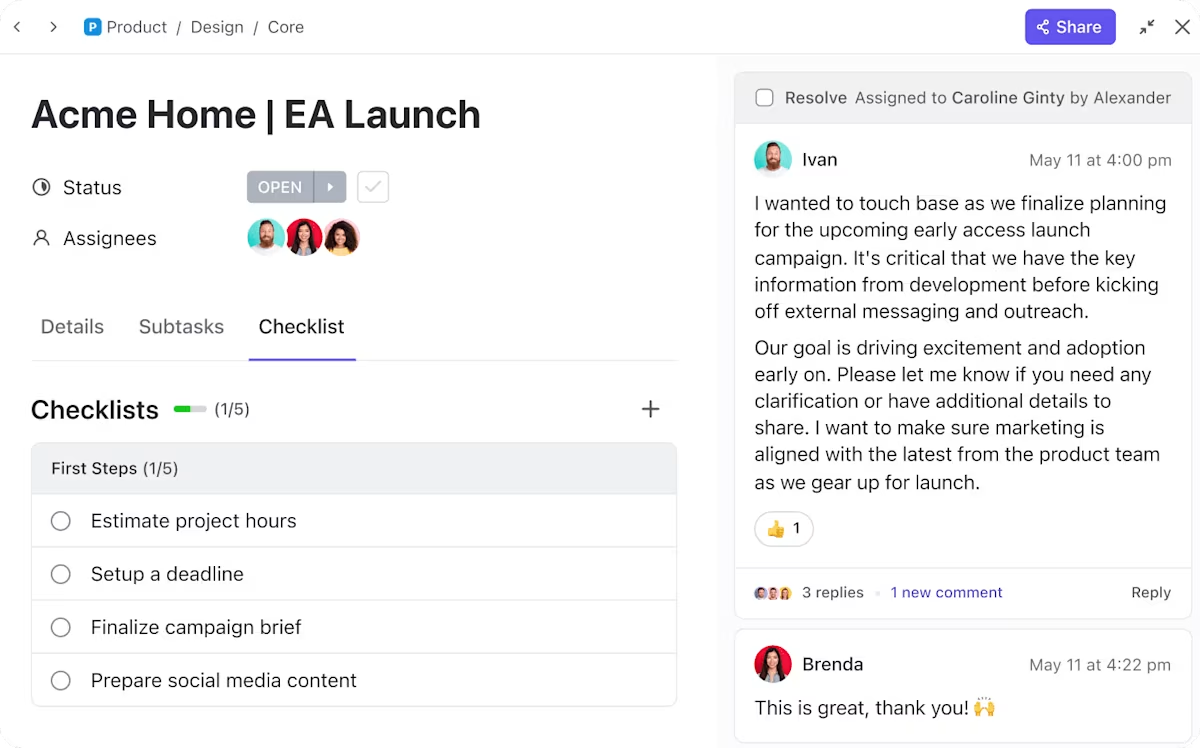
ClickUp Review: Is It Worth It in 2025? [In-Depth]

Software Stack Editor · January 31, 2025 ·

In this ClickUp review, we’ll go over the platform in detail, including its features, usability, security, integrations, and even customer support.

TL;DR

  • Range of features: 8/10. The platform offers a good range of features, but the tool’s automations are not as flexible.
  • User interface and usability: 6/10. ClickUp is easy to use for simpler tasks, but users feel lost when they are using the tool’s customization options.
  • Security measures: 4/10. ClickUp’s security sounds good on paper, but a Redditor has found a significant security loophole.
  • Integrations: 6/10. The tool offers a good range of native integrations, but not as many as its competitors.
  • Customer support: 9/10. Customers are happy with the level of customer support and learning materials they were provided with.
  • Pricing model: 9/10. The pricing starts from $7/month/user, which is some of the industry’s lowest, and some users have reported receiving significant discounts.

Average rating: 7/10.

ClickUp Overview

ClickUp is a cloud-based project management software that lets you automate your workflows and manage your tasks.

The platform offers Gantt charts, board views, and portfolios that you can use to simplify your work and project management & advanced reporting features to manage stakeholders.

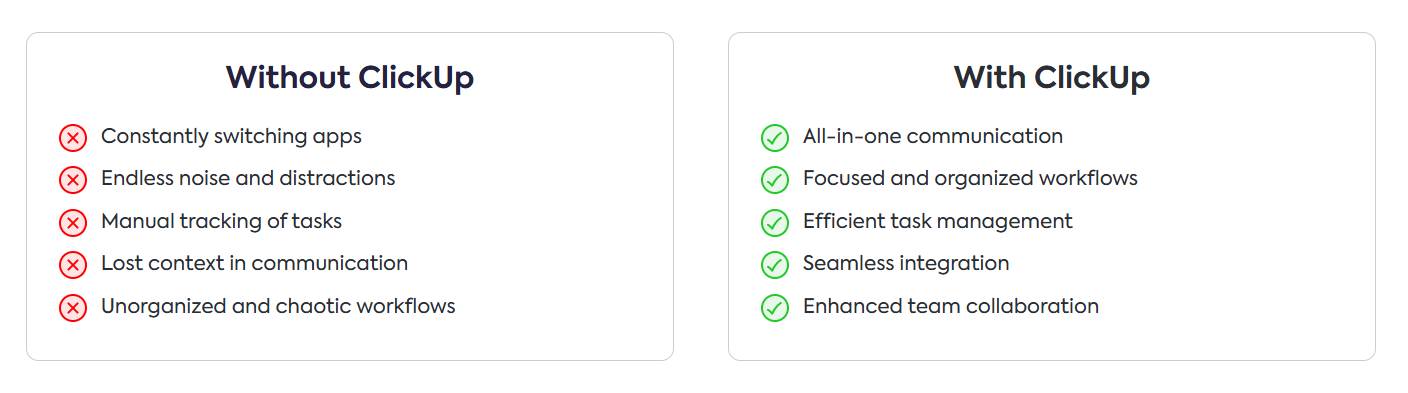
The tool positions itself as an all-in-one platform that combines communication, project management, reporting, and task management.

Instead of constantly switching apps and being distracted, losing context all of the time with project tasks, the platform helps you declutter your workflows and improve your team’s productivity.

ClickUp is a good option for business owners and freelancers looking for customization options so they can tailor the platform for different use cases and industries.

💡 Since the aim of this article is to review ClickUp, I’ll be giving my unbiased ratings on the platform’s features, interface, security, integrations, and customer support.

Let’s dive deeper into the software’s features: 👇

ClickUp’s Core Features

Team Collaboration

ClickUp offers a neck-to-neck competition with other project management tools regarding team collaboration and communication features. 

It helps you loop in stakeholders through comments and @mentions, talk with the team in-app, and assign tasks to multiple team members.

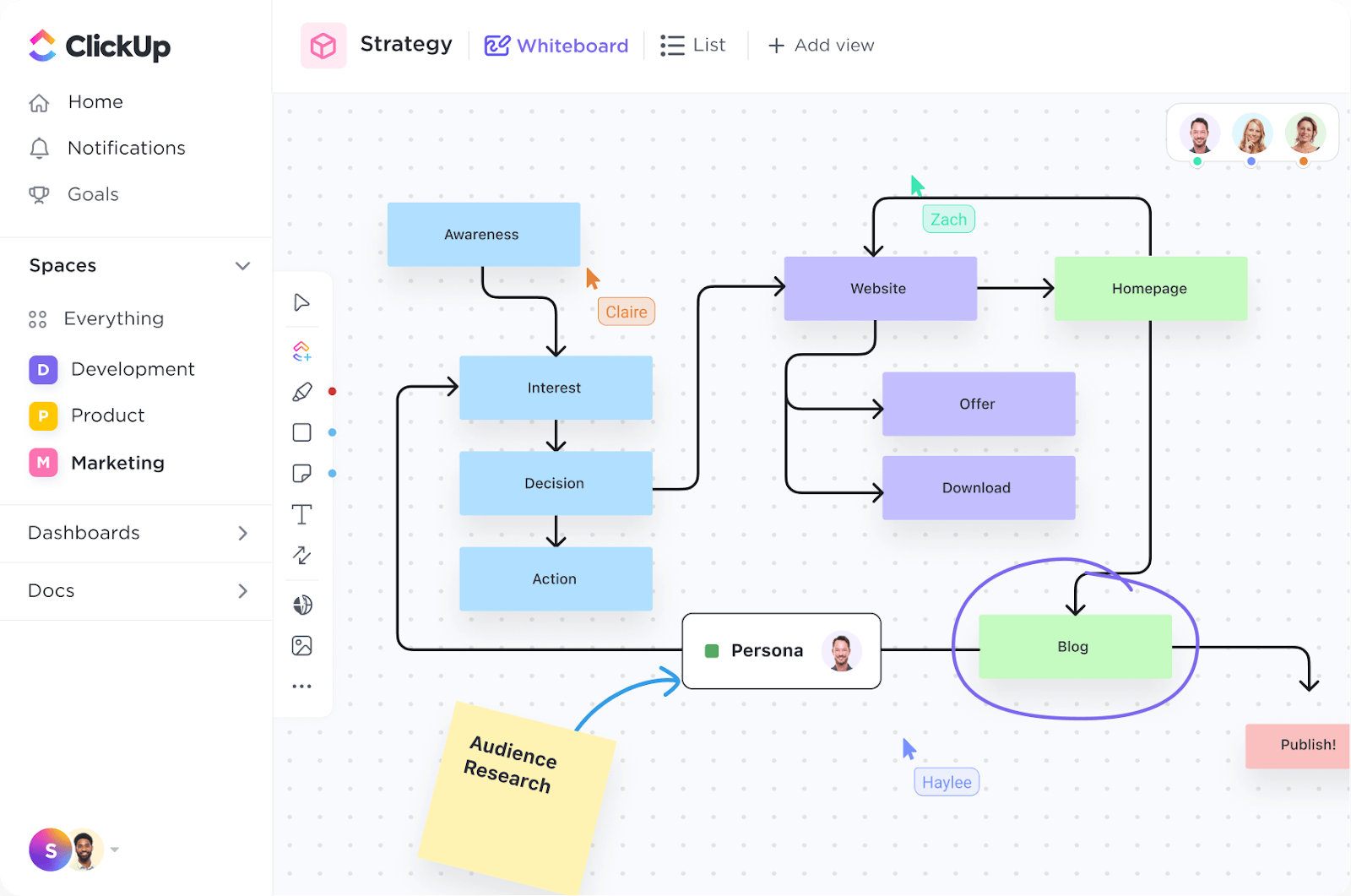
Additionally, it offers native docs and whiteboard features centralizing knowledge management. You can brainstorm with your team, map out project priorities, or create detailed proposals to share with clients.

Advanced Reporting Dashboards

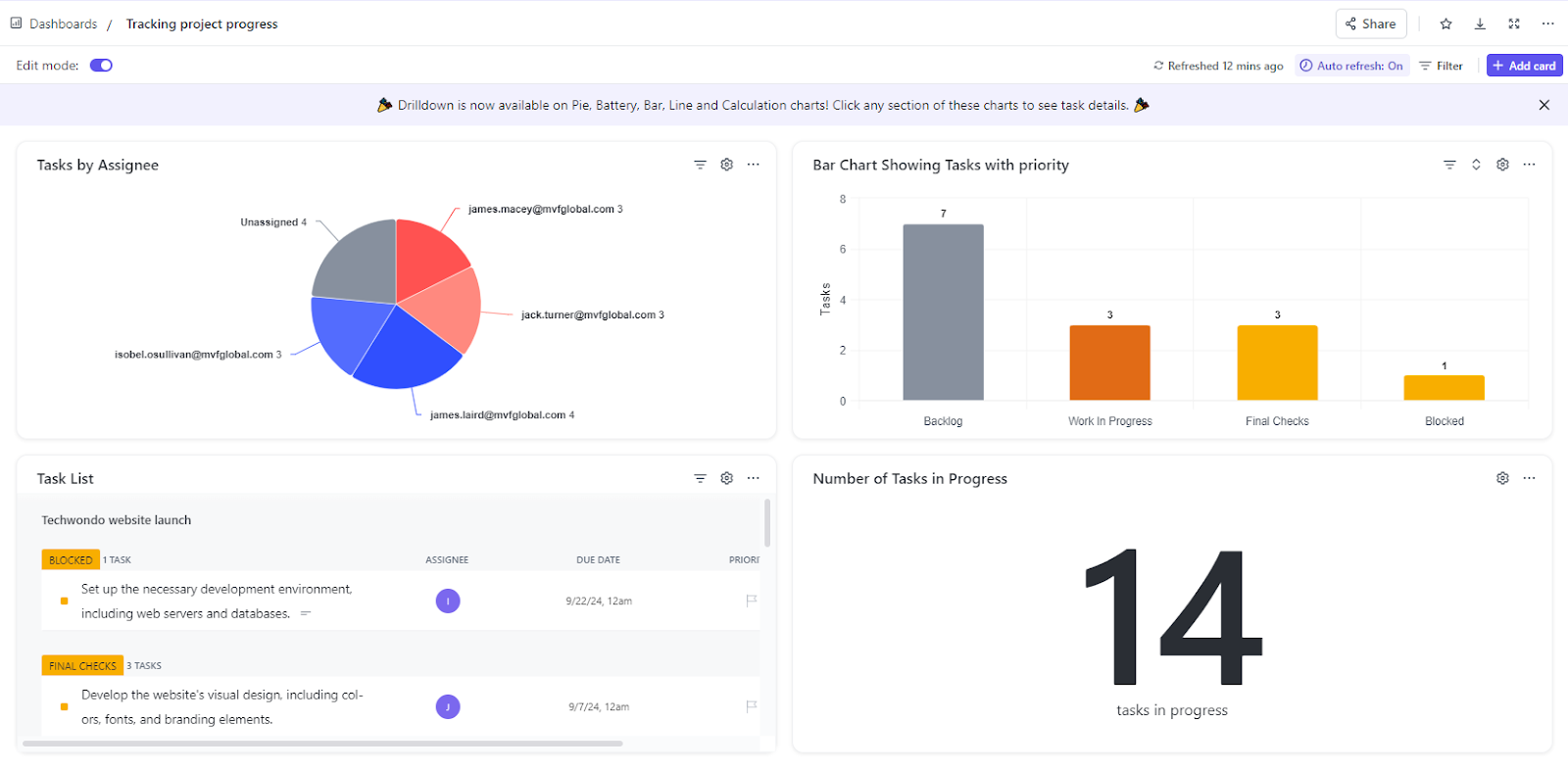
ClickUp offers customizable dashboards to visualize project performance and give real-time insights. 

Dashboards act like a focal point, enabling you to centralize different spaces to get a holistic view easily and quickly.

You can customize dashboards with 40+ cards, including charts, calendars, embeds, priority, chats, sprints, and custom.

Flexible Work Views

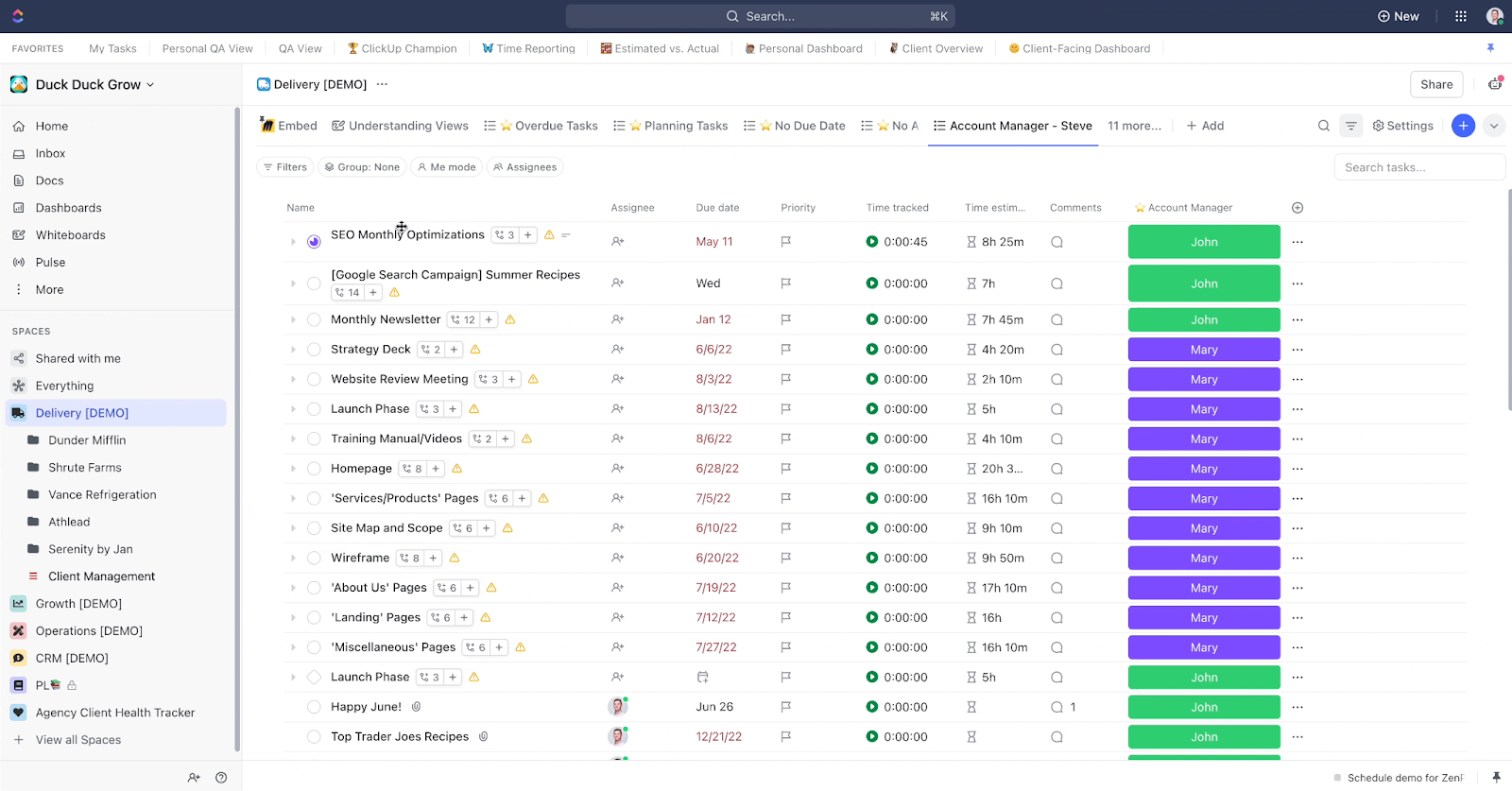
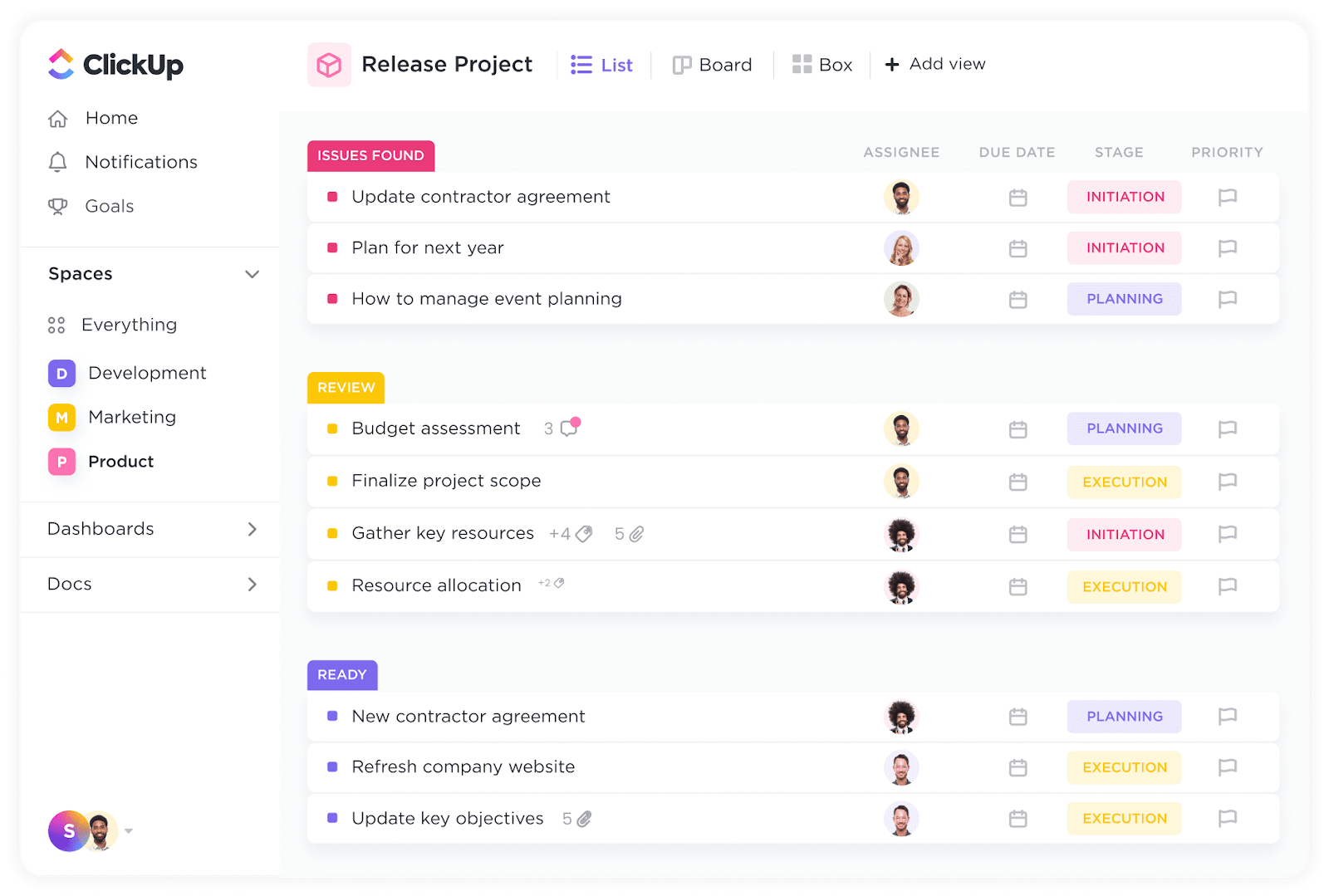
ClickUp offers 10 views to help you focus on your priorities in the way you want.

  • Timeline view: Let users see project schedules and deadlines at a glance
  • List view: The most straightforward way to show tasks in a vertical list format
  • Board view: Organizes tasks into columns, similar to a Kanban board
  • Gantt chart view: Shows tasks as horizontal bars on a timeline, depicting schedules, dependencies, and progress
  • Workload view: Visualizes team members’ workloads, helping managers balance task distribution
  • Calendar view: Showcase tasks, deadlines, and events on a traditional calendar interface
  • Table view: Presents task data in a spreadsheet-like format
  • Map view: Plots location-based tasks on a map
  • Activity view: Shows a chronological feed of recent actions and updates
  • Box view: Organizes tasks into customizable boxes or containers

The best part is that views aren’t limited to task levels. Your team can create views at folder level, space, or even for the entire workspace.

Built-In Time Tracking

ClickUp offers a native time tracking field to set time estimates for each task that your team is working on – which I find to be particularly useful for service businesses that need to bill their clients for time spent on tasks. 

The platform also lets you sync time tracking through integration with time-tracking apps like Toggl to improve your team’s productivity. 

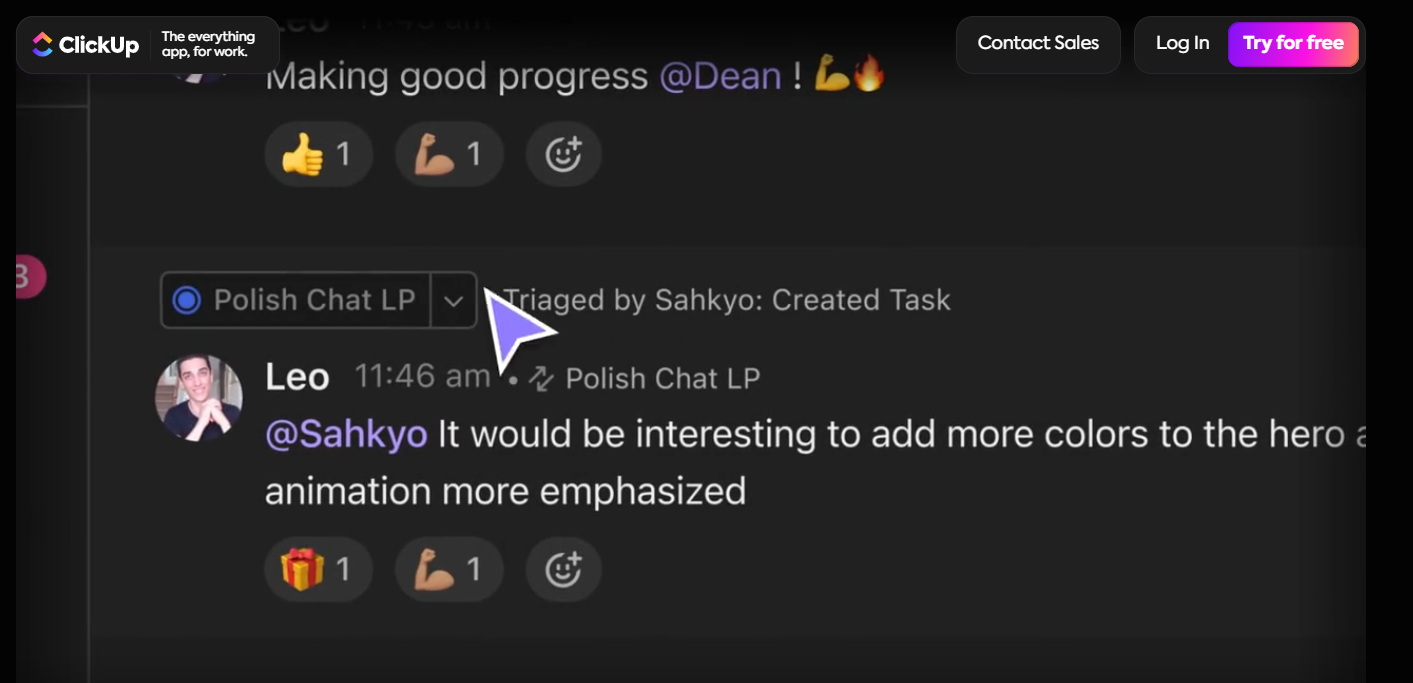
ClickUp Chat

ClickUp offers a different kind of chat functionality – one that helps you create and manage work while messaging by turning messages into tasks with one click.

The platform’s AI functionality helps you turn conversations into tasks and docs.

ClickUp will also give you suggested answers, summarize threads and discussions, and automatically create the tasks.

Rating: 8/10.

ClickUp offers a good variety of features for various use cases and industries. But the platform is not the ‘’everything app’’ that they are trying to portray themselves with.

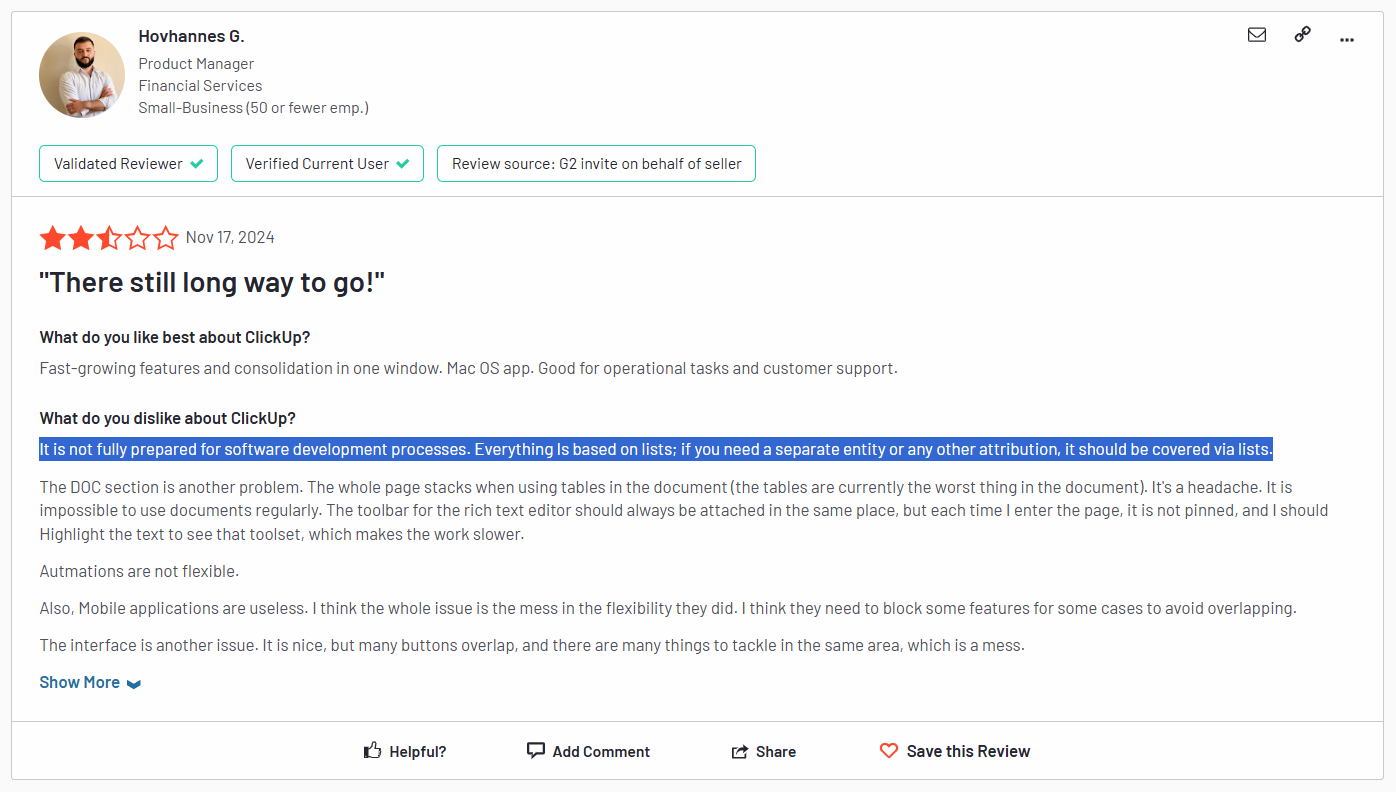
For example, the platform’s automations are not that flexible, and technical teams claim on G2 that the platform was not built for software development, as everything is based on lists.

That means if you need a separate entity or any other attribution, it should be covered via lists. 

‘’It is not fully prepared for software development processes. Everything Is based on lists; if you need a separate entity or any other attribution, it should be covered via lists.’’ – G2 Review.

ClickUp’s Interface: Is It Easy To Use?

ClickUp’s interface – at first glance – looks easy to use and navigate. 

When I was reviewing the platform’s UI, I had no trouble assigning tasks or setting up the Spaces inside the platform.

Despite that, I found on G2 that other businesses did not find it as easy and intuitive when they wanted to use the platform for more complex tasks.

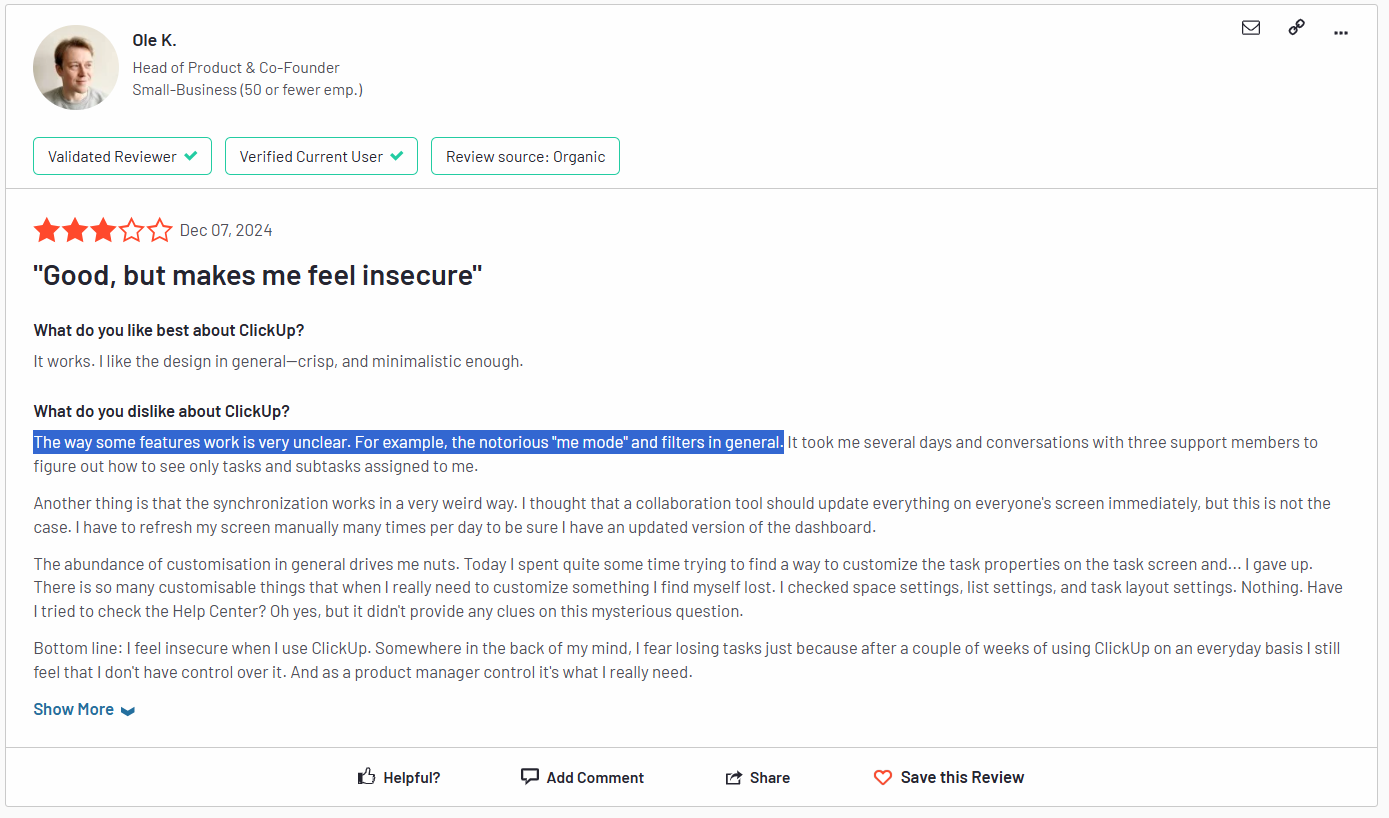
For example, a product manager has shared in a G2 review that the way some of the platform’s features work has been unclear for their team.

They explain that ClickUp’s ‘’me mode’’ and filters have taken them days and conversations with customer support about how to use them so they can see only tasks and sub-tasks assigned to them.

The product manager then goes into detail about the abundance of customization that has been too much to handle – eventually giving up trying to customize certain elements of the platform.

The result has been that their team has started feeling ‘’insecure’’ about using the platform as they feel like they have limited control over the platform.

‘’Bottom line: I feel insecure when I use ClickUp. Somewhere in the back of my mind, I fear losing tasks just because after a couple of weeks of using ClickUp on an everyday basis I still feel that I don’t have control over it. And as a product manager control it’s what I need.’’ – G2 Review.

Rating: 6/10. 

The platform is easy to use and navigate if you plan on using it for basic tasks, such as allocating tasks to your employees and then tracking progress.

But things can get messy when it comes to customizing the platform and setting up automations.

ClickUp’s Security Measures

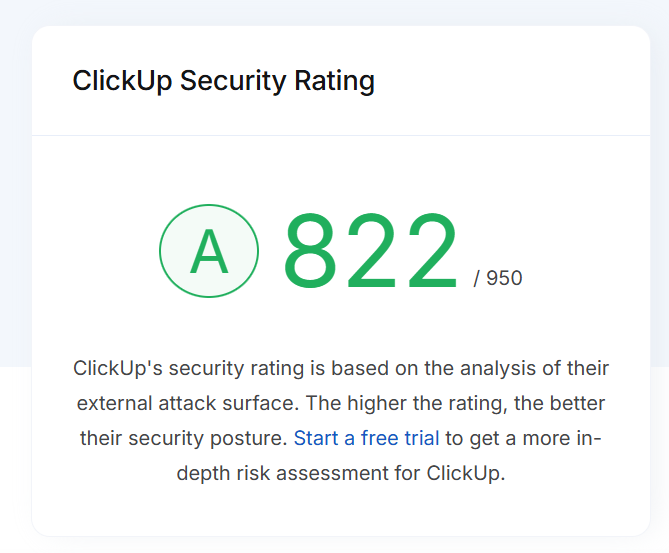
ClickUp has been described as safe by popular security review websites, such as UpGuard, which gives it an A rating (822/950).

ClickUp uses encryption to safeguard your information, helping you ensure that your projects and communications remain private and secure.

If you’re on ClickUp’s Enterprise plan, you will get access to:

  • Advanced permissions for access.
  • SSO.
  • Advanced public sharing to better protect your documents.

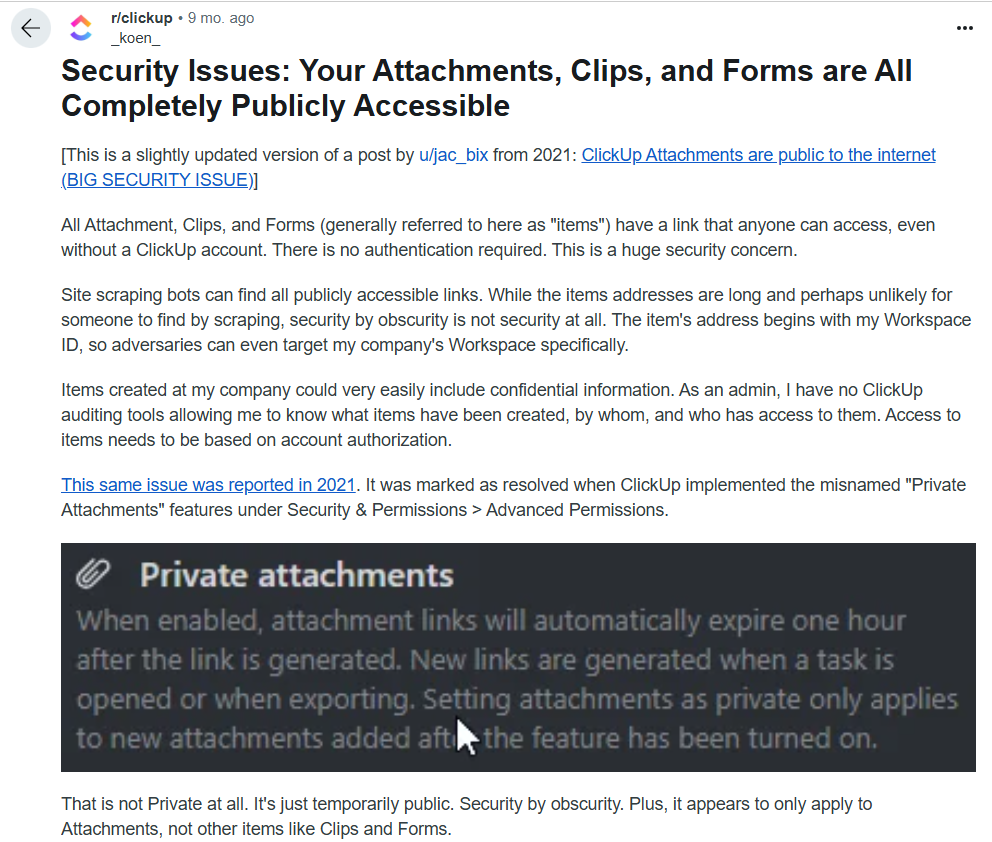
It all sounds good on paper – until this Reddit post was published 9 months ago discussing ClickUp’s security loopholes.

According to the Redditor, with ClickUp, your attachments, clips, and forms (items) are all completely publicly accessible.

This is because they have a link that anyone can access, even without a ClickUp account with no authentication required.

This problem was originally raised in 2021, and despite ClickUp’s team ‘’fixing’’ the problem, the documents are still temporarily public for 1 hour.

Rating: 4/10.

Despite ClickUp’s best efforts to be a compliant and protected platform, there are still security concerns that they need to address.

I cannot possibly give them a higher rating than 4, as this privacy problem still exists.

ClickUp’s Integrations

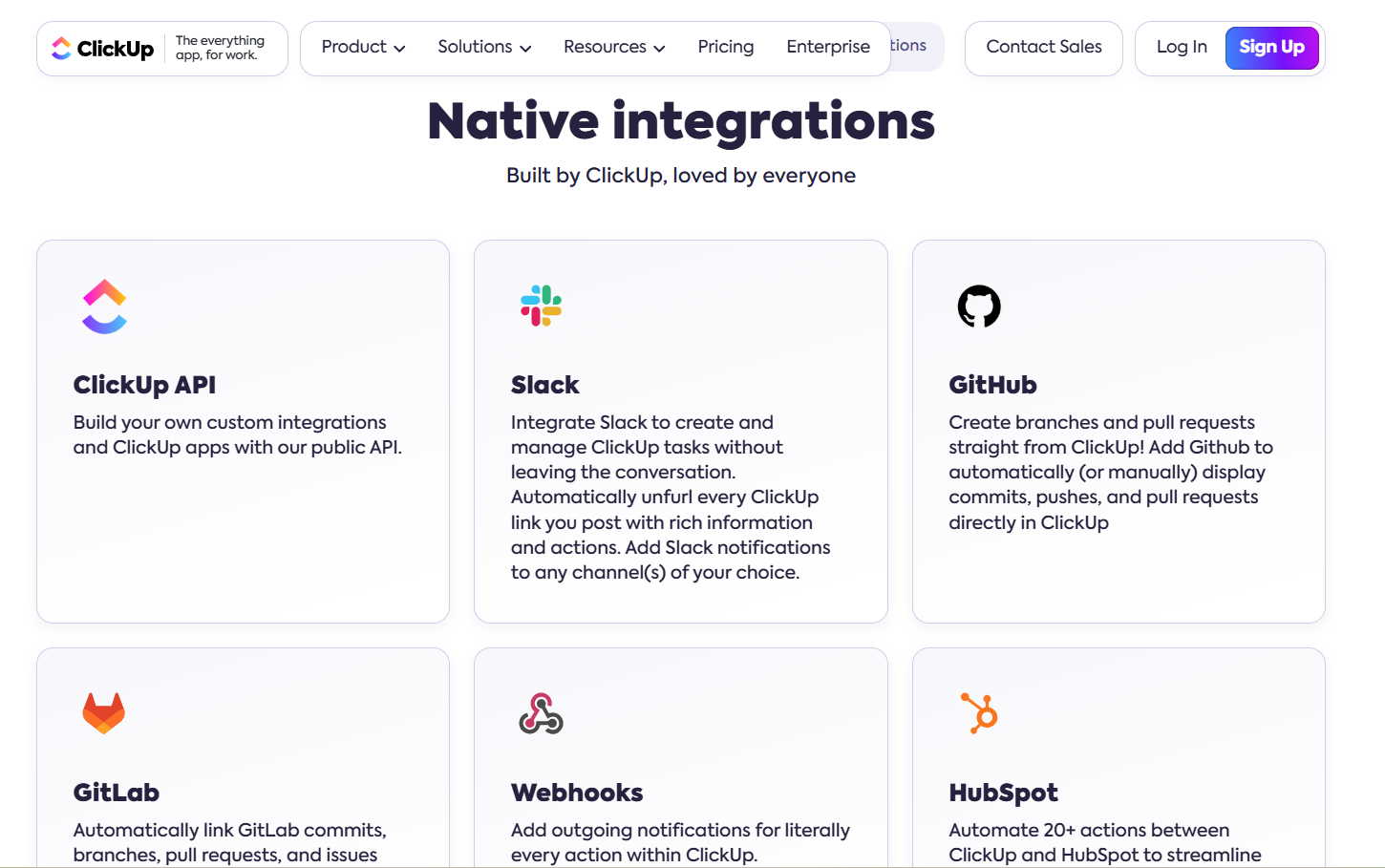
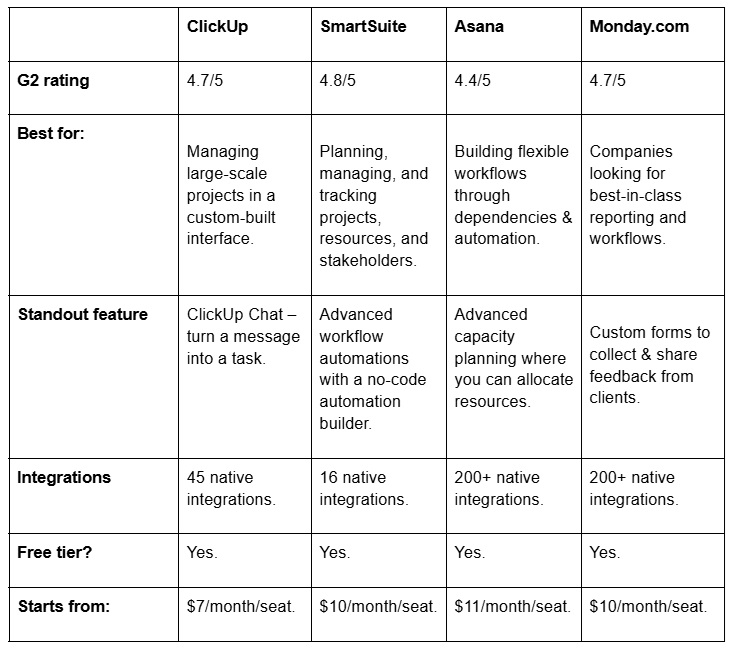
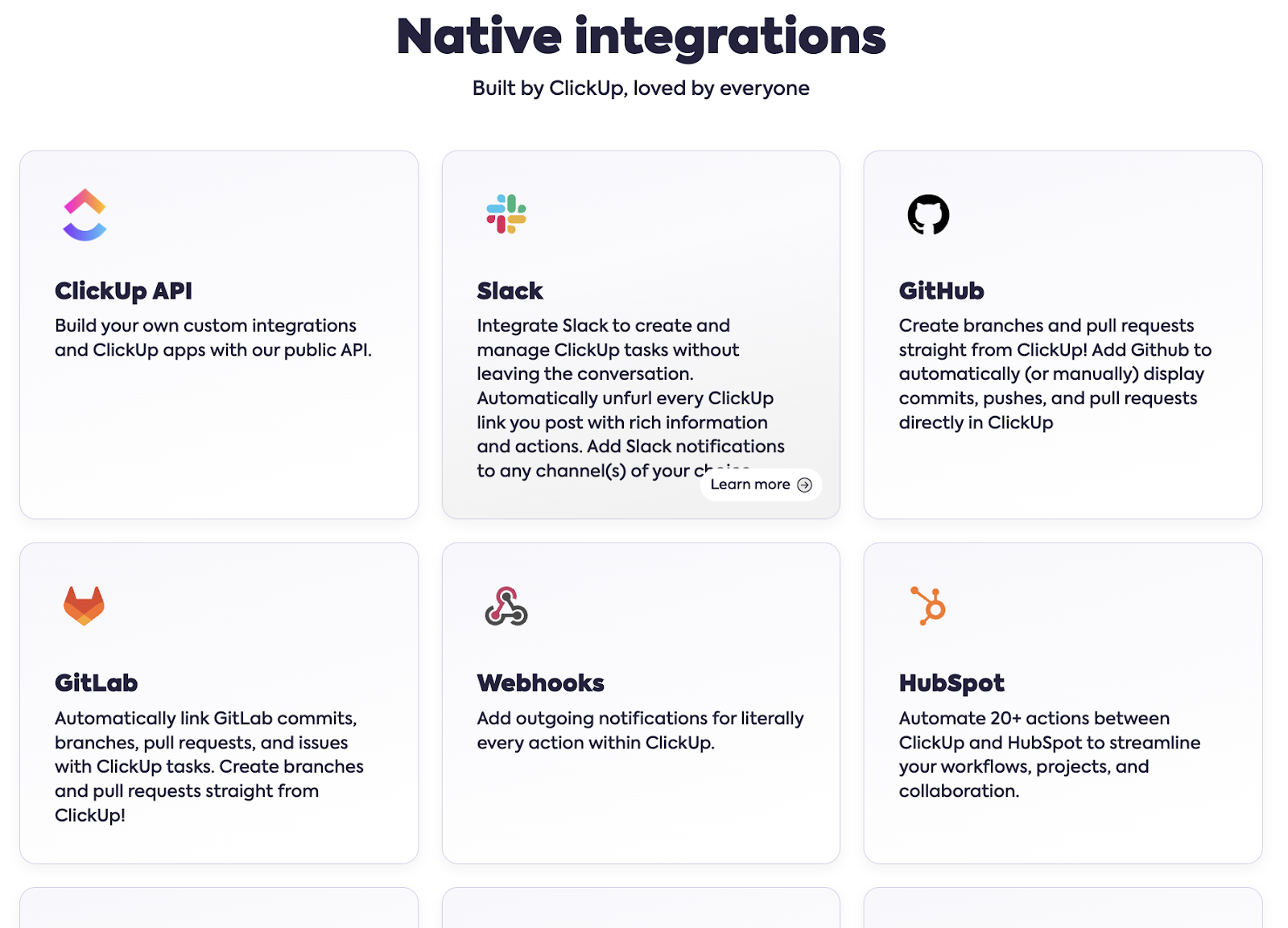
Despite being a powerful project management platform, ClickUp offers only 45 native integrations and public API to build custom integrations.

As ClickUp tries to be ‘’the everything app’’, they have fewer integrations as they prefer to build features inside of their platform.

The platform also connects with Zapier to let you connect with over 1,000 apps, which comes at an additional cost for a Zapier subscription.

Some of ClickUp’s native integrations include:

  • Tableau Web connector.
  • Microsoft teams.
  • GitHub.
  • Slack.
  • Discord.
  • Hubspot.

Rating: 6/10.

ClickUp technically has a good range of integrations, but when compared to other platforms on the market, such as Monday.com (200+ native integrations), the tool is coming short.

ClickUp’s Customer Support

ClickUp has been ‘’spoiling’’ its customers with excellent and timely customer service, according to the majority of G2 reviews.

According to users of the platform, the platform offers good support through its chat and forum.

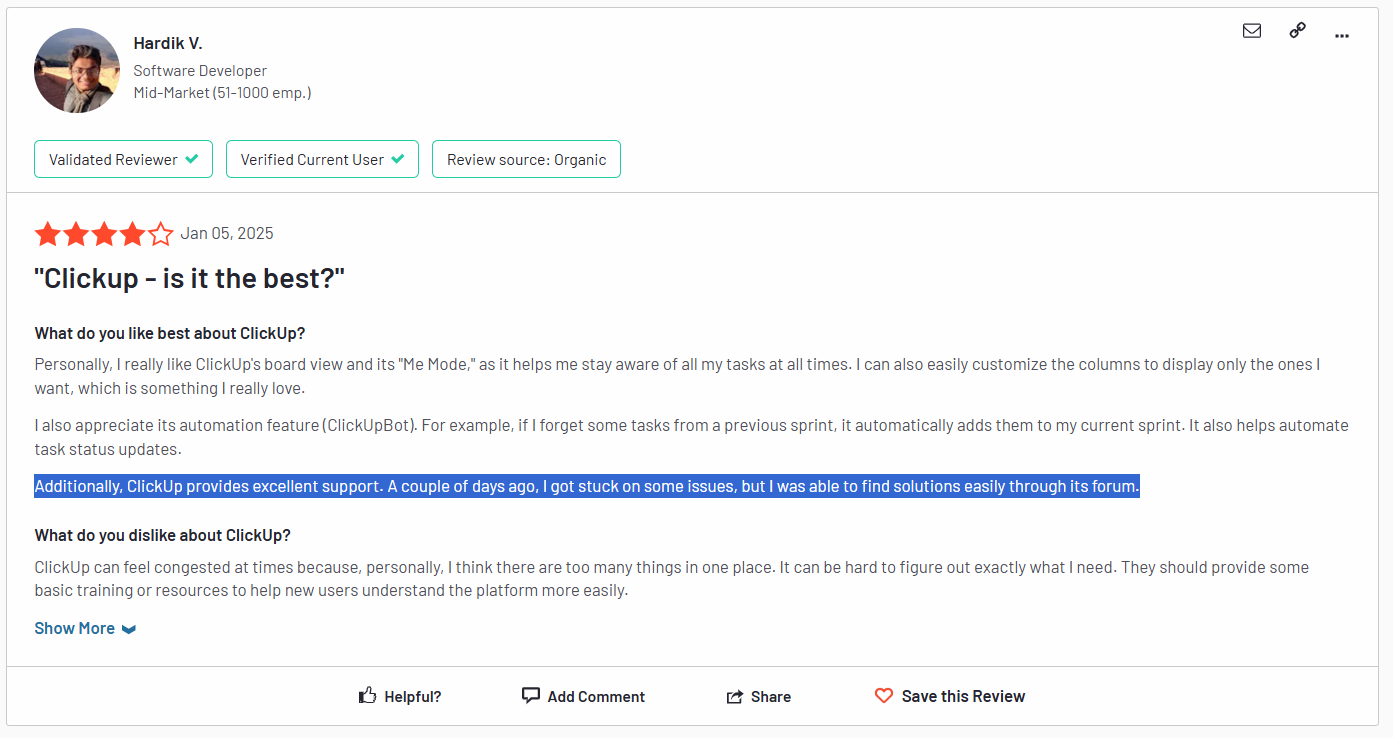
‘’ClickUp provides excellent support. A couple of days ago, I got stuck on some issues, but I was able to find solutions easily through its forum.’’ – G2 Review.

If you’re on their Enterprise plan, you’ll also get access to:

  • Live onboarding training.
  • Customer success manager.

Rating: 9/10.

Despite the occasional dissatisfied customer with customer support (every tool has a few of them), pretty much everyone has been happy with the attention they’ve been given by support. 

ClickUp’s Pricing Model: Does It Provide A Good Value For Money?

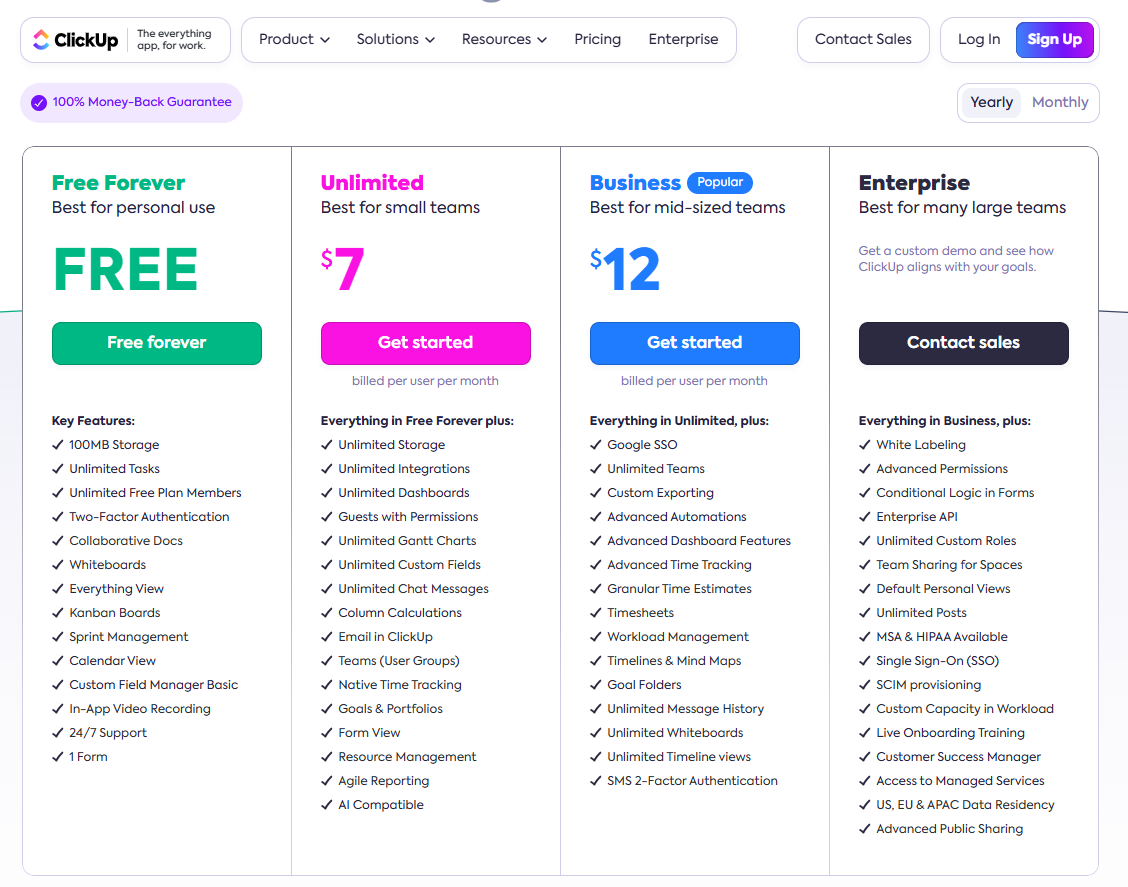
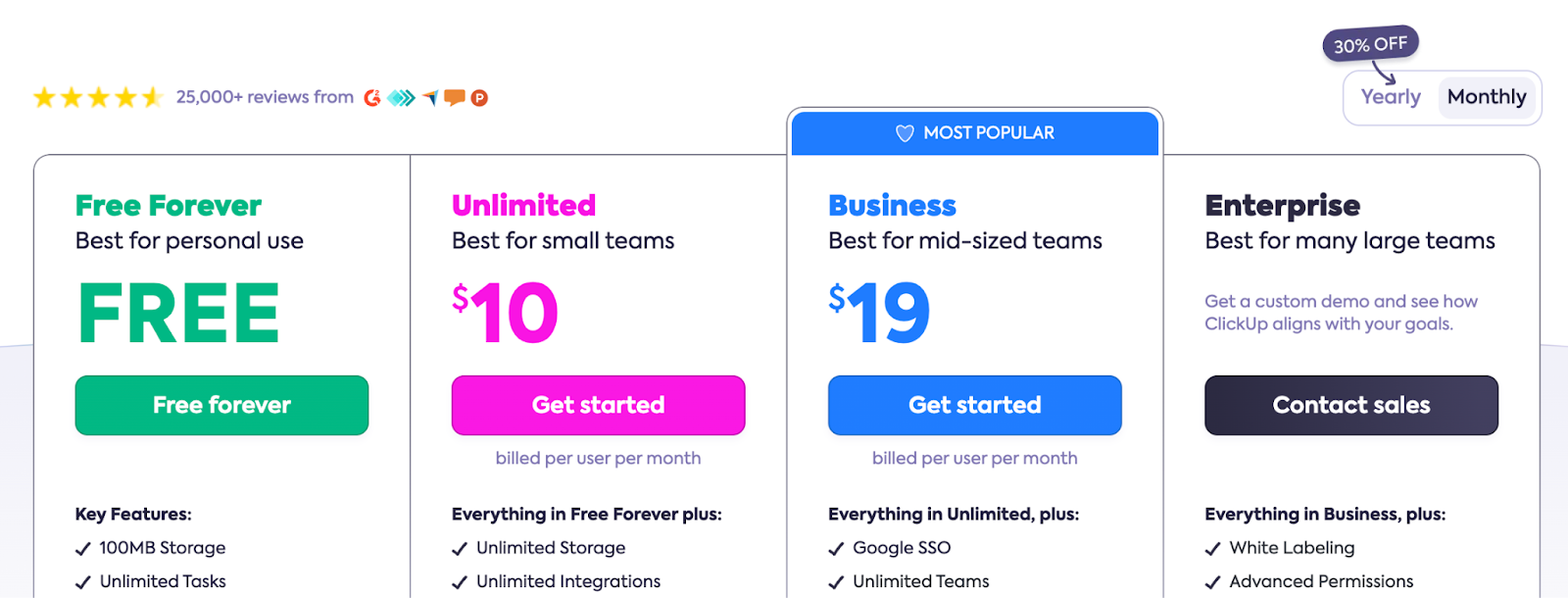
ClickUp offers a free plan that includes unlimited task creation, access to 100 MB storage, and collaborative docs.

The platform offers three paid plans with a 14-day free trial:

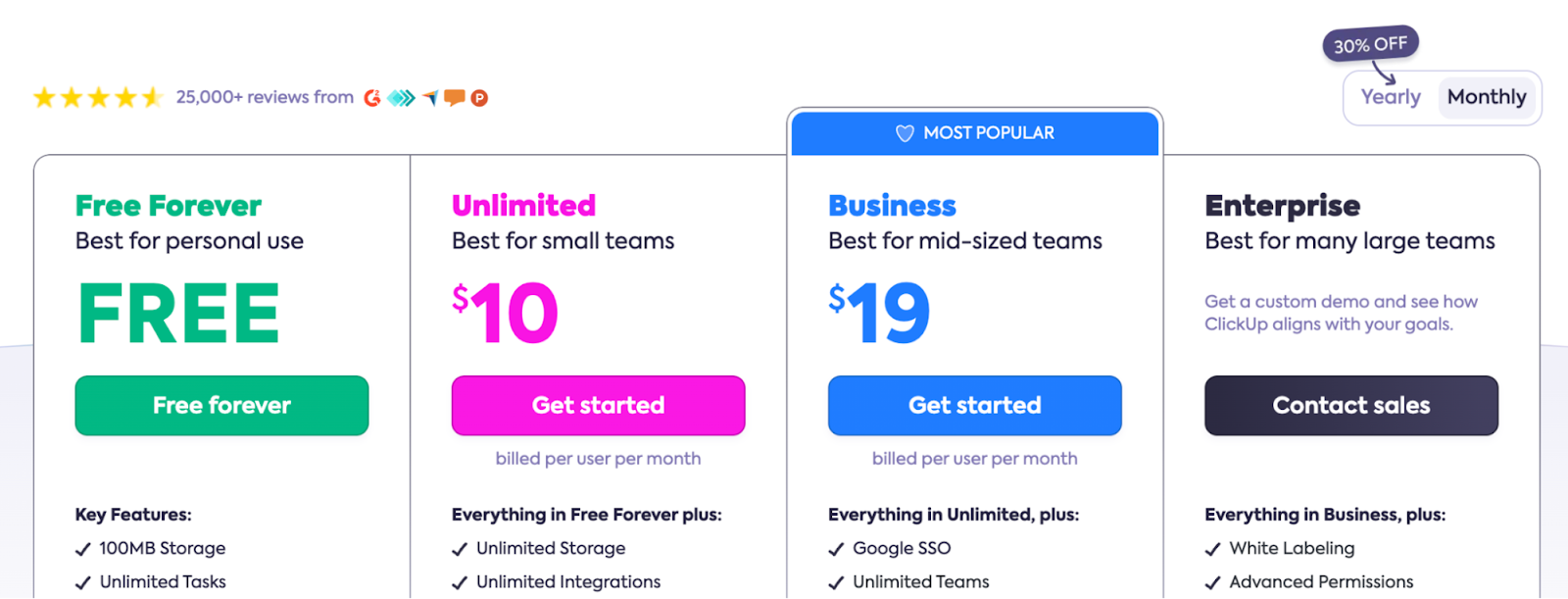
  • Unlimited: Starts at $7 per user/month, which includes access to unlimited custom views, timesheets, guest access, and 100 mind map creation.
  • Business: Starts at $12 per user/month and adds private docs, sprint reporting, and all dashboard views.
  • Enterprise: Custom price that adds white labelling, enterprise-grade security, and AI features.

➡️ You can learn more about what you’ll get in each paid tier in our comprehensive ClickUp pricing guide.

According to 3rd-party data from Vendr, ClickUp’s Enterprise plan can go up to $30/month/seat, and the average contract value is $24,256 a year from the 13 deals the site has handled for ClickUp.

Rating: 9/10.

Considering the vast amount of features, customization and automations that the platform offers, a starting price of $7/month/seat is a pretty good deal.

Bonus insights from Vendr that I found include that a customer was able to negotiate a decent discount on the Business plan from $12/month/seat down to $8/month/seat by committing to growth over the term and signing an early renewal.

How Does ClickUp Compare To Alternatives On The Market?

💡 You can check out our in-depth comparison of ClickUp vs. Asana vs. SmartSuite, where we cover the 3 best-in-class project management tools.

What Are Customers Saying About ClickUp?

Throughout this article, I’ve been showing you a glimpse of the users’ opinions on ClickUp – but let’s dive deeper.

TL;DR: ClickUp’s users recommend it for customizability and adaptability – but warn that there is a huge learning curve.

What users love about ClickUp:

  • High customizable dashboards – users appreciate how customizable ClickUp is, as they can create custom workflows and views to match their IT workflow.
  • Integration with connective platforms like Zapier to automate tasks.
  • Built-in team communication (ClickUp Chat), time tracking, and document creation.

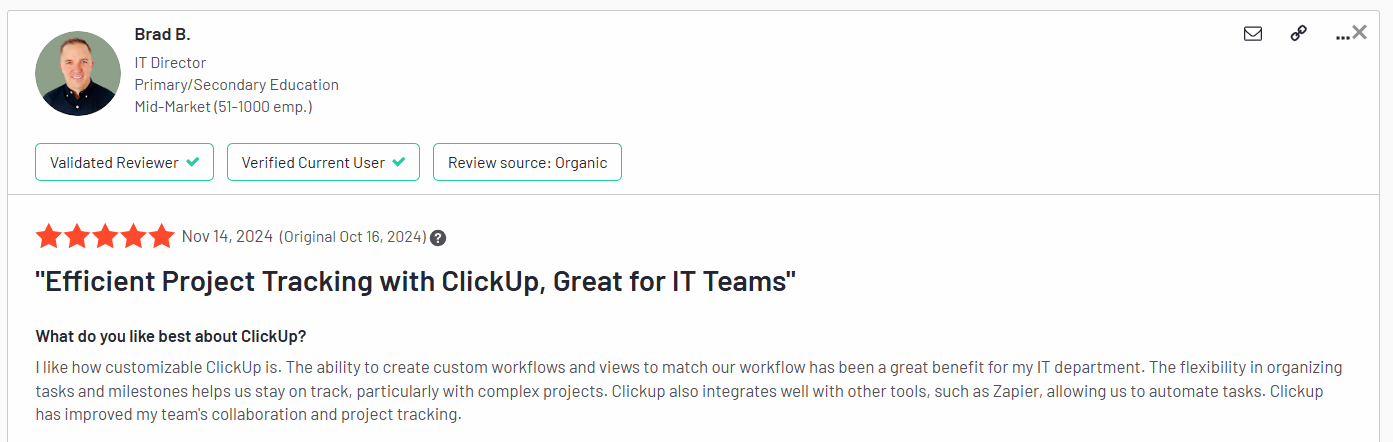
‘’I like how customizable ClickUp is. The ability to create custom workflows and views to match our workflow has been a great benefit for my IT department. The flexibility in organizing tasks and milestones helps us stay on track, particularly with complex projects. ClickUp also integrates well with other tools, such as Zapier, allowing us to automate tasks. ClickUp has improved my team’s collaboration and project tracking.’’ – G2 Review.

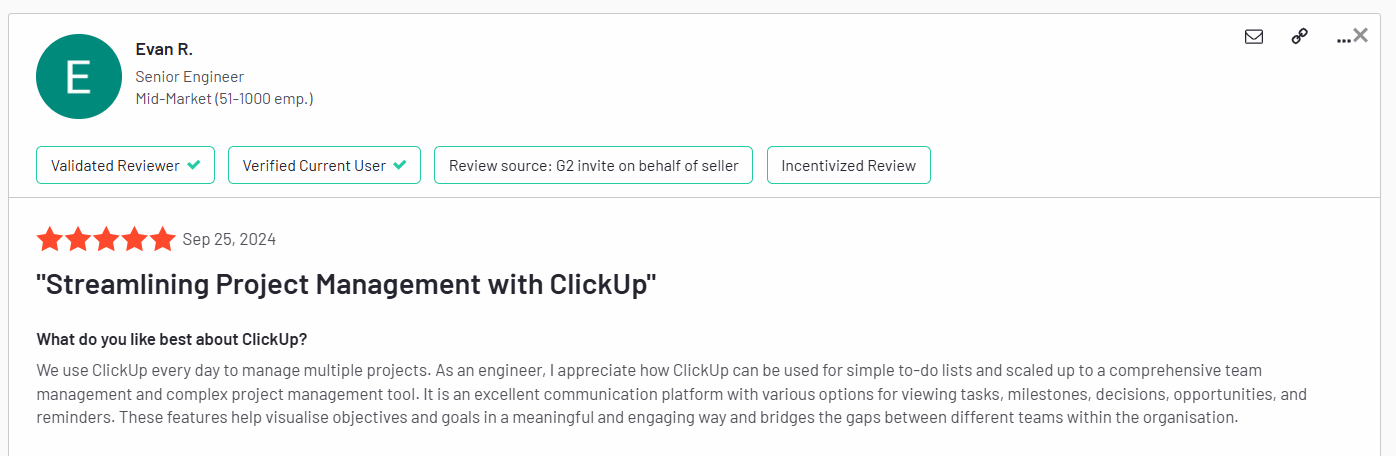
‘’We use ClickUp every day to manage multiple projects. As an engineer, I appreciate how ClickUp can be used for simple to-do lists and scaled up to a comprehensive team management and complex project management tool. It is an excellent communication platform with various options for viewing tasks, milestones, decisions, opportunities, and reminders. These features help visualise objectives and goals in a meaningful and engaging way and bridge the gaps between different teams within the organisation.’’ – G2 Review.

Common complaints about ClickUp:

  • An extensive range of features comes with a huge learning curve, especially for project management beginners.
  • Slow loading speed for dashboard spaces, especially when multiple people are working.
  • Feature usage limitations often push users to jump to higher-tier plans.

‘’If ClickUp worked properly, it would be a great choice. It doesn’t, to the point that it because unusable for my team due to performance issues. Unfortunately, I can’t recommend it as a result.’’ – Reddit comment.

‘’One of the challenges I face with ClickUp is the wide variety of features that can sometimes be overwhelming, especially for new users of ClickUp. While it’s highly customizable, there is a steep initial learning curve. The complexity of ClickUp requires some time to get everyone up to speed.’’ – G2 Review.

Verdict: Is ClickUp Really Worth It?

So far, I’ve rated ClickUp:

  • Range of features: 8/10.
  • User interface and usability: 6/10.
  • Security measures: 4/10.
  • Integrations: 6/10.
  • Customer support: 9/10.
  • Pricing model: 9/10.

Which gives ClickUp an average rating of 7/10 for me.

To summarize:

ClickUp is the ideal choice if you:

✅ Are looking for a highly customizable project management tool.

✅ Require multiple view options like Gantt charts, Kanban boards, and timelines

✅ Need integrated project management, time tracking, collaboration, and reporting features.

ClickUp isn’t the best option if you:

❌ Would rather have a simpler, more intuitive interface without a steep learning curve.

❌ Require best-in-class data security and protection of your team’s documents and uploads.

❌ Need a tool that natively integrates with more platforms from the ones you’re using.

Looking For A ClickUp Alternative?

Despite ClickUp’s range of features and affordable pricing model, some customers are still finding faults with the product’s usability, security measures, and steep learning curve.

Across the ClickUp alternatives, SmartSuite (that’s us) is one of the most affordable, easy-to-use, and feature-packed platforms.

  • Our platform offers better task management capabilities through 40+ fields, including a linked records field.
  • SmartSuite has built-in team collaboration tools like email integration, whiteboards, and a member directory.

Let’s look at some key features that make SmartSuite the best ClickUp alternative.

#1: Advanced task management

SmartSuite’s task management feature helps small—to large-sized organizations plan, manage, and track all their tasks in an intuitive dashboard.

One key area where SmartSuite really shines over ClickUp is that in our platform, you can turn anything into a task—a checklist item, comments, or sub-item. You can also quickly assign these tasks to the right stakeholder with a due date and priority status.

Other key features that stand out about SmartSuite include:

  • 7+ task views: SmartSuite offers over seven task views, including Grid, Kanban boards, Card, Calendar, Timeline, Map, and Chart. All the views are available starting from its free plan, letting you build more flexible workspaces.
Quickbase’s Pricing Plans
  • Native time tracking: Your team can keep track of time on every task or project by adding a time field in your workspace. 

You also get to generate timesheet reports to accurately view billable and non-billable hours and track your team’s productivity levels.

Quickbase’s Pricing Plans
  • Set up recurring tasks: It is possible to automate routine tasks within a specific record by setting it as a repeating task. Choose the frequency (daily, weekly, monthly), set the task status, and choose the day/date to start the repeating cycle.
ClickUp’s Pricing Plans
  • My work section: A dedicated section where you get a granular view of all the tasks assigned to you, notifications you received, and comments that need your attention.

You can group the tasks by assigned date, priority level, or progress status. My work section creates a dedicated space, making task management a breeze for all of your team members and keeping them on their due dates.

ClickUp’s Pricing Plans

#2. Integrated team collaboration

Our platform focuses on facilitating integrated communication with less contextual switching. 

SmartSuite’s comprehensive team collaboration feature is replete with tools to ensure team members get real-time updates, share feedback or approvals, and keep external clients updated.

Factors to Consider When Choosing an Organization Software

Some key features that boost a team’s productivity include:

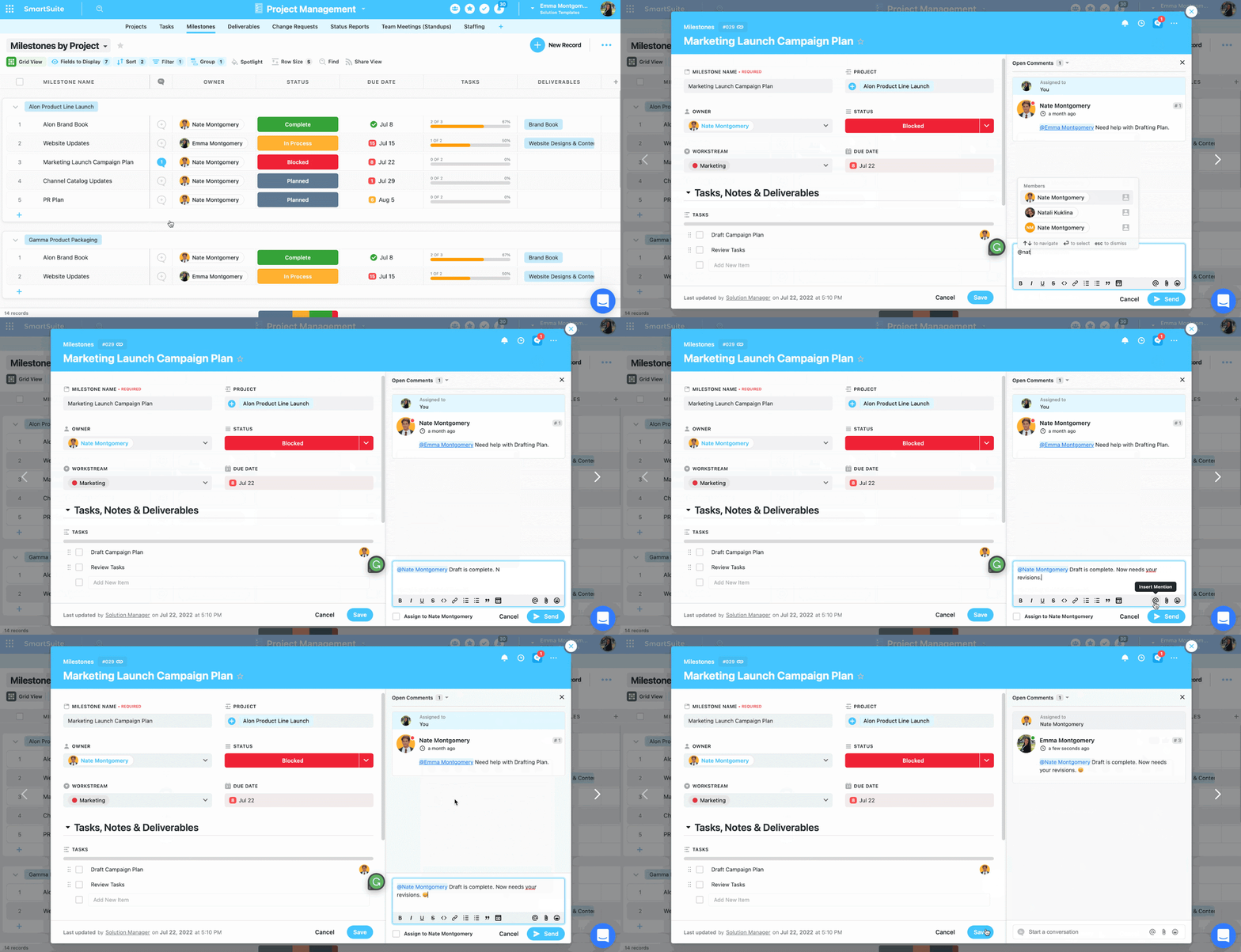
  • Comments to task conversion: You can convert any comment into an action item within a record or a field within a record. Also, you can assign these tasks to team members and track their progress in real-time.
Airtable Pricing Plans
  • Member’s Directory: Your leadership team will get a complete list of all your team members in a single dedicated space and get access to information such as their department, position, location, timezone, etc. 

To find the right member/s, you can use grouping or filtering options without manually scrolling through the list.

Airtable Pricing Plans
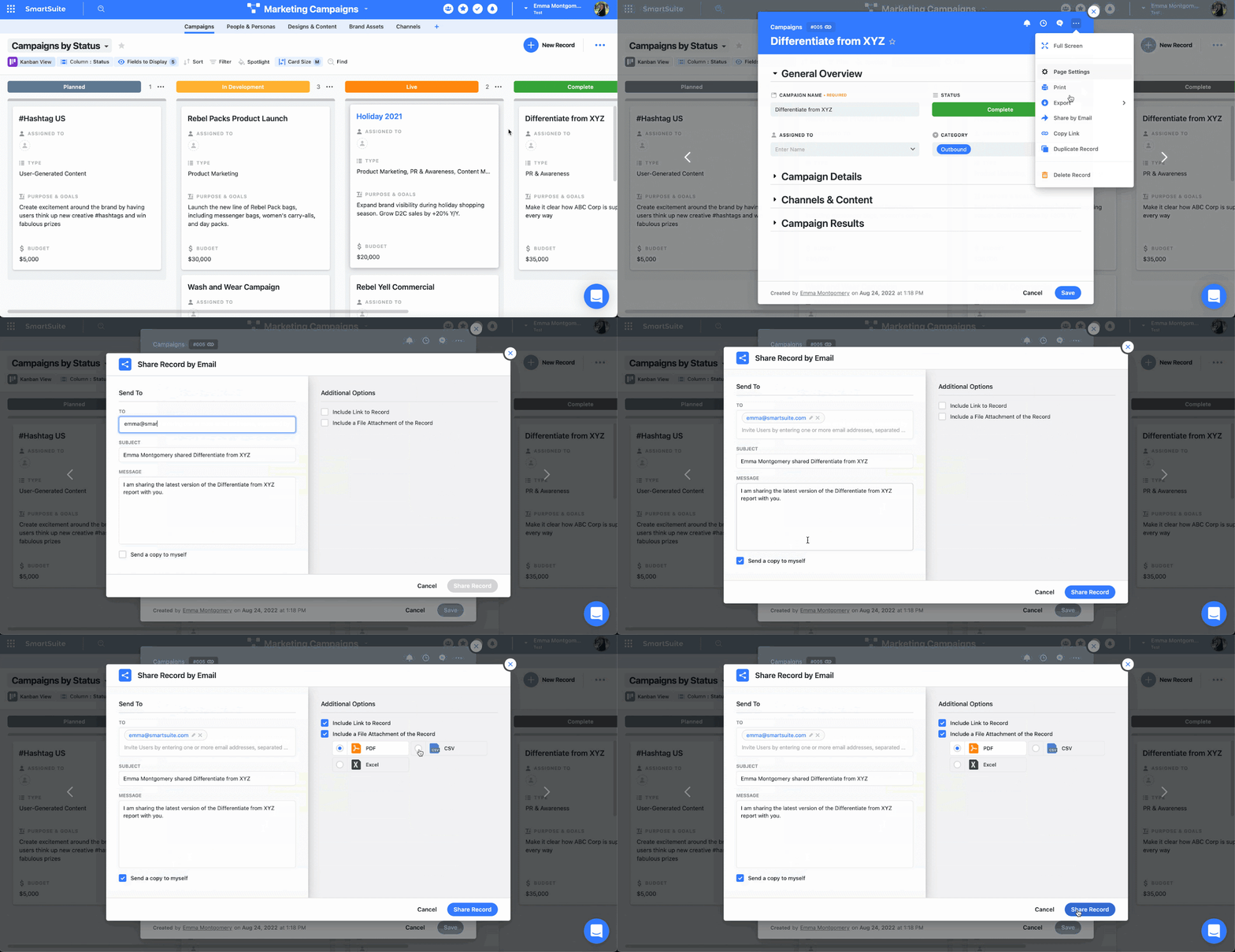
  • Email integration: Integrating your email account with SmartSuite and sending and receiving emails within your workspace so you do not have to switch.

And the best part? SmartSuite offers an intuitive mobile app that lets you stay in touch with co-workers on the go.

Airtable Pricing Plans

#3. Flexible automation builder

SmartSuite offers automation starting from its free plan, similar to ClickUp. 

However, SmartSuite’s automation builder is much more user-friendly and lets you automate actions across workspaces—on a task or overall project level. 

It gives you more power to automate and build processes that handle recurring tasks such as status updates or follow-up emails.

Factors to Consider When Choosing an Organization Software

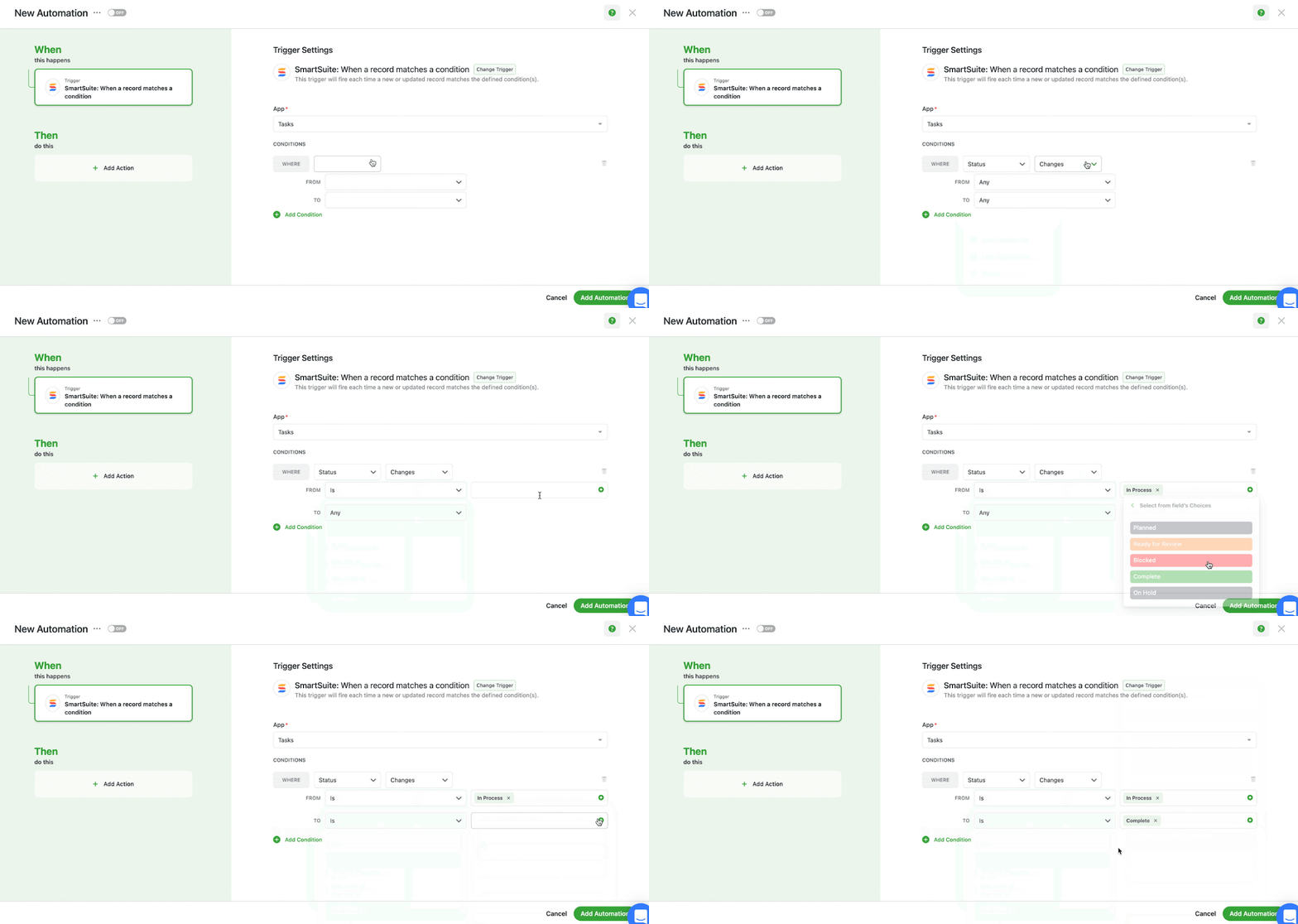
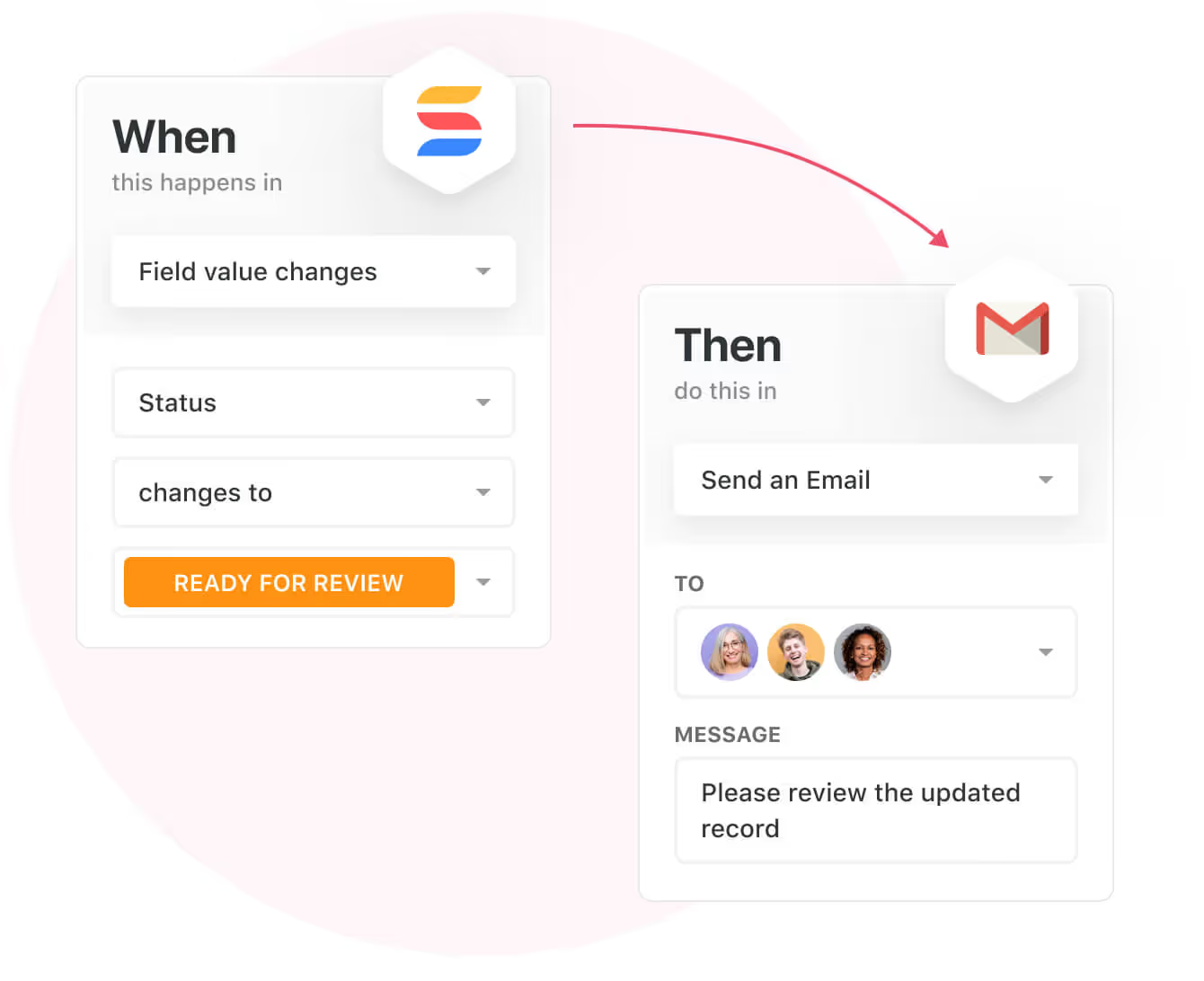
The automation builder offers no-code functionality to build simple one-liner sequences or multi-step flows through triggers, conditions, and actions. 

Your team can choose the prebuilt actions or integrate SmartSuite with email, file storage, messaging, or SMS platforms such as Slack, Microsoft Suite, Slack, and Calendars to build custom actions.

Airtable Pricing Plans

You can, for example, authorize your account by selecting the Gmail integration action, specify your email addresses, and customize your message. 

This email will be sent when the trigger and its conditions are met.

Airtable Pricing Plans

Get Started with SmartSuite For Free Today

If you want to customize your workspace to the last bit and need a tool that does it all, ClickUp is the ideal choice.

But with such flexibility comes a higher learning curve and slow loading time when your projects grow in numbers.

SmartSuite’s platform helps you tackle this by offering just the right customization and a library of 200+ project management templates to get your projects up and running. 

It’s also as user-friendly and intuitive as it gets, unlike ClickUp which leaves its users feeling helpless.

Here’s what’s in it for your team when you try SmartSuite:

  • Access to a generous free plan with features including multi-board views (Kanban, Chart, Map, Timeline, Card, and Calendar), 100 automation/month, and 40+ field types, including formula and linked record fields.
  • No-code automation builder to set up to 500,000 trigger/action workflows.
  • Built-in productivity tools, including time tracking, status tracking, and checklists.
  • Team collaboration and planning tools such as whiteboards and SmartSuite docs.
  • Resource management across projects and teams.
  • 40+ field types, including the option to add your custom fields.

Sign up for a free plan to test the water or get a 14-day free trial to explore all its amazing features.

Or, if you’d like to talk to our team of experts, schedule a demo.

‍

Tara Darbyshire

Software Stack Editor · January 24, 2025 ·

You’re Subscribed 🎉

Thank you very much and you won’t regret it !

Oops! Something went wrong while submitting the form.

.blog-filters-pill-main-alter.active,
.blog-filters-pill-main.active {
color: #2E3538;
}

.blog-filters-pill-main .video-tabs-horizontal-line,
.blog-filters-pill-main-alter .video-tabs-horizontal-line {
opacity: 0;
}

.blog-filters-pill-main.active .video-tabs-horizontal-line,
.blog-filters-pill-main-alter.active .video-tabs-horizontal-line {
opacity: 1;
}

.blog-filters-pill-secondary.active {
background-color: #E7F0FE !important;
border-color: #3A86FF4D !important;
}

@media only screen and (max-width: 767px) {
.blog-filter-secondary-categories-list-alter .w-condition-invisible {
display: flex !Important;
}
.blog-filter-secondary-categories-list-alter .w-condition-invisible.blog-filters-pill-secondary-alter {
padding-left: 0 !Important;
}

.blog-filters-pill-main .video-tabs-horizontal-line,
.blog-filters-pill-main-alter + .video-tabs-horizontal-line {
display: none !Important;
}
}

.blog-subscribe-input {
box-shadow: 0px 11.75px 15.25px 0px #00000005, 0px 5px 18px 0px #0000000D;
}

@media only screen and (min-width: 992px) {
.blog-subscribe-input:hover {
box-shadow: 0px 0.7512931227684021px 3.881680965423584px 0px #00000005, 0px 12px 31px 0px #0000001A;
}

.blog-subscribe-input:focus {
box-shadow: 0px 0.7512931227684021px 3.881680965423584px 0px #00000005, 0px 12px 31px 0px #0000001A;
}
}

.blog-post-item {
grid-area: span 1/span 3 /span 1/span 3;
align-self: stretch;
}

@media screen and (min-width: 1280px) {
.blog-post-item {
grid-column: span 2/span 2;
}
}

@media screen and (max-width: 767px) {
.blog-post-item {
grid-column: span 6/span 6;
}

.secondary-items {
height: 0px;
opacity: 0;
}

.blog-filters-pill-secondary-alter.w-condition-invisible {
display: flex !Important;
}
}

@media only screen and (min-width:768px) {
.blog-filter-secondary-categories-item.w-dyn-item:nth-child(-n+6) {
display: none;
}
}

.blog-filters-pill-main-v2.active .icon-16×16 {
transform: rotate(-0deg);
}

@keyframes fadeOut {
from {
opacity: 1;
}
to {
opacity: 0;
}
}

@keyframes fadeIn {
from {
opacity: 0;
}
to {
opacity: 1;
}
}

@media only screen and (min-width: 768px) {
.blog-filter-secondary-categories-item:nth-child(-n+7) {
display: none;
}
}

@media only screen and (min-width: 992px) {
p a:hover {
text-decoration: none;
}
}

p a {
color: #3A86FF ;
text-decoration: underline;
}

p a:visited {
color: #0931B9 !important;
}

Rick Palaia

Software Stack Editor · January 24, 2025 ·

You’re Subscribed 🎉

Thank you very much and you won’t regret it !

Oops! Something went wrong while submitting the form.

.blog-filters-pill-main-alter.active,
.blog-filters-pill-main.active {
color: #2E3538;
}

.blog-filters-pill-main .video-tabs-horizontal-line,
.blog-filters-pill-main-alter .video-tabs-horizontal-line {
opacity: 0;
}

.blog-filters-pill-main.active .video-tabs-horizontal-line,
.blog-filters-pill-main-alter.active .video-tabs-horizontal-line {
opacity: 1;
}

.blog-filters-pill-secondary.active {
background-color: #E7F0FE !important;
border-color: #3A86FF4D !important;
}

@media only screen and (max-width: 767px) {
.blog-filter-secondary-categories-list-alter .w-condition-invisible {
display: flex !Important;
}
.blog-filter-secondary-categories-list-alter .w-condition-invisible.blog-filters-pill-secondary-alter {
padding-left: 0 !Important;
}

.blog-filters-pill-main .video-tabs-horizontal-line,
.blog-filters-pill-main-alter + .video-tabs-horizontal-line {
display: none !Important;
}
}

.blog-subscribe-input {
box-shadow: 0px 11.75px 15.25px 0px #00000005, 0px 5px 18px 0px #0000000D;
}

@media only screen and (min-width: 992px) {
.blog-subscribe-input:hover {
box-shadow: 0px 0.7512931227684021px 3.881680965423584px 0px #00000005, 0px 12px 31px 0px #0000001A;
}

.blog-subscribe-input:focus {
box-shadow: 0px 0.7512931227684021px 3.881680965423584px 0px #00000005, 0px 12px 31px 0px #0000001A;
}
}

.blog-post-item {
grid-area: span 1/span 3 /span 1/span 3;
align-self: stretch;
}

@media screen and (min-width: 1280px) {
.blog-post-item {
grid-column: span 2/span 2;
}
}

@media screen and (max-width: 767px) {
.blog-post-item {
grid-column: span 6/span 6;
}

.secondary-items {
height: 0px;
opacity: 0;
}

.blog-filters-pill-secondary-alter.w-condition-invisible {
display: flex !Important;
}
}

@media only screen and (min-width:768px) {
.blog-filter-secondary-categories-item.w-dyn-item:nth-child(-n+6) {
display: none;
}
}

.blog-filters-pill-main-v2.active .icon-16×16 {
transform: rotate(-0deg);
}

@keyframes fadeOut {
from {
opacity: 1;
}
to {
opacity: 0;
}
}

@keyframes fadeIn {
from {
opacity: 0;
}
to {
opacity: 1;
}
}

@media only screen and (min-width: 768px) {
.blog-filter-secondary-categories-item:nth-child(-n+7) {
display: none;
}
}

@media only screen and (min-width: 992px) {
p a:hover {
text-decoration: none;
}
}

p a {
color: #3A86FF ;
text-decoration: underline;
}

p a:visited {
color: #0931B9 !important;
}

Jira Pricing: Is It Worth It In 2025? [Reviewed]

Software Stack Editor · January 23, 2025 ·

With its various pricing tiers and features, making sure that Jira’s pricing aligns with your team’s needs and budget is essential before committing.

In this article, we will break down Jira’s pricing plans and explore if the platform offers good value for money.

At the end of this pricing guide, we’ll go over a Jira alternative for project management that best covers the tool’s weaknesses.

Jira Pricing Plans Overview

Jira offers a powerful project management tool that helps teams of all sizes plan, track, and release technical solutions.

The platform lets you facilitate team collaboration with features such as task assignments, progress tracking, and communication within the platform.

Jira packages all these features in four tiers, including a freemium plan and three paid plans.

Here’s how different plans stack up against each other. 👇🏼

  • Free plan: This plan is most suitable for individuals and small teams of up to 10 users. It allows you to get access to the basic features for up to 2 GB of storage.
  • Standard plan: Starting from $7.53 per user/month, this plan adds everything you need to have to get started with 250 GB of storage.
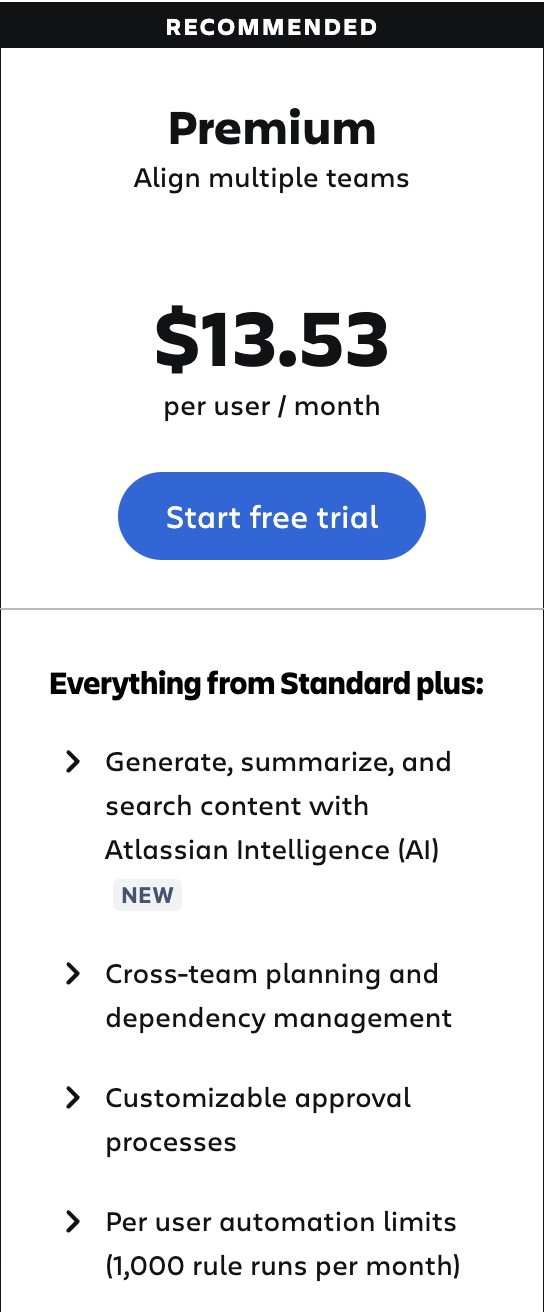
  • Premium plan: Starting from $13.53 per user/month, this tier includes cross-team planning, customizable approval processes, and limited per-user automation.
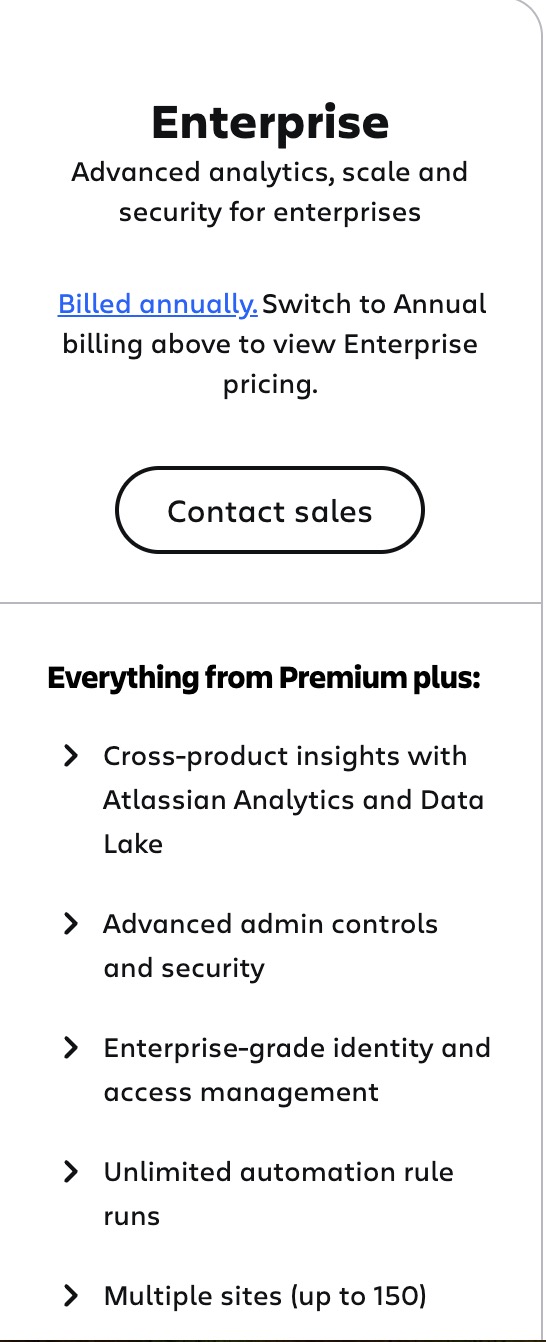
  • Enterprise plan: Custom pricing, which includes cross-product insights, advanced admin controls, and unlimited automation rule runs.

💡Similar to how all Atlassian products work, Jira offers bulk discounts depending on how many seats you require.

Let’s go over each one of Jira’s pricing tiers: 👇

Jira’s Free Plan

Jira’s freemium plan is free forever and has been designed for individuals and small teams starting with project management.

The free plan includes:

  • Unlimited goals, projects, and tasks.
  • Backlog, list, board, timeline, calendar, and summary views.
  • Including the creation of reports and dashboards.
  • 100 automation rules per month.
  • 2 GB of storage.

Drawback – The Free Plan Has A Limited Functionality

While it is a great starting point for teams and individuals, Jira’s free plan lacks advanced features.

Reviews on G2 confirm this, as some of them had to upgrade to a paid tier to get the functionality they need out of the platform for their small team.

‘’The free version of Jira has many limitations.’’ – G2 Review.

Jira’s Standard Plan

The Standard plan starts from $7.53 per user/month and offers the basic features to get your team started with project management.

With the Standard plan, your team will get:

  • User roles and permissions to better manage your team.
  • External collaboration with your clients and internal stakeholders.
  • Multi-region data residency and issue-level security.
  • Access to 1,700 automation rule runs per month.
  • Access to 250 GB of storage.
  • Access to the platform’s goals, projects, and in-built communication features.

Drawback – Some Users Are Not Happy With The UI

Some users of the platform have expressed their concerns about the platform’s user interface, which has been described as hard to use and an aspect to work on.

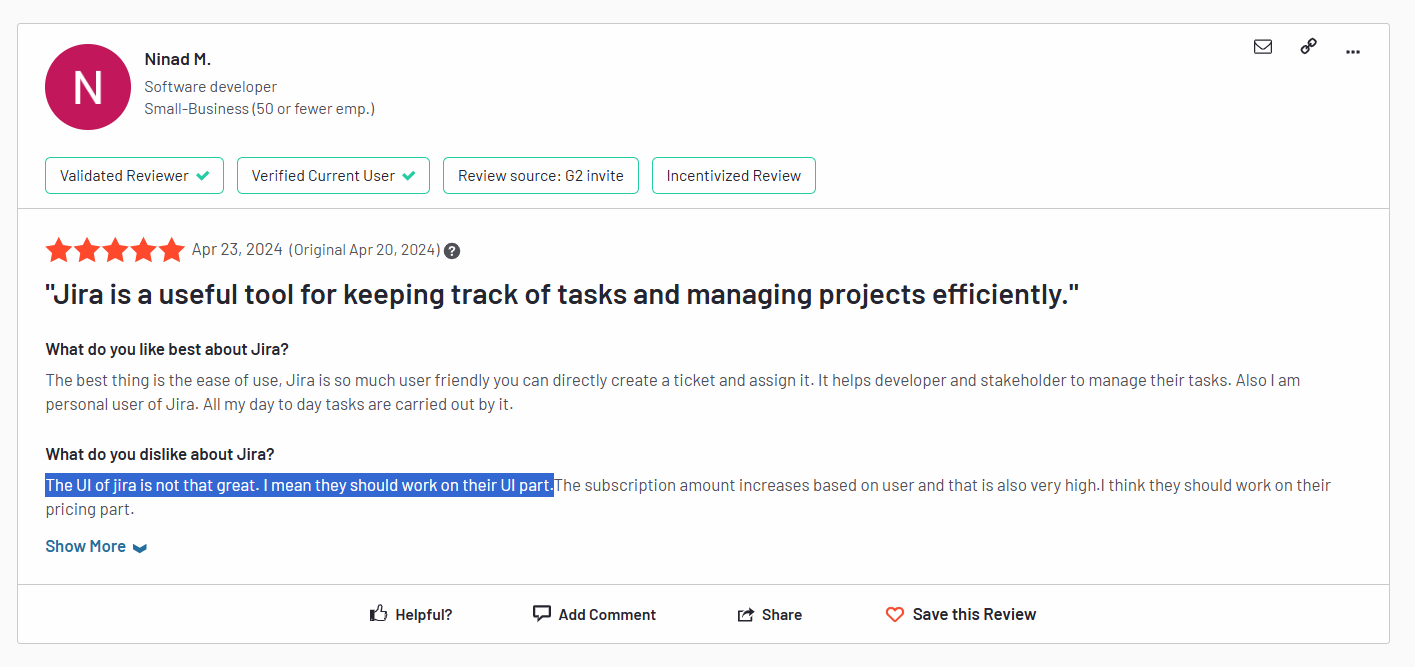
‘’The UI of Jira is not that great. I mean they should work on their UI part.’’ – G2 Review.

Jira’s Premium Plan

The Premium plan starts from $13.53 per user/month and adds more AI functionality.

The Premium plan offers everything from the Standard plan, plus:

  • Generating, summarizing, and searching content.
  • Cross-team planning and dependency management.
  • Customizable approval processes.
  • Access to Atlassian Intelligence (AI).
  • 1,000 rule runs per month per user.
  • IP ”allowlisting” for improved security.
  • More team management features, including admin insights, a sandbox, and project archiving.

Drawback – Steep Learning Curve & Complex Set Up

Once you get on Jira’s Premium plan, you’ll get access to the tool’s depth of features – but at what cost?

According to a verified G2 user, they struggled with learning how to best use the platform and experienced a complex set-up process to customize the platform to their needs.

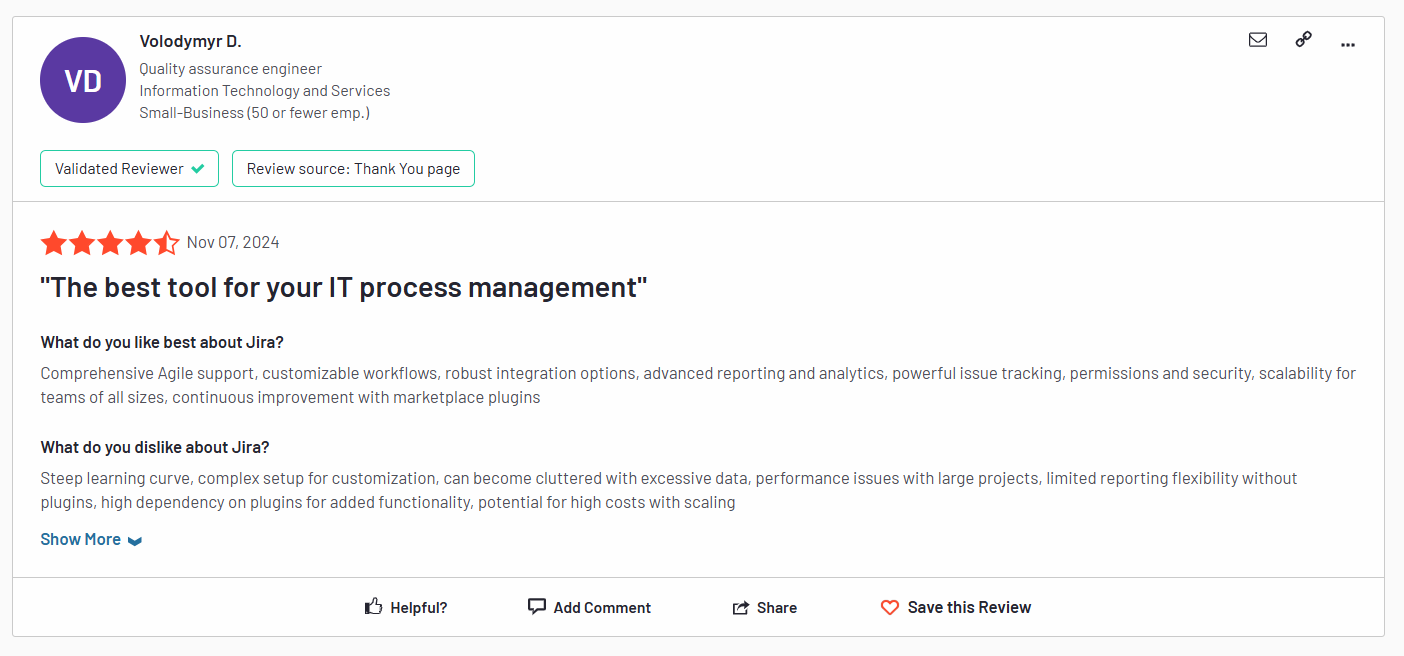
‘’Steep learning curve, complex setup for customization, can become cluttered with excessive data, performance issues with large projects, limited reporting flexibility without plugins, high dependency on plugins for added functionality, the potential for high costs with scaling’’ – G2 Review.

Jira’s Enterprise Plan

The Enterprise plan has custom pricing and is most suitable for larger organizations looking for more automation rule runs and enterprise-grade security.

The Enterprise plan offers every feature from the Premium plan, plus:

  • Cross-product insights with Atlassian Analytics and Data Lake.
  • Advanced admin controls and security.
  • Enterprise-grade identity and access management.
  • Unlimited automation rule runs.
  • The ability to manage multiple sites.
  • Access to multiple IdP, audit logs with user activity, and BYOK encryption.

Drawback – The Platform Can Get Very Expensive

According to a verified G2 review, the platform can get quite expensive when compared to other alternatives on the market.

Even though Jira provides you with bulk discounts, it can be pricey to get access to the full functionality of the platform.

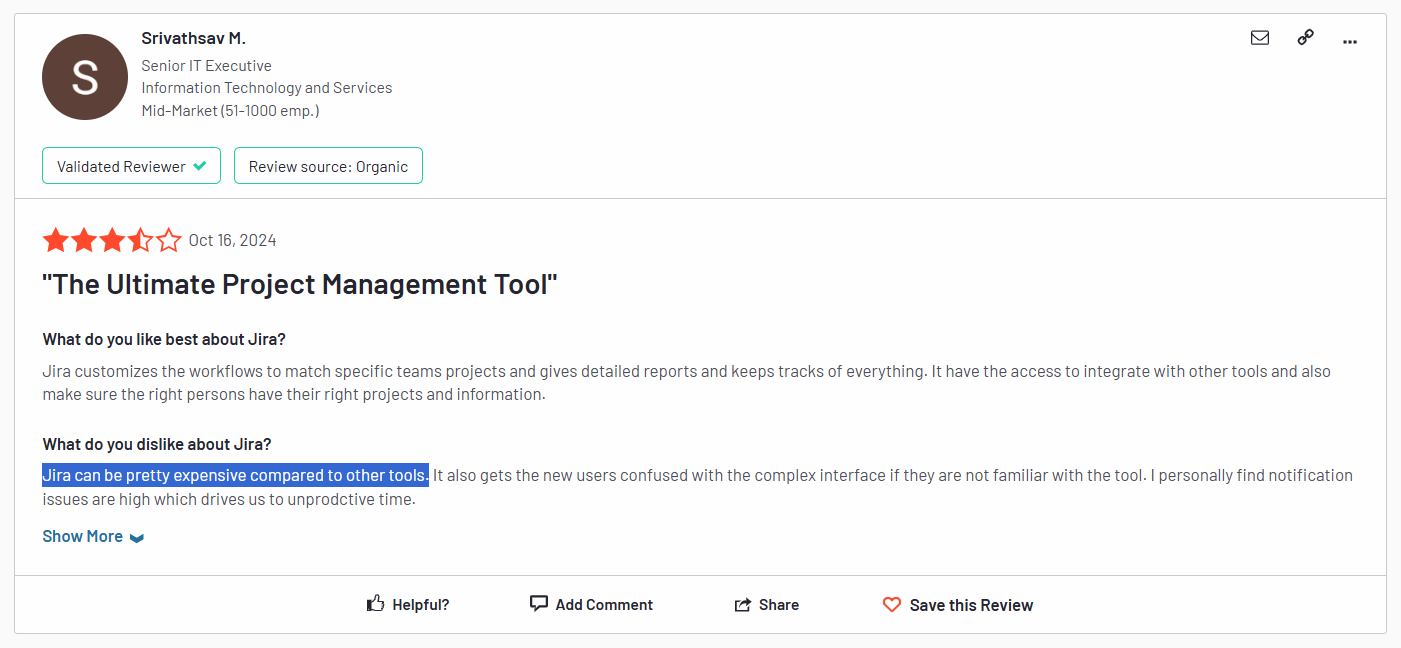
‘’Jira can be pretty expensive compared to other tools. It also gets the new users confused with the complex interface if they are not familiar with the tool. I personally find notification issues are high which drives us to unproductive time.’’ – G2 Review.

Looking For A Jira Alternative For Project Management?

Jira excels in project management and team collaboration for various project sizes.

However, its steep learning curve, complex setup, and slightly expensive pricing plans often compel users to seek more budget-friendly Jira alternatives that are easier to use.

SmartSuite (that’s us) emerges as a compelling option with its robust project management capabilities and additional features that address Jira’s shortcomings: 👇🏼

  • Unlike Jira, SmartSuite offers a forever-free plan with a comprehensive range of features, including workflow automation and 7+ task views.
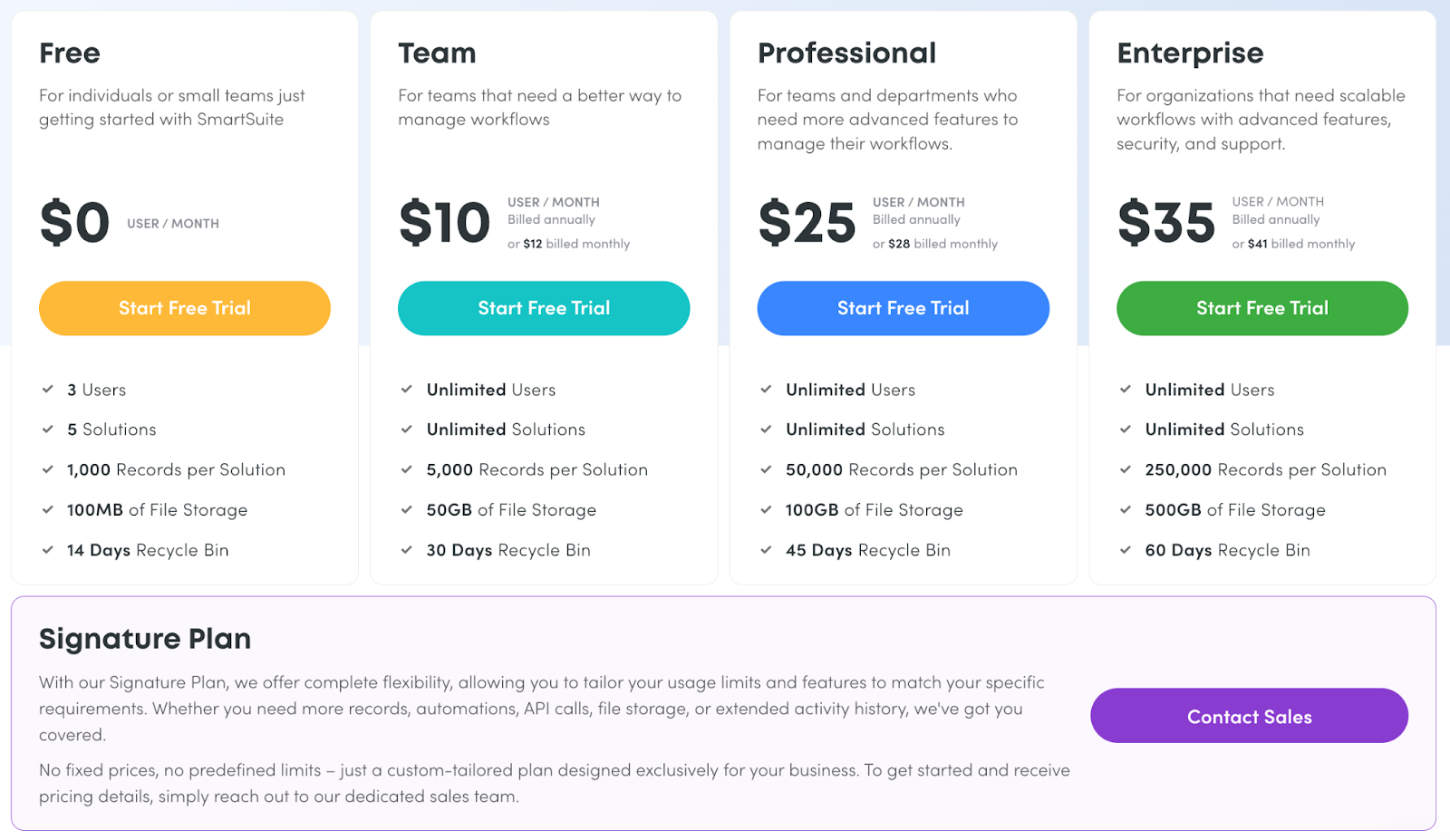
  • The platform has a flexible and affordable four-tier pricing structure, with the lowest plan starting at $10 per user/month (when billed annually).
  • SmartSuite offers advanced task management capabilities through 40+ fields, including a linked records field.
  • The project management software has built-in team collaboration tools like email integration, whiteboards, and a member directory.

Let’s dive deeper into SmartSuite’s features that we believe make the platform the best alternative to Jira:

SmartSuite’s Key Features

#1. Robust Work Management

Jira is more focused on task management and workflow customization, whereas SmartSuite offers a broader work management platform with advanced features such as email integration, collaborative smart docs, and reporting. 

Due to its versatility, SmartSuite can be used by businesses of different sizes operating in industries ranging from tech to logistics.

Here are SmartSuite’s work management features that will help you manage and scale your projects:

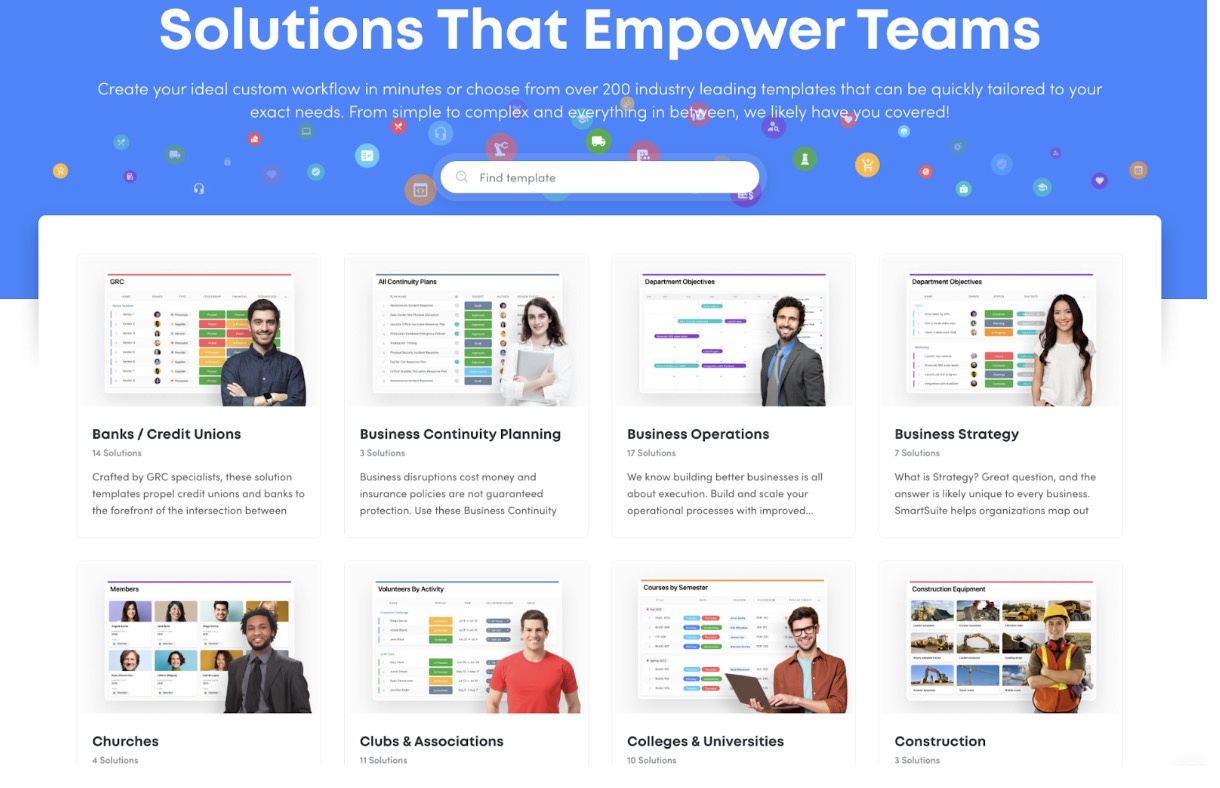
Each template has multiple promenade views, saving you time and setting you up for success.

  • File management: You can store and manage files up to 5GB in size in your workspace and share them with your team members. 

By customizing the views setting, you can preview files directly in the context of your work—in cards, grids, records, and docs.

What’s more, team members can preview files and annotate them with comments in real-time, making feedback easy.

Asana’s Pricing Plans
  • Reporting dashboard: The reporting dashboard helps you track project performance, understand resource allocation, and identify slow-moving projects. 

Based on such insights, your team can quickly develop plans to overcome the roadblocks and get the project on track.

Why do Users Switch to Basecamp Alternatives?

#2. Advanced Automated Workflows

SmartSuite’s no-code automation builder lets you set up automation at the task and project levels. 

With a combination of trigger and logical conditioning, you can set up actions and assign repetitive tasks to the bots while focusing on more important tasks or catching up with co-workers.

Why do Users Switch to Basecamp Alternatives?

Here are some of the core functionalities of SmartSuite’s automation builder:

  • Drag-and-drop interface to build simple to complex workflows.
  • Integrates with your tool stack including Intercom, Slack, Salesforce, and Hubspot.
  • Six pre-defined triggers and conditional logic to set up 15+ actions or build custom ones.

#3. Integrated Team Collaboration

Even though Jira is known for its workflow customization, the platform lacks a few key features to offer fully integrated communication among internal and external members. 

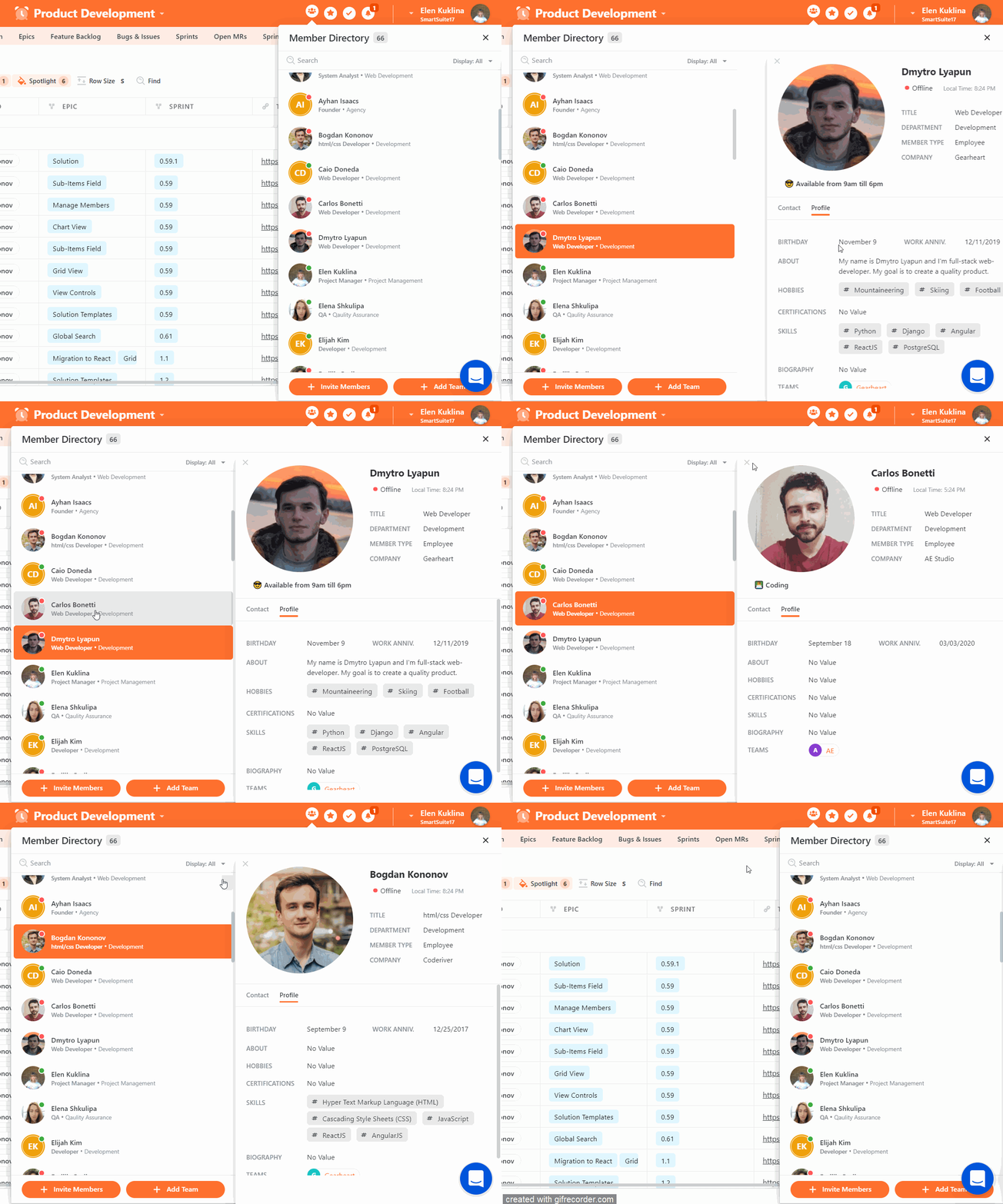
For instance, it doesn’t offer a detailed members directory, but SmartSuite does. A member’s directory lists your co-workers and all the information they’ve added about themselves. 

Our platform can give you access to their contact details (phone, email, social networks, etc.), profile information (birthday, work anniversary, skills, certifications, etc.), and current availability status. 

Through filtering, you can quickly find the right stakeholder.

Wrike’s Pricing Plans
  • Real-time updates and notifications: SmartSuite updates every time someone changes to any field or project, so you’ll always have access to the updated version. 

In addition, all team members are alerted at lightning speed in their notification center about any changes or updates posted.

Why Users Switch to Quickbase Alternatives?
  • Email integration: You can send and receive emails within SmartSuite by integrating Gmail, Outlook, or other email apps. 

Having quick access to messages expedites communication and ensures your team is working with the right material at the right time to meet the goals.

Why do customers switch to Wrike alternatives?

How Is SmartSuite’s Pricing Different From Jira’s?

The main difference between SmartSuite’s and Jira’s pricing is that SmartSuite has a transparent pricing structure, where you can calculate how much the platform will cost – even at the Enterprise level.

SmartSuite also differentiates itself from Jira with its generous free plan with access to 250+ automation actions, team collaboration, multi-dashboard views, and more.

There are four paid plans with a 14-day free trial:

  • Team: Starts at $10/user per month, including Gantt charts, timeline views, 5000 automation runs, and time tracking.
  • Professional: Starts at $25/user per month and adds two-factor authentication, Gmail & Outlook integrations, and unlimited editors.
  • Enterprise: Starts at $35/user/month and includes access to audit logs, data loss prevention, and 50,000 monthly API calls.
  • Signature: A customized plan tailored to your organization’s needs and team size with no predefined limits.
Factors to Consider When Choosing an Organization Software

Next Steps: Get Started With SmartSuite Today For Free

If you’re looking for a powerful Jira alternative that offers more flexibility and value for your money, you can give SmartSuite a go.

With its comprehensive range of features, freemium plan and competitive pricing structure, SmartSuite offers a range of features to help you manage your project across various clients, campaigns, and departments.

If you’re looking for a project management solution that offers:

  • 200+ free workflow templates.
  • Native team collaboration features
  • Resource management across projects and teams.
  • Dynamic reporting dashboards with 7+ widget types.
  • Task management tools—time tracking, status tracking, and checklists
  • Up to 500,00 automation with a no-code automation builder.
  • 40+ field types, including formula fields and linked record fields.

Then you can sign up for a free plan to test the water or get a 14-day free trial to get a feel for all of the tool’s advanced features.

Or, if you’d like to talk to our team of experts, you can schedule a demo.

‍

10 Best Project Management Tools For Publishers [Reviewed]

Software Stack Editor · January 16, 2025 ·

If you’re a publisher of article content or books or a team leader of writers looking for a project management tool to manage multiple publications and tasks, this guide is for you.

A good project management platform can streamline your publishing workflows, allow you to allocate resources, track your editorial team’s progress, and improve communication with your stakeholders.

In this guide, we’ll go over the 10 best project management tools for publishers, including their top features, pricing structure, and pros & cons.

Factors To Consider When Evaluating Project Management Platforms For Publishers

When evaluating project management platforms as a publisher, there are a few factors to consider:

#1: Range of Features For Managing Editorial Workflow

The project management software you opt for should offer features for managing different types of editorial tasks and stakeholders, including:

  • Task management features that facilitate task assignment of writing work, including deadline setting and progress monitoring for your books or articles. You and your team can get access to Kanban boards, sub-tasks, and dependencies. 
  • Time tracking functionality, such as your team being able to log hours spent on editorial tasks.
  • A mobile app to maximize productivity on the go and sign off chapters or other writing work.
  • Automations that help save time from doing manual tasks, such as notifying your team members a task has been assigned to them.

#2: Collaboration Features

If you’re a publisher managing writers, you’d need to look for a project management tool that has integrated communication channels for real-time communication about editorial tasks and projects.

This includes in-app messaging for 1:1 or group chats.

➡️ Other collaboration features to look out for would be the ability to leave comments under tasks, and the option to build project-specific chat channels to keep conversations organized about tasks to be done.

#3: Integrations With Your Productivity Tools

If you want to create a cohesive workflow with your team, you need to be looking for a project management tool that connects with your existing productivity tool stack.

For example, if the project management software has a native integration with Slack, that would facilitate instant communication with your publishing team to notify them an article (or another task) has been assigned to them.

#4: Pricing Structure

Publishers need to take into consideration the pricing structure of each project management tool before their team can make the final decision.

Since almost all project management tools’ pricing is based on seats, it’s important to consider which platform gives you or your publishing team the best value for your buck.

💡 Some of the platforms we will review also have a generous free plan that you can use to get a feeling for their platform – or if you’re an individual publisher.

What Are The Best Project Management Tools For Publishers In 2025?

Here are our best project management platforms for publishers in 2025 based on our research of the tools and after going over verified G2 reviews:

#1: SmartSuite: An all-in-one project management software to plan, manage, and track projects, resources, and stakeholders.

#2: Smartsheet: Manage editorial projects using a spreadsheet interface.

#3: Miro: A digital whiteboard platform that was built for visual collaboration for publishers.

#4: Trello: Manage your writing workflows and team using Kanban boards.

#5: ClickUp: Manage large editorial projects in a custom-built interface.

#6: Monday.com: Good reporting and custom workflows for publishers.

#7: Asana: Build advanced publishing workflows through dependencies and automation.

#8: Notion: Keep track of editorial tasks with the tool’s easy-to-use interface.

#9: Airtable: Publishers can manage workflows through relational databases.

#10: ProofHub: Manage editorial workflows at scale with the tool’s team collaboration and reporting capabilities.

#1: SmartSuite

SmartSuite (that’s us) offers the best project management software for publishers, book writers and editorial teams, featuring advanced workflow automations and team collaboration features.

Our platform lets you manage all your editorial projects across multiple clients on a centralized platform with built-in automation and a communication centre – making the platform ideal for individual book writers and editorial teams.

Disclaimer: Even though SmartSuite is our project management platform, we’ll provide you with an unbiased perspective on why our app is the best project management tool for publishers in 2025.

Let’s go over the features that make SmartSuite the ideal choice for publishers looking for a comprehensive project management solution: 👇

Plan, Track & Manage Simple To Complex Projects

SmartSuite’s project management features help editorial teams plan, track, and manage multiple projects at scale.

To simplify the process, your team will get numerous built-in intuitive features to execute your publishing tasks.

Here are the features that publishers love the most about SmartSuite:

  • Smart task management: You and/or your team can turn any item field into a task—a checklist item, comments, or sub-item. It is possible to build a solid task list and assign it to team members with a due date and priority status.
  • Project phases and milestones: Having milestones ensures your editorial projects stay on track and move towards completion. With SmartSuite, you can set them, monitor through your reporting dashboard, and flag issues.
  • Files and project deliverables: You can manage and organize all your documents. It is also possible to attach project-related files, share feedback with your team, and manage version history, all within your work context.
  • Native time tracking: You can monitor and evaluate task and project completion times of editorial tasks. Built-in tracking helps you segment billable and non-billable hours.

Native team collaboration

If your content creation team isn’t using a dedicated project management platform like SmartSuite, crucial feedback is likely getting lost in long email threads or Slack messages.

SmartSuite’s built-in communication and collaboration features help centralize communication among your team members and stakeholders so the conversation happens where the work is, in your project management tool.

Here are the key features that make collaboration easy in SmartSuite for writing teams:

  • Built-in communication centre for connecting with team members in group chats or 1:1 conversations for quick feedback and keeping clients updated throughout the project.
  • The member’s directory lets you see all the details about your colleagues, including their availability status and job profile, making it efficient to contact the right people when you need information (e.g., expert info for an article).
  • SmartSuite docs help you brainstorm with your teams, map out the campaign’s resources, or write content. All this happens in your work management platform ensuring smooth collaboration and task assignments.
  • You can share updates on writing tasks, nudge teammates, or add new people to the conversation through task and project comments and @mentions.
  • SmartSuite integrates with popular productivity tools, such as Google Docs, Word, Notion, Coda, Evernote, and Confluence.

Comprehensive project reporting

Our platform has a dynamic project analytics tool with configurable charts and graphs.

The reporting dashboard helps you track project performance, understand resource allocation, and identify slow-moving editorial projects. 

Based on that information, you can quickly develop plans to overcome roadblocks and get content back on track.

Your team can visualize reporting in Grid, Card, Kanban, Timeline, Map, Calendar, or Dashboard views.

You can also add as many as needed to build a visual storyboard for your project’s progress.

To share reports with stakeholders or internal teams, it is possible to make the report public and share the necessary access.

Advanced workflow automation

SmartSuite’s no-code automation builder allows teams to automate some of the repetitive tasks that they’re facing in their day-to-day content operations.

For example, you can assemble automation at the task and project and automate repetitive tasks based on triggers like changing dates, sending notification emails, or updating statuses.

There are six pre-defined triggers and 15+ actions, with options to build custom ones.

Once you’ve set up a workboard in SmartSuite, head to “Automations” and automate anything from record creation to updates to task assignments and notifications. 

Here’s more info on SmartSuite’s workflow automations: 👇

[embedded content]

SmartSuite Pricing

SmartSuite has a free plan with access to 250+ automation actions, team collaboration, multi-dashboard views, and more.

There are four paid plans with a 14-day free trial:

  • Team: Starts at $10/user per month, including Gantt charts, timeline views, 5000 automation runs, and time tracking.
  • Professional: Starts at $25/user per month and adds two-factor authentication, Gmail & Outlook integrations, and unlimited editors.
  • Enterprise: Starts at $35/user/month and includes access to audit logs, data loss prevention, and 50,000 monthly API calls.
  • Signature: A customized plan tailored to your organization’s needs and team size with no predefined limits.
Factors to Consider When Choosing an Organization Software

SmartSuite Pros and Cons

✅ The free plan includes access to advanced features.

✅ 200+ project templates for various use cases for publishers.

✅ Dynamic dashboards and reporting that are easy to navigate.

✅ Integrated document and file management.

✅ Comprehensive workflow automation to manage your editorial team.

❌ Less native integrations when compared to other alternatives on the market.

#2: Smartsheet

Best for: Managing projects using a spreadsheet interface.

Similar to: Airtable.

Smartsheet is an enterprise-grade project management solution that helps publishers plan, track, and manage editorial work in a spreadsheet-like interface.

The tool stands out from its competitors with its variety of pre-built templates.

Who Is It For?

Smartsheet is ideal for publishers working in large publishing houses looking to manage complex and numerous projects in a spreadsheet interface.

Smartsheet’s Top Features

  • Built-in proofing, which helps publishers expedite planning and approval. Your team can invite external collaborators to review, edit, and approve images, videos, documents, and PDFs.
  • Plan resource consumption with the tool’s resource management features, where you can review usage throughout the process, and then take action to keep projects on track.
  • Build workflow automation: Your team can set up automations, such as sending due date reminders, requesting signatures via DocuSign integration, and performing calculations.

Smartsheet Pricing

There are 4 paid tiers of Smartsheet:

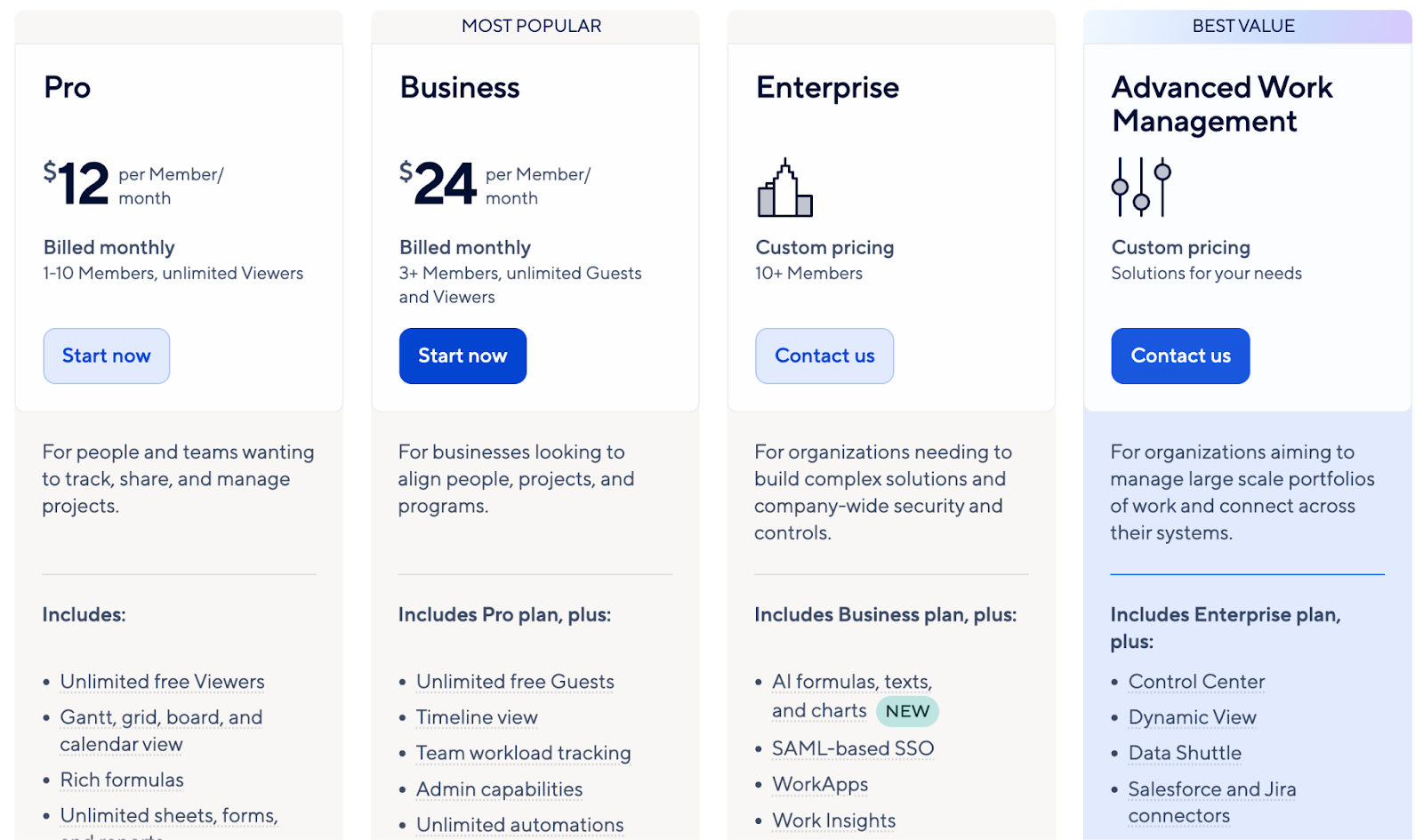
  • Pro: Starts at $12/seat/month and includes private sheet creation and unlimited form access with a 10-user limit.
  • Business: Starts at $24/seat/month for a minimum of 3 user seats, which offers unlimited automated workflows, PowerBI, Tableau, and Adobe Creative Cloud integration.
  • Enterprise: Custom pricing that adds unlimited storage, enterprise plan manager, and AI tools.
  • Advanced Work Management: Custom pricing that adds portfolio management and a premium support package.

Smartsheet Pros and Cons

✅ Huge library of project templates for publishers.

✅ Powerful analytics and reporting tools for enterprise teams.

✅ Integrations with Salesforce and Jira.

❌ Steep learning curve for spreadsheet beginners, according to G2 reviews.

❌ Data is not updated in real-time.

#3: Miro

Best for: Publishers looking for an intuitive and simplistic project management tool.

Similar to: SmartSuite, Asana.

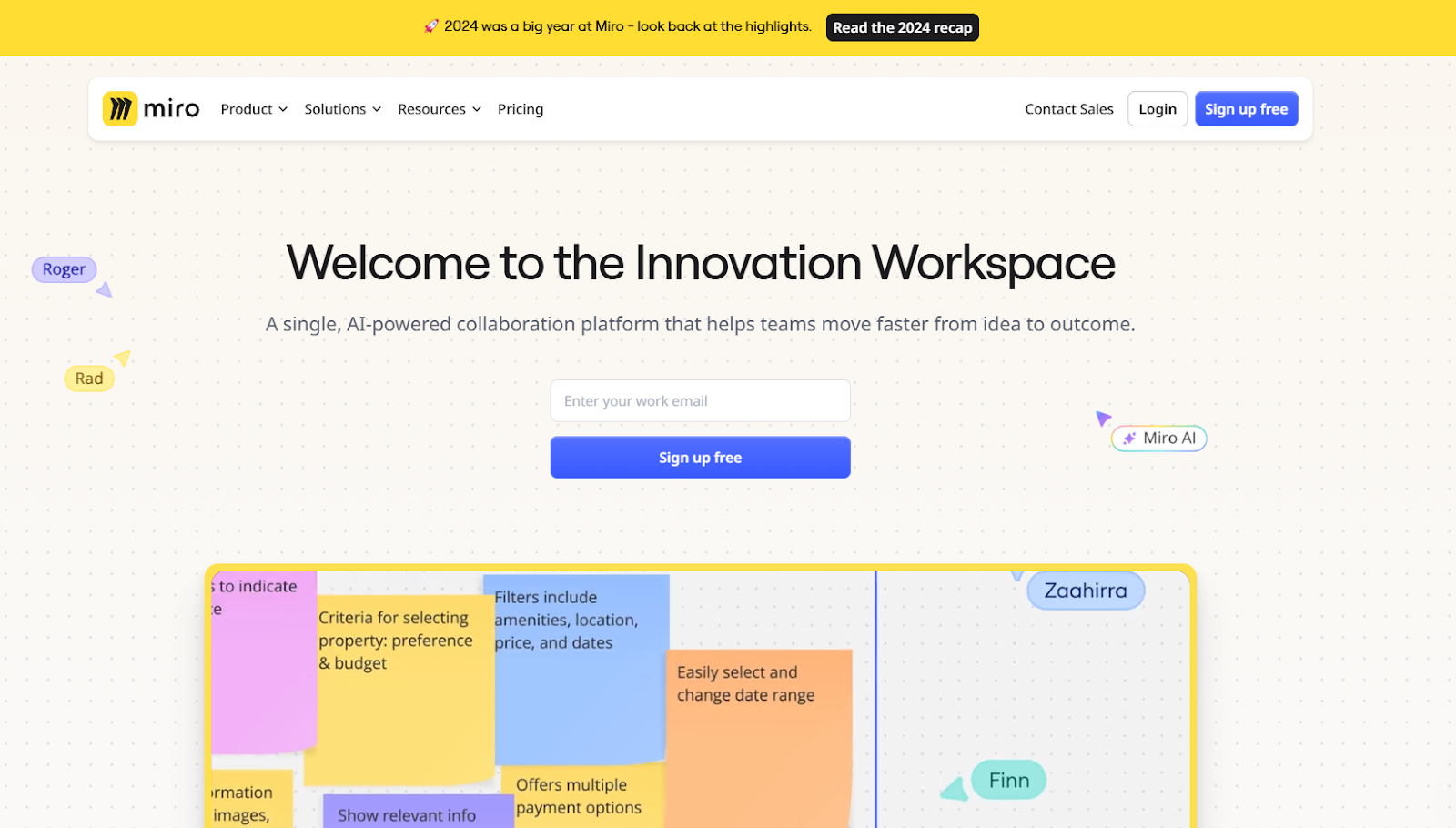
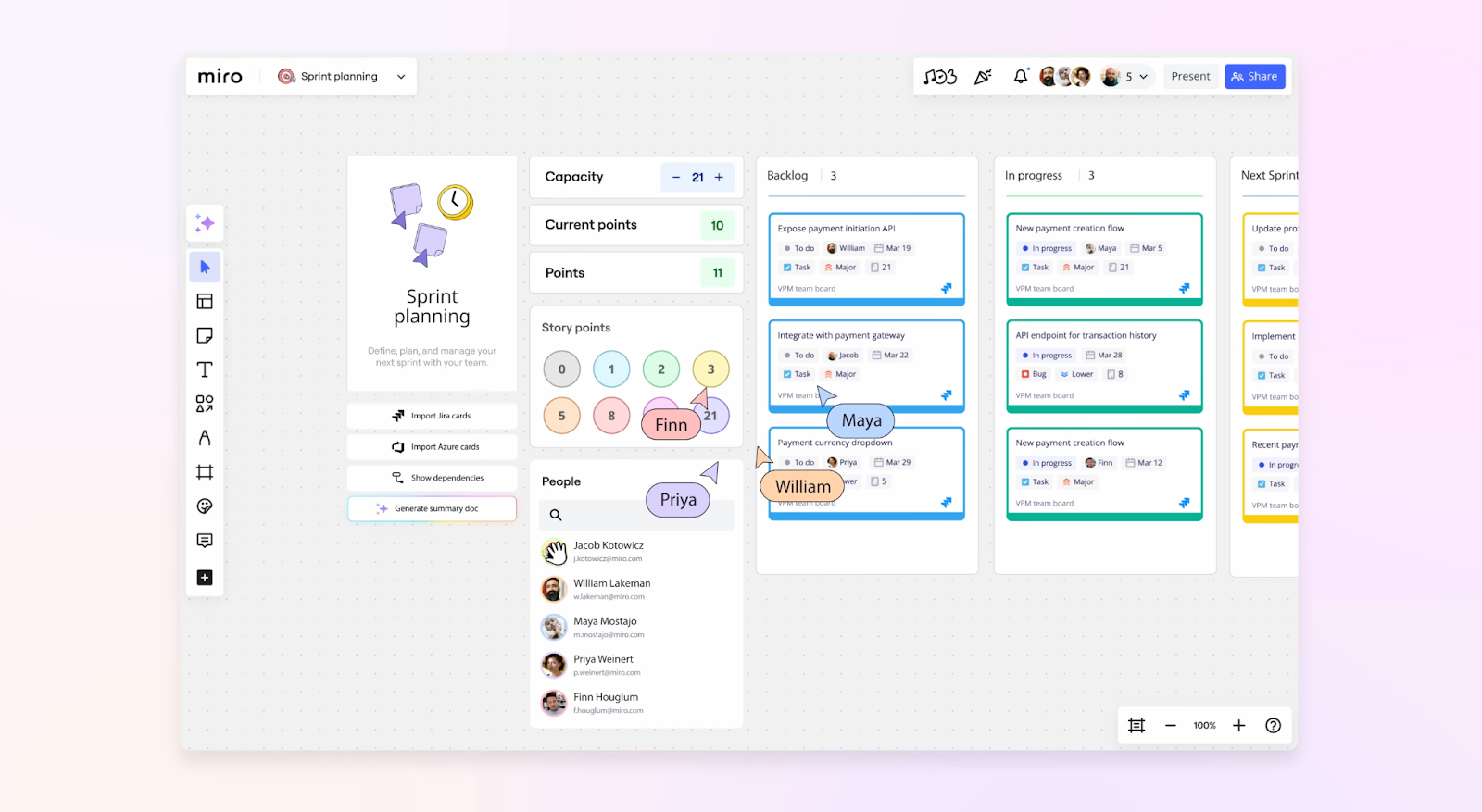
Miro offers a digital whiteboard platform that was built for visual collaboration, making it ideal for publishers who need a space for brainstorming and conceptual work.

The platform also integrates with other project management and productivity platforms, which makes it ideal for large teams to streamline editorial workflows. 

Who is it For?

Miro is ideal for publishers and editorial teams who work in creative industries and who collaborate with UX and UI teams.

Miro’s Top Features

  • AI-powered canvas: Create expansive visual workspaces for road mapping, sprint planning, task organization, and more.
  • Built-in documentation tool: Create SOPs for your team, outline proposals, and keep track of the team’s feedback.
  • Real-time collaboration: Enables multiple employees to work on the same board at the same time for brainstorming.

Miro pricing

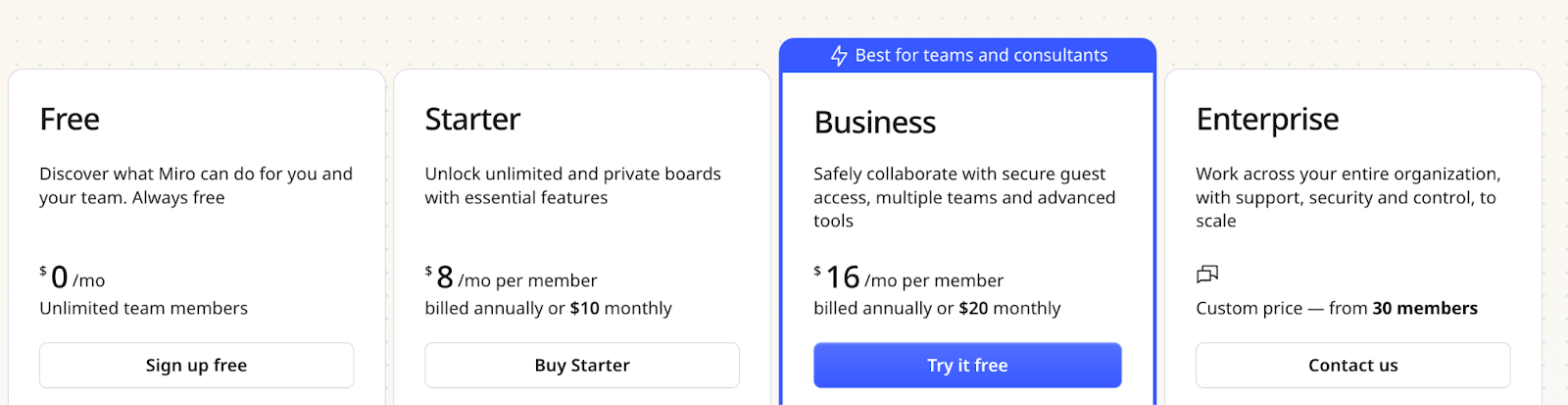
Miro has a free plan with unlimited contributors that includes 3 editable boards, 10 AI credits, and access to 150+ integrations. 

To access the tool’s advanced features for more editable boards, you’d need to be on one of their 3 paid plans:

  • Starter: Starts at $8/user/month, which adds a private mode, 25 AI credits per member/month, brand centre, and task timeline estimation app.
  • Business: Starts at $16/user/month, which includes 50 AI credits per member/month, a smart diagramming tool, and dependencies and task planner.
  • Enterprise: Custom pricing with a minimum team size of 30, which adds advanced administration control, dedicated support, and premium security.

Miro’s Pros and Cons

✅ Visual interface that aligns well with creative publishers’ work style.

✅ Good for collaboration and virtual workshops.

✅ Extensive integration capabilities with other project management and productivity tools.

❌ Limited project management features for more complex projects.

❌ Pricing can get steep for larger teams.

#4: Trello

Best for: Managing your editorial workflows and team using Kanban boards.

Similar to: ClickUp, SmartSuite.

Trello is a project management software by Atlassian that enables solo publishers and teams to plan, track, and manage editorial projects.

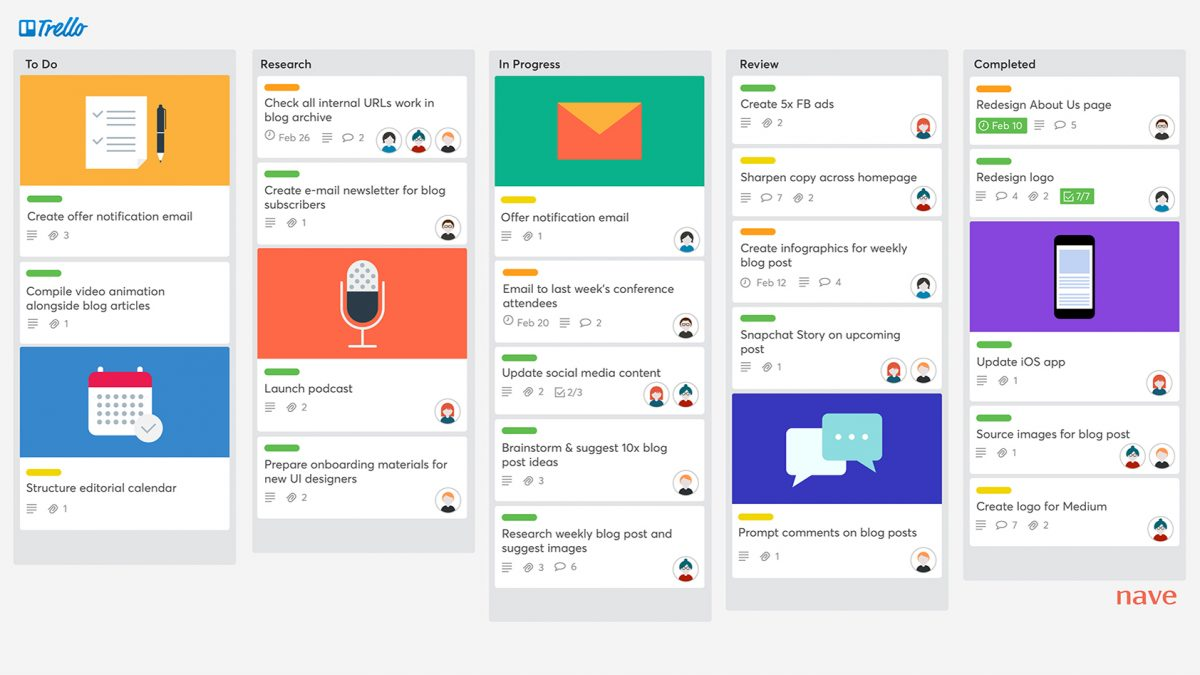
The platform uses Kanban boards where you can build custom workflows and gives you access to its pre-built templates.

Who Is It For?

Trello is ideal for individual publishers and small teams who are familiar with Kanban-based task management.

Trello’s Top Features

  • You can set up advanced workflows for project-level activity, such as when a task is being completed or a task is being moved between different Kanban board cards.
  • Build custom fields, add advanced triggers, and sync databases with Trello’s Power-ups, which are integrations and additional apps that can improve the tool’s capabilities.
  • Content managers can get an overview of your tasks’ progression with the timeline, list, dashboards, Kanban, or calendar view of all tasks.

Trello Pricing

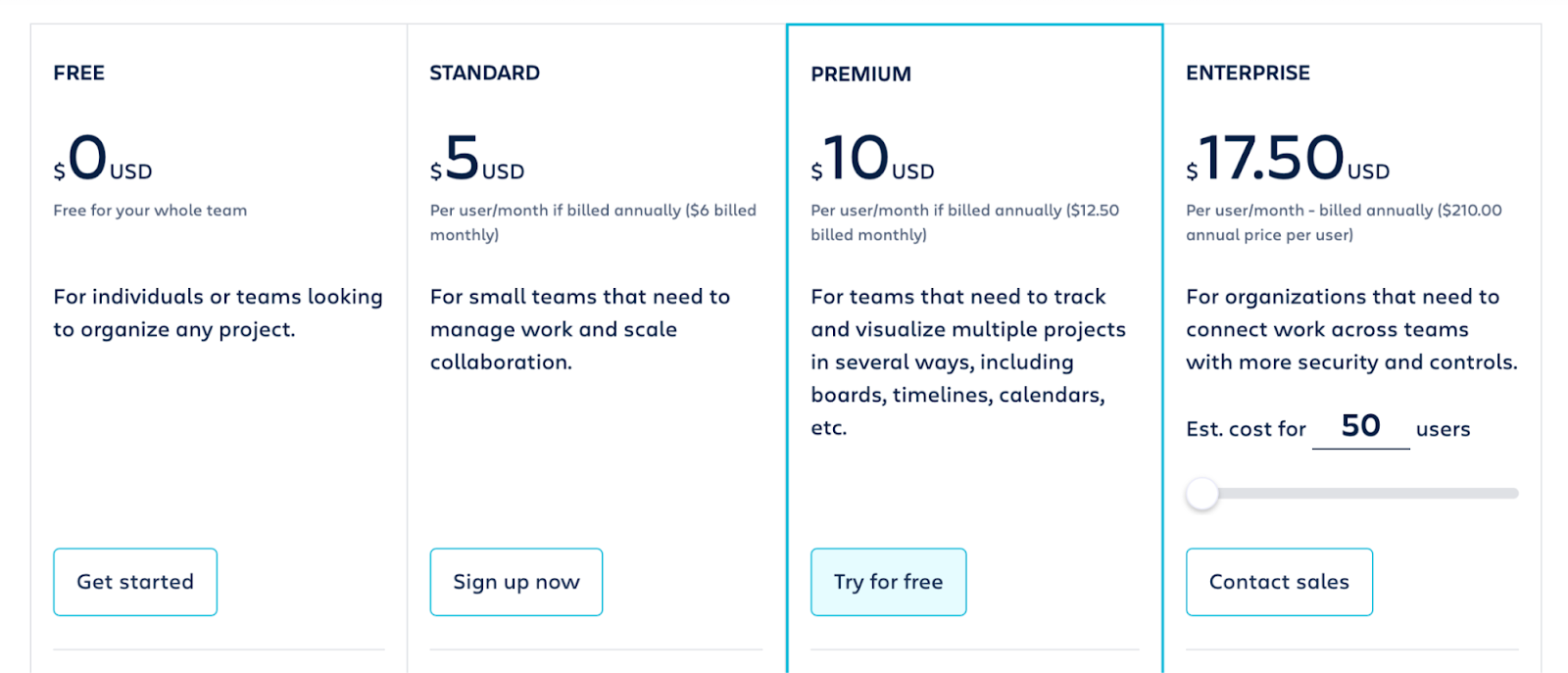
Trello offers a free version of its project management app with built-in automation features and up to 10 seats.

You will also get a 14-day free trial for its three paid tiers:

  • Standard: Starts from $5/user/month and adds unlimited activity log and 250 workspace command runs/month.
  • Premium: Starts from $10/user/month and adds unlimited workspace collaborators and built-in automation.
  • Enterprise: Starts from $17.50/user/month for 50 users and adds 24/7 enterprise admin support and SAML SSO via Atlassian Access.

💡 Similar to how other Atlassian products work like Jira, the platform will give you a per-seat discount on the Enterprise account the more team members you bring to the platform.

Trello Pros and Cons

✅ User-friendly and intuitive dashboard that is easy to use for beginners.

✅ Pre-built templates that are ideal for setting up workflows for editorial teams.

✅ Built-in advanced automations..

❌ No built-in team communication, similar to Asana.

❌ Your editorial team will have to rely on third-party integrations for reporting, which are paid.

#5: ClickUp

Best for: Managing large editorial projects in a custom-built interface.

Similar to: Monday.com, Asana.

ClickUp is a project management app that helps publishers automate their workflows and manage multiple tasks.

The platform gives you access to Gantt charts, board views, and portfolios that you can use to simplify your work management as well as advanced reporting features.

Who Is It For?

ClickUp is best for large editorial and publishing teams looking for customization options so they can personalize the platform for different use cases and standardize their writing process.

ClickUp’s Top Features

  • Task management: Get a complete overview of each project’s tasks with the app’s multiple task views, custom fields, dependencies, and comment-based collaboration.
  • Whiteboards: Virtual canvas where your team can build agile workflows, outline dependencies, and strategize action items to meet the project’s objectives. 
  • Sync time tracking to improve your team’s productivity. There is also a time tracking field to set time estimates for each task you’re working on.

ClickUp Pricing

ClickUp has a free plan that includes unlimited task creation, access to 100 MB storage, and collaborative docs.

The platform has three paid plans with a 14-day free trial:

  • Unlimited: Starts at $10 per user/month, which includes access to unlimited custom views, timesheets, guest access, and 100 mind map creation.
  • Business: Starts at $19 per user/month and adds private docs, sprint reporting, and all dashboard views.
  • Enterprise: Custom price that adds white labelling, enterprise-grade security, and AI features.

ClickUp Pros and Cons

✅ Low entry-level pricing plans for smaller teams and individual publishers.

✅ Highly customizable with a comprehensive range of built-in tools for large enterprises.

✅ Good team management and collaboration tools.

❌ Can get overwhelming for new users due to the platform’s complex interface, which is why some publishers have been looking for ClickUp alternatives.

❌ Can take longer to set up a dashboard that fits the bill, according to some G2 reviews.

#6: Monday.com

Best for: Editorial teams looking for good reporting capabilities and custom workflows.

Similar to: Asana, SmartSuite.

Monday.com is an all-in-one project management app that offers a good range of features for editorial teams, such as work management, an automations builder, and built-in reporting.

The app helps you build project-level goals, plan resources and budgets per project, and assign tasks to your team members.

Who Is It For?

Monday.com is best for medium to large enterprises looking to equip their publishing department with best-in-class reporting and automations.

Monday.com’s Top Features

  • No-code automation builder where your team can build automations and send timely alerts or update status to clients and your team members.
  • Organize multiple projects: Monday.com offers portfolio management features that let your team track overall progress and assign resources and budgets to each project.
  • Custom feedback forms: You can build custom forms to collect and share feedback for your team from external stakeholders. Your team can then sync form responses by adding them to relevant projects.

Monday.com Pricing

Monday.com has a free plan for up to 2 users, where you can test out the tool’s basic project management features.

💡 In our guide on Monday’s pricing, we dive deeper into whether the platform has good value-for-money plans.

To access the tool’s advanced features, you’d need to be on one of their four paid plans:

  • Basic: Starts at $17 per user/month and adds Kanban board view and unlimited users with view-only access.
  • Standard: Starts at $20 per user/month and adds 250 automated actions/month, 3+ dashboard views, and Zoom integration.
  • Pro: Starts at $32 per user/month, and adds all five dashboard views, time tracking, and 2-factor authentication.
  • Enterprise: Custom price, which adds a dedicated customer success manager, enterprise-level reporting, and administration control.

Monday.com’s Pros and Cons

✅ Advanced reporting and analysis at the project and portfolio level, which is ideal for large teams that work with clients.

✅ 200+ integration across apps, including integrations with communication and productivity tools.

✅ Custom work forms that you can turn into actionable tasks for your team members based on stakeholder feedback.

❌ Paid plan upgrade available in set increments of 5 and 10 users.

❌ Automation features are gated to the more expensive plans, which is why lower-budget teams have been looking for alternatives to Monday.

#7: Asana

Best for: Building advanced workflows through dependencies and automation.

Similar to: Wrike, SmartSuite.

Asana is a project management software built for large teams that lets publishing teams streamline their editorial processes through workflows and work portfolios.

The tool helps you organize multiple projects with access to all documents, tasks, and due dates in one place so your team would not have to switch between projects each time.

Who Is It For?

Asana is best for medium-to-large-size editorial teams looking to manage multiple projects, writers, and stakeholders simultaneously.

Asana’s Top Features

  • Create standardized templates that your team can send to clients to collect all of their details on a task right away, such as expert info.
  • Advanced capacity planning: Editorial teams can allocate and optimize resources (time, people, and cost) to each roadmap throughout its lifecycle.
  • Dedicated work portfolios, where your team can organize multiple editorial projects and tasks. Each portfolio can be personalized to your clients and provides an overview of status and go-live dates.

Asana Pricing

Asana has a free plan for up to 10 users with unlimited file storage (100 MB per file), and three task views: board, list, and calendar.

The platform offers four paid plans with a 30-day free trial:

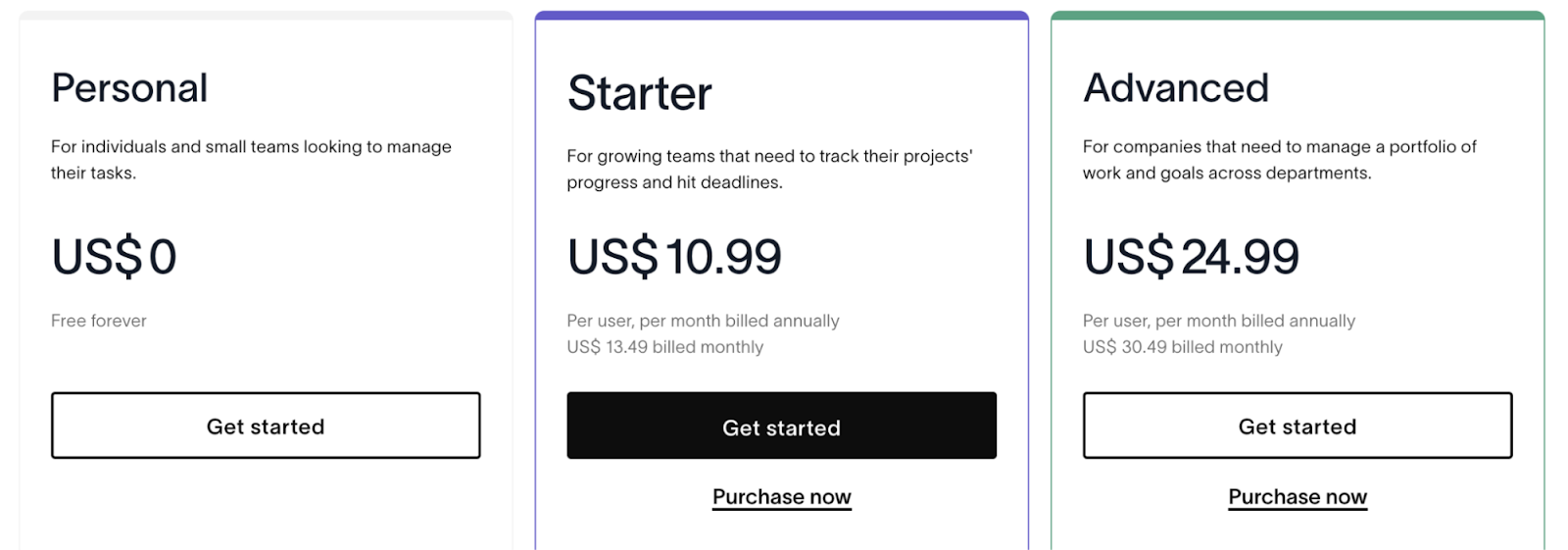
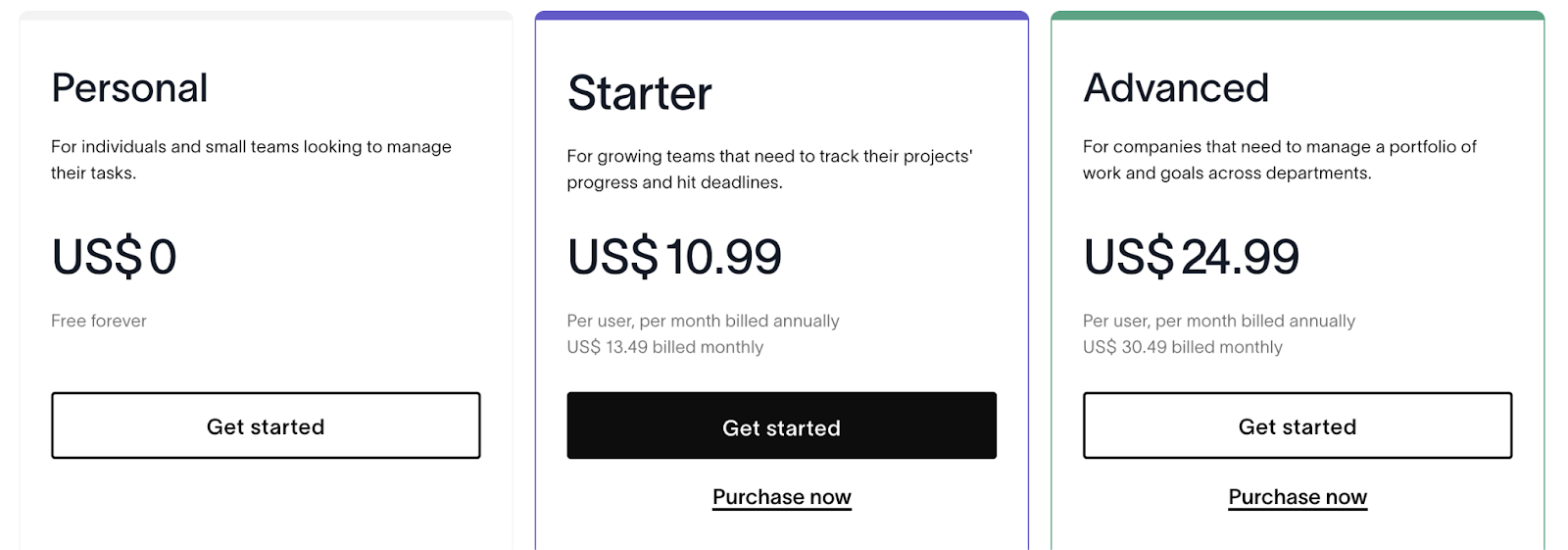
  • Starters: Starts at $10.99/user/month for up to 500 members, which includes Asana AI, private projects and teams.
  • Advanced: Starts at $24.99/user/month, which includes 25,000 automations/month, 100 portfolios, universal reporting, and goal tracking.
  • Enterprise: Custom pricing, which includes advanced integrations, unlimited seats, portfolio, and automation bundles.
  • Enterprise +: Custom pricing, which includes audit log API, HIPAA compliance, and data loss prevention integrations.

Asana Pros and Cons

✅ Powerful workflow automations to streamline editorial operations.

✅ 270+ native integrations with other productivity apps that your team might already be using.

✅ AI features, such as smart chat, smart fields, and smart status to get quick updates on your projects.

❌ Lack of built-in collaboration tools, so your team might have to rely on its integration with Slack.

❌ Limited customization fields, unlike other competitors to Asana like Monday and SmartSuite.

#8: Notion

Best for: Keeping track of editorial tasks with the tool’s easy-to-use interface.

Similar to: Trello.

Notion is an easy-to-use, configurable project management tool that helps publishers organize tasks and build a hub of educational materials for internal training.

We included Notion in this list is that the platform stands out with its native formulas and built-in documentation with which you can manage editorial workflows.

Who Is It For?

Notion is best for individual book publishers and small editorial teams looking to ‘’DIY’’ their processes in an easy-to-use interface.

Notion’s Top Features

  • Configure the database to your preference: Use Kanban, Gallery, List, and Timeline views to build a content roadmap.
  • Built-in documentation: You can add rich-text formatting to your notes, invite teammates for feedback, and organize them through tags.
  • Native functions and formulas: Your team can build complex databases with auto-update fields using formulas and functions.

Notion Pricing

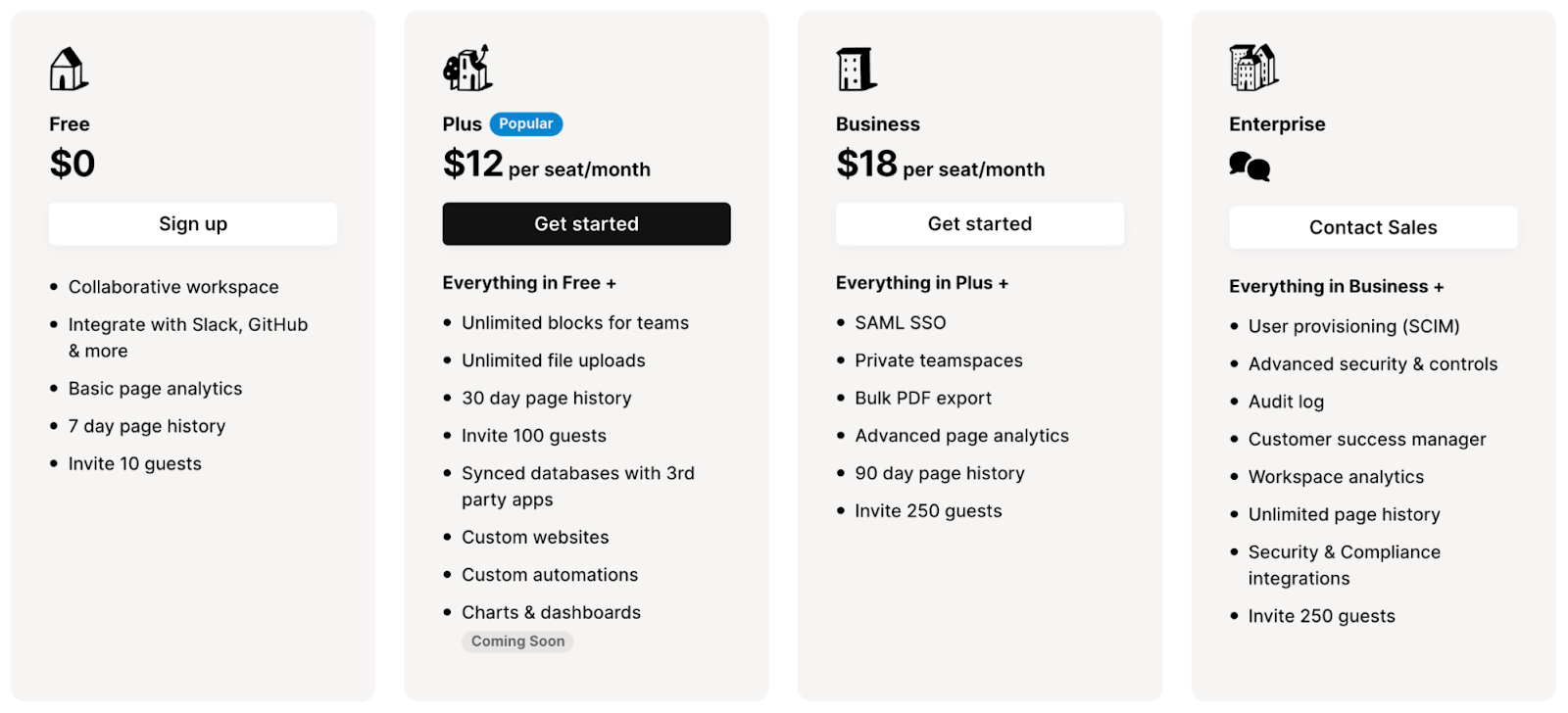
Notion has a generous free plan with access to 10 guest invites, a collaborative workspace, and synced databases.

The platform has three paid plans:

  • Plus: Starts at $12/user/month and includes unlimited file uploads, 100 guest invites, 5 Notion site domains, and unlimited synced databases.
  • Business: Starts at $18/user/month, and adds PDF database export, 250 guest invites, and advanced analytics.
  • Enterprise: Custom pricing that adds a dedicated CSM, admin roles, and advanced page analytics.

Notion Pros and Cons

✅ The free plan gives access to all features of the platform to test it out before you can commit to a paid plan.

✅ Highly customizable with multiple work views—Table, List, Charts, Gallery, Boards, and Timeline.

✅ Huge template library for different use cases for publishers.

❌ Loads slowly with large databases or heavily embedded.

❌ Limited native automation capabilities.

#9: Airtable

Best for: Publishers looking to manage their workflows through relational databases.

Similar to: Smartsheet.

Airtable is a database management software that offers relational capabilities (i.e., you can connect one data source to a different but related dataset).

The tool lets you connect multiple data sources so you can draw conclusions and insights from your editorial projects.

Who Is It For?

Airtable is ideal for individuals and small teams who want to build a custom interface.

Airtable’s Top Features

  • Build multi-sequence automated workflows to reduce your team’s repetitive tasks through more than 15 actions and 10 triggers.
  • Build custom views for different departments to offer a more transparent peek into the work progress of each department. You can access lists, Gantt charts, Kanbard boards, and calendar views.
  • Build custom interfaces to show internal and external stakeholders specific and relevant information with the platform’s interface designer.

Airtable Pricing

Airtable has a free plan that offers access to a single workspace with all basic dashboard views and 100 automations per month. 

The paid plans come in three tiers, with a 14-day free trial available only for the Team plan.

  • Team: Starts at $20 per user/month, which adds a timeline view, 25,000 automation per month, and Airtable AI.
  • Business: Starts at $45 per user/month, which adds multi-source syncing and dynamic filtering.
  • Enterprise scale: Custom pricing, which includes admin reports, enterprise-level integrations, and premium support.

Airtable Pros and Cons

✅ High-level customization and flexible dashboards.

✅ User-friendly interface with multiple views.

✅ A good variety of pre-built templates for publishers.

❌ Limited reporting capabilities regarding other competitors on the market.

❌ Limited team communication, according to G2 reviews.

#10: ProofHub

Best for: Managing editorial workflows at scale with the tool’s team collaboration and reporting capabilities.

Similar to: Wrike, Basecamp.

Factors to Consider When Evaluating Enterprise Project Management Software

ProofHub is a project management and collaboration software that helps publishers save time and stay focused on relevant tasks.

The platform keeps all of your team members on the same page with clear tasks, deadlines, and real-time collaboration features.

Who Is It For?

ProofHub is best suited for medium to large-scale publishing houses looking to improve their busy teams’ productivity and save on per-seat pricing costs.

ProofHub’s Top Features

  • A ‘’Me view’’ that helps team leaders see their tasks for the week, projects, and agendas.
  • Team collaboration: You can start a discussion on a project or task level, review files and share feedback, engage in 1:1 or group conversation, brainstorm ideas, organize notes, and post announcements.
  • Workflow automation: Build custom automation on the task and project level using the tool’s pre-defined triggers and actions.

ProofHub Pricing

ProofHub does not have a freemium model.

The platform offers a flat pricing for unlimited users divided into 2 tiers:

  • Essential: $45/month when billed annually for 40 projects, 15 GB of storage, and access to the tool’s core features.
  • Ultimate Control: $89/month when billed annually for unlimited projects, 100 GB of storage, and access to custom roles, white labelling, workflows, IP restrictions, and API access.

➡️ The Ultimate Control plan is currently on a discount – after the first 3 months, the tool will cost $150/month when billed annually for unlimited users.

ProofHub Pros and Cons

✅ Integrated collaboration tools.

✅ Affordable for large publishing teams with the tool’s pricing model that is not based on user seats.

✅ Full control over client access to the dashboard with custom roles.

❌ The fixed pricing might be expensive for individuals and teams who only need a limited number of users.

❌ The platform has limited integrations, lacking integrations with platforms like Slack, Trello, and Asana.

Choosing The Right Project Management Solution For Your Publishing Team

Selecting the ideal project management software for a solo publisher or your team of editors involves carefully considering your needs, workflow, team members, and client dynamics.

Each software we’ve explored has unique strengths but the best option depends on your publishing team’s size, task complexity, external stakeholder involvement, and specific processes at work.

➡️ Smaller teams might prefer the simplicity and familiarity of Asana or Monday.com, while larger businesses could benefit from ProofHub’s ease of use or ClickUp’s comprehensive range of features.

➡️ Publishers with more technical know-how would most likely get the best value for their buck from Atlassian products, such as Trello.

➡️ SmartSuite stands out from the list due to its comprehensive list of offerings suitable for basic to complex publishing projects.

Our platform’s built-in automation, best-in-class team collaboration features, extensive template library, and custom dashboards make it the best choice for publishers.

Try a 14-day free trial or sign up for a free plan to explore how SmartSuite can help your editorial team.

‍

10 Best Project Management Tools for Startups

Software Stack Editor · January 13, 2025 ·

We’ll review the 10 best project management tools for startups in 2025.

With limited resources and ambitious goals, startups need the right project management tools to streamline workflows, enhance collaboration, and enable growth.

In this article, I’ll share the 10 best project management tools for startups, focusing on features that are particularly valuable for small and growing businesses. 

These tools will help your team:

  1. Stay organized and productive.
  2. Communicate effectively across remote or hybrid setups.
  3. Manage resources and timelines efficiently.

‍

Ready to explore? Let’s dive in.

Factors to Consider When Choosing Project Management Software for Startups

Before diving into the tools, it’s important to know what to look for. 

Consider these key factors to ensure the tool fits your startup’s needs:

1. Scalability

Your startup is likely to grow, so choose a startup project management software tool that can handle increasing team sizes, more complex projects, and evolving workflows.

At the same time, make sure that its pricing is reasonable enough so that it won’t explode in your face as you scale.

2. Usability

Startups don’t have time for steep learning curves, as they’re always racing to get palpable results as soon as possible.

Look for intuitive tools that require minimal training so your team can get started quickly.

3. Customization Options

Startups often have unique workflows, which must be tailored to their dynamic and fast-paced environments.

These workflows can include everything from product development to investor outreach and more.

Choose a platform that lets you tailor templates, dashboards, and task management systems to your specific needs.

4. Collaboration Features

Effective teamwork is crucial for optimal efficiency and productivity levels. 

Tools with built-in communication features, file sharing, and real-time updates will keep your team connected and aligned at all times and in all environments.

5. Affordability

Budget constraints are common in startups, as they’re yet to pave their way in the business world.

This is why you should look for tools that offer generous free plans or affordable entry-level pricing without sacrificing key features.

What Are the Best Project Management Tools for Startups?

Here are the best project management tools for startups out of the 50+ tools I analyzed:

1. SmartSuite: End-to-end project management solution with features that enable managing all business processes – from budgeting to product development and more – from a single platform.

2. Nifty: All-in-one tool for remote collaboration and project management.

3. Basecamp: Scalable project management software that prioritizes team communication.

4. ProofHub: User-friendly project management with unlimited users on all plans.

5. Teamwork: Ideal for service-based startups managing client projects.

6. Notion: Provides a central knowledge and project hub.

7. Asana: Powerful project management software for handling complex, multi-phased projects.

8. Trello: Simple and visual project management software.

9. Monday: Highly customizable platform for startups looking for flexibility.

10. Wrike: Manage and coordinate startup teams across departments or locations.

1. SmartSuite

SmartSuite (that’s us) offers the best project management software for startups in 2025 due to its ease of use, workflow automations, and team collaboration features.

Our platform enables startups to manage their entire business journey from a single, integrated solution.

Startups love SmartSuite because of its rich and versatile features, scalable pricing plans, and a wide range of project management templates built specifically for startups.

Let’s take a closer look at some of startups’ favorite SmartSuite features: 👇

Feature #1: Comprehensive project management toolkit for startups

SmartSuite has a wide range of features that enable startups to efficiently take care of every business operation and workflow, eliminating the need for using tons of different software solutions simultaneously.

With SmartSuite, startups can tackle:

  • Planning and executing business strategies that position them for success: SmartSuite’s intuitive dashboards allow you to develop your entire business roadmap, set milestones, due dates, objectives, and goals, and track and steer their execution.
  • Marketing campaigns: In addition to creating marketing strategies and making sure that your team is on the same page, SmartSuite lets your team collaborate effectively on design ideas, run competitor analysis, set up and analyse comprehensive content strategies, and even collaborate on creating content in its SmartDocs.
  • Product development and management: Thanks to powerful functionalities like scrum boards, tracking and analyzing customer feedback to prioritize features, and more, you can centralize and streamline the entire product development process.
  • Recruiting and hiring: SmartSuite provides templates for hiring plans, candidate interviews, salary ranges, new employee onboarding, and employee evaluations.
  • Investor relationship management: SmartSuite helps you raise the needed capital by streamlining all parts of this critical process, from investment documentation to investor communications.

Feature #2: Startup-specific templates 

Startup teams already have a lot on their minds, so building everything from scratch just adds fuel to the fire.

SmartSuite helps startups get started by providing a wide range of fully customizable templates for various workflows and operations startups usually need, including:

  • SWOT Analysis to visualize all strengths, weaknesses, opportunities, and threats for your business in a single platform.
  • Sales CRM Lite to help you effectively manage all your customers from a unified dashboard with powerful automation features to reduce your manual workload.
  • Fundraising CRM for better management of your investment pipeline.
  • Idea Box for real-time brainstorming on anything from marketing strategies to handling potential employees’ issues at the workplace.
  • Goals and Objectives to set up and track key goals and objectives across individual employees, teams, and your organization as a whole.

Feature #3: Real-time collaboration

Many startups operate in a hybrid or fully remote environment, meaning it is crucial for a project management platform to offer features that enable real-time team collaboration anytime, anywhere.

SmartSuite makes sure that all your team members are kept in the loop at all times by providing multiple options for managing remote work and overcoming its obstacles, such as:

  • Communication center: You can talk to team members within the platform, right next to a specific project. You can also attach important files, share links, and more, keeping a constant flow of ideas and boosting efficiency across levels.
  • Mentions: Quickly@mentions to easily get the coworker you need to look at a particular task or project segment. 
  • Real-time updates allow multiple team members to view, edit, and work on shared projects without overlapping or delays. Every action taken in a project is immediately visible to the rest of the team, ensuring that everyone is always working on the latest version.
  • Member Directory: This lets you connect with team members, see who’s online, check out their interests and skills, and reach out no matter where they’re working. 
  • Mobile app for iOS and Android: This way, team members can access and edit projects and reply to comments and inquiries on the go.

Feature #4: Efficient resource allocation

Being able to efficiently and reasonably allocate resources is often a make-it-or-break-it for young startups dealing with limited resources.

SmartSuite has a solution for everything, from time tracking to efficient workload assignment:

  • Budget and cost tracking: You can set up visual dashboards to track expenses monthly, ensuring that your designated budget is realistic and that you stay within its limits.
  • Time tracking: This is especially useful for remote teams in addition to improving workload coordination, as it provides insight into billable hours, product development time, etc.
  • Task assignment: The platform allows you to see which team members are available for work at any given time, assign the right team member a task, and receive updates as tasks near completion.

Pricing

SmartSuite has a free forever plan with access to 250+ automation actions, team collaboration, multi-dashboard views, and more.

There are four paid plans:

  1. Team: Starts at $10/user per month, including Gantt charts, timeline views, 5000 automation runs, and time tracking.
  2. Professional: Starts at $25/user per month and adds two-factor authentication, Gmail & Outlook integrations, and unlimited editors.
  3. Enterprise: Starts at $35/user/month and includes access to audit logs, data loss prevention, and 50,000 monthly API calls.
  4. Signature: A customized plan tailored to your organization’s needs and team size with no predefined limits.

If you want to try SmartSuite before subscribing, there’s a 14-day free trial.

Pros & Cons

✅ Generous free plan.

✅ Military-grade security.

✅ Intuitive interface that requires minimal to no training for most workflows.

✅ Versatile task management and automation functionality.

✅ Comprehensive dashboards and reports for tracking projects in real-time.

✅ Highly customizable, fit for startups across industries.

❌ Fewer native integrations compared to platforms that have been on the market longer.

2. Nifty

Best for: Handling simpler workflows for remote teams.

Nifty combines task management, team collaboration, and project tracking into one platform, making it ideal for startups looking to simplify their workflow. 

Its intuitive interface and versatile features make it suitable for managing both internal projects and client-facing tasks.

Who is it for,?

Startups seeking an intuitive all-in-one tool for collaboration and project management.

Top Features

  • Milestone tracking lets you track progress with visual milestones to ensure your team meets deadlines.
  • Team collaboration features such as a built-in chat, file sharing, and discussions keep everyone aligned in real-time.
  • Project portfolios let you organize projects in folders based on operations, account ownership, client delivery, or more and track their execution and progress.

Pricing

Nifty has a free forever plan for unlimited users that includes two projects and access to the platform’s core features.

For more advanced features, you’ll have to subscribe to one of four paid plans:

  1. Personal: $12/user/mo, includes 40 projects, everything in Free and time and budget tracking.
  2. Pro: $16/user/mo, includes everything in Personal, 100 projects, automations, and cross-project overviews.
  3. Business: $25/user/mo, everything in Pro, unlimited projects, goal tracking, and more customization.
  4. Enterprise: Custom pricing, everything in the Business plan, and more advanced security and support options.

There’s also a 14-day free trial for its paid plans.

Pros & Cons

✅ Easy to use.

✅ Solid mobile app.

✅ Robust integrations with other productivity and planning tools such as Google Calendar and Outlook.

❌ Lack of advanced project management features such as comprehensive resource allocation.

❌ Its chat feature doesn’t work as seamlessly as it should.

3. Basecamp

Best for: Keeping your team on the same page through robust collaboration and project organization features.

Basecamp is a straightforward project management tool that emphasizes team communication and task organization. 

Its simplicity makes it a go-to for startups that want to focus on productivity without dealing with overwhelming features.

Who is it for?

Startups prioritizing communication and simple project organization.

Top Features

  • Lets you centralize team discussions in one place, reducing the reliance on endless email threads through message boards and Campfire chat, its built-in chat feature.
  • Comprehensive data visualization options for understanding where your projects stand at a glance.
  • Docs and files let you store all relevant project files and documentation in one accessible location.

Pricing

Basecamp has a free forever plan that lets you work on one project. It includes access to all of Basecamp’s essential features such as message boards, chats, docs and files, etc.

If you need more, you can choose between two paid plans:

  1. Basecamp Plus: $15/user per month, which adds unlimited projects and 500 GB of storage space.
  2. Basecamp Pro Unlimited: $299/month billed annually, all-inclusive, lets you onboard everyone in your organization, everything in Plus and 5 terabytes storage space, Timesheet upgrade, Pro Admin controls, etc.

Both paid plans offer a 30-day free trial.

Pros & Cons

✅ Enables seamless team communication within the platform.

✅ Real-time notifications on important project updates.

✅ Lets you onboard your entire organization for a fixed fee.

❌ Limited task management features.

❌ Time tracking is available only on its most expensive plan.

4. ProofHub

Best for: Scalable and intuitive project management.

ProofHub offers a wide range of features for task management, team collaboration, and project tracking, all in an intuitive interface. 

The fact that it doesn’t have a per-user pricing is especially appealing to budget-conscious startups.

Who is it for?

Startups looking for an easy-to-use yet efficient project management and collaboration tool.

Top Features

  • Comprehensive task and project management tools let you organize tasks using Kanban boards, Gantt charts, and calendars.
  • Announcements let you share important updates and celebrate milestones across teams, notify teammates of new guidelines, and confirm priority changes to keep everyone in the loop.
  • Custom roles and permissions ensure security and privacy by giving you control over who can access specific projects or information.

Pricing

ProofHub has two paid plans that are unique by letting you onboard as many team members as you want for a fixed price:

  1. Essential: $45/mo, provides access to all core features, such as chats, project and task management tools, announcements, etc.
  2. Ultimate Control: $89/mo for the first three months and then $150/mo, everything in Essential plus more advanced features such as automations, advanced reports, activity logs, etc.

Pros & Cons

✅ Scalable pricing.

✅ Solid customization options.

✅ Simple and intuitive interface.

❌ Issues with task notifications.

❌ Limited integrations.

5. Teamwork

Best for: Managing client-oriented tasks and projects.

Teamwork is designed with client-facing businesses in mind, offering features like task billing and time tracking. 

It combines project and team management features with a comprehensive tool stack for handling client services, all in one place.

Who is it for?

Service-based startups managing client projects.

Top Features

  • Time tracking lets you track time spent on certain tasks as well as billable and unbillable hours for charging clients accurately.
  • A vast library of project templates for common workflows, such as client onboarding, bug tracking, marketing campaign execution, etc.
  • Collaboration tools to keep clients and teams aligned, including options for collecting feedback in real-time, a built-in chat, etc.

Pricing

Teamwork has a free forever plan for up to 5 users and access to its most basic features.

More advanced users can choose from four paid tiers:

  1. Deliver: $13.99/user/mo, minimum 3 users, includes automations, forms, project status reports, etc.
  2. Grow: $25.99/user/mo, minimum 5 users, everything in Deliver and advanced budgeting, comprehensive reports, etc.
  3. Scale: $69.99/user/mo, minimum 5 users, everything in Grow and unlimited retainer management, resource scheduler, etc.
  4. Enterprise: Custom pricing, everything in Scale and advanced security, premium support and designated infrastructure.

Pros & Cons

✅ Robust analytics and reporting.

✅ Excellent time tracking capabilities.

✅ Intuitive forms function for deploying forms both internally and externally.

❌ Unintuitive user interface.

❌ Its mobile apps don’t support all desktop features.

6. Notion

Best for: Creating a centralized knowledge and project organization hub.

Notion combines task management, document collaboration, and team communication into one platform, making it an excellent choice for startups with content- and document-heavy workflows.

Its flexibility allows startups to create custom workflows, whether for product roadmaps or content calendars.

Who is it for?

Notion is best suited for early-stage startups that want a simple yet powerful way to manage notes, tasks, and team collaboration in one place.

Top Features

  • Intuitive drag-and-drop interface for building your own project boards, task trackers, or wikis.
  • Comprehensive databases for organizing tasks, files, and team notes.
  • Notion AI can help you generate and edit various docs, search databases, analyze data for actionable insights, etc.

Pricing

Notion has a free forever plan that can be used by small teams with very basic collaboration and project management needs since it provides very limited access to its features (collaborative workspace, integration with Slack, GitHub, and other productivity and communication apps, etc.).

If you need more, you can subscribe to one of three plans:

  1. Plus: $12 per seat/month, everything in the Free plan plus unlimited blocks for teams and file uploads, custom automations, etc.
  2. Business: $18 per seat/month, everything in Plus, plus private spaces, advanced analytics, more sophisticated security, etc.
  3. Enterprise: Custom pricing, everything in Business, plus advanced security and permissions, workspace analytics, etc.

If you want Notion AI, you’ll have to pay an additional $10 per user per month.

However, there are certain benefits for startups when it comes to Notion’s paid plans:

  1. Non-paying Notion customers with under 50 employees who have raised under $10 million in funding and are affiliated with one of our startup partners can get 6 months of Notion for free to use with unlimited AI
  2. Non-paying Notion customers with under 50 employees who have raised under $10 million in funding and are not affiliated with Notion’s partners can get 3 months free with unlimited AI.

Pros & Cons

✅ Doesn’t have as many advanced project management features as other tools in the list.

✅ User-friendly interface, doesn’t require any tech-savviness.

✅ Lets you create notes, manage projects, build databases, and organize tasks all in one place.

❌ Isn’t really mobile-friendly.

❌ No offline access.

7. Asana

Best for: Managing complex, multi-step projects.

Asana is a robust tool that excels at managing large projects with multiple stakeholders. 

Its intuitive design makes it a top choice for scaling startups looking to track project progress, assign tasks, and manage workflows seamlessly.

Who is it for?

Asana is a good choice for startups handling complex workflows.

Top Features

  • Task automation with custom rules to streamline various workflows and tailor them to your needs.
  • Project dashboards let you visualize deadlines and deliverables.
  • Goals let you create business objectives, assign tasks that lead to their achievement, and monitor their progress in real-time.

Pricing

Asana has a free plan designed for individuals and small teams of up to 10 members, including unlimited tasks, projects, messages, and more.

However, if you want access to its AI and other advanced features, you’ll have to upgrade to one of four paid tiers:

  1. Starter: $10.99/user/mo, everything in the Free plan plus up to 500 team members, Asana AI, automations, etc.
  2. Advanced: $24.99/user/mo, everything in Starter, plus more automations, time tracking, advanced analytics, etc.
  3. Enterprise: Custom pricing, no seat limits, more advanced integrations for cross-department work.
  4. Enterprise+: Custom pricing, and more advanced security, built for enterprise businesses that need to meet strict compliance requirements. 

Pros & Cons

✅ Integration with over 200 apps, including Slack and Salesforce.

✅ Robust security.

✅ Highly customizable, so it can accommodate various work styles and needs.

❌ Learning curve.

❌ Its chat feature leaves a lot to be desired.

8. Trello

Best for: Visual task tracking and management.

Trello is known for its intuitive Kanban boards, which make it a favorite for startups looking to keep track of tasks visually. 

It’s perfect for managing straightforward workflows, like tracking customer onboarding or marketing campaigns.

Who is it for?

Trello is ideal for startups that need a straightforward, visual way to manage projects.

Top Features

  • Calendar view for scheduling tasks.
  • Drag-and-drop cards to assign and manage tasks visually.
  • Automation with Trello’s Butler to handle repetitive actions.

Pricing

Trello has a free version of its project management platform that includes automation features and up to 10 seats.

If you need more, you can choose from three paid plans:

  1. Standard: Starts from $5 per user/month and adds unlimited activity log and 250 workspace command runs/month.
  2. Premium: Starts from $10 per user/month and adds unlimited workspace collaborators and built-in automation.
  3. Enterprise: Starts from $17.50 per user/month for 50 users and includes 24/7 enterprise admin support and SAML SSO via Atlassian Access.

If you want to try it before subscribing, Trello offers a 14-day free trial.

Note: On the Enterprise plan, you get a per-seat discount the more users you bring to the platform.

Pros & Cons

✅ Very simple and easy-to-use interface.

✅ Lots of versatile project board templates to help you get started.

✅ Wide range of native integrations and plugins to keep your tool stack connected.

❌ Limited options for managing more complex projects.

❌ Limited mobile functionality.

9. Monday

Best for: Creating tailored project management workflows for various business needs and objectives.

Monday simplifies project management with its drag-and-drop interface, flexibility, and powerful automation features.

This makes it ideal for startups that want to put a bigger part of project management on autopilot while staying in control of every project’s progress.

Who is it for?

Startups needing a customizable, user-friendly platform.

Top Features

  • Intuitive automation builder lets you streamline all kinds of workflows.
  • Visual dashboards provide real-time monitoring and updates on team progress.
  • Versatile templates for workflow automation to help you get going.

Pricing 

Monday has a free plan for up to 2 users with up to 3 boards, unlimited docs, 200+ custom templates, etc.

For more features, there are 4 paid plans to choose from:

  1. Basic: €12 seat/month, includes unlimited free viewers, unlimited items, 5GB file storage, etc.
  2. Standard: €14 seat/month, everything in Basic, the first plan to include automations.
  3. Pro: €24 seat/month, private boards, Chart View, etc.
  4. Enterprise: Custom pricing, built for enterprise-grade businesses.

Pros & Cons

✅ Lets you set up custom roles and permissions to ensure that certain projects or tasks are visible and editable only by appropriate team members.

✅ Lots of options for customizing project boards and views.

✅ Robust automation features.

❌ Automations are available only on the Standard plan and above.

❌ Learning curve.

10. Wrike 

Best for: Managing projects across cross-functional startup teams.

Wrike is a versatile platform with advanced AI, project tracking and automation tools. 

As such, it’s particularly well-suited for startups managing multi-department or client-facing projects.

Who is it for?

Wrike provides sophisticated project tracking, cross-tagging, and collaboration tools,  making it ideal for startups with teams across different departments or locations.

Top Features

  • Intuitive form builder for request forms you can use within your organization or with clients.
  • Customizable dashboards let you tailor views for individual team members and teams.
  • AI-powered tools for predicting risks, optimizing workflows, and setting up automations faster.

Pricing

Wrike has a free forever plan that provides access to its essential project management features as well as a board and table view of your tasks.

Its four paid tiers offer a wider range of features:

  1. Team: $10/user/mo, 2-15 users, unlimited projects, 50 automations/user/mo, Gantt charts, Calendar, etc.
  2. Business: $24.80/user/mo, 5-200 users, everything in Team and 200 automations/user/mo, real-time reports, AI features, etc.
  3. Enterprise: Custom pricing, 5-unlimited users, everything in Business and 1000 automations/user/mo, advanced security, etc.
  4. Pinnacle: Custom pricing, 5-unlimited users, everything in Enterprise, 1500 automations/user/mo, more customization options.

There’s also a 14-day free trial for all of its paid plans.

Pros & Cons

✅ Highly customizable and flexible.

✅ Robust analytics and reporting tools.

✅ Project Blueprints let you standardize common workflows, driving consistency across your organization.

❌ Not suitable for smaller projects and teams as its functionality can be overwhelming.

❌ Steep learning curve.

Bulletproof Your Startup with SmartSuite

Every tool on this list can enhance your startup’s efficiency, productivity, and collaboration. 

However, if you’re looking to streamline operations and set your startup up for long-term success, SmartSuite might be your best bet.

The platform addresses the unique challenges startups face – ranging from strategizing your next product launch and managing investor relationships to keeping your team aligned in a remote environment – thanks to its:

  1. End-to-end project management capabilities.
  2. Startup-specific templates.
  3. Real-time collaboration features.
  4. Robust resource management, and more.

‍

Ready to take your startup to the next level? 

Book a demo with SmartSuite today and experience firsthand how it can transform the way your team works!

‍

10 Best Project Management Tools For Writers

Software Stack Editor · January 13, 2025 ·

If you’re a writer or a team leader of writers looking for a project management tool to manage multiple writing projects and tasks, this guide is for you.

A good project management tool can streamline your content creation workflows, allow you to allocate resources, track writers’ progress, and improve communication with stakeholders.

In this buyer guide, we’ll review the 10 best project management tools for writers, including their top features, pricing structure, and pros & cons.

Factors To Consider When Evaluating Project Management Platforms For Writers

When evaluating project management platforms as a writer, there are a few factors to consider:

#1: Depth of Features For Managing Writing Workflow

The project management app you opt for should offer features for managing different types of writing tasks and stakeholders, including:

  • Task management features that facilitate task assignment of writing work, including deadline setting and progress monitoring. You should get access to Kanban boards, sub-tasks, and dependencies. 
  • In-built time tracking tools, such as you and your writers being able to log hours spent on writing tasks so you know how much to bill your clients.
  • A mobile app to maximize productivity on the go.
  • Automations that help save time from doing manual tasks, such as notifying writers a task has been assigned to them or notifying clients that articles have been completed.

#2: Collaboration Features

If you’re managing writers, you’d need to look for a project management tool that has integrated communication channels for real-time communication about tasks and projects.

This includes in-app messaging for 1:1 or group chats with different writers and/or stakeholders.

➡️ Other collaboration features to look out for would be the ability to leave comments under tasks, and the option to build project-specific chat channels to keep conversations organized about writing tasks to be done.

#3: Integrations With Your Productivity Tools

If you want to create a cohesive workflow with your editorial team, you need to be looking for project management software that connects with your existing productivity tool stack.

For example, if the project management app has a native integration with Slack, that would facilitate instant communication with your writers to notify them an article has been assigned to them.

#4: Pricing Structure

Lastly, you need to take into consideration the pricing structure of each project management solution before you can make the final decision.

Since almost all project management tools’ pricing is based on seats, it’s crucial to consider which platform gives you or your team the best value for your buck.

💡 Some of the tools we will review also have a generous free plan that you can use to get a feeling for their platform.

#5: (Optional): Reporting Capabilities

If you are managing a content creation agency or if you are a freelancer working with multiple clients on writing tasks, you’ll also need to consider each platform’s reporting capabilities.

A good project management app will have built-in reporting and analytics features that will help you build transparency about your projects’ progress.

➡️ Additionally, your content team will be able to flag potential blockers that your team is struggling with and raise resource requests from clients (e.g., CMS access needed).

What Are The Best Project Management Tools For Writers In 2025?

Here are our best project management picks for writers in 2025 based on our research of the platforms and after sifting through verified G2 reviews:

#1: SmartSuite: An all-in-one project management solution for writers to plan, manage, and track projects, resources, and stakeholders.

#2: Trello: Manage your writing workflows and team using Kanban boards.

#3: Asana: Build advanced writing workflows through dependencies and automation.

#4: ClickUp: Manage large editorial projects in a custom-built interface.

#5: Wrike: Manage complex workflows across multiple editorial departments in your organization.

#6: ProofHub: Manage writing workflows at scale with the tool’s team collaboration and reporting capabilities.

#7: Basecamp: Effectively track writing tasks alongside the tool’s good cross-department communication.

#8: Teamwork: For content agencies looking to combine project management with client operations.

#9: Notion: Keep track of writing tasks with the tool’s easy-to-use interface.

#10: Monday.com: Good reporting and custom workflows.

#1: SmartSuite

SmartSuite (that’s us) offers the best project management software for writers and content creation teams, featuring advanced workflow automations and team collaboration features.

Our platform lets you manage all your editorial projects across multiple clients on a centralized platform with built-in automation and a communication centre – making the platform ideal for individual writers and content agencies.

Disclaimer: Even though SmartSuite is our project management solution, we’ll provide you with an unbiased perspective on why our app is the best project management tool for writers on the market.

Let’s go over the features that make SmartSuite the ideal choice for writers looking for a comprehensive project management solution: 👇

Plan, Track & Manage Simple To Complex Projects

SmartSuite’s project management features help editorial teams plan, track, and manage multiple projects at scale. 

To simplify the process, your content creation team will get numerous built-in intuitive features to execute your writing tasks.

Here are the features that writers love the most about SmartSuite:

  • Smart task management: You and your team can turn any item field into a task—a checklist item, comments, or sub-item. It is possible to build a solid task list and assign it to the right writer with a due date and priority status.
  • Project phases and milestones: Having milestones ensures your editorial projects stay on track and move towards completion. With SmartSuite, you can set them, monitor through your reporting dashboard, and flag issues.
  • Files and project deliverables: You can manage and organize all your documents. It is also possible to attach project-related files, share feedback with your team, and manage version history, all within your work context.
  • Control visibility: Inside of the content roadmap, content creation agencies that work with freelance writers can limit the visibility of fields to be displayed and what fields the writers can see.
  • Native time tracking: You can monitor and evaluate task and project completion times of editorial tasks. Built-in tracking helps you segment billable and non-billable hours.

Native team collaboration

If your content creation team isn’t using a dedicated project management platform like SmartSuite, crucial feedback is likely getting lost in long email threads or Slack messages.

SmartSuite’s built-in communication and collaboration features help centralize communication among your writers and stakeholders so the conversation happens where the work is, in your project management tool.

Here are the key features that make collaboration easy in SmartSuite for writing teams:

  • Built-in communication centre for connecting with team members in group chats or 1:1 conversations for quick feedback and keeping clients updated throughout the project.
  • The member’s directory lets you see all the details about your colleagues, including their availability status and job profile, making it efficient to contact the right people when you need information (e.g., expert info for an article).
  • SmartSuite docs help you brainstorm with your teams, map out the campaign’s resources, or write content. All this happens in your work management platform ensuring smooth collaboration and task assignments.
  • You can share updates on writing tasks, nudge teammates, or add new people to the conversation through task and project comments and @mentions.
  • SmartSuite integrates with popular productivity tools for writers, such as Google Docs, Word, Notion, Coda, Evernote, and Confluence.

Comprehensive project reporting

Our platform has a dynamic project analytics tool with configurable charts and graphs.

The reporting dashboard helps you track project performance, understand resource allocation, and identify slow-moving editorial projects. 

Based on that information, you can quickly develop plans to overcome roadblocks and get content back on track.

Your team can visualize reporting in Grid, Card, Kanban, Timeline, Map, Calendar, or Dashboard views. 

You can also add as many as needed to build a visual storyboard for your project’s progress.

To share reports with stakeholders or clients, it is possible to make the report public and share the necessary access.

Advanced workflow automation

SmartSuite’s no-code automation builder allows writing teams to automate some of the repetitive tasks that they’re facing in their day-to-day content operations.

For example, you can assemble automation at the task and project and automate repetitive tasks based on triggers like changing dates, sending notification emails, or updating statuses.

There are six pre-defined triggers and 15+ actions, with options to build custom ones.

Once you’ve set up a workboard in SmartSuite, head to “Automations” and automate anything from record creation to updates to task assignments and notifications. 

Here’s more info on SmartSuite’s workflow automations: 👇

[embedded content]

SmartSuite Pricing

SmartSuite has a free plan with access to 250+ automation actions, team collaboration, multi-dashboard views, and more.

There are four paid plans with a 14-day free trial:

  • Team: Starts at $10/user per month, including Gantt charts, timeline views, 5000 automation runs, and time tracking.
  • Professional: Starts at $25/user per month and adds two-factor authentication, Gmail & Outlook integrations, and unlimited editors.
  • Enterprise: Starts at $35/user/month and includes access to audit logs, data loss prevention, and 50,000 monthly API calls.
  • Signature: A customized plan tailored to your organization’s needs and team size with no predefined limits.
Factors to Consider When Choosing an Organization Software

SmartSuite Pros and Cons

✅ The free plan includes access to advanced features.

✅ 200+ project templates for various writing use cases.

✅ Dynamic dashboards and reporting that are easy to navigate.

✅ Integrated document and file management.

✅ Comprehensive workflow automation to manage your content creation team.

❌ Less native integrations when compared to other alternatives on the market.

#2: Trello

Best for: Managing your writing workflows and team using Kanban boards.

Similar to: ClickUp, SmartSuite.

Trello is a project management software by Atlassian that enables solo writers and teams to plan, track, and manage editorial projects.

The platform uses Kanban boards where you can build custom workflows and gives you access to its pre-built templates.

Who Is It For?

Trellos is ideal for individual writers (e.g., freelancers) and small teams who are familiar with Kanban-based task management.

Trello’s Top Features

  • You can set up advanced workflows for project-level activity, such as when a task is being completed by you or another writer or a task is being moved between different Kanban board cards.
  • Build custom fields, add advanced triggers, and sync databases with Trello’s Power-ups, which are integrations and additional apps that can improve the platform’s capabilities.
  • Content managers can get an overview of your tasks’ progression with the timeline, list, dashboards, Kanban, or calendar view of all tasks.

Trello Pricing

Trello offers a free version of its project management app with built-in automation features and up to 10 seats.

You will also get a 14-day free trial for its three paid tiers:

  • Standard: Starts from $5/user/month and adds unlimited activity log and 250 workspace command runs/month.
  • Premium: Starts from $10/user/month and adds unlimited workspace collaborators and built-in automation.
  • Enterprise: Starts from $17.50/user/month for 50 users and adds 24/7 enterprise admin support and SAML SSO via Atlassian Access.

💡 Similar to how other Atlassian products work like Jira, the platform will give you a per-seat discount on the Enterprise account the more writers you bring to the platform.

Trello Pros and Cons

✅ User-friendly and intuitive dashboard that is easy to use for beginners.

✅ Pre-built templates that are ideal for setting up workflows for content teams.

✅ Built-in advanced automations.

❌ No built-in team communication, similar to Asana.

❌ Your editorial team will have to rely on third-party integrations for reporting, which are paid.

#3: Asana

Best for: Building advanced writing workflows through dependencies and automation.

Similar to: Wrike, SmartSuite.

Asana is a project management software built for large teams that lets editorial teams streamline content creation processes through workflows and work portfolios.

The tool helps you organize multiple projects with access to all documents, tasks, and due dates in one place so your team would not have to switch between projects each time.

Who Is It For?

Asana is best for medium-to-large-size editorial and content marketing teams looking to manage multiple projects, writers, and clients simultaneously.

Asana’s Top Features

  • Create standardized templates that your content team can send to clients to collect all of their details on a writing task right away, such as expert info.
  • Advanced capacity planning: Editorial teams can allocate and optimize resources (time, people, and cost) to each content roadmap throughout its lifecycle.
  • Dedicated work portfolios, where your team can organize multiple editorial projects and tasks. Each portfolio can be personalized to your clients and provides an overview of content status and go-live dates.

Asana Pricing

Asana has a free plan for up to 10 users with unlimited file storage (100 MB per file), and three task views: board, list, and calendar.

The platform offers four paid plans with a 30-day free trial:

  • Starters: Starts at $10.99/user/month for up to 500 members, which includes Asana AI, private projects and teams.
  • Advanced: Starts at $24.99/user/month, which includes 25,000 automations/month, 100 portfolios, universal reporting, and goal tracking.
  • Enterprise: Custom pricing, which includes advanced integrations, unlimited seats, portfolio, and automation bundles.
  • Enterprise +: Custom pricing, which includes audit log API, HIPAA compliance, and data loss prevention integrations.

Asana Pros and Cons

✅ Powerful workflow automations to streamline content marketing operations.

✅ 270+ native integrations with other productivity apps that your writing team might already be using.

✅ AI features, such as smart chat, smart fields, and smart status to get quick updates on your writing projects.

❌ Lack of built-in collaboration tools, so your team might have to rely on its integration with Slack.

❌ Limited customization fields, unlike other competitors to Asana like Monday and SmartSuite.

#4: ClickUp

Best for: Managing large editorial projects in a custom-built interface.

Similar to: Monday.com, Asana.

ClickUp is a project management app that helps writers automate their workflows and manage multiple tasks.

The platform gives you access to Gantt charts, board views, and portfolios that you can use to simplify your work management as well as advanced reporting features.

Who Is It For?

ClickUp is best for large editorial teams looking for customization options so they can personalize the platform for different use cases and standardize their writing process.

ClickUp’s Top Features

  • Task management: Get a complete overview of each editorial project’s tasks with the app’s multiple task views, custom fields, dependencies, and comment-based collaboration.
  • Whiteboards: Virtual canvas where your team can build agile workflows, outline dependencies, and strategize action items to meet the project’s objectives. 
  • Sync time tracking to improve your content team’s productivity. There is also a time tracking field to set time estimates for each task you’re working on.

ClickUp Pricing

ClickUp has a free plan that includes unlimited task creation, access to 100 MB storage, and collaborative docs.

The platform has three paid plans with a 14-day free trial:

  • Unlimited: Starts at $10 per user/month, which includes access to unlimited custom views, timesheets, guest access, and 100 mind map creation.
  • Business: Starts at $19 per user/month and adds private docs, sprint reporting, and all dashboard views.
  • Enterprise: Custom price that adds white labelling, enterprise-grade security, and AI features.

ClickUp Pros and Cons

✅ Low entry-level pricing plans for smaller teams.

✅ Highly customizable with a comprehensive range of built-in tools for large enterprises.

✅ Good team management and collaboration tools for writers.

❌ Can get overwhelming for new users due to the platform’s complex interface, which is why some writers have been looking for ClickUp alternatives.

❌ Can take longer to set up a dashboard that fits the bill, according to some G2 reviews.

#5: Wrike

Best for: Managing complex workflows across multiple editorial departments in your organization.

Similar to: Airtable, Asana.

Wrike is a project management solution that helps writers manage multiple client accounts.

The software lets you streamline client feedback, and keep both internal and external stakeholders informed with its best-in-class reporting and collaboration features.

Who Is It For?

Wrike is ideal for medium-to-large-sized editorial teams managing multiple clients and looking for collaboration features to improve client communications.

Wrike’s Top Features

  • Collect and manage requests from your team or clients through the tool’s custom forms. Each request gets auto-added to your designated workspace. 
  • Best-in-class Adobe Creative Cloud integration: Wrike integrates with Adobe Creative Cloud, reducing friction in cross-team collaboration, approvals, and feedback requests.
  • Manage workflows by keeping all stakeholders in the loop through built-in collaboration features, including comments and @mentions.

Wrike Pricing

Wrike has a free plan that comes with email integration and enterprise-grade security. 

To access the platform’s advanced features, you’d need to be on one of their five paid plans which also come with a 14-day free trial:

  • Team: Start at $9.80/user/month for up to 25 users, including custom fields, workflows, unlimited request forms, and dynamic Gantt charts.
  • Business: Starts at $24.80/user/month for up to 200 users, including portfolio management, AI Risk Prediction, nested projects, and real-time reports.
  • Enterprise: Custom pricing, which adds unlimited users with advanced admin, reporting, security, and integrations. 
  • Pinnacle: Custom pricing, which adds a native Power BI integration, locked spaces, and budgeting features.

Wrike Pros and Cons

✅ The platform offers 400+ integrations with other productivity tools that your writers might be already using.

✅ Generous free plan with unlimited users.

✅ Library of customizable project templates.

❌ Learning curve due to overwhelming features, according to G2 reviews, which is why some users look to switch from Wrike.

❌ The budgeting feature is only for Pinnacle plan users.

#6: ProofHub

Best for: Managing writing workflows at scale with the tool’s team collaboration and reporting capabilities.

Similar to: Wrike, Basecamp.

Factors to Consider When Evaluating Enterprise Project Management Software

ProofHub is a project management and collaboration software that helps writers save time and stay focused on relevant tasks.

The platform keeps all of your writers on the same page with clear tasks, deadlines, and real-time collaboration features.

Who Is It For?

ProofHub is best-suited for medium to large-scale businesses looking to improve their busy writers’ productivity and save on a per-seat pricing costs.

ProofHub’s Top Features

  • A ‘’Me view’’ that helps team leaders and writers to see their tasks foe the week, projects, and agendas.
  • Team collaboration: You can start a discussion on a project or task level, review files and share feedback, engage in 1:1 or group conversation, brainstorm ideas, organize notes, and post announcements.
  • Workflow automation: Build custom automation on the task and project level using the tool’s pre-defined triggers and actions.

ProofHub Pricing

Unlike the majority of its project management competitors, ProofHub does not have a freemium model.

The platform offers a flat pricing for unlimited users divided into 2 tiers:

  • Essential: $45/month when billed annually for 40 projects, 15 GB of storage, and access to the tool’s core features.
  • Ultimate Control: $89/month when billed annually for unlimited projects, 100 GB of storage, and access to custom roles, white labeling, workflows, IP restrictions, and API access.

➡️ The Ultimate Control plan is currently on a discount – after the first 3 months, the tool will cost $150/month when billed annually for unlimited users.

ProofHub Pros and Cons

✅ Integrated collaboration tools.

✅ Affordable for large editorial teams with the tool’s pricing model that is not based on user seats.

✅ Full control over client access to the dashboard with custom roles.

❌ The fixed pricing might be expensive for individuals and teams who only need a limited number of users.

❌ The platform has limited integrations, lacking integrations with platforms like Slack, Trello, and Asana.

#7: Basecamp

Best for: Effectively tracking writing tasks alongside the tool’s good cross-department communication.

Similar to: SmartSuite, ClickUp.

Basecamp is a visual task management software that has been built for ease of use that helps content managers get a bird’s eye view of their projects.

The software allows teams to communicate through a built-in messaging option, manage tasks through their calendar, and track task progress through visual graphs.

Who is it For?

Basecamp is ideal for small-to-medium-sized editorial teams looking to prioritize clear communication and an easy-to-navigate platform.

Basecamp’s Top Features

  • Advanced Hill charts that help your team track project progress and identify potential bottlenecks.
  • Integrated team chat: Keep conversations organized by project.
  • Prompt writers to share updates with automatic check-ins, which are scheduled questions to your teams to reduce the need for status updates.

Basecamp Pricing

Basecamp has a freemium version that lets you run one project at a time with 1 GB of storage space.

To access the platform’s advanced project management features, you’d have to be on one of their two paid plans:

  • Plus: Starts at $15/user per month, and adds unlimited projects, 500 GB storage for files & documents and guest invites.
  • Pro Unlimited: $299/month fixed price for unlimited seats, which adds 5 TB of storage space, Admin Pro Pack upgrade, Timesheet upgrade, and personal onboarding.

Basecamp’s Pros and Cons

✅ Generous freemium plan with up to 1 GB of storage space.

✅ Clean, distraction-free interface that promotes focus for writers.

✅ Good for cross-department communications alongside internal tasks.

❌ Limited integration options, unlike competitors to Basecamp.

❌ May not be best for complex editorial projects requiring detailed task dependencies.

#8: Teamwork

Best for: Combining project management with client operations.

Similar to: ClickUp, Monday.com.

Teamwork is a project management app that was built for agencies looking to manage multiple clients across different industries.

The all-in-one platform also offers client onboarding, budget planning, and time-tracking features for content marketing agencies.

Who Is It For?

Teamwork is best for writers looking for an all-in-one project management and operations platform, where they can onboard new customers and share resources.

Teamwork’s Top Features

  • Team communication and collaboration: Your writers can share updates with clients, get approvals, and communicate internally with a built-in messaging app, comments, and mentions.
  • Project reporting: Get a detailed view of project health and resource management through burndown charts, timesheets, and profitability reports.
  • Time and invoice tracking: The platform provides estimates for billable hours and the ability to create invoices within the platform, which is ideal for team managers who manage plenty of accounts. 

Teamwork Pricing

Teamwork has a free plan (that is quite hard to find since it’s below the pricing table) that lets you test out the platform for up to 5 users.

The platform’s paid plans include the following:

  • Deliver: $13.99 per user/month for a minimum of 3 users, which adds time tracking, client company management, and 4 project views (List, Table, Boards, and Gantt chart).
  • Grow: $25.99 per user/month for a minimum of 5 users, which adds resource scheduling, If/then conditional logic for forms, and a custom domain with SSL.
  • Scale: $69.99 per user/month for a minimum of 5 users, which includes unlimited retainer management, projects, and customer reports.
  • Enterprise: Custom pricing that adds a dedicated customer success manager and enterprise-grade security.

Teamwork Pros and Cons

✅ Customizable workflows and pre-built templates for writers.

✅ Built-in messaging, time tracking, invoicing, and budgeting features.

✅ You can invite and collaborate with external users.

❌ The platform’s depth of features and options can be overwhelming at first, according to reviews.

❌ Limited native integration with heavy reliance on Zapier, unlike competitors to Teamwork.

#9: Notion

Best for: Keeping track of writing tasks with the tool’s easy-to-use interface.

Similar to: Trello.

Notion is an easy-to-use, configurable project management tool that helps writers to organize tasks and build a hub of educational materials for internal training.

The reason why we included Notion in this list is because the platform stands out with its native  formulas and built-in documentation with which you can manage content workflows.

Who Is It For?

Notion is best for individual writers and small editorial teams looking to ‘’DIY’’ their processes in an easy-to-use interface.

Notion’s Top Features

  • Configure the database to your preference: You can use Kanban, Gallery, List, and Timeline view to build a content roadmap.
  • Built-in documentation: It is possible to add rich-text formatting to your notes, invite teammates for feedback, and organize them through tags.
  • Native functions and formulas: Your team can build complex databases with auto-update fields using formulas and functions.

Notion Pricing

Notion has a generous free plan with access to 10 guest invites, a collaborative workspace, and synced databases.

The platform has three paid plans:

  • Plus: Starts at $12/user/month and includes unlimited file uploads, 100 guest invites, 5 Notion site domains, and unlimited synced databases.
  • Business: Starts at $18/user/month, and adds PDF database export, 250 guest invites, and advanced analytics.
  • Enterprise: Custom pricing that adds a dedicated CSM, admin roles, and advanced page analytics.

Notion Pros and Cons

✅ The free plan gives access to all features of the platform to test it out before you can commit to a paid plan.

✅ Highly customizable with multiple work views—Table, List, Charts, Gallery, Boards, and Timeline.

✅ Huge template library for different use cases for writers.

❌ Loads slowly with large databases or heavily embedded.

❌ Limited native automation capabilities.

#10: Monday.com

Best for: Writing teams looking for good reporting capabilities and custom workflows.

Similar to: Asana, SmartSuite.

Monday.com is an all-in-one project management app that offers a good range of features for editorial teams, such as work management, an automations builder, and built-in reporting.

The app helps you build project-level goals, plan resources and budgets per project, and assign tasks to writers.

Who Is It For?

Monday.com is best for medium to large enterprises looking to equip their editorial department with best-in-class reporting and automations.

Monday.com’s Top Features

  • No-code automation builder where your team can build automations and send timely alerts or update status to clients and writers.
  • Organize multiple projects: Monday.com offers portfolio management features that let your team track overall progress and assign resources and budgets to each project.
  • Custom feedback forms for writers: You can build custom forms to collect and share feedback for your writers from clients. Your team can then sync form responses by adding them to relevant projects.

Monday.com Pricing

Monday.com has a free plan for up to 2 users, where you can test out the tool’s basic project management features.

💡 In our guide on Monday’s pricing, we dive deeper into whether the platform has good value-for-money plans.

To access the platform’s advanced features, you’d need to be on one of their four paid plans:

  • Basic: Starts at $17 per user/month and adds Kanban board view and unlimited users with view-only access.
  • Standard: Starts at $20 per user/month and adds 250 automated actions/month, 3+ dashboard views, and Zoom integration.
  • Pro: Starts at $32 per user/month, and adds all five dashboard views, time tracking, and 2-factor authentication.
  • Enterprise: Custom price, which adds a dedicated customer success manager, enterprise-level reporting, and administration control.

Monday.com’s Pros and Cons

✅ Advanced reporting and analysis at the project and portfolio level, which is ideal for large content marketing teams that work with clients.

✅ 200+ integration across apps, including integrations with communication and productivity tools.

✅ Custom work forms that you can turn into actionable tasks for your writers based on stakeholder feedback.

❌ Paid plan upgrade available in set increments of 5 and 10 users.

❌ Automation features are gated to the more expensive plans, which is why lower-budget teams have been looking for alternatives to Monday.

Choosing The Right Project Management Solution For Your Writing Team

Selecting the ideal project management software as a solo writer or for your team of writers involves carefully considering your needs, workflow, team members, and client dynamics.

Each software we’ve explored has unique strengths but the best option depends on your team’s size, task complexity, client involvement, and specific processes at work.

➡️ Smaller teams might prefer the simplicity and familiarity of Asana or Monday.com, while larger businesses could benefit from Basecamp’s ease of use or ClickUp’s comprehensive range of features.

➡️ Technical writers would most likely get the best value for their buck from Atlassian products, such as Trello.

➡️ SmartSuite stands out from the list due to its comprehensive list of offerings suitable for basic to complex editorial projects.

Our platform’s built-in automation, best-in-class team collaboration features, extensive template library, and custom dashboards make it the best choice for writers.

Try a 14-day free trial or sign up for a free plan to explore how SmartSuite can help your writing team.

‍

How To Automatically Organize Records by Quarter

Software Stack Editor · January 6, 2025 ·

image

Hello and welcome back to another episode of SmartTips! I’m Gavin Brennen, a product specialist here at SmartSuite. Today, we’re diving into a neat trick for managing your records—organizing them by quarters. We’ll start with a basic overview of how SmartSuite can seamlessly calculate the quarter from a given date and use this feature to keep your data perfectly sorted. So, let’s get started with our opportunities table.

‍

[embedded content]

The Basics: Setting Up Your Opportunities Table

First things first, we need to understand our data. We’re working with a generic opportunities table that includes:

  1. Sales Opportunities: We have 35 sales opportunities.
  2. Status: Each opportunity comes with a status.
  3. Potential Value: A field that holds potential earnings.
  4. Date Opened: This is the key field we’ll leverage to determine quarters.

The magic here is automating the calculation of which quarter each of these opportunities belongs to based on the ‘Date Opened’. With the date field, if you change a date from March 27 to July, the system should update it to Q3 2025 automatically. Thanks to SmartSuite’s built-in functions, this process is straightforward.

Step-by-Step: Creating the Formula Field

The next step involves creating a formula field. This is where the fun starts:

Step 1: Initialize the Formula Field

  • Title Your Field: Let’s call this new field “Quarter Test” for demonstration purposes.
  • Find the Function: Start by typing ‘quarter’ in the formula section, and you’ll notice the function pops up instantly.

Step 2: Implementing the Function

Here’s how you insert the quarter function into your field:

QUARTER([Date Opened])

This function will return a numeric value from 1 to 4, indicating the quarter in which the date falls. Pretty straightforward, right?

Step 3: Adding Concatenation for Readability

Numbers are great, but adding ‘Q’ along with the year will enhance the readability:

  • Concatenation Function: Using concat(), we’ll combine ‘Q’ with the quarter value like this :

CONCAT("Q", QUARTER([DateOpened]))

Doing this transforms the output into Q1, Q2, Q3… etc.

Step 4: Including the Year

To ensure clarity in reports, it’s useful to append the year. Let’s use SmartSuite’s year() function:

CONCAT("Q", QUARTER([Date Opened]), " ", YEAR([Date Opened]))

Now, your data will show as Q1 2025, Q2 2025, and so on, making it much easier to track and analyze.

Applying the Knowledge: Building a CRM or Project Management System

Organizing data by quarters isn’t just a neat trick—it’s essential for anyone building CRM systems or project management tools. Tracking performance over quarters helps in gaining insights into business trends and performance metrics.

Common Use Cases

  • Quarterly Reporting: Compile performance reports with ease.
  • Sales Pipeline Analysis: Understand the flow and stages of opportunities throughout different times of the year.
  • Resource Allocation: Identify peak performance periods versus quieter times for better resource management.

Conclusion: Simplifying Your Data Management with SmartSuite

This episode offered a simple yet powerful technique to manage and analyze your data by quarters seamlessly. Organizing your records with these steps not only streamlines data management but also enhances your ability to produce insightful reports effortlessly.

I hope you found this episode of SmartTips useful. If there are any questions or topics you’d like us to cover in future episodes, feel free to drop a comment down below. Until next time, keep enjoying your SmartSuite journey and watch your organizational efficiency skyrocket!

Remember, the power of SmartSuite lies in its simplicity and efficiency. As always, happy organizing, and see you next time for more SmartTips!

10 Best Project Management Tools For Remote Teams In 2025

Software Stack Editor · January 6, 2025 ·

If you’re leading a remote team and looking for a project management tool to manage multiple projects and tasks, this guide is for you.

A good project management tool can improve your remote team’s productivity by providing a centralized platform for task management, real-time collaboration, and effective communication, essential for coordinating efforts across different time zones.

In this article, we’ll review the 10 best project management tools for remote teams in 2025, including their top features, pricing structure, and pros and cons.

Factors To Consider When Evaluating Project Management Software For Your Remote Team

When evaluating project management platforms for your global remote team, there are a few factors to consider to ensure that the software aligns with your organizational needs:

#1: Collaboration Features

As remote teams’ members are scattered across the world, the project management platform you choose should have in-built collaboration tools, such as:

  • Integrated communication channels for real-time communication about tasks and projects, such as in-app messaging for 1:1 or group chats with stakeholders and teammates.
  • The ability to leave comments under tasks.
  • The option to build project-specific chat channels to keep conversations organized.
  • Document sharing features and shared calendars.
  • Task management features that ensure all team members are aware of their responsibilities and deadlines.
  • Time tracking features for automated time tracking to optimize resource allocation and keep track of billable hours.

#2: Reporting Capabilities

Remote teams should opt for a project management tool with robust reporting capabilities, as it allows them to report to both internal and external stakeholders.

A good project management software will have built-in reporting and analytics features that will help you build transparency about different projects’ progress.

➡️ Additionally, your fully remote team will be able to flag potential blockers that your organization is struggling with and raise resource requests from upper management or clients.

#3: Integrations

If you want to create a cohesive workflow with your remote team, you need to be looking for a project management app that connects with your existing productivity tool stack.

For example, if the project management software has a native integration with Slack, that would facilitate instant communication and there wouldn’t be a need to switch platforms.

#4: Pricing Structure

Last but not least, you need to consider the pricing structure of each project management app before your team can make the final decision.

Since almost all project management tools’ pricing is based on seats, it’s crucial to consider which tool gives your large or small team the best value for your buck.

💡 Some of the platforms we will review also have a generous free plan that you can use to get a feeling for their platform.

What Are The Best Project Management Tools For Remote Teams In 2025

Here are our best project management picks for remote teams in 2025 based on our research of the platforms and after sifting through 100s of G2 reviews:

#1: SmartSuite: An all-in-one project management solution for remote teams to plan, manage, and track projects, resources, and stakeholders.

#2: Jira: DevOps issue tracking and setting up IT workflows.

#3: Asana: Build advanced workflows through dependencies and automation.

#4: Trello: Team management using Kanban boards.

#5: ClickUp: Manage large projects in a custom-built interface.

#6: Monday.com: Best-in-class reporting and workflows for remote teams.

#7: Basecamp: Good task management with cross-department communication.

#8: Wrike: Manage complex workflows across multiple departments in your organization.

#9: Zoho Projects: Cloud-based collaboration for remote teams.

#10: Airtable: Manage workflows through relational databases.

#1: SmartSuite

SmartSuite offers the best project management software for remote teams due to its advanced workflow automations, reporting and team collaboration features.

Our software lets you manage all your projects on a centralized platform with built-in automation and a communication centre.

Let’s go over the features that make SmartSuite the ideal choice for remote-first organizations looking for a comprehensive project management solution: 👇

Plan, Track & Manage Simple To Complex Projects

SmartSuite’s project management features help teams plan, track, and manage multiple projects at scale. 

To simplify the process, your team will get numerous built-in intuitive features to execute your tasks perfectly.

💡 Interested in how other team leaders are using SmartSuite? You can check out our video walkthrough:

[embedded content]

Here are the features that fully remote teams love the most about SmartSuite:

  • Smart task management: You can turn any item field into a task—a checklist item, comments, or sub-item. Easily build a solid task list and assign it to the right person with a due date and priority status.
  • Project phases and milestones: Having milestones ensures your project stays on track and moves towards the objective. With SmartSuite, you can set them, monitor through your reporting dashboard, and flag issues.
  • Files and project deliverables: Manage and organize all your documents. It is also possible to attach project-related files, share feedback with your team, and manage version history, all within your work context.

💡 SmartSuite supports formats like PDF, GIF, CSV, PNG, and MP4 and integrates with Dropbox, Google Drive, Box, and Microsoft OneDrive, making adding files to your team’s workflows easy.

You can add images directly in SmartSuite by connecting your social media and Unsplash accounts.

  • Native time tracking: You can monitor and evaluate task and project completion times. Built-in tracking helps group time entries see estimates and segment billable and non-billable entries.

Native team collaboration

If your team isn’t using a dedicated project management platform, crucial feedback is likely getting lost in long email threads or Slack messages.

SmartSuite’s built-in communication and collaboration features help centralize communication.

The conversation happens where the work is, in your project management tool.

Here are the key features that make collaboration easy in SmartSuite:

  • Built-in communication centre for connecting with peers in group chats or 1:1 conversations for quick feedback and keeping stakeholders updated throughout the project.
  • The member’s directory lets you see all the details about your co-workers, including their availability status and job profile, making it efficient to contact the right people.
  • SmartSuite docs help you brainstorm with your teams, map out the campaign’s resources, or do a SWOT analysis. All this happens in your work management platform ensuring smooth collaboration and task assignments.

Comprehensive project reporting

Our platform has a dynamic project analytics tool with configurable charts and graphs.

The reporting dashboard helps you track project performance, understand resource allocation, and identify slow-moving projects. 

Based on that information, you can quickly develop plans to overcome roadblocks and get the project back on track.

Your team can visualize reporting in Grid, Card, Kanban, Timeline, Map, Calendar, or Dashboard views. 

It is possible to add as many as needed to build a visual storyboard for your project’s progress.

To share reports with your stakeholders or clients, you can make the report public and share the necessary access.

Advanced workflow automation

SmartSuite’s no-code automation builder allows remote teams to automate some of the repetitive tasks that you’re facing in your day-to-day operations.

For example, you can assemble automation at the task and project and automate repetitive tasks based on triggers like changing dates, sending notification emails, or updating statuses.

There are six pre-defined triggers and 15+ actions, with options to build custom ones.

Once you’ve set up a workboard in SmartSuite, head to “Automations” and automate anything from record creation to updates to task assignments and notifications. 

Here’s more information about SmartSuite’s workflow automations: 👇

[embedded content]

SmartSuite Pricing

SmartSuite has a free plan with access to 250+ automation actions, team collaboration, multi-dashboard views, and more.

There are four paid plans with a 14-day free trial:

  • Team: Starts at $10/user per month, including Gantt charts, timeline views, 5000 automation runs, and time tracking.
  • Professional: Starts at $25/user per month and adds two-factor authentication, Gmail & Outlook integrations, and unlimited editors.
  • Enterprise: Starts at $35/user/month and includes access to audit logs, data loss prevention, and 50,000 monthly API calls.
  • Signature: A customized plan tailored to your organization’s needs and team size with no predefined limits.
Factors to Consider When Choosing an Organization Software

SmartSuite Pros and Cons

✅ The free plan includes access to advanced features.

✅ 200+ project templates for various business use cases.

✅ Dynamic dashboards and reporting that are easy to navigate.

✅ Integrated document and file management.

✅ Comprehensive workflow automation.

❌ Less native integrations when compared to other alternatives on the market.

#2: Jira

Best for: DevOps issue tracking and building IT workflows.

Similar to: Monday.com, Trello.

Jira, built by Atlassian, is a project management software that helps IT teams manage and track requests.

The platform offers dev use cases, such as shared release dates with bug and issue-tracking capabilities.

Who Is It For?

Jira is best suited for remote software development and IT teams.

Jira’s Top Features

  • Roadmaps: Get a high-level overview of planned sprints with individual tasks (called ‘’epics’’ in Jira) to monitor your team’s sprint progress and identify any roadblocks.
  • Advanced reporting dashboard: Your team can get contextual insights through burndown charts, velocity charts, cumulative flow diagrams, resolution time reports, and sprint reports.
  • Built-in bug and issue tracking capabilities that allow your technical team to report, track, and manage bugs throughout the development lifecycle.

Jira Pricing

Jira has a free plan for up to 10 users that includes unlimited goals, projects, tasks, and goals, as well as basic reports and dashboards in 2 GB of storage.

The paid plans are based on a maximum user cap. For up to 100 users, access pricing is as follows:

  • Standard: Starts at $8.15 per user/month, including audit logs, unlimited customizable workflows, and project templates.
  • Premium: Start at $16 per user/month, including unlimited storage and cross-project management.
  • Enterprise: Unlimited automation, Atlassian Analytics, Atlassian intelligence (AI). Contact sales for a quote.

Jira Pros and Cons

✅ Built-in bug and issue tracking, making the platform ideal for technical teams.

✅ 1,000+ third-party integrations via the Atlassian marketplace.

✅ Generous freemium plan for up to 10 users.

❌ Limited team collaboration options.

❌ Outdated and non-intuitive user interface, according to G2 reviews.

#3: Asana

Best for: Building advanced workflows for remote teams through dependencies and automation.

Similar to: Wrike, SmartSuite.

Asana is a project management software built for large organizations that helps remote teams streamline processes through workflows and work portfolios.

The app lets you organize multiple projects with access to all documents, tasks, and due dates in one place so you would not have to switch between projects each time.

Who Is It For?

Asana is best for medium-to-large-size remote marketing teams looking to manage multiple client projects simultaneously.

Asana’s Top Features

  • Create standardized templates that your team can send to your prospective and new clients to collect all of their details right away.
  • Advanced capacity planning: Remote teams can allocate and optimize resources (time, people, and cost) to each project throughout its lifecycle.
  • Dedicated portfolios for client work, where your team can organize multiple projects. Each portfolio can be tailored to your clients and provides an overview of work status and go-live dates.

Asana Pricing

Asana has a free plan for up to 10 users with unlimited file storage (100MB per file), and three task views: board, list, and calendar.

The platform has four paid plans with a 30-day free trial:

  • Starters: Starts at $10.99/user/month for up to 500 members, which includes Asana AI, private projects and teams.
  • Advanced: Starts at $24.99/user/month, which includes 25,000 automations/month, 100 portfolios, universal reporting, and goal tracking.
  • Enterprise: Custom pricing, which includes advanced integrations, unlimited seats, portfolio, and automation bundles.
  • Enterprise +: Custom pricing, which includes audit log API, HIPAA compliance, and data loss prevention integrations.

Asana Pros and Cons

✅ Powerful workflow automation.

✅ 270+ native integrations with other productivity apps.

✅ AI features, such as smart chat, smart fields, and smart status to get quick updates on your projects.

❌ Lack of built-in collaboration tools, so your team might have to rely on its integration with Slack.

❌ Limited customization fields, unlike other competitors to Asana.

#4: Trello

Best for: Team management using Kanban boards.

Similar to: ClickUp, SmartSuite.

Trello, similar to Jira, is an Atlassian-owned project management software that enables remote teams to plan, track, and manage projects.

The platform uses Kanban boards and workflows and gives you access to its pre-built templates.

Who Is It For?

Trellos is ideal for small remote teams who are familiar with Kanban-based task management.

Trello’s Top Features

  • Set up advanced workflows for project-level activity, such as when a task is being completed by a team member or an item is being moved between different Kanban board cards.
  • Build custom fields, add advanced triggers, and sync databases with Trello’s Power-ups, which are integrations and additional apps that can improve the platform’s capabilities.
  • Team managers can get an overview of your tasks’ progression with the timeline, list, dashboards, Kanban, or calendar view of all tasks.

Trello Pricing

Trello offers a free version of its project management platform with built-in automation features and up to 10 users.

You will also get a 14-day free trial for its three paid tiers:

  • Standard: Starts from $5 per user/month and adds unlimited activity log and 250 workspace command runs/month.
  • Premium: Starts from $10 per user/month and adds unlimited workspace collaborators and built-in automation.
  • Enterprise: Starts from $17.50 per user/month for 50 users and includes 24/7 enterprise admin support and SAML SSO via Atlassian Access.

💡 Similar to how other Atlassian products work like Jira, the platform will give you a per-seat discount on the Enterprise account the more users you bring to the platform.

Trello Pros and Cons

✅ User-friendly and intuitive dashboard that is easy to use.

✅ Pre-built templates that are ideal for setting up workflows for remote teams.

✅ Built-in advanced automation.

❌ No built-in team communication, similar to Asana.

❌ Your team will have to rely on third-party integrations for reporting, which are paid.

#5: ClickUp

Best for: Managing large projects in a custom-built interface.

Similar to: Monday.com, Asana.

ClickUp is a cloud-based project management solution that helps remote teams automate their workflows and manage tasks.

The platform gives you access to Gantt charts, board views, and portfolios that you can use to simplify your work management as well as advanced reporting features to manage different projects and stakeholders.

Who Is It For?

ClickUp is best for large remote teams looking for customization options so they can tailor the platform for different use cases and standardize their process.

ClickUp’s Top Features

  • Task management: Get a complete overview of each project’s tasks with the app’s multiple task views, custom fields, dependencies, and comment-based collaboration.
  • Whiteboards: Virtual canvas where your remote team can build agile workflows, outline dependencies, and strategize action items to meet the project’s objectives. 
  • Sync time tracking to improve your team’s productivity. There is also a time tracking field to set time estimates for each task you’re working on.

ClickUp Pricing

ClickUp has a free plan that includes unlimited task creation, access to 100 MB storage, and collaborative docs.

The platform has three paid plans with a 14-day free trial:

  • Unlimited: Starts at $10 per user/month, which includes access to unlimited custom views, timesheets, guest access, and 100 mind map creation.
  • Business: Starts at $19 per user/month and adds private docs, sprint reporting, and all dashboard views.
  • Enterprise: Custom price that adds white labelling, enterprise-grade security, and AI features.

ClickUp Pros and Cons

✅ Low entry-level pricing plans for smaller remote teams.

✅ Highly customizable with a comprehensive range of built-in tools for large enterprises.

✅ Good team management and collaboration tools.

❌ Can get overwhelming for new users due to the platform’s complex interface.

❌ Can take longer to set up a dashboard that fits the bill, according to some G2 reviews.

#6: Monday.com

Best for: Remote teams that are looking for advanced reporting and workflows.

Similar to: Asana, SmartSuite.

Monday.com is an all-in-one project management app that offers a good range of features for remote teams, such as work management, automations, and reporting.

The software helps you build project-level goals, plan resources and budgets per project, and assign responsibilities to your workers.

Who Is It For?

Monday.com is best for medium to large enterprises looking to equip their remote team with best-in-class reporting and automations.

Monday.com’s Top Features

  • No-code automation builder where your remote team can build automations and send timely alerts or update status to clients and employees.
  • Organize multiple projects: Monday.com’s portfolio management features let your team track overall progress and assign resources and budgets to each project.
  • Custom work forms: You can build custom forms to collect and share feedback from your company. Your team can then sync form responses by adding them to relevant projects.

Monday.com Pricing

Monday.com has a free plan for up to 2 seats, where you can test out the tool’s basic project management features.

💡 In our guide on Monday’s pricing, we dive deeper into whether the platform has good value-for-money plans.

To access the platform’s advanced features, you’d need to be on one of their four paid plans:

  • Basic: Starts at $17 per user/month and adds Kanban board view and unlimited users with view-only access.
  • Standard: Starts at $20 per user/month and adds 250 automated actions/month, 3+ dashboard views, and Zoom integration.
  • Pro: Starts at $32 per user/month, and adds all five dashboard views, time tracking, and 2-factor authentication.
  • Enterprise: Custom price, which adds a dedicated customer success manager, enterprise-level reporting, and administration control.

Monday.com’s Pros and Cons

✅ Advanced reporting and analysis at the project and portfolio level, which is ideal for large remote teams who work with clients.

✅ 200+ integration across apps, including communication and productivity.

✅ Custom work forms that you can turn into actionable tasks for your team members.

❌ Plan upgrade available in set increments of 5 and 10 users.

❌ Automation features are gated to the more expensive plans, which is why lower-budget teams have been looking for alternatives to Monday.

#7: Basecamp

Best for: Simplifying task management and cross-department communication between remote teams.

Similar to: SmartSuite, ClickUp.

Basecamp is a visual task management software designed for ease of use that helps team leaders get a bird’s eye view of their projects.

The software allows remote teams to communicate through a built-in messaging option, manage tasks through your calendar, and track task progress through visual graphs.

Who is it For?

Basecamp is ideal for small-to-medium-sized businesses and remote teams looking to prioritize clear communication and straightforward project organization.

Basecamp’s Top Features

  • Advanced Hill charts: Track project progress and identify potential bottlenecks.
  • Integrated team chat: Keep conversations organized by project.
  • Prompt employees to share updates with automatic check-ins, which are scheduled questions to your teams to reduce the need for status meetings.

Basecamp Pricing

Basecamp has a free version that lets you run one project at a time with 1 GB of storage space.

To access the platform’s advanced project management features, you’d have to be on one of their two paid plans:

  • Plus: Starts at $15/user per month, and adds unlimited projects, 500 GB storage for files & documents and guest invites.
  • Pro Unlimited: $299/month fixed price for unlimited seats, which adds 5 TB of storage space, Admin Pro Pack upgrade, Timesheet upgrade, and personal onboarding.

Basecamp’s Pros and Cons

✅ Generous freemium plan with up to 1 GB of storage space.

✅ Clean, distraction-free interface that promotes focus for remote teams.

✅ Good for cross-department communications alongside internal tasks.

❌ Limited integration options, unlike Basecamp alternatives.

❌ May not be best for complex projects requiring detailed task dependencies.

#8: Wrike

Best for: Managing complex workflows across multiple departments in your enterprise.

Similar to: Airtable, Asana.

Wrike is a project management tool that helps remote teams manage multiple client accounts.

The software lets you streamline client feedback, and keep all stakeholders informed with its best-in-class collaboration features.

Who Is It For?

Wrike is ideal for medium-to-large-sized enterprises managing multiple clients and looking for collaboration features to improve client communications.

Wrike’s Top Features

  • Collect and manage requests from internal and external stakeholders through the tool’s custom forms. Each request gets auto-added to your designated workspace. 
  • Best-in-class Adobe Creative Cloud integration: Wrike integrates with Adobe Creative Cloud, reducing friction in cross-team collaboration, approvals, and feedback requests.
  • Manage workflows by keeping all stakeholders in the loop through built-in collaboration features, including comments and @mentions.

Wrike Pricing

Wrike has a forever-free plan with email integration and enterprise-grade security. 

To access the platform’s advanced features, you’d need to be on one of their five paid plans which also come with a 14-day free trial:

  • Team: Start at $9.80/user/month for up to 25 users, including custom fields, workflows, unlimited request forms, and dynamic Gantt charts.
  • Business: Starts at $24.80/user/month for up to 200 users, including portfolio management, AI Risk Prediction, nested projects, and real-time reports.
  • Enterprise: Custom pricing, which adds unlimited users with advanced admin, reporting, security, and integrations. 
  • Pinnacle: Custom pricing, which adds a native Power BI integration, locked spaces, and budgeting features. Contact sales for a quote.

Wrike Pros and Cons

✅ The platform offers 400+ integrations with other productivity tools that your remote team might be already using.

✅ Generous free plan with unlimited users.

✅ Library of customizable project templates.

❌ Learning curve due to overwhelming features, according to G2 reviews.

❌ The budgeting feature is only for Pinnacle plan users.

#9: Zoho Projects

Best for: Cloud-based collaboration for remote teams.

Similar to: Wrike, Airtable.

Zoho Projects is a budget-friendly project management app that offers built-in tools to run projects across internal and external stakeholders.

You can track time to assess your remote team’s billable hours, generate and manage invoices, and communicate effectively with clients.

Who Is It For?

Zoho Projects is ideal for remote teams who require a pocket-friendly project management tool that can be used on the go with its mobile app.

Zoho’s Top Features

  • Blueprint: Build multi-step automated workflows to update task statuses, send messages to the right people, and trigger email alerts upon status changes.
  • Cross-department collaboration: Provide updates to clients or supervisors and loop them in at critical stages of project reviews through built-in chat, forum, and comments options.
  • Process management: Build scalable process including task scoring, approvals, team member assignment rules, and reviews.

Zoho Projects’s Pricing

Zoho Projects offers a generous freemium plan for up to 5 users where you can create 3 projects with subtasks and get access to Whiteboards and 5 GB storage.

Zoho Projects has two paid plans with a 10-day free trial for each:

  • Premium: Starts at $5/user/month and includes access to unlimited projects, 100GB storage, project-specific workload reports, and GitHub, BitBucket, and GitLab integration.
  • Enterprise: Starts at $10/user/month and includes access to custom fields, Zoho’s AI assistant, advanced task and issue reports, and 30 project templates.

Zoho Projects Pros and Cons

✅ Cost-effective pricing plans with a generous free plan.

✅ Preset reports and custom reporting capabilities.

✅ Multi-step automated workflows.

❌ AI assistance is only available on the Enterprise tier.

❌ Some users experience downtimes, according to user reviews on G2.

#10: Airtable

Best for: Remote teams looking to manage their workflows through relational databases.

Similar to: Zoho Projects, Wrike.

‍

Airtable is a database management platform that offers relational capabilities (i.e., you can connect one data source to a different but related dataset).

The software allows you to connect multiple data sources so you can draw conclusions and insights from your projects.

Who Is It For?

Airtable is ideal for remote teams working in B2C. 

For example, you can connect customer feedback data with a research database to draw insights from your consumers.

Airtable’s Top Features

  • Build multi-sequence automated workflows to reduce your team’s repetitive tasks through more than 15 actions and 10 triggers.
  • Build custom views for different departments: You can set up a more transparent peek into the work progress of each department. You can access lists, Gantt charts, Kanbard boards, and calendar views.
  • Build custom interfaces to show internal management and/or clients’ specific and relevant information with the platform’s interface designer.

Airtable Pricing

Airtable has a free plan that offers access to a single workspace with all basic dashboard views and 100 automations per month.

The paid plans come in three tiers, with a 14-day free trial available only for the Team plan.

  • Team: Starts at $20 per user/month, which adds a timeline view, 25,000 automation per month, 50,000 records per base, and Airtable AI.
  • Business: Starts at $45 per user/month, which adds 125,000 records per base, multi-source syncing and dynamic filtering.
  • Enterprise scale: Custom pricing, which includes 500,000 records per base, admin reports, enterprise-level integrations, and premium support.

Airtable Pros and Cons

✅ High-level customization and flexible dashboards.

✅ User-friendly interface with multiple views.

✅ A good variety of pre-built templates for different business use cases.

❌ Reporting capabilities are not as good as other Airtable competitors on the market.

❌ Limited team communication, according to G2 reviews.

Choosing The Right Project Management Solution For Your Remote Team

Selecting the ideal project management software for your remote team involves carefully considering your needs, workflow, and dynamics.

Each software we’ve explored has unique strengths but the best option depends on your remote team’s size, project complexity, client involvement, and specific processes at work.

➡️ Smaller teams might prefer the simplicity and familiarity of Asana or Monday.com, while larger businesses could benefit from Basecamp’s ease of use or ClickUp’s comprehensive range of features.

➡️ Technical teams would most likely get the best value for their buck from Atlassian products, such as Jira and Trello, which were built for issue tracking and product management.

➡️ SmartSuite stands out from the list due to its comprehensive list of offerings suitable for basic to complex projects.

Our platform’s built-in automation, best-in-class team collaboration features, extensive template library, and custom dashboards make it the best choice for remote teams.

Try a  14-day free trial or sign up for a free plan to explore how SmartSuite can help your organization.

‍

Alex Noles

Software Stack Editor · January 6, 2025 ·

You’re Subscribed 🎉

Thank you very much and you won’t regret it !

Oops! Something went wrong while submitting the form.

.blog-filters-pill-main-alter.active,
.blog-filters-pill-main.active {
color: #2E3538;
}

.blog-filters-pill-main .video-tabs-horizontal-line,
.blog-filters-pill-main-alter .video-tabs-horizontal-line {
opacity: 0;
}

.blog-filters-pill-main.active .video-tabs-horizontal-line,
.blog-filters-pill-main-alter.active .video-tabs-horizontal-line {
opacity: 1;
}

.blog-filters-pill-secondary.active {
background-color: #E7F0FE !important;
border-color: #3A86FF4D !important;
}

@media only screen and (max-width: 767px) {
.blog-filter-secondary-categories-list-alter .w-condition-invisible {
display: flex !Important;
}
.blog-filter-secondary-categories-list-alter .w-condition-invisible.blog-filters-pill-secondary-alter {
padding-left: 0 !Important;
}

.blog-filters-pill-main .video-tabs-horizontal-line,
.blog-filters-pill-main-alter + .video-tabs-horizontal-line {
display: none !Important;
}
}

.blog-subscribe-input {
box-shadow: 0px 11.75px 15.25px 0px #00000005, 0px 5px 18px 0px #0000000D;
}

@media only screen and (min-width: 992px) {
.blog-subscribe-input:hover {
box-shadow: 0px 0.7512931227684021px 3.881680965423584px 0px #00000005, 0px 12px 31px 0px #0000001A;
}

.blog-subscribe-input:focus {
box-shadow: 0px 0.7512931227684021px 3.881680965423584px 0px #00000005, 0px 12px 31px 0px #0000001A;
}
}

.blog-post-item {
grid-area: span 1/span 3 /span 1/span 3;
align-self: stretch;
}

@media screen and (min-width: 1280px) {
.blog-post-item {
grid-column: span 2/span 2;
}
}

@media screen and (max-width: 767px) {
.blog-post-item {
grid-column: span 6/span 6;
}

.secondary-items {
height: 0px;
opacity: 0;
}

.blog-filters-pill-secondary-alter.w-condition-invisible {
display: flex !Important;
}
}

@media only screen and (min-width:768px) {
.blog-filter-secondary-categories-item.w-dyn-item:nth-child(-n+6) {
display: none;
}
}

.blog-filters-pill-main-v2.active .icon-16×16 {
transform: rotate(-0deg);
}

@keyframes fadeOut {
from {
opacity: 1;
}
to {
opacity: 0;
}
}

@keyframes fadeIn {
from {
opacity: 0;
}
to {
opacity: 1;
}
}

@media only screen and (min-width: 768px) {
.blog-filter-secondary-categories-item:nth-child(-n+7) {
display: none;
}
}

@media only screen and (min-width: 992px) {
p a:hover {
text-decoration: none;
}
}

p a {
color: #3A86FF ;
text-decoration: underline;
}

p a:visited {
color: #0931B9 !important;
}

10 Best IT Project Management Software [2025]

Software Stack Editor · January 6, 2025 ·

If you’re leading an IT team and looking for a project management tool to manage different tasks, tickets, product roadmaps, and projects, this buyer guide is for you.

A good project management tool can help IT teams improve internal collaboration, better manage workflows and technical tickets, and provide real-time insights into project progress and/or the product roadmap.

In this article, we’ll go over the 10 best project management tools for IT professionals in 2025, including their top features, pricing structure, and pros & cons.

Factors To Consider When Evaluating Project Management Software For Your IT Team

When evaluating project management software for your technical team, there are a few factors to consider to make sure that the software aligns with your organizational needs: 👇

#1: Depth of Project Management Features

The project management app should offer a comprehensive range of features for managing different types of tasks, employees and product roadmaps, including:

  • Ticket management system to deal with internal and external requests from stakeholders.
  • Task management and prioritization features to ensure that your team stays on track with all tasks.
  • Resource allocation and capacity planning, so your leadership team can assign resources based on the availability and skill sets of your technical experts.
  • Reporting tools to track employee activity and tasks that are being done and/or on hold.
  • Collaboration tools for technical teams, such as document sharing, shared calendars, and integrated communication channels for instant communication about tasks and projects.

#2: Customization Options

As your technical team is working on multiple projects or features, some of them might require a tailored approach.

The best project management platforms will allow you to: 

  • Create workflows that match your specific processes, regardless of whether your team follow Agile, Waterfall, or another methodology.
  • Customize your dashboards to visualize your technical team’s workflows and track performance metrics.
  • Customize your reporting tools to provide insights into project progress, resource usage, and potential delays.

#3: Integrations

If you want to create a cohesive workflow with your technical team and external stakeholders, you need a project management platform that integrates with your existing tech tool stack.

For example, our project management solution for technical teams (SmartSuite), has a native integration with Jira Cloud so your team can create Jira issues directly from SmartSuite to keep projects in sync.

#4: Pricing Structure

Lastly, you need to consider the pricing structure of each project management solution before you can make the final decision.

Since almost every project management tool’s pricing is based on seats, it’s crucial to consider which tool gives your large or small team the best value for your buck.

💡 Some of the platforms we will review also have a generous free plan that you can use to get a feeling for each tool.

What Are The Best AI Tools For IT Professionals In 2025?

Here are our best project management picks for IT teams in 2025 based on our research of the platforms:

#1: SmartSuite: An all-in-one project management solution for IT teams to plan, manage, and track projects, issues, assets, and stakeholders.

#2: Jira: Good for IT teams looking for issue tracking and building IT workflows.

#3: Trello: Product management using Kanban boards.

#4: ClickUp: Manage large-scale software development projects in a custom-built interface.

#5: Monday.com: Ideal for technical teams looking for advanced reporting and workflows.

#6: Wrike: Manage complex projects across multiple technical departments in your company.

#7: Teamwork: Best for IT consultants looking to combine project management with client operations.

#8: Smartsheet: Manage technical projects using a spreadsheet interface.

#9: Microsoft Project: Complex technical project management and enterprise-grade projects.

#10: Zoho Projects: Cloud-based collaboration for IT teams.

#1: SmartSuite

SmartSuite offers the best project management software for IT teams in 2025 due to its advanced workflow automations and team collaboration features.

Our software lets you manage all your projects on a centralized platform with built-in automation and a communication centre for your technical team.

Let’s go over the features that make SmartSuite the ideal choice for technical teams looking for a comprehensive project management solution: 👇

Plan, Track & Manage Simple To Complex IT Projects

SmartSuite’s project management features help IT teams plan, track, and manage multiple projects at scale.

To simplify the process, you will get numerous built-in intuitive features to execute your tasks perfectly.

💡 Interested in how other product teams are using SmartSuite? You can check out our video walkthrough:

[embedded content]

Here are the features that IT teams love the most about SmartSuite:

  • Smart task management: Turn any item field into a task—a checklist item, comments, or sub-item. Your team can easily build a solid task list and assign it to the right person with a due date and priority status.
  • Project phases and milestones: Having milestones ensures your project stays on track and moves towards the objective. With SmartSuite, your team can set them, monitor through your reporting dashboard, and flag issues.
  • Files and project deliverables: Manage and organize all your technical documents. You can attach project-related files, share feedback with your team, and manage version history, all within your work context.

💡 SmartSuite supports formats like PDF, GIF, CSV, PNG, and MP4 and integrates with Dropbox, Google Drive, Box, and Microsoft OneDrive, making adding files to your workflows easy.

  • Native time tracking: You can monitor and evaluate task and project completion times. Built-in tracking helps group time entries see estimates and segment billable and non-billable entries.

SmartSuite’s Common Use Cases For IT Teams

Here’s the list of the common use cases for IT teams from SmartSuite:

  • IT Service Request Management to streamline work requests, automate repetitive tasks, and manage IT assets.
  • IT Help Desk to capture and resolve technological issues within your organization.
  • IT Asset Tracker to keep track of IT assets issued to your employees.
  • IT Security Policies to create, maintain, and share rules and procedures for all employees accessing and using your company’s IT assets and resources.
  • IT Security Audits to ensure that your IT security policies are being followed.
  • Software Licenses to maintain a central repository of all of your software licenses and cloud subscription accounts.
  • IT Asset Management to automate the end-to-end lifecycle of your software and hardware assets.
  • IT Work Request to securely create, receive, and track work requests from your team, customers or outside contractors.
  • Incident Management, which helps you identify incidents and manage assignments with action plans.

💡 You can view our interactive product demos of all of these IT use cases to get a feel of how they work.

Track & Resolve IT Tickets

It is possible to deploy a help desk and an issue management platform to your internal and external stakeholders.

You can roll up metrics into dashboards to highlight trends and address critical issues before they impact your or your client’s business.

Inside the platform, you’ll find:

  • An Open Requests Chart with open, working, ordered, and resolved tickets.
  • A Working Report with bonus details for your technical team on each task.
  • A Requests By Status document that provides an overview of each task, priority and requestor.

Streamline Your Technical Team’s Workflows

IT leaders can standardize the IT request workflow with a centralized work request process.

‍

Your technical team will be able to prioritize tasks, assign IT staff and ensure that you achieve service level agreements.

You can also monitor your team’s performance with flexible reports and dashboards that you are updated in real-time.

Manage IT Assets & Licenses

SmartSuite helps your IT team easily track all of your IT assets, to whom they are deployed and what software versions are being deployed. 

Inside the tool, you’ll find:

  • The name of the device and its associated asset tag.
  • The criticality of the platform and its category.
  • The device status and whether it’s on order, production or deployment.

‍

Your leadership team will be able to keep track of software licenses and renewals so you can plan your budgets and never miss a renewal deadline.

SmartSuite Pricing

SmartSuite has a freemium plan with access to 250+ automation actions, team collaboration, multi-dashboard views, and more.

There are four paid plans with a 14-day free trial:

  • Team: Starts at $10/user per month, including Gantt charts, timeline views, 5000 automation runs, and time tracking.
  • Professional: Starts at $25/user per month and adds two-factor authentication, Gmail & Outlook integrations, and unlimited editors.
  • Enterprise: Starts at $35/user/month and includes access to audit logs, data loss prevention, and 50,000 monthly API calls.
  • Signature: A customized plan tailored to your organization’s needs and team size with no predefined limits.
Factors to Consider When Choosing an Organization Software

SmartSuite Pros and Cons

✅ The free plan includes access to advanced features.

✅ Project templates for various IT use cases.

✅ Dynamic dashboards and reporting that are easy to navigate.

✅ Integrated technical document and file management.

✅ Comprehensive workflow automation.

❌ Less native integrations when compared to other alternatives on the market.

#2: Jira

Best for: IT teams looking for issue tracking and building IT workflows.

Similar to: Monday.com, Trello.

Jira, a product of Atlassian, is a project management platform that helps IT teams manage and track requests from stakeholders.

The software offers a variety of dev use cases, such as shared release dates with bug and issue tracking.

Who Is It For?

Jira is best suited for software development and IT teams in large enterprises due to the platform’s scalability and Atlassian Marketplace.

Jira’s Top Features

  • Roadmaps: A high-level overview of planned sprints with individual tasks for employees (called ‘’epics’’ in Jira) to monitor your technical team’s sprint progress and identify any roadblocks.
  • Advanced reporting dashboard: Your IT team can get contextual insights through burndown charts, velocity charts, cumulative flow diagrams, resolution time reports, and sprint reports.
  • Built-in bug and issue tracking capabilities: You can report, track, and manage bugs throughout the development lifecycle.

Jira Pricing

Jira has a free plan for up to 10 users that includes unlimited goals, projects, tasks, and goals, as well as basic reports and dashboards with 2 GB of storage.

For up to 100 users, the pricing is as follows:

  • Standard: Starts at $8.15 per user/month, including audit logs, unlimited customizable workflows, and project templates.
  • Premium: Start at $16 per user/month, including unlimited storage and cross-project management.
  • Enterprise: Unlimited automation, Atlassian Analytics, Atlassian intelligence (AI). Contact sales for a quote.

Jira Pros and Cons

✅ Built-in bug and issue tracking, making the platform ideal for technical teams.

✅ 1,000+ third-party integrations via the Atlassian marketplace.

✅ Generous free plan for up to 10 seats.

❌ Limited team collaboration options.

❌ Outdated and non-intuitive user interface, according to G2 reviews.

#3: Trello

Best for: Product management using Kanban boards.

Similar to: ClickUp, SmartSuite.

Trello is an Atlassian-owned project management platform that enables IT teams to plan, track, and manage technical projects.

The platform uses Kanban boards and workflows and gives your team access to its pre-built templates.

Who Is It For?

Trellos is ideal for small-to-medium-sized teams who are familiar with Kanban-based task management.

Trello’s Top Features

  • Set up advanced technical workflows for project-level activity, such as when a task is being completed by an employee or an item is being moved between different Kanban board cards.
  • You can build custom fields, add advanced triggers, and sync databases with Trello’s Power-ups, which are integrations and additional apps that can improve the platform’s capabilities.
  • Leaders can get an overview of their tasks’ progression with the timeline, list, dashboards, Kanban, or calendar view of all tasks.

Trello Pricing

Trello offers a free version of its project management solution with built-in automation features and up to 10 seats.

You will also get a 14-day free trial for its three paid tiers:

  • Standard: Starts from $5 per user/month and adds unlimited activity log and 250 workspace command runs/month.
  • Premium: Starts from $10 per user/month and adds unlimited workspace collaborators and built-in automation.
  • Enterprise: Starts from $17.50 per user/month for 50 users and includes 24/7 enterprise admin support and SAML SSO via Atlassian Access.

💡 Similar to how other Atlassian products work like Jira, the platform will give you a per-seat discount on the Enterprise account the more users you bring to the platform.

Trello Pros and Cons

✅ User-friendly and intuitive dashboard that is easy to use for new members.

✅ Pre-built templates that are ideal for setting up workflows.

✅ Built-in advanced automations for technical teams.

❌ No built-in team communication, similar to Asana.

❌ Your IT team will have to rely on third-party integrations for reporting, which are paid on the Atlassian Marketplace.

#4: ClickUp

Best for: Managing large-scale software development projects in a custom-built interface.

Similar to: Monday.com, Asana.

ClickUp is a cloud-based project management tool that helps software engineering teams to automate workflows and manage tasks.

The platform offers Gantt charts, board views, and portfolios that your IT team can use to simplify project management as well as advanced reporting features to manage stakeholders.

Who Is It For?

ClickUp is best for technical teams looking for customization options so they can tailor the platform for different IT use cases, such as building a ticketing system or a product roadmap.

ClickUp’s Top Features

  • Task management: Get a complete overview of each project’s tasks with the platform’s multiple task views, custom fields, dependencies, and comment-based collaboration.
  • Whiteboards: Virtual canvas where your IT team can build agile workflows, outline dependencies, and strategize action items to meet the project’s objectives. 
  • Time tracking: Native time tracking field to set time estimates for each task that your team is working on.

💡 Feel free to check out our in-depth comparison of ClickUp vs. Asana vs. SmartSuite, where we cover the 3 best-in-class project management tools.

ClickUp Pricing

ClickUp’s pricing offers a free plan that includes unlimited task creation, access to 100 MB storage, and collaborative docs.

The platform offers three paid plans with a 14-day free trial:

  • Unlimited: Starts at $10 per user/month, which includes access to unlimited custom views, timesheets, guest access, and 100 mind map creation.
  • Business: Starts at $19 per user/month and adds private docs, sprint reporting, and all dashboard views.
  • Enterprise: Custom price that adds white labelling, enterprise-grade security, and AI features.

ClickUp Pros and Cons

✅ Low entry-level pricing plans for smaller teams as well as a comprehensive Enterprise plan for large technical teams.

✅ Highly customizable with a comprehensive range of built-in tools for IT professionals.

✅ Good team management and collaboration tools.

❌ Can get overwhelming for new team members due to the platform’s complex interface.

❌ Usually takes longer to set up a dashboard that fits the bill, according to G2 reviews.

#5: Monday.com

Best for: Technical teams looking for advanced reporting and workflows.

Similar to: Asana, SmartSuite.

Monday.com is an all-in-one project management software that offers a good range of features for technical teams, such as work management, automations, and reporting.

The platform helps you build project-level goals, plan resources and budgets per project, and assign responsibilities to your workers.

Who Is It For?

Monday.com is best for medium to large enterprises looking to equip their IT team with best-in-class reporting and automations.

Monday.com’s Top Features

  • No-code automation builder where your team can build automations and send timely alerts or update status to internal or external stakeholders.
  • Organize multiple projects: Monday.com’s portfolio management features let your technical team track overall progress and assign resources and budgets to each project.
  • Custom work forms: You can build custom forms to collect and share feedback from your company. Your team can then sync form responses by adding them to relevant projects.

Monday.com Pricing

Monday.com has a freemium version for up to 2 users, where you can test out the platform’s project management features for your IT team.

💡 In our guide on Monday’s pricing, we dive deeper into whether the platform has good value-for-money plans.

To access the platform’s advanced features, you’d need to be on one of their four paid plans:

  • Basic: Starts at $17 per user/month and adds Kanban board view and unlimited users with view-only access.
  • Standard: Starts at $20 per user/month and adds 250 automated actions/month, 3+ dashboard views, and Zoom integration.
  • Pro: Starts at $32 per user/month, and adds all five dashboard views, time tracking, and 2-factor authentication.
  • Enterprise: Custom price, which adds a dedicated customer success manager, enterprise-level reporting, and administration control.

Monday.com’s Pros and Cons

✅ Advanced reporting and analysis at the project and portfolio level, which is ideal for large IT teams who collaborate with a lot of stakeholders.

✅ 200+ integration across apps, including communication and productivity.

✅ Custom work forms that you can turn into actionable tasks for your team.

❌ Plan upgrade available in set increments of 5 and 10 users.

❌ Automation features are gated to the more expensive plans, which is why lower-budget IT teams should consider alternatives to Monday.

#6: Wrike

Best for: Managing complex projects across multiple technical departments in your company.

Similar to: Airtable, Asana.

Wrike is a project management tool that helps IT teams manage multiple projects and product roadmaps.

The software lets you streamline feedback from your team or clients, and keep all stakeholders informed with its best-in-class collaboration features.

Who Is It For?

Wrike is ideal for medium-to-large-sized enterprises managing multiple projects and looking for collaboration features to improve client communications.

Wrike’s Top Features

  • Collect and manage requests from clients and your organization through the tool’s custom forms. Each request gets auto-added to your designated workspace. 
  • Best-in-class Adobe Creative Cloud integration: Wrike integrates with Adobe Creative Cloud, reducing friction in cross-team collaboration, approvals, and feedback requests.
  • Manage workflows by keeping all stakeholders in the loop through built-in collaboration features, including comments and @mentions.

Wrike Pricing

Wrike has a forever-free plan with email integration and enterprise-grade security. 

To access the platform’s advanced features, you’d need to be on one of their five paid plans which also come with a 14-day free trial:

  • Team: Start at $9.80/user/month for up to 25 users, including custom fields, workflows, unlimited request forms, and dynamic Gantt charts.
  • Business: Starts at $24.80/user/month for up to 200 users, including portfolio management, AI Risk Prediction, nested projects, and real-time reports.
  • Enterprise: Custom pricing, which adds unlimited users with advanced admin, reporting, security, and integrations. 
  • Pinnacle: Custom pricing, which adds a native Power BI integration, locked spaces, and budgeting features. Contact sales for a quote.

Wrike Pros and Cons

✅ The platform offers 400+ integrations with other productivity tools that your remote team might be already using.

✅ Generous free plan with unlimited users.

✅ Library of customizable project templates.

❌ Learning curve due to overwhelming features, according to G2 reviews.

❌ The budgeting feature is only for Pinnacle plan users, which is why lower-budget technical teams have been looking for Wrike alternatives.

#7: Teamwork

Best for: IT consultants looking to combine project management with client operations.

Similar to: ClickUp, Monday.com.

Teamwork is a project management software that was built for enterprises looking to manage multiple clients across different industries.

The all-in-one platform also offers client onboarding, budget planning, and time-tracking features for IT consulting teams.

Who Is It For?

Teamwork is best for technical consultants looking for an all-in-one project management and operations platform, where they can onboard customers and share resources.

Teamwork’s Top Features

  • Team communication and collaboration: Your IT team can share updates with clients, get approvals, and communicate internally with a built-in messaging app, comments, and mentions.
  • Project reporting: You can get a detailed view of project health and resource management through burndown charts, timesheets, and profitability reports.
  • Time and invoice tracking: Near-accurate estimates for billable hours and the ability to create invoices within the platform, which is ideal for consultants who manage plenty of accounts. 

Teamwork Pricing

Teamwork has a free plan (which is not easy to find since it’s below the pricing table) that lets you test out the platform for up to 5 users.

The tool’s paid plans include the following:

  • Deliver: $13.99 per user/month for a minimum of 3 seats, which adds time tracking, client company management, and 4 project views (List, Table, Boards, and Gantt chart).
  • Grow: $25.99 per user/month for a minimum of 5 seats, which adds resource scheduling, If/then conditional logic for forms, and a custom domain with SSL.
  • Scale: $69.99 per user/month for a minimum of 5 seats, which includes unlimited retainer management, projects, and customer reports.
  • Enterprise: Custom pricing that adds a dedicated customer success manager and enterprise-grade security.

Teamwork Pros and Cons

✅ Customizable workflows and pre-built templates for IT consultants.

✅ Built-in messaging, time tracking, invoicing, and budgeting features.

✅ You can invite and collaborate with external users (vendors or contractors).

❌ The platform’s depth of features and options can be overwhelming at first, according to reviews.

❌ Limited native integration with heavy reliance on Zapier for automations.

#8: Smartsheet

Best for: Managing technical projects using a spreadsheet interface.

Similar to: ClickUp, Asana.

Smartsheet is an enterprise-grade project management app that helps IT professionals plan, track, and manage tasks in a spreadsheet-like interface.

The platform stands out from other alternatives with its variety of pre-built templates, one of which is its risk matrix template, which helps you visualize potential impacts on projects.

Who Is It For?

Smartsheet is ideal for technical professionals working in large organizations looking to manage complex and numerous projects in a spreadsheet interface.

Smartsheet’s Top Features

  • Built-in proofing, which helps you expedite planning and approval. Your team can invite collaborators to review, edit, and approve technical documents, images and PDFs.
  • Plan resource consumption with the platform’s resource management features, where you can review usage throughout the process, and then take action to keep projects on track.
  • Build workflow automation: You can set up automations, such as sending due date reminders, requesting signatures via DocuSign integration, and performing calculations.

Smartsheet Pricing

Unlike Smartsheet’s alternatives, the platform does not offer a free plan (not anymore) for its solution.

There are four paid plans:

  • Pro: Starts at $12 per member/month and includes private sheet creation and unlimited form access with a 10-user limit.
  • Business: Starts at $24 per member/month for a minimum of 3 user seats, which offers unlimited automated workflows, PowerBI, Tableau, and Adobe Creative Cloud integration.
  • Enterprise: Custom pricing that adds unlimited storage, enterprise plan manager, and AI tools.
  • Advanced Work Management: Custom pricing that adds portfolio management and a premium support package.

Smartsheet Pros and Cons

✅ A comprehensive library of project templates for technical teams.

✅ Powerful analytics and reporting tools for enterprise teams.

✅ A native integration with Jira.

❌ Steep learning curve for spreadsheet beginners, according to G2 reviews.

❌ Data is not updated in real-time.

#9: Microsoft Project

Best for: Complex technical project management and enterprise-grade projects.

Similar to: Asana, Monday.com.

Microsoft Project is a project management tool that was built by Microsoft for large-scale projects. 

The platform offers advanced scheduling, resource management, and reporting capabilities with detailed project tracking and integration with other Microsoft 365 products.

Who Is It For?

Technical teams who work in large enterprises and already use Microsoft’s suite of products.

Microsoft Project’s Top Features

  • Resource management: Get an overview of resource usage through capacity heat maps. With resource analytics, your team can get a complete view of resources used and make predictions to optimize the required resources.
  • Portfolio management: Compare and analyze different product portfolio models using visual charts and make cost and resource projections.
  • Reporting and analytics: Generate detailed reports and dashboards for project tracking and performance analysis.

Microsoft Project Pricing

Microsoft’s project planner comes with a Microsoft 365 account without any additional cost with limited features. 

You get a 30-day free trial for two of its plans out of all three paid plans:

  • Planner Plan 1: Starts at $10 per user/month, Gantt views, task dependencies, and integration with APIs.
  • Project Plan 3: Starts at $30 per user/month, custom work week, task highlights and prioritization, and custom reporting dashboards.
  • Project Plan 5: Starts at $55 per user/month, automation and resource management.

Microsoft Project Pros and Cons

✅ Detailed scheduling and task dependencies, which are ideal for complex technical projects and product roadmaps.

✅ Good resource allocation and management features.

✅ Easy to adapt to if you’re familiar with Microsoft’s tools.

❌ Can be expensive for small technical teams.

❌ The platform is too dependent on your team already using Microsoft’s suite of products.

#10: Zoho Projects

Best for: Cloud-based collaboration for IT teams.

Similar to: Wrike, Airtable.

Zoho Projects is a relatively cheaper project management solution that offers built-in tools to run technical projects across internal and external stakeholders.

You can track time to assess your IT team’s billable hours, generate and manage invoices, and communicate effectively with your upper management and clients.

Who Is It For?

Zoho Projects is ideal for technical teams who require a pocket-friendly project management tool that can be used on the go with its mobile app.

Zoho’s Top Features

  • Blueprint: You can develop multi-step automated workflows to update task statuses, send messages to the right people, and trigger email alerts upon status changes.
  • Cross-department collaboration: Provide updates to stakeholders and loop them in at critical stages of project reviews through built-in chat, forum, and comments options.
  • Process management: Build scalable technical processes including feature scoring, approvals, worker assignment rules, and reviews.

Zoho Projects’s Pricing

Zoho Projects offers a freemium plan for up to 5 seats where you can create 3 projects with subtasks and get access to Whiteboards and 5 GB storage.

Zoho Projects has two paid plans with a 10-day free trial for each:

  • Premium: Starts at $5/user/month and includes access to unlimited projects, 100GB storage, project-specific workload reports, and GitHub, BitBucket, and GitLab integration.
  • Enterprise: Starts at $10/user/month and includes access to custom fields, Zoho’s AI assistant, advanced task and issue reports, and 30 project templates.

Zoho Projects Pros and Cons

✅ Cost-effective pricing plans with a free plan for up to 5 seats.

✅ Preset reports and custom reporting capabilities.

✅ Multi-step automated workflows for IT teams.

❌ The AI assistant is only available on the Enterprise plan.

❌ Some customers of the platform have experienced downtimes, according to reviews on G2.

Choosing The Right Project Management Solution For IT Teams

Selecting the ideal project management software for your IT team involves carefully considering your needs, workflow, and dynamics.

Each platform we’ve explored has unique strengths but the best option depends on your team’s size, project complexity, client involvement, and specific processes at work.

➡️ Technical teams can get good value for money with the popular Atlassian products, Jira and Trello, which were built for issue tracking and product management.

➡️ Smaller technical teams might prefer the simplicity and familiarity of Trello or Monday.com, while larger businesses could benefit from ClickUp’s ease of use or Microsoft Project’s comprehensive range of features.

➡️ SmartSuite stands out from the list due to its comprehensive list of offerings suitable for basic to complex projects.

Our platform’s built-in automation, best-in-class team collaboration features, extensive template library, IT use cases, and custom dashboards make it the best choice for technical teams.

Try a 14-day free trial or sign up for a free plan to explore how SmartSuite can help your enterprise.

‍

Dan Leeman

Software Stack Editor · January 3, 2025 ·

You’re Subscribed 🎉

Thank you very much and you won’t regret it !

Oops! Something went wrong while submitting the form.

.blog-filters-pill-main-alter.active,
.blog-filters-pill-main.active {
color: #2E3538;
}

.blog-filters-pill-main .video-tabs-horizontal-line,
.blog-filters-pill-main-alter .video-tabs-horizontal-line {
opacity: 0;
}

.blog-filters-pill-main.active .video-tabs-horizontal-line,
.blog-filters-pill-main-alter.active .video-tabs-horizontal-line {
opacity: 1;
}

.blog-filters-pill-secondary.active {
background-color: #E7F0FE !important;
border-color: #3A86FF4D !important;
}

@media only screen and (max-width: 767px) {
.blog-filter-secondary-categories-list-alter .w-condition-invisible {
display: flex !Important;
}
.blog-filter-secondary-categories-list-alter .w-condition-invisible.blog-filters-pill-secondary-alter {
padding-left: 0 !Important;
}

.blog-filters-pill-main .video-tabs-horizontal-line,
.blog-filters-pill-main-alter + .video-tabs-horizontal-line {
display: none !Important;
}
}

.blog-subscribe-input {
box-shadow: 0px 11.75px 15.25px 0px #00000005, 0px 5px 18px 0px #0000000D;
}

@media only screen and (min-width: 992px) {
.blog-subscribe-input:hover {
box-shadow: 0px 0.7512931227684021px 3.881680965423584px 0px #00000005, 0px 12px 31px 0px #0000001A;
}

.blog-subscribe-input:focus {
box-shadow: 0px 0.7512931227684021px 3.881680965423584px 0px #00000005, 0px 12px 31px 0px #0000001A;
}
}

.blog-post-item {
grid-area: span 1/span 3 /span 1/span 3;
align-self: stretch;
}

@media screen and (min-width: 1280px) {
.blog-post-item {
grid-column: span 2/span 2;
}
}

@media screen and (max-width: 767px) {
.blog-post-item {
grid-column: span 6/span 6;
}

.secondary-items {
height: 0px;
opacity: 0;
}

.blog-filters-pill-secondary-alter.w-condition-invisible {
display: flex !Important;
}
}

@media only screen and (min-width:768px) {
.blog-filter-secondary-categories-item.w-dyn-item:nth-child(-n+6) {
display: none;
}
}

.blog-filters-pill-main-v2.active .icon-16×16 {
transform: rotate(-0deg);
}

@keyframes fadeOut {
from {
opacity: 1;
}
to {
opacity: 0;
}
}

@keyframes fadeIn {
from {
opacity: 0;
}
to {
opacity: 1;
}
}

@media only screen and (min-width: 768px) {
.blog-filter-secondary-categories-item:nth-child(-n+7) {
display: none;
}
}

@media only screen and (min-width: 992px) {
p a:hover {
text-decoration: none;
}
}

p a {
color: #3A86FF ;
text-decoration: underline;
}

p a:visited {
color: #0931B9 !important;
}

10 Best Project Management Software for Professional Service Companies in 2025

Software Stack Editor · December 30, 2024 ·

Choosing the right project management software can make or break success for professional service firms.

With tighter deadlines, complex projects, and demanding clients, having the right tools isn’t just helpful—it’s essential. 

With many options, the best software goes beyond task management to offer advanced reporting, resource planning, and seamless collaboration.

In this blog post, we will share a list of the 10 best project management tools tailored for professional service companies to help them stay organized, boost efficiency, and deliver exceptional results.

Factors to Consider When Evaluating Project Management Tools for Professional Services

The right project management software will help you boost productivity and maintain strong relationships with clients. 

For this, look for the following feature while evaluating project management tools for your service company:

Customizable workflows

Think about the project methodology you use and look for the software that supports your methodology. 

Having a project management that aligns with your workflows will save time and boost overall productivity.

Ensure that the tool helps you:

  • Develop project-specific dashboards.
  • Create templates to share internally and reduce work overload.
  • Build automated workflows to eliminate routine tasks like approvals, status updates, etc.

Collaboration and communication tools

To reduce delays in project approvals and boost transparency across departments, ensure the tool helps you communicate in real-time. 

Look for features such as:

  • Task and project-level comments and @mentions.
  • In-app messaging for 1:1 or group chats with stakeholders and teammates.
  • Integrations with communication channels like Slack, Teams, or email
  • Option to build project-specific chat channels to keep conversations organized.

Integrations with existing tools

Consider which connections you will need to set up consistent transfer of information across tools.

Ideally, the tool should support built-in integrations as it will reduce the additional cost and work required to set up third-party integrations.

Time and expense tracking

The project management tool should help you track and manage time for accurate billing.

Assess the granularity of time tracking features, including the ability to track billable vs. non-billable hours and associate time entries with specific projects, tasks, and clients. 

Also, look for expense-tracking capabilities that support multiple currencies, receipt uploads, and approval workflows.

Apart from the key features, it ensures that the tool is easy to use, offers prebuilt templates, and fits your budget.

Top 10 Project Management Software for Professional Service Companies

Here are our top project management solutions for professional organizations curated after extensive research and sifting through hundreds of user reviews.

  1. SmartSuite: Marketing project management platform that combines automation with a personalized workspace to help you plan, manage, and track projects of all sizes.
  2. Teamwork: Managing clients end to end–from client onboarding to sending invoices.
  3. Zoho Projects: Cloud-based collaboration for remote teams.
  4. Asana: Building flexible workflows through dependencies and automation.
  5. Smartsheet: Automating complex projects using a spreadsheet-like interface.
  6. Basecamp: Centralized client management and communication.
  7. Monday.com: Managing complex projects with a visual approach.
  8. Scoro: Centralizing project management and analyzing project profitability in real-time.
  9. Wrike: Centralizing team communication, project budgeting, and automated workflows.
  10. Workzone: Managing high volume repeatable projects.

#1: SmartSuite

SmartSuite is a versatile project management software that helps professional firms complete work orders, deliver engagement, and manage projects faster and smarter. 

Whether you want to streamline client’s requests or measure KPIs for specific projects, you can do it using SmartSuite.

Here are SmartSuite’s key features that make it one of the best project management solutions for scaling your professional service projects.

Track delivery metrics and KPIs

SmartSuite’s reporting capabilities help you win clients’ trust by sharing timely reports. 

You can dissect each report by highlighting key metrics and KPIs and presenting a neat and detailed overview of the project’s progress.

You can build a customized dashboard using visual elements like charts, bar graphs, tables, and pie charts to leave a lasting impression. 

SmartSuite also offers custom reports to suit your firm’s specific projects and clientele. 

And, it’s easy to share reports with your clients in whichever format you or they prefer. 

  • You can invite clients as external users by giving them permission to view or comment on the report.
  • You can share reports as attachments via email to direct clients to the report.
  • You can export as PDF, Excel, Google Sheets, or CSV export or print the report.

Powerful task management

SmartSuite’s task management gives you complete control over each project and its tasks and subtasks. From the moment you receive a client request to the delivery, you get a 360-degree view of your project’s life cycle.

One reason why users love SmartSuite is because you can convert any record type into a task. 

For example, you can create a checklist and treat one of the checklist items as a separate task. You can add notes, assign them to your team members, and track their progress.

But there’s more. SmartSuite offers other features to simplify task management for you and your team.

  • Automate recurring tasks: Build linear to multi-sequence workflows to update status, track progress, and assign tasks without manual effort. Set up automation once and use it forever.
  • 200+ templates: Access pre-built templates for use cases like account management, service orders, quote to cash and client engagement. Each template is packed with multiple pre-built views, letting you visualize the project per your preference.
  • Milestones: Break down project goals into task-based milestones to monitor progress. Configure tracking by workstream, team, and owner, flag roadblocks, and create resolution plans.
  • Time tracking: The built-in time tracking feature lets you record time for each task. You can use this data to generate invoices based on billable vs non-billable hours.

Communicate and collaborate with clients

SmartSuite’s built-in communication and collaboration features help you build transparency with clients by giving them timely updates about the project’s progress.

Its Share View feature lets you share status, progress reports, design scope, and more with external stakeholders without purchasing additional user seats in SmartSuite. Not only it’s cost-effective but ensures no key information gets lost due to multiple lines of communication

Here are some other SmartSuite features that make collaboration with customers a breeze:

  • Built-in communication centers such as group chats and 1:1 conversations to share quick updates, manage change requests, and get progress status with internal teams.
  • The member’s directory lets you see all the details about your co-workers, including their availability status and job profile, making it efficient to contact the right people.
  • SmartSuite docs help you brainstorm with your teams, map out the projects’ resources, and conduct SWOT analysis.

Source: G2 review.

SmartSuite Pricing

SmartSuite offers a forever-free plan with access to 250+ automation actions, team collaboration, multi-dashboard views, and more.

There are four paid plans with a 14-day free trial:

  • Team: Starts at $10/user/month, including SmartSuite AI, Gantt charts, timeline views, 5000 automation runs, and time tracking.
  • Professional: Starts at $25/user/per month, including two-factor authentication, Gmail & Outlook integrations, resource management, and advanced permission control.
  • Enterprise: Starts at $35/user/month, including 500,000 automation actions, audit logs, data loss prevention, and 50,000 monthly API calls.
  • Signature: Customized plan tailored to your organization’s needs and team size.

SmartSuite Pros and Cons

✅ Generous free plan with access to advanced features.

✅ 200+ project templates for various use cases.

✅ Integrated document and file management.

✅ Comprehensive workflow automation.

✅ Dynamic dashboards and reporting.

❌ Less native integrations when compared to alternatives.

#2: Teamwork

Best for: Managing clients end to end–from client onboarding to sending invoices.

Teamwork is specifically designed for client-facing businesses such as professional service firms. 

Each feature is catered to help you manage clients and generate profit without the chaos of managing too many features at once.

Teamwork offers a complete suite, from fetching clients’ requests to sending invoices. Thus, the reliance on any other tool reduces drastically with Teamwork.

Who Is It For?

Service companies, whether small or large, looking for specialized project management solution.

Teamwork’s Top Features

  • Team communication and collaboration: Share updates with clients, get approvals, and communicate internally with a built-in messaging app, comments, and @mentions.
  • Resource planning: Assess your project’s health, understand the team’s workload, and re-allocate resources to maintain peak efficiency.
  • Time and invoice tracking: Use the time tracking field to estimate billable hours and manage invoices within your workspace.

Teamwork Pricing

Teamwork.com offers a forever free plan for up to 5 users and four paid plans with a 30-day free trial.

  • Deliver: $13.99/user/month for a minimum of 3 users, billable time tracking, client company management, and Gantt charts.
  • Grow: $25.99/user/month for a minimum of 5 users, resource scheduling, utilization report, and a custom domain with SSL.
  • Scale: $69.99/user/month for a minimum of 5 users, unlimited retainer management, projects, and advanced automation with conditional logic.
  • Enterprise: Dedicated Customer Success Manager, premium support, and advanced security. Contact sales for a quote.

Teamwork Pros and Cons

✅ Customizable workflows and templates.

✅ Built-in resource management tools—time tracking, invoicing, and budgeting features.

✅ Ease of collaboration with external users like vendors or contractors.

❌ Group pricing leads to expensive plans for solo teams.

❌ Limited native integration, relying on Zapier.

#3: Zoho Projects

Best for: Cloud-based collaboration for remote teams.

Zoho Projects is a solid and budget-friendly enterprise project management solution that offers built-in tools to run projects across clients for a service-based firm. 

You can track time to assess billable hours, generate and manage invoices, and communicate effectively with your customers.

Who Is It For?

Professional service firms who want a pocket-friendly project management tool.

Zoho’s Top Features

  • Blueprint: Build linear to multi-step automated workflows to update task statuses, send messages to the right people, and trigger email alerts upon status changes.
  • Cross-department collaboration: Provide updates to stakeholders and loop them in at critical stages of project reviews through built-in chat, forum, and comments options.
  • Process management: Build scalable sales process including lead scoring, approvals, lead assignment rules, and reviews.

Zoho Projects’ Pricing

Zoho Project offers a free plan for up to 5 users where you can create 3 projects with subtasks and get access to Whiteboards and 5GB storage.

Zoho Projects has two paid plans with a 10-day free trial for each:

  • Premium: Starts at $5/user/month with access to unlimited projects, 100GB storage, project-specific workload reports, and GitHub, BitBucket, and GitLab integration.
  • Enterprise: Starts at $10/user/month with access to custom fields, Zoho’s AI assistant, advanced task and issue reports, and 30 project templates.

Zoho Projects Pros and Cons

✅ Cost-effective pricing plans.

✅ Preset reports and custom reporting capabilities.

❌ AI assistance is only available on Enterprise tiers.

#4: Asana

Best for: Building flexible workflows through dependencies and automation.

Asana is a project management platform that helps professional firms manage client work through automated workflows, dependencies, and portfolios.

Ease of configuration makes Asana a go-to project management tool for firms across different industries—merger and acquisition, accounting, compliance, etc.

Who Is It For?

Creative and marketing agencies, small and medium-sized businesses.

Asana’s Top Features

  • Request forms: Create standardized templates and send them to prospective clients to immediately collect all details. This helps you gather the information needed to start any project.
  • Capacity planning: Optimize resources (time, people, and cost) by understanding your team’s workload, task prioritization, and project goals.
  • Portfolios: Organize different clients’ projects in dedicated portfolios, getting a detailed overview of deadlines, the team involved, and overall progress.

Asana Pricing

Asana offers a free plan for up to 10 users, unlimited file storage (100MB per file), and three task views—board, list, and calendar.

There are four paid plans with a 30-day free trial.

  • Starters: Starts at $10.99/user/month, with up to 500 teammates collaboration, Asana AI, private projects, and teams.
  • Advanced: Starts at $24.99/user/month, with 25,000 automation/month, 100 portfolios, universal reporting, and goal tracking.
  • Enterprise: Advanced integrations, unlimited seats, portfolio, and automation bundles. Contact sales for a quote.
  • Enterprise+: Audit log API, HIPAA compliance, and data loss prevention integrations. Contact sales for a quote.

Asana Pros and Cons

✅ Centralized work management with portfolios.

✅ Powerful workflow automation.

✅ 270+ native integrations.

❌ Lack of native collaboration and communication tools.

❌ Group-based pricing causes a price increase for small or one-person businesses.

#5: Smartsheet

Best for: Automating complex projects using a spreadsheet-like interface.

Smartsheet is an advanced enterprise-level work and project management software that helps you manage and track projects consistently and at scale.

Its control center feature acts as the source of truth where you store your client’s database, build a portfolio, and automate workflows to ensure the smooth execution of each project.

Who Is It For?

Enterprise-level teams who manage large numbers of complex projects.

Smartsheet’s Top Features

  • Dynamic view: Create custom dashboards or views to add only the relevant projects to share with specific stakeholders. These views offer flexibility and control over your projects’ privacy.
  • Automation workflow: Build no-code automation with triggers and actions to dump mundane tasks. Send upcoming deadline reminders, request signatures through integration with DocuSign, or perform calculations.
  • Digital asset management: Manage your assets in a single place, contracts, templates, project SOPs, and more.

Smartsheet Pricing

There’s no free plan or free trial available to explore Smartsheet’s features.

You can get started by choosing one of its four pricing tiers.

  • Pro: Starts at $12/member/month for up to 10 members, including private sheets creation and unlimited form access.
  • Business: Starts at $24/member/month, includes unlimited automated workflows, and requires at least 3 users.
  • Enterprise: Unlimited storage and enterprise plan manager. Contact sales for a quote.
  • Advanced work management: Offers premium features such as Calendar App. DataTable, Pivot App, and portfolio management. Contact sales for a quote.

Smartsheet Pros and Cons

✅ High level of customization.

✅ Huge library of project templates.

✅ Powerful analytics and reporting tools.

❌ Steep learning curve for spreadsheet novices.

❌ Data doesn’t get updated in real time.

❌ No task assignment features for members.

#6: Basecamp

Best for: Centralized client management and communication.

Basecamp’s project management offering is best suited for agencies who run multiple ad campaigns across various clients and desire dedicated space for each client. 

The platform offers a project based division, helping you centralize client communication, file management, and project tracking without feeling overwhelmed. 

Every campaign has a folder containing all the details—files and docs, task lists, conversations, automated triggers, and reports.

Who Is It For?

Small to medium service companies who manage a handful of projects and want a dedicated space to manage client communication.

Basecamp’s Top Features

  • To-do lists: List all the tasks that need to be done in a to-do list format and assign them to team members.
  • Hill charts: A hill-like chart gives an overview of multiple to-do lists. Team members can update task progress, giving you a clear picture of task movement across the timeline.
  • Team communication: 1:1 chats, group conversations, comments, @mentions, and message boards all help reduce time spent on meetings or finding feedback through long email threads.

Basecamp Pricing

Basecamp offers one free and two paid plans, which come with complete access to all features. The key difference is that one plan has per-user pricing, while the other has a fixed fee for unlimited users.

  • Free: Forever free plan that lets you manage one project at a time with 1GB storage.
  • Basecamp Plus: Starts at $15/user/month, including collaboration tools–messaging, comments, and emails, visual reporting graphs, and 500 GB storage for files & documents.
  • Basecamp Pro Unlimited: $299/month fixed price for unlimited seats, including 1:1 onboarding tour, 10x file & document storage (5 TB), 24/7/365 priority support, Timesheet and Admin Pro Pack add-on.

The Basecamp Plus plan comes with a 30-day free trial while Basecamp Pro Unlimited has a 7-day trial period.

Basecamp Pros and Cons

✅ Built-in team communication.

✅ Impressive visual reports like Hill Charts.

✅ Free unlimited guest invites in the Pro Unlimited tier.

❌ Limited integrations and automation when compared to alternatives.

❌ No built-in Gantt chart view.

#7. Monday.com

Best for: Managing complex projects with a visual approach.

Monday.com is a robust project management tool known for its highly customizable and visual approach to project management. 

Due to this, it’s best for service companies that offer a variety of services across clients.

You can build monthly content calendars, plan and launch holiday promotional campaigns, and map out quarterly strategies.

Who Is It For?

Medium and large-scale companies who want an adaptable project management tool.

Monday.com’s Top Features

  • Gantt charts: Visualize task dependencies, see the project’s timelines at a glance, and identify any blockers across the projects.
  • Asset management: Store, view, and manage your project-related assets—social media assets, strategy documents, and website graphics—in one place.
  • Automation: Workflow automation to create project boards, set approvals and reminders, and standardize processes across organizations.

Monday.com Pricing

Monday.com offers a 14-day free trial and a free plan for up to 2 users.

Their paid plans are based on a minimum team size of 3 and come in four categories:

  • Basic: Starts at $17/user/month with only Kanban boards view.
  • Standard: Starts at $20/user/month with 250 automated actions/month and 3+ dashboard views.
  • Pro: Starts at $32/user/month with all five dashboard views and 2-factor authentication.
  • Enterprise: For enterprise-level reporting and administration control. Contact sales for a quote.

Monday.com Pros and Cons

✅ Multiple customization options.

✅ No-code automation builder.

❌ Steep learning curve.

❌ Slow loading time and constant screen lag.

#8: Scoro

Best for: Centralizing project management and analysing project’s profitability in real-time.

Scoro is an all-in-one project management solution designed for professional services firms. 

It centralized all your work through integrated features resource planning, CRM, invoicing retainer management, etc.

Who Is It For?

Professional firms who want cost-effective software to integrate their projects in a central place.

Scoro’s Top Features

  • Retainer management: You can centralize retainer communication within a single dashboard. You can create quotes, send proposals, and track the deal throughout the lifecycle within Scoro.
  • Time tracking: You can track your team’s time and identify the time spent between billable and non-billable work. The timesheets help you clearly plan what needs to be done and how much time.
  • Collaboration: Scoro helps you track the team’s progress in real-time to assess workload capacity, assign tasks to multiple people, boost visibility, and give you permission to collaborate with external clients.

Scoro Pricing

Scoro doesn’t offer any free plan but all of its four paid plans come with a 14-day free trial.

Here’s a rundown of each plan’s pricing and feature structure:

  • Essential: $28/user/month, including Google, Apple Calendar, and Stripe integration, summary reports, file management, and quote and invoice creation.
  • Standard: $42/user/month, including Gantt chart & dependencies, time tracker, automation, and detailed financial reports.
  • Pro: $71/user/month, including integrations with Salesforce, Quickbooks, and Xero, supplier management, advanced reports, and timesheet view.
  • Ultimate: Customized enterprise pricing with access to specific features and dedicated support.

Scoro Pros and Cons

✅ Offer 50+ reports giving visibility into profitability, revenue, and team utilization.

✅ Easy to assign a single task to multiple people.

❌ Can be clunky due to too many customization options.

❌ No Kanban Boards view for project management.

#9: Wrike

Best for: Centralizing team communication, project budgeting, and automated workflows.

Wrike is an enterprise-grade project management tool known for its all-in-one approach to project management. 

The tool helps you generate real-time insights from 50+ digital ad channels, track time, manage budgets, and keep clients in the loop throughout the project.

Who Is It For?

Large to enterprise-level companies delivering professional services.

Wrike’s Top Features

  • Blueprints: Build customizable templates based on intellectual property and package offerings to scale your marketing efforts.
  • Reporting dashboards: Build a real-time snapshot of your service delivery across clientele and projects. Each report can be drilled down through customizable tables and fields.
  • Resource management: Allocate resources based on your team’s capacity, request additional resources, and optimize the team’s workload.

Wrike Pricing

Wrike offers a generous, free-forever plan with email integration and enterprise-grade security. There are five paid plans with a 14-day free trial:

  • Team: Start at $10/user/month for up to 25 users, including custom fields, workflows, unlimited request forms, and dynamic Gantt charts.
  • Business: Starts at $24.80/user/month for up to 200 users, including portfolio management, AI Risk Prediction, nested projects, and real-time reports.
  • Enterprise: Unlimited users with advanced admin, reporting, security, and integrations. Contact sales for a quote.
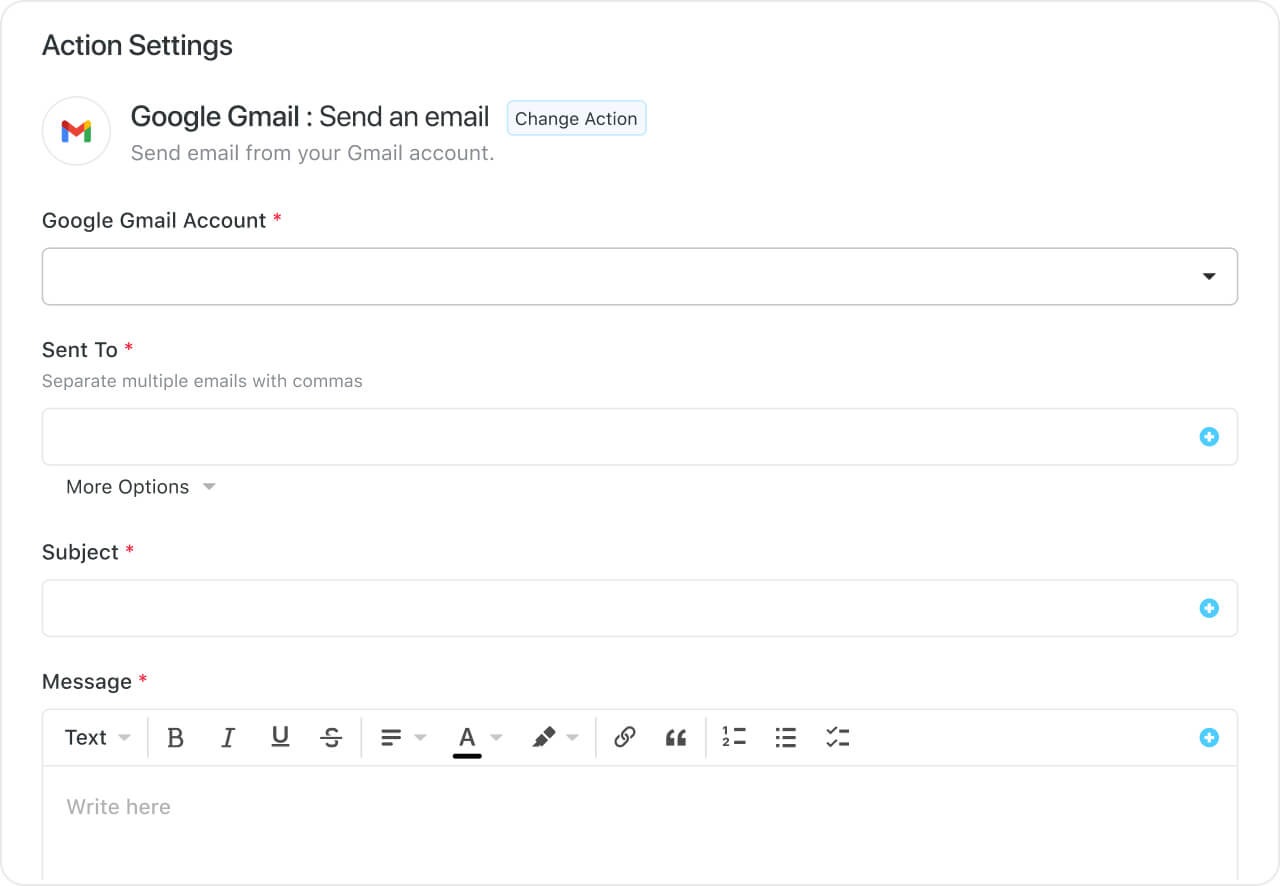
  • Pinnacle: Native Power BI integration, locked spaces, and budgeting features. Contact sales for a quote.

Wrike Pros and Cons

✅ 400+ integrations, including marketing and advertising tools.

✅ Generous free plan with unlimited users.

✅ Offers advertising-specific project templates.

❌ Steep learning curve because of overwhelming features.

❌ The budgeting feature is limited to Pinnacle plan users.

#10: Workzone

Best for: Managing high volume repeatable projects.

Workzone is an easy to use solution to meet project deadlines and stay on budget. 

It’s known for its simplicity and robust features, including built-in collaboration, customizable reporting dashboards, and workload management.

Who is it For?

Companies looking to start or scale their professional service offering within budget.

Workzone’s Top Features

  • Time tracking: Assess how much time is spent on a project and individual tasks. You can nitpick areas for improvements to meet the project’s goals.
  • Project dashboard: Provides a holistic view of all your marketing projects— campaign statuses, project organization by department, campaign, or client.
  • File management: Supports secure file sharing, image markups, and file versioning, facilitating seamless collaboration on marketing assets and documents.

Workzone Pricing

Workzone doesn’t offer any free plan, and the free trial is available only after a one-on-one demo with their team.

The platform has three pricing tiers:

  • Team: Starts at $24/user/month with a minimum of 5 seats. The plan includes 100GB storage, resource management, expense tracking, and Gantt charts.
  • Professional: Starts at $34/user/month, including Custom project intake forms, advanced capacity planning, and 150 GB storage.
  • Enterprise: Cross-project dependencies, custom workflows, advanced time tracking reports, and workspace groups. Contact sales for a quote.

Workzone Pros and Cons

✅ Clean and easy-to-use interface.

✅ Time tracking and resource management are included in all plans.

❌ Cross-project dependencies are available only on the enterprise plan.

❌ No native communication. Collaboration is possible through comments only.

Manage Professional Service Projects Like a Pro With SmartSuite

While each software we’ve covered has its strengths—whether it’s Teamwork’s client management, Asana’s workflow flexibility, or Monday.com’s visual approach—finding the perfect fit comes down to your specific needs.

Think about what matters most to your team:

Do you need robust resource management? Detailed time tracking? Client collaboration tools? Maybe you’re looking for a cost-effective tool that scales with your business.

After reviewing all these options, SmartSuite stands out as the clear winner for most professional service firms.

Here’s why: it strikes the sweet spot between advanced features and user-friendly design that so many tools miss. 

You get everything you need—customizable workflows, detailed reporting, time tracking, and client collaboration—without the overwhelming complexity or steep learning curve.

And, its pricing flexibility is what really sets it apart. The generous free plan offers access to advanced features such as automated workflows. 

Plus, with 200+ pre-built templates, you can hit the ground running instead of spending weeks setting up your workflows.

Ready to take your project management to the next level? Give SmartSuite a try with their 14-day free trial or sign up for a free plan. You might just find it’s the solution you’ve been looking for.

Software Stack Editor · December 23, 2024 ·

image

Skyvia expands its portfolio of data integration tools with the release of the SmartSuite connector, empowering organizations to efficiently manage workflows by integrating data with other business-critical applications.

Skyvia, a universal cloud data platform, has announced the release of its new connector for SmartSuite. This latest addition to Skyvia’s growing collection of over 190 connectors is designed to support seamless data integration for SmartSuite users, enabling businesses to synchronize, replicate, and query SmartSuite data alongside other cloud applications and relational databases. SmartSuite, a collaborative work management platform, helps teams at every organizational level plan, track, and manage workflows—including projects, ongoing processes, and everyday tasks.

Integrating SmartSuite with Skyvia for Enhanced Workflow Management

Skyvia’s SmartSuite connector enables seamless integration between Skyvia and SmartSuite, helping users to effortlessly manage and sync their SmartSuite data with other systems.

Key features of the Skyvia and SmartSuite integration include:

  • Data Integration: Easily import, export, and synchronize SmartSuite data with other cloud apps and databases. Skyvia supports bidirectional data sync, ensuring data consistency across platforms.
  • Replication: Replicate SmartSuite data to a relational database, enabling advanced analysis and reporting with commonly used database tools.
  • Query: Skyvia Query allows users to retrieve, filter, and analyze SmartSuite data directly through a simple online SQL interface.

About Skyvia 

Skyvia is a universal cloud data platform for ETL, ELT, Reverse ETL, workflow automation, data migration, one-way and bidirectional data synchronization, real-time connectivity, and more. With a vast library of 190+ connectors, Skyvia provides seamless integration among various cloud applications, databases, and data warehouses, including Salesforce, Dynamics CRM, QuickBooks Online, SQL Server, Amazon Redshift, Google BigQuery, and others.  

Key Solutions: 

  • ETL, ELT and Reverse-ETL 
  • Workflow Automation 
  • SaaS Backup & Restore 
  • Real-Time Connectivity 
  • Online SQL Query Builder 

Skyvia offers flexible pricing plans for each product, making it suitable for businesses of any size. The company is trusted by thousands of organizations in over 120 countries. 

About SmartSuite

SmartSuite is a collaborative work management platform that enables teams to plan, track, and manage workflows, including projects, ongoing processes, and daily tasks. It helps coordinate people and work across all levels of an organization to ensure team members have the information they need to complete their most important tasks. With over 200 industry-leading templates, SmartSuite allows users to quickly create tailored workflows for any scenario, from simple to complex.

https://softwarestack.tech/107964-2/

Creating Reports Across Records Using Fixed Date Ranges

Software Stack Editor · December 9, 2024 ·

Hello and welcome back to another enlightening episode of SmartTips! My name’s Gavin Brennen, and as your guide from SmartSuite, I’m here to simplify your reporting woes. Today, we’re diving into the nitty-gritty of creating reports across records using fixed date ranges. It might sound like a mouthful, but I’ll break it down for you step by step.

[embedded content]

Imagine you’re part of a bustling sales department. Meetings are abundant, and keeping track of progress through endless records is daunting. But don’t worry, today we’re simplifying that process using SmartSuite’s automation features.

Understanding the Basics

Our journey begins with a demo featuring a table of meetings. Think of this as a snapshot of your sales department’s operations—a variety of team members, assorted sales teams, meeting dates, and status updates.

The Key Players in Our Scenario

  • Leads: Representing different team members.
  • Meeting Table: Recording each meeting’s date and status.
  • Sales Team: Linking different members to specific teams.
  • Results Table: Where automation works its wonders.

Here’s how it unfolds: within the results table, we’ve enabled automation. Select the Northwest sales team, for instance, and specify a start and end date. Imagine choosing the month of December.

Automation in Action

When you feed in your criteria, the meetings table will auto-populate with records exclusive to that date range and sales team. Just like magic, only logically consistent and highly efficient!

Here’s how the magic unfolds:

  • Meetings that fall between December 1st and December 31st and belong to the Northwest sales team appear in your results table.
  • Hit a button, and a neatly organized PDF materializes, detailing all crucial information as per your Document Designer setup.

Behind-the-Scenes Peek: The Automations

Now, what’s the science behind this sorcery? It boils down to a couple of tweakable automations.

  1. Linking Meetings to Results: Upon creating a new record in the results table, we find and link meetings matching the specified criteria.
  2. Generating the Report PDF: This employs the Document Designer to compile meeting details into a report format, adding a copy to your record.

Tweaking the First Automation:

  • Condition Setting: Identify records in the meeting table based on start and end date and ensure team consistency.
  • Record Linking: Update these meeting records to link back to the results table.

The Simple Second Automation:

  • Trigger: When a record’s status shifts (yes/no field transition), invoke PDF creation.
  • Document Designer: Use the pre-formed template to encapsulate all relevant meeting data.

Unleashing the Power of Document Designer

If you haven’t explored SmartSuite’s Document Designer yet, now’s a perfect time. This tool lets you craft templates with ease, pulling details like start and end dates, sales teams, and meeting results into a cohesive document. Make your reports not just functional, but visually appealing and informative.

Why Automate?

Automation simplifies your workflow, ensuring precision and saving time. By harnessing these tools, you streamline the data headaches, allowing you to focus on the actions that drive success.

“Automation doesn’t just change the game; it turns data chores into opportunities for strategic insight.”

Endless Possibilities

The techniques we discussed aren’t limited to this scenario. You have a wide array of applications—scale it up or down, customize forms, broaden your templates, and watch efficiency take root. Experiment with these features and share your experiences!

Your Turn

Have you found this guide useful? Got questions or ideas on enhancing report automation? Drop your thoughts in the comments below. We’re excited to see how you leverage automation in your projects.

Until the next round of Smart Tips, enjoy crafting your data with Smarts.

By wrapping these insights into your arsenal, you’re not just keeping pace with tech, you’re leading the charge—simplifying, automating, excelling. Cheers to smarter strategies and data mastery!

Asana, ClickUp, or SmartSuite? Discover the Best Fit for You

Software Stack Editor · December 9, 2024 ·

Choosing the right project management software is a critical decision for any business, and with so many options available, the process can feel overwhelming.

This article presents a detailed, unbiased comparison of Asana. vs ClickUp. vs SmartSuite, based on thorough research and a clear analysis of features, integrations, and pricing. 

By the end, you’ll have all of the information you need to make an informed decision tailored to your team’s needs.

TL;DR

  • SmartSuite offers the best value-for-money project management software with advanced features like built-in team communication, 8+ work views, and automations.‍
  • Asana excels with its goal tracking and automation bundling feature but comes with a hefty price tag and a minimum of two user seats.‍
  • ClickUp is best for customizing your project management workspaces and collaborating through visual planning tools, but it can turn overwhelming with too many options available.

Asana vs. ClickUp vs. SmartSuite: Feature Comparison

SmartSuite Features

SmartSuite is among the best project management tools that let you manage all your projects on a centralized platform with built-in automation and a communication center.

Comprehensive project management

SmartSuite’s project management feature helps you plan, track, and manage simple to complex projects.

To simplify the process, you get numerous built-in intuitive features to execute your tasks perfectly.

Here’s what we have in store for you.

  • Smart task management: You can turn any item field into a task—a checklist item, comments, or sub-item. With this flexibility, you can easily build a solid task list and assign it to the right person with a due date and priority status.
  • Project phases and milestones: Having milestones ensures your project stays on track and moves towards the objective. With SmartSuite, you can set them, monitor through your reporting dashboard, and flag issues.
  • Files and project deliverables: With SmartSuite, you can manage and organize all your documents. You can also attach project-related files, share feedback with your team, and manage version history, all within your work context.

SmartSuite supports formats like PDF, GIF, CSV, PNG, and MP4. 

The tool also integrates with Dropbox, Google Drive, Box, and Microsoft OneDrive, making adding files to your workflows easy.

Also, you can add images directly in SmartSuite by connecting your social media and Unsplash accounts.

  • Native time tracking: Monitor and evaluate task and project completion times. Built-in tracking helps group time entries see estimates and segment billable and non-billable entries.

Team collaboration

SmartSuite outperforms Asana with its built-in communication and collaboration features. You can connect with peers in group chats or 1:1 conversations for quick feedback and keep stakeholders updated.

SmartSuite’s members’ directory provides a holistic view of the project team by examining each teammate’s details, such as availability status, job profile, and other relevant information.

Like the other two project management software, you can use comments and @mentions to share updates, nudge teammates, or add new people to the conversation.

Comprehensive project reporting

SmartSuite offers a dynamic project analytics tool with configurable charts and graphs.

The reporting dashboard helps you track project performance, understand resource allocation, and identify slow-moving projects. 

Based on these insights, you can quickly develop plans to overcome roadblocks and get the project back on track.

You can visualize reporting in Grid, Card, Kanban boards, Timeline, Map, Calendar, or Dashboard views. Add as many as needed to build a visual storyboard for your project’s progress.

To share reports with stakeholders or clients, you can make the report public and share the necessary access. 

SmartSuite also supports printing or exporting PDF, Excel, Google Sheets, or CSV format.

Advanced workflow automation

SmartSuite’s no-code automation builder is one of the most intuitive, giving a neck-to-neck competition in automation.

You can assemble automation at the task and project and automate repetitive tasks based on triggers like changing dates, sending notification emails, or updating statuses. 

There are six pre-defined triggers and 15+ actions, with options to build custom ones.

SmartSuite is the right choice if you:

✅ Need a user-friendly interface with drag-and-drop customization.

✅ Need a platform that can adapt to various business processes.

✅ Want to centralize team communication and collaboration.

✅ Want affordable and feature-packed software.

SmartSuite isn’t the best option if you:

❌ Need extensive third-party integrations, as SmartSuite is still building and offers fewer options than ClickUp and Asana.

Asana Features

Advanced dashboard and data visualization

Asana lets you create detailed custom dashboards with visual elements like line charts, bar graphs, tables, progress bars, and more. Each dashboard is customizable, letting you present project information in the most preferred way to your team members and external stakeholders.

You can pull data from multiple sources, and each chart gets updated in real-time.

Workflow automation

Asana is known for its automated workflows. It helps you create and manage automated processes to eliminate manual tasks. 

You can also create automation bundles catering to specific projects and use the same automation across projects, standardizing the work.

Goals and reporting

Through Asana’s detailed reporting features, you can create project and company-wide goals and track progress over time. 

It helps you connect each task to the bigger goals, provide visibility into how milestones and portfolios contribute to objectives, and keep your team focused on tasks with the highest impact on the bottom line.

Asana is best suited if:

✅ Your organization prioritizes goal-setting and aligning work with company objectives.

✅ You need robust data visualization and reporting capabilities for project insights.

✅ Your team requires a clean, intuitive interface with a focus on task and project management.

Asana may not be ideal if:

❌ You’re working with a tight budget, as Asana can be expensive for large teams.

❌ Your team needs extensive collaboration tools, as Asana doesn’t offer competing tools in this area.

❌ You require phone-based customer support, which Asana doesn’t provide.

💡 Check out affordable and collaborative alternatives to Asana.

ClickUp Features

ClickApps

ClickApps are built-in features that allow you to customize the workspace by turning on/off certain features. 

You can enable ClickApps for an entire Workspace or individual space, offering flexibility in work management. 

For example, you can turn off this feature if your team doesn’t need time tracking for a certain workspace.

ClickApps helps you reduce unnecessary apps or features and simply work management across your entire team.

Visual collaboration tools

ClickUp offers built-in collaboration tools like Docs and Whiteboards to boost transparency and team productivity.

With Whiteboards, you can conduct project planning, build work breakdown structure, and outline dependencies. 

Docs help you build detailed training material, style guides, or project charters. All of this can be easily shared among team members. 

Additionally, you can invite teams to leave comments or collaborate on these docs in real-time.

‍

Automated recurring tasks

With ClickUp automation, you can set up recurring tasks to eliminate manual tasks. 

You can customize repetition schedules to match your work cycles and project needs to ensure consistency throughout the project timeline.

ClickUp is best suited if:

✅ Your team uses visual planning tools and needs a centralized place to communicate and collaborate.

✅ You need control over every aspect of your workspace.

ClickUp may not be ideal when:

❌ You prefer a simpler, less cluttered interface, as ClickUp’s design can turn overwhelming over time.

❌ You require faster load times, as some users report issues with ClickUp’s performance.

💡 Check out our comprehensive guide to easy-to-use ClickUp alternatives.

Integrations: Asana vs. ClickUp vs. SmartSuite

SmartSuite Integrations

SmartSuite integrates with major platforms, from communication to social media. 

It offers five connectors, including Zapier, Ply, Integrately, Relay, and Make, to connect with 1000s of apps to transfer data.

Some of the notable integrations are:

  • Salesforce.
  • Slack.
  • Twilio.
  • Jira Cloud.
  • HubSpot.
  • Intercom.

Asana Integrations

Asana’s integration suite has advanced tools for team communication, finance, productivity, and connectors. 

Compared to the other two tools, Asana cast a wider net with its connectors, including Clari Connect, portable, Workato, Power BI, Tableau, and Microsoft Power Automate.

It offers an open AI for custom integrations, like SmartSuite and ClickUp.

Here are Asana’s key integrations

  • Figma.
  • Salesforce.
  • Hubspot.
  • Bynder.
  • DocuSign.
  • Notion.

ClickUp Integrations

ClickUp offers a range of integrations, some built-in while others requiring paid plans.

  • Native integrations: ClickUp offers 45+ native integrations with tools like Slack, Hubspot, Microsoft & Google Workspace, Figma, Vimeo, Zendesk, and Discord
  • Automatic imports: You can also import your data from other project management apps like Monday.com, Jira, Basecamp, and Todoist.

Apart from this, ClickUp offers API, web connectors like Tableau, and webhooks to expand what you can do with the tool.

⭐️ Winner: Asana

Asana wins for enterprise-grade teams due to its advanced tools, open API, and analytics integrations (Power BI, Tableau). It’s the go-to option for organizations seeking data-driven decision-making and advanced scalability.

Pricing: Asana vs. ClickUp vs. SmartSuite

SmartSuite Pricing

SmartSuite offers a forever-free plan that gives you access to 100 automated triggers, team collaboration tools, 7+ task views (Dashboard, table, boards, cards, list, calendar, and grid), time tracking, and more.

We offer four paid plans, each with a 14-day free trial.

  • Team: Starts at $10/user/month, including 8+ dashboard views, 5000 automation runs, time tracking, and collaborative SmartDocs.
  • Professional: Starts at $25/user/month, including two-factor authentication, Gmail & Outlook integrations, and unlimited editors.
  • Enterprise: Starts at $35 per user/month, including audit logs, data loss prevention, and 50,000 API calls monthly.
  • Signature: Customized plan tailored to your organization’s needs and team size.

Asana Pricing

Asana offers a free plan for up to 10 users and four pricing plans with a 30-day free trial. Asana’s paid plans are as follows:

  • Starters: Starts at $10.99 per user/month, with up to 500 teammates collaboration, Asana AI, and unlimited activity logs.
  • Advanced: Starts at $24.99 per user/month, with 25,000 automation per month, scaled security, advanced reporting, and goal tracking.
  • Enterprise: Advanced integrations, unlimited seats, custom branding, and premium support. Contact sales for a quote.
  • Enterprise+: Audit log API, HIPAA compliance, and data loss prevention integrations. Contact sales for a quote.
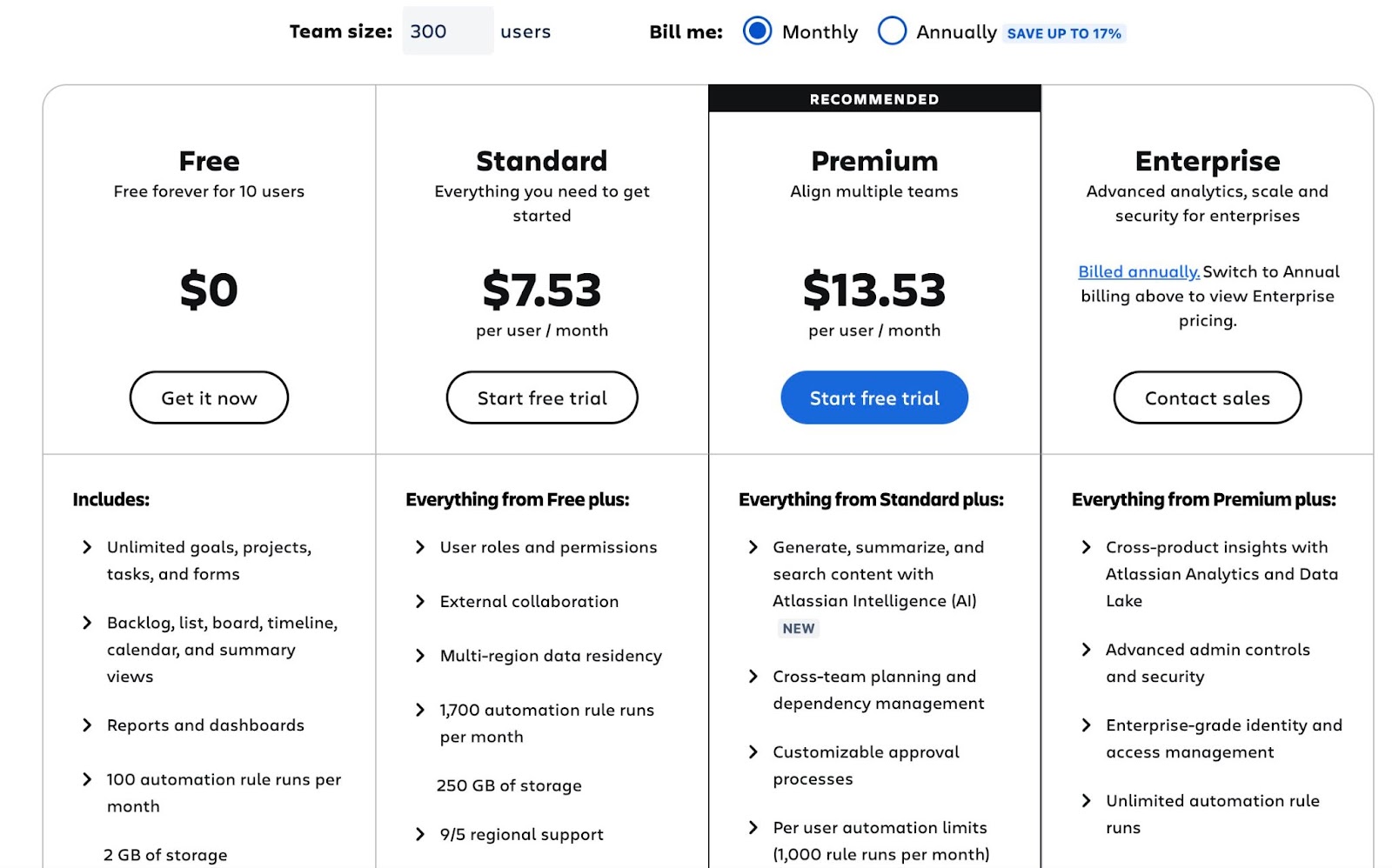
ClickUp Pricing

ClickUp’s free plan offers unlimited task creation and guest invites with full access. They have three paid plans:

  • Unlimited: Starts at $10 per user/month, offers unlimited custom views, two-factor authentication, timesheet reporting, and 100 mind map creation.
  • Business: Starts at $19 per user/month, offers private docs, sprint reporting, and all dashboard views.
  • Enterprise: White labeling, top-notch security, Tableau web connector, and enterprise AI. Contact sales to get a quote.

⭐️ Winner: SmartSuite

SmartSuite strikes the perfect balance of price, features, and scalability, making it ideal for teams of any size. It outshines Asana and ClickUp in automation triggers and task management features and provides enterprise-level automation and security at mid-tier pricing ($25/user/month for Professional vs. Asana’s $24.99).

Customer Reviews: Asana vs ClickUp vs SmartSuite?

SmartSuite Reviews

G2 rating: 4.8/5

What users love:

  • Intuitive interface and quick setup.
  • Built-in communication features.
  • Flexible customization options.
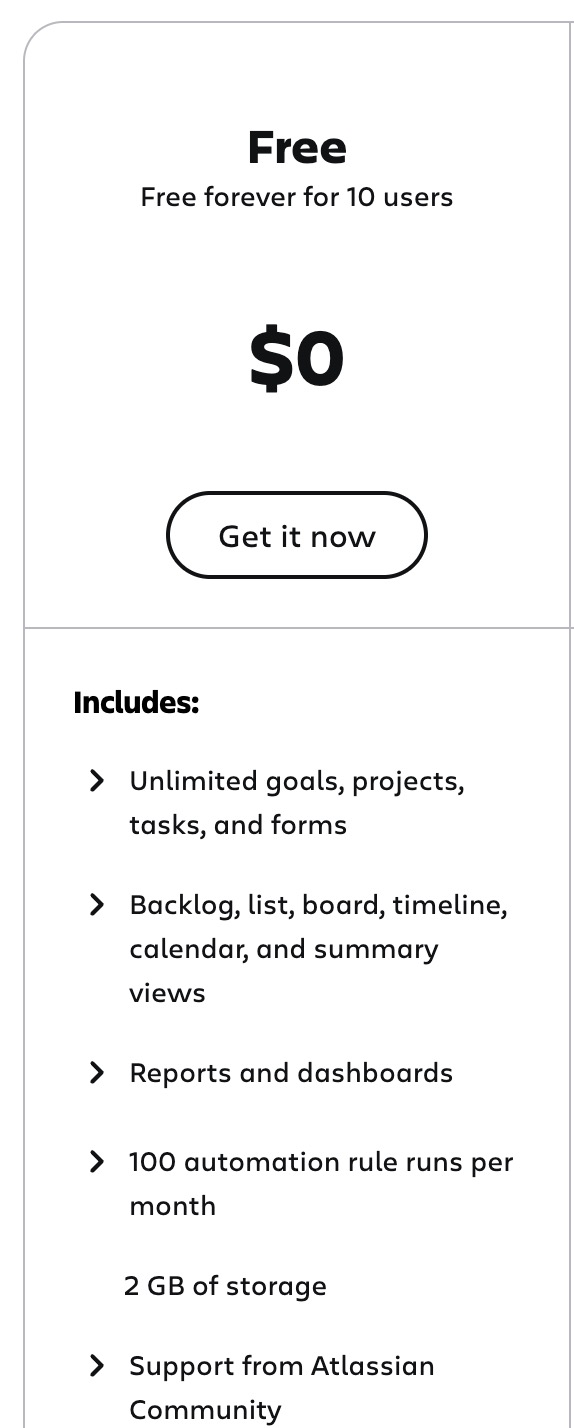
  • Good value-for-money when compared to competitors.
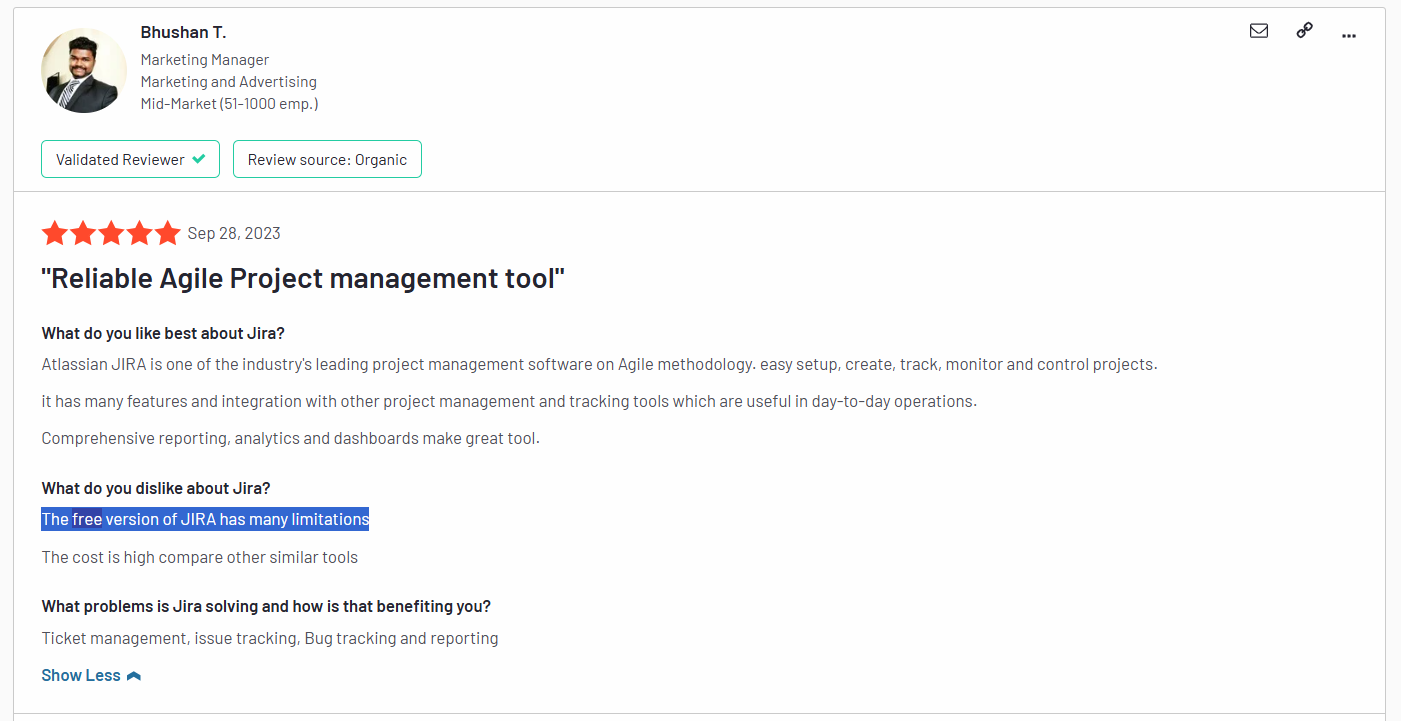
Source

Source

Common complaints:

  • Limited integration options compared to established competitors.
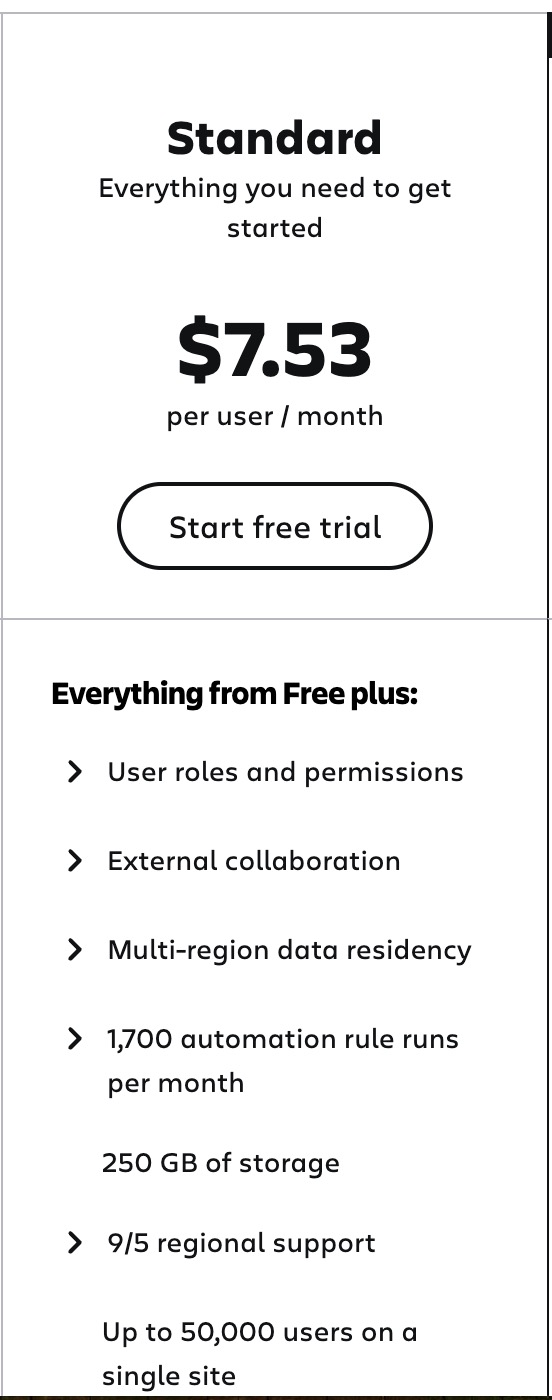
  • Some advanced features are still in development.
  • Newer platform with a smaller user community.
  • Occasional performance issues with larger datasets.

Source

Asana Reviews

G2 rating: 4.4/5

What users love:

  • Clean and intuitive interface.
  • Strong goal-tracking features.
  • Reliable mobile app.
  • Excellent for task dependencies.

Source

Common complaints:

  • Limited to one assignee per task.
  • Timeline view can be confusing with subtasks.
  • Missing native time tracking.
  • Higher-tier plans are needed for essential features.

Source

Source

ClickUp Reviews

G2 rating: 4.7/5

What users love:

  • Custom dashboard creation.
  • Integration with connective platforms like Zapier.
  • Built-in team communication (ClickUp Chat), time tracking, and document creation.

Source

Source

Common complaints:

  • An extensive range of features comes with a huge learning curve, especially for project management novices.
  • Slow loading speed for dashboard spaces, especially when multiple people are working.
  • Feature usage limitations often push users to jump to higher-tier plans.

Source

Source

The Bottom Line

After evaluating SmartSuite, Asana, and ClickUp across key parameters like features, pricing, and integrations, it’s clear that each project management software serves different team sizes, use cases, and budget requirements.

To give you the key takeaway, here’s when to choose each platform:

  • Choose Asana if you use linear project methodology, rely heavily on automation, and have a huge budget to invest.
  • Choose ClickUp if you desire customization and centralized team collaboration.
  • Choose SmartSuite if you need all-in-one to centralize project management processes at a competitive price point.

You can begin exploring SmartSuite today with our tool’s generous free plan, schedule a personalized demo, or jump right in with a free trial to explore its features.

‍

Emma Montgomery

Software Stack Editor · December 9, 2024 ·

You’re Subscribed 🎉

Thank you very much and you won’t regret it !

Oops! Something went wrong while submitting the form.

.blog-filters-pill-main-alter.active,
.blog-filters-pill-main.active {
color: #2E3538;
}

.blog-filters-pill-main .video-tabs-horizontal-line,
.blog-filters-pill-main-alter .video-tabs-horizontal-line {
opacity: 0;
}

.blog-filters-pill-main.active .video-tabs-horizontal-line,
.blog-filters-pill-main-alter.active .video-tabs-horizontal-line {
opacity: 1;
}

.blog-filters-pill-secondary.active {
background-color: #E7F0FE !important;
border-color: #3A86FF4D !important;
}

@media only screen and (max-width: 767px) {
.blog-filter-secondary-categories-list-alter .w-condition-invisible {
display: flex !Important;
}
.blog-filter-secondary-categories-list-alter .w-condition-invisible.blog-filters-pill-secondary-alter {
padding-left: 0 !Important;
}

.blog-filters-pill-main .video-tabs-horizontal-line,
.blog-filters-pill-main-alter + .video-tabs-horizontal-line {
display: none !Important;
}
}

.blog-subscribe-input {
box-shadow: 0px 11.75px 15.25px 0px #00000005, 0px 5px 18px 0px #0000000D;
}

@media only screen and (min-width: 992px) {
.blog-subscribe-input:hover {
box-shadow: 0px 0.7512931227684021px 3.881680965423584px 0px #00000005, 0px 12px 31px 0px #0000001A;
}

.blog-subscribe-input:focus {
box-shadow: 0px 0.7512931227684021px 3.881680965423584px 0px #00000005, 0px 12px 31px 0px #0000001A;
}
}

.blog-post-item {
grid-area: span 1/span 3 /span 1/span 3;
align-self: stretch;
}

@media screen and (min-width: 1280px) {
.blog-post-item {
grid-column: span 2/span 2;
}
}

@media screen and (max-width: 767px) {
.blog-post-item {
grid-column: span 6/span 6;
}

.secondary-items {
height: 0px;
opacity: 0;
}

.blog-filters-pill-secondary-alter.w-condition-invisible {
display: flex !Important;
}
}

@media only screen and (min-width:768px) {
.blog-filter-secondary-categories-item.w-dyn-item:nth-child(-n+6) {
display: none;
}
}

.blog-filters-pill-main-v2.active .icon-16×16 {
transform: rotate(-0deg);
}

@keyframes fadeOut {
from {
opacity: 1;
}
to {
opacity: 0;
}
}

@keyframes fadeIn {
from {
opacity: 0;
}
to {
opacity: 1;
}
}

@media only screen and (min-width: 768px) {
.blog-filter-secondary-categories-item:nth-child(-n+7) {
display: none;
}
}

@media only screen and (min-width: 992px) {
p a:hover {
text-decoration: none;
}
}

p a {
color: #3A86FF ;
text-decoration: underline;
}

p a:visited {
color: #0931B9 !important;
}

One Platform for Managing Work

Software Stack Editor · December 9, 2024 ·

image

Accolades from Industry Experts

Our commitment to providing the best work management solutions has been recognized by top industry analysts. We’re proud to be a 2023 leader on Capterra’s Shortlist, Software Advice’s Frontrunners, and GetApp’s Category Leader.

Jon Darbyshire

Software Stack Editor · December 9, 2024 ·

You’re Subscribed 🎉

Thank you very much and you won’t regret it !

Oops! Something went wrong while submitting the form.

.blog-filters-pill-main-alter.active,
.blog-filters-pill-main.active {
color: #2E3538;
}

.blog-filters-pill-main .video-tabs-horizontal-line,
.blog-filters-pill-main-alter .video-tabs-horizontal-line {
opacity: 0;
}

.blog-filters-pill-main.active .video-tabs-horizontal-line,
.blog-filters-pill-main-alter.active .video-tabs-horizontal-line {
opacity: 1;
}

.blog-filters-pill-secondary.active {
background-color: #E7F0FE !important;
border-color: #3A86FF4D !important;
}

@media only screen and (max-width: 767px) {
.blog-filter-secondary-categories-list-alter .w-condition-invisible {
display: flex !Important;
}
.blog-filter-secondary-categories-list-alter .w-condition-invisible.blog-filters-pill-secondary-alter {
padding-left: 0 !Important;
}

.blog-filters-pill-main .video-tabs-horizontal-line,
.blog-filters-pill-main-alter + .video-tabs-horizontal-line {
display: none !Important;
}
}

.blog-subscribe-input {
box-shadow: 0px 11.75px 15.25px 0px #00000005, 0px 5px 18px 0px #0000000D;
}

@media only screen and (min-width: 992px) {
.blog-subscribe-input:hover {
box-shadow: 0px 0.7512931227684021px 3.881680965423584px 0px #00000005, 0px 12px 31px 0px #0000001A;
}

.blog-subscribe-input:focus {
box-shadow: 0px 0.7512931227684021px 3.881680965423584px 0px #00000005, 0px 12px 31px 0px #0000001A;
}
}

.blog-post-item {
grid-area: span 1/span 3 /span 1/span 3;
align-self: stretch;
}

@media screen and (min-width: 1280px) {
.blog-post-item {
grid-column: span 2/span 2;
}
}

@media screen and (max-width: 767px) {
.blog-post-item {
grid-column: span 6/span 6;
}

.secondary-items {
height: 0px;
opacity: 0;
}

.blog-filters-pill-secondary-alter.w-condition-invisible {
display: flex !Important;
}
}

@media only screen and (min-width:768px) {
.blog-filter-secondary-categories-item.w-dyn-item:nth-child(-n+6) {
display: none;
}
}

.blog-filters-pill-main-v2.active .icon-16×16 {
transform: rotate(-0deg);
}

@keyframes fadeOut {
from {
opacity: 1;
}
to {
opacity: 0;
}
}

@keyframes fadeIn {
from {
opacity: 0;
}
to {
opacity: 1;
}
}

@media only screen and (min-width: 768px) {
.blog-filter-secondary-categories-item:nth-child(-n+7) {
display: none;
}
}

@media only screen and (min-width: 992px) {
p a:hover {
text-decoration: none;
}
}

p a {
color: #3A86FF ;
text-decoration: underline;
}

p a:visited {
color: #0931B9 !important;
}

  • « Go to Previous Page
  • Page 1
  • Page 2
  • Page 3
  • Page 4
  • Page 5
  • Page 6
  • Interim pages omitted …
  • Page 10
  • Go to Next Page »

Get your Software Stack together. softwarestack.tech

Software Stack

© 2024–2025 - Software Stack is a trading name of SouthwestCIO Limited ac ompany registered in England & Wales 11319049

  • Knowledgebase
  • Home
  • About Us
  • Contact Us